Nifty Save as Root: Edit Protected Files with sudo
Save files you don't have permission to write: Retry as Root when a save fails, or Save as Root with sudo, keeping owner, group and mode. Open unreadable files as root too. Linux, macOS, SSH, WSL.
Maintained. No sign-in. No telemetry. Works in VS Code, Cursor, Windsurf, VSCodium and other editors that use Open VSX.
Features
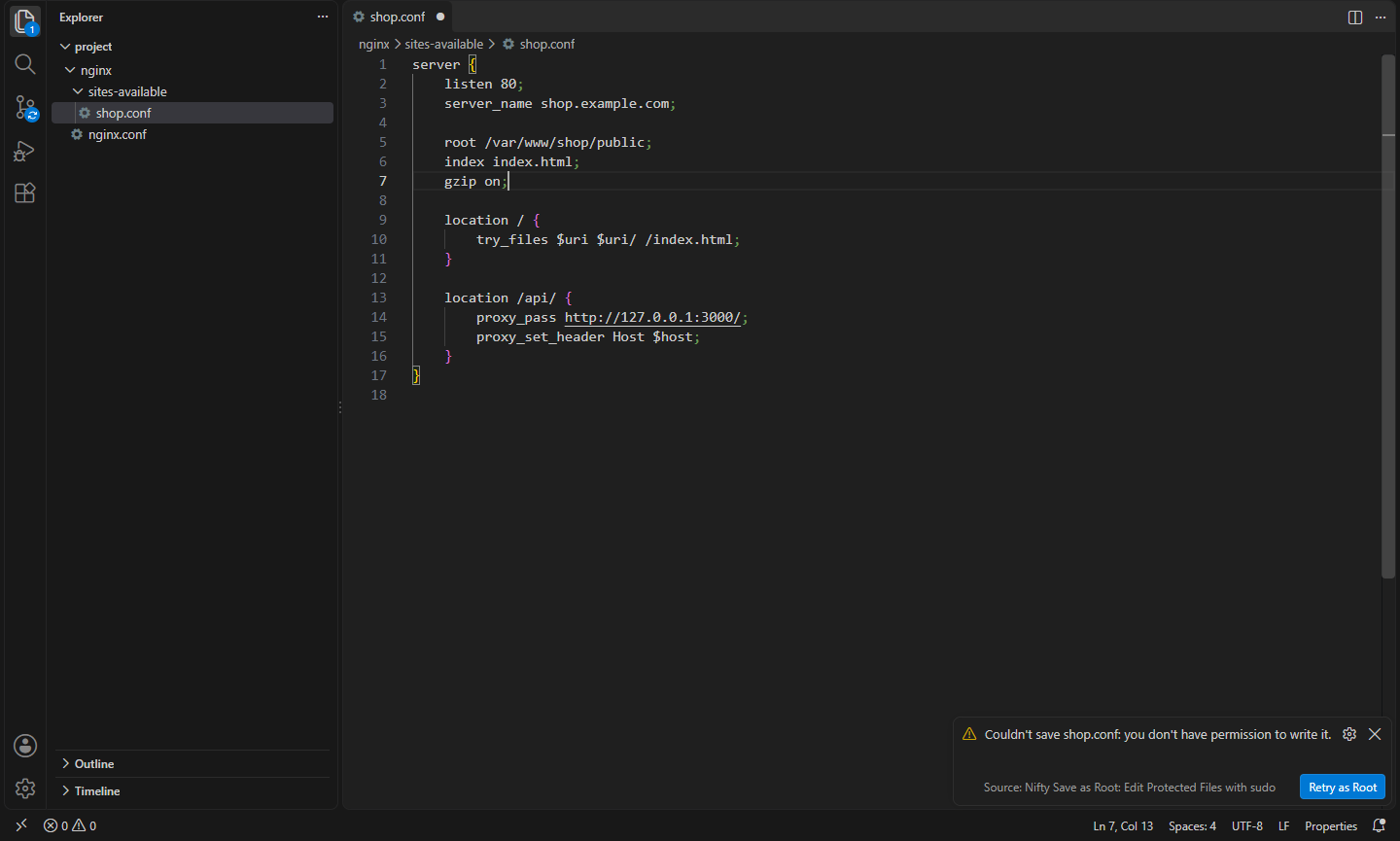


- Retry as Root. Edit
/etc/hosts, an nginx config or a systemd unit, press Save, and when it fails for lack of permission you're offered Retry as Root. The editor is saved and marked saved, with your edits.
- Save as Root from the Command Palette or the editor tab's context menu, whenever you know you'll need it.
- Owner, group and mode are kept. The file is written in place (
cp over it as root), so a root:root 644 file stays root:root 644, and a file owned by www-data stays theirs. Afterwards the owner, group, mode and content are checked, and put back if anything changed. New files get owner root and mode 644, with the folder's group when that isn't root's (so a new page in a www-data folder under /var/www or /srv stays in that group).
- Open as Root for files you can't even read (like
/etc/sudoers.d/* or a 600 key file): when opening one fails you're offered Open as Root, and it's in the Explorer's context menu. The editor reads and saves the file through sudo, so saving it is just Ctrl+S.
- Your password stays yours. sudo is first run with
-n, so passwordless sudo and sudo's own cached credentials (the usual few minutes after you last typed it) don't ask at all. Otherwise the password is asked in a masked input box and handed to sudo -S on its standard input: it's never stored, never logged and never on a command line. A wrong password is asked again, like in a terminal.
- Works over Remote SSH and in WSL. It's a workspace extension, so in a remote window it runs on the remote machine and uses sudo there.
- pkexec instead of sudo on Linux desktops, if you prefer your desktop's own password dialog (
nifty.sudo-save.method).
Commands
| Command |
What it does |
Nifty Save as Root: Save as Root |
Save the current editor as root (keeping the file's owner, group and mode) |
Nifty Save as Root: Open as Root |
Open a file as root, for reading and saving through sudo |
Settings
| Setting |
Default |
What it does |
nifty.sudo-save.method |
sudo |
sudo (password asked in VS Code) or pkexec (your desktop's password dialog; Linux desktops only, not over SSH) |
nifty.sudo-save.offerOnPermissionError |
true |
Offer Retry as Root when a save fails for lack of permission, and Open as Root when a file can't be read |
nifty.sudo-save.sudoPath |
|
Path to sudo, if it isn't on the PATH |
nifty.sudo-save.pkexecPath |
|
Path to pkexec, if it isn't on the PATH |
Good to know
- Windows isn't supported: there's no sudo with the same meaning there, so the commands are hidden in local Windows windows. Open the folder over Remote SSH or in WSL to edit that machine's protected files.
- How a save works: your text is written to a private temporary file (readable only by you),
sudo cp copies it over the file, and the temporary file is removed. Only cat, cp, stat, chown and chmod run as root.
- If your sudo is set up with
requiretty, it only works in a terminal, and the extension tells you so.
- Files are saved as UTF-8 (a byte order mark is kept if the file had one). Reopen files in other encodings with UTF-8 first.
- Creating, renaming and deleting files as root aren't supported; use a terminal for those.
Install
- VS Code: search for "Nifty Save as Root" in the Extensions view, or install from the Visual Studio Marketplace.
- Cursor, Windsurf, VSCodium, Kiro, Antigravity: install from Open VSX.
Privacy
This extension collects no telemetry and needs no account. Your sudo password is never stored or logged.
- Nifty Monitor: CPU & Memory in the Status Bar: CPU, memory and disk usage in the status bar, including on remote SSH machines and dev containers. (Open VSX)
- Nifty Persistent Terminals: tmux & screen Sessions: Terminals that survive disconnects and reloads: a tmux or screen session per workspace folder, restored after a reload, and a Sessions view to attach, rename or kill. Works over Remote SSH and WSL. (Open VSX)
- Nifty Slurm: HPC Jobs & #SBATCH Support: Slurm for HPC clusters: see your jobs, cancel, hold or open their output, submit batch scripts, and get completion, docs and checks for #SBATCH directives. Works over Remote SSH. (Open VSX)
- Nifty .NET Explorer: Solution & Test Explorer: A solution explorer and test explorer for .NET in VS Code, Cursor, Windsurf and VSCodium: projects, references and files from .sln/.slnx, and xUnit, NUnit and MSTest tests in the Testing view. (Open VSX)
- Nifty .NET Pack: 5 Nifty extensions for C# and .NET development: .NET Explorer, NuGet, C# Templates, XAML, C# Scratchpad. (Open VSX)
- Nifty Actions: Workflow Checks, SHA Pinning & act: GitHub Actions workflows without sign-in: completion and go to definition for local and reusable actions, actionlint checks, pin actions to commit SHAs, and run jobs locally with act. (Open VSX)
See all 100+ Nifty extensions and web tools at https://getnifty.dev
| |

