Nifty Persistent Terminals: tmux & screen Sessions
Terminals that survive disconnects and reloads: a tmux or screen session per workspace folder, restored after a reload, and a Sessions view to attach, rename or kill. Works over Remote SSH and WSL.
Maintained. No sign-in. No telemetry. Works in VS Code, Cursor, Windsurf, VSCodium and other editors that use Open VSX.
Features

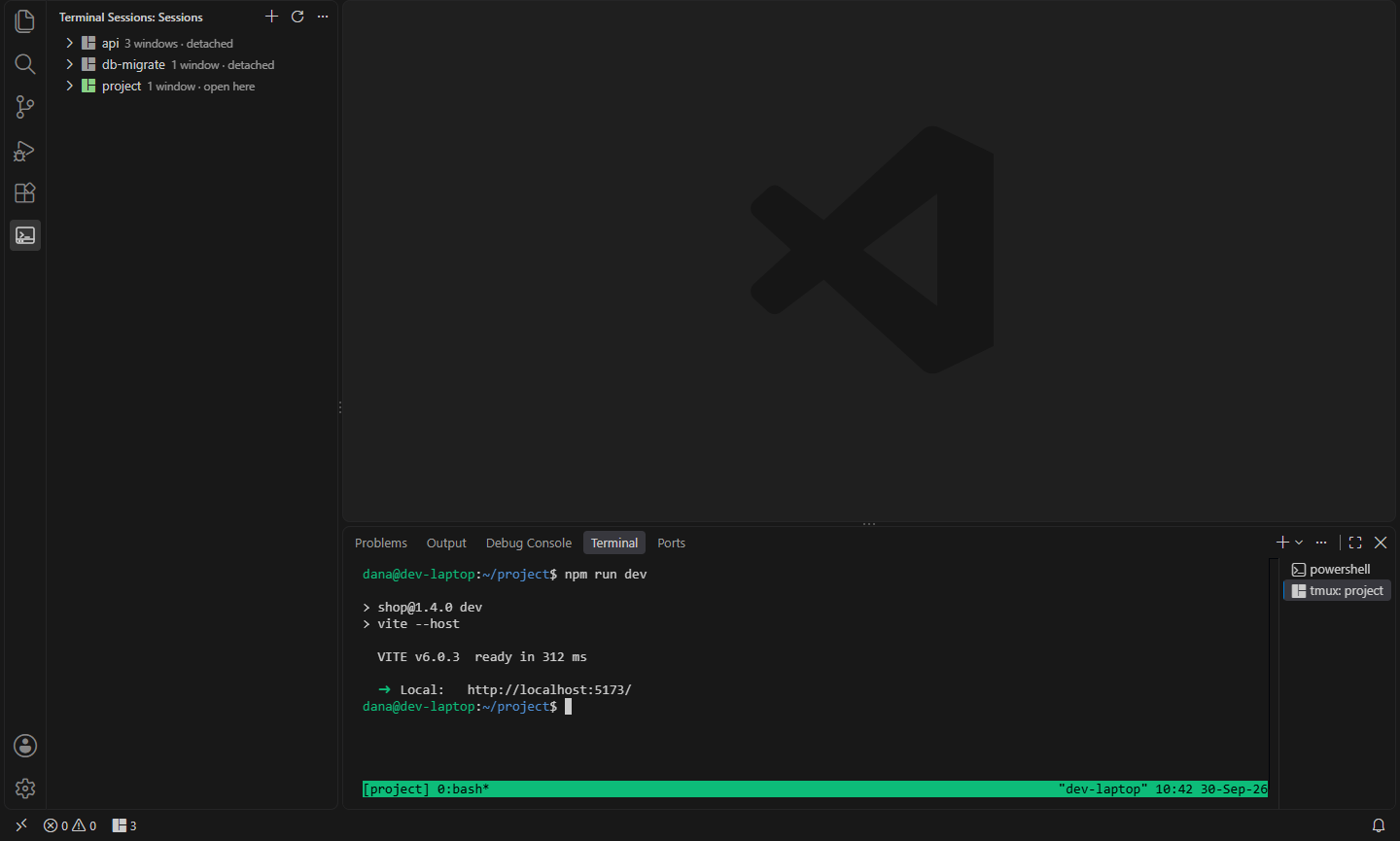
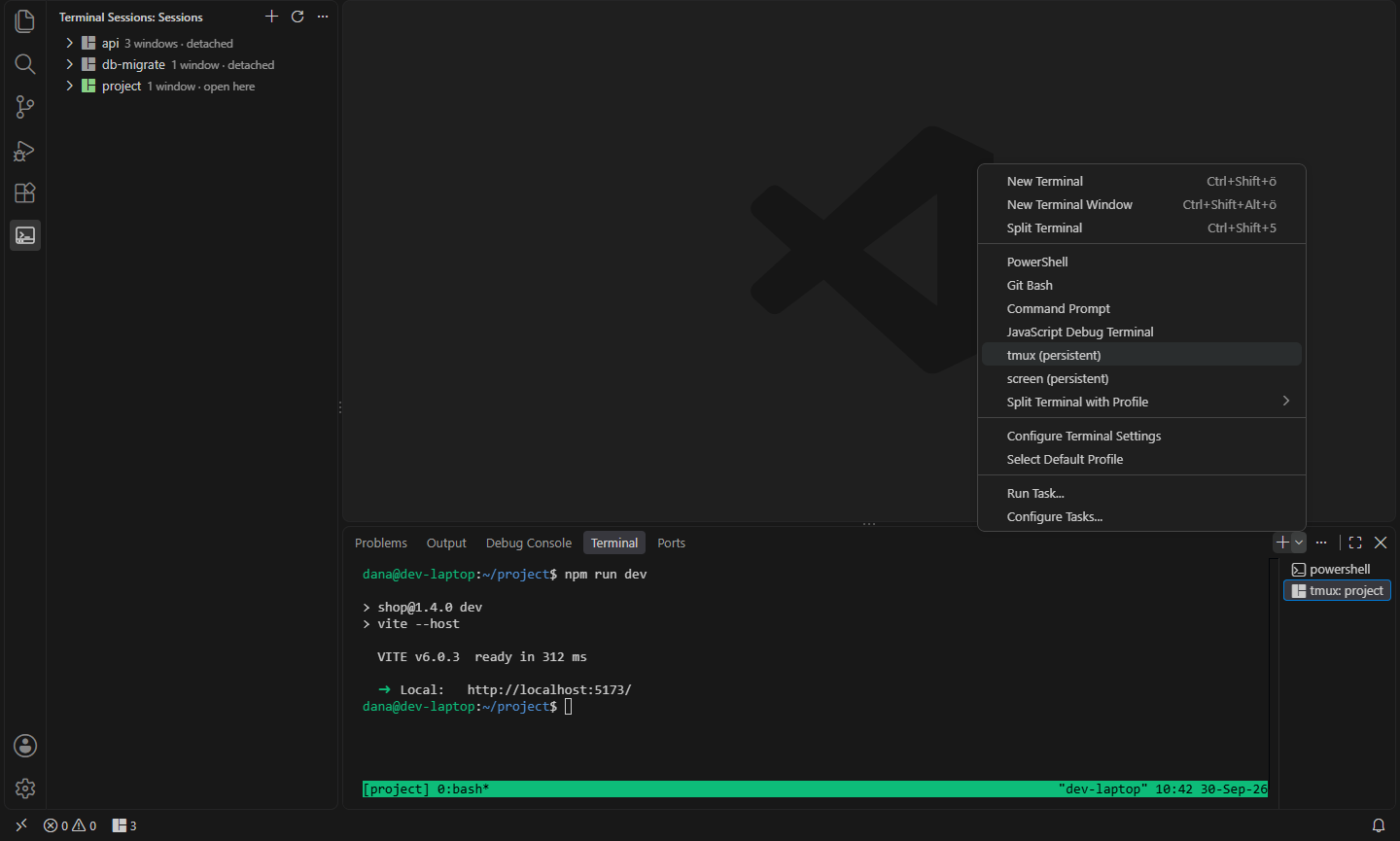
- Terminals that outlive the window. Open a tmux (persistent) terminal from the terminal panel's + menu, or run New Persistent Terminal. It runs inside a tmux session named after the workspace folder, so a dropped Remote SSH connection, a WSL restart of VS Code or Reload Window doesn't stop your dev server, build or long-running script.
- Back where you left off. When the window reloads, reconnects or you open the folder again, the terminals that were open reattach to their sessions, with their output and running programs.
- One session per terminal. The first terminal for a folder uses the session
myproject, the next myproject-2, and so on. If such a session is already running (from yesterday, or from ssh in another window), the terminal attaches to it instead of starting a new one. If a tmux session with that name belongs to another folder with the same name, the terminal uses myproject-<hash> instead.
- Sessions view. Every tmux and screen session on the host, with its windows, which ones are attached and which are open in this window. Attach to a session or a specific window, add a window, rename a session, or kill a session or window (after a confirmation).
- Status bar. The number of sessions running on the host; click it to see them.
- GNU screen too. A screen (persistent) profile works the same way, for hosts without tmux.
- Made for remote hosts. It's a workspace extension: in a Remote SSH, WSL, dev container or Codespaces window it runs on the remote side, where tmux runs and where your sessions live.
Commands
| Command |
What it does |
Nifty Persistent Terminals: New Persistent Terminal |
Open a terminal in the folder's session (tmux or screen, see backend) |
Nifty Persistent Terminals: Attach |
Pick a session on the host and attach to it in a terminal |
Nifty Persistent Terminals: New Window in Session |
Add a window to a session |
Nifty Persistent Terminals: Rename Session |
Rename a session |
Nifty Persistent Terminals: Kill Session |
Kill a session and everything running in it (asks first) |
Nifty Persistent Terminals: Reopen Session Terminals |
Reopen the persistent terminals that were open in this folder |
Nifty Persistent Terminals: Refresh |
Update the Sessions view |
Attach, New Window, Rename, Kill Session and Kill Window are also on each session and window in the Sessions view.
Settings
| Setting |
Default |
What it does |
nifty.persistent-terminals.backend |
tmux |
tmux or screen, for New Persistent Terminal and the default profile |
nifty.persistent-terminals.sessionName |
${folderName} |
Session name for a folder. Also ${folderHash} (for folders with the same name), ${parentName} and ${workspaceName} |
nifty.persistent-terminals.shell |
|
Shell for new sessions, e.g. /bin/zsh (empty: tmux's default-shell) |
nifty.persistent-terminals.defaultProfile |
false |
Make the persistent profile the default, so every new terminal is persistent |
nifty.persistent-terminals.restoreOnReload |
true |
Reopen the persistent terminals that were open after a reload or reconnect |
nifty.persistent-terminals.killSessionOnClose |
false |
Closing a persistent terminal yourself also kills its session (unless another client is attached) |
nifty.persistent-terminals.statusBar |
true |
Show the number of sessions in the status bar |
nifty.persistent-terminals.refreshSeconds |
10 |
How often to update the session list (0 = only when something changes here) |
nifty.persistent-terminals.tmuxPath |
|
Path to tmux, if it isn't on the PATH |
nifty.persistent-terminals.screenPath |
|
Path to GNU screen, if it isn't on the PATH |
Install tmux
tmux has to be installed on the machine the terminals run on (the remote host, WSL distro or container):
| System |
Command |
| Debian, Ubuntu, WSL |
sudo apt install tmux |
| Fedora, RHEL, Rocky, Alma |
sudo dnf install tmux |
| Arch, Manjaro |
sudo pacman -S tmux |
| openSUSE |
sudo zypper install tmux |
| Alpine |
sudo apk add tmux |
| macOS (Homebrew) |
brew install tmux |
GNU screen is installed the same way (package screen). tmux 2.1 or newer is needed.
Good to know
- Windows itself has no tmux. In a local Windows window the Sessions view explains this and the commands are hidden. Open the folder in WSL, a dev container or over Remote SSH instead.
- Closing a terminal doesn't stop its session. Clicking the trash icon only detaches: the session keeps running and stays in the Sessions view, and the next persistent terminal for the folder attaches to it. Use Kill Session to stop it, or turn on
killSessionOnClose.
- Scrolling: the terminal shows what tmux draws, so scroll back with tmux's copy mode (
Ctrl+B [), or add set -g mouse on to ~/.tmux.conf for mouse-wheel scrolling.
- Programs in the session keep their environment. A shell started before a reconnect keeps the old
VSCODE_* variables, so the code command may not reach the new window from an old shell; open a new tmux window for a fresh one.
- VS Code may also open its default terminal after a reload when the terminal panel was open, next to the reattached ones.
Install
- VS Code: search for "Nifty Persistent Terminals" in the Extensions view, or install from the Visual Studio Marketplace.
- Cursor, Windsurf, VSCodium, Kiro, Antigravity: install from Open VSX.
Privacy
This extension collects no telemetry and needs no account.
- Nifty Monitor: CPU & Memory in the Status Bar: CPU, memory and disk usage in the status bar, including on remote SSH machines and dev containers. (Open VSX)
- Nifty Save as Root: Edit Protected Files with sudo: Save files you don't have permission to write: Retry as Root when a save fails, or Save as Root with sudo, keeping owner, group and mode. Open unreadable files as root too. Linux, macOS, SSH, WSL. (Open VSX)
- Nifty Auto Hide: Hide Side Bar & Panel: Hide the side bar and panel when you click into the editor, for more room to code. Pin them open when you need them. (Open VSX)
- Nifty Buttons: Custom Status Bar Buttons: Add your own buttons to the status bar: run commands, shell commands, tasks or links, per project and only for the files they apply to. (Open VSX)
- Nifty Code Runner: Run Code in 25+ Languages: Run the current file or selection in 25+ languages in the terminal, with input support, your own commands and no telemetry. (Open VSX)
- Nifty Env: .env Files, Profiles & Secrets: Load .env files into terminals, tasks and debug sessions, switch between .env profiles, hide secret values on screen, and check .env against .env.example. (Open VSX)
See all 100+ Nifty extensions and web tools at https://getnifty.dev
| |

