MobioosAI ForgeThe developer extension that links code to semantic objects at line level, much like a barcode links a product to its information. Installation Launch VS Code Quick Open ( Ctrl+P), paste the following command, and press enter.Copied to clipboard |

The developer extension that links code to semantic objects at line level, much like a barcode links a product to its information.
Clever Wrapping: Business CasesMobioos Forge will allow you to drive your software implementation projects by clever wrapping your features. The created wraps will enable you to master your application to target the following objectives:
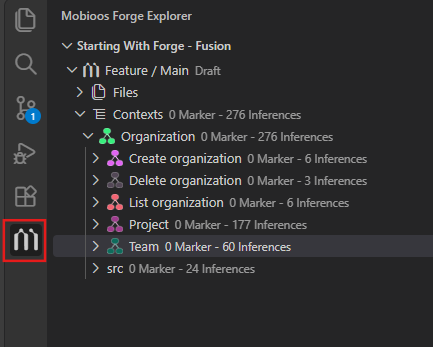
Installation 💾You can download and install Mobioos Forge from the VSCode Marketplace. Once you have installed the extension, you will need to login with a Mobioos account. If the extension is installed properly, you should see the Mobioos Forge icon added to your VScode's left Activity Bar as shown in the figure below.
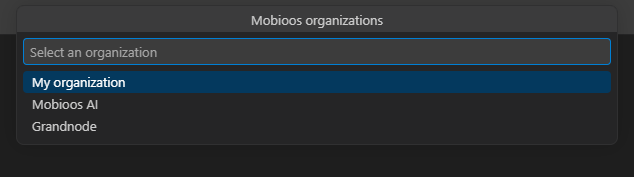
Get started 📙Step 1: Sign in to Mobioos account:First, you need to sign in to your Mobioos account, and select your organization or your personal work space.
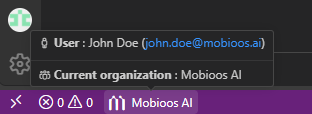
To do that, click on the Mobioos icon on the status bar
The button in the status bar indicate the selected organization and the user name.
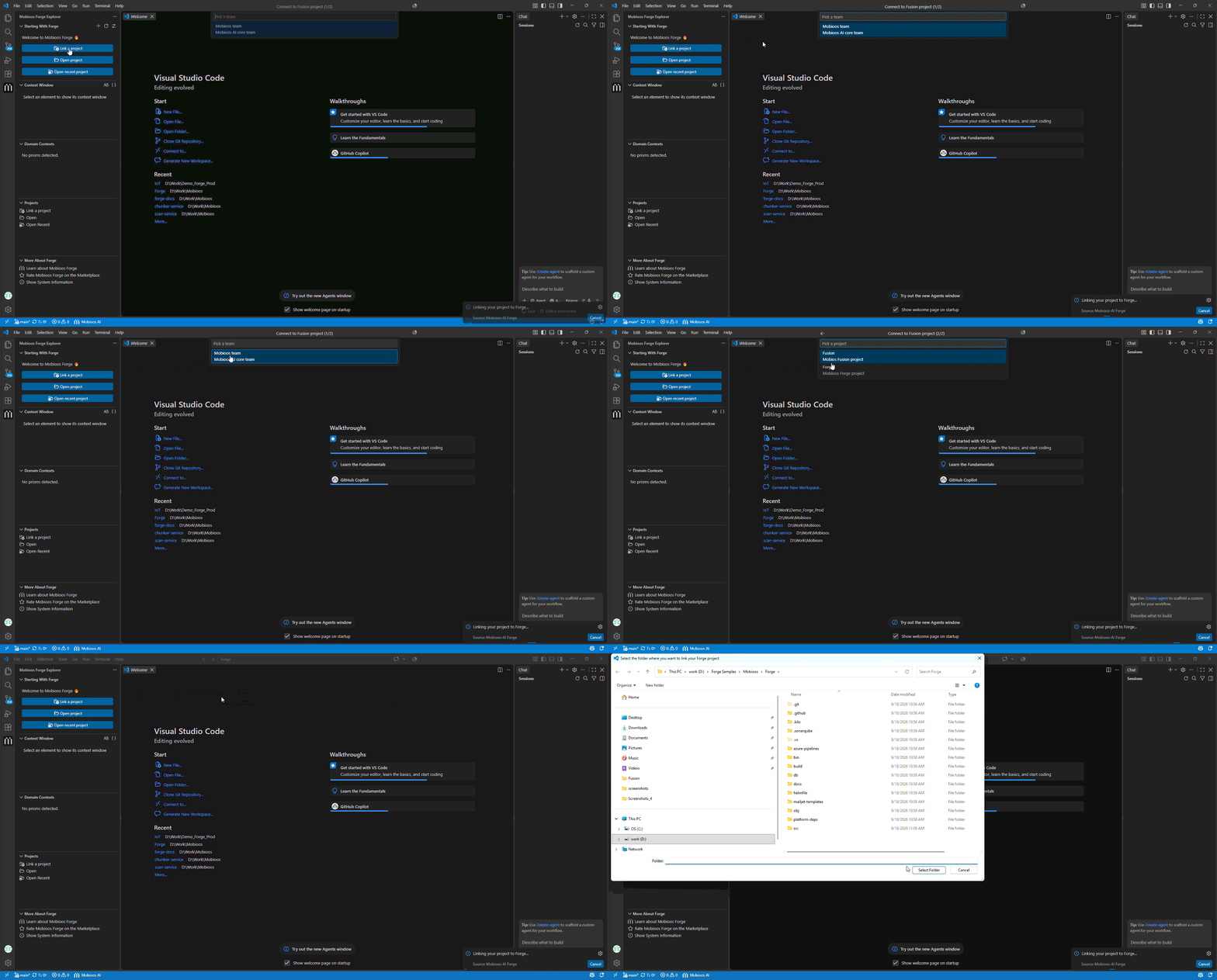
At the end of this step Mobioos Forge is ready to connect to your Mobioos project. Step 2: Link a Mobioos project:To start working with Mobioos project, first you need to connect to the project already created in Mobioos Fusion application, to do so, click on the "Link a project" button in the Mobioos Forge sidebar then select your team, your project and finally your repository.
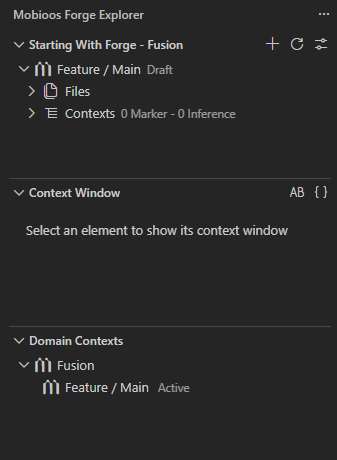
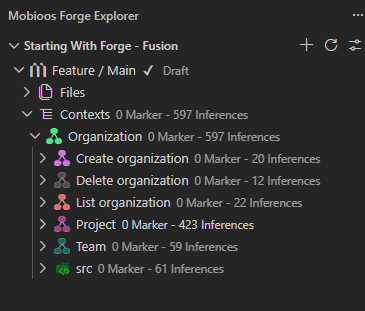
Once the project is linked to Mobioos Forge, all its domain contexts will be loaded and displayed in the sidebar.
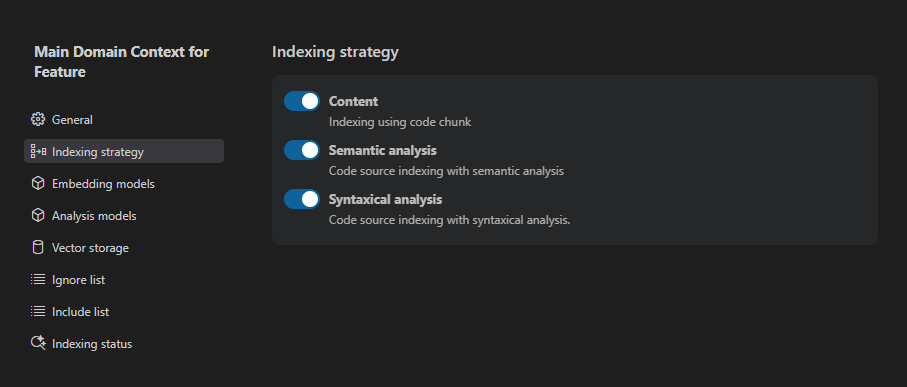
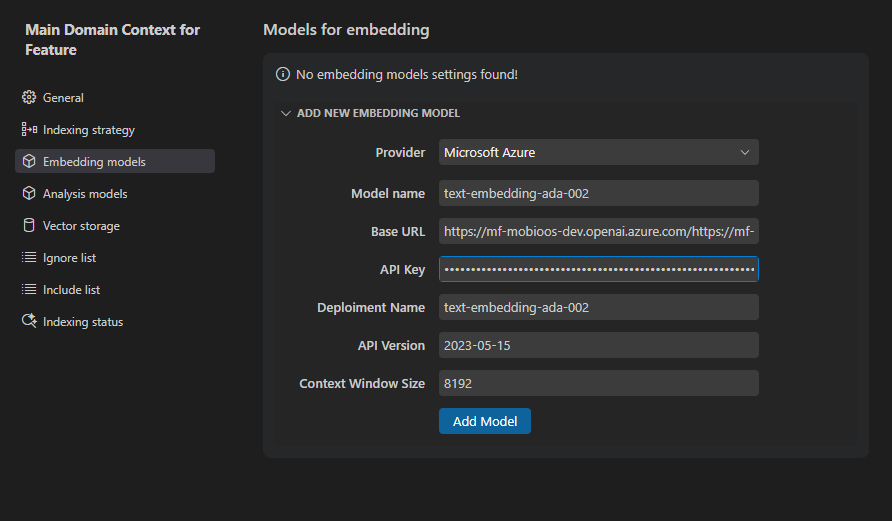
Step 3: Configure indexing settings:In this step you define the settings that will be used for code indexing the code base of your project, there are several settings to define:
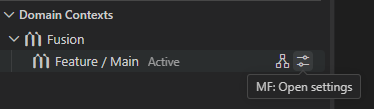
To open Indexing settings webview, in the Domain contexts treeview, click on
Define indexing strategy settings:In the indexing settings webview, click on the
Define models for embedding:In the indexing settings webview, click on the
Define models for analysis:In the indexing settings webview, click on the Define vector storage:Vector database let you store the results of code indexing in the database, you can use local database or cloud database, by default "Memory storage" is used.
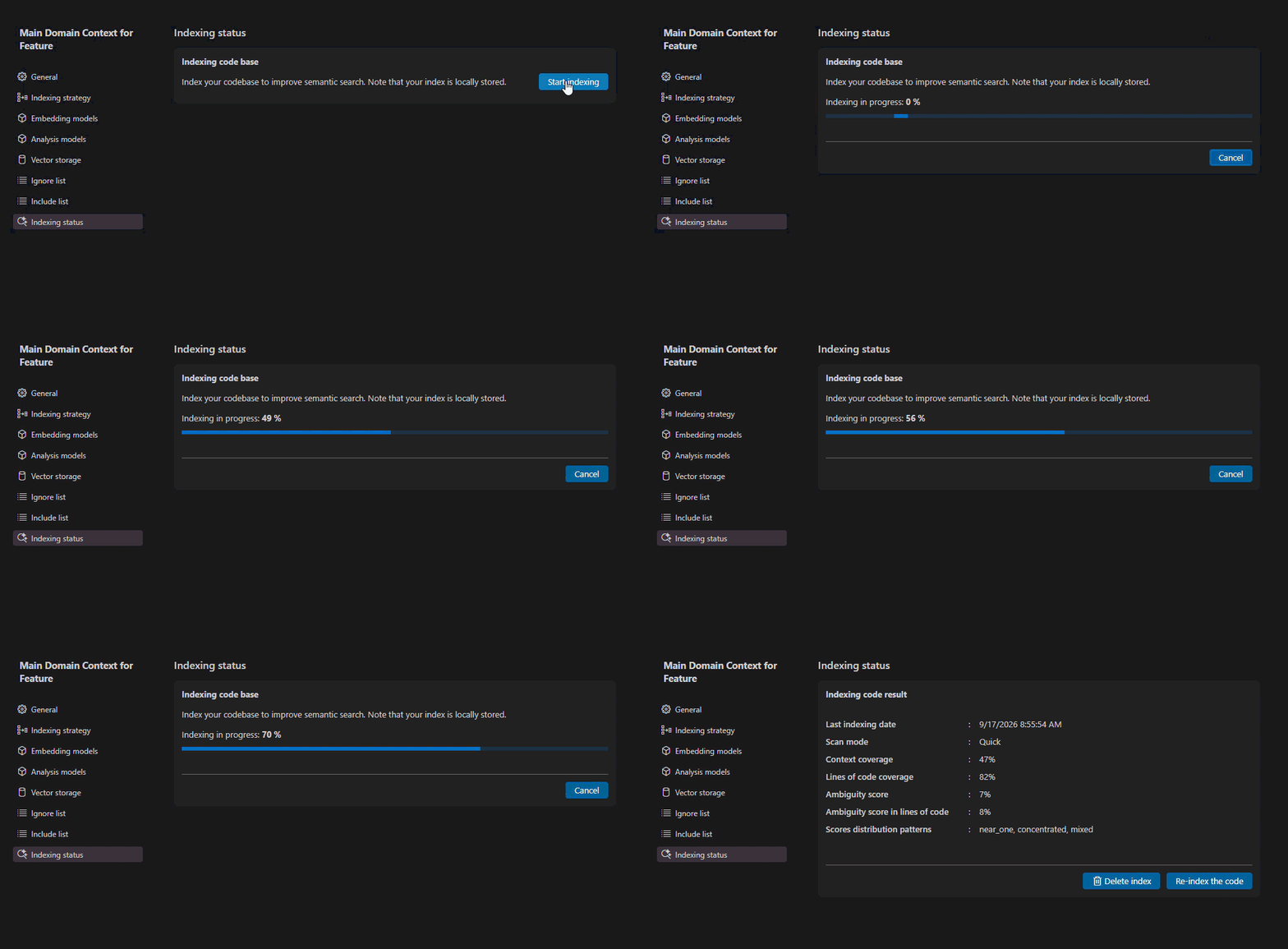
To configure a new vector database, click on the link Define files or folders to exclude from scan:To exclude a file or folder from code indexing process, add it to Define files or folders to include in scan:To specify a file or folder to include in code indexing process, add it to Step 4: Scan your code source:After defining the indexing settings in the previous steps, you can now index your code base. To do that, open "Indexing status" section of the "Indexing settings" webview and click on "Start indexing" button, then a progressbar indicate the progressing of the indexing process, at the end the results will be displayed.
Indexing results are converted to inferences, and each inference is assigned to a context object with a specific score and they are displayed in the domain context treeview.
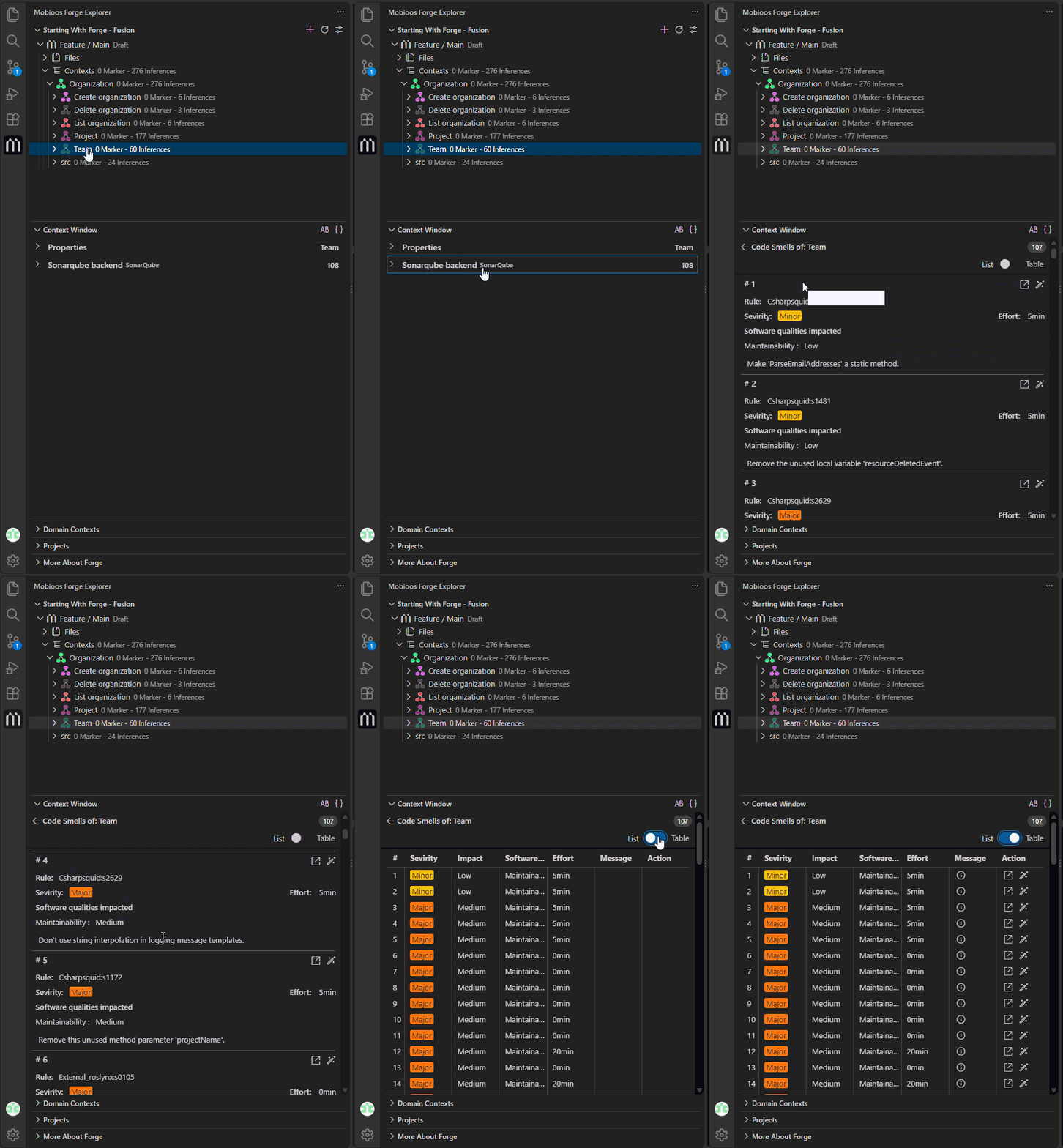
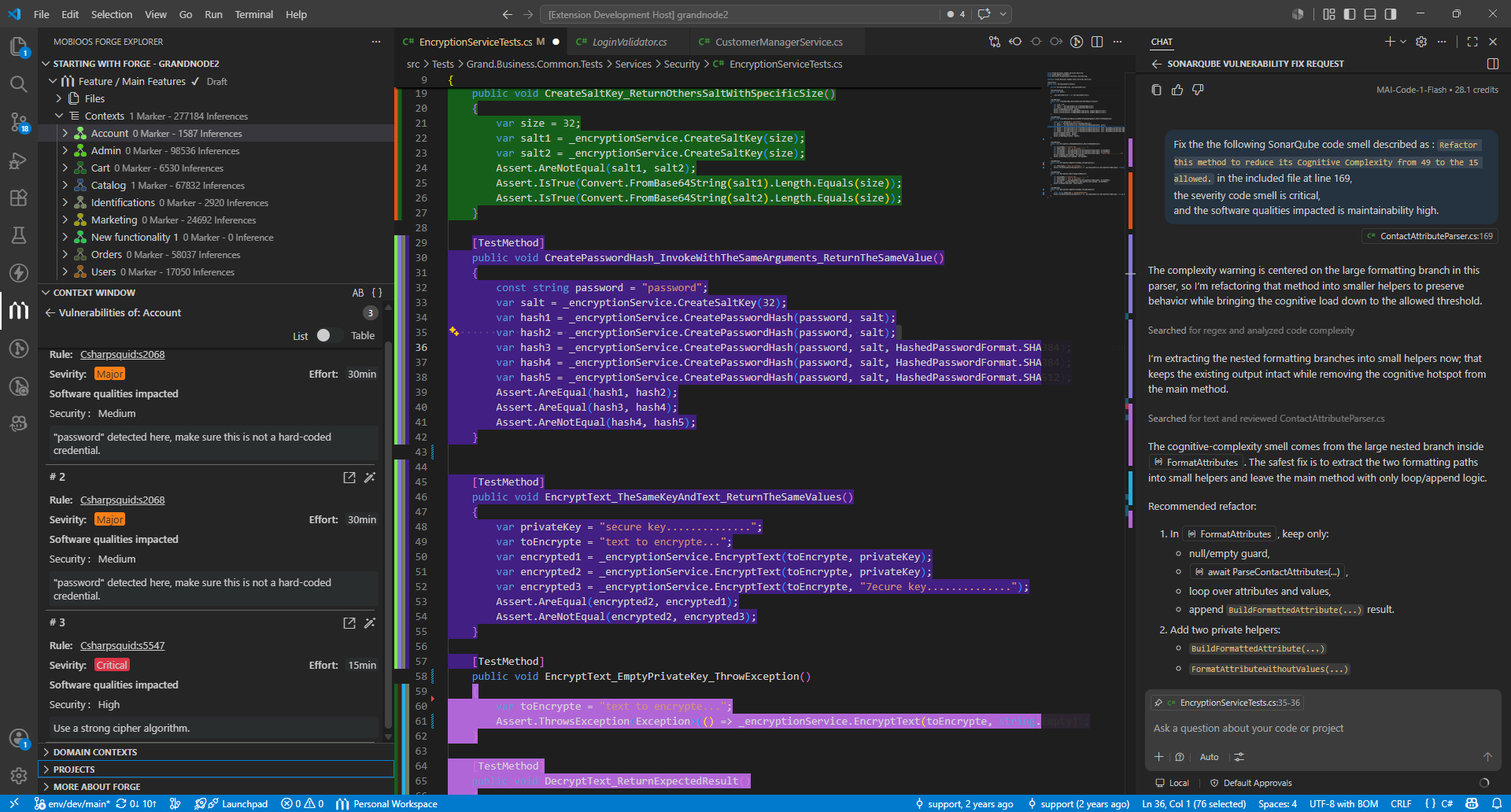
Context windowThe context window view in the sidebar of Mobioos forge, let you show data linked to the selected context in the project treeview, this data is provided by several service connections defined in Mobioos Fusion, the data can be: code quality provide by Sonarqube, security issues provided Aikido, tasks provided by Jira or AzureDevOps, documentation provided by Confluence and other.
|
 , then Visual Studio Code redirect you to Mobioos login page, once you signed in to Mobioos account, select your organization as shown in the image below.