Auto Barrel



Automatically generate and maintain index.ts/index.js barrel files for centralized exports in TypeScript and JavaScript projects.
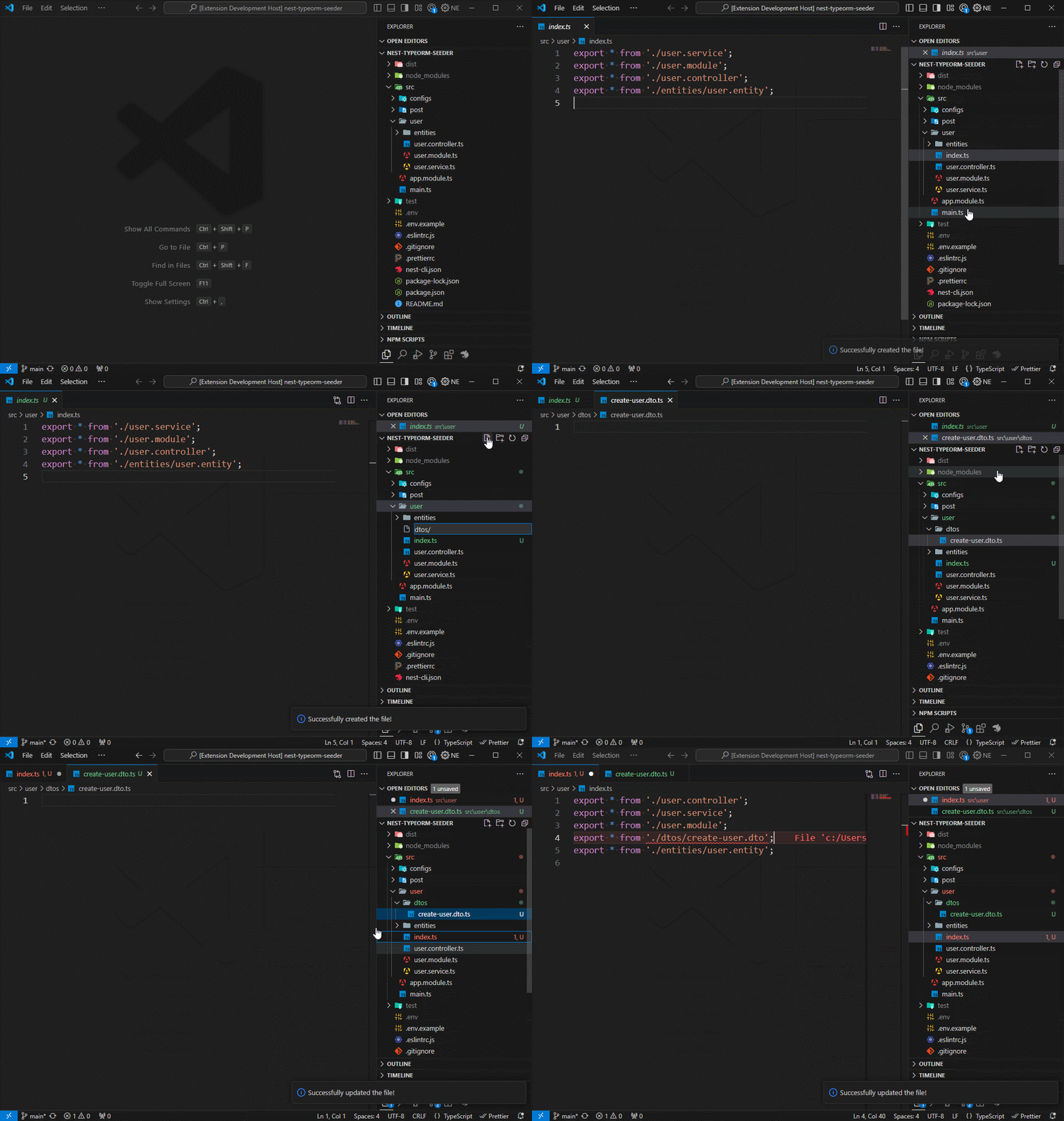
Overview
A barrel file (typically named index.ts or index.js) acts as a central hub for re-exporting modules within a directory. This powerful organizational technique in TypeScript and JavaScript projects leads to significantly cleaner imports and improved code structure. Instead of individually importing multiple files, you can import everything you need from a single, convenient entry point. This not only simplifies your codebase but also drastically reduces the complexity of managing relative paths.
How Barrel Files Work
Consider a common scenario where you have a directory structured like this:
src/
  components/
    Button/
      index.ts
      Button.tsx
    Input/
      index.ts
      Input.tsx
To leverage barrel files, you'd create an index.ts file directly within your components directory. This file then re-exports the modules from its subdirectories:
// src/components/index.ts
export * from './Button'; // Re-exports everything from Button/index.ts
export * from './Input';  // Re-exports everything from Input/index.ts
With this setup, your imports become much more concise and readable:
import { Button, Input } from './components'; // Import Button and Input from the components barrel file
Auto Barrel helps you create and maintain these barrel files by automatically updating them when you add, remove, or rename modules in a directory.
Inspiration
This extension is inspired by the auto-barrel extension by Mike Hanson.
Table of Contents
Key Benefits
- Save Time: Generate or refresh barrels with a single command.
- Clean Imports: Centralize exports and reduce long relative paths.
- Configurable: Fine-tune extensions, ignore patterns, recursion depth, formatting, sorting, and naming.
- Smart Detection: Parse files to find named/default exports.
- Monorepo Support: Handle multiple packages recursively.
- Gitignore Respect: Honors ignore rules and hidden files.
- Workspace Overrides: Per-project or per-folder settings.
Features
Commands
| Command |
Description |
| Create Barrel |
Generate a new barrel file in the selected directory |
| Update Barrel |
Refresh an existing barrel with current exports |
| Update in Folder |
Recursively scan subfolders and update all barrel files |
Recursive Scanning
- Enable/Disable:
files.disableRecursiveBarrelling
- Max Depth:
files.maxSearchRecursionDepth (0 = unlimited)
Export Detection
- Extensions:
files.includeExtensionOnExport (e.g., ts, tsx, vue)
- Ignore Patterns:
files.ignoreFilePathPatternOnExport (e.g., **/*.spec.*)
- Detect Exports:
files.detectExportsInFiles
- Named vs. Wildcard:
files.useNamedExports
- Preserve Extensions:
files.keepExtensionOnExport
| Option |
Setting |
| Quotes |
formatting.useSingleQuotes |
| Semicolons |
formatting.excludeSemiColonAtEndOfLine |
| EOL |
formatting.endOfLine, formatting.insertFinalNewline |
| Header Comment |
formatting.headerCommentTemplate |
| Sort Exports |
formatting.sortExports |
| Default Export Naming |
files.exportDefaultFilename |
Project Settings
Configure your project by creating or updating a settings.json file at the project's root. If you already have a .vscode/settings.json file, skip the first two steps.
Open the command palette in VSCode-based editors:
CTRL + SHIFT + P (Windows/Linux)CMD + SHIFT + P (macOS)
Type Preferences: Open Workspace Settings (JSON).
In the .vscode/settings.json file, copy and paste the following settings:
{
  "autoBarrel.enable": true,
  "autoBarrel.silentMode": false,
  "autoBarrel.language.defaultLanguage": "TypeScript",
  "autoBarrel.files.disableRecursiveBarrelling": false,
  "autoBarrel.files.includeExtensionOnExport": ["ts", "tsx", "vue"],
  "autoBarrel.files.ignoreFilePathPatternOnExport": ["**/*.spec.*", "**/*.test.*"],
  "autoBarrel.files.maxSearchRecursionDepth": 10,
  "autoBarrel.files.supportsHiddenFiles": true,
  "autoBarrel.files.preserveGitignoreSettings": false,
  "autoBarrel.files.keepExtensionOnExport": false,
  "autoBarrel.files.detectExportsInFiles": false,
  "autoBarrel.files.useNamedExports": false,
  "autoBarrel.files.exportDefaultFilename": "filename",
  "autoBarrel.files.configuredDefaultFilename": "index",
  "autoBarrel.formatting.headerCommentTemplate": [],
  "autoBarrel.formatting.excludeSemiColonAtEndOfLine": false,
  "autoBarrel.formatting.useSingleQuotes": true,
  "autoBarrel.formatting.endOfLine": "lf",
  "autoBarrel.formatting.insertFinalNewline": true,
  "autoBarrel.formatting.sortExports": 'alphabetical'
}
Restart VSCode-based editor to apply the changes.
Your project is now set up to automatically format code upon saving.
Settings Options
Configure Auto Barrel settings in your .vscode/settings.json file to tailor the behavior of the barrel file generation process according to your project's needs.
autoBarrel.enable: Whether to enable Auto Barrel. Default is true.autoBarrel.silentMode: Whether to suppress notifications and messages from the extension. Default is false.autoBarrel.language.defaultLanguage: The default language for the barrel file. Supported languages are TypeScript and JavaScript. Default is TypeScript.autoBarrel.files.disableRecursiveBarrelling: Whether to disable recursive barrelling for subdirectories. Default is false.autoBarrel.files.includeExtensionOnExport: An array of file extensions to include when exporting modules. Default is ["ts", "tsx", "vue"].autoBarrel.files.ignoreFilePathPatternOnExport: An array of file path patterns to ignore when exporting modules. Default is ["**/*.spec.*", "**/*.test.*"].autoBarrel.files.maxSearchRecursionDepth: The maximum recursion depth when searching for files to export. Use 0 for infinite recursion. Default is 0.autoBarrel.files.supportsHiddenFiles: Whether to include hidden files and directories when exporting modules. Default is true.autoBarrel.files.preserveGitignoreSettings: Whether to preserve the .gitignore settings when exporting modules. Default is false.autoBarrel.files.keepExtensionOnExport: Whether to keep the file extension when exporting modules. Default is false.autoBarrel.files.detectExportsInFiles: Whether to detect exports in files when exporting modules. Default is false.autoBarrel.files.exportDefaultFilename: The filename to use when exporting a default module. Default is filename.autoBarrel.files.useNamedExports: Whether to use named exports when exporting modules. Default is false.autoBarrel.files.configuredDefaultFilename: The filename to use when exporting a default module. Default is index.autoBarrel.formatting.headerCommentTemplate: The header comment template to use in the barrel file. Default is [].autoBarrel.formatting.excludeSemiColonAtEndOfLine: Whether to exclude a semicolon at the end of each line in the barrel file. Default is false.autoBarrel.formatting.useSingleQuotes: Whether to use single quotes for string literals in the barrel file. Default is true.autoBarrel.formatting.endOfLine: The end-of-line character to use in the barrel file. Supported values are lf (line feed) and crlf (carriage return line feed). Default is lf.autoBarrel.formatting.insertFinalNewline: Whether to insert a final newline at the end of the barrel file. Default is true.autoBarrel.formatting.sortExports: How to sort exports in the barrel file. Supported values are 'none', 'alphabetical', and 'path'. Default is 'none'.
These settings are customizable to match your project's specific requirements. For instance, you can adjust the default language to javascript or expand the list of file extensions to include when exporting modules, for example: ["js", "jsx", "ts", "tsx", "vue", "astro"].
JavaScript example settings:
{
  "autoBarrel.enable": true,
  "autoBarrel.silentMode": false,
  "autoBarrel.language.defaultLanguage": "JavaScript",
  "autoBarrel.files.disableRecursiveBarrelling": false,
  "autoBarrel.files.includeExtensionOnExport": ["js", "jsx"],
  "autoBarrel.files.ignoreFilePathPatternOnExport": ["**/*.spec.*", "**/*.test.*"],
  "autoBarrel.files.maxSearchRecursionDepth": 10,
  "autoBarrel.files.supportsHiddenFiles": true,
  "autoBarrel.files.preserveGitignoreSettings": false,
  "autoBarrel.files.keepExtensionOnExport": false,
  "autoBarrel.files.detectExportsInFiles": false,
  "autoBarrel.files.useNamedExports": false,
  "autoBarrel.files.exportDefaultFilename": "filename",
  "autoBarrel.files.configuredDefaultFilename": "index",
  "autoBarrel.formatting.headerCommentTemplate": [
    "/*",
    " * This file was automatically generated by Auto Barrel.",
    " * Do not modify this file directly.",
    " */"
  ],
  "autoBarrel.formatting.excludeSemiColonAtEndOfLine": true,
  "autoBarrel.formatting.useSingleQuotes": true,
  "autoBarrel.formatting.endOfLine": "crlf",
  "autoBarrel.formatting.insertFinalNewline": false,
  "autoBarrel.formatting.sortExports": "none"
}
For more information on configuring Auto Barrel settings, refer to the Project Settings section.
Usage
- Open a project in your VSCode-based editor.
- Ensure that your
settings.json has "autoBarrel.enable": true.
- In the Explorer, right-click on a folder or file, select "Auto Barrel", and choose an action:
- Create Barrel: Generates a new barrel file in the selected directory.
- Update Barrel: Refreshes an existing barrel file with current exports.
- Update in Folder: Recursively scans subfolders and updates all barrel files.
- To use the Command Palette, press
Ctrl+Shift+P (Windows/Linux) or Cmd+Shift+P (macOS), type "Auto Barrel," and pick the desired command.
- Customize settings in your
.vscode/settings.json file to tailor the behavior of the extension to your project's needs.
Installation
- Open Extensions view (
Ctrl+Shift+X / Cmd+Shift+X).
- Search for Auto Barrel (author: Manuel Gil).
- Click Install.
Best Practices
- Avoid barrels in modules with circular dependencies.
- Use
maxSearchRecursionDepth in large monorepos to optimize performance.
- Enable
detectExportsInFiles for precision, but be mindful of potential performance impact.
- Combine with Prettier/ESLint to enforce consistent code style.
Resources
Development
This project strives for clear separation of concerns, maintainability, and a smooth UX. Below is a short guide for contributors touching the internals.
Architecture
- Services (e.g.,
src/app/services/files.service.ts): Business logic only. They must not call VSCode UI APIs. Instead, they return structured results and diagnostics.
- Controllers (e.g.,
src/app/controllers/files.controller.ts): Orchestrate actions and handle all user feedback (notifications, progress, etc.). Controllers interpret diagnostics coming from services and decide which UI to show.
Diagnostics
FilesService.generateContent() returns a GenerationResult with:
content: string | undefineddiagnostics: Array<{ level: 'info' | 'warn' | 'error'; code?: string; message: string }>
- Controllers use these diagnostics to show messages via
window.showInformationMessage, window.showWarningMessage, or window.showErrorMessage.
Helpers
File Search (findFiles)
- Uses
fast-glob with typed options for performance and clarity. Important options used:
cwd, absolute, onlyFiles, dot, ignore, followSymbolicLinks, objectModedeep: undefined = ilimitado; o 1 si disableRecursive está activo; o un número específico.
- Optional
.gitignore filtering is applied when enabled, using the matcher returned by readGitignore.
Contribution tips
- Keep services free of UI.
- Prefer async VSCode APIs (
workspace.fs) over sync Node APIs.
- Add progress UI for long tasks using the helper.
- Return diagnostics from services; interpret them in controllers.
Contributing
Auto Barrel is open-source and welcomes community contributions:
Fork the GitHub repository.
Create a new branch:
git checkout -b feature/your-feature
Make your changes, commit them, and push to your fork.
Submit a Pull Request against the main branch.
Before contributing, please review the Contribution Guidelines for coding standards, testing, and commit message conventions. Open an Issue if you find a bug or want to request a new feature.
Code of Conduct
We are committed to providing a friendly, safe, and welcoming environment for all, regardless of gender, sexual orientation, disability, ethnicity, religion, or other personal characteristic. Please review our Code of Conduct before participating in our community.
Changelog
For a complete list of changes, see the CHANGELOG.md.
Authors
See also the list of contributors who participated in this project.
Follow Me
- GitHub:

- X (formerly Twitter):

Other Extensions
Auto Barrel
Automatically generates and maintains barrel (index.ts) files for your TypeScript projects.
Angular File Generator
Generates boilerplate and navigates your Angular (9→20+) project from within the editor, with commands for components, services, directives, modules, pipes, guards, reactive snippets, and JSON2TS transformations.
NestJS File Generator
Simplifies creation of controllers, services, modules, and more for NestJS projects, with custom commands and Swagger snippets.
NestJS Snippets
Ready-to-use code patterns for creating controllers, services, modules, DTOs, filters, interceptors, and more in NestJS.
T3 Stack / NextJS / ReactJS File Generator
Automates file creation (components, pages, hooks, API routes, etc.) in T3 Stack (Next.js, React) projects and can start your dev server from VSCode-based editor.
Drizzle ORM Snippets
Collection of code snippets to speed up Drizzle ORM usage, defines schemas, migrations, and common database operations in TypeScript/JavaScript.
CodeIgniter 4 Spark
Scaffolds controllers, models, migrations, libraries, and CLI commands in CodeIgniter 4 projects using Spark, directly from the editor.
CodeIgniter 4 Snippets
Snippets for accelerating development with CodeIgniter 4, including controllers, models, validations, and more.
CodeIgniter 4 Shield Snippets
Snippets tailored to CodeIgniter 4 Shield for faster authentication and security-related code.
Mustache Template Engine – Snippets & Autocomplete
Snippets and autocomplete support for Mustache templates, making HTML templating faster and more reliable.
License
This project is licensed under the MIT License. See the LICENSE file for details.
| |

