vGit
A powerful VS Code extension (formerly "Git Staging View") that provides an Eclipse EGit-style staging view with advanced commit graph visualization for managing Git changes across multiple repositories.
This extension is inspired by the excellent Git Graph extension, incorporating its graph visualization approach while adding a comprehensive staging interface.
Screenshots
Main View
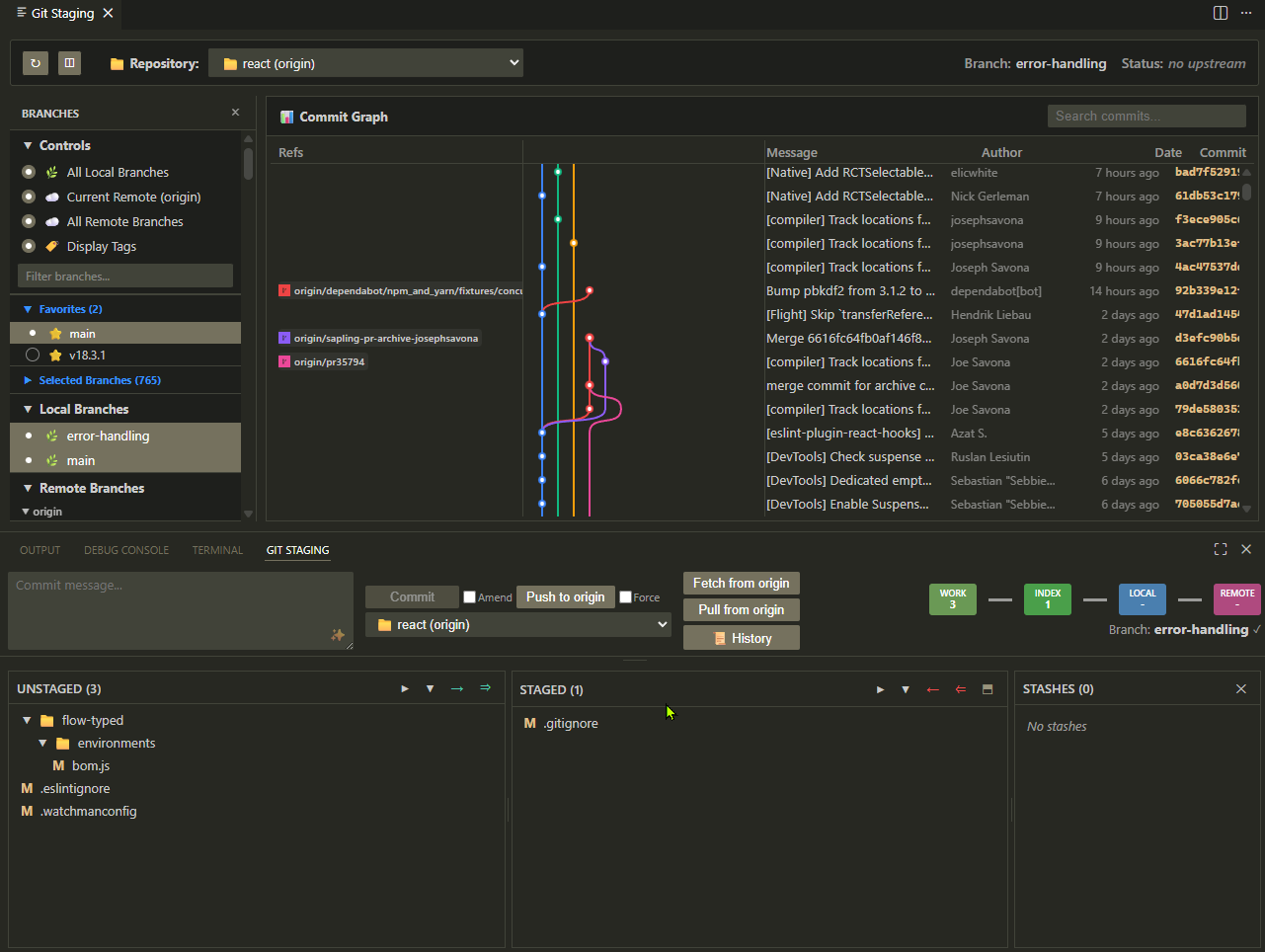 Dual-panel layout with file staging on the left and interactive commit graph on the right
Staging Panel in Action
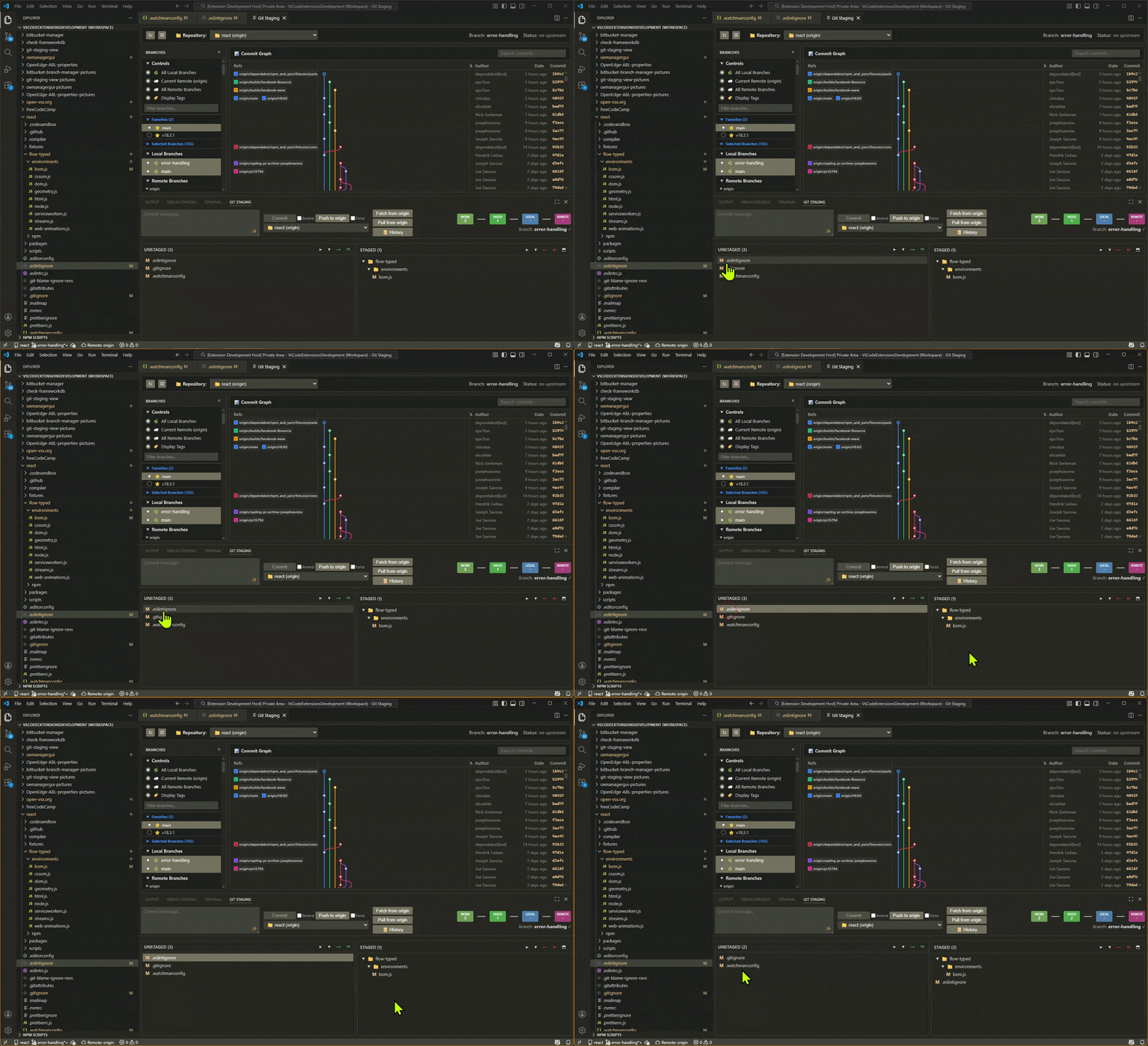 Stage, unstage, and stash files with inline buttons, drag-and-drop, and the dedicated Stashes panel
File Operations
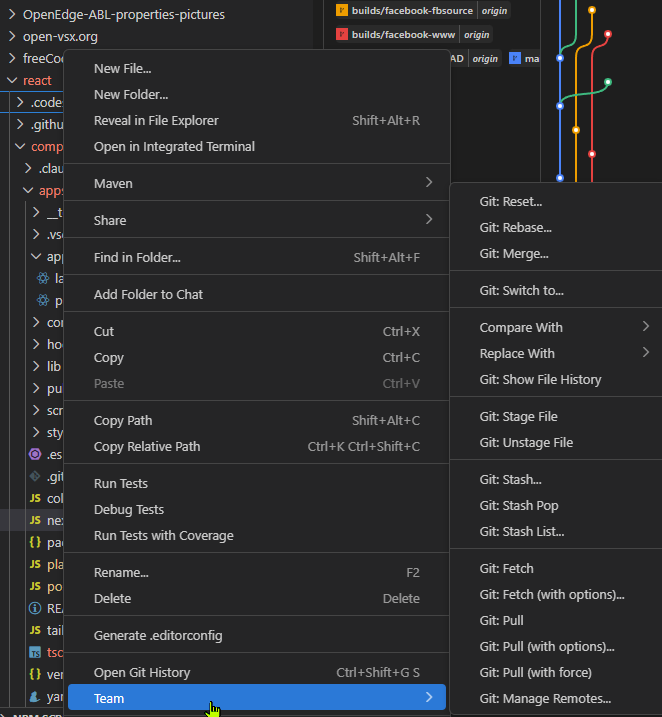 Right-click files to compare, stage/unstage, or replace with different revisions
Commit Operations
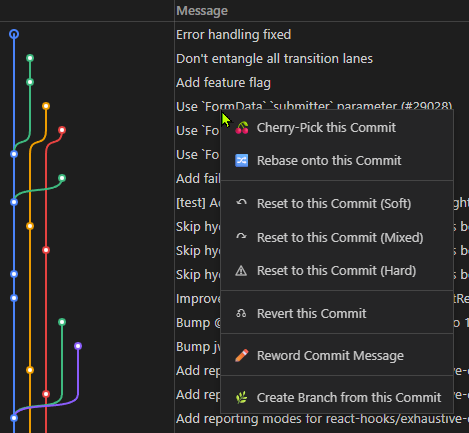 Right-click commits to cherry-pick, reset, revert, or create branches
Branch Operations
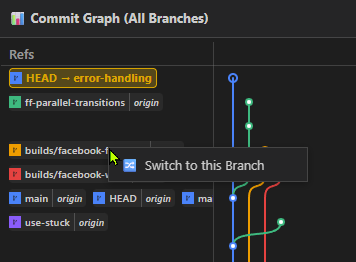 Right-click branch names in the commit history to switch branches
Repository Operations
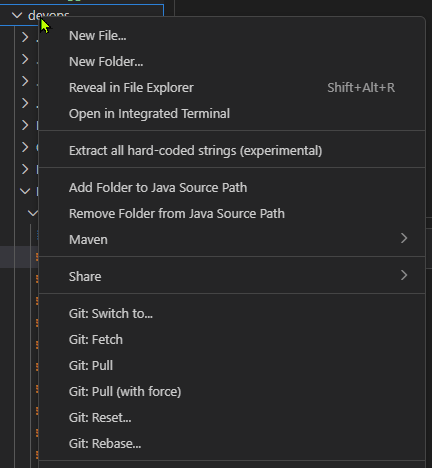 Right-click repository to switch branches, fetch, pull, reset, or rebase
Features
Layout
- Main Panel: Interactive commit graph with branch selection sidebar
- Bottom Panel: Unstaged/staged changes with tree view, commit message area, and action buttons
- Resizable Sidebar: Drag the sidebar edge to resize the branch selection panel
- Resizable Graph Column: Drag the resize handle in the graph header or any row to adjust graph width
Advanced Commit Graph
The history lanes display is inspired by the excellent vscode-git-graph extension.
- SVG-Based Visualization: Beautiful colored branch lanes with curved merge lines
- Compact Layout: Optimized lane assignment with longest branches on the left
- Sticky Column Headers: Graph, Message, Author, Date, and Commit headers stay visible when scrolling
- EGit-Style Display:
- Commit hash in rightmost column
- Visual graph lanes in leftmost column
- Commit message starting right after the graph
- Author and date columns
- Consistent 13px font size
- Infinite Scroll: Automatically loads more commits as you scroll
- Search & Filter:
- Search by commit hash, message, branch name, tag, or author
- Clear button (×) for quick search reset
- Press Enter to execute search
- Branch Selection Panel:
- Interactive sidebar to filter the commit graph by specific branches
- Toggle local branches, individual remote branches, and tags
- Group controls for selecting/deselecting all local or remote branches at once
- Filter input to quickly find branches by name
- Context menu on branches for checkout and delete
- Selected branch HEAD highlighting: commits at the tip of individually selected branches are highlighted with a dark red background
- Resizable sidebar: Drag the right edge to resize (150px–600px), width persists across refreshes
- Favorite Branches:
- Mark frequently used branches as favorites for quick access
- Right-click any branch → "Add to Favorites" to pin it to the Favorites section
- Right-click a favorite → "Remove from Favorites" to unpin it
- Favorites appear between Controls and Selected Branches in the sidebar
- Select/deselect favorites with checkboxes, just like regular branches
- Favorites are stored per repository and persist across sessions
- Stale favorites are automatically removed when branches are deleted from the repo
- Branch Views:
- Toggle between current branch and all branches
- Hide remote commits option (checked by default)
- Show Tags toggle (unchecked by default) - displays tag names in graph
- Tag Tooltip: Hover over displayed tag at top to see all repository tags
- Commit Selection: Select multiple commits using checkboxes
- Visual highlighting of selected commits
- Selection state persists during graph updates
- Context Menu: Right-click any commit for:
- Squash Selected Commits (when 2+ commits selected)
- Cherry-pick
- Reset (soft/mixed/hard)
- Revert
- Reword Commit Message (HEAD commit only)
- Create branch from commit
Multi-Repository Support
- Automatic detection of all Git repositories in workspace
- Dropdown selector to switch between repositories
- Repository-specific state tracking
- Real-time branch, tag, and ahead/behind status
- Separate Git Directory Support: Detect repositories initialized with
--separate-git-dir
- Configure
repositoryScanDepth to scan nested folders
- Use
additionalRepositoryPaths to specify folders containing git repositories outside workspace folders
- Webpack-bundled extension and webview for fast loading
- External CSS files and loading screen to prevent FOUC
File Management
- Tree View: Files organized by folder structure
- Click to Stage/Unstage: Single-click operation
- Batch Operations:
- Stage All / Unstage All (Eclipse-style colored arrow icons)
- Collapse All / Expand All folders
- Visual Status Indicators:
- A - Added
- M - Modified
- D - Deleted
- R - Renamed
- U - Unmerged/Conflict
Staging Panel (Bottom Panel)
- Commit Message Area: Multi-line textarea with AI-generate button (bottom-right)
- Actions Row: Commit + Amend + Push + Force buttons with repository dropdown
- Push Button: Dynamically shows remote name (e.g., "Push to origin")
- Repository Dropdown: Shows remote in parenthesis (e.g., "my-repo (origin)")
- Fetch/Pull Buttons: Quick access to fetch and pull operations
- Git Flow Animation: Visual workflow indicator (Working Directory → Index → Local → Remote)
- Branch Display: Current branch name with ahead/behind status
Git Operations
- Commit: Commit staged changes with message validation
- Amend Commit: Checkbox to amend the last commit with new changes and/or message
- Reword Commit: Edit the message of the most recent commit
- Right-click the HEAD commit in the graph
- Select "Reword Commit Message"
- Edit the message in the modal dialog
- Auto-selects existing text for quick editing
- Only works on HEAD commit for safety
- Squash Commits: Combine multiple commits into one
- Select contiguous commits using checkboxes (must include HEAD)
- Right-click and choose "Squash Selected Commits"
- Confirm the selection
- Edit the combined commit message in the modal
- Creates a single commit with all changes
- Must start from HEAD for safety
- Push: Push commits to remote with formatted response modal
- Remote selection dropdown when multiple remotes are configured
- Force Push checkbox for explicit
git push --force (unchecked by default)
- Smart credential prompting for remotes requiring authentication
- Response displayed in modal with clickable URLs (e.g., pull request links)
- Color-coded messages and hints section
- Automatically refreshes view after successful push
- Fetch: Fetch updates from remote with remote selection
- "Git: Fetch" for quick fetch from default remote
- "Git: Fetch (with options)" for remote selection dropdown
- Fetches all branches from selected remote
- Pull: Pull with remote and branch selection
- Auto-stash support for uncommitted changes
- Automatically stashes and restores local changes during pull
- Refresh View: Manually refresh all repository data
- Compare Operations:
- Compare with HEAD
- Compare with previous revision
- Compare with any branch, tag, or reference
- Compare with specific commit
- Replace Operations:
- Replace with HEAD revision
- Replace with previous revision
- Replace with any branch, tag, or reference
- Replace with specific commit
- Repository Operations:
- Switch to branch/tag/commit
- Create new branch from branch/commit
- Rebase onto branch
- Create tag (lightweight or annotated)
- Fetch
- Pull / Pull (force)
- Reset
- Rebase
- Merge
- Rebase Conflict Handling: Automatic conflict detection and resolution workflow
- View automatically refreshes when conflicts are detected
- Conflicted files appear immediately in Unstaged Changes section
- Action buttons (Continue Rebase, Abort Rebase, Skip Commit) for resolving conflicts
- Cherry-Pick Conflict Handling: Same conflict resolution workflow for cherry-pick operations
- Detects when a cherry-pick encounters conflicts
- Action buttons (Continue, Skip, Abort) for resolving cherry-pick conflicts
- Consistent user experience across rebase and cherry-pick operations
- Stash Management: Complete stash workflow support
- Stash Changes: Save uncommitted changes with optional message
- Pop Stash: Apply and remove the most recent stash
- Apply Stash: Apply stash without removing it
- Drop Stash: Delete a specific stash entry
- View Stash: Preview stash contents in diff view
- Stashes Panel: Dedicated panel to the right of Staged changes, toggled via the ⬒ button in the Staged header
- Displays all stashes with index, message, originating branch, and date
- Each stash entry has Pop, Apply, and Drop action buttons
- Badge on the toggle button shows the stash count when stashes exist
- Resizable via drag handle between Staged and Stashes panels
- Drag and Drop to Stash: Drag files or folders from the Unstaged view onto the Stashes panel
- Drop on empty area to create a new stash with the selected files
- Drop on an existing stash entry to add the files to that stash
- Stash from Context Menu: Right-click unstaged files to stash directly with options
- Remote Management: Full CRUD operations for Git remotes
- View all remotes with their URLs
- Add, rename, change URL, or remove remotes
- Command Palette: "Git: Manage Remotes..."
- Refresh Repository Lists: Manually refresh dropdown lists when needed
- Command Palette: "Git: Refresh Repository Lists"
- Updates remote lists, repository lists, and all cached data
- File/Folder History: View commit history filtered to a specific file or folder
- Right-click any file or folder in Explorer → Team → "vGit: Show File History"
- Opens staging view with commit graph filtered to the selected path
- Works with both individual files and entire folders
- Enhanced Error Display: Push and revert errors shown in formatted modal with hints
- Efficient Graph Rendering: Handles 500+ commits smoothly
- Smart Lane Calculation: Optimized algorithm for clean graph layout
- Incremental Loading: Loads 100 more commits per scroll
- Git-Level Filtering: Efficient remote commit exclusion
- Smart Refresh: File watcher distinguishes history vs. staging events — operations like staging, unstaging, and stashing no longer trigger unnecessary
git log calls
Usage
Opening the Staging View
Command Palette (Ctrl+Shift+P):
vGit: Show Staging View
Keyboard Shortcut (when Explorer is focused):
Ctrl+Shift+G S
Context Menu:
- Right-click any file in Explorer → vGit submenu
Working with Files
Staging Files:
- Click any file in Unstaged Changes to stage it
- Or use Stage All button
Unstaging Files:
- Click any file in Staged Changes to unstage it
- Or use Unstage All button
Comparing Files:
- Right-click a file → vGit → Compare with...
- Choose HEAD, previous revision, reference, or specific commit
Replacing File Content:
- Right-click a file → vGit → Replace with...
- Reverts file to selected revision
Using the Commit Graph
Navigation:
- Scroll to view commit history
- Automatically loads more commits at bottom
- Use search box to find specific commits
Branch Visibility:
- Click Show All Branches to see all branches
- Check Hide Remote Commits to exclude remote tracking branches (default)
Commit Operations:
- Right-click any commit for context menu
- Squash Selected Commits: Combine multiple commits (requires 2+ selected)
- Check boxes next to commits you want to squash
- Must include HEAD (the topmost commit)
- Commits must be contiguous (adjacent in history)
- Confirm selection, then edit the combined message in a modal
- Reword Commit Message: Edit the most recent commit's message
- Only available for HEAD commit
- Opens modal dialog with existing message auto-selected
- Edit and save to update the commit
- Cherry-Pick: Apply commit to current branch
- Reset: Move branch pointer (soft/mixed/hard)
- Revert: Create new commit that undoes changes
- Create Branch: Create new branch from commit
Search:
- Type in search box and press Enter
- Searches: hash, short hash, message, refs, author
- Click × to clear search
Committing Changes
- Enter commit message in the text area
- Amend Checkbox (optional):
- Check to amend the last commit
- Automatically loads the previous commit message
- Combine new staged changes with the previous commit
- Commit button: Creates commit locally (or amends if checkbox is checked)
Pushing Changes
- Push button: Push commits to remote
- Displays response in a formatted modal window
- Shows remote messages with clickable URLs (pull request links)
- Automatically refreshes view on success
- Force Push (use with caution):
- Check the "Force Push" checkbox next to Push button
- Required for
git push --force operations
- Prevents accidental force pushes
Repository Management
Repository Header Controls:
- Repository dropdown: Switch between detected Git repositories
- Refresh View: Manually refresh all data
- Fetch: Fetch updates from remote and refresh view
For Files (right-click in Explorer):
- vGit submenu with all file operations
For Folders (right-click repository root):
- Switch to... (branch/tag/commit)
- Fetch, Pull, Pull (force)
- Reset, Rebase, Merge
Resolving Rebase Conflicts
When a rebase encounters conflicts:
Automatic Detection:
- View automatically opens and displays rebase indicator
- Conflicted files appear in Unstaged Changes with conflict markers (U)
- View refreshes automatically to show all conflict files
Resolve Conflicts:
- Click conflicted files to open and edit them
- Resolve conflicts by choosing which changes to keep
- Stage the resolved files (click to move to Staged Changes)
Complete Rebase:
- Continue Rebase: Once all conflicts are resolved and staged, click to continue
- Skip Commit: Skip the current commit that caused conflicts
- Abort Rebase: Cancel the rebase and return to original state
The view monitors Git's rebase state files and updates automatically throughout the process.
Resolving Cherry-Pick Conflicts
When a cherry-pick encounters conflicts, the same workflow applies:
Automatic Detection:
- View displays a cherry-pick indicator (🍒 CHERRY-PICK IN PROGRESS)
- Conflicted files appear in Unstaged Changes with conflict markers (U)
Resolve Conflicts:
- Edit conflicted files to resolve the conflicts
- Stage the resolved files
Complete Cherry-Pick:
- Continue: Once all conflicts are resolved and staged, click to continue
- Skip: Skip the current commit
- Abort: Cancel the cherry-pick and return to original state
Viewing File/Folder History
- Right-click any file or folder in the Explorer
- Select Team → vGit: Show File History
- The staging view opens with the commit graph filtered to only show commits that affected the selected file or folder
- All standard graph features remain available (search, branch views, context menus)
Graph Visualization Details
Color Scheme
- Blue (#3b82f6) - Primary branch
- Green (#10b981) - Feature branches
- Orange (#f59e0b) - Warning/HEAD commits
- Red (#ef4444) - Hotfix branches
- Purple (#8b5cf6) - Release branches
- Pink (#ec4899) - Experimental branches
Layout
- Row Height: 24px per commit
- Column Width: 16px per lane
- Commit Hash: 65px fixed width
- Author Column: 110px fixed width
- Date Column: 85px right-aligned
Features
- Curved lines for merge commits
- Continuous lanes through commit list
- Branch lanes sorted by usage (longest left)
- Visual distinction for HEAD commits (orange dot)
Ref Badges
- HEAD: Green badge for current HEAD pointer
- Local Branches: Blue badges for local branch names
- Remote Branches: Cyan badges for remote tracking branches (hidden when "Hide Remote Commits" is checked)
- Tags: Yellow badges (shown only when "Show Tags" is enabled)
Configuration
Settings
| Setting |
Type |
Default |
Description |
gitStagingView.showSubmodules |
boolean |
true |
Show git submodules in repository dropdown lists |
gitStagingView.submoduleDisplayStyle |
string |
"hierarchical" |
How to display submodules: "hierarchical" or "grouped" |
gitStagingView.repositoryScanDepth |
integer |
1 |
Maximum depth to scan for git repositories (1-5) |
gitStagingView.additionalRepositoryPaths |
array |
[] |
Additional folders to scan for git repositories |
gitStagingView.favoriteBranches |
object |
{} |
Favorite branches per repository (managed via context menu) |
Separate Git Directory Support
For repositories created with git init --separate-git-dir, the .git folders are stored in a separate location from the working directories. This is common in enterprise environments where git repositories are organized in a dedicated folder structure.
Example workspace structure:
workspaceroot/
├── myproject.code-workspace
├── git/                          ← Contains .git directories
│   ├── framework/.git
│   ├── common/.git
│   └── application/.git
├── framework/                    ← Working directory (in .code-workspace)
├── common/                       ← Working directory (in .code-workspace)
└── application/                  ← Working directory (in .code-workspace)
Configuration for this setup:
{
    "gitStagingView.repositoryScanDepth": 1,
    "gitStagingView.additionalRepositoryPaths": ["git"]
}
How it works:
- The extension scans only the workspace folders defined in your
.code-workspace file
- Additional paths are resolved relative to the workspace root (where the
.code-workspace file is located)
- Each additional path is scanned up to the configured
repositoryScanDepth
- Repositories discovered in additional paths appear in the repository dropdown
Session State
The following settings are maintained per session:
- Panel resize ratio
- Branch visibility preference
- Remote commits visibility
- Tag visibility preference
- Commit message (persists when navigating away)
- Current repository selection
- Sidebar width
- Force push preference (always defaults to unchecked for safety)
Requirements
- Git: Must be installed and available in system PATH
- VS Code: Version 1.74.0 or higher
- Workspace: At least one Git repository
Keyboard Shortcuts
| Shortcut |
Command |
Context |
Ctrl+Shift+G S |
vGit: Show Staging View |
Explorer focused |
Known Limitations
- Graph rendering optimized for up to ~1000 commits
- Context menu requires right-click (no keyboard access yet)
Tips & Tricks
- Quick Staging: Click files in tree view for fastest staging
- Batch Operations: Use collapse/expand for better tree navigation
- Search Efficiency: Search by short hash (7 chars) for quick commit lookup
- Panel Layout: Resize panels to focus on graph or file list as needed
- Remote Filtering: Keep "Hide Remote Commits" checked for cleaner local view
- Branch Selection: Use the branch panel sidebar to filter the graph to specific branches of interest
- Favorite Branches: Right-click branches you use often and add them to Favorites for quick access
- Branch Head Highlight: Select individual branches (not via group toggles) to see their HEAD commits highlighted in the graph
- Branch Navigation: Use commit graph context menu to create branches from any commit
- Safe Push: Always review the push response modal before closing it
- Force Push Safety: Force Push checkbox prevents accidental force pushes - only check when absolutely necessary
- Fetch Before Push: Use the Fetch button to update remote tracking before pushing
- Squash Commits: Clean up your commit history by squashing multiple related commits:
- Select consecutive commits starting from HEAD using checkboxes
- Right-click and choose "Squash Selected Commits"
- Edit the combined message to create a clean, descriptive commit
- Useful for combining "WIP" commits or cleanup commits before pushing
- Reword Commits: Quick fix for commit message typos:
- Only works on the most recent commit (HEAD)
- Right-click HEAD and select "Reword Commit Message"
- The existing message is auto-selected for easy replacement
- Rebase Conflict Resolution: Handle rebase conflicts efficiently:
- View automatically refreshes when conflicts are detected
- Resolve conflicts in each file, then stage them
- Use Continue/Skip/Abort buttons to proceed
- The view monitors rebase state and updates in real-time
- Cherry-Pick Conflict Resolution: Same workflow as rebase - resolve, stage, then Continue/Skip/Abort
- File/Folder History: Right-click any file or folder → Team → vGit: Show File History to see filtered commit graph
Other Extensions by diabolo-68
Check out my other VS Code extensions:
Enjoy a more powerful Git workflow in VS Code with vGit!

