OpenEdge ABL - Project Manager
A comprehensive VS Code extension for managing OpenEdge/ABL project configurations directly from the editor. This extension provides a centralized properties panel where you can:
- Manage workspace-level databases - Define available databases once at the workspace level, share them across all projects
- Select databases per project - Toggle which databases each project uses, configure client-specific parameters
- Open multiple properties panels - View and edit settings for multiple projects simultaneously
- Deferred saving with confirmation - Changes are applied locally and only saved to disk when you click "Save"
- Autostart databases when VS Code opens and automatically stop them when it closes
- Configure the PROPATH with drag-and-drop reordering and file watcher on openedge-project.json for external changes
- Edit project settings from openedge-project.json including version, charset, working directory, and runtime options
- Generate schema files automatically by dumping database definitions to .df files
- Sync with openedge-project.json to keep database settings in sync with your ABL Language Server configuration
The extension integrates seamlessly with the ABL extension and uses your configured DLC runtimes to start/stop databases and perform schema dumps.
Requirements
- Visual Studio Code 1.85.0 or higher
- ABL extension with runtimes configured in
abl.configuration.runtimes
- Must open a workspace (
.code-workspace file), not a single folder - the extension uses workspace-level storage for database definitions. See Multi-root Workspaces documentation for how to create a workspace.
- OpenEdge installation
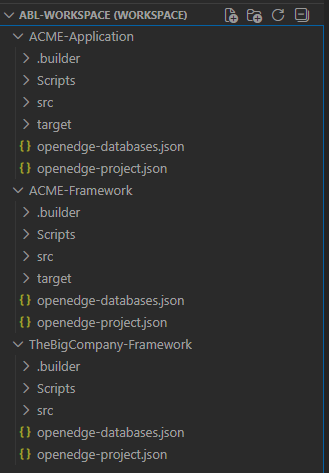
Workspace Example
Here's an example of a multi-root workspace following a Maven-like folder layout:
Features
Database Management (Two-Level Architecture)
The extension uses a workspace/project split for database management:
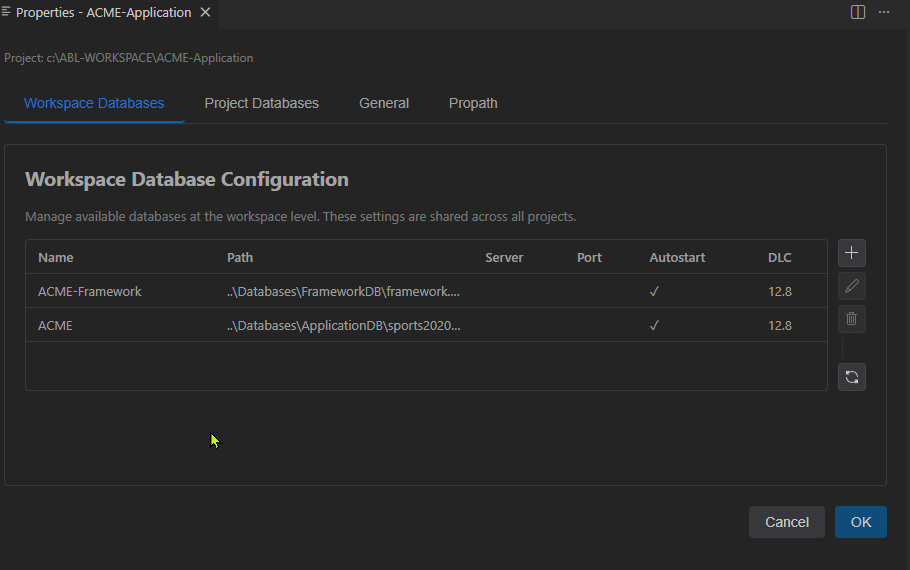
Workspace Databases Tab
Manage available databases at the workspace level (stored in a configurable location, default: .vscode/openedge-workspace-databases.json):
- Server-side settings: Database path, server, port, startup parameters
- DLC runtime selection: Choose which OpenEdge runtime to use
- Autostart configuration: Databases start when VS Code opens
- Schema file settings: Path for automatic schema dump
- Configurable file location: Move the file into a project folder for version control (see Extension Settings)
Workspace Database Settings Form:
Project Databases Tab
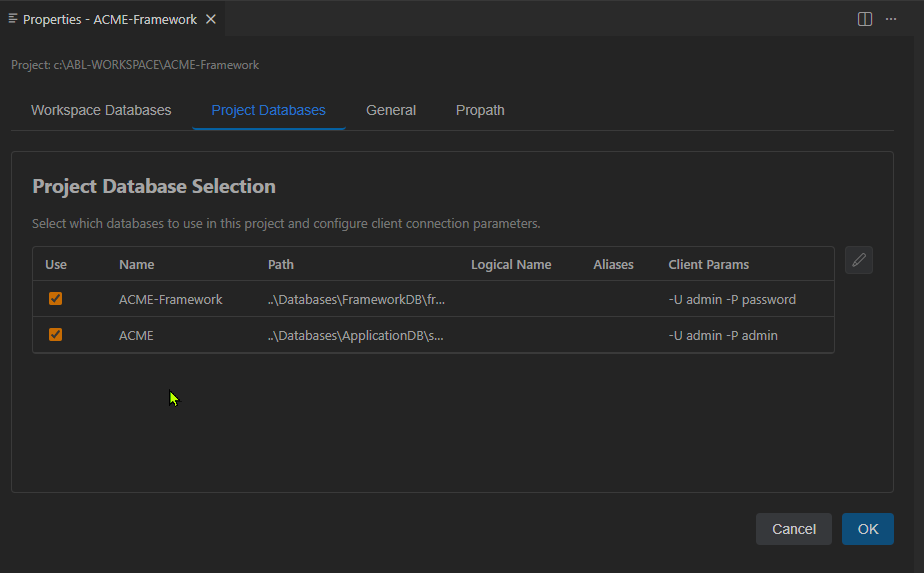
Select which databases to use in each project (stored in openedge-databases.json per project):
- Toggle selection: Enable/disable databases for the project with checkbox
- Client parameters: Connection-specific parameters per project
- Logical name and aliases: Configure how the database appears to ABL code
Client Connection Settings Form:
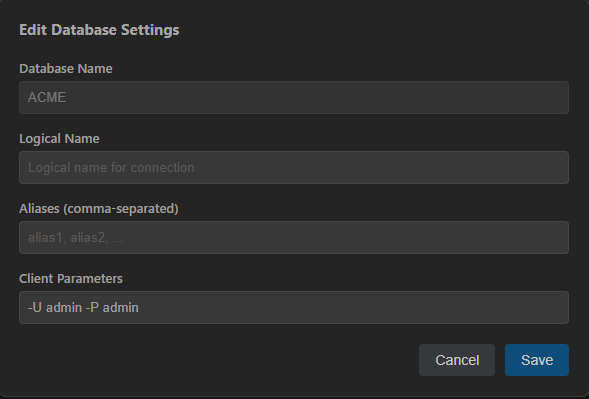
This architecture prevents conflicts when multiple projects share the same databases - server-side settings are defined once, while each project only configures its client connection parameters.
Automatic Database Startup
- Databases configured with "Autostart" are automatically started when VS Code opens
- Checks if database is already running before attempting to start (uses
proutil -C holder)
- Automatic shutdown when VS Code closes: Databases are gracefully stopped using
_mprshut -by
- Uses workspace-level settings to avoid restart conflicts between projects
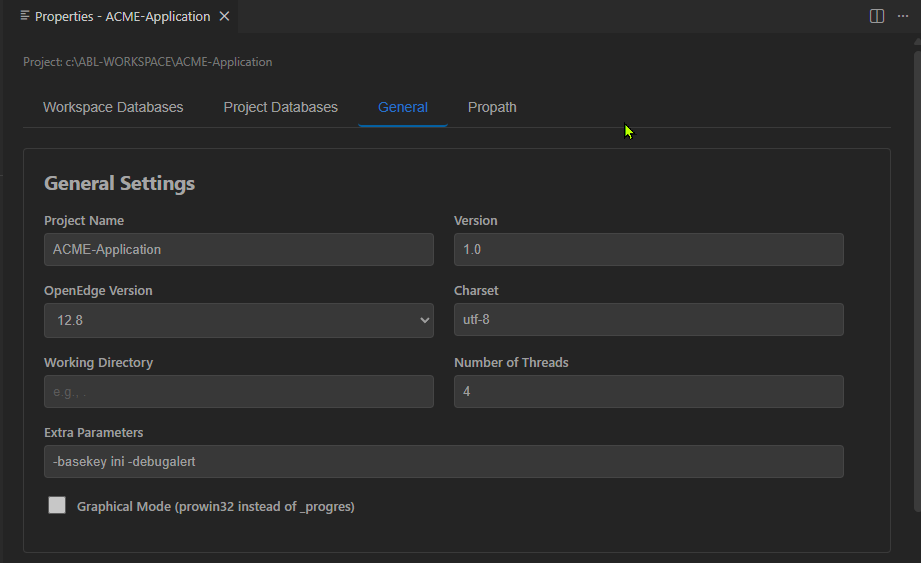
General Settings Tab
- Project Configuration: Edit openedge-project.json settings directly
- Project Name and Version
- OpenEdge Version (dropdown from configured runtimes)
- Graphical Mode toggle (prowin vs _progres)
- Charset configuration
- Working Directory and Number of Threads
- Extra Parameters for runtime
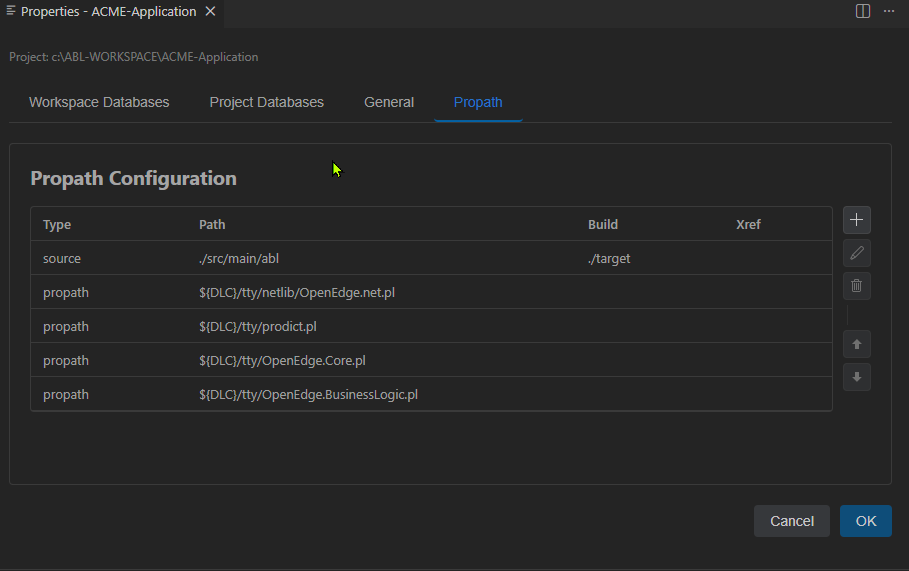
Propath Configuration Tab
- BuildPath Management: View and edit buildPath entries from openedge-project.json
- Grid view with Type, Path, Build, and Xref columns
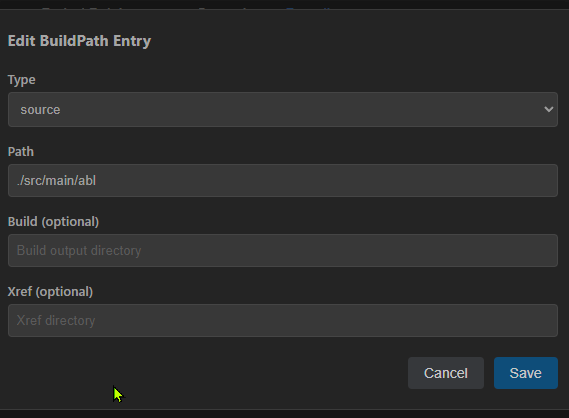
- Add, Edit, and Delete buildPath entries
- Reorder entries using Up/Down buttons
- File watcher detects external changes with reload prompt
BuildPath Entry Form:
DLC Runtime Integration
- DLC dropdown populated from
abl.configuration.runtimes settings
- Automatically sets up environment variables (DLC, PROPATH, PATH) for database operations
- ABL Language Server automatically restarts after saving changes
Database Connection Sync
- Enabled project databases sync with
dbConnections in openedge-project.json
- Combines workspace database path/server with project client parameters
- Supports aliases array and schema file per database
Automatic Schema Dump
- Automatically dump database schema to .df files when configured
- Schema files are generated at extension startup for databases with
schemaFile defined
- Schema is re-dumped when database settings are added or updated
- Uses
prodict/dump_df.p via a wrapper procedure for reliable parameter handling
- Generate Schema Flag: Control automatic schema generation per database
- Ensures database is running before attempting schema dump
- Explorer Context Menu: Right-click on project folders to access "ABL: Open OpenEdge Properties" (appears at bottom of menu)
- Command Palette: Use
ABL: Open OpenEdge Properties - shows project picker when multiple projects exist
- View Title Button: Quick access button in the Explorer view title bar (single-folder workspaces)
- Smart Visibility: Menu items only appear for projects containing
openedge-project.json
Output Logging
- Dedicated "OpenEdge ABL - Project Manager" output channel
- Debug Mode: Enable verbose logging via
openedge-abl-properties.debugMode setting
- When disabled (default): Only essential messages (errors, start/stop confirmations)
- When enabled: Detailed logging of all operations for troubleshooting
- Helpful for troubleshooting startup and connection issues
Extension Settings
This extension contributes the following settings:
| Setting |
Default |
Description |
openedge-abl-properties.debugMode |
false |
Enable verbose logging in the output channel |
openedge-abl-properties.workspaceDatabasesFile |
.vscode/openedge-workspace-databases.json |
Path to the workspace databases configuration file. Relative paths are resolved from the workspace root. |
Sharing Database Configuration via Version Control
By default, the workspace databases file is stored in .vscode/openedge-workspace-databases.json, which is typically not part of any project and cannot be committed to SCM.
To share database configuration with your team:
- Open VS Code settings (File → Preferences → Settings)
- Search for
workspaceDatabasesFile
- Set it to a path inside your main project, e.g.,
my-main-project/openedge-workspace-databases.json
- The file will be created in that location and can be committed to version control
- Other developers will automatically use the same database settings after pulling the changes
Example in .code-workspace file:
{
  "folders": [
    { "path": "my-main-project" },
    { "path": "my-other-project" }
  ],
  "settings": {
    "openedge-abl-properties.workspaceDatabasesFile": "my-main-project/openedge-workspace-databases.json"
  }
}
Configuration Files
Workspace Level: openedge-workspace-databases.json
By default, this file is stored in .vscode/openedge-workspace-databases.json relative to your workspace root. However, you can customize this location using the openedge-abl-properties.workspaceDatabasesFile setting to include it in version control (see Extension Settings).
{
  "databases": [
    {
      "name": "sports",
      "path": "../databases/sports.db",
      "server": "",
      "port": "",
      "parameters": "-n 10",
      "autostart": true,
      "dlc": "12.8",
      "schemaFile": ".vscode/.schema/sports.df",
      "generateSchema": true
    }
  ]
}
Project Level: openedge-databases.json
{
  "databases": [
    {
      "name": "sports",
      "enabled": true,
      "logicalName": "sports",
      "aliases": ["sp"],
      "clientParameters": "-Mm 8192"
    }
  ]
}
Installation
- Install the extension from the VS Code Marketplace (or install the
.vsix file manually)
- Configure your OpenEdge runtimes in VS Code settings:
{
  "abl.configuration.runtimes": [
    {
      "name": "12.8",
      "path": "C:/Progress/OpenEdge128"
    },
    {
      "name": "12.2",
      "path": "C:/Progress/OpenEdge122"
    }
  ]
}
Usage
Opening the Properties Panel
- Open a workspace containing an ABL project with an
openedge-project.json file
- Right-click on the project folder in the Explorer → Select "OpenEdge Properties"
Managing Databases
- In the Properties panel, go to the Databases tab
- Click the + button to add a new database
- Fill in the database details:
- Name: Display name for the database
- Path: Full path to the database file (use browse icon to select)
- Logical Name: Logical name used in ABL code
- Server: Hostname for network access (optional)
- Port: Port number for network access (optional)
- Parameters: Additional
_mprosrv parameters (optional)
- Autostart: Check to start database automatically when VS Code opens
- DLC: Select the OpenEdge runtime to use
- Click Save to add the database
- Click OK to save all changes to
openedge-databases.json
Restarting Databases
- Click the restart icon (circular arrows) to restart all configured databases
- Databases are automatically restarted when their settings are modified
Configuration Files
openedge-project.json
This file must exist in the project root for the extension to recognize the folder as an OpenEdge project.
openedge-databases.json
Created by this extension to store database configurations:
{
  "databases": [
    {
      "name": "Sports",
      "path": "C:/databases/sports.db",
      "logicalName": "sports",
      "server": "localhost",
      "port": "3000",
      "parameters": "-B 1000 -spin 10000",
      "autostart": true,
      "dlc": "12.8"
    }
  ]
}
OpenEdge Commands Used
| Command |
Purpose |
_mprosrv |
Start database server |
_mproshut -by |
Stop database server |
proutil -C holder |
Check database status |
prodict/dump_df.p |
Dump database schema to .df file |
Contributing
Contributions are welcome! Please feel free to submit issues and pull requests on the GitHub repository.
License
This extension is licensed under the MIT License.
Release Notes
See CHANGELOG.md for detailed release notes.
Development
Building
npm install
npm run compile
Running in Development
- Open this folder in VS Code
- Press F5 to launch a new VS Code window with the extension loaded
- Open a folder containing
openedge-project.json
- Right-click on the folder and select "Properties"
Linting
npm run lint
License
MIT

