OpenEdge ABL - PASOE Manager GUI
A Visual Studio Code extension that provides a graphical interface to manage OpenEdge PASOE (Progress Application Server for OpenEdge) agents and sessions through the OpenEdge oemanager REST API.
Features
This extension provides a comprehensive dashboard for managing your PASOE AppServer environment:
Lifecycles View (NEW)
- Agent & Session Lifecycles: Shows when each agent process (PID) and each of its sessions was active, based on the first and last agent log line seen
- Tree mode: one row per agent with session start markers; expand an agent to see one row per session
- Packed lanes mode: each agent is a band with its sessions packed into lanes
- Toggle between both modes with the mode button; Expand all / Collapse all in tree mode
- Min sessions filter (default 4) hides agents with fewer sessions than the threshold; the summary shows how many are hidden
- Optional Session Flame Chart (hidden by default, Show Session Flame button): one bar per running session, packed into lanes, colored by agent with a red outline for sessions with errors; shares the zoom with the other charts and click opens the Logfiles Analyzer on that session
- Session bars with errors are highlighted; tooltips show times, entry, request and error counts
- Drag-to-zoom, Ctrl+wheel zoom (plain wheel scrolls), and Reset Zoom
- Click an agent or session bar to open the Logfiles Analyzer filtered by PID and session
- Flame Chart (optional, hidden by default — use the Show Flame Chart button): Canvas 2D visualization of HTTP access log requests over time (moved from the Logfiles Analyzer). Requests are only loaded while it is shown
- Color-coded by HTTP status, greedy lane packing, hover tooltip; shows all requests of the selected day (no paging)
- Zoom is shared with the lifecycle chart: drag or Ctrl+wheel in either chart and both show the same time window
- Click a bar to open the Logfiles Analyzer filtered by that request ID
Logfiles Analyzer View
- Unified Log Timeline: Reads
openedge.properties to auto-discover agent log paths, then merges agent log and Tomcat localhost-access log entries into a single, chronological view
- Date Picker: Select any date with available access logs; supports date-rotated agent log files with
{yyyy-MM-dd} tokens
- Virtual Scrolling: Efficiently handles large log files with paginated rendering (200 entries per page)
- Multi-Criteria Filtering: Filter by source (agent/access), agent number, process ID, agent session, log entry type, request ID (partial match), and free-text search
- Filter dropdowns dynamically populated from discovered log entries
- Client IP filter: Filter access log entries by client IP address
- HTTP Status Code filter: Filter by HTTP status code
- Minimum Duration filter: Show only requests with response time ≥ threshold (300 ms debounce)
- Access-only filters (Client IP, Status Code, Min Duration) automatically hidden when source is set to "agent"
- Request ID Correlation: Click any request ID to see all correlated agent and access log entries in an expandable detail panel
- Matches entries by short request ID across different app prefixes (e.g.
AppName:w:0000e9c2 ↔ ROOT:w:0000e9c2)
- Highlights matching rows in the main table
- Color-Coded Entries: ERROR/FATAL in red, WARNING in orange, HTTP 4xx in orange, 5xx in red
- Custom Highlight Rules: Define your own rules to highlight log lines containing specific text
- Each rule pairs a case-insensitive match text with its own background and text color (color picker plus preset swatches)
- Auto text color picks readable black or white from the background, with a live
Aa preview of the result
- Per-rule mode: highlight just the matched text or the whole line
- When several whole-line rules match the same line, the first rule wins — reorder rules to set priority
- Enable/disable individual rules; changes apply instantly and persist across sessions
- Managed via the Highlights button in the toolbar
- Configurable Table Columns: Shape the log table around what you are investigating
- Columns toolbar button opens a picker to show or hide any of the ten columns and drag them into the order you want
- Widths can be typed in the picker or dragged from the table header; the Message column is free to grow beyond the 800 px cap applied to the other columns
- Reset layout restores the defaults; the layout is saved in
diabolo.oemanager.logColumnLayout and survives restarts
- A
# column shows each row's line number in the filtered/sorted list
- Open Log Folder: The Open Folder toolbar button opens the selected application's log folder in Windows Explorer
- Compact View & Font: The Compact toolbar toggle removes row separators and tightens spacing; the Font popover sets the table font family and size (
logCompactView, logFontFamily, logFontSize)
- Follow Tail Mode: Auto-scroll to newest entries with a new-entries badge when scrolled away
- Incremental Auto-Refresh: Reads only new bytes since last position (configurable interval)
- Multi-server support: PASOE selector and Manage PASOEs dialog with cross-panel synchronization
ABL Objects View
- Command:
OE Manager: Show ABL Objects
- Track ABL Objects: Enable/disable ABL Objects tracking per agent, retrieve and download reports
- Access Log Correlation: Load a Tomcat
localhost_access_log to match HTTP requests with ABL objects by request ID
- Consolidation Engine: Merges ABL Objects report with access log, grouping by request ID, source file, and session
- 4 Display Modes: By Source, By Request, By Session, or full Detail view
- Sortable Columns: Click headers to cycle ascending → descending → unsorted
- Filtering: Free-text search across all columns, plus minimum object count threshold
- Heat-Map Coloring: Object count cells shaded by intensity to highlight potential leaks
- Summary Stats: Badge bar showing total objects, unique sources, requests, and sessions
- Export CSV: Export the current view (respecting mode and filters) to a semicolon-delimited CSV
- Multi-server support: PASOE selector and Manage PASOEs dialog with cross-panel synchronization
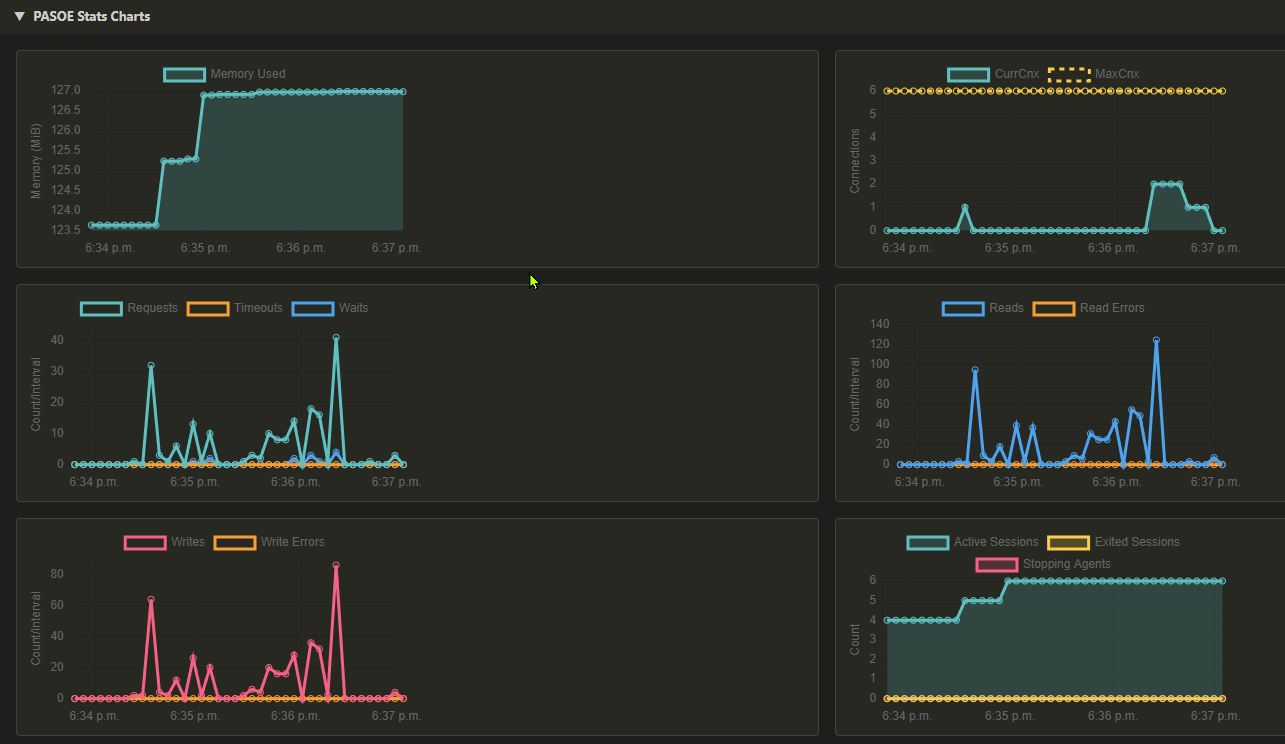
PASOE Stats View
- Command:
OE Manager: Show PASOE Stats
- SessionManager Metrics: Collapsible section showing all server-level metrics in a two-column layout
- 6 Time-Series Charts with auto-refresh (powered by Chart.js):
- Memory — aggregated agent memory usage (MiB)
- Connections — current and max concurrent clients
- Requests — request count, timeouts, and waits (delta per interval)
- Reads — read count and read errors (delta per interval)
- Writes — write count and write errors (delta per interval)
- Sessions & Agents — active sessions, exited sessions, stopping agents
- 60-minute scrolling history retained across refreshes
- Auto-refresh configurable via
diabolo.oemanager.chartsRefreshInterval (default: 10s)
- Multi-server support: PASOE selector and Manage PASOEs dialog with cross-panel synchronization
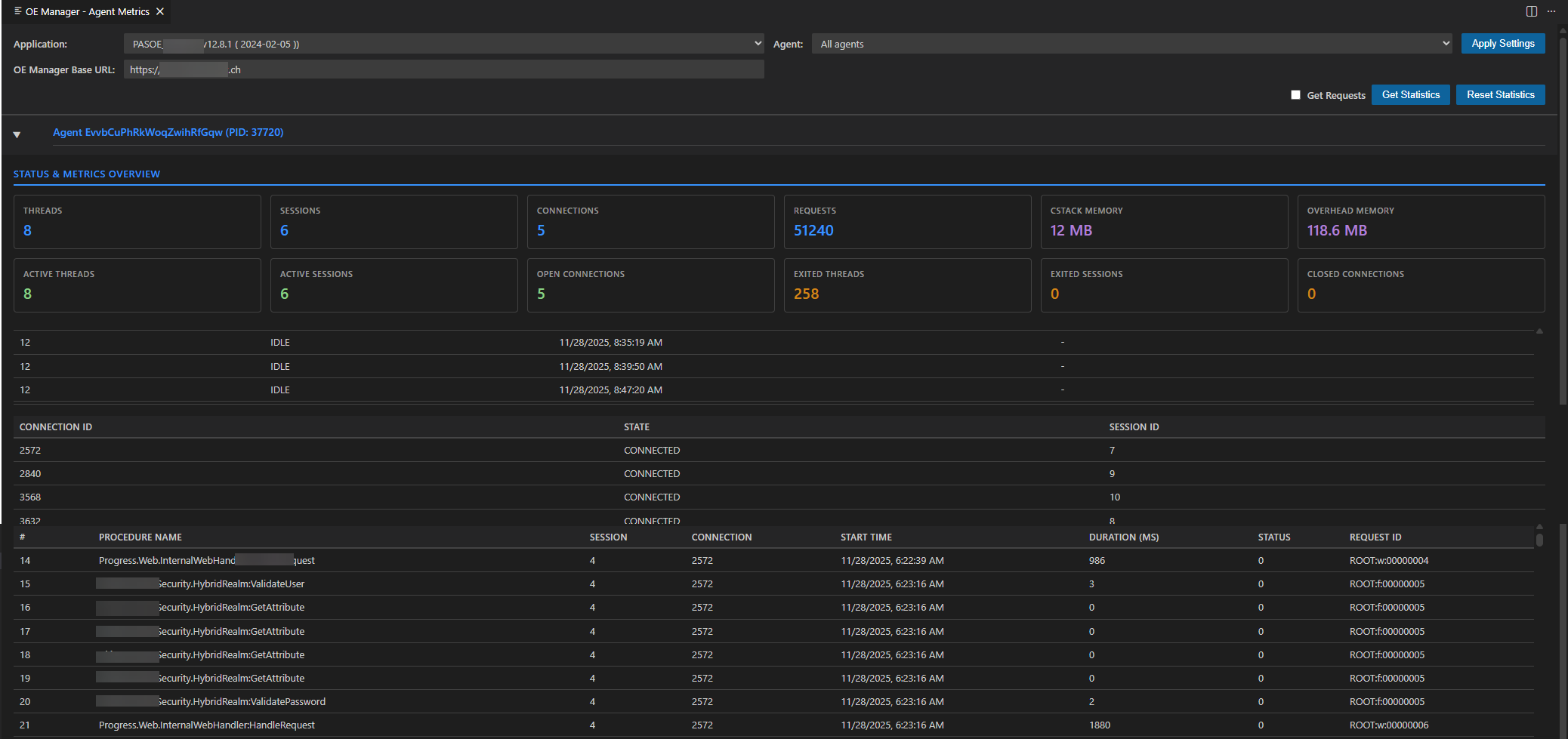
Agent Statistics View
- Command:
OE Manager: Show Agent Metrics
- Condensed Summary Table: One row per agent with all statistics side by side, grouped and color-coded
- Status counts: Threads, Sessions, Connections, Requests
- Memory: CStack, Overhead (purple)
- Active Threads/Sessions/Open Connections (green), Exited Threads/Sessions/Closed Connections (orange)
- Requests Completed/Failed/Queued and Request Duration (Total/Min/Max/Avg)
- Per-agent Reset button
- Combined Data Grids: Threads, Connections and Requests of all agents in one view, each with an Agent column
- Auto-refresh: Values and grid rows are updated in place (scroll position and selection are kept), configurable via
diabolo.oemanager.metricsRefreshInterval (default: 10s); paused while the panel is hidden
- Pause / Resume and Refresh Now buttons, with a "last updated" indicator
- Get Requests Toggle: Optional checkbox to include/exclude request data (unchecked by default for faster loading)
- Reset All Statistics: Clear statistics for all agents of the selected application
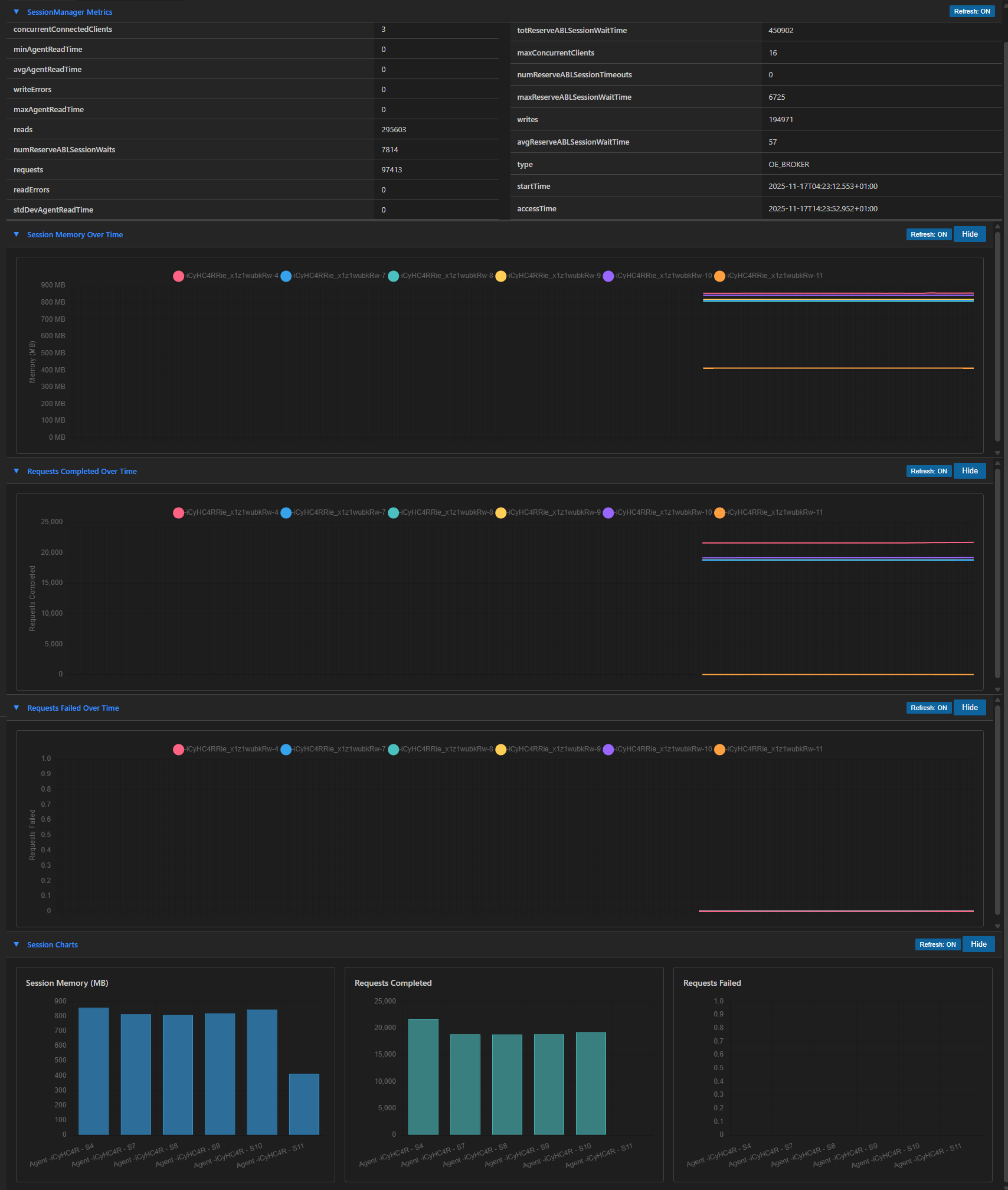
Real-time Monitoring
- Command:
OE Manager: Show Charts
- SessionManager Metrics - View key performance metrics with auto-refresh capability
- Performance Charts - Dedicated independent panel with real-time time-series charts:
- Session Memory Over Time - Track memory usage per session
- Requests Completed Over Time - Monitor request completion rates
- Requests Failed Over Time - Track failure rates
- Session-specific bar charts (Memory, Completed, Failed per session)
- Task Manager-style scrolling (200 data points, configurable refresh interval)
- Optional legend: hover the legend icon (top right of each chart) to show it, click to pin it. It shows per-agent info (PID, state, metrics) and per-session details; click a session to show or hide its line
- Fewer vertical grid lines for cleaner display
- Agents Grid - Monitor all agents with their current status and properties
- Auto-selects first agent on refresh
- Preserves collapsed/expanded state on refresh
- Sessions Grid - View active sessions for selected agents
- Automatically loads when first agent is selected
- Running Queries - Track active requests with auto-refresh (configurable interval)
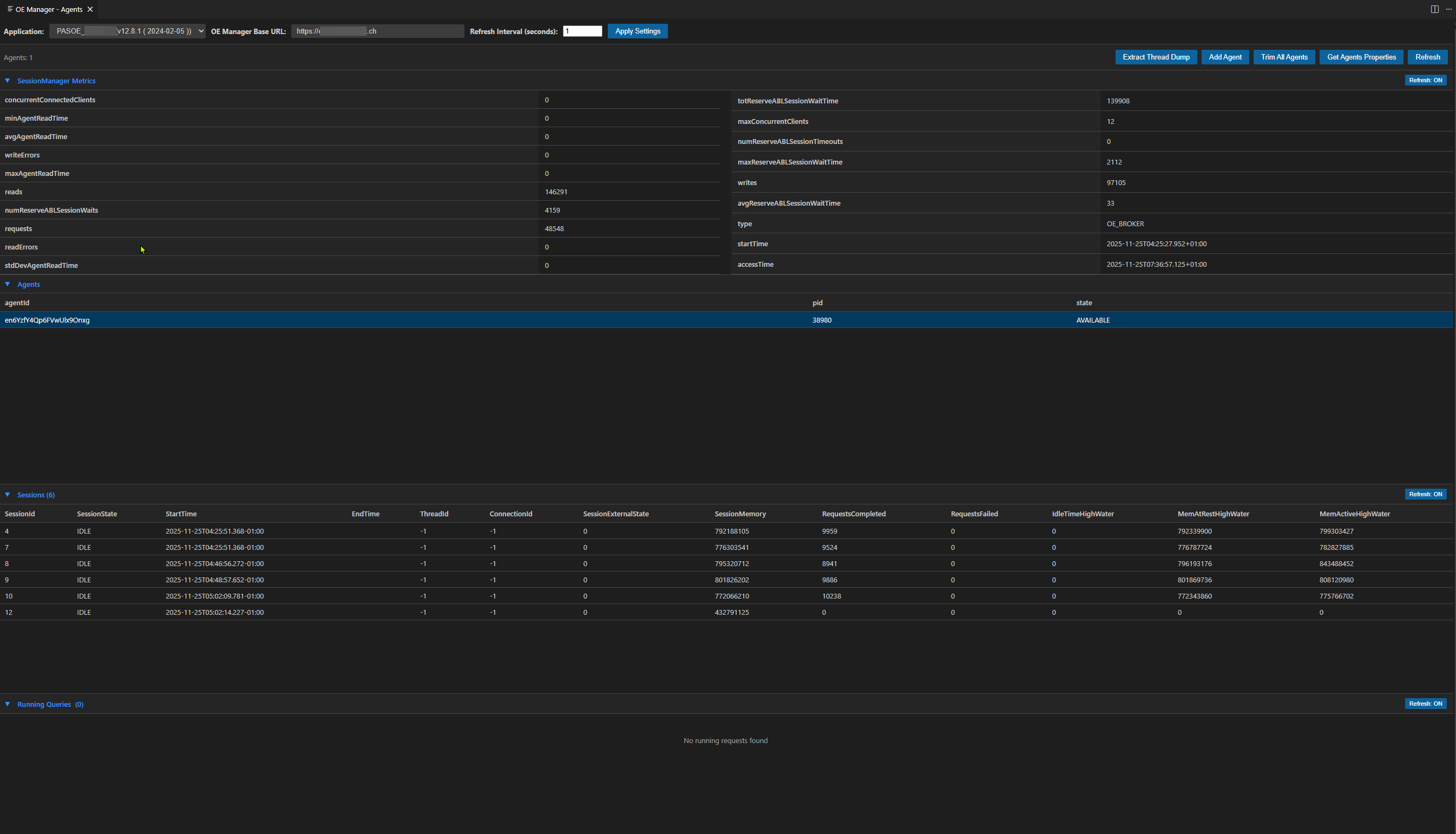
Agent Management
- Command:
OE Manager: Show Agents
- Add Agent - Create new agents with a single click
- Delete Agent - Remove agents with configurable wait times
- Trim All Agents - Delete all agents from the current application with one click
- Trim All Agents (Command Palette) -
OE Manager: Trim All Agents deletes all agents from all applications
- Cancel Request - Right-click on any running request to cancel it (NEW)
- Enable/Disable ABL Objects - Control ABL object handling per agent
- Get ABL Objects Report - Export detailed ABL objects information to file
- Agent Properties - View and edit comprehensive agent configuration:
- Edit properties directly in modal dialog
- Save changes to update agent configuration via API
- All properties are editable (PROPATH, session limits, memory limits, etc.)
- Auto-Refresh Agent Grid - Agents grid automatically refreshes (configurable interval, default 10s)
- Preserves agent selection after refresh
- Sessions/Requests grids only update for RUNNING or AVAILABLE agents
Configuration
- Flexible authentication (Basic Auth)
- SSL certificate validation control (supports self-signed certificates)
- Configurable API endpoints
- Auto-refresh intervals for real-time data
- Customizable wait times for agent operations
Requirements
- OpenEdge PASOE with oemanager application deployed and accessible
- VS Code version 1.74.0 or higher
- Network access to your PASOE server's oemanager REST API endpoints
Installation
- Install the extension from the VS Code Marketplace (or manually via
.vsix file)
- Configure the extension settings (see Getting Started section below)
- Open the Command Palette (
Ctrl+Shift+P or Cmd+Shift+P)
- Run
OE Manager: Show Agents
Getting Started
First-Time Setup
When you install the extension for the first time, you need to configure at least one PASOE server connection. The extension provides a built-in Manage PASOEs dialog that makes this easy.
Step 1: Open a View
- Open the Command Palette (
Ctrl+Shift+P or Cmd+Shift+P)
- Run one of the following commands:
OE Manager: Show Agents - Agent management viewOE Manager: Show Charts - Performance charts viewOE Manager: Show Agent Metrics - Agent statistics viewOE Manager: Show PASOE Stats - PASOE stats & charts view
Step 2: Add Your First PASOE Server
- In the view, click the ⚙ Manage PASOEs… button (in the top toolbar, next to the PASOE selector)
- A dialog opens with an empty PASOE list
- Click + Add
- Fill in the server details:
- Name: A friendly name for this server (e.g., "Production PASOE", "Dev Server")
- URL: The base URL of your PASOE oemanager API (e.g.,
https://myserver.com:8810)
- Username: Your oemanager username (e.g.,
admin)
- Password: Your oemanager password (stored securely)
- PASOE Path (optional): Local PASOE instance directory, enables Start/Stop PASOE, Logfiles and Lifecycles
- Optionally click Test connection to check the URL and credentials
- Click Save (or press Enter); the dialog returns to the list
Step 3: Select Your Server
Choose the server in the PASOE selector in the top toolbar. The extension will:
- Store the connection settings
- Load the available applications from the server
- Display the application data in the view
Managing Multiple PASOE Servers
The extension supports managing multiple PASOE server connections, making it easy to switch between different environments (Development, QA, Production, etc.).
Switching Between Servers
Pick another server in the PASOE selector of any view. All open views automatically update to show data from the selected server. The default server is marked with ★; hover the selector to see the server URL.
Maintaining Servers
Click ⚙ Manage PASOEs… in any view. The dialog shows a compact list of all servers (● = active, ★ = default). Select a row, then use the toolbar above the list:
| Button |
Action |
| + Add |
Add a new server |
| Edit |
Edit the selected server (also: double-click the row or press Enter) |
| Duplicate |
Create a copy of the selected server; leave the password empty to reuse the original password |
| Delete |
Delete the selected server after confirmation (also: Del key). If it was active, the default server becomes active |
| ★ Set default |
Make the selected server the default |
| Test connection |
Check that the selected server is reachable and the credentials are valid |
Adding, editing or duplicating opens the form in place of the list, so it is always visible, however long the list is. Use ← Back (or Esc) to return to the list. When editing, leave Password empty to keep the stored password.
View Settings
Each view displays the current connection settings in the top toolbar:
- Application: Dropdown to select which PASOE application to monitor
- PASOE: Dropdown to switch the active PASOE server, plus the ⚙ Manage PASOEs… button
- OE Manager Base URL: Shows the current server URL (read-only)
- Refresh Interval: Set the auto-refresh interval in seconds (1-300)
- Changes apply immediately when you leave the field or press Enter
Configuration
The recommended way to configure the extension is through the PASOE selector and the ⚙ Manage PASOEs… button in any view. This allows you to manage multiple server connections easily.
Alternatively, you can configure settings through VS Code settings (File > Preferences > Settings or Ctrl+,).
VS Code Settings
These settings are automatically managed when you use the Manage PASOEs dialog, but can also be set manually:
| Setting |
Type |
Default |
Description |
diabolo.oemanager.baseUrl |
string |
- |
Base URL for the OE Manager API (e.g., https://server:8810) |
diabolo.oemanager.username |
string |
- |
Username for basic authentication |
diabolo.oemanager.rejectUnauthorized |
boolean |
false |
Verify SSL certificates (set to false for self-signed certs) |
diabolo.oemanager.waitToFinish |
number |
120000 |
Wait time in ms for agent deletion (2 minutes) |
diabolo.oemanager.waitAfterStop |
number |
60000 |
Wait time in ms after agent stop (1 minute) |
diabolo.oemanager.confirmTrimAllAgents |
boolean |
true |
Ask for confirmation before trimming all agents |
diabolo.oemanager.requestsRefreshInterval |
number |
5 |
Auto-refresh interval in seconds for requests/sessions |
diabolo.oemanager.chartsRefreshInterval |
number |
10 |
Charts data collection interval in seconds |
diabolo.oemanager.agentsRefreshInterval |
number |
10 |
Auto-refresh interval in seconds for agents grid |
diabolo.oemanager.metricsRefreshInterval |
number |
10 |
Auto-refresh interval in seconds for the Agent Metrics view (0 disables) |
diabolo.oemanager.logRefreshInterval |
number |
10 |
Auto-refresh interval in seconds for the Logfiles Analyzer (decimals allowed, 0 disables) |
diabolo.oemanager.logColumnLayout |
array |
all columns visible |
Visible logfile table columns, their order, and their widths in pixels (managed by the Columns picker) |
diabolo.oemanager.logCompactView |
boolean |
false |
Compact logfile table without row separators (Compact toolbar toggle) |
diabolo.oemanager.logFontFamily |
string |
"" |
Font family of the logfile table; empty uses the VS Code UI font (Font popover) |
diabolo.oemanager.logFontSize |
number |
12 |
Font size in pixels of the logfile table, 8–32 (Font popover) |
Password: Passwords are stored securely using VS Code's Secret Storage API. When using the Manage PASOEs dialog, passwords are stored automatically. You can also use command palette commands:
OE Manager: Set Password - Store password for the current baseUrlOE Manager: Delete Password - Remove the stored password
Example Configuration
{
  "diabolo.oemanager.rejectUnauthorized": false,
  "diabolo.oemanager.requestsRefreshInterval": 5,
  "diabolo.oemanager.chartsRefreshInterval": 10,
  "diabolo.oemanager.agentsRefreshInterval": 10
}
Note: The baseUrl and username are typically managed through the Manage PASOEs dialog, which also handles password storage securely.
Usage
Opening the Dashboard
- Open Command Palette (
Ctrl+Shift+P / Cmd+Shift+P)
- Type
OE Manager: Show Agents
- Press Enter
Managing Agents
Add an Agent:
- Click the "Add Agent" button in the toolbar
Agent Context Menu (Right-click on any agent):
- Enable ABL Objects - Enable ABL object handling
- Disable ABL Objects - Disable ABL object handling
- Get ABL Objects Report - Export report to JSON file
- Delete Agent - Remove the agent (with confirmation)
Viewing Sessions
- Click on any agent row to view its active sessions
- Sessions are displayed in the grid below the agents
Viewing and Editing Agent Properties
- Click the "Agents Properties" button in the toolbar
- A modal dialog displays all agent configuration properties
- Edit any property value directly in the input fields
- Click "Save" to update the agent configuration
- Changes are applied immediately via the oemanager API
- Click "Show Charts" to display real-time performance monitoring
- Three independent chart sections (collapsible):
- Session Memory Over Time - Memory usage per session in MB
- Requests Completed Over Time - Completed request counts
- Requests Failed Over Time - Failed request counts
- Each chart shows a 1-hour scrolling window (200 data points)
- Charts scroll left as new data arrives (Task Manager style)
- Individual "Hide" and "Refresh" buttons for each chart section
- Data collection interval configurable via
chartsRefreshInterval setting
ABL Objects Leak Detection
The ABL Objects view helps identify object leaks in your PASOE application by correlating ABL object snapshots with HTTP request logs.
Step 1: Enable Tracking
- Open
OE Manager: Show ABL Objects
- Select an agent from the dropdown
- Click Enable Tracking to start recording ABL object allocations
- Let the application run with normal traffic for a while
Step 2: Get the Report
- Click Get Report to retrieve the ABL Objects snapshot from the agent
- The Report Summary section shows object counts per session
- Optionally click Download JSON to save the raw report
Step 3: Load an Access Log
- In the Access Log section, select your Tomcat
localhost_access_log file
- The file is parsed to extract HTTP request URLs and their request IDs
- A loading spinner is shown while processing large files
Step 4: Consolidate and Analyze
- Click Consolidate to merge the ABL Objects report with the access log
- The results show which HTTP requests created which ABL objects
- Use the 4 display modes to view data from different angles:
- By Source: Which ABL source files create the most objects? (best for finding leaky classes)
- By Request: Which HTTP requests create the most objects?
- By Session: Which sessions accumulate the most objects?
- Detail: Full row-level data for deep-dive analysis
- Sort any column by clicking its header (ascending → descending → unsorted)
- Use Search to filter by text, or set Min objects to hide low-count rows
- Red-shaded heat-map cells highlight the highest object counts
- Click Export CSV to save the current filtered view
Tip: Sort "By Source" by Total Objects descending to quickly find ABL classes that create disproportionately many objects — these are your most likely leak candidates.
Monitoring Running Queries
- The bottom grid shows all active requests across the application
- Toggle auto-refresh ON/OFF using the button in the grid header
- Refresh interval is configurable via settings
Auto-Refresh Controls
Both SessionManager Metrics and Running Queries grids have independent auto-refresh toggle buttons:
- Click "Refresh: ON" to disable auto-refresh
- Click "Refresh: OFF" to enable auto-refresh
- Both use the same interval from
oemanager.requestsRefreshInterval
API Endpoints Used
This extension interacts with the following OpenEdge oemanager REST API endpoints:
GET /oemanager/applications/{app}/agents - List agentsGET /oemanager/applications/{app}/agents/sessions - Get all sessions with metricsGET /oemanager/applications/{app}/agents/{id}/sessions - Get agent sessionsGET /oemanager/applications/{app}/agents/properties - Get agent propertiesPUT /oemanager/applications/{app}/agents/properties - Update agent propertiesGET /oemanager/applications/{app}/metrics - Get SessionManager metricsGET /oemanager/applications/{app}/requests - Get active requestsPOST /oemanager/applications/{app}/addAgent - Create new agentDELETE /oemanager/applications/{app}/agents/{id} - Delete agentPUT /oemanager/applications/{app}/agents/{id}/ABLObjects/status - Enable/disable ABL objectsGET /oemanager/applications/{app}/agents/{id}/ABLObjects - Get ABL objects report
Commands
| Command |
Description |
OE Manager: Show Agents |
Open the OE Manager dashboard |
OE Manager: Show Charts |
Open the performance charts panel |
OE Manager: Show Agent Metrics |
Open the agent statistics panel |
OE Manager: Show PASOE Stats |
Open the PASOE stats & charts panel |
OE Manager: Show ABL Objects |
Open the ABL Objects tracking panel |
OE Manager: Refresh Agents |
Refresh the agents view |
OE Manager: Set Password |
Securely store your password |
OE Manager: Delete Password |
Remove the stored password |
Troubleshooting
Connection Issues
If you can't connect to the oemanager API:
- Verify
diabolo.oemanager.baseUrl is correct
- Check that the oemanager application is running
- Confirm network connectivity to the PASOE server
- Verify username is correct and password is set using
OE Manager: Set Password command
SSL Certificate Errors
For self-signed certificates:
- Set
diabolo.oemanager.rejectUnauthorized to false
Authentication Failures
- Ensure
diabolo.oemanager.username is correctly set
- Run
OE Manager: Set Password command to securely store your password
- Verify the user has permissions to access oemanager APIs
Known Issues
- Large ABL Objects reports may take time to download and save
Release Notes
The highlights of the recent releases are listed below. See CHANGELOG.md for the complete history.
1.11.0 (Current)
Make the Logfiles Analyzer look the way you work:
- Configurable table columns — show, hide, reorder, and resize the log table columns from the new Columns picker, with a one-click Reset layout
- Wide messages — the Message column is free to grow past the 800 px cap that keeps the other columns in check
- Richer highlight rules — each rule now carries its own background and text color, with an Auto mode that picks readable black or white and a live preview
- Persistent layout — your column choices are stored in settings and restored on the next start
1.10.0
- Custom highlight rules — flag the lines that matter with case-insensitive match text, a color picker with preset swatches, and a per-rule choice between highlighting the matched text or the whole line. Rules can be reordered to set priority, toggled on and off, and are applied live without reloading the panel.
1.9.x
- Panel serialization — open OE Manager panels are reopened with their previous view state after a VS Code restart
- Agent sessions context menu — right-clicking a session reliably opens the termination menu (graceful stop, forced stop, finish request + stop)
- Robust log dates — lowercase date tokens in agent log paths are resolved, picked dates are normalized across regional formats, and invalid dates report a clear error
- PASOE command palette actions — start, restart, and trim-all flows for either the default instance or a selected one, backed by a default-server flag and an optional trim confirmation
1.8.0
- Metrics → Logfiles correlation — clicking a Request ID in the Agent Metrics view opens the Logfiles Analyzer on the same application with the Request ID filter pre-filled
1.7.x
- Flame chart — an interactive view of HTTP access log requests over time with hover details, drag- and wheel-zoom, and click-to-correlate
- Trim All Agents fixes — the keybinding works before activation, and the target server is chosen explicitly instead of silently reused
- PASOE terminal reuse — start/stop actions share one terminal per server and no longer lock the PASOE
bin folder
Contributing
Contributions are welcome! Please feel free to submit issues and pull requests to the GitHub repository.
Running E2E tests
Run npm run compile before npm run test:e2e. Playwright launches an isolated
VS Code Extension Development Host for each test and closes it during teardown.
On Windows, the launcher shell can exit before Electron; teardown keeps the
output pipes open so Playwright can complete its debugger-disconnect handshake.
If graceful shutdown takes more than 15 seconds, teardown force-stops the
Electron process and allows another 5 seconds for Playwright to finish closing.
If Electron exits but Playwright never reports the close (Windows can leave the
debugger sockets and pipes open), teardown stops waiting 2 seconds after the exit,
releases the pipes, and continues with a warning instead of failing the test.
A process that exits during forced termination is tolerated only after confirming
that its PID no longer exists; other termination errors are not ignored, and a
close that hangs while Electron is still alive is reported as a failure.
Temporary user-data directories are removed with retries; if Windows still holds
a file lock, a one-line warning is printed and the directory is left in the temp folder.
Shutdown failures are reported rather than waiting for the 120-second test timeout.
License
See LICENSE file for details.
Note: This extension requires access to an OpenEdge PASOE server with the oemanager application properly configured and accessible.
| |

