Copilot AI Productivity Suite
Recommended Tools
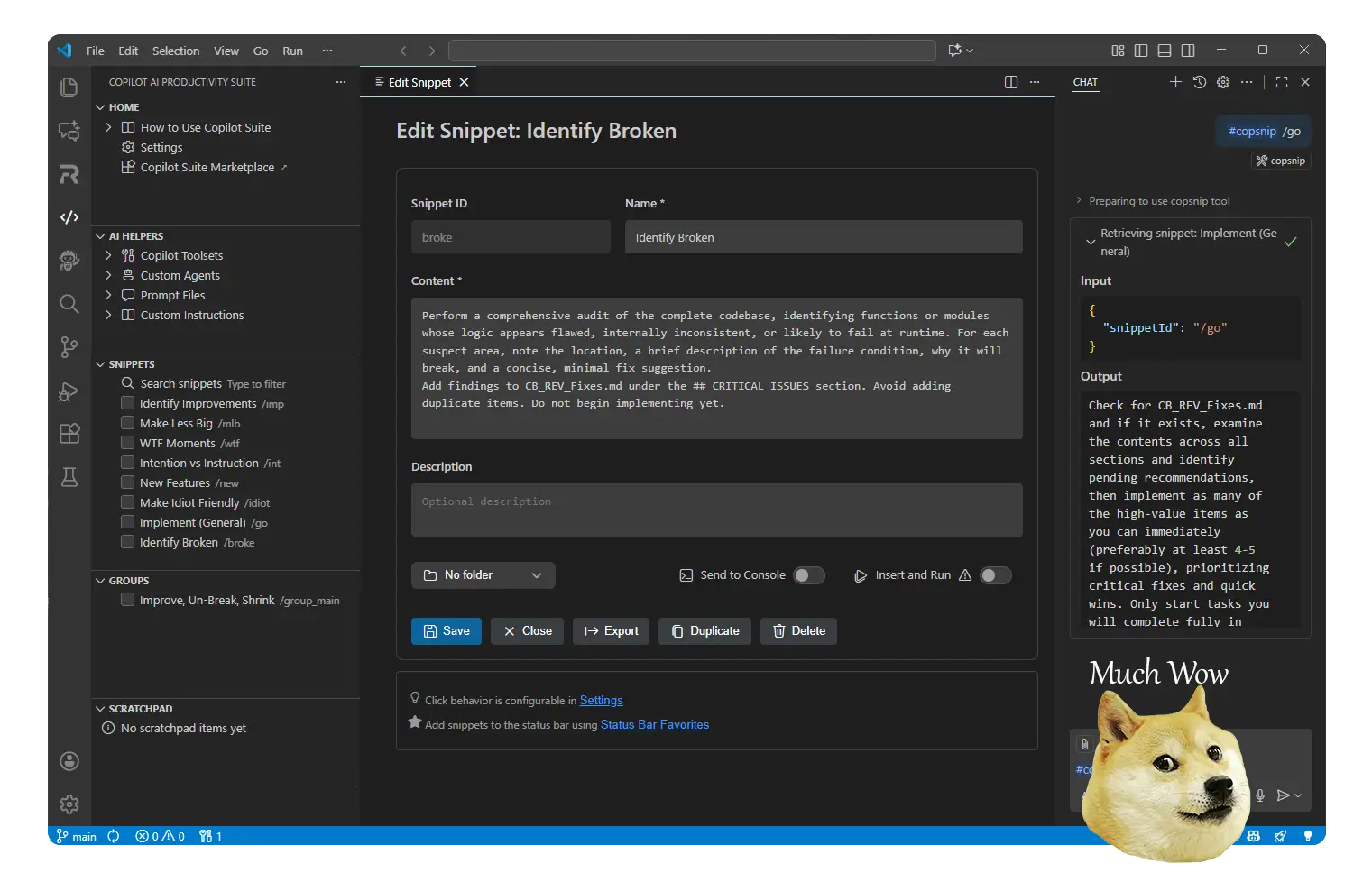
Your snippets. In Copilot. One keystroke. Save code as a snippet, type
Quick Start
Why Use ThisWithout it:
With Copilot AI Productivity Suite:
OrganizeFolders - Nest snippets deep. Groups - Bundle related snippets and reference them all at once. Favorites - Pin your top 5 to the status bar. Share - Export JSON or generate a link. Teammates import in one click. Sort modes - Sort by name, date, or manual order via the sidebar toolbar. Multiselect - Select multiple snippets for bulk move, delete, or reference insertion. Section ordering - Drag sidebar sections into whatever order fits your workflow.
Inside Copilot ChatReference a single snippet: Reference an entire group at once: New snippets appear instantly. No reloads. Fill-in variablesWrite
Use With Claude Code & Codex CLIYour snippets aren't tied to GitHub Copilot. The extension also runs a built-in MCP server that exposes the same snippets and groups to any MCP-compatible client - Claude Code and OpenAI Codex CLI in particular. Setup: nothing. When the extension activates and detects Claude Code or Codex CLI installed on your system, it wires up the MCP server automatically. Just restart the target CLI after installing the extension. If you'd rather do it manually, the Command Palette commands still exist ( The CLI's model will automatically have access to:
In Claude Code or Codex you can also just ask: "Use the copilot-suite snippet Snippets as MCP prompts. The server also lists every snippet and group as an MCP prompt, so clients that support prompts show them as slash commands (in Claude Code: How it works. The extension mirrors your snippets to Slash commands (optional). Enable
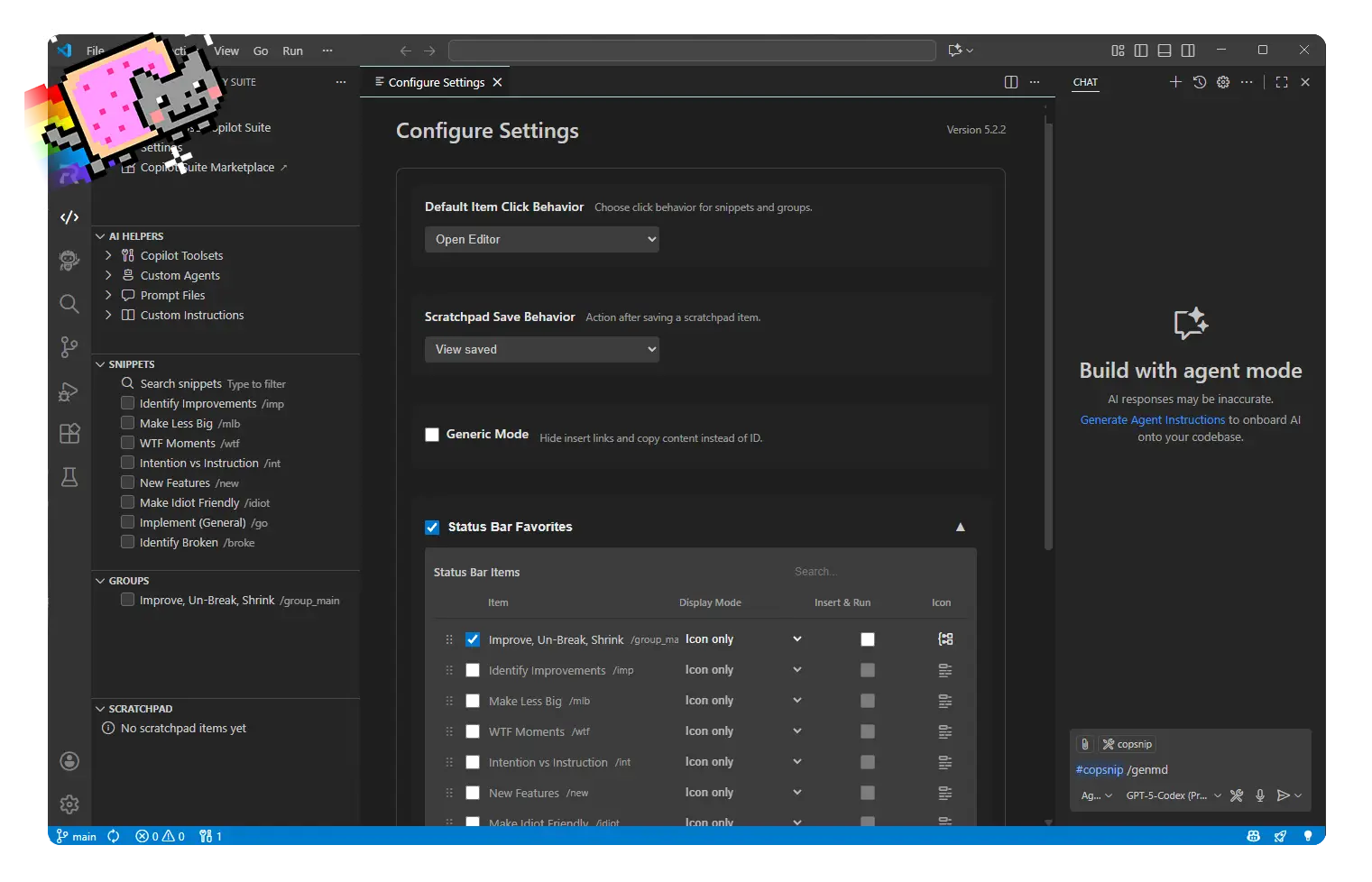
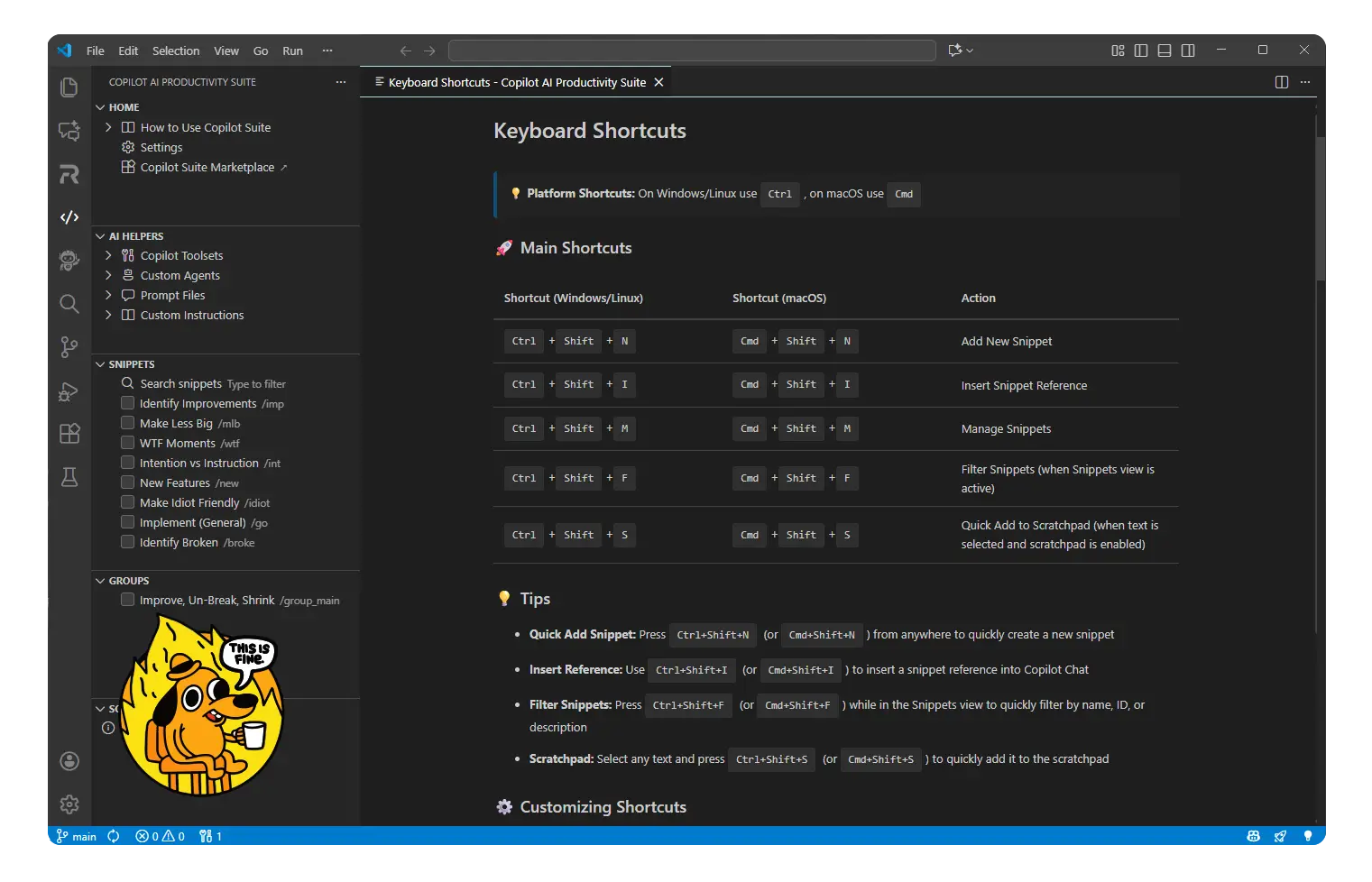
Files are kept in sync automatically as you edit snippets. To remove the integration: AI HelpersManage your Copilot ecosystem directly from the sidebar. Toolsets - Define custom tools for Copilot to use. Agents - Configure custom agents for specific tasks. Instructions - Edit global or workspace-specific Copilot instructions. Prompts - Organize and reuse complex prompt files. Power TipsKeyboard shortcuts - Assign hotkeys to your most-used commands. Status bar - Pin snippets as favorites and manage them from Snippet Settings. Project settings - Different snippets for different workspaces. Export your config directly from the settings panel. Cloud sync - Snippet sync caches are stored outside VS Code's memento state so large libraries do not interrupt sign-in persistence. Fast Add - Save a snippet and have its name inserted into Copilot Chat automatically. Hide sections - Collapse any sidebar section you don't use. An undo toast brings it back if needed. Bulk ops - Select multiple snippets, insert all references at once. SettingsFind these in File → Preferences → Settings ( Status bar favorites, generic mode and save-and-close are not VS Code settings. They are toggles inside Copilot Suite's own settings panel, so that they can sync with your account across machines. Commands
Full list:
Usage statisticsWhile VS Code's telemetry setting is on, Copilot Suite sends LunarWerx anonymous usage statistics: that the extension started, each snippet insertion and where it came from, and the extension, editor and platform versions. It uses a random id, and never a snippet, a file or your account. We use it to see what people use and where to spend our time. Stuck?Snippets not in Copilot? Check that GitHub Copilot extension is active. Status bar empty? Open Copilot Suite's settings panel from the sidebar and turn on Show Status Bar Favorites, then star the snippets you want pinned. Need help? Open an issue Built for developers who hate repeating themselves. If this saves you time, leave a review. |