FrameRef MCP






100+ framework docs. Zero browser tabs. Right inside VS Code.
Ask Copilot about React hooks at 35,000 feet. No WiFi needed.
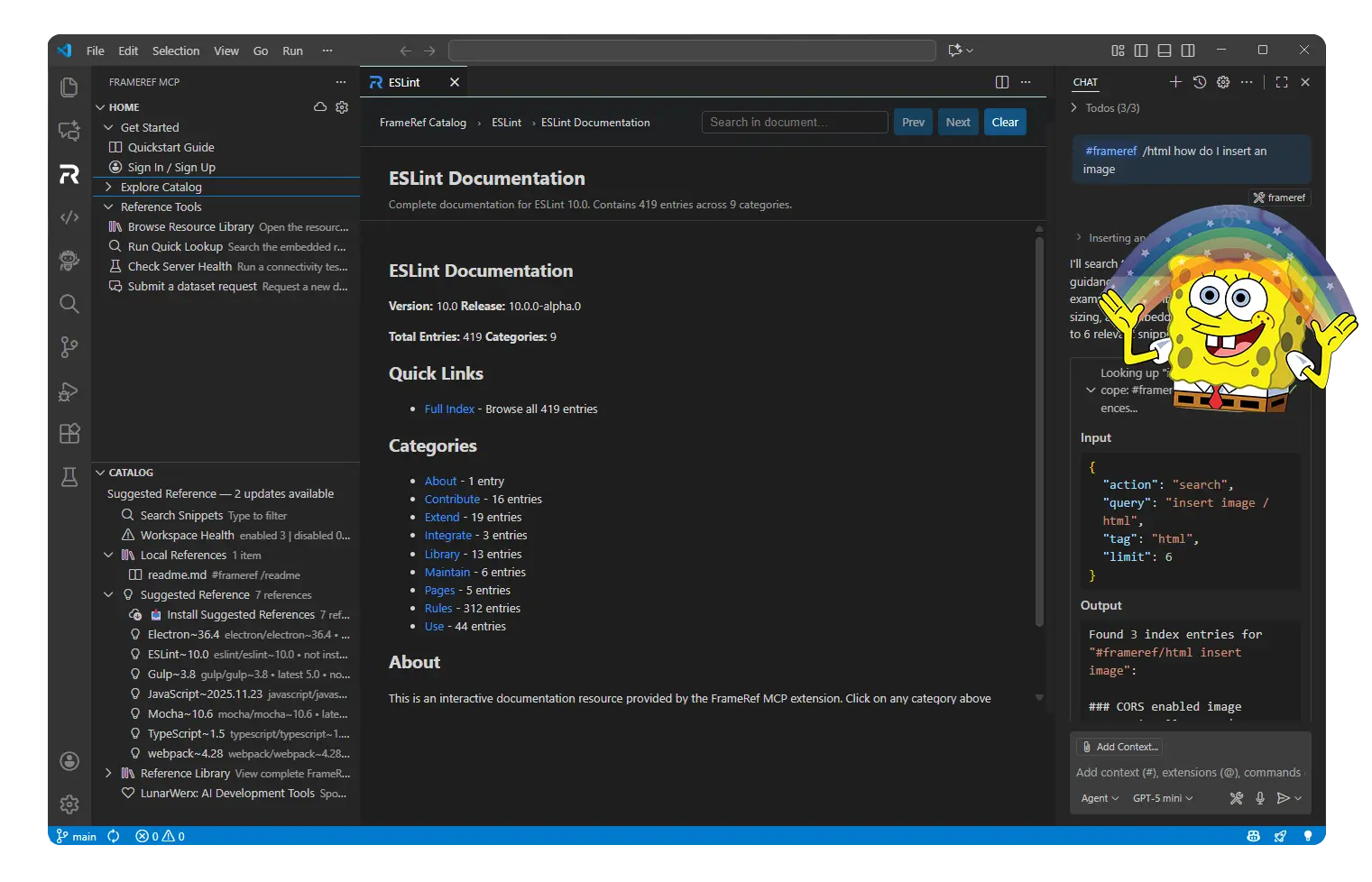
60 Seconds to Working
- Install the extension.
- Click the 📚 icon. Click "Install Suggested Bundles."
- Type
#frameref useEffect in Copilot Chat.
That's it. Copilot now answers with the actual React docs—not guesses.
The Problem
You're debugging at 11pm.
You open Chrome. Search "React useEffect cleanup." Click the first result. Cookie banner. Scroll past the SEO fluff. Find the code block. Copy it. Tab back to VS Code.
37 seconds gone. Flow broken.
Or you ask Copilot. It hallucinates a deprecated API from 2019.
FrameRef fixes both.
Docs live inside VS Code. Copilot reads them. No tabs. No hallucinations.
What Changes
| Before FrameRef |
After FrameRef |
| 12 browser tabs of docs |
Zero tabs |
| Copilot guesses API signatures |
Copilot quotes exact docs |
| "Let me Google that..." |
Highlight → Search → Done |
| Offline = stuck |
Offline = no difference |
| New teammate = 2 hours of setup |
.frameref.json = 2 minutes |
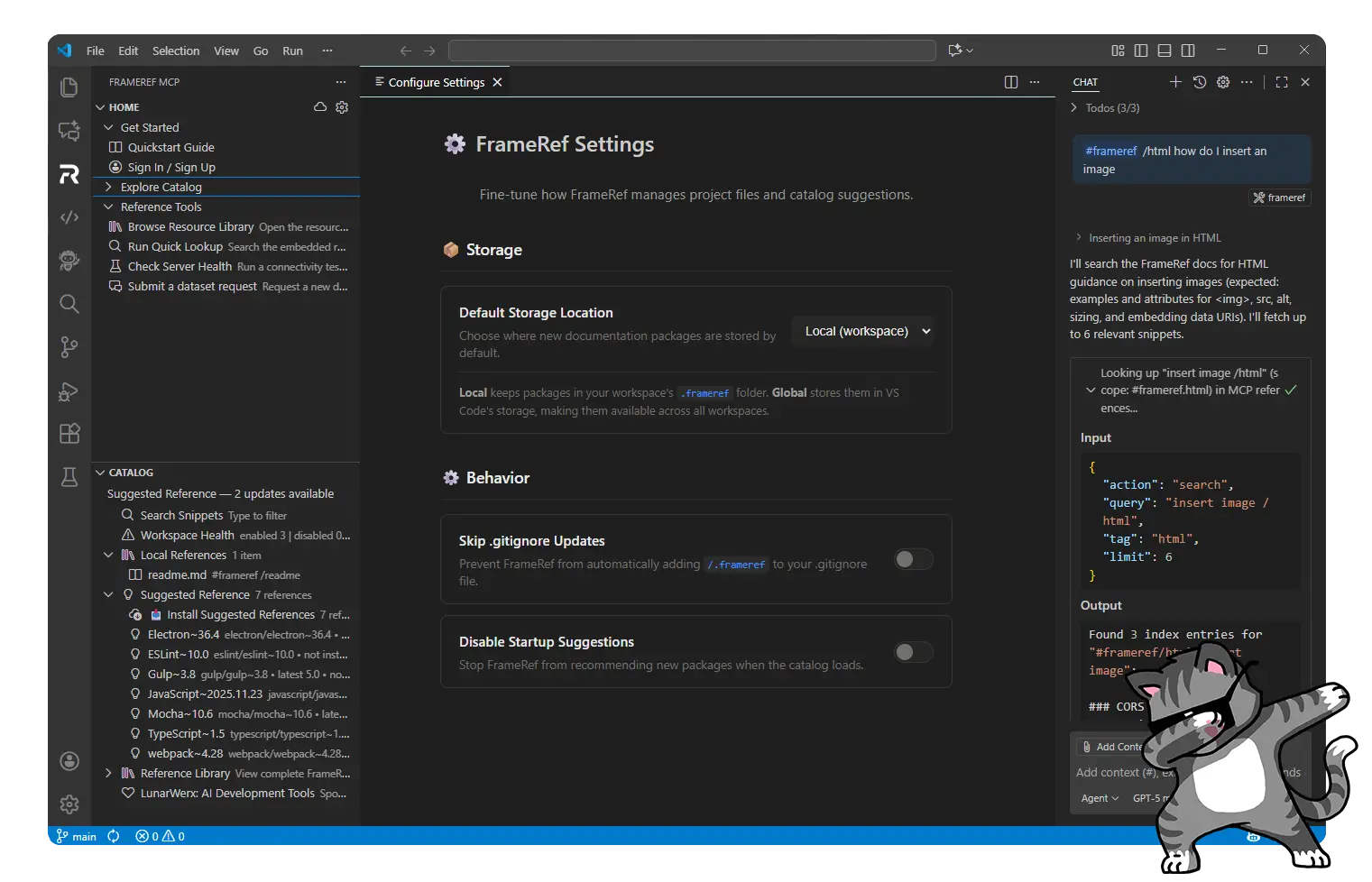
Installing Docsets
One click for your whole stack:
Click "Install Suggested Bundles." FrameRef reads your package.json and installs matching docs.
Manual install:
Browse the catalog. See 📥? Click it. Done.
From a file:
Open a .tsx file. Run Install Framework for Current File. React docs appear.
Keep it clean:
Right-click any docset → Toggle Enabled, Update, Delete, or Favorite.
Disabled docs stay installed but won't clutter Copilot's context.
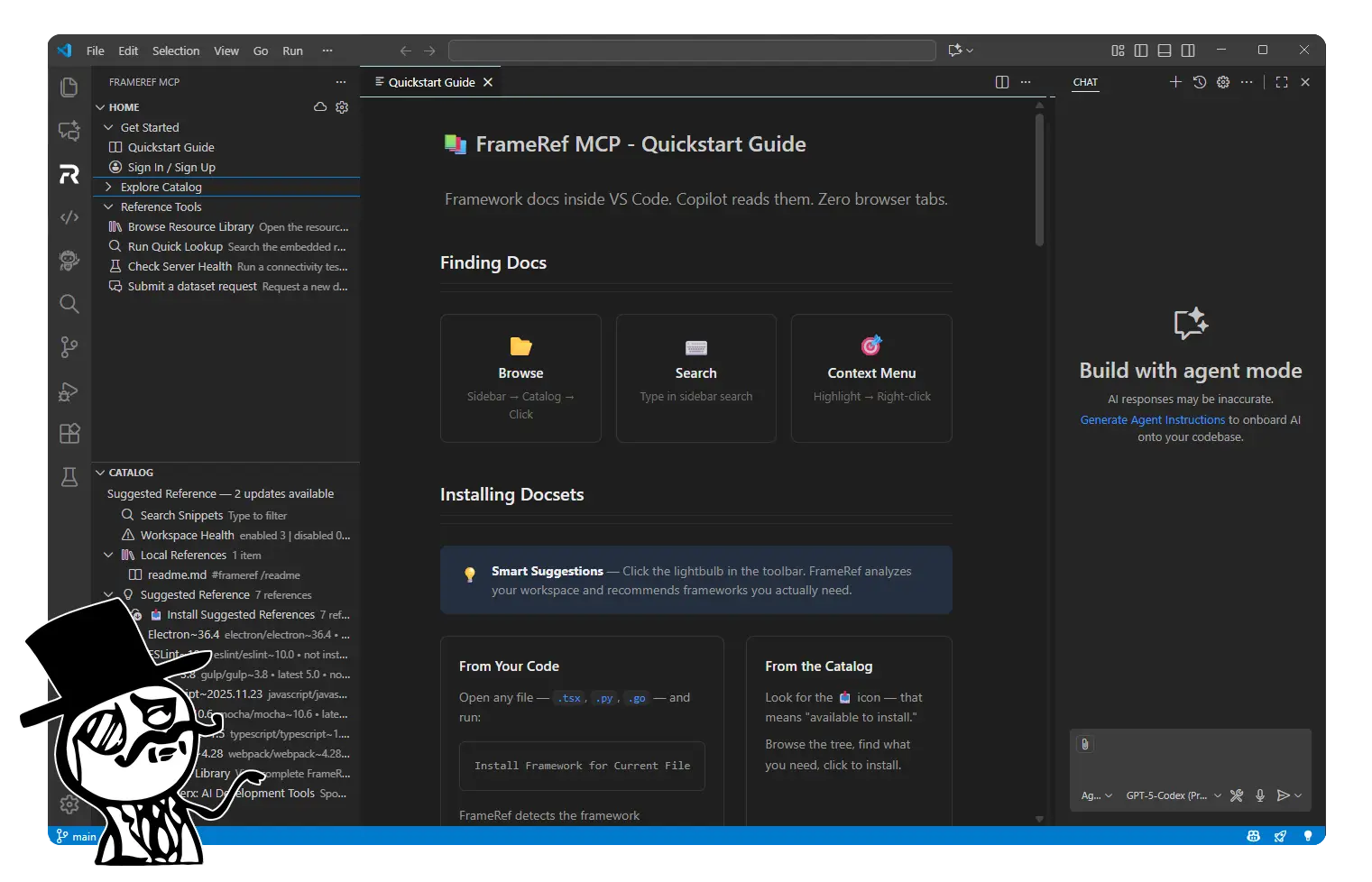
Searching Docs
Three ways. Pick your speed.
- Sidebar search – Type in the box. Results appear as you type.
- Command Palette –
Ctrl+Shift+P → Lookup Reference → Type your query.
- From code – Highlight
useState. Right-click. "Search Documentation for Selection."
Recently viewed? Run Open Recent Documentation. Jump back in one click.
Copilot Integration
Automatic: Just ask. FrameRef feeds Copilot the right docs behind the scenes.
Manual: Type #frameref to pick a docset. Or #frameref /react hooks to search React specifically.
Precise: Right-click a catalog topic → "Insert Reference into Copilot." Now Copilot quotes the source.
Power Tips
Keyboard shortcuts: Bind catalogSearch, lookupReference, and installForCurrentFile to keys you'll actually use.
Airplane mode: Install docsets before takeoff. Everything works offline.
Stay focused: Disable docsets you're not using. Copilot's context stays sharp.
Team sync: Export .frameref.json. Commit it. New hires match your setup in one command.
Settings
{
  "frameref-mcp.logging.level": "info",
  "frameref-mcp.defaultStorageLocation": "local"
}
Find these in File → Preferences → Settings (Ctrl+,).
Commands
| Command |
What it does |
Install Project References |
Installs everything in .frameref.json |
Install Framework for Current File |
Detects file type, installs matching docs |
Browse Catalog Resources |
Opens the catalog picker |
Lookup Reference |
Search across all docsets |
Search Documentation for Selection |
Looks up highlighted text |
Insert Copilot Context Snippet |
Pushes current doc into Copilot |
Open Recent Documentation |
Jump to recently viewed docs |
Export Project Reference Config |
Creates .frameref.json for your team |
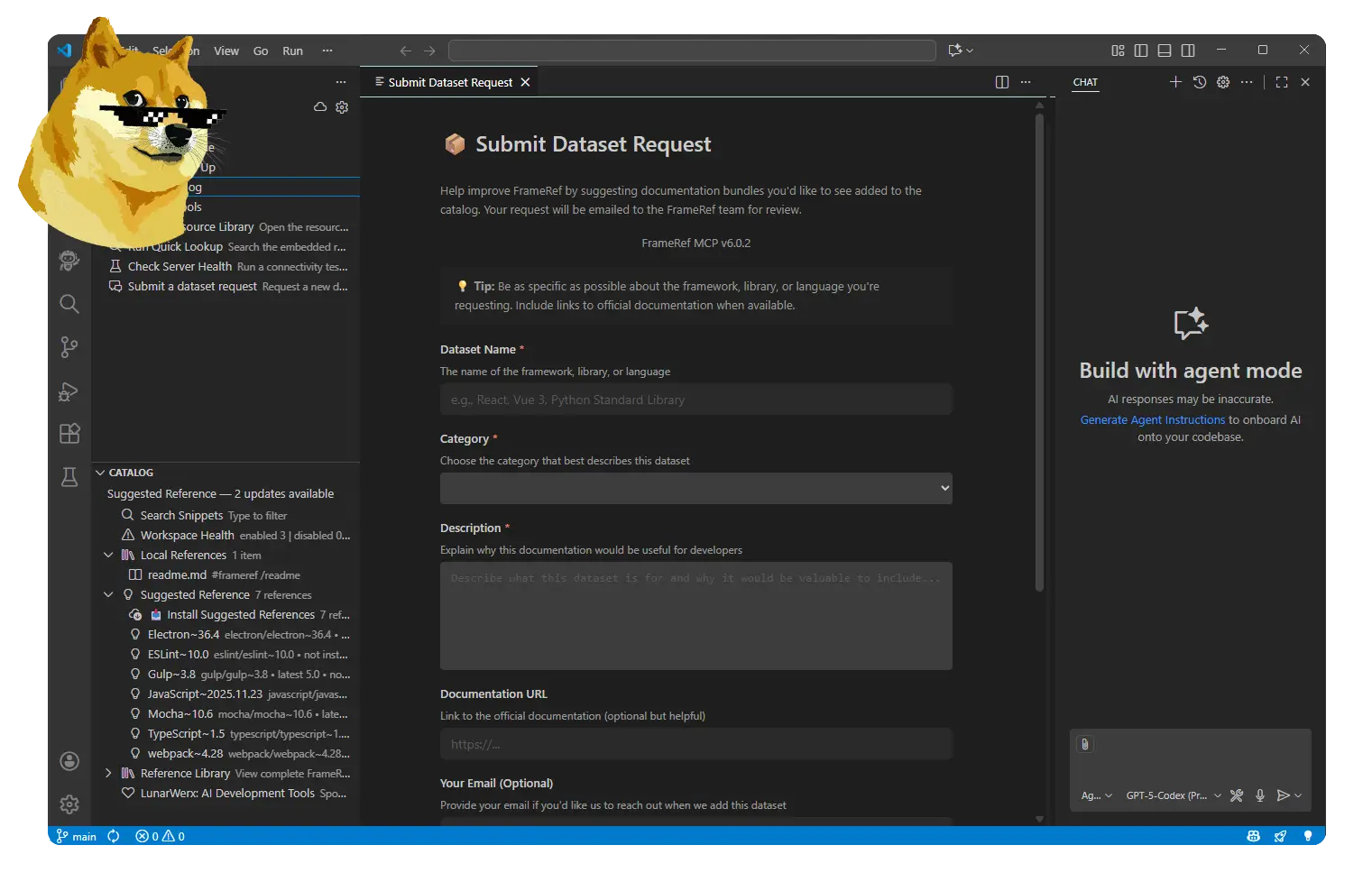
Submit Dataset Request |
Request docs we don't have yet |
Full list: Ctrl+Shift+P → type "FrameRef"
100+ Docsets
Frontend: React, Vue, Svelte, Angular, Next.js, Nuxt
Backend: Node.js, Express, NestJS, Django, FastAPI
Mobile: React Native, Flutter, Ionic
Styling: Tailwind, Bootstrap, Material UI
Testing: Jest, Vitest, Cypress, Playwright
Data: PostgreSQL, MongoDB, Redis, Prisma
Missing something? Run Submit Dataset Request.
Troubleshooting
Large docset taking forever? Check the FrameRef output channel. First-time indexing can take a minute.
Slow searches? Disable unused docsets. Lower frameref-mcp.maxSearchResults.
Something broken? Open an issue.
If FrameRef killed your browser tab habit, leave a review. It helps.

