HTTP Files Importer
Move your Thunder Client collections and environments into plain .http files that open in REST Client, httpYac and the JetBrains HTTP Client.
Everything runs on your machine: no account, no network, no telemetry. Your requests end up in files you can read, diff and commit.
Preview. This first release was built from public information and tested with made-up data, not with a real Thunder Client v4 data folder. If an import goes wrong, please open an issue. Not affiliated with or endorsed by Thunder Client; the name only says which data format is read.
Use it
- Open the folder where you want the files and trust the workspace.
- Run HTTP Files Importer: Import from Thunder Client... from the Command Palette, or open the HTTP Files Importer section of the Explorer and press Open the importer. Nothing runs by itself.
- Pick the Thunder Client data the panel found, or choose a folder or exported
.json files. The data is only read.
- Read what was found: the counts, and the findings that need your attention. Names and places only, never a value.
- Choose the tool you write for (REST Client, httpYac or JetBrains), the folder in your workspace, what to do if it already has files, and whether secrets move to a private file.
- Press Import. Nothing is written before that, and Start over or closing the panel writes nothing.
- Open the folder or the report from the panel.
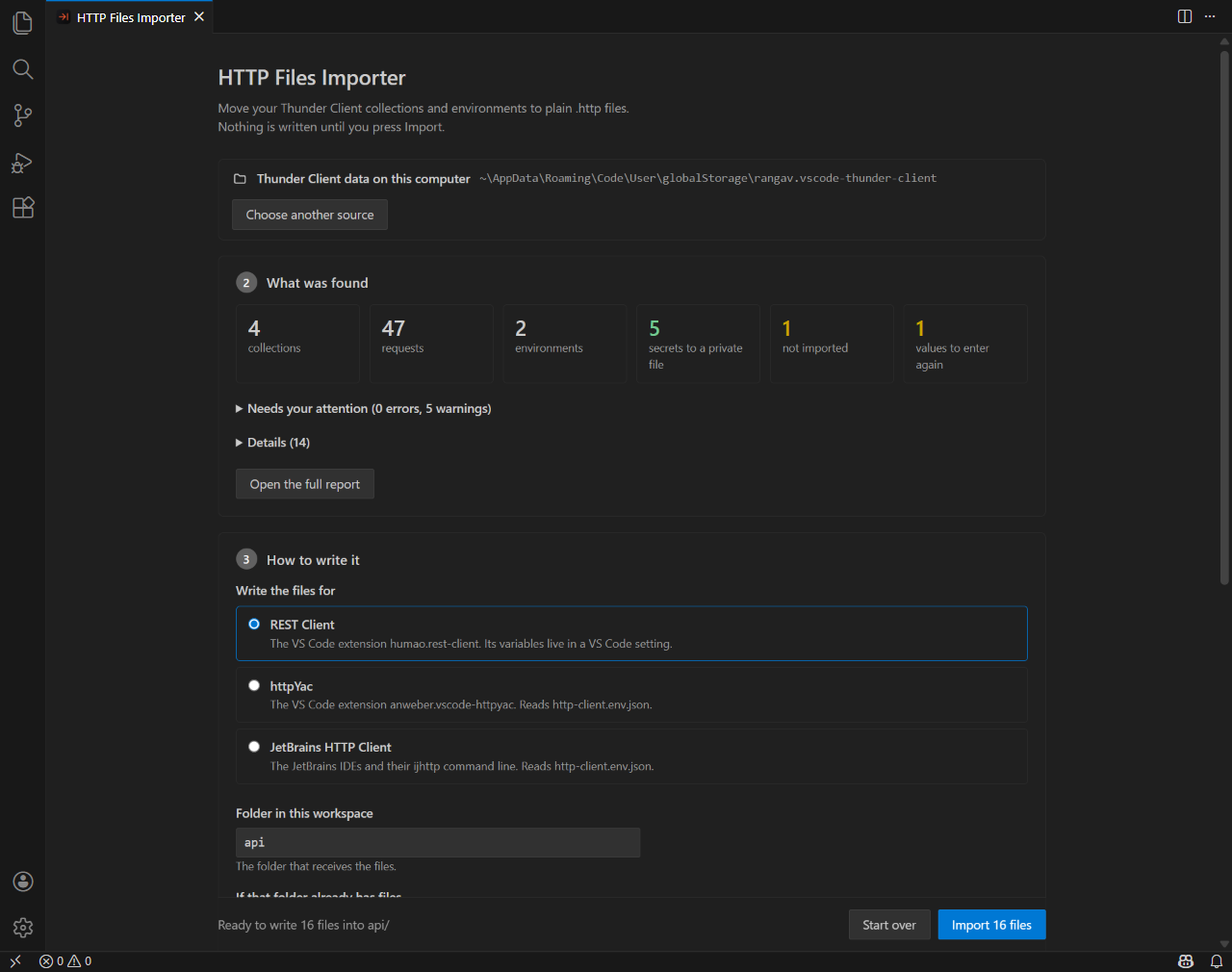
If you prefer the keyboard, HTTP Files Importer: Import from Thunder Client (step by step)... asks the same questions in the Command Palette.
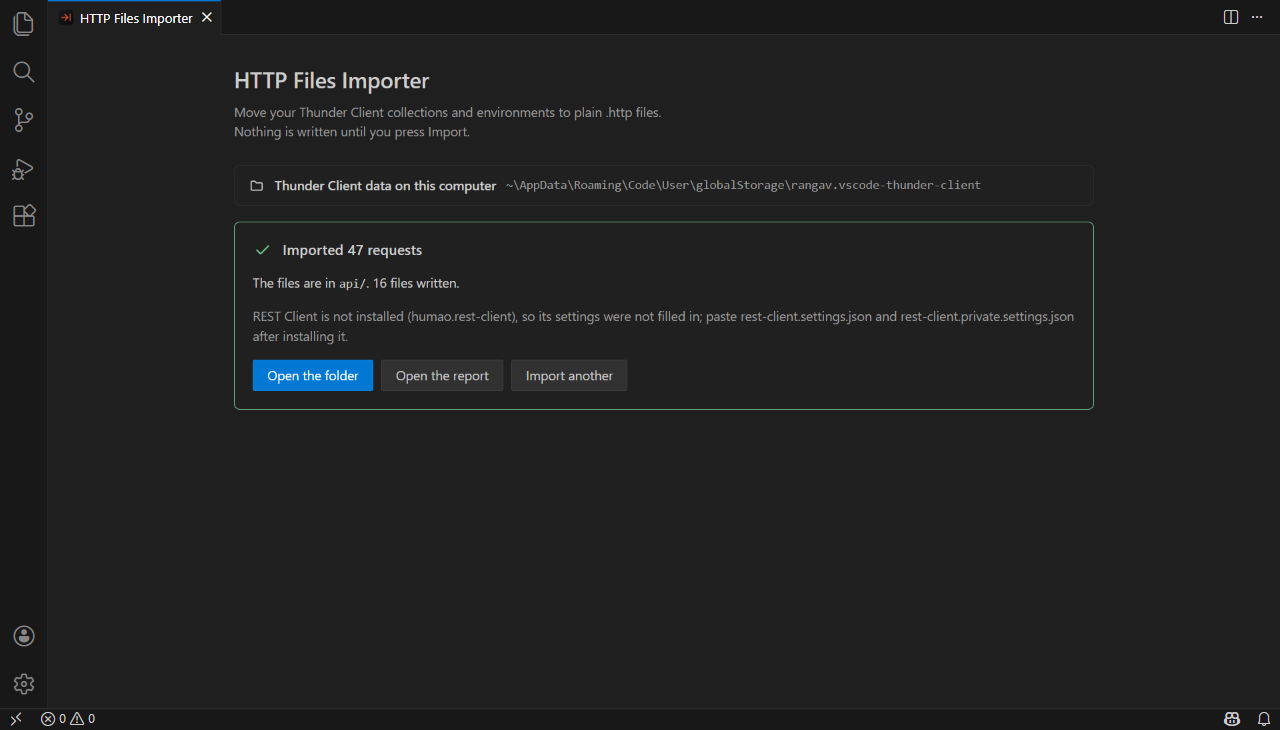
The panel follows your VS Code theme, light or dark. It is made of standard buttons, radio buttons and fields, so it can be used with the keyboard.
What you get
- Folders and files in the order Thunder Client shows them: one folder per collection, one file per folder.
- Inheritance applied. Headers, authentication, base URL and tests set on a collection or folder are written into each request, as Thunder Client applies them.
- Bodies and authentication: JSON, text, XML, form, multipart (with files) and GraphQL bodies; bearer and basic authentication.
- Tests as comment lines. Thunder Client tests become
# @assert lines and set-env-var becomes # @capture. All three tools ignore them, so the request still runs. Scripts are kept as comments and never run.
- Environment files for httpYac and JetBrains (
http-client.env.json, http-client.private.env.json).
- REST Client settings filled in for you. REST Client keeps its variables in a VS Code setting, so for that target the extension writes the shared variables to your workspace settings and the secrets to your user settings (never synced). Comments in your
settings.json stay and nothing you already have is replaced.
- Dynamic variables spelled for the tool you chose, for example
{{#guid}} becomes {{$guid}} for REST Client and {{$uuid}} for JetBrains.
Secrets stay out of Git
Literal tokens, passwords and keys are replaced by {{variables}}. They are found by name: in headers, query and form fields, path parameters, the password or token in a URL, and inside JSON, XML, query-string and GraphQL bodies ("apiKey": "…", <Password>…</Password>, client_secret=…). A token with no name next to it, such as free text in a body, cannot be recognised and stays, so look through the bodies of a collection you did not write before you commit it. Their values go to a private file that is added to .gitignore before it is created, and the report names them without showing them. Encrypted variables are never decrypted: an empty entry waits for you to fill it in.
Safe by construction
A collection can come from anyone, so every value in it is treated as hostile. The data cannot add a request to the file, read a file of yours or run code when you press Send. Files are written through a staging folder and undone on failure or cancel; paths cannot leave the target folder and links are never followed. The core of the extension has no network access and starts no process. Details: security policy.
Known limits
- Not yet tried on a real Thunder Client v4 data folder (see the note above). Fields it does not know are skipped.
- OAuth 2.0, AWS, digest and NTLM authentication are not converted; WebSocket, SSE and gRPC requests, history, responses and cookies are skipped. The report lists them.
# @assert and # @capture lines are written, but nothing runs them yet.- Needs a trusted, local workspace. Not available in the browser or in virtual workspaces. Remote workspaces (WSL, SSH, containers) have not been tried.
More
| |

