Remote Notifier
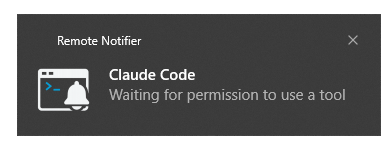
Remote Notifier lets you trigger notifications from remote environments like
SSH, Docker or WSL and receive them instantly on your local machine through VS
Code.
Whether you're building your code, running tests, using some tools, or working
with an AI agents, you no longer need to keep checking back or risk missing
anything.
Why Remote Notifier?
Working in remote environments often means losing visibility.
You start a long-running task and then either:
- have to keep checking if it’s done already
- forget about it and come back way too late
- miss that it failed early, did nothing useful and wasted your time
This extension fixes that by allowing you to get instant notifications about
progress of your work regardless of where the work is done.
No extra dependencies, no complex configuration, just pure productivity!
How It Works
Remote Notifier consists of two VS Code extensions:
- Main extension
- Runs on your local machine (UI side of the VS Code)
- Checks if the Router helper extension is installed in current workspace and
suggests installing it if it's missing
- Receives notifications from the Router extension
- Displays them as either in-app or system level notifications
- Helper extension
- Runs where your workspace is (local or remote: SSH, WSL, Docker, ...)
- Exposes a simple local HTTP endpoint and installs a
code-notify convenience
script to simplify using it
- Allows scripts, tools, or terminal commands to trigger notifications
Neither of them require any external dependencies, 3rd party binaries or manual
configuration to work!
| Component |
Windows 10/11 |
macOS |
Linux |
| Main extension (UI) |
Yes |
Yes |
Yes |
| Router extension (workspace) |
Yes |
Yes |
Yes |
code-notify CLI |
.cmd script |
Bash script |
Bash script |
| OS notifications |
SnoreToast |
terminal-notifier |
notify-send |
| Notification sound |
Yes |
Yes |
Desktop environment dependent |
How To Use
Install extensions
- Install the Remote Notifier
extension.
- The extension will detect if the
Remote Notifier (Router)
helper extension is missing in your current workspace and suggest to install
it - simply click Install in ... button to install it.
Once installed, you are ready to configure your scripts and tools manually with
the code-notify helper script or use built-in
automatic configuration for supported tools! 🎉
[!IMPORTANT]
The Router helper extension needs to be installed on your current workspace
(either local or remote) to be able to use it. If you use multiple separate
workspaces (remote machines, WSL systems, containers) you will have to install
it on each of them separately to use it there.
It is recommended to watch for suggestions from the main extension and install
the Router extension whenever prompted.
Manual installation
Alternatively, you can also download latest version of both extensions from the
GitHub project page
and install them manually by:
- Opening Command Palette (e.g. F1)
- Choosing the
Extensions: Install from VSIX... command and selecting the
downloaded files
code-notify CLI
The easiest way to send notifications is through the code-notify CLI
convenience script.
The script should be installed automatically (if it's not already present in the
workspace) whenever you open a workspace with the Router extension installed.
If for some reason the convenience script is not present in your workspace you
can also manually trigger its installation:
- Open command palette (e.g. F1)
- Find and choose:
Remote Notifier: Install code-notify command in current workspace
- Restart terminal, if you had it open
This will copy over the code-notify.sh/code-notify.cmd script and ensure its
on PATH. Once this is done you can trigger notifications manually or configure
your tools to call it when needed:
code-notify "Build completed"                    # message only
code-notify "Build" "Completed successfully"     # title + message
code-notify -i my_build_icon "Build" "Done"      # use custom icon key
code-notify -d system "Build" "Done"             # hint presentation as system notification
code-notify -d app "Build" "Done"                # hint presentation as VS Code toast
[!NOTE]
By default, to reduce distractions, Remote Notifier shows notifications as
VS Code toasts when the editor has focus and system level notifications when
it doesn't. You can configure this behavior.
[!TIP]
You can use this script from any context in your workspace, it doesn't have to
be from VS Code integrated terminal! You can connect to your remote machine
separately from VS Code instance and still use it to trigger notifications
for your local machine.
As long as the workspace is opened in VS Code, the local HTTP endpoint is open
and VS Code will route notifications from your workspace to your local
machine!
Automatic configuration
This extension comes with a few options to auto-configure your favorite tools
to trigger notifications automatically (e.g. whenever they finish processing of
your prompt or require your permission to use a tool).
Currently supported tools:
- Claude Code
- Codex
- Gemini CLI
To automatically configure a tool simply:
- Open Command Palette (e.g. F1)
- Select
Remote Notifier: Auto-configure notifications in current workspace for...
- Select tool you want to auto-configure
These auto-configurations simply update your tool's config files and specify
hooks that invoke code-notify script with proper messages for given events.
[!IMPORTANT]
This will configure your tool only in the current workspace. If you switch to
a different one (e.g. different remote machine) you will have to configure it
separately.
Triggering notifications manually (not recommended)
If you don't want to use provided code-notify script, you can simply make a
HTTP POST requests to 127.0.0.1 on a specific port.
In VS Code's integrated terminal, environment variables are set automatically:
curl -s -X POST $REMOTE_NOTIFIER_URL \
  -H "Authorization: Bearer $REMOTE_NOTIFIER_TOKEN" \
  -H "Content-Type: application/json" \
  -d '{"message": "Done!", "level": "information"}'
Outside of VS Code integrated terminal you can retrieve port and authentication
token from ~/.remote-notifier/session.json.
Custom icons
System notifications use a built-in icon by default. You can configure custom
icons per notification source by mapping icon keys to file paths in your
settings:
{
  "remoteNotifier.iconMappings": {
    "ICON_CLAUDE_CODE": "/path/to/claude-icon.png",
    "ICON_CI": "/path/to/ci-icon.png"
  }
}
and then passing the icon key when sending a notification:
code-notify -i ICON_CI "CI" "Pipeline passed"
If the key isn't found in the mappings, the default icon will be used.
[!CAUTION]
Support for this feature is OS-dependent and may not work on some systems.
Custom sounds
By default system notifications use default bell sound (OS-specific) for
every notification. You can disable or specify a custom sound cue in the
extension settings.
Furthermore, you can also specify a mapping between sound cue keys and paths
(similarly to icons above) and trigger a specific sound cue for by a specific
notification with -s <CUE_KEY> like that:
code-notify -s CUE_SUCCESS "CI" "Tests passed"
Display hints
Scripts can suggest how a notification should be displayed by passing
a display_hint:
code-notify -d system "Deploy" "Started"    # suggest OS notification
code-notify -d app "Build" "Done"           # suggest VS Code toast
This is only a hint, not a guarantee. It is respected only when the
systemNotifications configuration is set to auto mode (the default), where
it overrides the focus-based routing.
In both always or never modes the hint is ignored and the user's configured
preference takes precedence.
Troubleshooting
If you have any issues you should:
- Verify that both extensions are installed in current workspace
- Use
Remote Notifier: Test <...> notifications helper commands to check if
one or both of the presentation systems work or not
- Check configuration of app notifications in your system settings
- Open
Output panel (View -> Output), select Remote Notifier log
sources and see if there are any errors there that may narrow it down
- Each extension will have its own log source, so be sure to check both
Configuration
Router Settings (workspace host)
| Setting |
Default |
Description |
remoteNotifier.enabled |
true |
Enable/disable the notification server |
remoteNotifier.port |
0 |
Fixed port for the server (0 = auto-assign) |
remoteNotifier.maxBodySize |
65536 |
Maximum request body size in bytes |
remoteNotifier.notificationLevel |
information |
Default level when not specified in request |
remoteNotifier.showTimestamp |
false |
Prepend timestamp to notification messages |
Presenter Settings (local machine)
| Setting |
Default |
Description |
remoteNotifier.systemNotifications |
auto |
auto (OS notification when unfocused, VS Code toast when focused), always, or never |
remoteNotifier.notificationIcon |
transparent |
Default icon style: transparent or dark (black background) |
remoteNotifier.notificationSound |
true |
Play a sound when showing system-level notifications |
remoteNotifier.notificationSoundPath |
"" |
Path to a custom sound file. If empty, uses default notification cue. |
remoteNotifier.notificationSoundPlayer |
"" |
Optional: Command to play sound (e.g. mpg123 ${file}). If empty, the extension auto-detects available player. |
remoteNotifier.soundMappings |
{} |
Map sound key names to file paths for system notifications (e.g. { "success": "/path/to/cheer.wav" }) |
remoteNotifier.iconMappings |
{} |
Map icon key names to file paths for system notifications (e.g. { "claude": "/path/to/icon.png" }) |
Commands
| Command |
Extension |
Description |
| Remote Notifier: Test VS Code notifications |
Main |
Triggers a in-app test notification (toast) |
| Remote Notifier: Test system notifications |
Main |
Triggers a system-level test notification |
| Remote Notifier: Reset auto-install router extension ignored workspaces |
Main |
Resets all saved 'Do not ask me again' router installation answers |
| Remote Notifier: Auto-configure notifications in current workspace for... |
Router |
Set up notification hooks for supported tools (e.g. Claude Code) |
| Remote Notifier: Install code-notify command in current workspace |
Router |
Install the code-notify CLI to your PATH |
| Remote Notifier: Show Session Info |
Router |
Display URL and masked token |
| Remote Notifier: Copy Notify Command |
Router |
Copy a curl example to clipboard |
| Remote Notifier: Regenerate Token |
Router |
Generate a new auth token |
Security
- HTTP server binds to
127.0.0.1 only (loopback, not network-accessible)
- 256-bit random bearer token for authentication
- Session file created with
0600 permissions (Unix)
- Request body size limited to prevent memory exhaustion
- Rate limiting: max 5 notifications per 15 seconds
Development
Prerequisites
- Node.js 20+
- npm 10+
- VS Code 1.85+
Setup
git clone https://github.com/ripper37/remote-notifier.git
cd remote-notifier
npm install
Build
npm run format      # format code
npm run lint        # eslint
npm run build       # build all packages
npm test            # unit + integration + e2e
Package
npm run package # builds + packages .vsix for both extensions
Output:
packages/main/remote-notifier-x.y.z.vsixpackages/router/remote-notifier-router-x.y.z.vsix
Project Structure
packages/
  main/       Main extension (notification display, OS notifications, Router extension installation, rate limiting)
  router/     Workspace extension (HTTP server, auth, session management, script & configs installer)
shared/       Shared TypeScript types and constants
test/e2e/     End-to-end tests (e.g. for the code-notify helper)
assets/       Extension icons, bundled sound cue
License
MIT

