Skip to content
| Marketplace
Sign in
Visual Studio Code>Data Science>PostgreSQL Dump Viewer — DBConvertNew to Visual Studio Code? Get it now.
PostgreSQL Dump Viewer — DBConvert

PostgreSQL Dump Viewer — DBConvert

DBConvert

|
1 install
| (1) | Free
Open a pg_dump file without restoring it: tables, rows, ER diagram and read-only SQL, replayed into a real PostgreSQL that runs inside the editor. No server, no Docker, no psql.
Installation
Launch VS Code Quick Open (Ctrl+P), paste the following command, and press enter.
Copied to clipboard
More Info

PostgreSQL Dump Viewer — DBConvert

Open a pg_dump file without restoring it: tables, rows, ER diagram and read-only SQL, replayed into a real PostgreSQL that runs inside the editor. No server, no Docker, no psql.

The Pagila dump open in an editor tab: tables with their row counts, and the film table with its PostgreSQL types - year, mpaa_rating, text[], tsvector

A dump is a script, so it is run

A pg_dump file is not data you can page through: it is the SQL that rebuilds a database. The viewer does exactly that — it replays the file into PostgreSQL 18, compiled to WebAssembly and running inside the editor — and then shows you the database the dump describes. Every CREATE, every COPY, every function body is executed by a real PostgreSQL, not approximated by a parser.

There is nothing to install and nothing to restore into: no server, no Docker, no psql. The database lives in the editor's memory and is gone when you close the tab.

Which dumps open

  • Plain (pg_dump -Fp, .sql), gzipped or not, including the zstd and lz4 compression pg_dump 16 and later can write
  • Tar (pg_dump -Ft)
  • Custom (pg_dump -Fc) does not: only pg_restore reads that archive. The viewer says so and gives the one command that turns it into a plain dump.

Files named .dump, .backup, .pgdump, .sql.gz, .sql.zst and .sql.lz4 open here directly. A .sql file is most often a script you are editing, so the viewer does not take those over: right-click it and choose Open in PostgreSQL Dump Viewer.

Extensions come from the dump

The dump's own CREATE EXTENSION lines are read before PostgreSQL starts, and exactly those extensions are loaded: PostGIS, pgvector, pg_trgm, hstore, citext, ltree, uuid-ossp and the rest of PostgreSQL's contrib set. An extension nobody has built for WebAssembly — TimescaleDB, say — cannot load, and the objects that needed it are then listed by name instead of silently missing.

Query the backup without restoring it

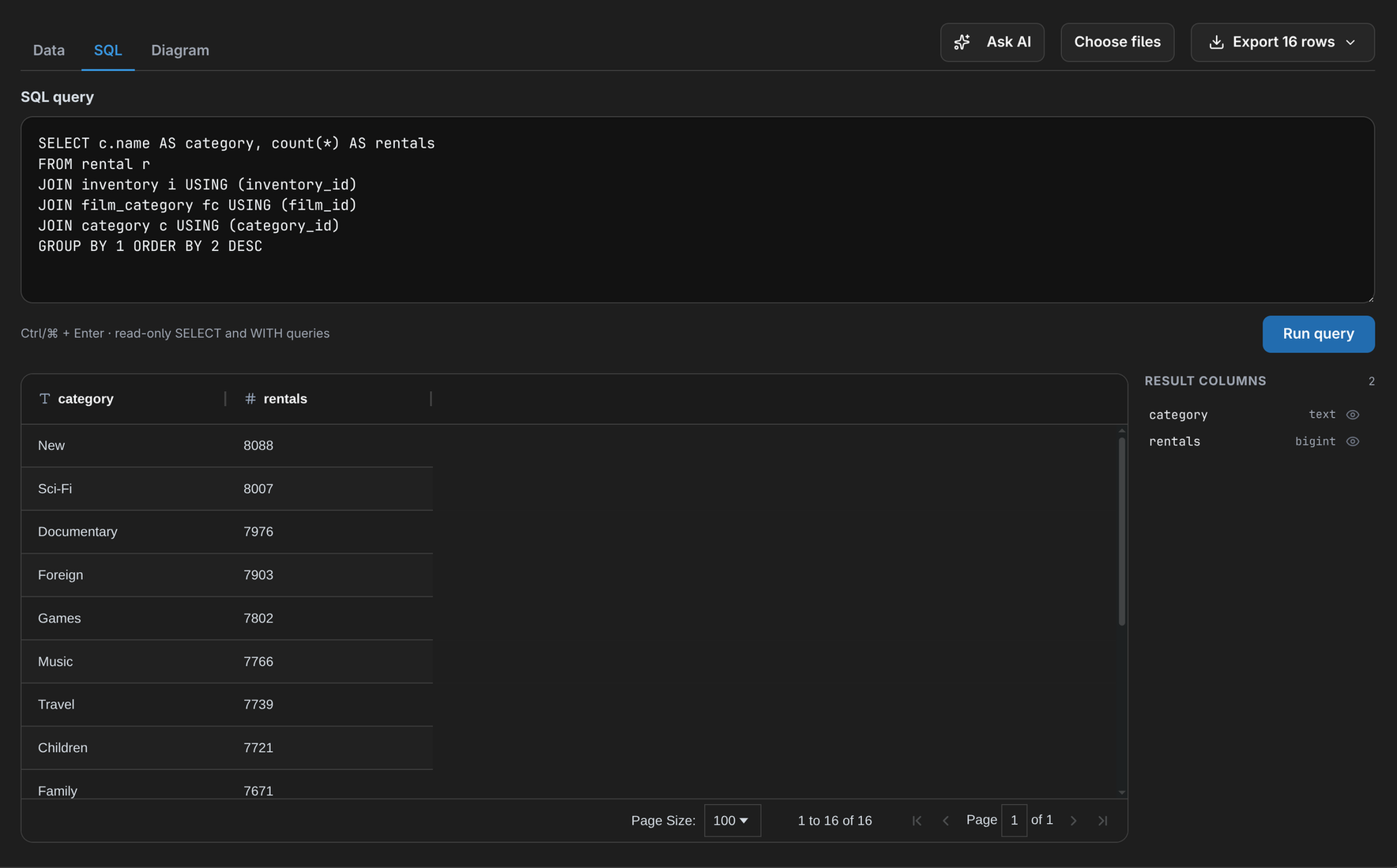
SELECT c.name AS category, count(*) AS rentals
FROM rental r
JOIN inventory i USING (inventory_id)
JOIN film_category fc USING (film_id)
JOIN category c USING (category_id)
GROUP BY 1 ORDER BY 2 DESC

Rentals per film category, joined across four tables of the replayed Pagila dump

Read-only PostgreSQL SQL — SELECT and WITH … SELECT — over the whole database.

Every table pages to its last row. Export a result as CSV or JSON: the first 10,000 rows free, the whole result with PRO.

ER diagram

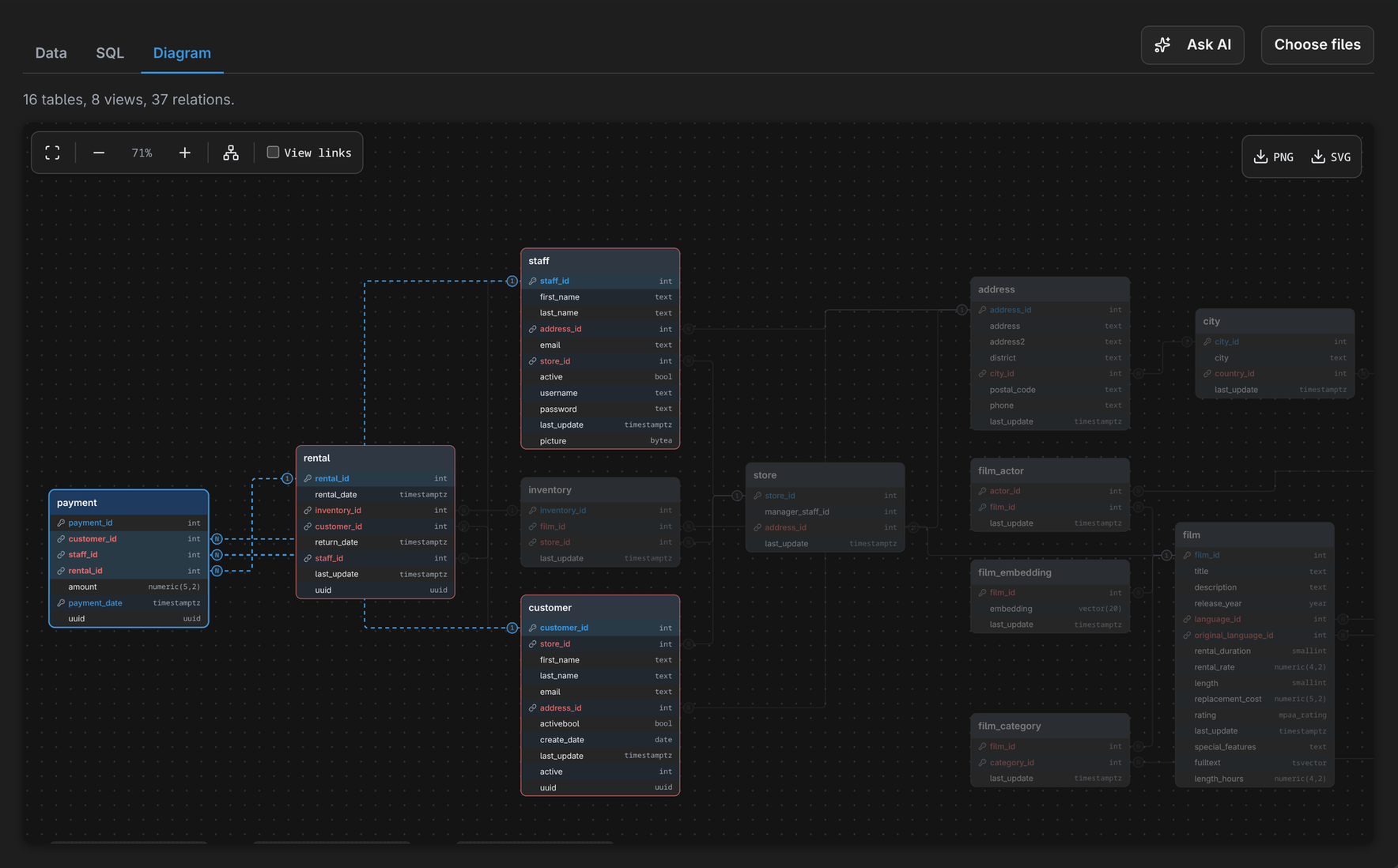
The Diagram tab draws the tables and views with the foreign keys the dump declares. Select a table and its relations stand out while the rest fades. A partitioned table is drawn once: Pagila's payment is split into 55 partitions and appears as one table.

The Diagram tab with payment selected and its keys to rental, customer and staff highlighted

Open dumps you trust

A dump is a program. The viewer runs it in a throwaway database with no network, and turns on read-only mode once the replay ends — but a dump from a stranger is still code from a stranger.

Where the file goes

Nowhere. The editor reads it from disk and hands it to the panel; the panel parses it with WebAssembly in the editor itself. There is no account and no remote server. The one port the extension opens is the local one AI agents use (below), bound to 127.0.0.1 and closed by a token.

Ask AI about the open file

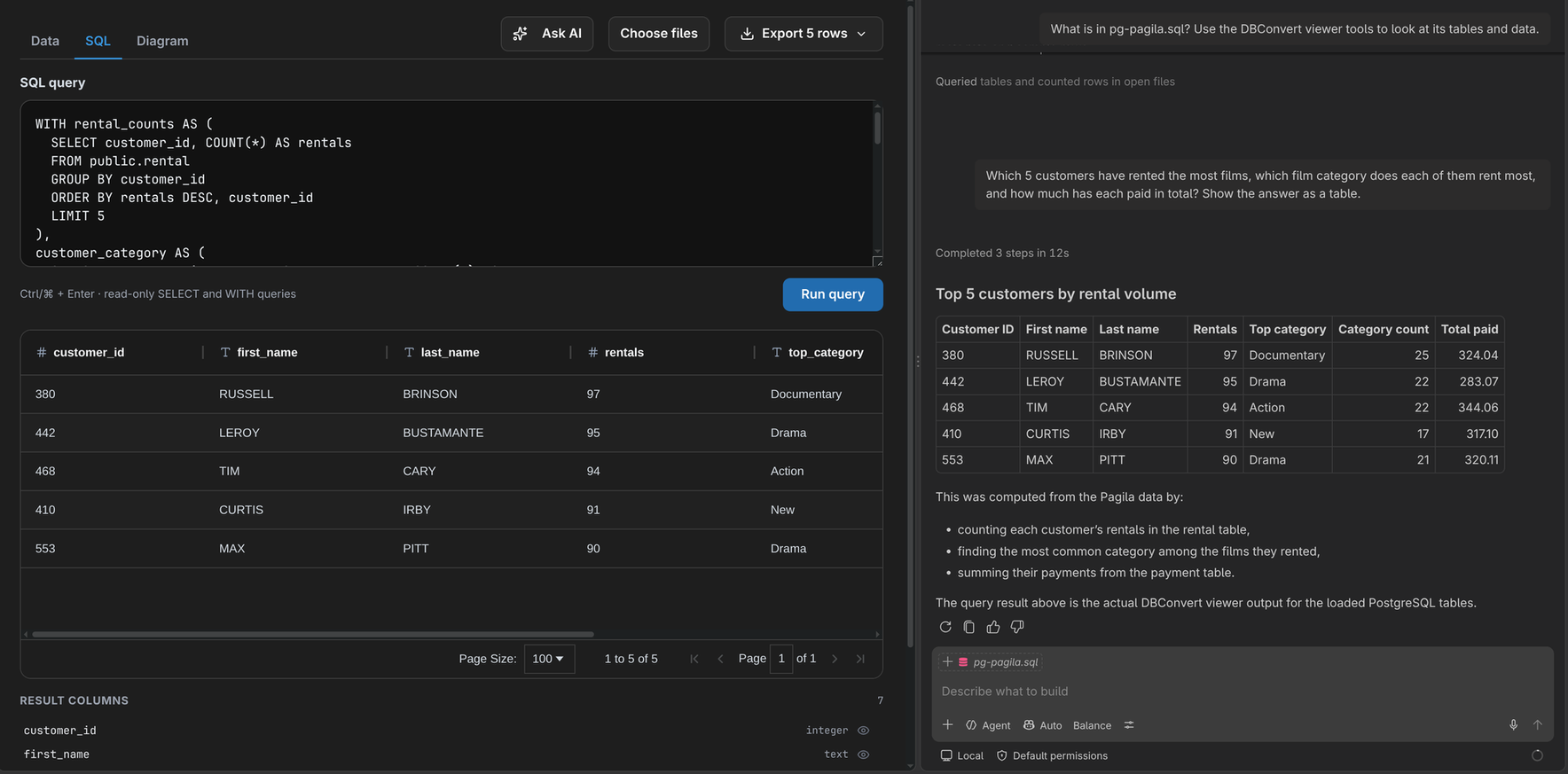
The file tab has an Ask AI about this file button. It opens the editor's own agent chat with the question already typed — "What is in pagila.sql? Use the DBConvert viewer tools to look at its tables and data." — and the agent answers from the file, not from a guess.

The editor's agent chat answering which five customers rented the most films, with the query it ran open in the viewer's SQL tab

The agent gets three read-only tools: list the tables of the files open in the viewer, describe a table, and run one SELECT. Each query it runs shows in the viewer, and a result comes back as at most 100 rows with the full row count.

Where each agent gets the tools from:

  • VS Code with Copilot Chat — nothing to set up. The tools are part of the chat.
  • Cursor — nothing to set up. The extension adds its server to Cursor's MCP list. Cursor asks before each tool call unless you allow it.
  • Claude Code and Codex — run Connect agent to open files from the Command Palette once. It adds the server to the agent's config and prints the first question to ask. Quit Codex before you connect it: a running Codex rewrites its config and drops the entry.
  • Windsurf, Cline, Roo, Kilo, Gemini CLI, Continue and others — the same command shows the config to paste: a JSON block, or the address and header.

In an editor with no agent chat to open, the button copies the question and offers Connect.

One server serves every open editor window and every installed DBConvert viewer, so an agent sees all the files you have open. Reset MCP token issues a new token; connected agents need Connect again after it.

The viewer never talks to a model itself. What the agent reads — table names, columns, the rows its queries return — goes to whichever model that agent uses.

The other viewers

Same viewer, one per format — install only the one you need, so a SQLite user never downloads the Parquet engine.

  • SQLite Viewer — VS Code · Open VSX · Chrome
  • Parquet Viewer — VS Code · Open VSX
  • JSONL Viewer — VS Code · Open VSX
  • MDB and ACCDB Viewer — VS Code · Open VSX

Built by DBConvert. The same viewer runs in a browser tab at streams.dbconvert.com/postgresql-dump-viewer if you would rather not install anything.

  • Contact us
  • Jobs
  • Privacy
  • Manage cookies
  • Terms of use
  • Trademarks
  • Your Privacy Choices
  • Consumer Health Privacy
© 2026 Microsoft