HappyHorse by Ace Data Cloud
HappyHorse video generation by Ace Data Cloud — text, image, references, editing and task results in VS Code Chat.
简体中文
This integration is published and operated by Ace Data Cloud. It is not an official extension from the model or service owner. An Ace Data Cloud application API key is required; a key from another provider is not interchangeable.
First, verify without generating: use the read-only tool in the first-use section below. Generation and your Chat model may be billed separately.



Use HappyHorse (Happy Horse) through the Ace Data Cloud integration in VS Code Chat. Generate or edit videos, browse supported models, and retrieve the original task result without resubmitting a generation.
This extension registers the happyhorse MCP server with VS Code so GitHub
Copilot and any other agent that speaks the Model Context Protocol
can call it directly from chat.
Quick Start
- Install this extension. VS Code registers the
happyhorse MCP server automatically.
- Get an application API key using the detailed steps below. Check service access and your current balance before the first request.
- Select a model with tool calling in VS Code Chat. You can use your existing model, or install Ace Data Cloud Chat Models. For the Ace model, first follow its setup guide, open Chat: Manage Language Models, make the model visible, and select it in Chat. BYOK Chat does not require GitHub sign-in or a Copilot plan; organization policies still apply.
- Enable this server's tools. Open Chat → Agent → Configure Tools and select only the tools you need under HappyHorse by Ace Data Cloud. If the list is empty, choose Update Tools. The extension prompts for the API key on first use and saves it in VS Code's
SecretStorage. Disable another copy of the same server from the Ace MCP bundle or manual mcp.json to avoid duplicate tools.
- Verify one result. Check the Tool Reference below and current pricing before running a request. If you already have a task ID, enable its task-query tool and query that same ID first. An accepted generation is not a completed result: poll the original task until it reaches a successful terminal state, open the returned media, and match the task ID in Usage. Do not resubmit generation to poll. Model Chat and background utility calls can add separate charges to the service request.
You can rotate or remove the API key any time from the command palette:
- HappyHorse by Ace Data Cloud: Set Ace Data Cloud API Key
- HappyHorse by Ace Data Cloud: Clear Ace Data Cloud API Key
The default config talks to the hosted streamable-HTTP endpoint at
https://happyhorse.mcp.acedata.cloud/mcp — no Python, no uvx, no local install needed.
Get your credential
- Open Ace Data Cloud → Applications. Sign in, or register an account first.
- Find General application. If it has not been created, choose Initialize General Application. A general key can use the services available to your account; a dedicated application's key is limited to its service. Check the required service/model access and current pricing.
- Copy the API Key from the application card, or open Keys / Manage Keys → Create to create a separate key for this integration. Give it a recognizable name so you can revoke or rotate it independently.
- When creating a key, review Expiration Time, Set Usage Limitation, and Allowed APIs. Enable only the restrictions you need, allow the operations you will call, then click Create and copy the token from the key list. Task lookup does not grant permission to submit a generation. Confirm the application's balance can cover your first request; any trial allowance is whatever your account currently displays.
- Copy only the token value, without quotation marks, spaces, or
Bearer . An API Key / API Token field expects this raw value; only a manually configured HTTP Authorization header needs the Bearer prefix. A platform-... account-management token cannot replace a generation API key.
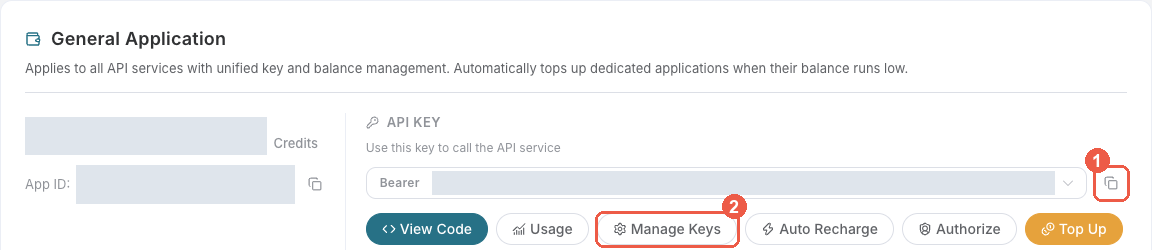
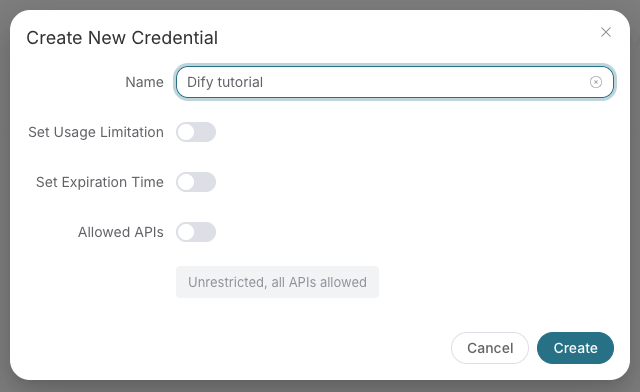
Save the key in the client's credential store or the environment variable shown below. Never put it in a prompt, shared workflow, screenshot, or Git commit. If authentication fails, check the full copied value, application/service access, expiration, usage limit, and balance before creating another key.
Example prompts
- "Call happyhorse_list_models only and show the supported actions. Do not generate a video."
- "Query the existing HappyHorse task TASK_ID with happyhorse_get_task. Do not submit another generation."
7 tools available via this server.
| Tool |
Description |
happyhorse_generate_video |
Generate a video from text |
happyhorse_generate_video_from_image |
Animate one first-frame image |
happyhorse_generate_video_from_references |
Generate from 1-9 reference images |
happyhorse_edit_video |
Edit a source video with up to 5 references |
happyhorse_get_task |
Query one task |
happyhorse_get_tasks_batch |
Query multiple tasks |
happyhorse_list_models |
List valid models for each action |
Pricing
Video generation is metered. Check current model pricing and your account balance before submitting. See Documentation.
Configuration
This extension implements the mcpServerDefinitionProviders contribution point
and registers a single hosted server with VS Code:
Provider id : acedatacloud.happyhorse
Server label: HappyHorse by Ace Data Cloud
Server URL  : https://happyhorse.mcp.acedata.cloud/mcp
Transport   : Streamable HTTP
Auth        : Bearer API key from VS Code SecretStorage (or $ACEDATACLOUD_API_TOKEN)
You don't need to edit mcp.json — the extension handles registration and
token handling automatically. If you'd rather configure things by hand, the
sections below show equivalent mcp.json snippets you can use instead of
this extension.
Alternative: manual mcp.json (hosted)
{
  "servers": {
    "happyhorse": {
      "type": "http",
      "url": "https://happyhorse.mcp.acedata.cloud/mcp",
      "headers": { "Authorization": "Bearer ${input:acedatacloud_api_token}" }
    }
  },
  "inputs": [
    {
      "type": "promptString",
      "id": "acedatacloud_api_token",
            "description": "Ace Data Cloud API key",
      "password": true
    }
  ]
}
Alternative: local stdio (no network roundtrip)
For offline dev, air-gapped environments, or pinning to a specific PyPI
version, install uv and use:
{
  "servers": {
    "happyhorse": {
      "type": "stdio",
      "command": "uvx",
      "args": ["mcp-happyhorse"],
      "env": { "ACEDATACLOUD_API_TOKEN": "${input:acedatacloud_api_token}" }
    }
  }
}
uvx will download and run the latest mcp-happyhorse on demand.
Links
License
MIT — see LICENSE.
First use: discover, then read an existing result
- Install HappyHorse by Ace Data Cloud. This is an independent service extension; the Ace toolbox is optional. Do not enable two copies of the same server.
- Complete the application-key steps above. Run HappyHorse by Ace Data Cloud: Set Ace Data Cloud API Key and paste only the token. No workspace configuration file is needed.
- In Chat: Manage Language Models, show and select a tool-capable model. If you use the separate Ace Chat Models extension, follow its model setup. Then open Chat → Agent → Configure Tools and enable only
happyhorse_list_models for this first check.
- Send the prompt below and inspect the confirmation's tool name and arguments. Your Chat model and background requests may be billed even when the service tool is read-only.
Call happyhorse_list_models only. Show supported models/actions. Do not generate anything.
The model-list tool returns reference information without generating media. It does not prove that your key has generation access.
For an existing media task, enable only happyhorse_get_task, replace TASK_ID with your original task ID, and query that same ID until terminal success or failure. Open the returned media link and match the original generation task to its charge in Usage. An accepted task or green Chat turn alone is not a completed artifact. Never resubmit generation just to check progress.
Real VS Code reference screenshots
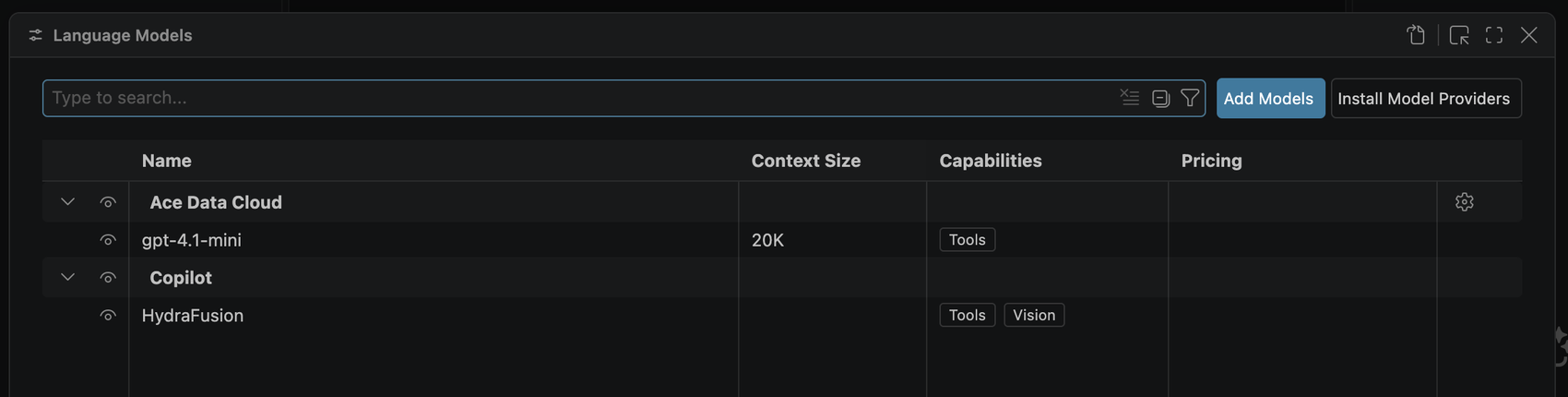
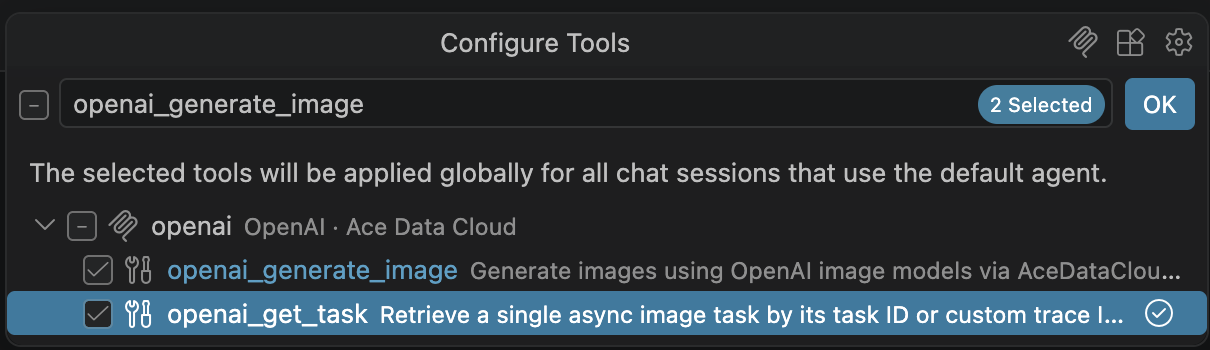
Historical real VS Code 1.141 screenshots, included in tutorials on 2026-10-09 (Asia/Shanghai). The tool-selection image uses the OpenAI server as a reference: choose this extension's server and the exact tool named above. These images do not show a newly published version or prove this independent service was called.
Troubleshooting your first call
| Symptom |
Check |
| Model missing / sign-in prompt |
Complete Manage Language Models and the model extension's setup; respect organizational BYOK policy. |
| Tools missing |
Update Tools, check workspace/server trust, and disable duplicate bundle or manual registrations. |
| 401 / 403 |
Check application/service access, expiry, Allowed APIs, usage limit and balance. Use an application key rather than a platform management token. |
| Pending task |
Query the same original ID; do not submit generation again. |
| 429 / 5xx |
Preserve task/trace ID, inspect original task and Usage, and do not automatically retry a paid operation. |

