Skip to content
| Marketplace
Sign in
Visual Studio Code>AI>Ace Data Cloud Chat ModelsNew to Visual Studio Code? Get it now.
Ace Data Cloud Chat Models

Ace Data Cloud Chat Models

AceDataCloud

|
1 install
| (0) | Free
Use Ace Data Cloud chat models in the VS Code Chat model picker with your own API key.
Installation
Launch VS Code Quick Open (Ctrl+P), paste the following command, and press enter.
Copied to clipboard
More Info

Ace Data Cloud Chat Models for VS Code

Add an Ace Data Cloud model to the Chat model picker in VS Code. This guide starts with a new API key and ends with one real reply. The extension requires VS Code 1.138 or newer. Screenshots show a real English VS Code 1.141 session; the key field is empty.

简体中文教程 · Models and current pricing · Source

1. Install and check access

Open Ace Data Cloud Chat Models in VS Code Marketplace, confirm the publisher is acedatacloud, and choose Install. Open VS Code's Chat view. If your workspace is in Restricted Mode, trust it before selecting a model.

Official VS Code Marketplace card with Install button

Copilot Business and Enterprise administrators can disable Bring Your Own Language Model Key. If Ace Data Cloud is absent from Manage Models after installation, check that policy with your administrator. Chat with BYOK models does not require a Copilot plan; some editor features, such as semantic search and inline suggestions, have separate requirements.

2. Get an Ace Data Cloud application API key

  1. Sign in to Applications.
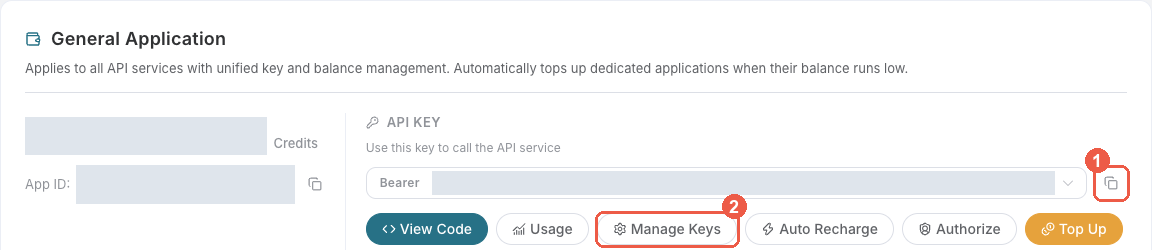
  2. Open General application and use its API key, or choose Manage Keys → Create for a separate VS Code key. Check OpenAI chat access, current model pricing, and your balance first.
  3. If you restrict Allowed APIs, allow the model-list and chat-completions APIs used by this extension: GET /openai/models and POST /openai/chat/completions. Copy the token string without Bearer or quotes.

Ace Data Cloud application key controls

A platform management token is different from an application API key. Never paste an API key into Chat, a prompt file, or workspace settings.

3. Save the key in VS Code

Open the Command Palette and run Ace Data Cloud: Manage Chat Models → Set or replace API key. Paste the application key. The extension checks the model list without generating paid output and saves the key in VS Code SecretStorage.

VS Code API key input before pasting a key

If gpt-4.1-mini is available to the key, it is added automatically with conservative input and output limits. Otherwise, use Ace Data Cloud: Manage Chat Models → Add or update chat model, enter an exact chat-completions model ID from the current catalog, set limits within that model's documented context window, and select only capabilities it actually supports.

4. Show the model in Chat

In Chat, open the model picker beside the input box, choose Manage Models, find Ace Data Cloud, and make gpt-4.1-mini visible. Then select it in the model picker. The provider name and model ID should be visible before you send a prompt.

Ace Data Cloud model in Manage Models

Select gpt-4.1-mini from Ace Data Cloud

If VS Code 1.141 asks you to sign in to GitHub despite the Ace model being selected, open User Settings (JSON) and set "chat.byokUtilityModelDefault": "mainAgent". This routes background utility tasks to your selected Ace model and can create additional billable requests. For the separate Agents window, also enable "chat.agentHost.byokModels.enabled": true. An organization policy that disables BYOK still applies.

5. Make one small request

Paste this prompt into Chat and send it once:

Reply with exactly: Marketplace extension connected.

You can also copy the no-key prompt file into your workspace's .github/prompts/ folder and run it from Chat. The prompt file contains no credentials. A reply in Chat confirms that VS Code called the selected model; check Usage for the corresponding Credits charge. Billing follows your account's current package rate and selected model price.

Actual completed reply in VS Code Chat

6. Try tools, then add more models

gpt-4.1-mini is configured for agent tool calls. To test a read-only tool flow, switch Chat to Agent mode, enable a workspace search tool, and ask it to summarize a file in your workspace. Review each proposed tool action before allowing it. This extension never runs tools itself; VS Code invokes approved tools and returns their results to the model.

To add another supported chat model, run Ace Data Cloud: Manage Chat Models → Add or update chat model. The extension checks that the exact ID exists in the live API catalog; it cannot infer whether every catalog entry supports chat or tools. Check the selected model's documented capabilities and price. Choose Chat text only until you have verified tool and image support for it. The token limits you enter are conservative caps for VS Code's context accounting and output requests, not a claim about the model's full context size.

For image, video, music, and search tools in Agent mode, install the separate Ace Data Cloud MCP toolbox. Its services and credentials are managed separately from this chat model extension.

Troubleshooting

Symptom Action
Provider absent from Manage Models Check VS Code 1.138+, workspace trust, extension activation, and enterprise BYOK policy.
HTTP 401 Replace the application API key; remove any Bearer prefix, and check expiry.
HTTP 403 Check chat service access, model entitlement, Allowed APIs, and content policy.
Model ID unavailable Use the exact chat-completions ID from the current catalog; image and embedding models are not chat models.
HTTP 429 Wait or lower request frequency; the extension does not retry automatically.
Interrupted or timed-out response Check usage and request history before sending again. A partial response can still have incurred a charge.
Agent cannot use tools Confirm the model supports tool calling and the tool is enabled in Agent mode.

The extension sends prompts, selected tool definitions/results, and your API key only to https://api.acedata.cloud. Keys stay in VS Code SecretStorage. Clear saved API key removes it from this extension. See Privacy and Support.

Development

npm ci
npm run check
npm run package

The extension targets VS Code's stable API and uses GET /openai/models for a read-only key/model check and POST /openai/chat/completions for streamed Chat requests. These canonical API paths make permission selection and billing records unambiguous. API failures are shown without copying upstream response bodies into the editor. Automatic retries are disabled.

  • Contact us
  • Jobs
  • Privacy
  • Manage cookies
  • Terms of use
  • Trademarks
  • Your Privacy Choices
  • Consumer Health Privacy
© 2026 Microsoft