Durable Functions Monitor as a VsCode Extension
List/monitor/debug your Azure Durable Functions inside VsCode.

Features
- Get a bird's eye view of any Azure Functions project in form of a graph - Command Palette -> Visualize Functions as a Graph....
- List your Orchestrations and/or Durable Entities, with sorting, infinite scrolling and auto-refresh.
- Monitor the status of a certain Orchestration/Durable Entity. Restart, Purge, Rewind, Terminate, Raise Events.
- Start new orchestration instances - Durable Functions Monitor activity bar icon -> DURABLE FUNCTIONS -> [right-click on your TaskHub] -> Start New Orchestration Instance...
- Quickly navigate to an Orchestration/Entity instance by its ID - Command Palette -> Durable Functions Monitor: Go to instanceId... or Durable Functions Monitor activity bar icon -> DURABLE FUNCTIONS -> [right-click on your TaskHub] -> Go to instanceId...
- Purge Orchestrations/Durable Entities history - Command Palette -> Durable Functions Monitor: Purge History...
- Cleanup deleted Durable Entities - Command Palette -> Durable Functions Monitor: Clean Entity Storage...
- Observe all Task Hubs in your Azure Subscription and connect to them - Durable Functions Monitor activity bar icon -> DURABLE FUNCTIONS
- Delete Task Hubs - Command Palette -> Delete Task Hub...
See the complete list of features in our wiki.
The monitoring UI
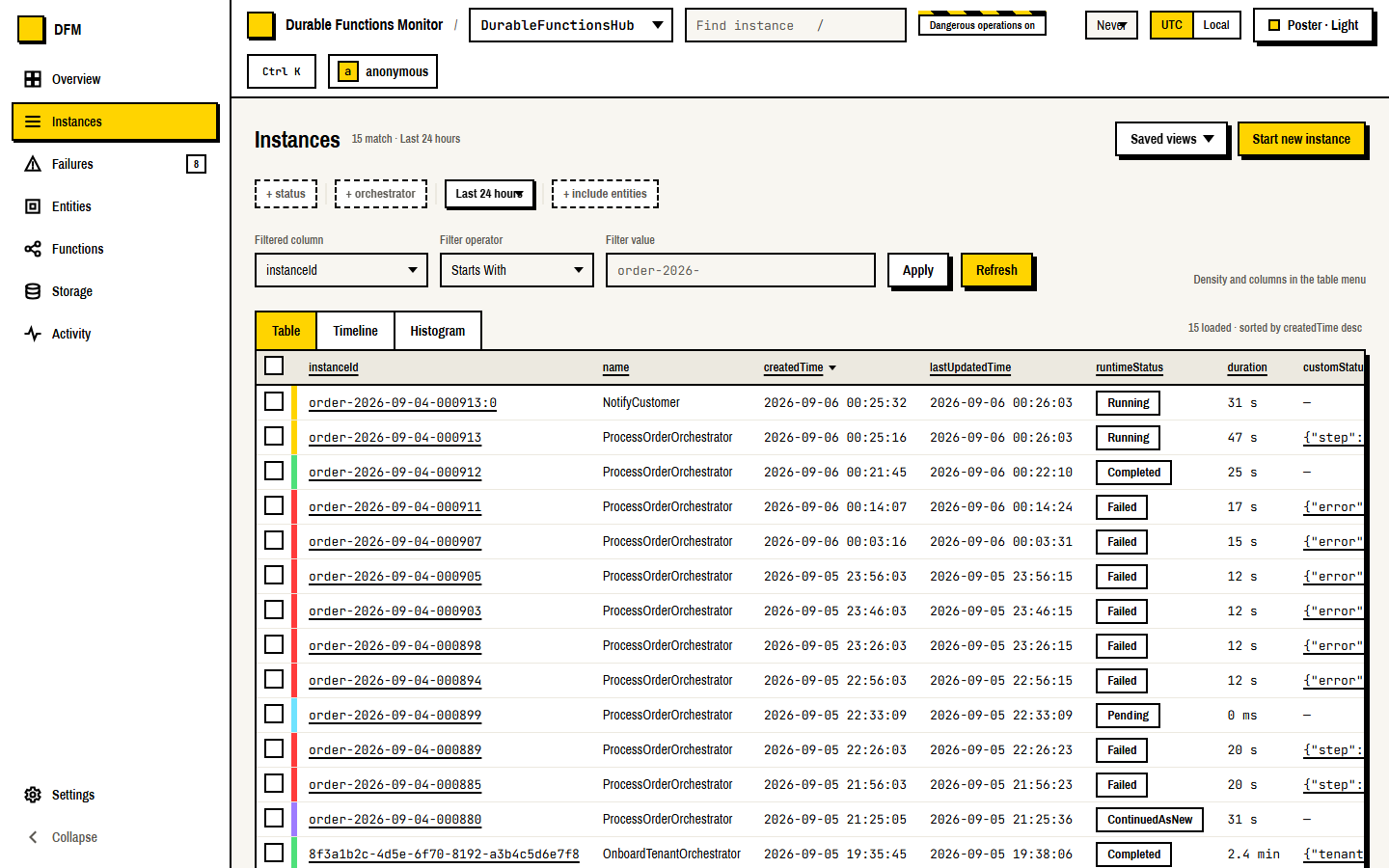
The webview hosts the same UI the standalone and "injected" backends serve: an Overview of the hub,
Instances as a table, a timeline or a histogram with bulk actions over the selection, a per-instance
workspace (timeline, history, inputs, sequence, function graph, raw), Failures grouped by error
signature, Entities, Storage, the audit trail, seven themes in light and dark, and a Ctrl/Cmd K
command palette. Screens and buttons follow the capabilities the connected backend reports, so a
Task Hub on MSSQL or Netherite shows what that provider can actually do.
The full tour, the keyboard map, the capability matrix and every setting are in
docs/ui.md.
How to run
After installing this extension from the Marketplace or from a VSIX-file, a Durable Functions Monitor icon appears in the Activity Bar, with the DURABLE FUNCTIONS view behind it. It is there on its own: no other extension is needed for it to show up.
The first time you open a Task Hub, the monitor starts its backend, and for that it needs Azure Functions Core Tools and the .NET runtime. If they are not on your machine, the extension gets them: see Prerequisites. Nothing has to be installed by hand before you start.
DURABLE FUNCTIONS tab shows Task Hubs automatically discovered from:
- Your Azure Subscription(s), if you're signed in into Azure. To sign in into Azure click Sign in to Azure... in the view. If you have the Azure Resources extension, its
Azure: Select Subscriptions filter is respected.
- Your currently opened project, if it is an Azure Functions project (and the workspace is trusted: the connection strings of
local.settings.json are not read from a workspace that is not).
- Local Storage Emulator, if it is running. On Windows, Hyper-V and WSL may reserve the default Azurite ports (10000-10002) for themselves, and then Azurite fails with
EACCES. Start it on other ports, and tell the extension which: Durable Functions Monitor: Configure Storage Emulator... (also in the ... menu of the view, and under the emulator when it lists nothing) asks for the first port and writes the durableFunctionsMonitor.storageEmulatorConnectionString setting for you.
In addition to that you can also connect to arbitrary Storage accounts or Microsoft SQL Server/Azure SQL databases. Either click on  button or use
Attach to Task Hub... command. You will be asked for a Connection String (it can be either Azure Storage or Microsoft SQL Server connection string) and a Task Hub name to connect to. The entered Connection Strings are persisted with VsCode SecretStorage API (On Windows you should be able to see them in Windows Credential Manager).
Listing Orchestrations/Durable Entities
To connect to a Task Hub just click on it. This shows the main page with all Orchestrations/Durable Entities in that Task Hub:

The list of instances is filterable/searchable/sortable/scrollable with infinite scroll. Other ways to visualize search results are:
Monitoring/managing Orchestration/Durable Entity instances
Clicking on an Orchestration/Entity instance show its Details page:

Orchestration's Execution History can be observed in form of:
To Suspend/Resume/Restart/Rewind/Terminate/Raise Event/Set Custom Status/Purge an instance use the relevant buttons:

It is also possible to create/configure custom details tabs using Liquid templates. Learn here how to do that.
To Purge Orchestration History/Clean Entity Storage/Delete a Task Hub right-click on a Task Hub:

and follow the flow.
Setup
The last node of the tree, Setup, checks what the backend needs from your machine and says what it found, one row each:
- Azure Functions Core Tools: which one would run the backend (the one your settings point to, the one the extension downloaded, or one that is installed), or that there is none. A click on the row downloads them.
- .NET runtime: whether the .NET the backend was built for is installed. A click opens its download page.
- Storage emulator: the ports the extension looks for the emulator on, and whether something is listening there. A click opens Configure Storage Emulator..., which asks for the port of the blob service (the queue and the table are expected on the two after it, which is how Azurite numbers them) and tells you how to start Azurite there, if it is not running.
The toolbar of the view has a gear for the settings of this extension. Its ... menu has Configure Storage Emulator..., Download Azure Functions Core Tools and Show Log.
Prerequisites
The backend the monitor starts for you is an Azure Functions app, built for .NET 10. It needs two things, and the extension takes care of both:
Azure Functions Core Tools (func), version 4.1.2 or newer. The extension looks, in this order, at:
- the executable the
durableFunctionsMonitor.customPathToAzureFunctionsHost setting points to;
- the copy it downloaded earlier;
- an Azure Functions Core Tools that is installed on your machine (
PATH, the Windows installer, Homebrew, npm);
- and if there is none, it downloads the release it was tested with from github.com/Azure/azure-functions-core-tools, the first time you open a Task Hub. A progress notification shows it. The download is checked against a SHA-256 checksum that is part of the extension, so a file that is not the one that was tested is not run. It is about 70 MB on Windows, and 240 to 620 MB on Linux and macOS, where there is no smaller package. It is kept in the extension's global storage, so it is downloaded once. The command Durable Functions Monitor: Download Azure Functions Core Tools does it on demand.
The durableFunctionsMonitor.coreTools.download setting says what happens when there is none: always (the default), prompt (ask first) or never.
The .NET 10 runtime. If it is missing, the monitor says so, and offers to install it with the .NET Install Tool extension, which keeps it apart from the .NET of your machine.
Signing in to Azure, to list the Task Hubs of your subscriptions, uses the Microsoft sign-in that is built into VsCode. No other extension is needed.
Troubleshooting
Run Durable Functions Monitor: Show Log: everything the extension does, and every line its backend writes, is there.
- "The backend could not listen on its port": something uses the port, or Windows has reserved it. The monitor picks a free port from
durableFunctionsMonitor.backendBaseUrl (by default 37072 to 38000, http://localhost:{portNr}) by trying to listen on it, and tries another one if that fails. If all of them are taken, give it another range: http://localhost:[8080-9080].
- "No response within 60 seconds": the backend did not come up. The last lines it wrote are in the message. A firewall that blocks
localhost, or a slow disk, can be the reason: durableFunctionsMonitor.backendTimeoutInSeconds gives it more time.
- "Windows cannot start a program from a path of ... characters": the path to
func.exe is longer than the 259 characters Windows allows for starting a program. Put Azure Functions Core Tools in a shorter folder, and set durableFunctionsMonitor.customPathToAzureFunctionsHost to it.
- The Task Hub of the local Storage Emulator is not listed: see the note about Azurite ports above.
The settings that decide what is executed (customPathToAzureFunctionsHost, customPathToBackendBinaries, backendBaseUrl, coreTools.download) can only be set in your user settings, not in a workspace, so that a project you open cannot make the extension run a program of its own.
How to compile and run this project locally
This project is a typical VsCode extension: TypeScript, bundled into a single file by esbuild, tested with Vitest and with a real VsCode. Everything below is run in the durablefunctionsmonitor-vscodeext folder.
npm install
The backends the extension starts are shipped as published binaries, so they have to be published once, and again whenever the backend changes. F5 runs what is in these folders, so a stale copy is what you will be debugging. From the repo root:
dotnet publish durablefunctionsmonitor.dotnetisolated -c Release --output durablefunctionsmonitor-vscodeext/backenddotnet publish custom-backends/dotnetIsolated-mssql -c Release --output durablefunctionsmonitor-vscodeext/custom-backends/dotnetIsolated-mssqldotnet publish custom-backends/dotnetIsolated-netherite -c Release --output durablefunctionsmonitor-vscodeext/custom-backends/dotnetIsolated-netherite
The UI the backends serve is in their DfmStatics folder, which npm run build-and-copy in durablefunctionsmonitor.svelte refreshes.
Press F5. This starts a sandbox VsCode instance with the extension running in it from sources, and rebuilds it whenever you save.
|
|
npm run compile |
type check, then bundle |
npm run lint |
ESLint |
npm test |
the unit tests, which need no VsCode |
npm run test:integration |
tests inside a real VsCode (npm run build first; set DFM_VSCODE_PATH to the Code executable to use the one you have instead of downloading one) |
npm run package |
the VSIX |
npm run update-core-tools [version] |
pins another release of Azure Functions Core Tools: the file names, sizes and checksums go to src/coreTools/manifest.json |
The unit tests include a contract test, which reads the C# source of the backend and fails when the routes, the header or the environment variables it uses are not those the extension uses. When the backend changes its routes, that is the test that says so, and the constants to change are in src/constants.ts.



