BC ALM — Business Central Copilot Template Manager



Give your Microsoft Dynamics 365 Business Central team a ready-made set of GitHub
Copilot agents, skills, prompts and instructions, and keep it up to date.
BC ALM takes them from the
BC ALM template, or from your own
company template, and installs them into your AL projects:
- Your project values: they are filled in with your app prefix, object ID range and
repository.
- Safe updates: it shows what changed upstream, and updates without overwriting your own
edits.
- Sharing back: you can contribute improvements back as pull requests.
Preview. BC ALM is new. Please report anything odd in
GitHub issues.
Features
- Start fast: create a new BC project from a template, or add BC ALM to an existing
repository. Prefix, object range, publisher and work-item system (Azure DevOps or GitHub) are
prefilled from
app.json and your git remote.
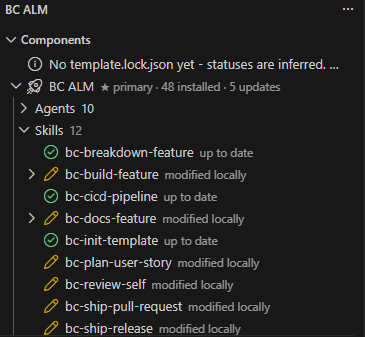
- Components view: every agent, skill, prompt, instruction, workflow and doc, with its
status:
- up to date
- update available
- modified
- conflict
- custom
- disabled
- Updates that respect your edits:
- Unchanged files update in one click.
- Files you edited get a 3-way merge, keep mine or reset.
- Your project values are re-applied automatically.
- Pick what you use: install, disable or pin ("always keep my version") single components,
or choose them per template.
- Several templates side by side: for example BC ALM plus a BC upgrade template. Turn whole
templates on or off.
- Template catalogs:
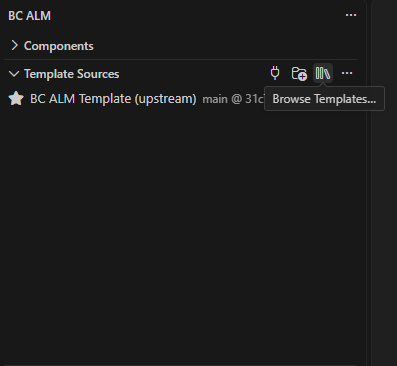
- Browse several templates in one repository.
- Build variants that extend a template.
- Follow
latest, a pinned version or a branch.
- Your own company template:
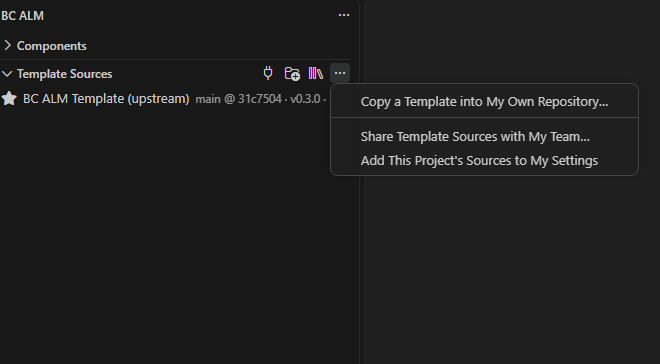
- Copy (fork, duplicate or independent copy) a template into your own repository.
- Save customized components to it.
- Keep it in sync with upstream.
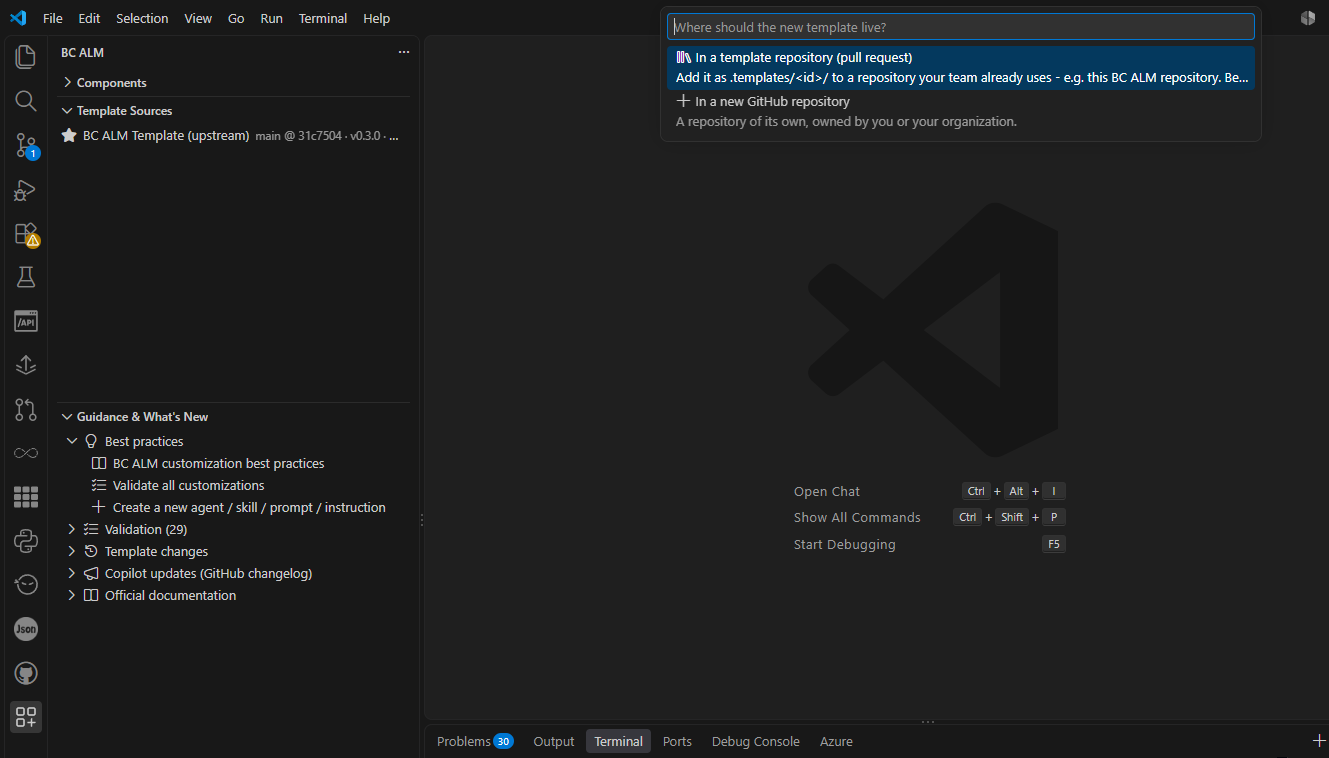
- Contribute improvements back as a pull request (through a fork when you can't push).
- Authoring help: scaffolds for new agents, skills, prompts and instructions. Live
diagnostics with quick fixes against current Copilot guidance. Review with Copilot.
- Guidance & What's New: a best-practices guide, the template's change log since your
version, and Copilot updates from the GitHub changelog.
Getting started
- Install BC ALM, either way:
- from the Extensions view (search for BC ALM);
- or from a terminal:
code --install-extension AlexanderErdelyi.bc-alm.
- Open a folder. Use an empty folder for a new project, or your existing AL repository.
Trust the folder when VS Code asks.
- Open the BC ALM view in the Activity Bar, then pick one:
- New Project from Template… creates and initializes a new project.
- Add BC ALM to This Repository… adds the template to an existing repo.
- Add Template Source… / Browse Templates… adds your company's template or a catalog.
- Check the Components view. It shows your agents, skills and prompts. When the template
changes, they show update available.
Projects created before the extension existed: run Record Template Baseline once.
Full guide: docs/vscode-extension.md
Requirements
- VS Code 1.95 or newer, in a trusted workspace. BC ALM is disabled in Restricted Mode
and in virtual workspaces, because it runs local tools.
- git on PATH.
- PowerShell (
pwsh 7 recommended; Windows PowerShell 5.1
works). It is needed to create a project or add BC ALM to one, because those steps run the
template's setup scripts.
- GitHub CLI (
gh), signed in with gh auth login. It is needed
for pull requests, forks, creating templates and fork sync. Reading public templates works
without it.
- GitHub Copilot
to actually use the agents, skills and prompts in your project.
Commands
All commands are in the Command Palette under BC ALM: and in the BC ALM views.
| Area |
Main commands |
| Start |
New Project from Template… · Add BC ALM to This Repository… · Record Template Baseline |
| Updates |
Check for Template Updates · Apply All Safe Updates · Update from Template · Merge Template Changes (3-way) · Skip This Update · Reset to Template Version |
| Choose components |
Choose Components… · Install / Disable / Enable Component · Always Keep My Version · Switch Active Templates… |
| Template sources |
Add Template Source… · Browse Templates… · Change Version / Branch… · Share Template Sources with My Team… |
| Your own template |
Copy a Template into My Own Repository… · Create New Template… · Save to My Template… · Pull Upstream Updates into My Template |
| Contribute |
Contribute to Source Template (Pull Request)… · Add New Template to This Repository… · Create Variant… · Release Version… |
| Authoring |
New Agent / Skill / Prompt / Instruction… · Validate Copilot Customizations · Review This Customization with Copilot |
| Guidance |
Open Best-Practices Guide · Refresh What's New |
Settings
| Setting |
Purpose |
bcAlm.templateSources |
Template repositories (URL or local path), the path of a catalog template, the ref (branch, tag or latest) and an optional upstream to sync from. |
bcAlm.components.groupBy |
Group the Components view by template, by kind, or automatically. |
bcAlm.checkForUpdatesOnStartup |
Check for template updates when a project opens. |
bcAlm.fetchIntervalMinutes |
Minimum minutes between automatic fetches. |
bcAlm.powershellPath |
PowerShell executable for project creation (user settings only). |
bcAlm.validation.enabled |
Diagnostics for customization files. |
bcAlm.whatsNew.feedUrl / bcAlm.whatsNew.keywords |
The Copilot updates feed and its filter. |
Privacy and security
- No telemetry. BC ALM does not collect or send usage data.
- Network access:
- It contacts only the template repositories you configure, using your own git and
gh
credentials.
- It also reads the What's New feed (
bcAlm.whatsNew.feedUrl, the GitHub Changelog by
default).
- It runs local tools:
git, the GitHub CLI and PowerShell. When you create or add a
project, it runs the template's own setup scripts (scripts/*.ps1), so only use templates
you trust.
- Credentials: tokens and
user:password@ parts of URLs are masked before anything is
written to the BC ALM output channel or shown in a message.
- Writes stay inside the project folder. Writes to the project are refused if a path
resolves outside it.
bcAlm.powershellPath is a machine-level setting, so a repository's workspace settings
cannot change which executable runs.
Support
| |

