MarkLingo
English | 简体中文 | 繁體中文 | 日本語
MarkLingo is an open-source VS Code extension that translates Markdown with AI. Key features include:
- Preserve the original Markdown structure during translation.
- Choose from multiple built-in LLM providers: OpenRouter, OpenAI, DeepSeek, Moonshot, GLM, Xiaomi MiMo, or use a flexible Custom OpenAI Compatible endpoint.
- Write translated
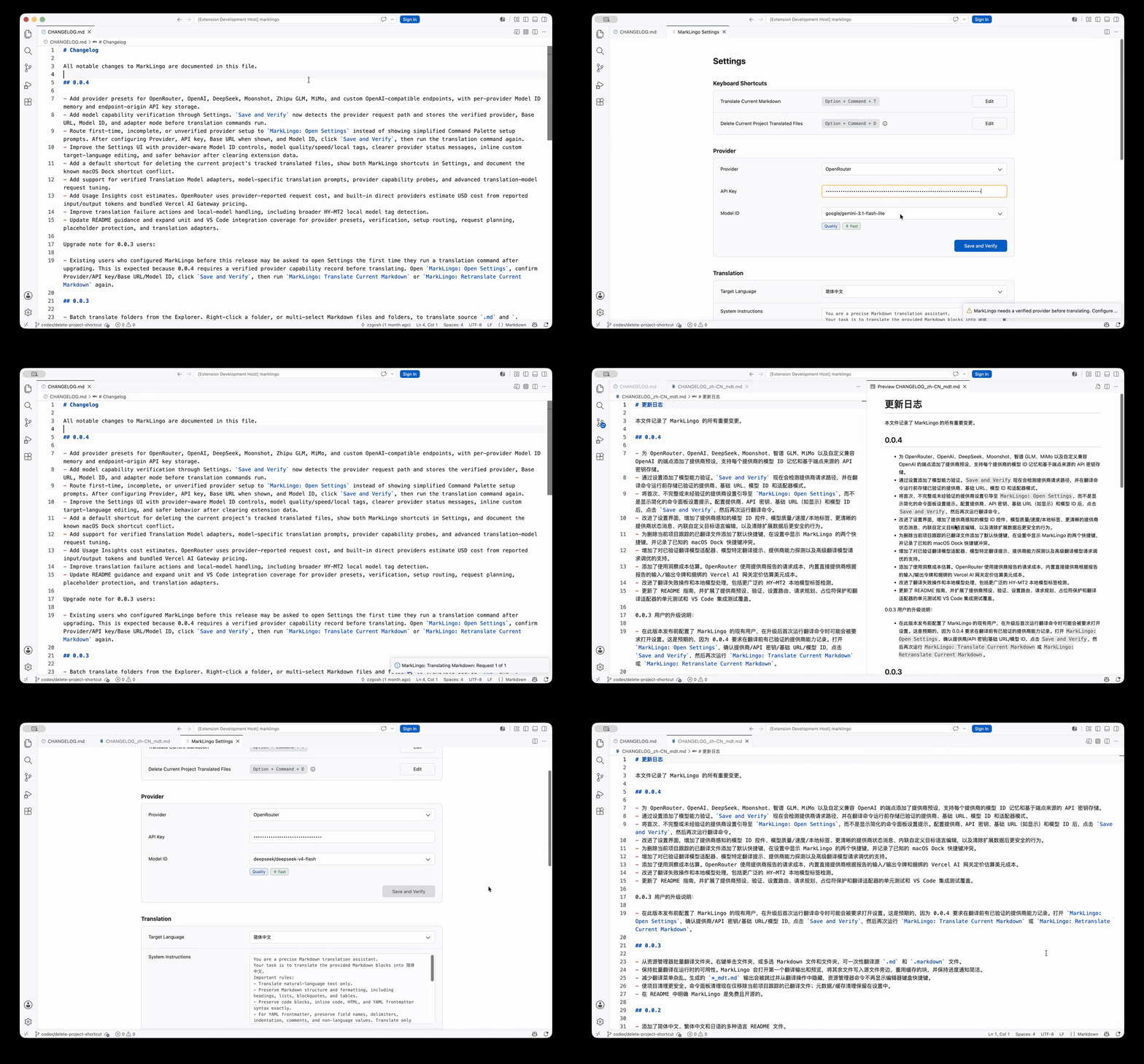
*_<language>_mdt.md files next to the source, then open the translated tab and a Markdown preview to the side.
- Use incremental translation caching to translate new content while avoiding repeated translation of unchanged content and saving tokens.
- Translate individual files, folders, or multiple selected resources from the Explorer context menu.
- Quickly delete generated translated files.
- Add the
*_mdt.md rule to .git/info/exclude to keep generated translations out of the local Git workflow.
- Review a detailed translation Usage dashboard with translated files, successful tasks, provider/model breakdowns, token usage, and estimated cost.
- Keep API keys securely on the local machine in VS Code
SecretStorage, with no telemetry SDK included.
Install
- Option 1: Install from the Visual Studio Marketplace by searching for
MarkLingo in the VS Code Extensions view and clicking Install.
- Option 2: For VS Code-compatible editors that use Open VSX, install MarkLingo from the Open VSX Registry.
- Option 3: Download a packaged
.vsix from the GitHub releases page.
Quick Start
- After installing the extension, press
Command/Ctrl + Shift + P in VS Code to open the Command Palette, then run MarkLingo: Open Settings.
- Choose an LLM Provider, enter your API key, select a model, then click
Save and Verify.
- Choose the target language for translated output. The default is Simplified Chinese.
- Open a saved Markdown file and run
MarkLingo: Translate Current Markdown from the Command Palette.
- Wait for translation to finish. Progress appears in VS Code notifications.
- To discover other commands, enter
MarkLingo: in the Command Palette.
Keyboard Shortcuts
| Command |
macOS |
Windows/Linux |
MarkLingo: Translate Current Markdown |
Option + Command + T |
Control + Alt + T |
MarkLingo: Delete Current Project Translated Files |
Option + Command + D |
Control + Alt + D |
Note: If MarkLingo cannot use Option + Command + D on macOS, the shortcut may already be used by Dock. Change it in System Settings > Keyboard > Keyboard Shortcuts... > Dock > Turn Dock hiding on/off, or use Edit in MarkLingo Settings to assign a different VS Code keybinding.
In addition to the Command Palette and keyboard shortcuts, MarkLingo supports translation from Explorer context menus.
- Right-click a Markdown file in the VS Code Explorer and run
MarkLingo: Translate This Markdown File.
- Right-click a folder and run
MarkLingo: Translate All Markdown in This Folder to translate .md and .markdown files in that folder and its subfolders while skipping generated *_mdt.md outputs.
- Select multiple Markdown files or folders, right-click, and run
MarkLingo: Translate Selected Markdown Files to translate them as one batch.
Commands
| Command |
What it does |
MarkLingo: Translate Current Markdown |
Translate the current saved Markdown file, reusing cached block translations when possible. |
MarkLingo: Retranslate Current Markdown |
Force a full retranslation of the current Markdown file. |
MarkLingo: Translate This Markdown File |
Translate the Markdown file selected from the Explorer context menu. |
MarkLingo: Translate Selected Markdown Files |
Translate Markdown files gathered from selected Explorer files and folders as one batch, opening the first translated output and writing the rest next to their sources. |
MarkLingo: Translate All Markdown in This Folder |
Translate source Markdown files in the selected folder and subfolders, opening the first translated output and writing the rest next to their sources. |
MarkLingo: Open Settings |
Open MarkLingo settings for provider verification, API key, target language, custom instructions, shortcut status, Usage Insights, and cleanup. |
MarkLingo: Add Translated Files to .git/info/exclude |
Add the *_mdt.md exclusion rule to the current repository's local .git/info/exclude. |
MarkLingo: Delete Current Project Translated Files |
Delete this project's extension-tracked translated outputs while keeping private translation metadata/cache. |
Note: After changing Provider or Model ID and clicking Save and Verify, use MarkLingo: Retranslate Current Markdown when you want the newly verified provider/model to translate an existing file from scratch. MarkLingo: Translate Current Markdown is incremental: it may reuse cached block translations created by the previous provider/model and only send changed or new blocks to the current provider/model.
Settings
Use MarkLingo: Open Settings for the settings most users need.
Built-In Provider Models
Fixed provider presets expose predefined model choices. OpenRouter and Custom OpenAI Compatible also allow direct entry of another Model ID.
| Provider |
Model options |
| OpenRouter |
Preset models plus direct Model ID entry |
| OpenAI |
Preset models: gpt-5.4-mini, gpt-5.4-nano, gpt-5.4, gpt-5.5 |
| DeepSeek |
Preset models: deepseek-v4-flash, deepseek-v4-pro |
| Moonshot |
Preset models: kimi-k2.6, kimi-k2.5 |
| GLM |
Preset models: glm-4.7, glm-5, glm-5.1 |
| Xiaomi MiMo |
Preset models: mimo-v2.5, mimo-v2.5-pro |
| Custom OpenAI Compatible |
Direct Model ID entry |
Provider
- Setting:
marklingo.openrouter.provider
- Default:
openrouter
- Presets include
OpenRouter, OpenAI, DeepSeek, Moonshot, GLM, Xiaomi MiMo, and Custom OpenAI Compatible.
- Use
Custom OpenAI Compatible for local or custom endpoints such as llama.cpp server, Ollama, or LM Studio.
- The settings page remembers each provider's Model ID and API key by endpoint origin. Switching the dropdown loads that provider's saved draft;
Save and Verify activates the selected provider.
Base URL
- Shown only for
Custom OpenAI Compatible.
- Custom endpoints must use HTTPS, except localhost debugging endpoints such as llama.cpp server, Ollama, or LM Studio.
- Fixed presets use their official endpoint internally.
Moonshot and GLM probe their supported global/China endpoints during verification and keep the working endpoint for later requests.
API Key
- Storage: VS Code
SecretStorage
- Default: none
- Enter the API key for the selected provider. Keys are stored separately by endpoint origin and are never stored in VS Code settings or workspace files.
Model ID
- OpenRouter and Custom OpenAI Compatible allow direct Model ID entry.
- Other provider presets offer only curated Model ID choices.
Save and Verify
- Saves the Provider, API key, and Model ID only after a lightweight verification request succeeds.
- The verification checks connectivity and chooses the safest request shape for the selected model.
- If the selected provider, internal endpoint, Model ID, and saved API key are unchanged and a capability result is already cached, MarkLingo only reruns a short connectivity check instead of probing model capability again.
- Some reachable models need smaller Markdown batches for reliability. When that happens, Settings shows a small info tip, and large files may run a bit slower.
Advanced Request Mode
- Setting:
marklingo.translation.requestMode
- Default:
auto
- Normally managed by
Save and Verify. In auto, MarkLingo uses the verified request path when available and otherwise uses the standard structured-output request path.
- Advanced settings.json knobs remain available for diagnostics for the smaller-batch request path:
marklingo.translation.translationModelMaxBlocksPerRequest, marklingo.translation.translationModelConcurrency, and marklingo.translation.translationModelMaxOutputTokens.
Target Language
- Setting:
marklingo.translation.targetLanguage
- Default:
简体中文
- Built-in options include
简体中文, 繁体中文, English, 日本語, 한국어, Français, Español, Deutsch, and Custom....
Custom Language
- Setting:
marklingo.translation.targetLanguageCustom
- Default: empty
- Used when target language is
Custom....
Custom Instructions
- Setting:
marklingo.translation.customPrompt
- Default: empty
- Extra terminology, tone, or style instructions appended after MarkLingo's built-in Markdown-preservation prompt when the selected model supports them. This field is hidden and not sent for models that need the smaller-batch fallback.
Note: The settings page saves Provider credentials through Save and Verify. Other dropdown changes save immediately, and free-text fields outside Provider use their own inline Save buttons.
Usage Insights
Settings includes a local Usage section for translation history. It shows translated files, successful translation tasks, provider/model breakdowns, recent runs, token usage, and estimated USD cost when available. Successful cache-only reruns that rebuild output from existing translations are not counted as Usage runs because they do not call the provider.
OpenRouter cost uses the provider-reported request cost, while built-in direct providers use provider-reported input/output tokens and the Vercel AI Gateway pricing snapshot bundled with the extension. Custom and local OpenAI-compatible endpoints may show Cost unavailable. If reported usage is unavailable, MarkLingo falls back to estimated input tokens for requests it sent.
Output Files
MarkLingo always keeps the source Markdown file unchanged.
Translated output is written next to the source file:
README.md
README_zh-CN_mdt.md
Custom target languages use a safe suffix derived from the language name when possible, or a stable custom-<hash> suffix when needed.
Running translation again rebuilds the translated file from the current source Markdown and MarkLingo's private metadata/cache. Manual edits made directly in the translated output are not merged or preserved, so copy or rename the translated file first if you need to keep those edits.
Privacy and Data
MarkLingo is a local VS Code extension, but translation requires sending document content to the provider selected in Settings, such as OpenRouter, OpenAI, DeepSeek, Moonshot, GLM, Xiaomi MiMo, or a trusted custom OpenAI-compatible endpoint.
- Markdown content is sent to the selected provider endpoint for translation.
- OpenRouter is the recommended quick-start provider, and other provider presets can be selected in Settings.
- You need an API key or token accepted by the selected Provider.
- Translation requests are non-streaming. MarkLingo uses the verified request path selected by
Save and Verify; models that need the smaller-batch fallback do not receive Custom Instructions. For the standard request path, MarkLingo asks the provider to exclude model reasoning from responses when supported.
- API keys are stored in VS Code
SecretStorage, separated by endpoint origin.
- API keys are not stored in workspace files, VS Code settings, translation metadata, or logs.
- Translation metadata is stored under VS Code
globalStorageUri, not in the workspace.
- Usage Insights are stored in the same private VS Code storage as append-only monthly event files. Events contain hashes, basenames, counts, provider/model labels, token/cost summaries, timestamps, and status only; they do not store API keys, prompts, raw paths, full source Markdown, or full translated Markdown.
- No telemetry SDK is included.
Changing Provider or the Custom OpenAI Compatible Base URL changes where future translation requests send Markdown content. Only use endpoints you trust.
Cleanup
Use MarkLingo: Open Settings and the Danger Zone to clear saved data.
Clear All Data can delete:
- Saved API key
- MarkLingo user settings
- Global translation metadata/cache, including Usage Insights events
- Optionally, tracked translated workspace outputs
Clear Current Project Data can delete, for the shown project directory:
- Tracked translated project outputs
- Project translation metadata/cache, including Usage Insights events
Use MarkLingo: Delete Current Project Translated Files or its shortcut when you only want to clean the current project's extension-tracked translated files. MarkLingo asks for confirmation first, intentionally deletes tracked outputs even if they were edited after generation, and keeps other projects' translated files untouched.
Development
npm install
npm run compile
npm test
npm run test:vscode
npm run dev:vscode
npm run package:dry
npm test runs fast Node unit tests. npm run test:vscode launches an isolated VS Code Extension Host with a temporary workspace, a local mock OpenRouter endpoint, and a fake SecretStorage API key. It does not use your installed VSIX settings or real OpenRouter key.
Use npm run dev:vscode for manual smoke testing of the current working tree. It builds the extension, then opens a separate VS Code window with --extensionDevelopmentPath, an isolated user data directory named marklingo-dev-user in the system temp directory, and an isolated extensions directory named marklingo-dev-extensions in the system temp directory. This keeps your regular VS Code profile and installed Marketplace version untouched. Because the extension is loaded from the development path instead of installed as a VSIX, the isolated Extensions view may still show Installed 0; that is expected. Verify the loaded development extension from the Command Palette with MarkLingo: Open Settings, or use Developer: Show Running Extensions. Configure the API key again inside that isolated window when testing real translation requests. Override MARKLINGO_DEV_USER_DATA_DIR or MARKLINGO_DEV_EXTENSIONS_DIR to choose fixed directories.
Package a local VSIX:
npm run vsix
MarkLingo is authored as native ESM TypeScript. Source lives in src/, compiled output goes to out/, and the published extension entrypoint is the bundled dist/extension.js.
| |

