Because every CoPilot needs a Pilot.


Visit Pilot's Homepage🔗
Pilot is a powerful tool allowing low level scripting and hacking of Visual Studio Code. It provides a live TypeScript/JavaScript runtime that gives you—and GitHub CoPilot—direct, unrestricted access to the FULL VS Code API and the state of your workspace.
Bridge the gap between manual editing and full extension development. With Pilot, you can inspect, automate, hack and manipulate your editor, workspace, UI, or extensions in real-time without the complexity of scaffolding, compiling, or reloading a dedicated extension.
Think Tampermoneky but for VS Code, and integrated directly with GitHub CoPilot.
Features
- Live REPL Console: An interactive TypeScript REPL running directly inside VS Code.
- CoPilot Native: Deep integration via
# tools gives CoPilot the tools to interactively, in real-time inspect, automate, hack and manipulate your editor, workspace, UI, or extensions.
- Unlimited Access: Full access to the
vscode namespace, Node.js runtime (fs, child_process), and direct control over any installed extension.
- Zero Boilerplate: Write scripts and automations immediately. No
package.json, no build steps.
Installation
Install directly from the VS Code Marketplace:
ext install zigbook.pilot-repl
Core Capabilities
1. The Interactive REPL
Pilot provides a persistent Read-Eval-Print Loop (REPL) for immediate code execution. It is the fastest way to query editor state or inspect, evaluate, and test API calls.
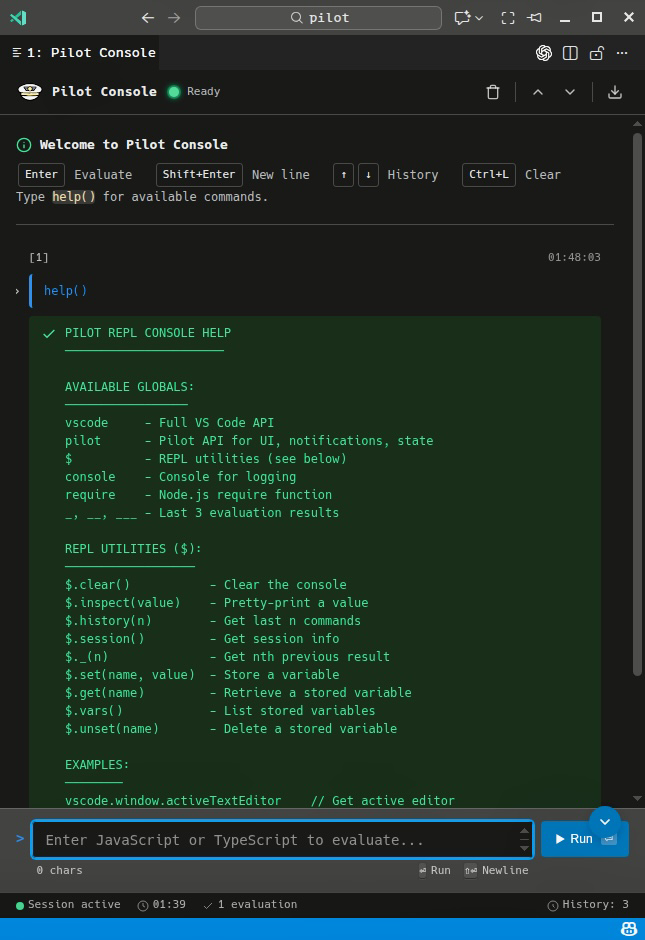
Open the Pilot REPL Console: Ctrl+Alt+P C
[!TIP]
Ask CoPilot to open the Pilot REPL Console for you! Just tell CoPilot to use the #pilot_repl_open tool, then sit back and watch the magic happen.
[!IMPORTANT]
If you want to watch the REPL output while CoPilot is using it, just ask CoPilot to #pilot_repl_open before asking it to #pilot_repl_evaluate. As long as the REPL panel is open, it will continue to update and you will be able to see the output of all evaluations in real-time that CoPilot performs.
Here are some very basic examples: Type the following TypeScript/JavaScript code into the REPL input and press Enter to execute.
// Query the editor state
vscode.window.activeTextEditor.document.languageId

// Inspect active extensions
vscode.extensions.all.filter(e => e.isActive).length

// Access the clipboard
await vscode.env.clipboard.readText()
[!TIP]
The REPL maintains state between evaluations. Use help() to see available commands and REPL utilities.
2. CoPilot Integration
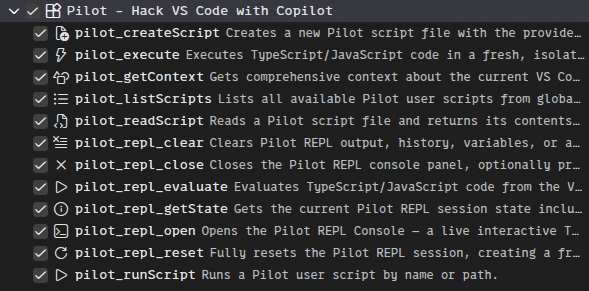
Pilot gives CoPilot low-level access like never before.
Pilot enhances GitHub CoPilot by exposing powerful new capabilities via a Language Model Tool that gives CoPilot access to the same REPL environment you use so that you can ask it to, in real-time inspect, automate, hack and manipulate your editor, workspace, UI, or extensions.
[!WARNING]
Pilot gives your GitHub CoPilot full low-level access to the VS Code API and extension environment. You are responsible for the code that is executed by your CoPilot agents. If you don't want CoPilot to have any access to the Pilot tools, simply disable the language model tools in your settings pilot.copilot.enableTools.
The Power of # Tools
Pilot exposes a suite of tools directly to CoPilot's context. By using # commands, you grant CoPilot permission to run arbitrary code within VS Code directly.
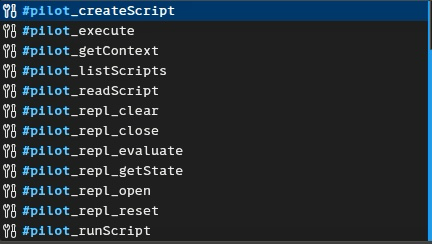
Basic examples of using the #pilot_repl_evaluate Tool:
"Use #pilot_repl_evaluate to find the active Git branch and create a new one based on the current ticket number."
"Use #pilot_getContext to read the error in the terminal, then #pilot_repl_evaluate to fix the configuration file automatically."
Using the @pilot Participant:
For a conversational experience, mention @pilot to discuss editor state or request automations:
"@pilot What are the currently active debug sessions?"
3. Scripting & Automation
Turn frequent tasks into reusable scripts. Pilot scripts are standard TypeScript files stored in your global or workspace configuration.
Create a Script: Ctrl+Alt+P N
[!TIP]
Ask CoPilot to help you write Pilot scripts! Just describe what you want the script to do and tell CoPilot to use the #pilot_createScript tool, and let CoPilot generate the script for you.
Pilot includes a creation wizard with templates for common use cases (Editor Enhancement, File Operations, etc.).
Example: Format All Open Editors
/**
 * @pilot
 * name: format-all
 * description: Format all visible text editors
 * icon: paintbrush
 * category: Editor Management
 * author: Auto-Generated by Pilot
 * hidden: false
 */

for (const editor of vscode.window.visibleTextEditors) {
    if (editor.document.uri.scheme === 'file') {
        await vscode.commands.executeCommand('editor.action.formatDocument', editor.document.uri);
    }
}
Run a Script: Ctrl+Alt+P R
[!TIP]
Ask CoPilot to run user scripts for you! Just provide the name of the script and tell CoPilot to use the #pilot_runScript tool, then sit back and watch the magic happen.
Real-World Use Cases
Pilot allows you to build workflows that would typically require a dedicated extension.
Manipulate Other Extensions
Discover hidden commands or inspect the exports of other extensions to understand how they work. Your extensions are no longer black boxes. Pilot lets you import any active extension, inspect its API, and call its internal functions programmatically.
// Find all commands related to 'debug' in CoPilot
const cmds = await vscode.commands.getCommands();
cmds.filter(c => c.includes('copilot') && c.includes('debug'));
System Integration
Break out of the sandbox. Use the Node.js runtime to interact directly with your operating system.
// Run a shell command and capture output
const cp = require('child_process');
const result = cp.execSync('git status --short', { encoding: 'utf8' });
vscode.window.showInformationMessage(`Git Status:\n${result}`);
Custom UI & Status Items
Create transient UI elements to track specific metrics or expose quick actions.
// Create a status bar item for word count
const item = vscode.window.createStatusBarItem(vscode.StatusBarAlignment.Right);
const update = () => {
    const text = vscode.window.activeTextEditor?.document.getText() ?? '';
    item.text = `$(book) ${text.split(/\s+/).length} words`;
    item.show();
};
vscode.window.onDidChangeActiveTextEditor(update);
update();
Advanced Workspace Management
Perform complex operations across your entire workspace.
// Close all editors that are not part of the current project
const currentRoot = vscode.workspace.workspaceFolders?.[0].uri.toString();
for (const group of vscode.window.tabGroups.all) {
    for (const tab of group.tabs) {
        if (tab.input instanceof vscode.TabInputText && !tab.input.uri.toString().startsWith(currentRoot)) {
            await vscode.window.tabGroups.close(tab);
        }
    }
}
Command Reference
Language Model Tool Commands for CoPilot
| Command |
Description |
#pilot_repl_open |
Opens the Pilot REPL Console — a live interactive TypeScript/JavaScript REPL console with unrestricted access to VS Code and all extension APIs. |
#pilot_repl_close |
Closes the Pilot REPL console panel, optionally preserving the session state. |
#pilot_repl_evaluate |
Evaluates TypeScript/JavaScript code in the Pilot REPL Console with full API access and persistent state. |
#pilot_repl_getState |
Gets the current Pilot REPL session state including variables and command history. |
#pilot_repl_clear |
Clears Pilot REPL output, history, variables, or all of them. |
#pilot_repl_reset |
Fully resets the Pilot REPL session, creating a fresh Pilot REPL environment. |
#pilot_listScripts |
Lists all available Pilot user scripts from global and workspace locations. |
#pilot_runScript |
Runs a Pilot user script by name or path. |
#pilot_createScript |
Creates a new Pilot script file with the provided content. |
#pilot_readScript |
Reads a Pilot script file and returns its contents with metadata. |
#pilot_getContext |
Gets comprehensive context about the current VS Code state (editor, selection, workspace, etc.). |
#pilot_execute |
Executes TypeScript/JavaScript code in a fresh, isolated context with VS Code API access. |
Keyboard Shortcuts
| Shortcut |
Command |
Description |
Ctrl+Alt+P C |
Open REPL |
Opens the interactive console. |
Ctrl+Alt+P N |
Create Script |
Opens the script creation wizard. |
Ctrl+Alt+P R |
Run Script |
Opens the script picker to execute a saved script. |
Ctrl+Alt+P E |
Evaluate Selection |
Executes the currently selected text in the REPL. |
Ctrl+Alt+P L |
Evaluate Line |
Executes the current line in the REPL. |
Built with ❤️ by @pilot-repl