zaqxen Merkdown — Markdown & Mermaid Preview
Turn your Markdown files into easy-to-read previews with interactive Mermaid diagrams, clear tables, and dark or light themes. Everything renders locally—no account or online service needed.
See it in action
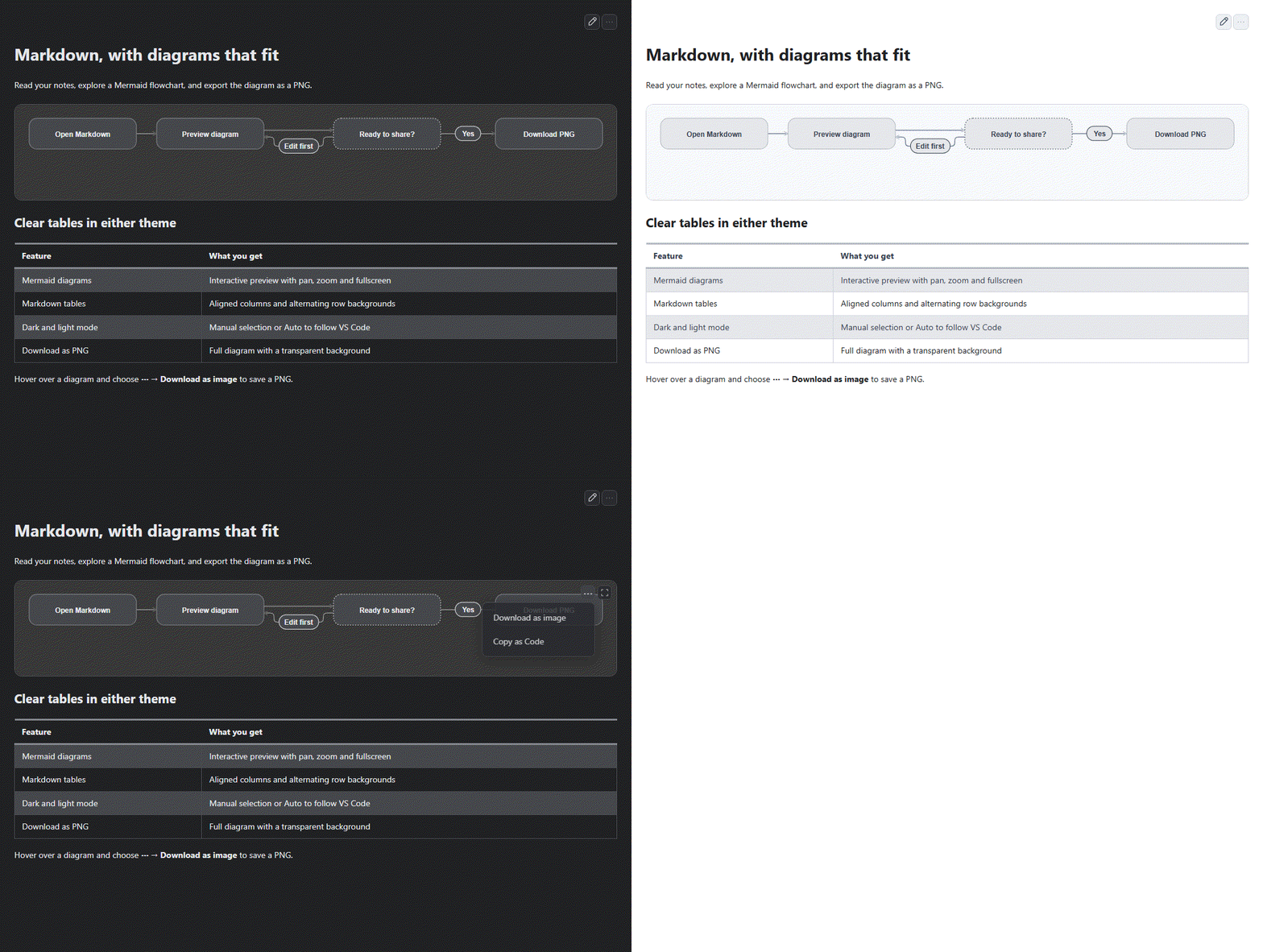
Preview diagrams alongside your notes and tables, switch themes, and save diagrams as images.
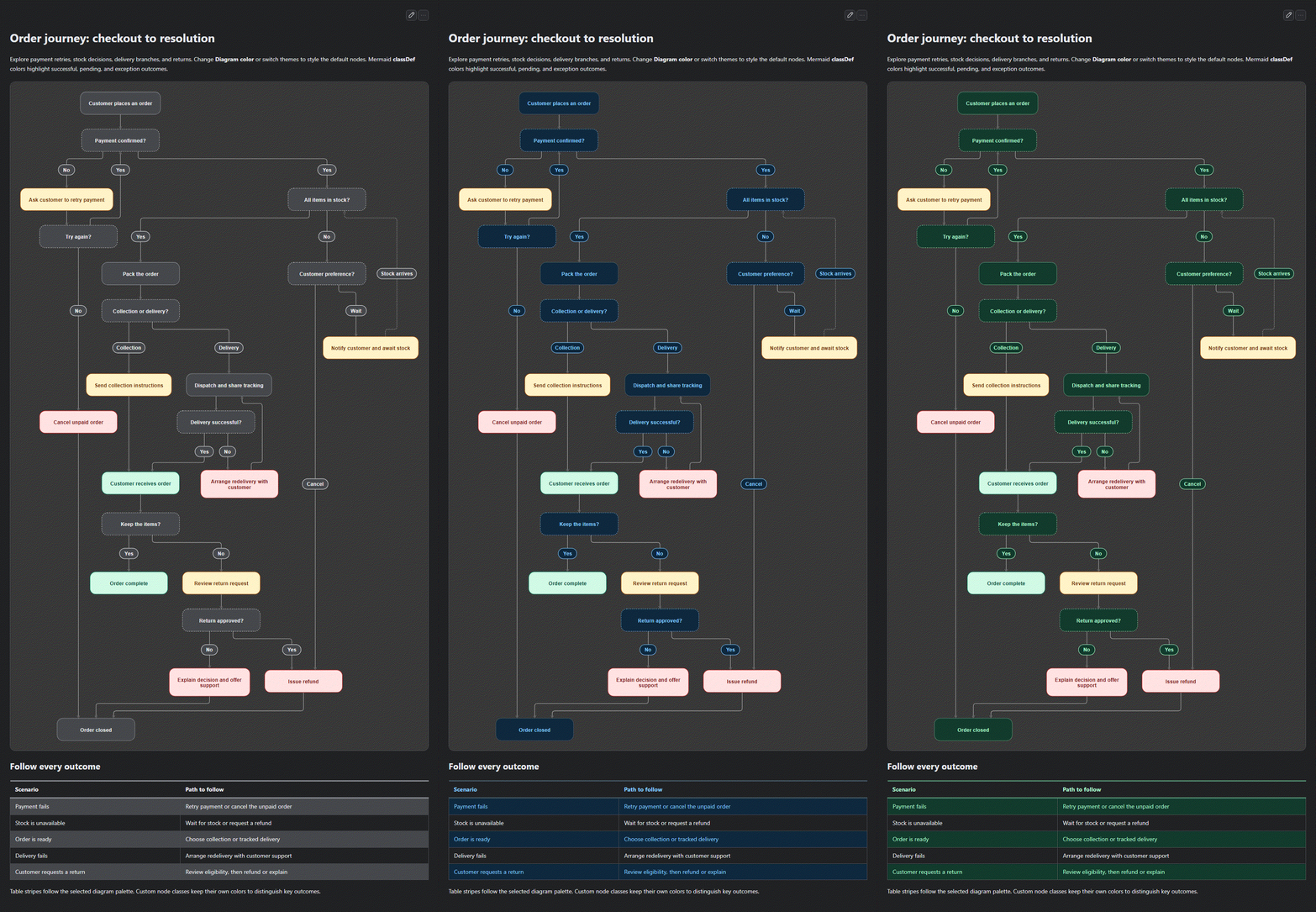
Vertical diagrams and colors
Read top-to-bottom flows as well as horizontal diagrams, with multiple paths, decisions, and custom Mermaid classDef styles. Open ⋯ → Diagram color in the preview toolbar to click a colour swatch for Black, Gray, White, Blue, Green, Orange, Red, or Purple. Your diagram color and Auto/Dark/Light selection are remembered after closing previews or restarting VS Code. Your chosen colors also appear in exported PNGs and striped tables. Custom classDef colors remain intact.
Features at a glance
| Feature |
What you can do |
| Markdown and Mermaid |
Read text, tables, and interactive diagrams together. Open raw .mmd and .mermaid files without Markdown fences; diagram support depends on the bundled Mermaid renderer. |
| Appearance |
Choose Auto, Dark, or Light in the compact ⋯ menu. |
| Diagram and table colours |
Click Black, Gray, White, Blue, Green, Orange, Red, or Purple swatches in two rows of four for immediate changes. Colours also apply to PNG exports; custom classDef styles remain intact. |
| Remembered preferences |
Keep your theme, colour, and Mono choices across previews and restarts. |
| Pan, zoom, and fullscreen |
Drag diagrams, use Ctrl+wheel or +/−/0, and expand a chart. Escape leaves fullscreen. |
| Download as image |
Hover over a diagram and choose ⋯ → Download as image for a complete transparent PNG. |
| Copy as Code |
Copy original Mermaid code without the Markdown fences. |
| Default / Mono switch |
Toggle between the default font and monospace text and tables using SF Mono, Menlo, Monaco, Consolas, Liberation Mono, Courier New, or the available monospace fallback. |
| Edit Markdown |
Open the source with the pencil; the preview updates as you edit. |
| Default Markdown viewer |
Choose Set as Default Markdown Viewer. A VS Code confirmation appears after saving, even if Merkdown is already the default. Reopen existing tabs to apply. |
| Images |
Load relative images and GIFs automatically; load external images individually on request. |
| Links |
Open relative file links in VS Code and full HTTP/HTTPS links in your external browser. Escaped link syntax is also supported. |
| Local rendering |
Preview locally without an account or online service. |
flowchart TD
    Preview[Markdown preview] --> Edit[Edit: pencil icon]
    Edit --> Source[Open Markdown source]
    Source --> Live[Preview updates as you type]
    Preview --> Menu[Appearance: ellipsis menu]
    Menu --> Theme[Auto / Dark / Light]
    Menu --> Colour[Eight colour swatches: four per row]
    Colour --> Update[Diagrams and tables update immediately]
    Menu --> Font[Default / Mono font switch]
    Font --> Text[Text and tables change font]
    Menu --> Default[Set as Default Markdown Viewer]
    Default --> Set[Save Merkdown Preview as default]
    Set --> Confirm[Show confirmation even if already set]
Get started
- Install Merkdown Preview from the official VS Code Marketplace.
- Right-click a Markdown,
.mmd, or .mermaid file in Explorer and choose zaqxen Merkdown — Markdown & Mermaid Preview: Open Preview.
- Or open a Markdown file and press Ctrl+Shift+V (Cmd+Shift+V on macOS).
You can also find Open Preview in the Command Palette. The shortcut opens this extension's preview; personal keybindings may override it.
To choose or change your default viewer, right-click a Markdown file and select Open With… → Configure default editor…. Select Merkdown Preview to use this preview, or Text Editor to return to editing by default.
Explore a diagram
Hover over a diagram to reveal its actions and fullscreen button. Drag to pan, use Ctrl+wheel to zoom, or focus the diagram and press +, -, and 0 to zoom in, zoom out, and reset. Press Escape to leave fullscreen.
Try the sample Markdown or the vertical diagram sample.
Preview support: Markdown text, tables, Mermaid fences, and raw .mmd / .mermaid diagram files. Raw files use the same diagram controls, live updates, copying, and PNG export; unsupported or invalid Mermaid syntax shows a diagram error. Relative images (including animated GIFs) in the Markdown file’s folder or subfolders load automatically. External HTTP/HTTPS images load only when you click Load external image for that image. HTML appears as text, and relative file links open in VS Code when clicked; HTTP/HTTPS links open in your external browser.

