Doom While AI Works
Rip and Tear Through the AI Wait Time 🔥






"Productivity is overrated. Demon slaying is eternal."
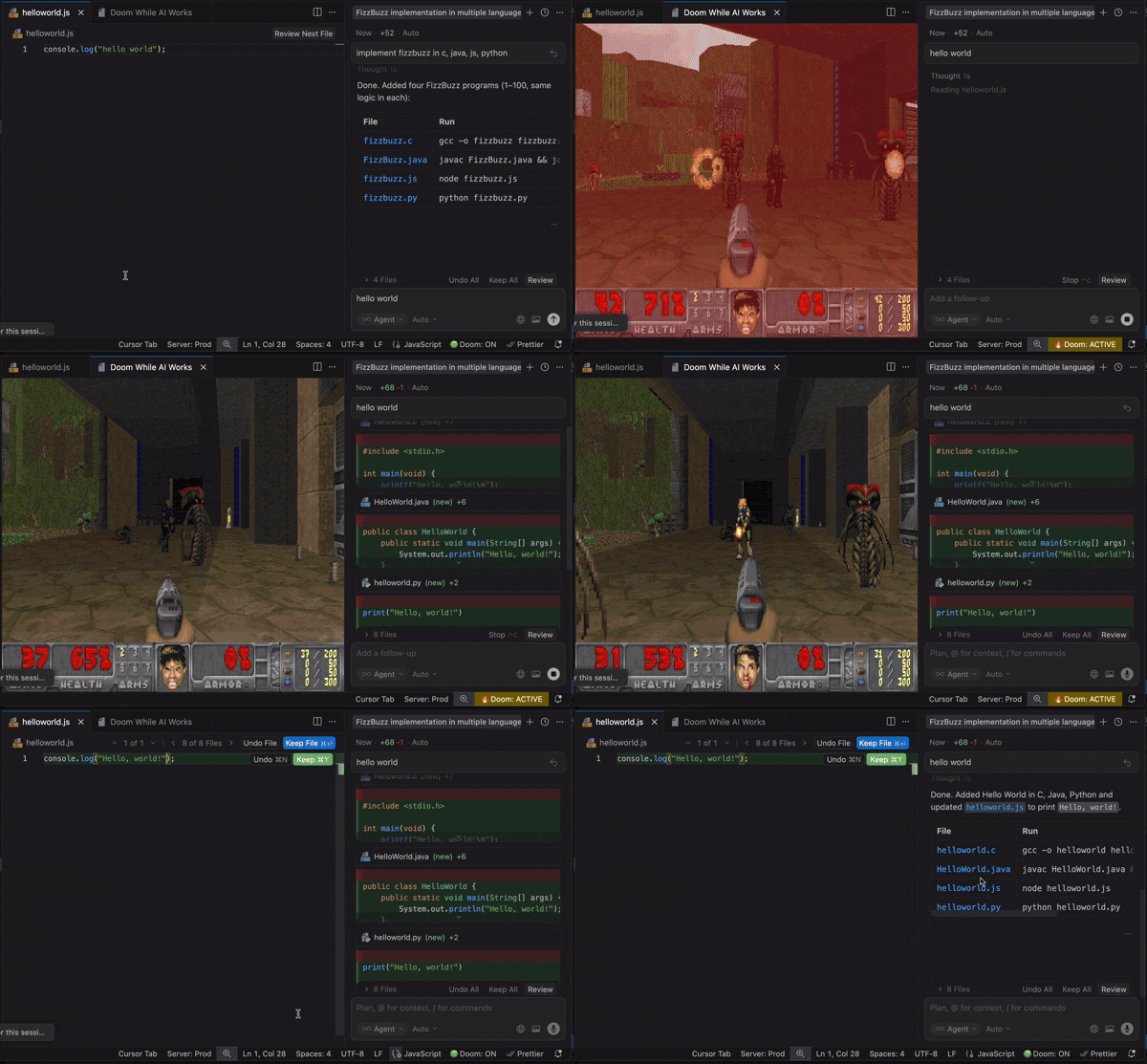
Tired of staring at that spinning "AI is thinking..." bubble? It's time to slay demons.
Doom While AI Works is the ultimate time-killer extension for VS Code, Cursor, and Antigravity. It monitors your editor for AI activity and instantly launches Doom when the AI starts processing. The second it finishes? The game pauses, and you're back to work.
Features
- Auto-Slay Trigger: Launches Doom automatically when AI "thinks".
- Instant Pause: Stops the moment the AI is done. No excuses.
- WAD Support: Built-in Freedoom, or bring your own
.wad files.
- Full Control: Toggle ON/OFF via status bar, plus adjustable difficulty, volume, and sound settings.
Usage & Controls
The extension adds a status bar item to your IDE, giving you full control over the demon slaying.
Note: Currently, saving the game is only supported via the in-game menu (accessible by pressing ESC).
| State |
Icon |
Description |
| ON |
 |
Ready to Slay. The game will automatically launch when AI starts thinking. Click to disable. |
| OFF |
 |
Peaceful Mode. Automatic launch is disabled. Click to enable. |
Setup
VS Code (GitHub Copilot)
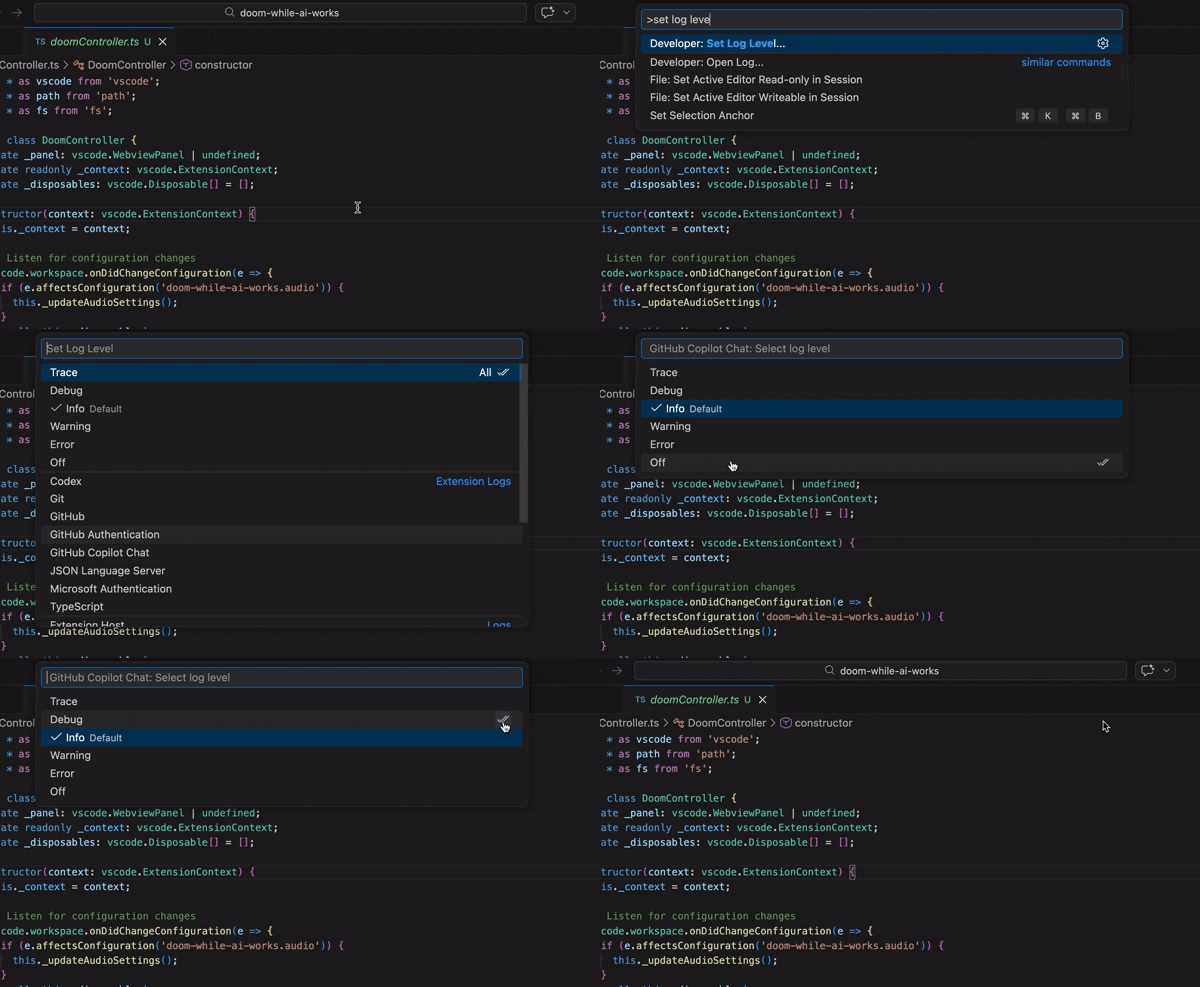
To ensure Doom triggers correctly with GitHub Copilot, you must set the log level to Debug.
- Open Command Palette (
Cmd+Shift+P / Ctrl+Shift+P).
- Run
Developer: Set Log Level.
- Select
GitHub Copilot Chat.
- Select
Debug and click the double checkmark icon on the right to "Set as Default Log Level".
Cursor
Doom works by hooking into Cursor's hooks.json. Add the following beforeSubmitPrompt and stop hooks to trigger Doom.
Open (or create) the configuration file:
~/.cursor/hooks.json (macOS/Linux)%USERPROFILE%\.cursor\hooks.json (Windows)
Add the JSON configuration:
macOS / Linux:
{
  "version": 1,
  "hooks": {
    "beforeSubmitPrompt": [
      {
        "command": "echo thinking > ~/.cursor/ai_thinking.txt"
      }
    ],
    "stop": [
      {
        "command": "echo idle > ~/.cursor/ai_thinking.txt"
      }
    ]
  }
}
Windows (Command Prompt / PowerShell):
{
  "version": 1,
  "hooks": {
    "beforeSubmitPrompt": [
      {
        "command": "cmd /c echo thinking > \"%USERPROFILE%\\.cursor\\ai_thinking.txt\""
      }
    ],
    "stop": [
      {
        "command": "cmd /c echo idle > \"%USERPROFILE%\\.cursor\\ai_thinking.txt\""
      }
    ]
  }
}
Antigravity
No setup required. Just install and slay.
Configuration
Customization is key to a good slay. Tweak these settings in your VS Code settings (Cmd+,):
| Setting |
Description |
Default |
doom-while-ai-works.game.difficulty |
Difficulty level (1: Too young to die - 5: Nightmare!) |
3 |
doom-while-ai-works.game.wadPath |
Absolute path to a custom .wad file (e.g., doom1.wad). |
"" (Freedoom) |
doom-while-ai-works.game.skipTitle |
Skip the title screen and start directly in E1M1. |
true |
doom-while-ai-works.audio.volume |
Master volume (0-100). |
100 |
doom-while-ai-works.audio.muted |
Mute all game audio. |
false |
doom-while-ai-works.debug |
Enable debug logs for detection hacks. |
true |
Transparency & AI Detection
Absolute transparency is the priority. This extension runs 100% locally on your machine. No code, prompts, or data are ever sent to any server. It only listens for generic "thinking" signals to trigger the game.
Here is exactly how detection works for each platform:
You can audit our full detection source code here:
👉 src/detectors
Contributing
Bugs? Feature requests? PRs?
I welcome them all. Help make the wait time even more violent.
👉 GitHub Repository
💊 Need a Mental Health Pack?
Tired of ripping and tearing?
Slaying demons while waiting for AI can be exhausting. If you need to restore your "HP" and find some peace, check out my latest healing app:
👉 Floating Cat Videos - Sumineko
About the Creator
Yukapero
Japanese Solopreneur. Full-stack engineer.
👉 yukapero.com/en
License
- Extension: MIT License
- Game Assets: Freedoom (BSD-3-Clause)
Disclaimer: I am not responsible for your boss catching you mid-frag because the AI was taking its sweet time.

