
Logo to the PeopleDisplay project-specific logos in VSCode Explorer for instant visual workspace identification. Power to the projects! Installation Launch VS Code Quick Open ( Ctrl+P), paste the following command, and press enter.Copied to clipboard |

Logo to the People
OverviewLogo to the People automatically detects and displays your project's logo in the VSCode Explorer sidebar. Perfect for developers working on multiple projects who need quick visual identification of their current workspace. Screenshots
Key Features
InstallationFrom VSCode Marketplace (Recommended)
Manual Installation
UsageAutomatic Detection & Logo PriorityThe extension works immediately after installation with zero configuration required. It automatically searches for and displays logos in this priority order:
What this means: Drop a Example ProjectsSimple Project Structure: Custom Logo Location: ConfigurationWorkspace Settings (
|


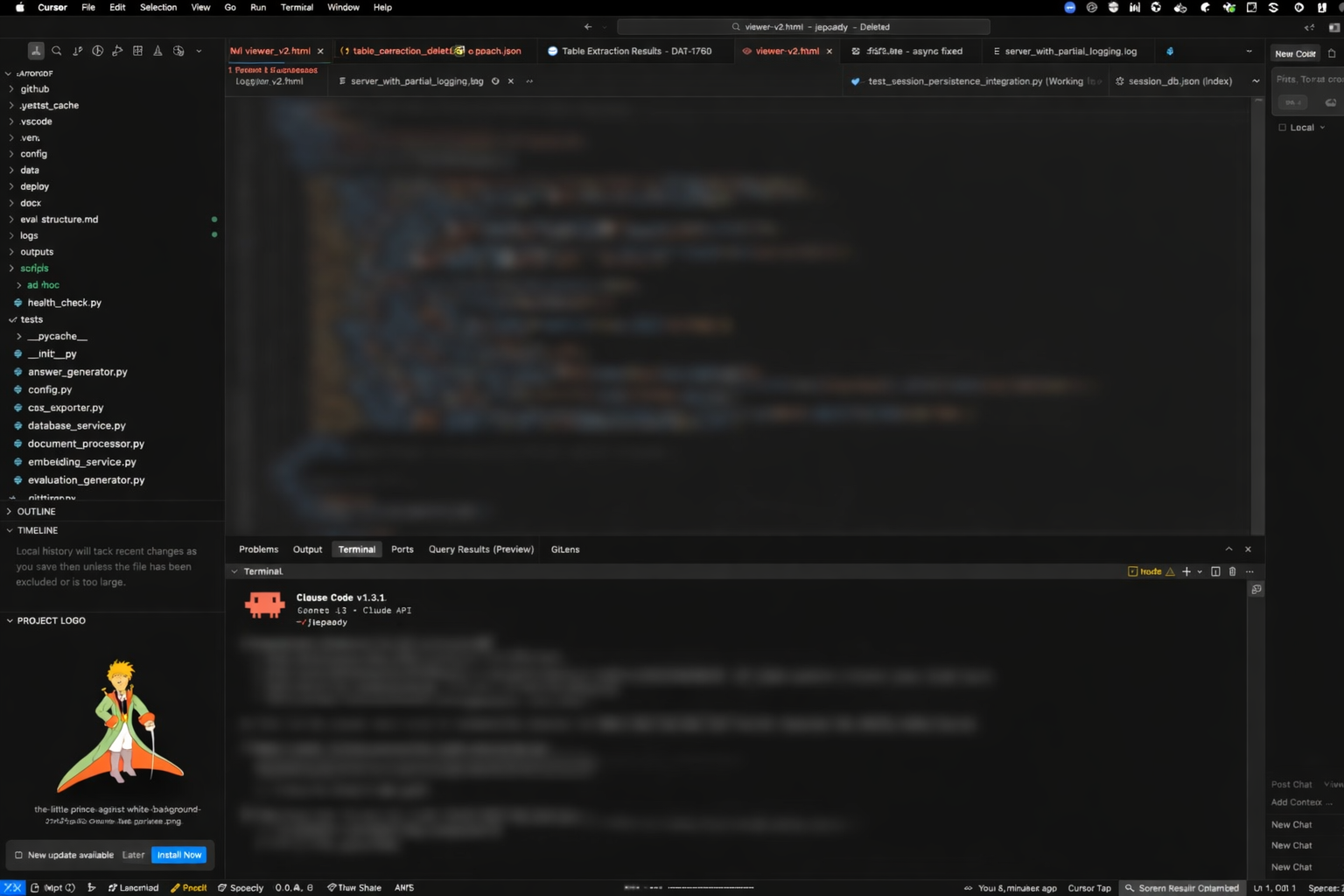 Project logo displayed in the Explorer sidebar — Little Prince project
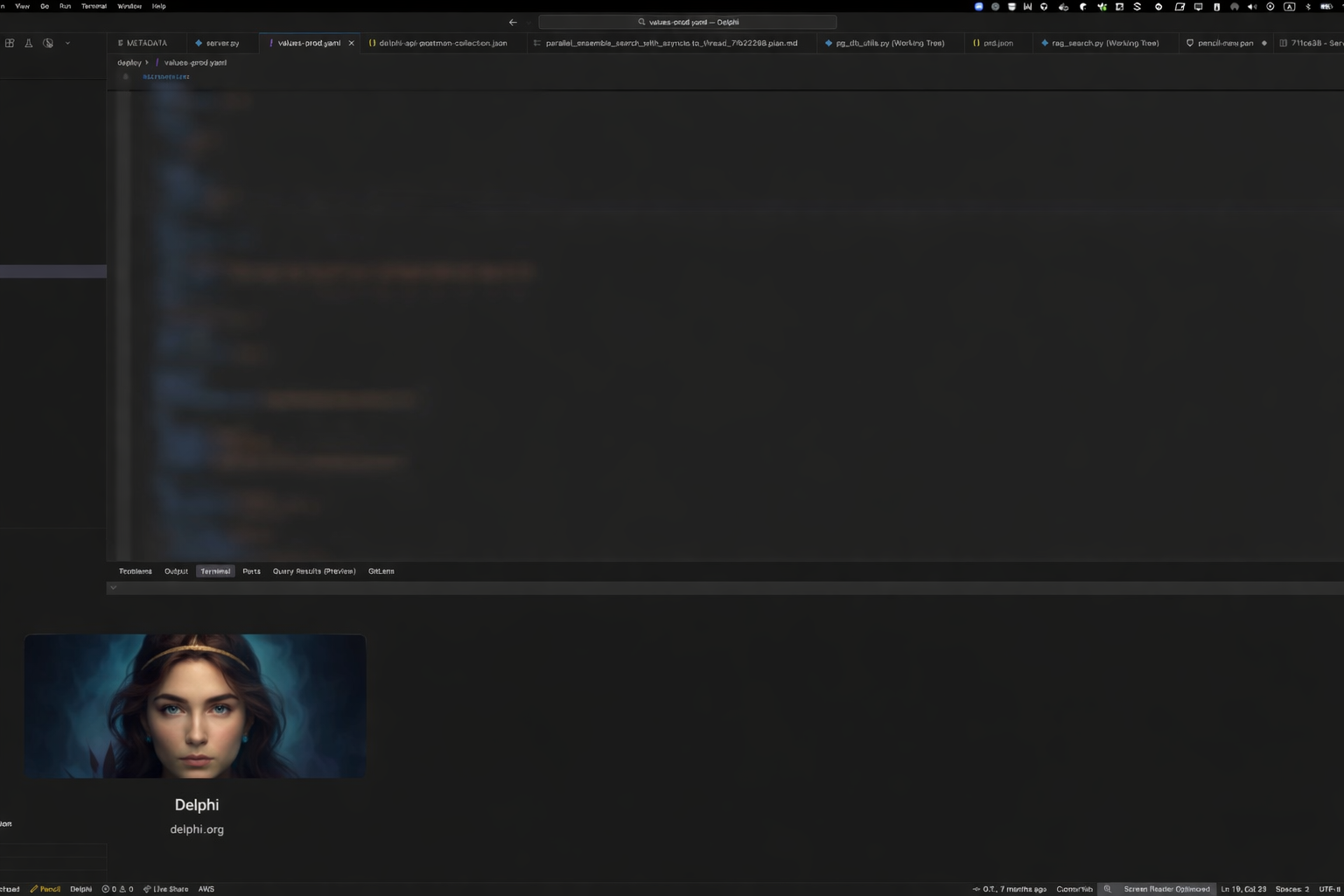 Custom image logo for the Delphi project
 Multiple VS Code windows — each workspace shows its own logo
 Six different projects, six different logos — instant visual identification at a glance
| Setting | Type | Default | Description |
|---|---|---|---|
projectLogo.logoPath |
string |
"" |
Custom path to project logo (relative to workspace root or absolute) |
projectLogo.enabled |
boolean |
true |
Enable/disable the logo display |
projectLogo.showInSidebar |
boolean |
true |
Show project logo in Explorer sidebar panel |
projectLogo.showInStatusBar |
boolean |
true |
Show project name in status bar |
projectLogo.position |
string |
"left" |
Position of the status bar item ("left" or "right") |
projectLogo.size |
number |
16 |
Size of the logo icon in pixels (16 or 20 recommended) |
projectLogo.tooltip |
string |
"" |
Custom tooltip text (defaults to workspace folder name) |
Global Settings
You can also configure defaults in your user settings (Ctrl+, / Cmd+,):
{
  "projectLogo.enabled": true,
  "projectLogo.showInSidebar": true,
  "projectLogo.position": "left",
  "projectLogo.size": 16
}
How It Works
Logo Detection Algorithm
┌──────────────────────────────────┬────────────────────────────────────┐
│ 1. Check Custom Config Path      │ Highest Priority                   │
├──────────────────────────────────┼────────────────────────────────────┤
│ 2. Check Standard Names          │ logo.png → icon.png → project.png  │
├──────────────────────────────────┼────────────────────────────────────┤
│ 3. Find First PNG in Root        │ Alphabetically sorted              │
├──────────────────────────────────┼────────────────────────────────────┤
│ 4. Check Cached Logo             │ From previous branch               │
├──────────────────────────────────┼────────────────────────────────────┤
│ 5. Generate Text Logo            │ Project name in colored box        │
├──────────────────────────────────┼────────────────────────────────────┤
│ 6. Use Default Fallback Icon     │ Built-in default                   │
└──────────────────────────────────┴────────────────────────────────────┘
Smart Logo Caching
When a logo is found, it's automatically cached. This means:
- Branch switching - Logo persists when switching to branches without the logo file
- Consistent branding - Same visual identity across all branches
- Better UX - No flickering or missing logos during development
Cache is stored in .vscode/.logo-cache/ and is workspace-specific.
Auto-Generated Logos
When no custom logo is found and cache is empty, the extension generates a text-based logo featuring:
- Project name displayed in a clean, readable font
- Unique color generated from project name (consistent across sessions)
- Responsive sizing - Font size adjusts based on name length
- High contrast - Ensures readability on any theme
Troubleshooting
Logo Not Appearing
Problem: Explorer sidebar doesn't show the project logo
Solutions:
- Check logo filename - Ensure it's named
logo.png,icon.png, orproject.png - Verify file location - Logo must be in workspace root (unless using custom path)
- Check extension is enabled - Verify
projectLogo.enabled: trueandprojectLogo.showInSidebar: true - Reload window - Press
Ctrl+Shift+P/Cmd+Shift+P→ "Developer: Reload Window"
Custom Logo Path Not Working
Problem: Configured projectLogo.logoPath but logo doesn't appear
Solutions:
- Use relative paths - Path should be relative to workspace root:
"assets/logo.png" - Check file exists - Verify the file exists at the specified path
- Use forward slashes - Even on Windows:
"assets/branding/logo.png" - Reload window - Configuration changes should auto-reload, but reload if needed
Clear Logo Cache
If you need to clear the cached logo:
- Delete
.vscode/.logo-cache/directory in your workspace - Reload VSCode window
- Extension will detect and cache the current logo
Check Extension Logs
Open the extension's output channel for detailed logs:
- Press
Ctrl+Shift+U/Cmd+Shift+Uto open Output panel - Select "Project Logo" from dropdown
- Review logs for error messages
Examples
Example 1: Standard Setup (Zero Config)
my-app/
├── logo.png          ← Extension auto-detects this
├── src/
├── package.json
└── README.md
No configuration needed! The extension finds logo.png automatically and caches it.
Example 2: Custom Path
my-app/
├── assets/
│   └── brand/
│       └── company-logo.png
├── src/
└── .vscode/
    └── settings.json
.vscode/settings.json:
{
  "projectLogo.logoPath": "assets/brand/company-logo.png"
}
Example 3: Sidebar Only
{
  "projectLogo.showInSidebar": true,
  "projectLogo.showInStatusBar": false
}
Example 4: Custom Tooltip
{
  "projectLogo.tooltip": "🚀 My Awesome Startup"
}
License
MIT © Yoav Vollansky
Support
- 🐛 Bug Reports: GitHub Issues
- 💬 Questions: GitHub Discussions
- ⭐ Feedback: Rate on Marketplace
Power to the projects! 🚀