

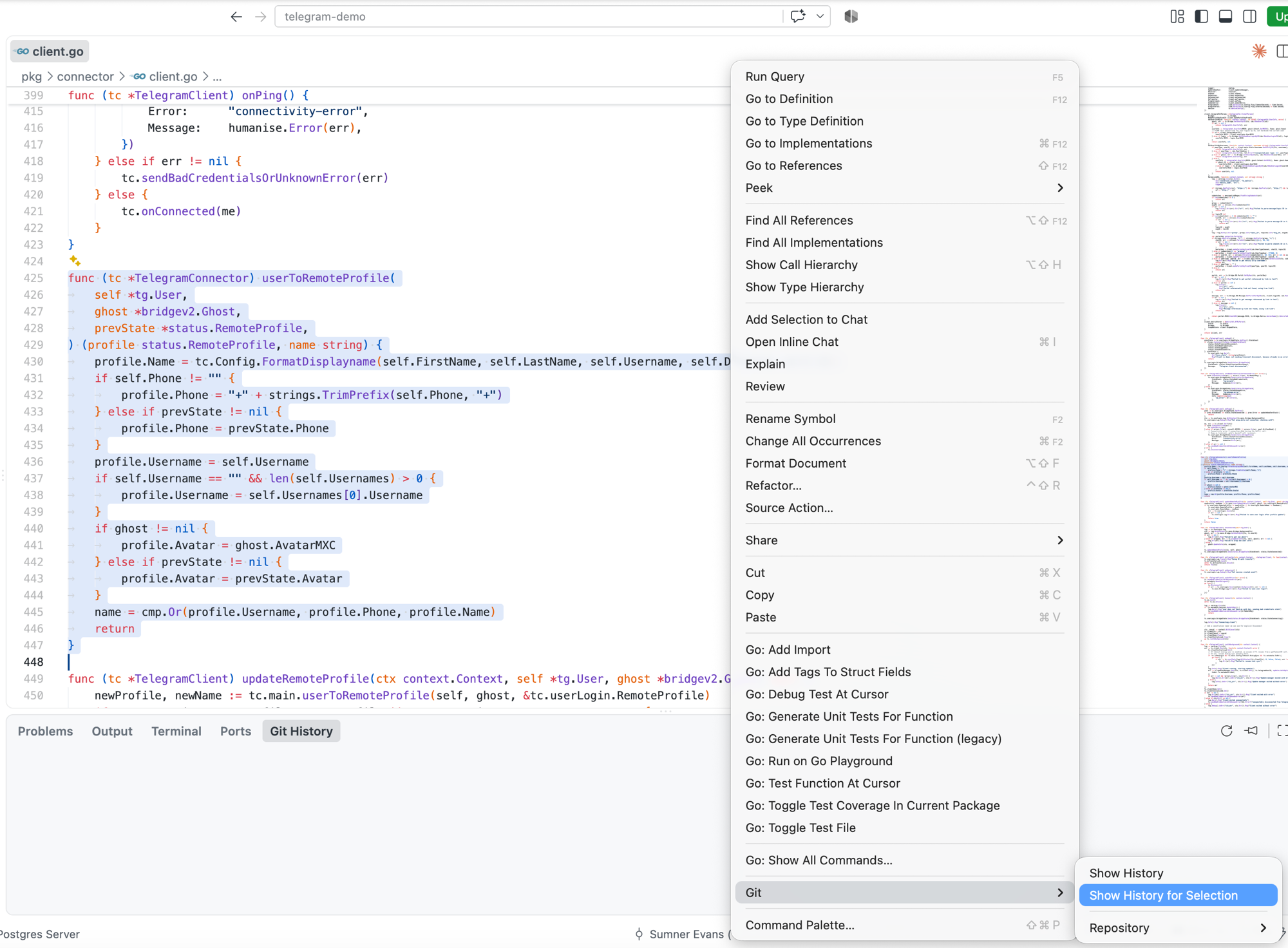
Selection Git HistoryGit history and diff for the selected lines of code — not just the whole file. Select a method (or any range of lines), right-click → Git ▸ Show History for Selection, and get a list of only the commits that actually touched those lines. Click one and the diff opens scoped to that same fragment — not the whole file scrolled to wherever the first change happens to be. What it looks likeAll three shots are of Select a method and right-click: both history commands live in a
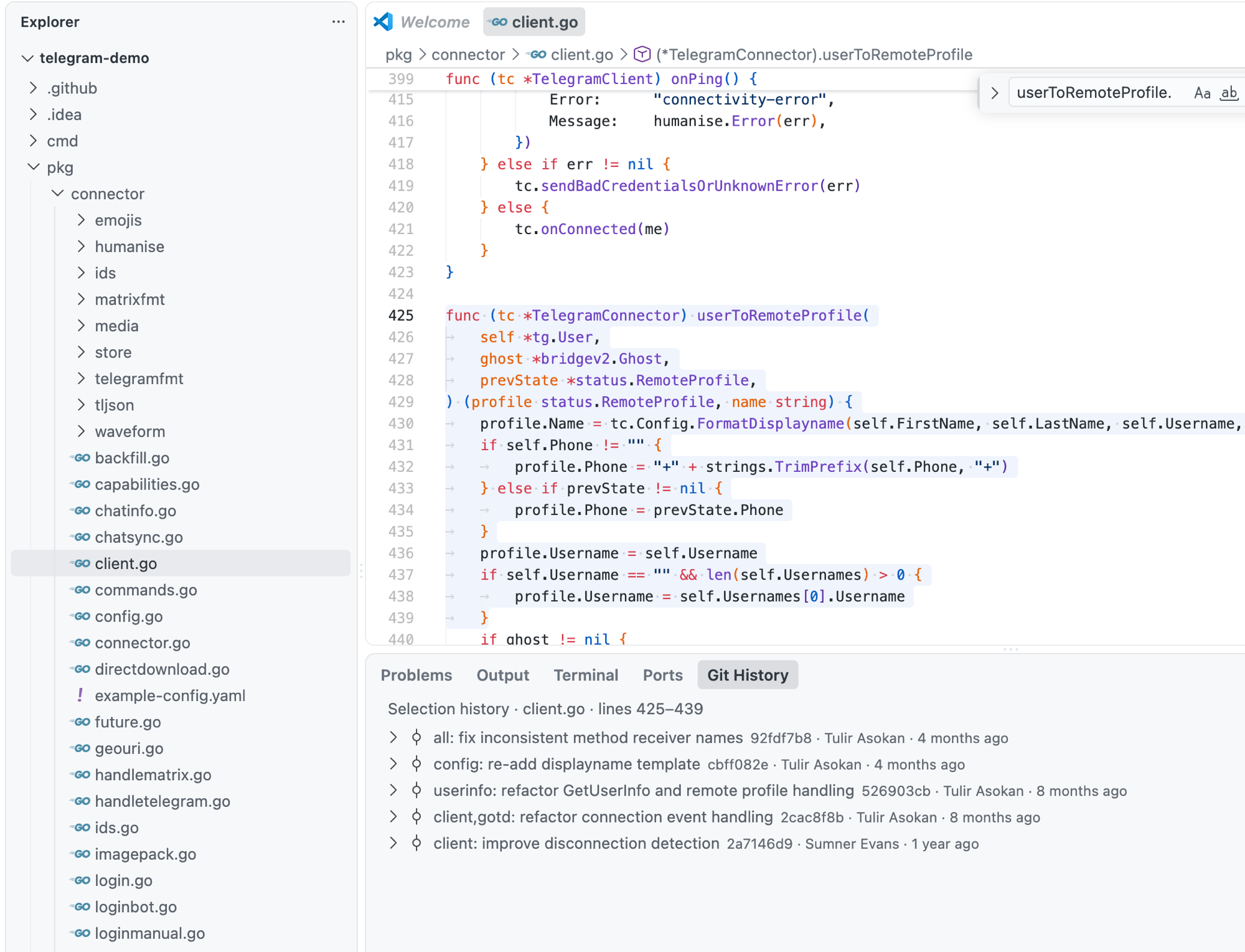
The panel lists only the commits that touched the selection — five, in a file with 191 — and a banner above it says which file and which lines you are looking at.
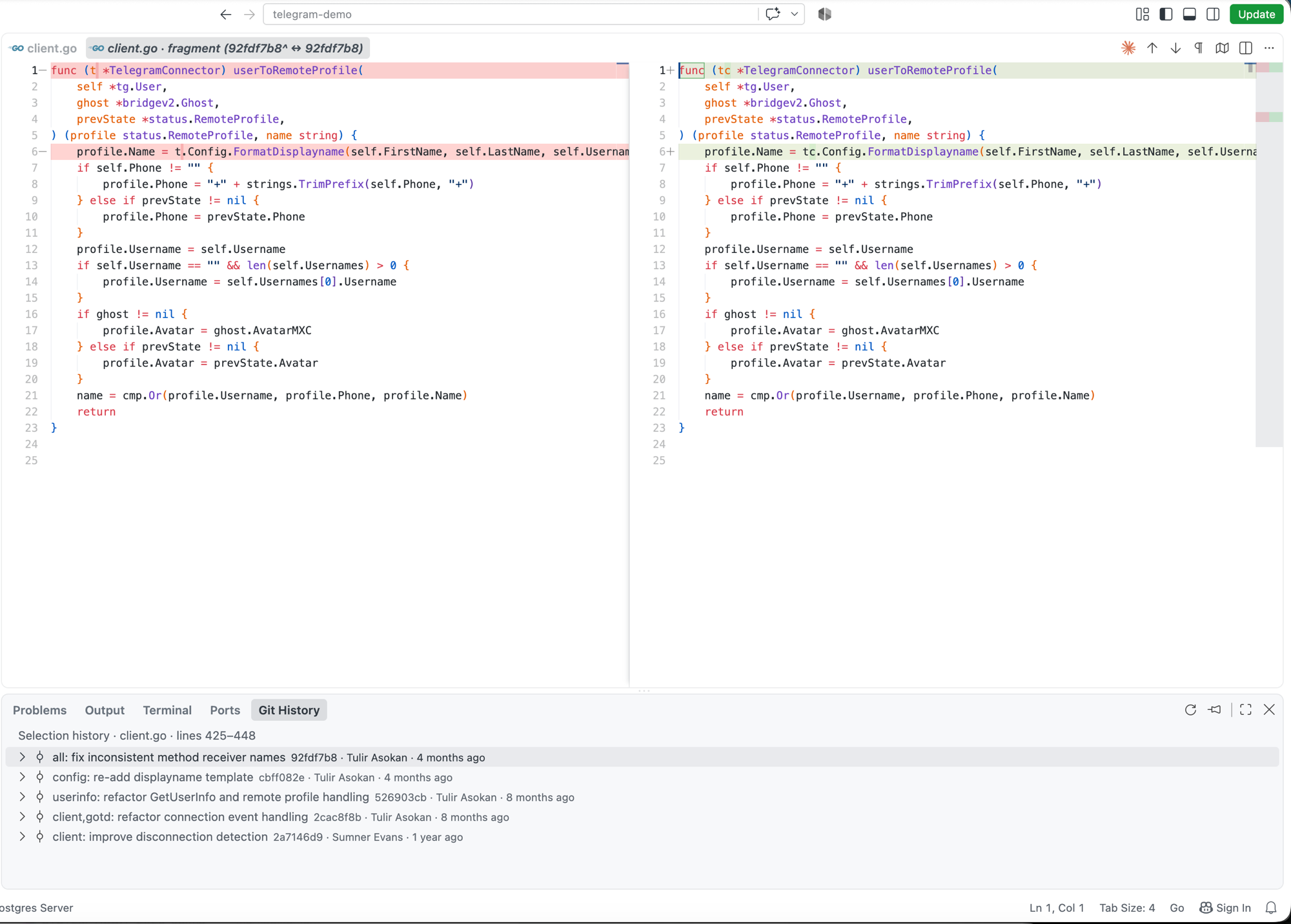
Click one and the diff is scoped to the fragment. Note the line numbers: the diff starts at 1, because the selected range is all it contains — this is the part that whole-file history can't give you.
Why this existsVS Code's built-in Git integration and the Marketplace's own Selection Git History opens the diff for just the selected fragment. That's the whole reason it exists. If you moved from JetBrains IDEs, this is the FeaturesEverything below is implemented and shipping in this version — nothing here is aspirational (see Roadmap for what isn't built yet).
|
| Item | Command | What it does |
|---|---|---|
Show History |
selectionHistory.showHistory |
Full file history via git log --follow. Works from the Explorer even on a file that isn't open in any editor. |
Show History for Selection |
selectionHistory.showHistoryForSelection |
History of just the selected lines via git log -L. With no selection, the line under the cursor. Only shown when the click originates in a focused editor. |
Repository ▸ |
— | Delegates to the built-in Git extension: Pull, Push, Fetch, Checkout to..., Merge..., Stash, Pop Stash.... Selection Git History doesn't reimplement any of these — it just gives one-click access from the same menu. Hidden when the git.enabled setting is off; if the built-in Git extension itself is disabled while that setting stays on, the submenu stays visible but its commands no longer exist. |
Both history commands open the Git History panel at the bottom of the editor (next to Problems / Output / Terminal).
History panel
- Paginated commit list — a
Load N morenode fetches the next page (page size is configurable). - A banner above the list always states what you're looking at: file history or selection history, which file, which lines.
- Expand a commit to see the files it touched (
git show --diff-merges=first-parent --name-status); can be turned off. - Hover a commit for its full date, author name and email, refs, and complete commit message; the visible label uses the relative-or-absolute format from settings, the hover is always the full absolute date.
- Merge commits get a distinct icon (
git-mergevsgit-commit). - Click a commit (or use
Show Difffrom its context menu) to open its diff:- from file history, the whole-file diff,
<parent> ↔ <commit>; - from selection history, the diff of just the tracked fragment — the actual point of this extension. See Known limitations for when this falls back to a whole-file diff.
- the first commit of a file (no parent) diffs against an empty left side instead of failing.
- renamed files are followed to their old path on each side automatically.
- from file history, the whole-file diff,
Copy Revision NumberandCopy Messagefrom a commit's context menu.Refreshbutton in the panel toolbar.Follow Active Editor/Stop Following Active Editortoggle in the panel toolbar — off by default, so the panel stays pinned to the file it was invoked on (this matches the JetBrains default). Turn it on to have the panel switch automatically as you change the active editor.- The panel refreshes itself after you commit or check out, through the built-in Git extension's API — see Known limitations.
Commands hidden from the Command Palette
Four of the nine contributed commands (selectionHistory.openCommitDiff, selectionHistory.loadMoreHistory,
selectionHistory.copyRevision, selectionHistory.copyCommitMessage) only make sense with a tree-node
argument from the panel, so they're hidden from the Command Palette and only reachable from inside
the Git History view itself.
Installation
From the Marketplace
Open the Extensions view (Ctrl+Shift+X / Cmd+Shift+X), search for Selection Git History, and
install — or go directly to
marketplace.visualstudio.com/items?itemName=yessaliyev.selection-git-history.
From a .vsix
From a checkout of this repository:
npm ci
npm run package
code --install-extension selection-git-history-*.vsix
npm run package produces selection-git-history-<version>.vsix in the repository root (the version
comes from package.json). It always packages a release build: vsce runs the vscode:prepublish
script automatically before collecting files, and that script rebuilds dist/extension.js in release
mode (minified, no source map) regardless of what a previous npm run build left there.
Requirements
- Git 2.31 or newer. Expanding a commit node in the history panel — to show which files it
touched — runs
git show --diff-merges=first-parent, a flag introduced in Git 2.31 (it makes a merge commit's file list behave like a regular commit's, instead of coming back empty). An older git doesn't recognize the flag, so that file list won't load: you get a readable error node instead of a silent blank one, but it won't load. - Git reachable via
PATH, or an explicit path inselectionHistory.gitPath. Resolution order:selectionHistory.gitPath→ the built-in Git extension'sgit.pathsetting →gitonPATH. - VS Code 1.85 or newer.
Settings
| Setting | Type | Default | Description |
|---|---|---|---|
selectionHistory.gitPath |
string |
"" |
Path to the git executable. Empty falls back to git.path, then to git on PATH. |
selectionHistory.history.pageSize |
number |
100 |
How many commits to load per request — both the first page and every Load more. |
selectionHistory.history.expandCommitFiles |
boolean |
true |
Show the commit's changed files when its node is expanded. |
selectionHistory.history.dateFormat |
"relative" | "absolute" |
"relative" |
Date format for commits in the history panel. |
Keyboard shortcuts
None are bound by default — any choice would conflict with someone's existing habits. Add your own
via Preferences: Open Keyboard Shortcuts (JSON):
[
  { "key": "alt+cmd+h", "command": "selectionHistory.showHistory", "when": "editorTextFocus" },
  { "key": "alt+cmd+shift+h", "command": "selectionHistory.showHistoryForSelection", "when": "editorTextFocus" }
]
On Windows/Linux, swap cmd for ctrl (or bind through the Keyboard Shortcuts UI, which picks the
right modifier for your OS automatically).
Known limitations
These are deliberate, understood behaviors — not bugs waiting to be triaged:
Show History for Selectionrequires a saved file.git log -Lcounts line numbers against HEAD and the content on disk — it has no visibility into the editor's buffer. If the file has unsaved changes, the extension asks whether to save it first rather than showing history for the wrong lines.- Lines added locally and not yet committed have no history. If your selection is entirely made of uncommitted lines, the extension says so plainly instead of showing the history of whatever lines happen to be nearby.
- Line numbers in a selection diff start at 1, not at the line's real position in the file. The diff for a fragment is a document containing only those lines; VS Code numbers whatever content it's given, from the top of that document.
- A commit that both renames a file and edits a tracked line stops that line's history there.
git log -Ltreats such a commit as the start of the line's history and doesn't trace it further back through the rename — this is Git's own behavior, not a bug in this extension. - A merge commit may not have a fragment diff. When it doesn't, clicking it in selection history falls back to a whole-file diff instead of failing.
- The
Gitsubmenu is visible outside a git repository in the Explorer and on editor tabs (it's correctly hidden in the editor's own context menu). The visibility check runs against the active editor, not the file you actually right-clicked, so it can't be evaluated per-item in those two menus. Running a command on a file outside a repository shows a clear warning instead of doing nothing silently. - Setting changes apply to the panel after you press
Refresh, not instantly to whatever's already rendered. - Auto-refresh after a commit relies on the built-in Git extension's API. If that extension is
disabled, the panel only updates when you press
Refreshyourself.
Roadmap
Not in this release — planned for a later one, with no committed date:
- Annotate — a JetBrains-style blame column in the editor gutter.
- Compare with… — compare the current file against a branch, a revision, or its latest committed version.
- Rollback — revert a file or a selection to an earlier revision through an undoable
WorkspaceEdit, without touching the index.
Screenshots are also on the list — they'll be added in a future release.
Privacy
No telemetry, no analytics, no network calls of any kind, and zero runtime dependencies — the
packaged extension is a single bundled dist/extension.js file. The only external process it ever
talks to is the git binary already on your machine, run against the repository you asked about.
For an extension that runs shell commands over other people's code, that seemed worth stating
explicitly rather than leaving implicit.
Contributing
Bug reports and pull requests are welcome — see CONTRIBUTING.md for how to build, test, and the invariants the code depends on.