Agent Rules Lens
English | Português
See which coding-agent instructions apply to the file you have open — and why.
Install in VS Code · Run it locally · Open an issue · Repository
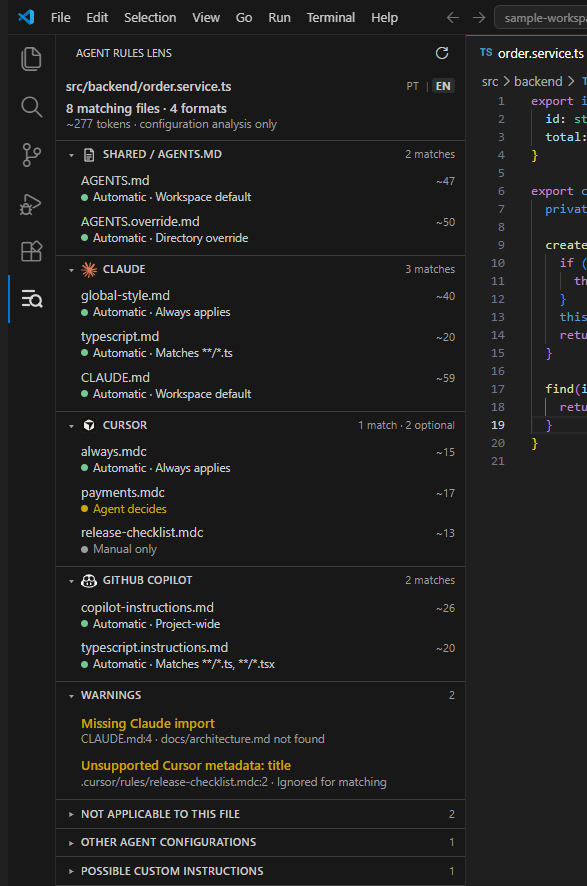
One project can carry AGENTS.md, Claude rules, Cursor rules and Copilot instructions at the same time. Each format scopes differently: some cascade down the directory tree, some depend on a glob in the frontmatter, some cover the whole repository. Open src/backend/order.service.ts and answering "which of these applies right now?" is already work.
Agent Rules Lens collects those files and shows, for the file you pick, which ones apply and the reason.
Choose how to use it
| Option |
When to use it |
How to start |
| Marketplace extension |
Day-to-day work in VS Code, following the open file automatically |
Install from the Marketplace |
| Extension from source |
Developing or testing a local build of the extension |
npm run install:local |
| Local dashboard |
Analysing a project in the browser, with no extension involved |
arl |
| JSON report |
Scripts, automation and integrations |
arl <file> --json |
What each command does:
npm run install:local builds the extension, produces the .vsix and installs it into VS Code.arl starts the local dashboard for whatever directory the terminal is in.
They are independent. The extension does not need the CLI, and the CLI and dashboard do not need the extension installed.
The CLI's public npm package has not been released, so arl comes from the source: run npm run local:link once in your clone and the command becomes available on your machine.
The VS Code extension
From the Marketplace, which is the normal route:
code --install-extension williamosilva.agent-rules-lens
Or through the extension page.
Once installed, click the Agent Rules Lens icon in the Activity Bar. The sidebar follows the open workspace and the focused file, so switching tabs re-runs the comparison on its own. Clicking a rule opens the file; clicking a warning jumps to the line it reports. PT | EN in the header changes the language.
To develop or test a local build of the extension:
git clone https://github.com/williamosilva/agent-rules-lens.git
cd agent-rules-lens
npm install
npm run install:local
Reload the window afterwards (Ctrl + Shift + P → Developer: Reload Window). That installs the extension compiled from your clone, and has nothing to do with the local dashboard.
Local dashboard in the browser
One-time setup, in your clone:
git clone https://github.com/williamosilva/agent-rules-lens.git
cd agent-rules-lens
npm install
npm run local:link
Then, in the project you want to analyse:
cd C:\path\to\project
arl
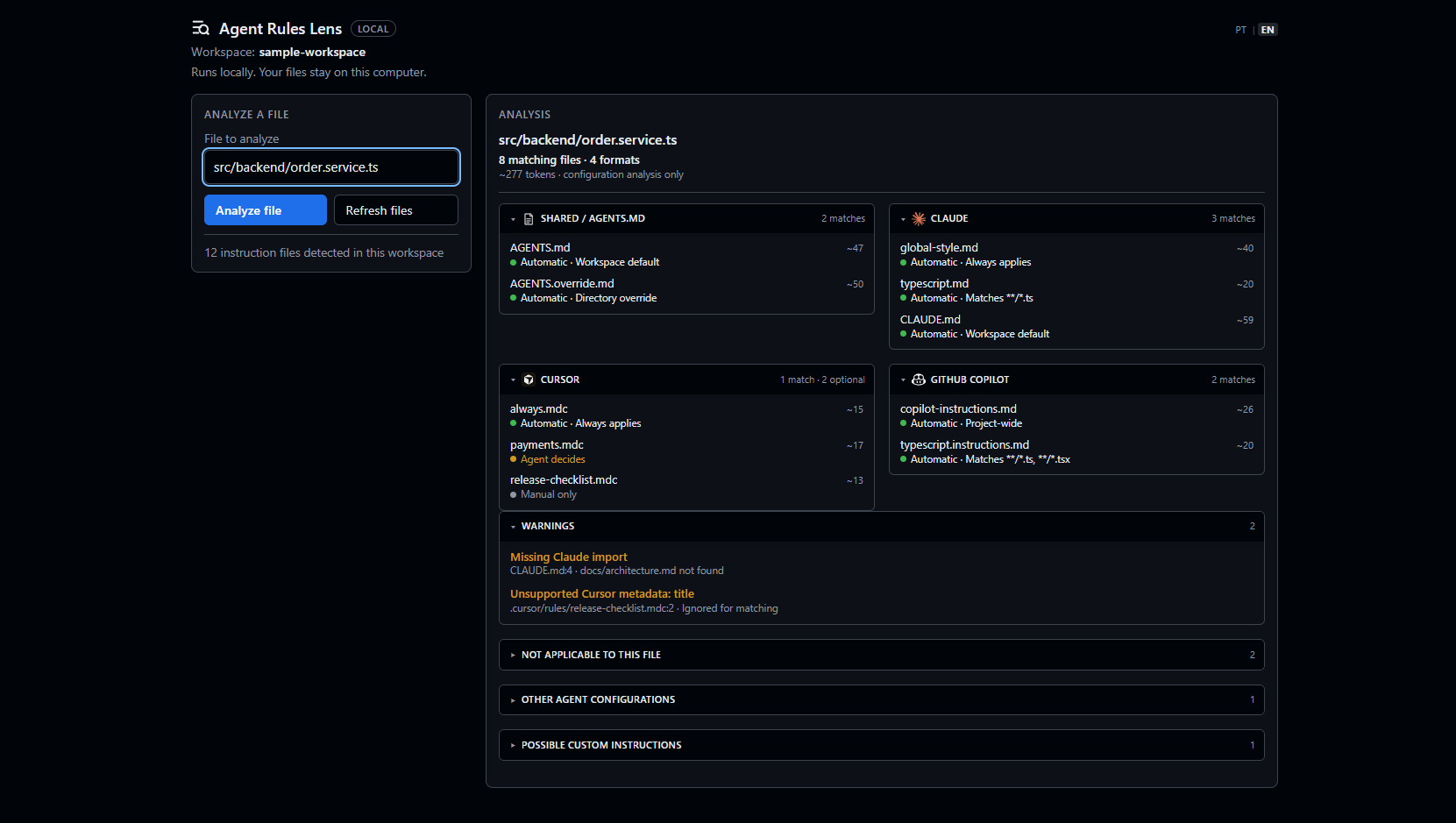
Examples that work:
arl                          # analyse the current directory
arl src/app.ts               # start with that file selected
arl ..\other-project         # analyse another project
arl src/app.ts --json        # print the analysis and exit
arl --locale pt-BR           # interface in Portuguese
arl --no-open                # do not open the browser
arl --help
Worth knowing:
arl uses the terminal's current directory as the project, so there is usually nothing to pass.- A file can be given directly to open with the analysis already selected.
- The server listens on
127.0.0.1 only and requires a token generated for that run.
- Your files stay on your computer. Nothing is sent to any service.
- The dashboard is read-only: clicking a rule opens a preview inside the page, not an editor.
- Refreshing is manual — use Refresh files after changing a rule file.
Ctrl+C stops the server.
There is also --workspace and --file for when the default does not fit, and --port to pin the port.
JSON report
For scripts and automation, --json prints the analysis to stdout and exits without starting a server:
arl src/app.ts --json
The output carries schemaVersion, the project name, the analysed file, a summary, the groups per format, the warnings, the non-applicable rules, the detected-only configuration and the candidates. Every path is relative to the project.
Demo
To see the result without using a project of your own:
npm run demo
Or, once arl is available:
cd examples\sample-workspace
arl src\backend\order.service.ts
The example project holds deliberate cases of AGENTS.md, AGENTS.override.md, Claude, Cursor and GitHub Copilot, plus a missing-import warning, a detected-only configuration and a file that looks like a custom instruction. They are there to show every situation at once — a real project needs none of it.
What it claims, and what it only detects
When it says a rule applies, that comes from a documented path, a directory hierarchy, a glob or a metadata field it knows how to interpret. It never guesses from the file name, and never reads a rule's prose to judge relevance.
A typescript.md with no paths field applies to every file, Python included. A Cursor rule named frontend.mdc whose globs point at src/backend/** applies to the backend. The name is not evidence.
Detecting a file does not confirm that any tool actually loaded it. For detected-only formats, Agent Rules Lens says it recognised the file and which tool it belongs to — nothing more.
And it analyses the configuration files present in the project. It does not inspect the private, running context of Claude, Cursor, Copilot or any other agent.
| Format |
Detected |
Applicability analysed |
AGENTS.md, AGENTS.override.md |
Yes |
Yes |
Claude — CLAUDE.md, CLAUDE.local.md, .claude/CLAUDE.md, .claude/rules/**/*.md |
Yes |
Yes |
Cursor — .cursor/rules/**/*.mdc |
Yes |
Yes |
GitHub Copilot — .github/copilot-instructions.md, .github/instructions/**/*.instructions.md |
Yes |
Yes |
| Gemini, Qwen |
Yes |
No |
| Windsurf, Cline, Roo Code, Continue |
Yes |
No |
| Kiro, Amazon Q Developer, Junie, Augment |
Yes |
No |
| Replit Agent, Qoder, CodeBuddy, Trae, Zed |
Yes |
No |
Hand-written names like RULES.md or AI_RULES.md, and files under .ai/rules/ |
As candidates |
No |
Detected means the file was recognised and attributed to a tool. Applicability analysed means that format's documented resolution rules are implemented, so the comparison against the open file is real. A detected-only format stays out of the main count.
Agent definitions, prompts and skills — .github/agents/*.agent.md, .claude/agents/**, .github/prompts/*.prompt.md, .agents/skills/**/SKILL.md — are recognised precisely so they are never listed as rules.
Status meanings
| State |
What it means |
| Automatic |
Matches the open file through a documented rule |
| Agent decides |
The agent evaluates relevance, based on a description |
| Manual only |
Loaded only when you mention it explicitly |
| Not applicable |
The rule was understood, but its scope doesn't cover this file |
| Cannot determine |
A field that decides applicability is malformed |
| Invalid configuration |
The file itself is malformed |
| Applicability not analyzed |
Detected configuration: the tool is known, but its resolution rules are not implemented |
| Loading not verified |
A candidate or user-declared file: no agent is known to load it |
Only Automatic rules reach the count and the token total.
Tokens
The token number is a rough estimate: one token per four characters of the rule body, with no real tokenizer involved. It gives a sense of size, not a prediction of billing. It also isn't a single context window — each format is read by its own agent, so the per-format numbers say more than the sum. Detected configuration and candidates contribute nothing.
Custom patterns
If you keep instructions in a file the catalog doesn't know, add its glob in the VS Code settings:
{
  "agentRulesLens.customInstructionPatterns": [
    "**/AI_RULES.md",
    ".ai/rules/**/*.md"
  ]
}
Matching files appear under Possible custom instructions. The setting only asks for those files to be watched; it does not make Claude, Cursor or anything else load them.
Privacy and security
Everything runs locally. There are no network requests, no telemetry and no content sent to any service.
The extension's sidebar is a webview under a restrictive Content-Security-Policy: default-src 'none', scripts only under a per-render nonce, images only from the extension's own files. Tool marks are bundled, not fetched.
The local dashboard listens on 127.0.0.1 only, requires a token generated for that run, and the page runs under default-src 'self' with no unsafe-inline and no unsafe-eval. The browser never receives an absolute path: each row carries an opaque handle that only the server can resolve, always inside the project you pointed it at.
Limitations
- Multi-folder projects are analysed on the first folder only.
- Detected-only formats have no applicability analysed, and candidate files carry no confirmation that any agent loads them.
- The local dashboard refreshes on demand. The extension, on the other hand, watches for changes itself.
- The dashboard is read-only.
- The preview refuses files over 512 KB.
- Directories reached through a symlink are not traversed, so rules that exist only behind a link are invisible to local mode.
- The language chosen in the dashboard belongs to the server, so local tabs open at the same time share the same choice.
- Token counts are estimates.
- The CLI's npm package is not published yet.
- And the main caveat: this analyses configuration, not the live context an agent assembled. Agents can also change how they load instructions at any time.
Feedback and issues
Found an instruction format that should be recognised, a rule that resolves incorrectly, or a problem in the interface? Open an issue.
When reporting, include the agent or tool, the relevant path and the behaviour you expected. Do not include private instructions, proprietary code, credentials or other sensitive project data.
Development
npm run check         # typecheck and tests
npm run compile       # bundle the extension
npm run package       # build the .vsix
npm run local:build   # bundle the local mode
npm run local:check   # local mode tests
npm run demo          # open the dashboard on the example project
F5 opens an Extension Development Host already pointed at examples/sample-workspace, which is where the examples of each format live. The harder cases used by the tests are under test/fixtures/.
License and trademarks
The extension is distributed under the MIT License.
The logos belong to their respective owners and are used only for identification. This project is not affiliated with, endorsed by, or sponsored by any of the recognized tools. The source, license, and retrieval date of each logo are documented in THIRD_PARTY_NOTICES.md and media/icons/agents/sources.json. If you represent one of these projects and would like an asset or credit changed, open an issue.

