AI Avatar
(日本語の説明は下部をご覧ください / Japanese version below)
AI Avatar is a free app where your VRoid (VRM) avatar cheers you with all its might.🤗 It lives in your VS Code sidebar (reacts to Claude Code / Codex / GitHub Copilot) or browser side panel (reacts to ChatGPT / Claude). Animations and speech bubbles all run without AI too.
Jump to: ✨ Features · 📖 Details · 🗺️ Roadmap
Click for the YouTube demo ↓
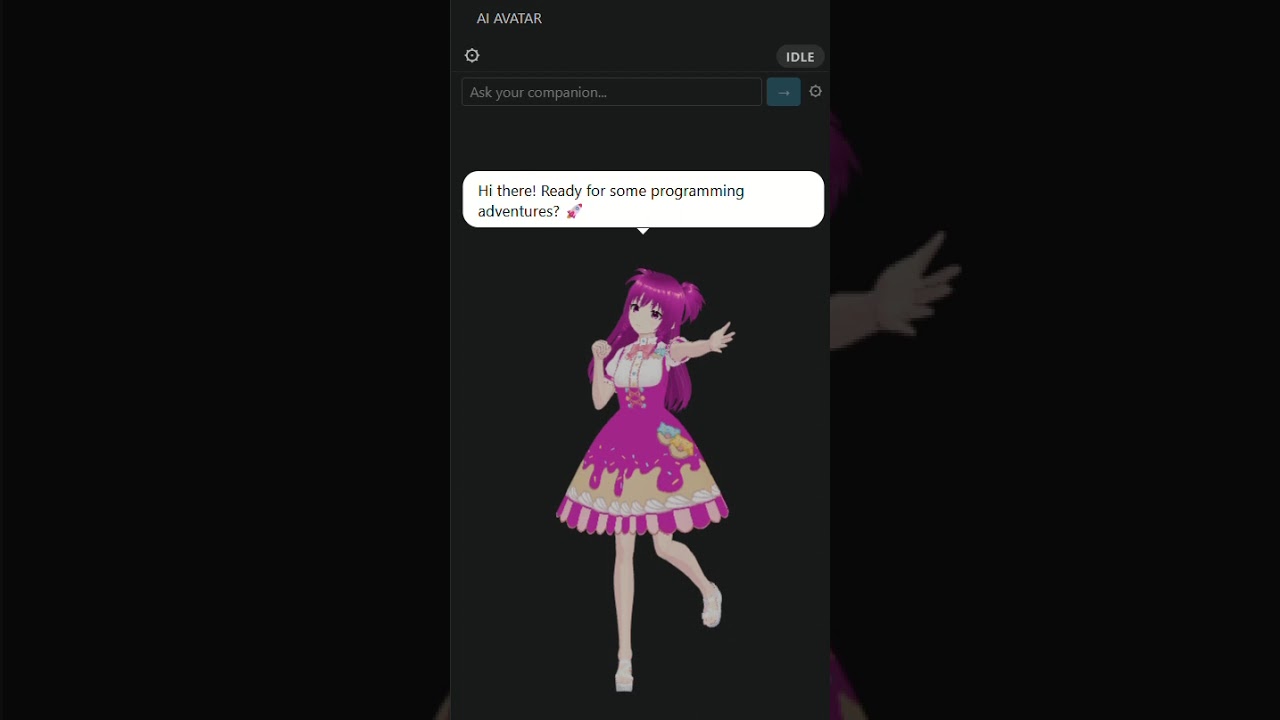
🎉 Thank you for 300+ installs on VS Code!
🛒 Download from VS Code Marketplace
🛒 Download from Chrome Web Store
📖 Read the story behind this project on DEV.to:
- v1 → AI Avatar (VS Code Extension)
- v2 → AI Avatar v2 with Pose Editor (VS Code Extension)
- v3,v4 → 😊How to Get Cheered Up 24/7 (AI Avatar v4 with Animation Editor (Chrome Extension + VS Code Extension))
- v5,v6 → 🦸Let Superheroes Cheer You Up (AI Avatar v6: Chrome Extension + VS Code Extension)
- v7 → 🫡We'll Support You with All Our Might (AI Avatar v7: Pose Capture and More (VS Code and Chrome Extension))
- v8,v9,v10 → 🎥AI Chat, AI Cheering Messages, and Animation Editor Hyper (AI Avatar v10: VS Code and Chrome Extension)
- v11,v12,v13,v14,v15 → ✨Cool Effects, TTS, and Fun Animations (AI Avatar v15: VS Code and Chrome Extension)
- v16,v17 → 😸Catbot Integration, AI Office, Cat Mode (AI Avatar v17: VS Code and Chrome Extension)
- v18,v19,v20 → AI Avatar v20, Cursor Avatar, Notification Avatar (Voxel Avatar)🧊
- v21,v22,v23,v24,v25 → AI Avatar v25 (Avatar Run, Voxel Avatar, Muscle Brain)💪
- v26 → coming soon!
Features
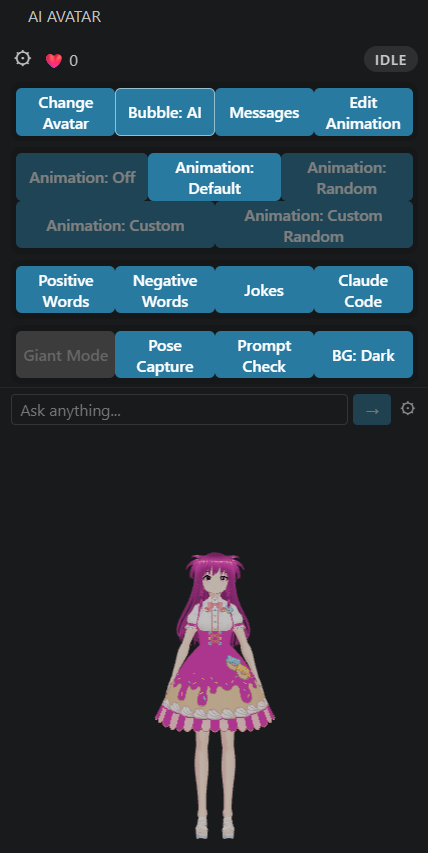
- 🎭 Live reactions — character automatically reacts when you send a message to AI
- 🔀 Watcher switching (VS Code only) — switch between watching Claude Code or GitHub Copilot (v2)
- 🔄 Change Avatar — swap your
VRM character anytime with the button at the top
- 💃 Animations — play
.vrma motion clips or custom JSON poses; 5 separate toggle buttons: Off / Default / Random (v7) / Custom (v2) / Custom Random (v8) (v10)
- 💬 AI Speech Bubble (VS Code only) — toggle Fixed/AI mode; in AI mode the character reacts to Claude Code activity with context-aware speech (v10)
- 🎬 Animation Editor — multi-keyframe timeline with in / hold / out timing (v4); all 30 finger bones (v5); values in degrees (v5)
- 🎨 Random Editor — edit zone-split pattern JSON directly in the Animation Editor; Body & Arms / Legs / Fingers zones, add/delete/navigate patterns (v8)
- 🎥 OrbitControls — drag to rotate, scroll to zoom, right-click to pan
- 👀 Eye tracking — eyes and head follow your mouse cursor when idle
- 💬 Lipsync — mouth animates while Claude is replying
- 😊 Click or press Enter to interact — triggers a smile, nod, and animation (if ON)
- 💬 Custom speech messages — edit the speech bubble messages via the Messages button; choose Fixed (built-in) / Custom / Both pool (v16)
- 😂 Jokes — avatar tells jokes via the Jokes button (v2)
- 📸 Pose Capture — capture a real body pose with your webcam and export it as a VRM animation JSON (v7)
- ❤️ Positive word reactions (VS Code only) — heart counter, smile, and heart overlay animation when positive words are detected; broken heart and head shake on negative words (v7)
- 🔍 Prompt Checker [Beta] (VS Code only) — paste any AI prompt and get instant rule-based feedback on clarity, specificity, and structure (v7)
- 🦁 Giant Mode (Chrome only) — float the avatar as a draggable, resizable overlay over any web page (v7)
- 🤖 AI Chat — always-visible chat input at the bottom of the panel; ask the avatar anything; replies appear as speech bubbles and trigger animations; supports Gemini API and Ollama (v9)
- 🗣️ Text-to-Speech — Speech:Off / Speech:API (Web Speech API) / Speech:AI (Gemini TTS, uses your API key) (v11) / Speech:Local (Kokoro EN + VOICEVOX JP) (v13) / Kokoro Server for faster local EN TTS (v16)
- 🧠 Contextual speech bubbles — character reacts to special days (EN/JP separate lists), session count milestones, coding gap, session length, day of week, and time of day (v11) (v16)
- 🎭 AI Style — Cute / Energetic / Cool character modes (v11)
- 🌐 Lang toggle — single
Lang: EN/JP button controls bubble language and chat language together (v11)
- 🕺 Richer idle animations — random cycle picks from neck tilt / body tilt / whole-body gravity lean each interval (v11)
- 🪙 Millionaire Mode — 3D coin or diamond fountain bursts from the avatar on every reaction (v12)
- 🎢 Roller Coaster Mode — avatar rides a 3D roller coaster in Default, Rainbow, or Water theme (v14)
- 🎆 Background Effects — loading and 5 reaction backgrounds (Galaxy, Magic, Cyber, Comic, Idol Stage) randomly appear on each reaction (v15)
- 🐱 Cat Mode — avatar speaks like a cat (meow/にゃ flavor) with full contextual message support (v16)
- 🏢 AI Office Mode — boss and sub avatars patrol the panel and report to each other with speech bubbles and TTS (v17)
- 🐾 Launch Catbot — launch the AI catbot app directly from the sidebar (v17)
- 🐾 Catbot avatar — the AI catbot collaborator appears as a live 3D VRM avatar in the panel (v17)
- 🌀 Kaleidoscope Effect — animated kaleidoscope background with live tuning controls (sides, speed, color, warmth, symmetry, zoom) (v18)
- 🗣️ Piper TTS (VS Code only) — EN local TTS via an automatically-downloaded native binary, no Python required and faster than Kokoro (v18)
- 🧊 Voxel Avatar — Minecraft-like mini-game where your avatar walks, terraforms terrain, and plants flowers (v19)
- 🌻 Voxel Avatar update — Sunflower and Tulip flowers, butterflies that visit and land on flowers, rain with a rainbow, and speech bubbles for manual play (v20)
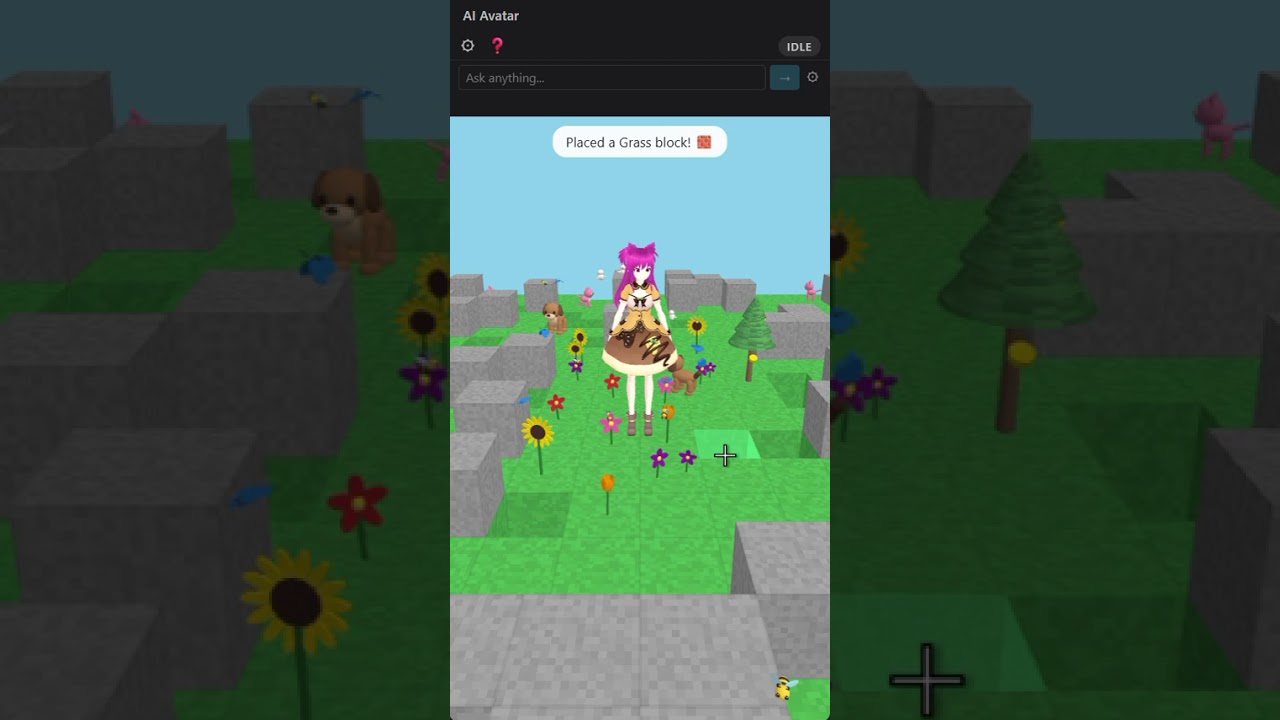
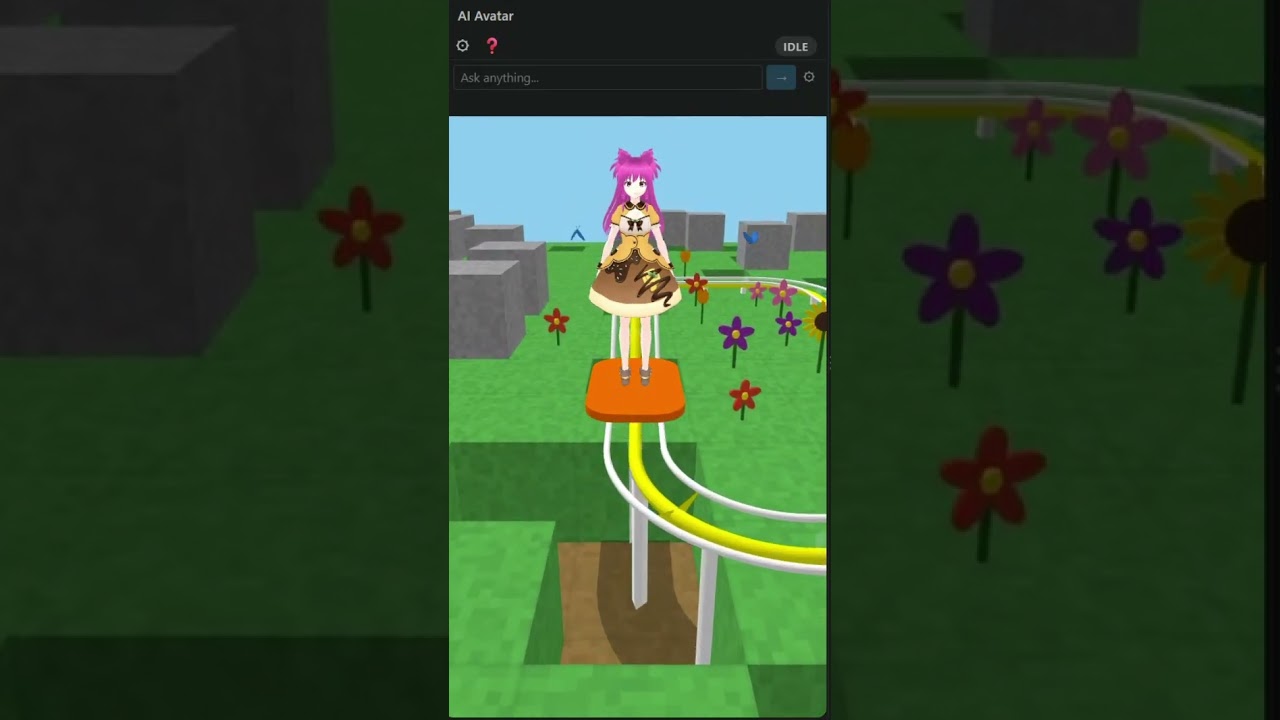
- 🛤️ Voxel Avatar update — build and ride a rail through the garden, cats that wander around, and coin trees that grow and drop coins (v21)
- 🐝 Voxel Avatar update — bees, dogs, and birds that fly, land, and roam the garden alongside the butterflies and cats (v22)
- 🍃 Voxel Avatar update — flowers and coin trees sway in the breeze, cats stretch, dogs sniff and wag their tails, and bees linger on flowers (v22)
- 🌼 Voxel Avatar update — flower clusters, placement previews, 20-step Undo, a golden pulse on changed blocks, and smarter Auto gardening (v22)
- 🤖 Codex Support (VS Code only) — avatar also reacts to Codex CLI and Codex VS Code extension activity alongside Claude Code (v22)
- ❤️ Jev Reactions (VS Code only) — sentiment-based avatar reactions with 3D hearts, broken hearts, stars, fire and tears (v23)
- 📊 Dev Log (VS Code only) — request categories and daily, weekly and all-time history for Claude and Codex (v23)
- ☁️ Voxel Avatar update — hamsters, mushrooms, drifting clouds and sky gradients (v23)
- 🧠 Muscle Brain — ultimate working memory training game that stimulates your brain (v24)
- 🧠 Muscle Brain 3D — spatial memory training with numbers and blocks (v25)
- 🎱 Avatar Run — tilt and rotate a clear 3D sphere to roll a marble along the winding track inside (v25)
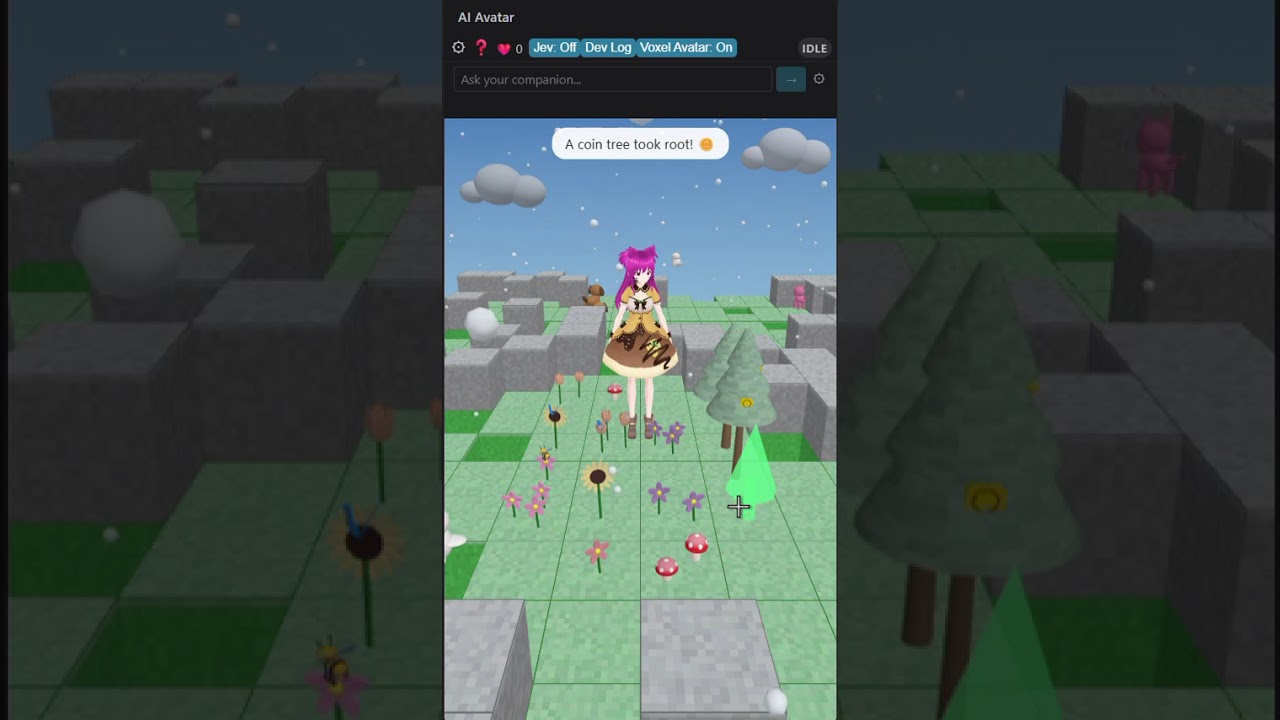
- ❄️ Voxel Avatar update — adds winter with falling snow and a snowy garden (v26)
Getting Started
No setup needed — comes with a built-in sample character.
VS Code
- Install from the VS Code Marketplace
- Click the AI Avatar icon in the activity bar to open the sidebar
- Use Claude Code, Codex, or GitHub Copilot — your avatar reacts automatically
Chrome
- Install from the Chrome Web Store
- Pin it to the toolbar
- Click the AI Avatar icon and open the Side Panel
- Chat on ChatGPT or Claude — your avatar reacts automatically
Use Your Own VRM Character
You can create your own 3D avatar for free using VRoid — no 3D modeling skills needed. Design your character and export it as a .vrm file.
Click the Change Avatar button at the top of the sidebar to pick a .vrm file.
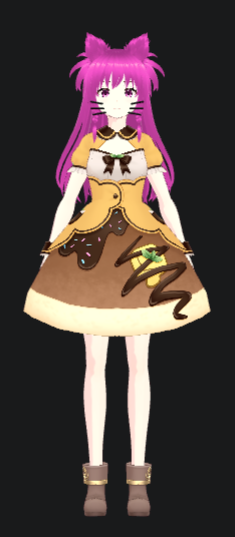
v6 adds new sample characters — three girls and two boys — plus cute, cool, and funny pose packs.
(free download from GitHub Releases)
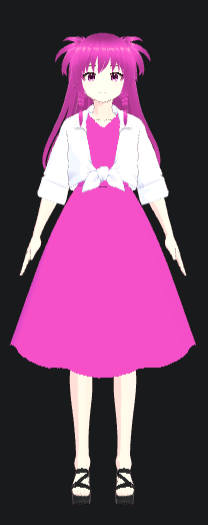
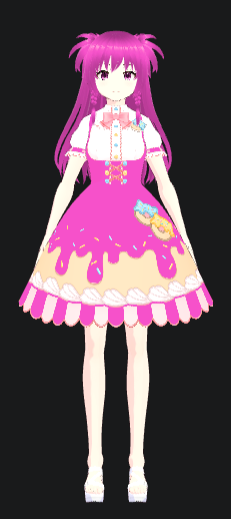
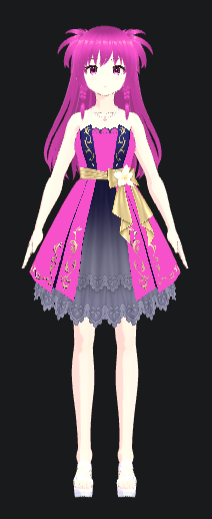
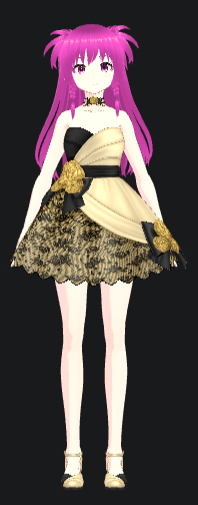
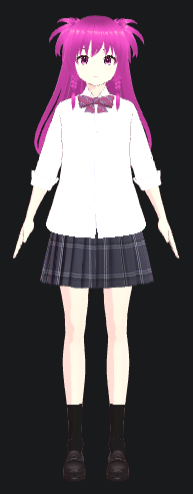
Joyful Colors is a group that is gathered with a mission to cheer developers and other people up and make them feel happy. They will cheer you up 24/7 through VS Code extension and Chrome (Edge) extension. Let's take a look at the superhero characters!
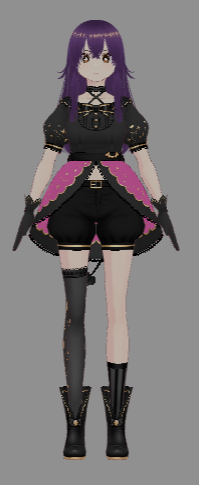
↑ Sweet Purple (Creater: Blue)
Bright and cheerful.
Wants to be a famous pop star and eat yummy things.
Makes cute poses.
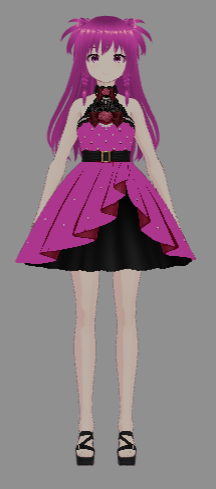
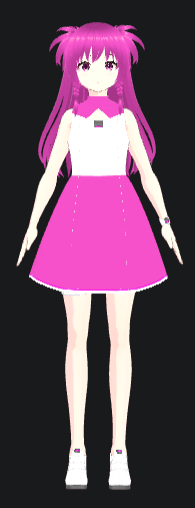
↑ Candy Pink (Creater: Hyper)
Another face of the sample avatar (Ninja Girl).
kind and considerate.
Good at making fake smiles.
Makes cute poses.
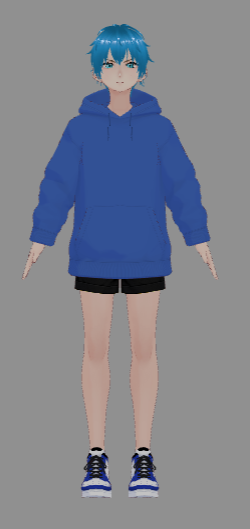
↑ Maximum Blue (Creater: Blue)
Active and full of energy.
Girls fall in love when their eyes meet his.
Makes cool poses.
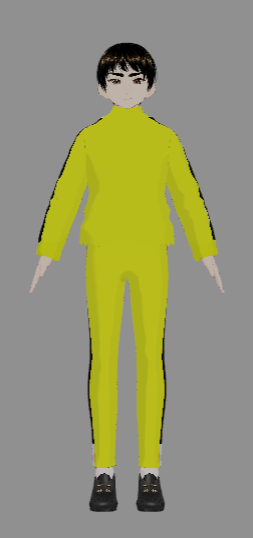
↑ **Hyper Yellow** (Creater: Blue)
Always trying to make a cool app, but always ends up making a silly app.
He thinks Purple and Pink like him, but they are just using him.
Makes silly poses.
Candy Pink ↑
👉 Download Candy Pink from GitHub
Animations (v2)
There are five animation buttons. Click one to activate it — the active button is highlighted. The selected state is remembered across restarts.
| Button |
Behavior |
Animation: Off |
No motion clips play |
Animation: Default |
Plays the built-in sample poses included with the extension |
Animation: Random |
Generates random poses from built-in zone patterns (v7) |
Animation: Custom |
Opens a file picker — plays .vrma and .json pose files from your chosen folder |
Animation: Custom Random |
Pick a custom random-custom.json — generates random poses from your own zone patterns (v8) |
Using .vrma clips from VRoid Project:
VRMA Animation files are not included in the extension because they cannot be redistributed under their license terms. Please download them yourself for free from the official VRoid Project:
👉 VRM Animation 7-Pack by VRoid Project (free)
The pack includes 7 animations: Show full body, Greeting, Peace sign, Shoot, Spin, Model pose, and Squat.
- Download and unzip the pack
- Click Animation until it shows
Animation: Custom
- Pick the folder containing the
.vrma files
- A random clip plays each time the AI responds
Animation Editor (v4+)
Click for the YouTube demo ↓
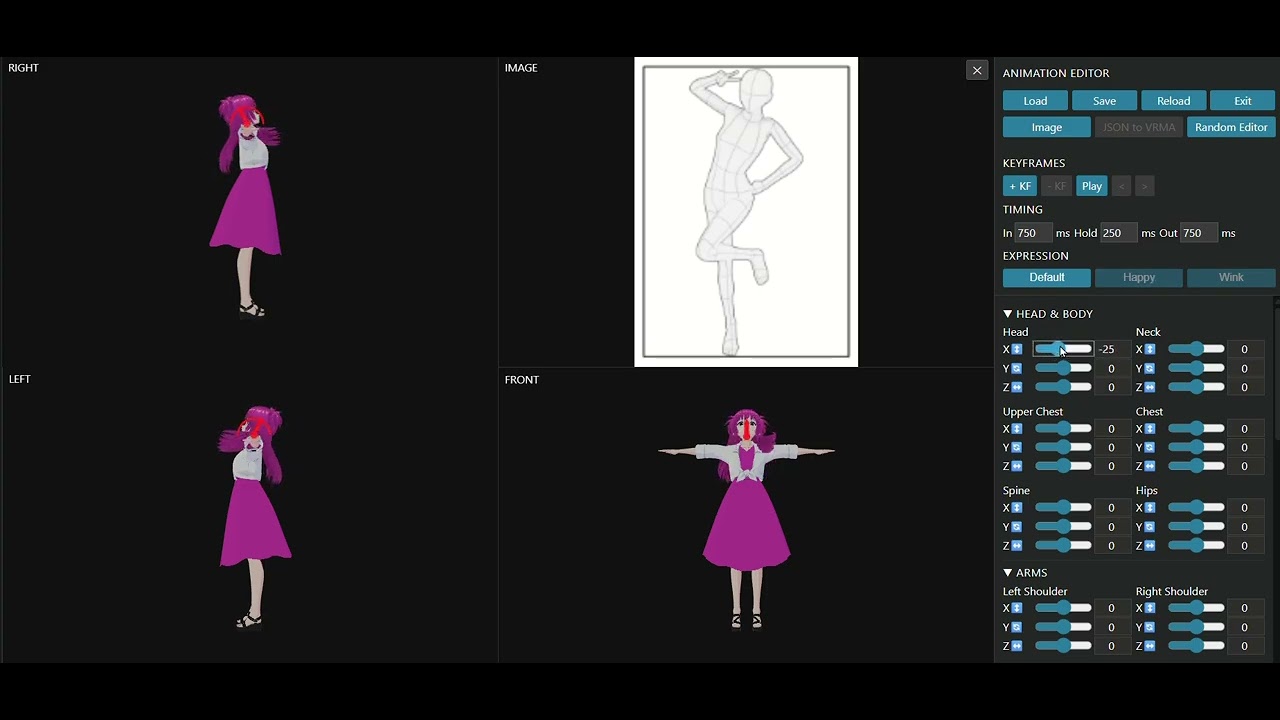
Click Edit Animation to open the animation editor as a full VS Code tab:
Views (v8)
- Three synchronized cameras displayed side by side: RIGHT / FRONT / LEFT — see all angles at once (v8)
- Image button switches to a 2×2 layout (FRONT + reference image top row, RIGHT + LEFT bottom row) — load any image as a pose reference (v8)
Bone editing
- Full 2-column bone list covering all body parts — head, neck, spine, arms, hands, legs, and all 30 finger bones (v5)
- Drag the slider or type a value in degrees to rotate each bone (v5)
- A bone arc trail appears on the avatar when you focus a slider or input — visual rotation feedback (v8)
- Quick-apply preset buttons at the bottom: Body & Arms / Legs / Fingers presets apply built-in zone patterns instantly (v8)
Keyframes & timing
- Add multiple keyframes with + KF to build a full animation sequence (v4)
- Each keyframe has In (fade in), Hold, and Out (fade out, last keyframe only) timing (v4)
- Navigate keyframes with < >, delete with − KF, preview with Play (v4)
Expression
- Per-keyframe expression: Default / Happy / Wink (v7)
Actions
- Load — pick a different JSON pose file to edit
- Save — write the animation back to the JSON file; adds it to the random pool
- Reload — re-read the file from disk, discarding unsaved edits
- JSON to VRMA — export the keyframe animation as a
.vrma VRM Animation file (v8)
- Exit — close the editor tab and reopen the sidebar (v8)
Random Editor (v8)
- Click Random Editor to open the zone-split pattern JSON editor
- Opens with the built-in
random-custom.json loaded automatically — click Load Random to switch to a different pattern JSON file
- Switch between Body & Arms / Legs / Fingers zones — only relevant bones are shown, unrelated ones are hidden
- Navigate patterns with < >, add with +, delete with −; name is editable
- Save writes all edits back to the JSON file; Reload re-reads from disk
- Exit Random returns to the normal editor
AI Chat (v9)
A chat input is always visible at the bottom of the panel. Type a message and press → to send. The avatar animates and shows the reply as a wide speech bubble.
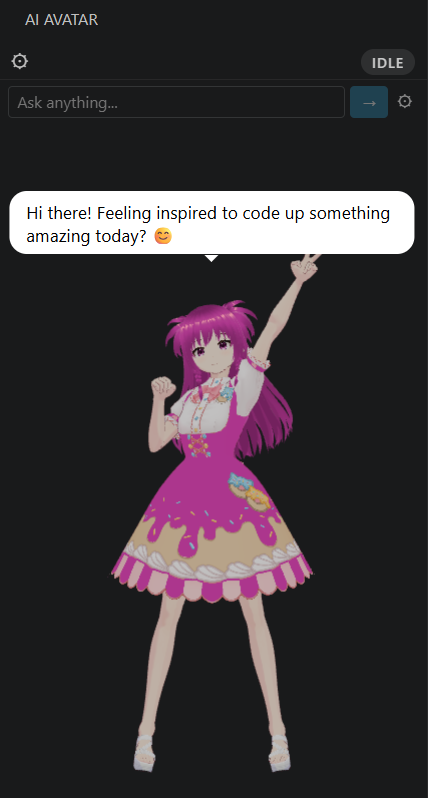
Click the ⚙ button next to the input to open chat history, provider settings, and system prompt.
Providers
Gemini — cloud API; requires a free API key from Google AI Studio
Ollama — runs locally on your machine; no API key needed; install from ollama.com
After installing Ollama, pull the model once before use:
ollama pull qwen2.5:3b
Note: The first message is slow — Ollama loads the model from disk into RAM on initial use. Subsequent messages in the same session are much faster once the model is in memory.
Model choice: Smaller models (e.g. qwen2.5:1.5b) respond faster but with simpler replies. Larger models (e.g. qwen2.5:7b) are slower but give more detailed, accurate answers. Change the model in ⚙ settings.
Tip: Keep questions short and focused — lightweight models (local or Gemini Flash) handle concise prompts best.
Chrome only: Ollama blocks requests from browser extensions by default. Fix it once:
- Win+R → type
sysdm.cpl → Advanced → Environment Variables → New
- Name:
OLLAMA_ORIGINS / Value: chrome-extension://YOUR_EXTENSION_ID — replace YOUR_EXTENSION_ID with AI Avatar's ID from chrome://extensions (enable Developer mode to see it). Do not use *, which allows every website.
- Quit Ollama from the system tray → relaunch it — no reboot needed
Settings (⚙ button)
- Switch provider with the Gemini / Ollama toggle
- Enter your Gemini API key (VS Code: SecretStorage; Chrome: extension-local IndexedDB). Saved keys are not filled into the page automatically; the eye button reveals them briefly. Use Remove key, then Save, to delete the saved key.
- Set the model name (default:
gemini-3.1-flash-lite / qwen2.5:3b)
- Edit the system prompt — default: cheerful 1-sentence coding companion with emoji
Text-to-Speech (v11)
Three speech modes — select one at a time:
| Button |
Behavior |
Speech: Off |
Silent — no audio |
Speech: API |
Web Speech API — browser built-in voices, works offline, available on VS Code and Chrome |
Speech: AI |
Gemini TTS — natural neural voices via Gemini API (requires API key from AI Chat settings) |
Two voice options apply to both modes:
| Button |
Voice |
Speech: Female |
Aoede — warm, bright |
Speech: Male |
Charon — calm, cool |
Speech:AI requires the same Gemini API key used for AI Chat. If no key is set, Speech:AI silently falls back to no audio.
Speech:Local (v13) (v16)
Offline TTS — no API key or internet required. Select Speech:Local in the Speech radio group.
Two engines run depending on language:
| Lang |
Engine |
Requirement |
Lang: EN |
Kokoro — lightweight English neural TTS, runs fully in-browser |
None — model downloads automatically (~85 MB on first use) |
Lang: JP |
VOICEVOX — high-quality Japanese TTS with character voices |
You must download and install VOICEVOX yourself (free), then keep it running |
Kokoro downloads and caches the model on first use, then warms it up so the first response is instant. No further downloads after the initial load.
Kokoro Server (v16):
The default in-browser Kokoro runs neural network inference inside WebAssembly, which is significantly slower than native execution — every message takes several seconds to synthesize. The Kokoro Server runs the same model as a local Python process using the native ONNX Runtime, which is much faster and produces speech in under a second per message.
Requirements (install once):
pip install kokoro-onnx soundfile fastapi uvicorn
VS Code usage:
- Toggle Kokoro Server: On in the toolbar — the extension starts the server; on first run the server downloads the model files (~300 MB) separately to
~/.cache/kokoro-onnx/
- Wait for the status to show ready, then speak as normal — the Speech radio group is disabled while the server is active
Chrome usage:
- Download kokoro_server.py and run it:
python kokoro_server.py
- Wait for
Model loaded. Server ready
- Toggle Kokoro Server: On in the panel — the Speech radio group is disabled while the server is active
VOICEVOX setup (required for JP):
- Download VOICEVOX from voicevox.hiroshiba.jp (free, Windows / Mac / Linux)
- Install and launch it — it runs as a local server on port 50021
- Keep VOICEVOX running while using Speech:Local with Lang: JP
If VOICEVOX is not running when you switch to JP+Local, a status message appears in the panel. Start VOICEVOX and it connects automatically on the next message.
Voice gender (Female / Male) applies to both engines.
Contextual Speech Bubbles (v11) (v16)
The speech bubble checks a priority chain before showing a message. Higher-priority conditions fire first; each fires at most once per session, except time of day which fires once per time period (v16) (persists across restarts):
| Priority |
Condition |
Example |
| 1 |
Special day (holiday) |
"Happy Halloween! 🎃" |
| 2 |
Monthly greeting (v16) |
"Happy New Year! 🎊" |
| 3 |
Session count milestone |
"10th reaction today! 🎉" |
| 4 |
Long gap since last reaction |
"Welcome back! Missed you 💕" |
| 5 |
Long session |
"You've been at it for an hour! 🔥" |
| 6 |
Day of week |
"Happy Monday! Let's go! ⚡" |
| 7 |
Time of day (once per period v16) |
"Good morning! ☀️" |
| 8 |
AI / fixed pool |
Normal reaction message |
EN and JP use separate message pools and separate special day lists (Western vs Japanese holidays).
AI Style (v11)
Three character personality modes — select one at a time:
| Button |
Tone |
Emoji |
AI Style: Cute |
Warm, sweet, encouraging |
💕 ✨ |
AI Style: Energetic |
Enthusiastic, high-energy, motivating |
🔥 ⚡ |
AI Style: Cool |
Calm, confident, minimal |
✓ 🎯 |
Switching style automatically updates both:
- The speech bubble AI prompt (short reaction lines)
- The chat system prompt (full chat replies)
Available on VS Code and Chrome.
Millionaire Mode (v12)
Click for the YouTube demo ↓
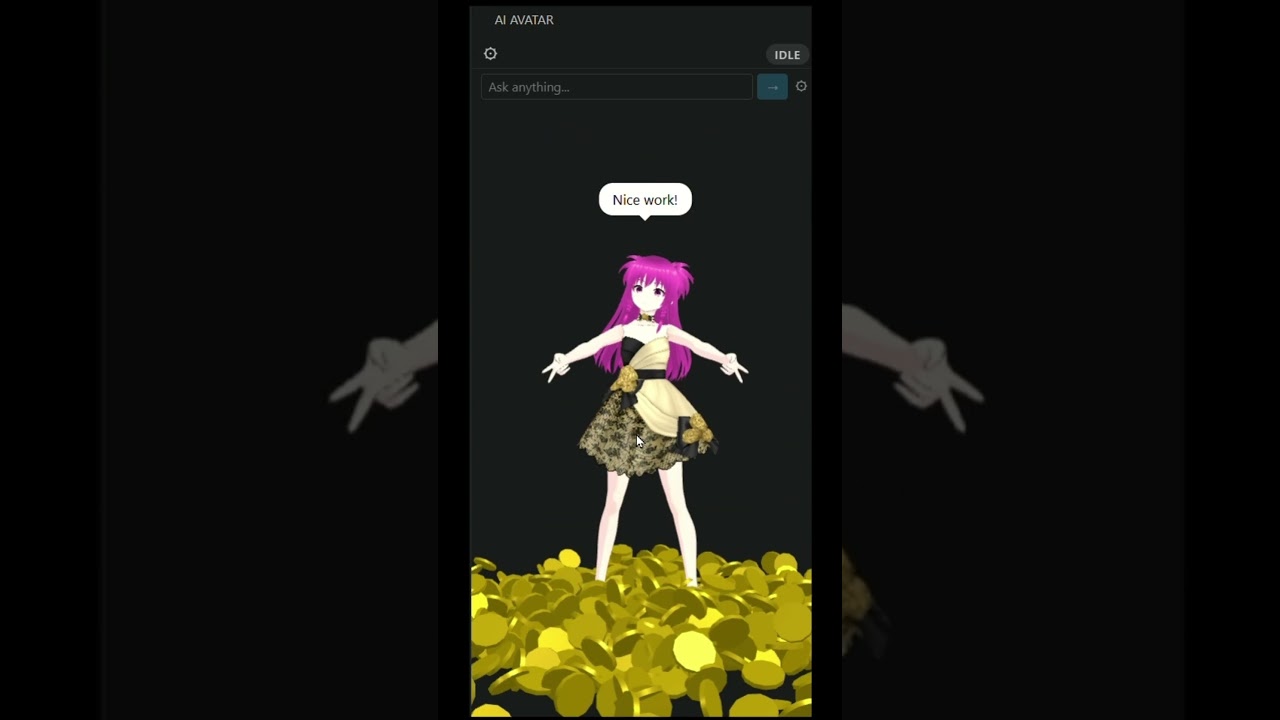
Select a mode with the Millionaire radio buttons in the toolbar:
| Option |
Behavior |
Off |
No fountain (default) |
Coin |
3D gold coins burst from the avatar on every reaction |
Diamond |
3D pink crystal diamonds burst from the avatar on every reaction |
The Millionaire: Sound button toggles a chime sound for each burst — coin plays a short C6 ring, diamond plays a longer crystal chime. The sound button is disabled when Millionaire is set to Off.
When Millionaire mode is active, a 🪙 coin counter appears in the top bar showing the total coins spawned this session. It resets to zero when mode is turned off. (v14)
Roller Coaster Mode (v14)
Click for the YouTube demo ↓
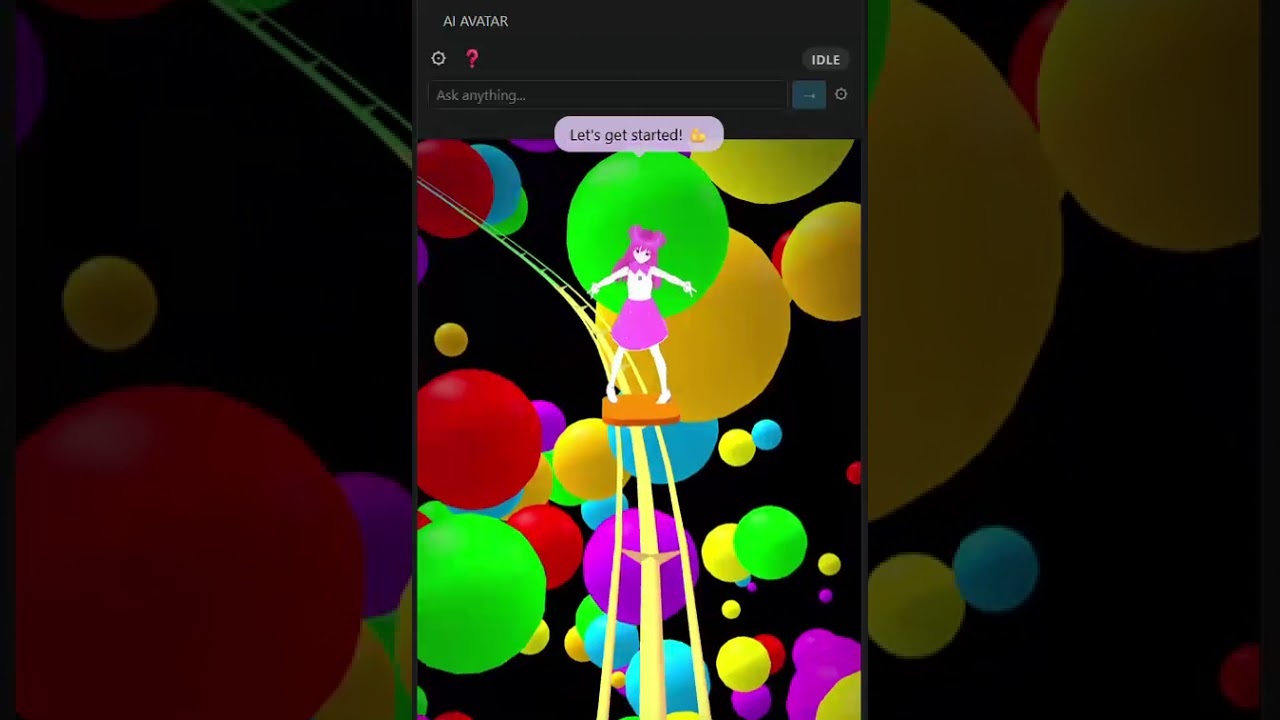
Select a theme with the Roller Coaster radio buttons in the toolbar:
| Option |
Behavior |
Off |
No roller coaster (default) |
Default |
Avatar rides a 3D roller coaster over a green field; chase camera follows from behind |
Rainbow |
Rainbow-colored track through a starry space scene; dark background with vignette overlay |
Water |
Underwater track with rising transparent bubbles; blue gradient background and blue overlay |
The avatar stands on a skateboard-shaped cart and rides the full looping track. The camera chases from behind so you can always see the avatar.
Background Effects (v15)
Effects designed by @RutenVeil.
Click for the YouTube demo ↓
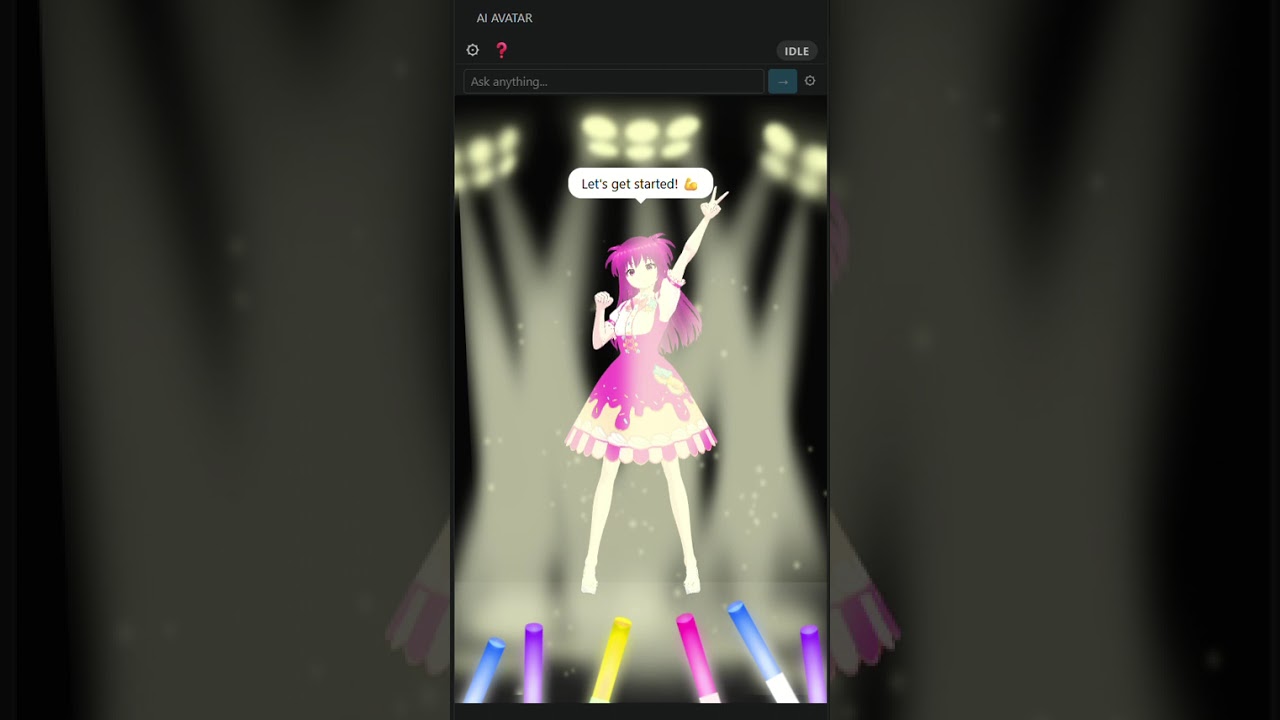
Loading effect plays automatically when the avatar first loads — a hologram scan line sweeps from top to bottom, carving the avatar out of the darkness against an SF space background.
Reaction backgrounds appear randomly on every reaction. There are 5 themes:
| Theme |
Style |
Galaxy |
Starry night sky with aurora, glowing nebula, and twinkling sparkles |
Magic |
Magic circles at feet and overhead; butterflies, sparkles, and light mist rise from below |
Cyber |
Cyberspace reveal — amoeba mask dissolves to expose a digital background with hologram UI elements |
Comic |
Comic burst — speech balloons, thunderbolts, and confetti pop out sequentially, then fade leaving only the avatar |
Idol Stage |
Concert stage curtain drops; spotlights swing, glowsticks sway, and hearts burst outward |
The Effect button in the toolbar toggles all background effects on/off. Effects are automatically hidden during Roller Coaster mode.
Cat Mode (v16)
Click for the YouTube demo ↓
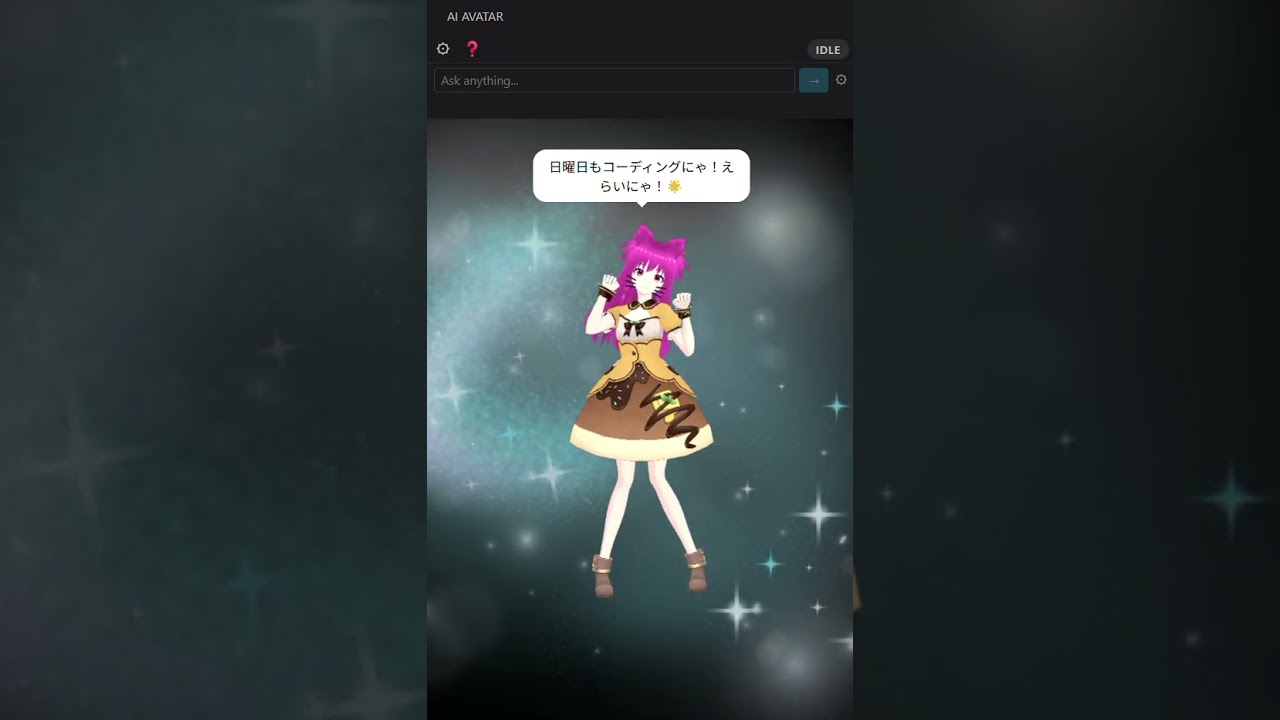
Click the Cat Mode button in the toolbar to toggle cat mode on/off.
When Cat Mode is on, all speech bubble messages get a cat flavor — English messages are prefixed with Meow! or Purrr!, and Japanese messages end with にゃ. The full cat text is shown in the bubble exactly as-is.
Cat Sound — a second button appears next to Cat Mode. When Cat Sound is on, a random meow sound plays before each TTS message. The sound plays first, then TTS reads the message (Meow!/Purrr! prefix is stripped from TTS so it isn't read aloud — only the meaningful content is spoken).
AI Office Mode (v17)
Click for the YouTube demo ↓
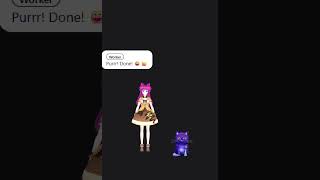
Two 3D avatars — Boss and Sub — appear in the panel and patrol back and forth. They stop, face each other, and exchange speech bubbles with TTS. On each AI reaction, Boss calls Sub over for a status report.
- Boss and Sub are full VRM avatars with walk animation and idle speech
- Speech bubbles appear above each avatar with TTS
- Millionaire Mode and Roller Coaster Mode are automatically disabled while AI Office is active
AI Office — toggle AI Office mode on/off
Change Boss — swap the Boss VRM avatar
Cat Boss — use the Catbot as the Boss avatar
Catbot (v17)
Catbot is a galactic robot cat you can talk to from any device — and a harness that lets you switch between (or combine) all of your AI models. Created by DEV Community friend Anna. See the Catbot README for full feature details and setup instructions.
No Catbot / Catbot Only / With Catbot — radio group to choose how the Catbot avatar appears: hidden, shown alone, or shown alongside the main avatar
Launch Catbot — starts the server in the catbot folder and opens http://localhost:8800 in the browser (Chrome: start the server manually before clicking)
Set Catbot (VS Code only) — opens a folder picker to set the catbot folder path (Chrome: button is disabled)
Catbot avatar — the AI catbot collaborator appears as a live 3D VRM avatar in the panel (v17)
Kaleidoscope Effect (v18)
Click for the YouTube demo ↓
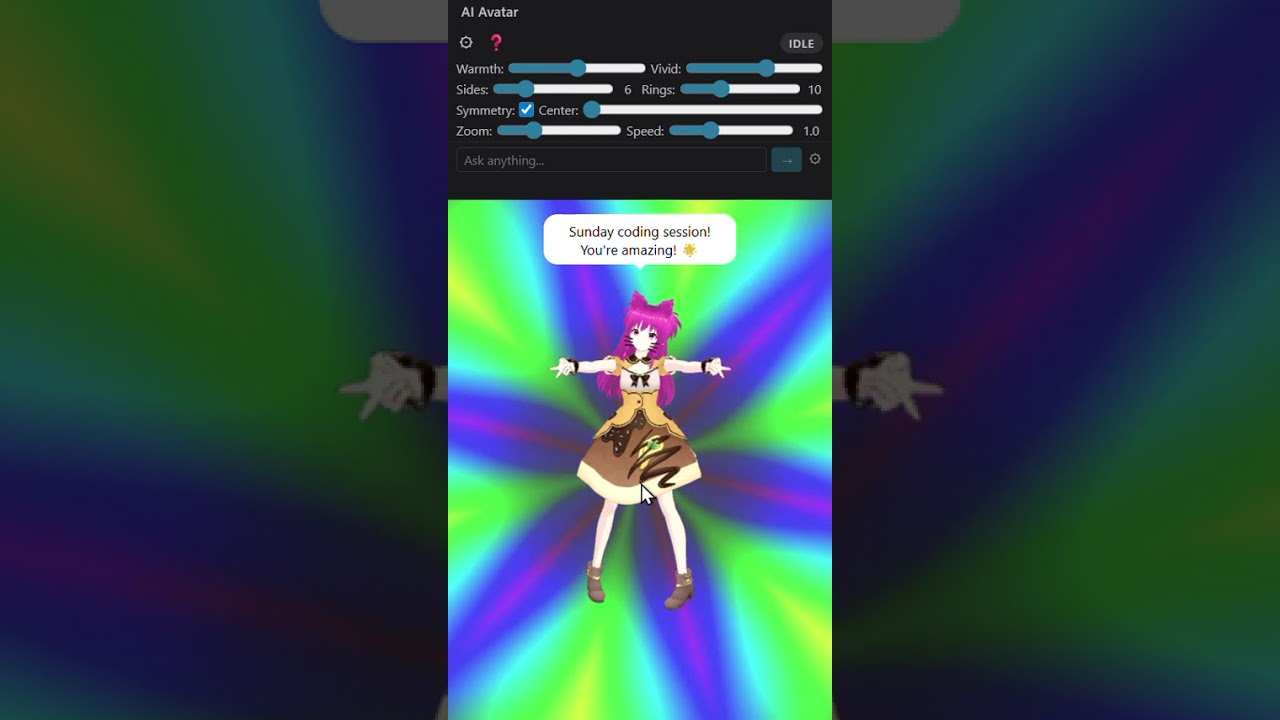
Click the Kaleidoscope toolbar button to replace the background with an animated, live-tunable kaleidoscope shader rendered behind the avatar.
| Control |
What it does |
Range |
| Kaleidoscope: On / Off |
toggles the effect on and off |
button |
| Warmth |
shifts the color palette warmer or cooler |
slider 0–1, default 0.5 |
| Vivid |
controls how saturated the colors are |
slider 0–1, default 0.6 |
| Sides |
number of mirrored segments around the center |
slider 3–16, default 6 |
| Rings |
number of concentric rings in the pattern |
slider 1–30, default 10 |
| Symmetry |
mirrors the pattern for a symmetric vs. free-flowing look |
checkbox, on by default |
| Center |
offsets the pattern's center point |
slider 0–1, default 0 |
| Zoom |
zooms the pattern in or out |
slider 0.3–3, default 1 |
| Speed |
controls how fast the pattern animates |
slider 0.1–3, default 1 |
Every control updates the shader live while the effect is on.
Piper TTS (v18)
Local, offline English TTS powered by Piper, a native (non-Python) neural TTS engine — faster than the WebAssembly-based Kokoro and no Python install required. Select Speech: EN Piper in the Speech radio group to use it. (VS Code only — Piper runs as a native process spawned by the extension host, which isn't available in the Chrome sandbox; the option is shown grayed out in Chrome.)
Turning it on for the first time automatically downloads the Piper binary and default voice models (~a few hundred MB) — no manual setup needed. To use your own binary/voice instead, point vroidCompanion.piperFolder in settings at a folder containing piper/piper.exe and a .onnx voice model; clear the setting to fall back to the automatic download.
Piper picks a voice automatically based on the current Gender setting, and uses a distinct boss voice when speaking as the boss avatar in AI Office Mode:
| Setting |
Voice |
Gender: Female |
Amy |
Gender: Male |
Ryan |
Gender: Female (boss) |
hfc_female |
Gender: Male (boss) |
Norman |
Voxel Avatar (v19) (v20) (v21) (v22) (v23) (v26)
Click for the YouTube demo v26↓
v22↓
v21↓
v20↓
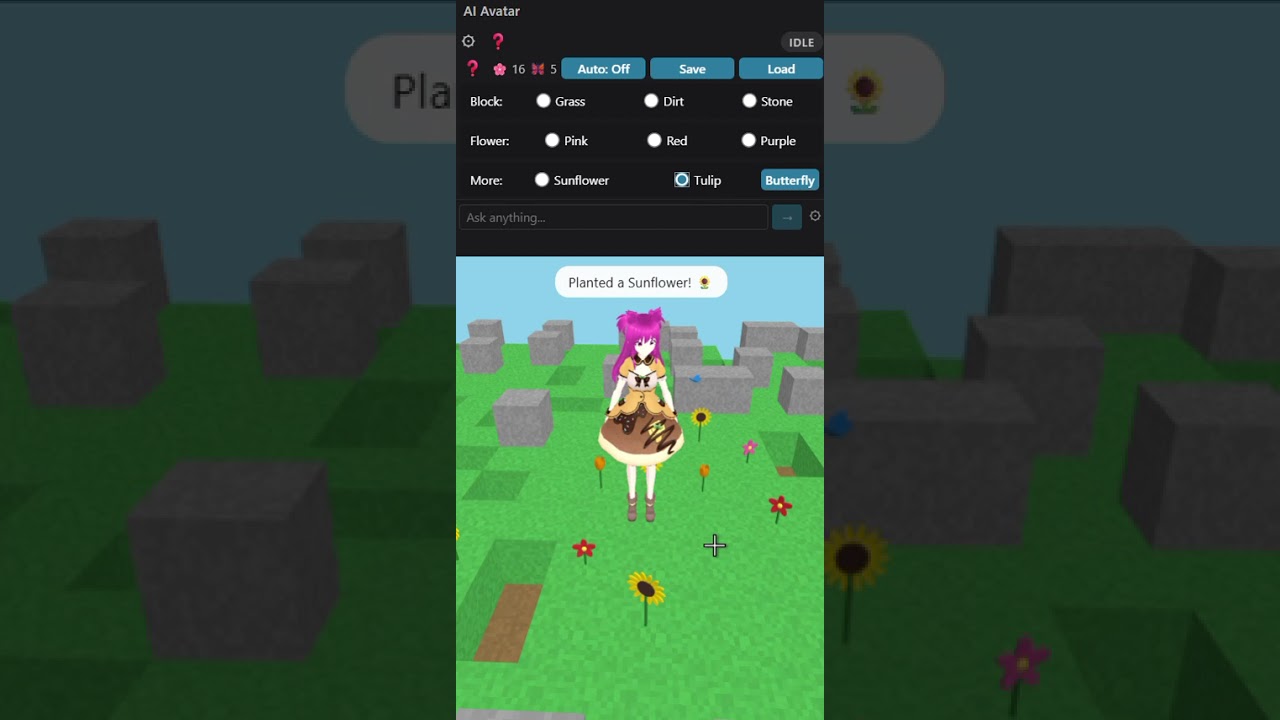
v19 ↓
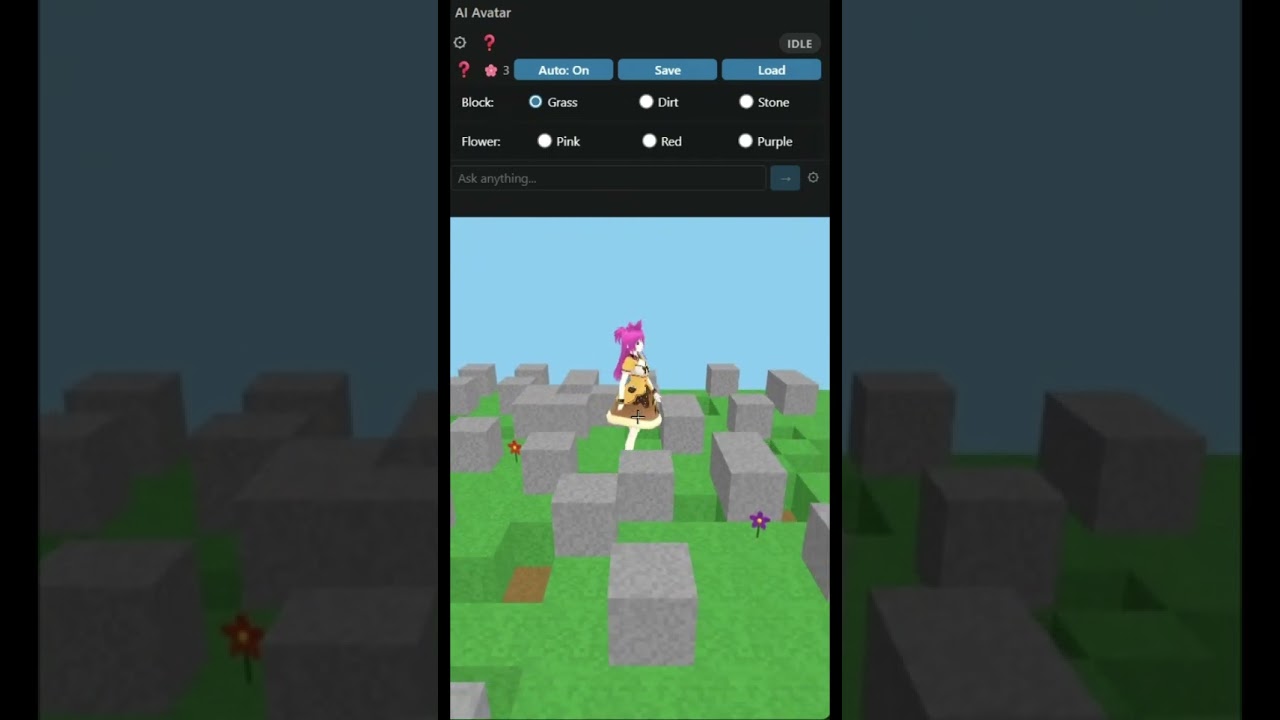
Click the Voxel Avatar toolbar button to switch the panel into a minimal Minecraft-like mini-game — your avatar walks around a small block world, terraforms terrain, and plants flowers.
Mode & files
| Control |
What it does |
Ver |
| Voxel Avatar: On / Off |
toggles the mini-game on and off; borrows your currently-loaded avatar without reloading it |
v19 |
| Auto: On / Off |
avatar wanders and gardens on its own; a click, or Claude Code finishing a response, triggers one step (flatten stone, fill a hole, or plant a flower); defaults to on each time Voxel Avatar is turned on |
v19 |
| Undo |
restores the last garden or rail edit, including Auto's own actions (up to 20 steps); Load clears the history |
v22 |
| Save / Load |
save the current world to a file, or load one from a file (overwrites what's currently placed) |
v19 |
| ❓ Help |
opens an in-panel cheat sheet of all the controls below — a wider, scrollable window with a close button in the top-right |
v19 / v22 |
| Counters |
🌸 individual flowers · 🍄 mushrooms · 🦋 butterflies · 🐝 bees · 🐦 birds · 🐱 cats · 🐶 dogs · 🐹 hamsters · 🪙 coins dropped across all coin trees, ever (a running total, not a live count on screen) |
v19–v23 |
Moving & building
| Control |
What it does |
Ver |
| W A S D / Arrows |
move the avatar; Shift to move faster |
v19 |
| Left-drag |
orbit the camera |
v19 |
| Right-drag |
pan the camera (re-centers once the avatar moves) |
v19 |
| Mouse wheel |
zoom in / out |
v19 |
| Left click |
place the selected block |
v19 |
| Right click |
break a block |
v19 |
| Block: Grass / Dirt / Stone |
pick which block Left click places |
v19 |
| Flower: Pink / Red / Purple |
plantable only on top of grass at ground level |
v19 |
| Flower: Sunflower / Tulip |
two more flower shapes: a tall sunflower with a wide dark center, and a cup-shaped tulip; Auto plants them too |
v20 |
| Flower: Coin Tree |
plant it on grass at ground level like a flower; each of its 3 branches grows a coin, hangs it, then drops it and grows another, forever |
v21 |
| Mushroom |
plant clusters of 1–3 mushrooms on grass, with a separate counter |
v23 |
Wildlife
| Control |
What it does |
Ver |
| Butterfly |
adds a butterfly that flutters around, visits flowers, and sometimes lands on one (up to 25) |
v20 |
| Bee |
adds a bee with quick wingbeats that visits flowers and lingers on them (up to 25) |
v22 |
| Bird |
adds a randomly sized bird that flies, then lands and hops on grass — flowers included, so it perches among them; not on dirt, stone, or a coin tree (up to 10) |
v22 |
| Cat |
adds a pink cat that walks around and occasionally stretches (up to 10) |
v21 / v22 |
| Dog |
adds a dog that strolls, sniffs nearby flowers, blinks, and wags its tail (up to 10) |
v22 |
| Hamster |
add up to 10 hamsters that scurry, sniff plants and sit up |
v23 |
Every count is saved with the world.
Coaster
| Control |
What it does |
Ver |
| Start Rail |
click a block on the ground to begin building a rail there; right-click a placed rail to undo its last waypoint |
v21 |
| Extend: Straight / Left / Right / Up / Down |
extends the rail one block from wherever it currently ends — straight ahead, turning 45° (press twice for a 90° turn), or climbing / descending half a block |
v21 |
| Extend: ↖ ↗ ↙ ↘ |
the D-pad's diagonal corners turn and climb / descend together in one single rail piece, instead of needing two separate presses |
v21 |
| Delete |
removes the last-placed rail waypoint (same as right-clicking it in the 3D view) |
v21 |
| Ride |
rides the rail you built (needs at least 3 rails placed); click again (now "Stop") to get off; the garden keeps going while you ride — butterflies, bees, birds, cats, dogs, and coin trees don't freeze |
v21 |
In the garden
Things that happen on their own, without a button.
Winter — while the garden is active and visible, 20 minutes of normal weather alternate with 10 minutes of winter. Snow falls intermittently, and the ground, trees, mushrooms, and flower petals gradually turn snowy while keeping their original colors visible. Bees and butterflies rest on flowers, or on the ground if none remain, and resume flying afterward. Season progress is saved. (v26)
Clouds and sky — drifting clouds above the garden and a gradient sky. (v23)
Weather — it sometimes rains (roughly every 3–6 minutes, for 30–60 seconds): the sky dims, butterflies and birds shelter until it clears, and a rainbow appears as the rain stops (v20) (v22)
Speech bubbles — Auto's bubble and speech also fire for manual play: placing or breaking a block, planting a flower, adding an animal, and the weather (v20)
Flower clusters — planting places 1–3 flowers at once (1–2 for sunflowers) with varied spacing, size, height, and head direction; the 🌸 counter counts individual flowers, and Save keeps each arrangement (v22)
Sway — flowers and coin trees sway in the breeze with their roots fixed, smaller flowers moving more; hanging coins stay attached to the swaying branches (v22)
Placement preview — hover the garden to see where a block, flower, or coin tree will land: green means allowed, red means blocked; hovering a rail Extend button previews its next piece (v22)
Golden pulse — a block flashes gold for half a second when it's successfully placed, broken, or planted, including Auto's own edits, so you can see what it just did (v22)
Smarter Auto — Auto prefers a 5–10 block walk, routes around obstacles, announces where it's heading, temporarily skips blocked targets, and picks terrain repair 70% / planting 30% when both are in reach (v22)
Jev Reactions (v23)
Click for the YouTube demo↓
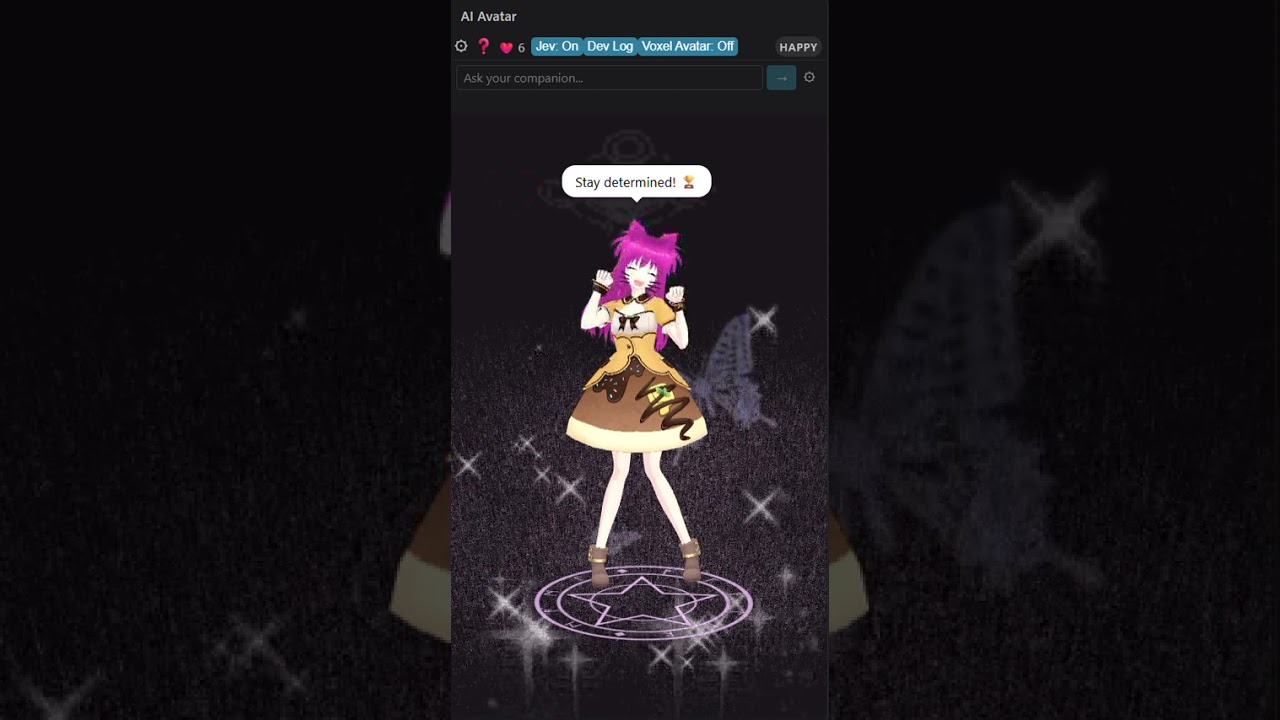
Uses Jev to check the sentiment of your new Claude/Codex requests and trigger avatar reactions. VS Code only.
- Jev API Key — save your key in Settings; the eye button reveals it for up to 15 seconds. Remove key deletes the saved key. (v23)
- Jev: On/Off — enable sentiment reactions; starts Off after restart. (v23)
Positive results randomly show a heart, star or fire; negative results show a broken heart or tears. Neutral results do not trigger a sentiment reaction. AI replies are excluded. (v23)
Dev Log (v23)
Counts Claude/Codex requests and uses Jev to assign categories—not to measure completed tasks. Saves counts and categories locally, without message text. VS Code only.
| Control |
What it does |
| Dev Log |
Opens the log tab |
| Record: On/Off |
Records new requests independently of avatar reactions; starts Off after restart |
| Period: Day / Week / All |
Shows daily, Monday–Sunday weekly or all-time totals |
| Tool: All / Claude / Codex |
Filters counts by tool |
| History |
Select a row to show its categories |
| Previous / Next |
Browses seven recorded days or weeks per page |
| Refresh |
Reloads saved counts |
| Clear history |
Stops recording in this window and deletes saved counts after confirmation |
| Help |
Shows controls and category explanations |
Muscle Brain (v24) (v25)
Muscle Brain is an ultimate working memory training game that stimulates your brain. Inspired by N-back-style memory exercises, it challenges you to remember, manipulate, and recall number and letter sequences.
No need to be afraid of the hard training. Mr. Brain, everyone’s hero, will support you throughout the game and save the day!
Working memory helps you keep information in mind while:
- Handling complex tasks
- Keeping track of multiple steps and staying focused
- Thinking through problems and possible solutions
Open Settings → Muscle Brain to play in a separate VS Code editor tab or Chrome browser tab.
2D (v24)
Remember the starting sequence for two seconds, then shift it and add the new characters. Your answer submits automatically when complete. For example: 4259 → +5 → 2595.
| Control |
What it does |
| Digits |
Choose a sequence length from 4 to 8 |
| Shift Direction |
Shift left or right |
| Shift Count |
Replace 1, 2, or 3 characters each round |
| Mode |
Switch between numbers and letters |
| Rhythm |
Accept input only during the blue timing bar |
| Sound |
Turn voice feedback on or off |
| Language |
Switch English/Japanese; shared with 3D, like Sound |
| Start Game |
Start a scored game |
| Practice Mode |
Show answers as you type |
| How to Play |
Read the rules and examples |
| History |
View and sort saved best scores |
| Delete History |
Clear saved scores and streak data |
| Delete Settings |
Reset 2D game settings while keeping shared preferences, scores, and streaks |
Progress and celebrations — best scores, medals, daily streaks, confetti, and animated feedback accompany your progress. (v24)
3D (v25)
Click for the YouTube demo ↓
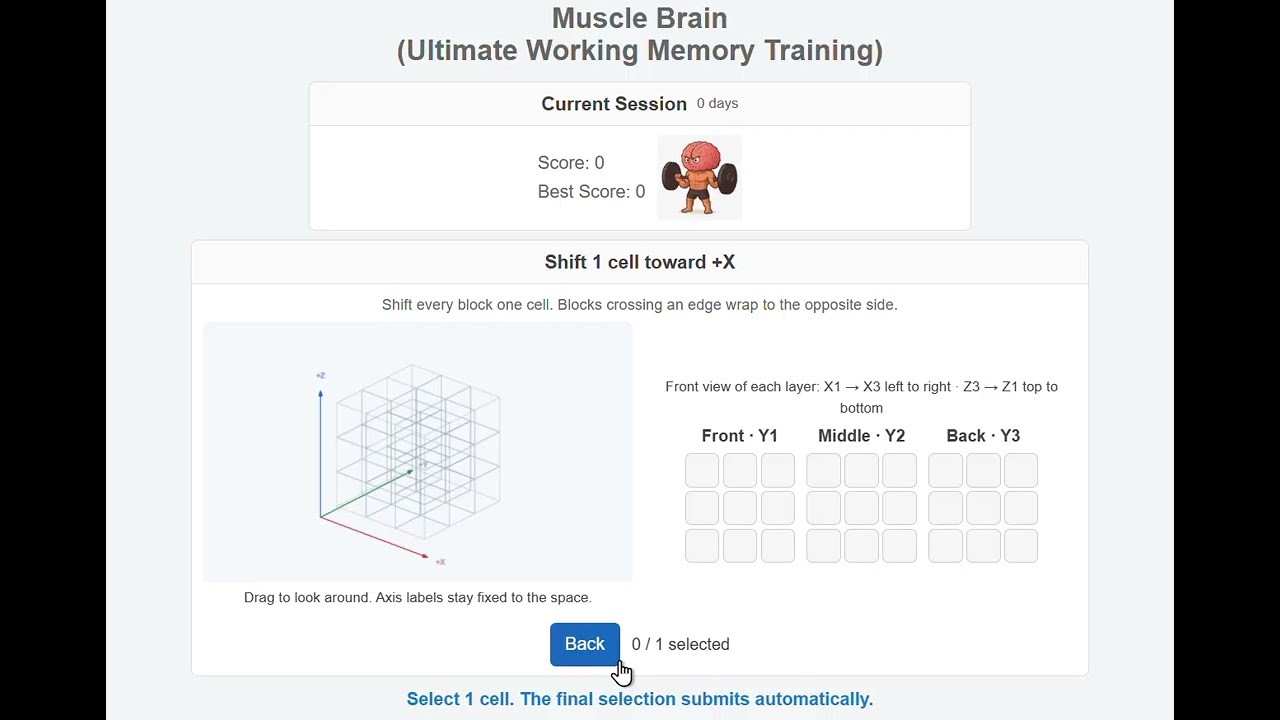
Choose 3D below the title to train with numbers or blocks in the same Muscle Brain tab. Language and sound are shared with 2D; other settings, score histories, and daily streaks remain separate. (v25)
| Control |
What it does |
| Mode |
Choose Num or Block |
| Shift |
In Num mode, choose left or right |
| Blocks |
In Block mode, choose 1, 2, or 3 blocks |
| Operation |
In Block mode, choose Shift or Rotate |
| Sound |
Turn voice feedback on or off |
| Language |
Switch English/Japanese; shared with 2D, like Sound |
| Delete Settings |
Reset 3D game settings while keeping shared preferences, scores, and streaks |
| Start Game |
Begin memorizing the starting cube |
| Continue |
Begin after studying the starting cube; correct answers advance automatically after one second |
| Answer |
Edit or clear incomplete answers; the final digit or required block submits automatically |
| Back |
Return to settings; wrong answers stay visible until you choose Back |
| How to Play |
Read the selected mode’s rules |
| History |
View and sort best scores for each settings combination |
| Delete History |
Clear 3D scores and its daily streak |
- Num — Remember eight digits in a 2×2×2 cube. Four new digits appear for five seconds. Shift one cell left or right, discard the outgoing four digits, and insert the new digits on the opposite side. Numbers do not wrap. Enter the resulting eight digits in the two layer grids. (v25)
- Block — Remember 1–3 blocks in a 3×3×3 space. Mentally shift them one cell, wrapping at the edges, or rotate the pattern 90° around the indicated axis. Answer using the three front-view layers: Y1 front, Y2 middle, Y3 back. (v25)
- 3D view — Drag to look around. Axes follow Blender: +X right, +Y back, +Z up. (v25)
- Feedback and progress — Each correct answer earns one point and advances after one second. New records spin Mr. Brain and randomly show gold confetti or brain emojis; other correct answers show colorful confetti. Mistakes remain visible until Back: blocks show correct positions in green and incorrect selections in red, while Num shows the correct digits. Best scores, medals, and daily streak milestones track progress. (v25)
Avatar Run (v25)
Click for the YouTube demo ↓
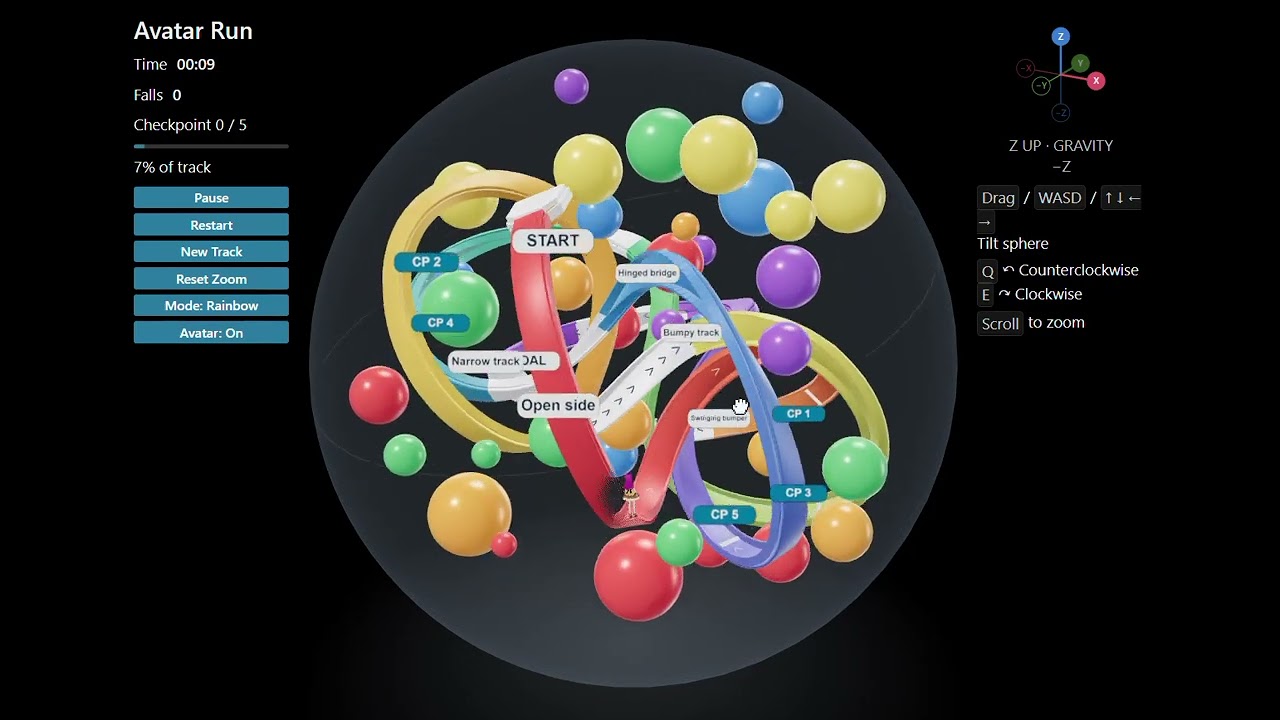
Avatar Run is a 3D tilt-controlled track game. It starts with your mini avatar; switch Avatar off to play as a marble. A long, winding track sits inside a clear sphere — tilt and rotate the whole sphere to guide your avatar or marble from Start to Goal without falling off. Every track is generated fresh, and the sphere shows through so you can always see where the track goes next.
Open Settings → Avatar Run to play in a separate VS Code editor tab or Chrome browser tab.
| Control |
What it does |
| Drag / WASD / ↑ ↓ ← → |
Tilt the sphere |
| Q / E |
Rotate the sphere counterclockwise / clockwise |
| Scroll |
Zoom in and out |
| Start rolling |
Start the game |
| Pause / Resume |
Pause or resume the game (also Esc) |
| Restart |
Replay the same track from Start |
| New Track |
Generate a new track |
| Reset Zoom |
Return the camera to the default zoom |
| Mode: Normal / Rainbow |
Switch appearance without resetting your run; opens in Rainbow every time |
| Avatar: Off / On |
Switch between a marble and your selected mini avatar; Avatar starts On. The mini avatar uses the same tilt controls and ball physics, with skirt/hair spring motion disabled |
| Counters |
⏱️ Time · 💥 Falls · 🚩 Checkpoint · 📈 Track progress |
Developer previews: MARBLE_DEV in src/shared/devFlags.ts shows Test A / Test B while enabled. Each button cycles through five different trap previews and places the marble just before the selected trap. Press Start rolling to try it; New Track returns to a random course. Disable the flag and rebuild to hide these controls.
On the track
The game includes:
- Traps — five different types are randomly selected from ten: open side, narrow track, sideways conveyor, center hole, hinged bridge, swinging bumper, rotating bar, wobbling platform, seesaw bridge, and bumps. One sits in each section after checkpoint 1, including the final purple section; the opening stays clear. Hole falls also return to the last checkpoint. Restart keeps the arrangement; New Track reshuffles it.
- Checkpoints — five checkpoints save your progress; fall off and the marble returns to the last one you reached, level and safe (v25)
- Feedback — Start, fall, retry, and Goal messages appear above the sphere. A pulsing glow marks the marble at Start and after retries; reached checkpoint stripes match the track color.
- Goal celebration — the remaining rainbow spheres pop in a quick red-to-purple wave, with larger shaded bubbles that drift and fade over three seconds.
- Normal / Rainbow — Normal has a white background and yellow track. Rainbow has a black background, a smooth red-to-purple track, and randomly scattered floating spheres of different sizes that burst when touched. Restart or New Track restores the spheres; they do not affect the marble's motion.
- Marble visibility — track sections covering the marble become see-through. You can pass either side of the center-hole platform; falling into the hole returns you to your checkpoint (v25)
- XYZ guide — a Blender-style axis guide shows which way is up, with gravity pulling toward −Z (v25)
Codex Support (v22)
Your avatar reacts to Codex as well as Claude Code. There's no extra button — leave the watcher on Claude Code and Codex activity is picked up alongside it.
What's detected — both the Codex CLI and the Codex VS Code extension, across all your local projects, so the avatar reacts even while you're working in another window (v22)
How it reacts — while Codex is working, a reaction fires every 10 seconds: panel animations, speech, and bubbles, plus one Voxel Avatar gardening step if the mini-game is on (v22)
When it stops — reactions pause as soon as Codex finishes, is cancelled, starts waiting for your input, or goes quiet for a while; old session history and subagent activity are ignored (v22)
Settings — your existing reaction settings still apply, and Auto: Off in Voxel Avatar still means no automatic gardening (v22)
Watcher (VS Code only) (v2)
Click the Switch Watcher button to toggle between watching Claude Code and GitHub Copilot activity.
You can also set the default watcher in settings via vroidCompanion.activeWatcher.
Codex activity is watched alongside Claude Code — no switching needed. See Codex Support. (v22)
Speech Bubble Messages
Click the Messages button to edit the messages shown in the speech bubble when the avatar reacts.
- Enter messages separated by
| (pipe), e.g. You can do it! | Nice work! | Love that fix!
- Messages are saved to VS Code settings and persist across restarts
- You can also edit them directly under
vroidCompanion.speechMessages in settings
Giant Mode (Chrome only)
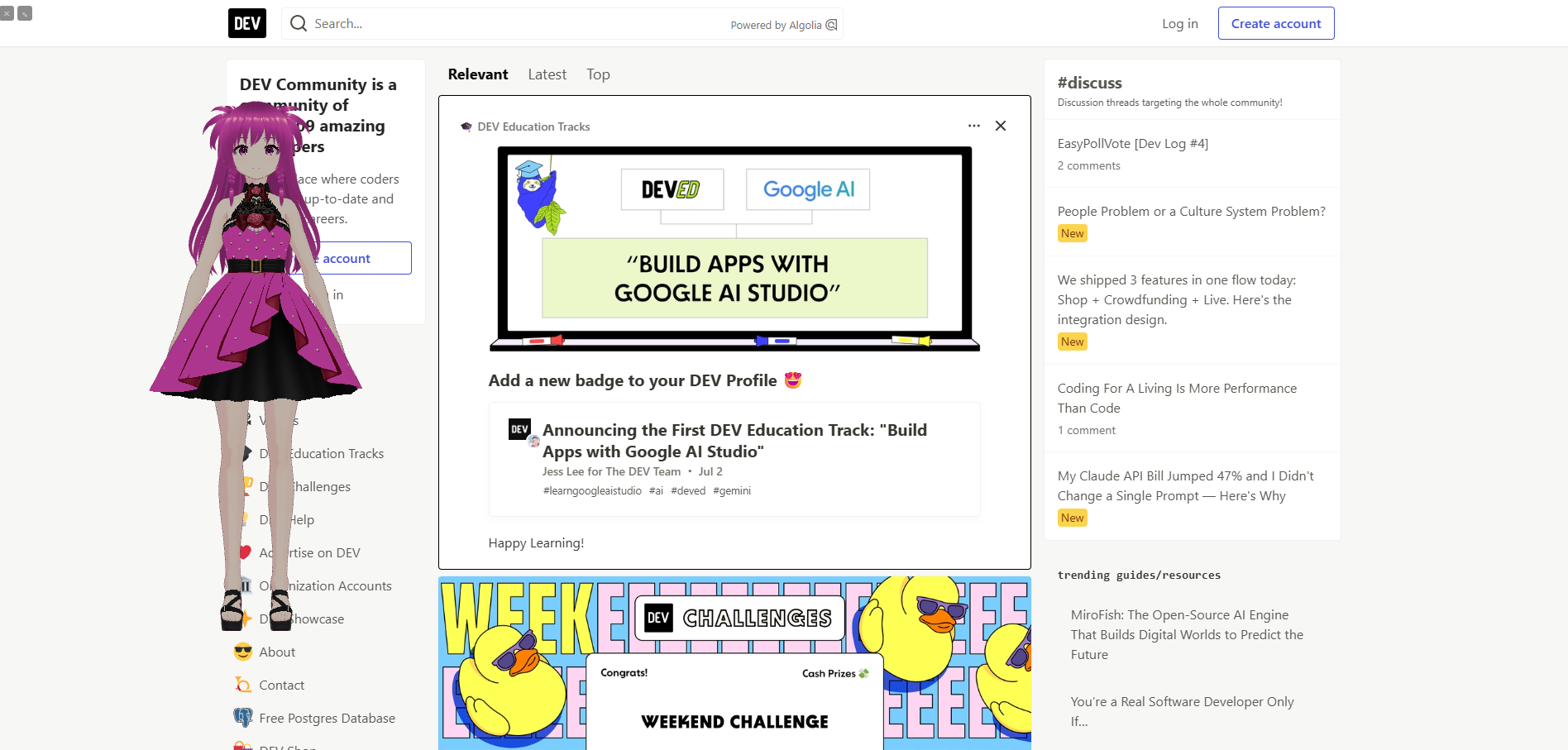
Click the Giant Mode button to float the avatar as a draggable, resizable overlay over any web page. The avatar reacts to AI activity detected on the page.
Using with Claude Code VS Code Extension (VS Code only)
You can display both panels side by side at the same time:
- Right-click either extension's icon in the activity bar
- Select Move to Secondary Side Bar
One panel goes to the left sidebar, the other to the right — you can choose which side each one is on.
Requirements (VS Code only)
- VS Code 1.85+
- Claude Code CLI or VS Code extension (for automatic reactions)
- Codex CLI or VS Code extension, optionally — reactions fire for Codex too (v22)
Cursor Avatar (v18)
Click for the YouTube demo ↓
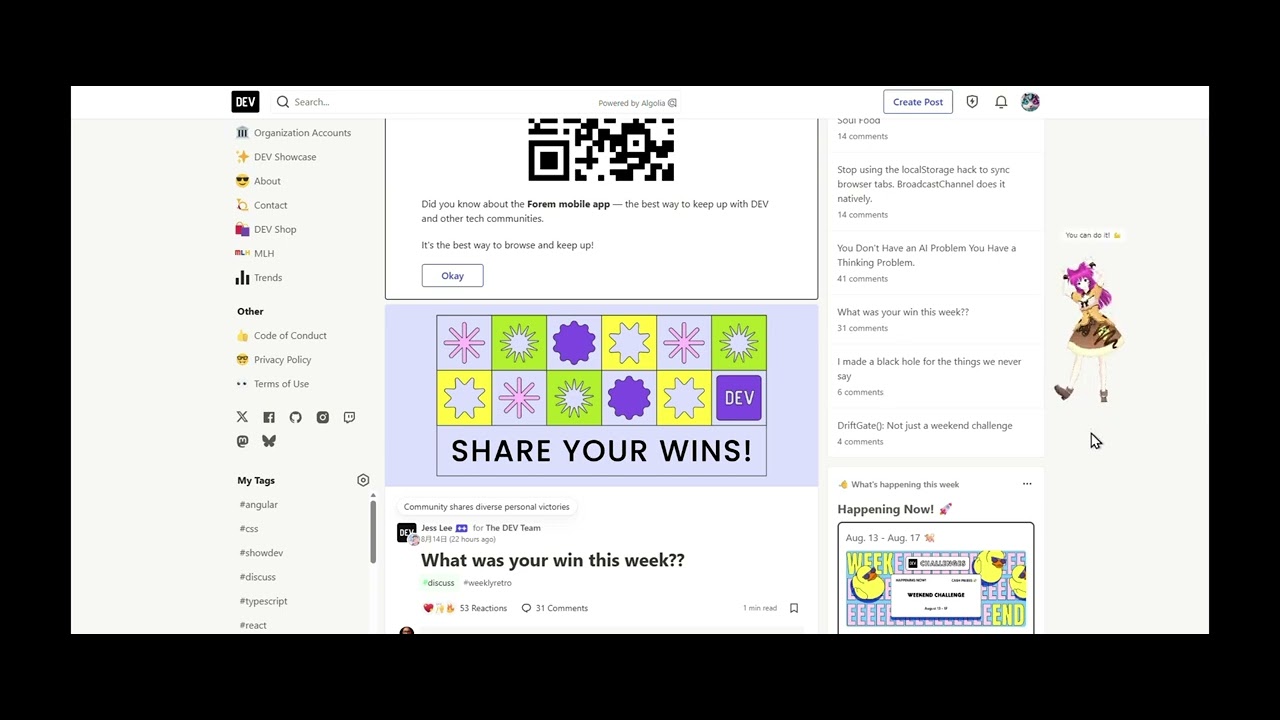
Cursor Avatar is a spin-off desktop app: click anywhere on your screen and your VRM avatar pops up near your cursor to react. It's a separate download, not part of this extension — see its own repo for setup and details.
Notification Avatar (v19)
Click for the YouTube demo ↓
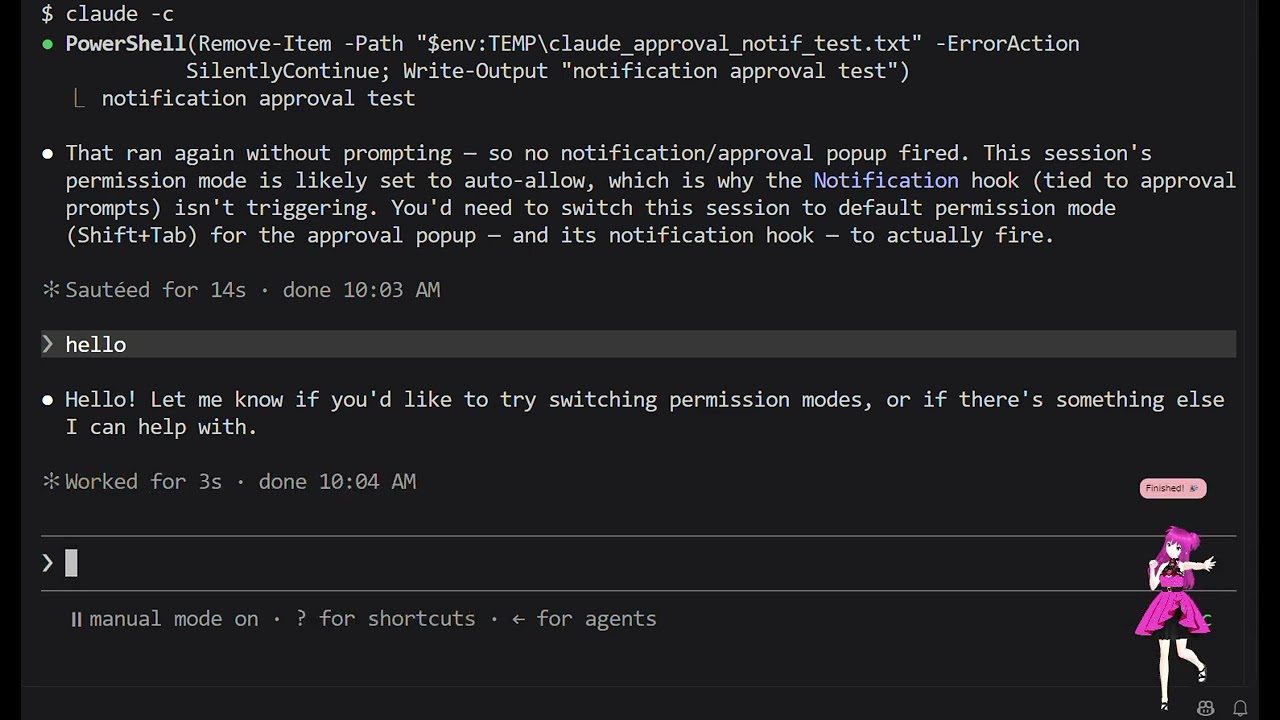
Notification Avatar is a spin-off desktop companion app: your VRM avatar pops up in the corner of your screen and reacts whenever Claude Code or Codex needs your attention or finishes a task — works even when VS Code isn't open, since it reacts to Claude Code/Codex CLI hooks directly. It's a separate download, not part of this extension — see its own repo for setup and details.
Special Thanks
- @AnnaVi11arrea1 - Catbot creator and v17 collaborator
- @RutenVeil — Created the background effects in v15 and keeps supporting.
- @Gramli — Updated in v2 and keeps supporting.
- @aryanc193 — Made the avatar collaboration project that is the beginning of AI Avatar and keeps supporting.
- Maximum Blue — Made avatars in v6 and keeps supporting.
Privacy
VS Code Privacy Policy
Roadmap
v1 ✅
- VRM character in VS Code sidebar
- Live reactions to Claude Code activity
- Eye tracking, lipsync, OrbitControls
- Change Avatar, speech bubble messages
v2 ✅
- 3-state Animation button (off / Default / Custom)
- Custom pose editor with JSON save/load
- Jokes button
- GitHub Copilot watcher support
- Watcher switching (Claude ↔ Copilot)
v3 ✅
- 🌐 Chrome extension version
- Various fixes and adjustments
v4 ✅
- Pose Editor upgraded to full Animation Editor
- Multi-keyframe timeline with in / hold / out timing
- Various fixes and adjustments
v5 ✅
- Enter key on terminal triggers animation (VS Code)
- Fixed reload to always restore the latest saved pose
- All 30 finger bones added to the animation editor
- Animation editor values now shown and saved in degrees (backward compatible)
- BG toggle button — gray background to see dark-colored avatars
- Various UI polish: button styling, focus outlines, editor colors
v6 ✅
v7 ✅
- 📸 Pose Capture — capture a real body pose with webcam and export it as a VRM animation JSON
- ❤️ Positive word reactions (VS Code only) — heart counter, smile, and heart overlay animation when positive words are detected; broken heart and head shake on negative words
- 🦁 Giant Mode (Chrome only) — float the avatar as a draggable, resizable overlay over any web page
- 🎲 Animation: Random mode — new 4th state generates random poses from zone patterns (expression, body + arm, fingers, legs)
- 😊 Expression editor — add Happy or Wink expressions to animation keyframes directly in the editor
- 🖱️ Click anywhere to react (Chrome only) — clicking any web page triggers an animation on the avatar
- 🔍 Prompt Checker [Beta] (VS Code only) — paste any AI prompt and get instant rule-based feedback on clarity, specificity, and structure
v8 ✅
- 🎲 Animation: Random Custom — 5th animation state; pick a custom zone-pattern JSON, plays random pose combos
- 🎨 Random Editor — zone-split pattern JSON editor inside the Animation Editor (Body & Arms / Legs / Fingers zones)
- 🎬 Animation Editor update — now opens as a full-screen tab; three-camera view (RIGHT / FRONT / LEFT), image reference layout, bone arc trail, zone preset buttons, JSON to VRMA export
v9 ✅
- 🤖 AI Chat — always-visible chat input; ask the avatar anything; replies appear as wide speech bubbles and trigger animations; supports Gemini API and Ollama (local)
- 🎛️ Panel layout redesign — collapsible toolbar behind ⚙ gear
- 🐛 Fixed flaky positive/negative word detection (VS Code only) — now reliably catches keywords in your messages to Claude Code
v10 ✅
- 💬 AI Speech Bubble (VS Code only) — toggle between Fixed and AI mode; in AI mode the character reacts to Claude Code activity with context-aware speech; messages customizable
- 🎛️ Toolbar redesign — 4 fixed rows always visible; animation split into 5 separate toggle buttons (Off / Default / Random / Custom / Custom Random); Positive Words and Negative Words as direct buttons
- 🎭 Improved idle & thinking animations — random idle head micro-tilt every 6–10s; thinking state now shows a natural Z-axis pondering tilt with gentle oscillation
v11 ✅
- 🗣️ Text-to-Speech — Speech:Off / Speech:API (Web Speech API) / Speech:AI (Gemini TTS)
- 🧠 Contextual speech bubbles — character reacts to special days (EN/JP), session count milestones, coding gaps, session length, day of week, and time of day
- 🎭 AI Style — Cute / Energetic / Cool modes
- 🌐 Lang toggle — single button controls bubble language and chat language together
- 🕺 Richer idle animations — random cycle picks from neck tilt / body tilt / whole-body gravity lean
v12 ✅
- 🪙 Millionaire Mode — 3D coin or diamond fountain bursts from the avatar on every reaction
- 🎛️ Radio group UI — animation, AI style, speech, provider, and millionaire controls redesigned as inline radio buttons
v13 ✅
- 🗣️ Speech:Local — Kokoro (EN offline TTS, no API key needed) + VOICEVOX (JP local TTS)
- 💬 Bubble On/Off toggle — hide speech bubbles while keeping TTS audio active
- 🤖 Bubble:AI — contextual messages (special days, time of day, etc.) now go through AI in AI mode
v14 ✅
- 🎢 Roller Coaster Mode — avatar rides a 3D roller coaster in Default, Rainbow, or Water theme
- 🪙 Add coin counter in the top bar
- ❓ Add help button in the top bar
- 🐛 Bug fixes: roller coaster CSS and Chrome Giant Mode display
v15 ✅
- 🎆 Background Effects — SF loading effect on avatar load; 5 animated reaction backgrounds (Galaxy, Magic, Cyber, Comic, Idol Stage) randomly selected on each reaction
- 💥 Roller Coaster Rainbow mode — large stars now explode into a burst of colored particles when they hit the avatar
- 🦁 Giant Mode state sync — Effect, bubble visibility, TTS mode, and language now carried over from the panel when opening Giant Mode
- 🐛 Fix: Animation editor — image picker no longer resets the pose to default; unintended idle/click animations no longer fire while editing
- ✨ Fix: Settings panel now has a scrollbar so all buttons are reachable
- 💃 Candy Pink Avatar — added Candy Pink v2–v7 image gallery and VRM avatar download link
v16 ✅
- 🐱 Cat Mode — avatar speaks like a cat (meow/にゃ flavor) with full contextual message support
- 🐱 Cat pose added to default animations
- 🐱 Candy Pink v8 Cat avatar added to GitHub — download here
- 🚀 Kokoro TTS server added to speed up local text-to-speech
- 🧠 Richer contextual messages — expanded special days (EN/JP), monthly messages, time-of-day message shows once per time period
- 💬 Message pool toggle — Fixed / Custom / Both radio button; Fixed pool adds 20 built-in cheer messages
- 🐛 Fix: Animation editor no longer loads poses from the custom animation folder on first open
- 🐛 Fix: Bubble: Off now correctly hides the bubble when Bubble: AI is active
v17 ✅
- 🏢 AI Office Mode — boss and sub avatars patrol the panel and report to each other with speech bubbles and TTS
- 🐾 Launch Catbot — launch the AI catbot app directly from the sidebar (Chrome: start the catbot server manually before clicking)
- 🐾 Catbot avatar — the AI catbot collaborator appears as a live 3D VRM avatar in the panel
- 📖 README — added navigation links, back to top links, and JP jump link
v18 ✅
- 🚀 Cursor Avatar — new spin-off desktop app: click anywhere on screen and your VRM avatar pops up near your cursor (https://github.com/webdeveloperhyper/cursor-avatar)
- 🌀 Kaleidoscope Effect — animated kaleidoscope background with live tuning controls (sides, speed, color, warmth, symmetry, zoom)
- 🗣️ Piper TTS (VS Code only) — EN local TTS via an automatically-downloaded native binary, no Python required and faster than Kokoro
- 🎛️ Speech control consolidation — Speech mode, Kokoro Server, and Piper merged into one unified radio group
- 🐛 Fix: AI Office avatar now plays its walk animation even when no boss avatar is configured
- 🐛 Fix: broken JP links for kept-in-English section names (Speech:Local, Catbot) that collided with their EN anchor
v19 ✅
- 🧊 Voxel Avatar — Minecraft-like mini-game where your avatar walks, terraforms terrain, and plants flowers
- 🔔 Notification Avatar — new spin-off desktop app: VRM avatar pops up and reacts whenever Claude Code or Codex needs your attention or finishes a task (https://github.com/webdeveloperhyper/notification-avatar)
- 🐛 Fix: Kaleidoscope and AI Office now mutually exclusive
- 🐛 Fix: Kokoro Server no longer silently falls back to VOICEVOX when language was left on JP
- 🐛 Fix: fixed AI Office/Catbot getting stuck disabled after another mode force-turned Millionaire/Roller Coaster off
- 🎛️ Fix: Mode exclusivity refactored into one shared table
v20 ✅
- 🌻 Voxel Avatar update — Sunflower and Tulip flowers, butterflies that visit and land on flowers, rain with a rainbow, and speech bubbles for manual play
v21 ✅
- 🛤️ Voxel Avatar update — build and ride a rail through the garden, cats that wander around, and coin trees that grow and drop coins
- 🎛️ Voxel Avatar controls now open in their own tab
- 🐛 Fix: narrow panel — toolbar buttons that don't fit a row now wrap to a new line instead of disappearing off the edge
v22 ✅
- 🐝 Voxel Avatar update — bees, dogs, and birds that fly, land, and roam the garden alongside the butterflies and cats
- 🍃 Voxel Avatar update — flowers and coin trees sway in the breeze, cats stretch, dogs sniff and wag their tails, and bees linger on flowers
- 🌼 Voxel Avatar update — flower clusters, placement previews, 20-step Undo, a golden pulse on changed blocks, and smarter Auto gardening
- 🤖 Codex Support (VS Code only) — avatar also reacts to Codex CLI and Codex VS Code extension activity alongside Claude Code
- 🛠️ Modeling Toolkit — a guided image-to-model harness and Model Inspector built to design, measure, and refine every voxel model in the garden (dev tool, not shipped in the extension)
v23 ✅
- ❤️ Jev Reactions (VS Code only) — sentiment-based avatar reactions with 3D hearts, broken hearts, stars, fire and tears
- 📊 Dev Log (VS Code only) — request categories and daily, weekly and all-time history for Claude and Codex
- ☁️ Voxel Avatar update — hamsters, mushrooms, drifting clouds and sky gradients
v24 ✅
- 🧠 Muscle Brain — ultimate working memory training game that stimulates your brain
v25 ✅
- 🧠 Muscle Brain 3D — spatial memory training with numbers and blocks
- 🎱 Avatar Run — tilt and rotate a clear 3D sphere to roll a marble along the winding track inside
v26 ✅
- ❄️ Voxel Avatar update — adds winter with falling snow and a snowy garden
v27 — Coming soon!
↑ Back to top
AI Avatar(日本語)
AI Avatarは、推し(自分のVRoid(VRM))が、あなたを全力で応援する無料アプリです。🤗 VS Codeサイドバー(Claude Code / Codex / GitHub Copilotに反応)またはブラウザサイドパネル(ChatGPT / Claudeに反応)に表示されるVRM 3Dキャラクターです。AIなしでもアニメーションや会話を楽しめます。
セクションへ移動: ✨ 機能一覧 · 📖 詳細 · 🗺️ ロードマップ
Click for the YouTube demo ↓
🎉 VS Code版300インストール達成!ありがとうございます!
🛒 VS Code Marketplaceからダウンロード
🛒 Chrome ウェブストアからダウンロード
📖 開発ストーリーはDEV.toで読めます:
- v1 → AI Avatar (VS Code拡張機能)
- v2 → AI Avatar v2 ポーズエディタ付き
- v3,v4 → AI Avatar v4 アニメーションエディタ付き
- v5,v6 → 🦸スーパーヒーローに応援してもらおう (AI Avatar v6)
- v7 → 🫡全力でサポートします! (AI Avatar v7)
- v8,v9,v10 → 🎥AIチャット、AI応援メッセージ、アニメーションエディタ ハイパー (AI Avatar v10: VS
Code・Chrome拡張機能)
- v11,v12,v13,v14,v15 → ✨おしゃれなエフェクト、TTS、楽しいアニメーション (AI Avatar v15: VS Code and Chrome Extension)
- v16,v17 → 😸Catbot統合, AI Office, Cat Mode (AI Avatar v17: VS Code and Chrome Extension)
- v18,v19,v20 → AI Avatar v20, Cursor Avatar, Notification Avatar (Voxel Avatar)🧊
- v21,v22,v23,v24,v25 → AI Avatar v25 (Avatar Run, Voxel Avatar, Muscle Brain)💪
- v26 → coming soon!
機能一覧
- 🎭 リアクション — Claude Code / GitHub Copilotが考え中または返答したとき自動でキャラクターが反応
- 🔀 ウォッチャー切り替え (VS Code限定) — Claude CodeとGitHub Copilotの監視を切り替え (v2)
- 🔄 アバター変更 — 上部のボタンで
VRMキャラクターをいつでも変更可能
- 💃 アニメーション —
.vrmaモーションクリップやカスタムJSONポーズを再生;5つの独立トグルボタン:Off / Default / Random (v7) / Custom (v2) / Custom Random (v8) (v10)
- 💬 AI吹き出し (VS Code限定) — Fixed/AIモードを切り替え;AIモードでは Claude Code に反応してコンテキストに応じた発言をする (v10)
- 🎬 アニメーションエディタ — 複数キーフレームタイムライン(In / Hold / Outタイミング) (v4);全30指ボーン対応 (v5);度数表示 (v5)
- 🎨 ランダムエディタ — アニメーションエディタ内でゾーン分割パターンJSONを直接編集;ボディ&アーム / 脚 / 指ゾーン、パターンの追加・削除・ナビゲーション (v8)
- 🎥 オービットコントロール — ドラッグで回転、スクロールでズーム、右クリックでパン
- 👀 視線追跡 — アイドル時に目と頭がマウスカーソルを追う
- 💬 リップシンク — Claudeの返答中に口が動く
- 😊 クリックまたはEnterキーで反応 — スマイル、うなずき、アニメーションが発動
- 💬 カスタム吹き出しメッセージ — Messagesボタンからメッセージを編集;Fixed(内蔵)/ Custom / Bothプール切り替え (v16)
- 😂 ジョーク — Jokesボタンでアバターがジョークを言う (v2)
- 📸 ポーズキャプチャ — ウェブカメラで体のポーズを撮影し、VRMアニメーションJSONとして書き出し (v7)
- ❤️ ポジティブワード反応 (VS Code限定) — ポジティブワード検出時にハートカウンター・スマイル・ハートオーバーレイアニメーション;ネガティブワードには割れたハートと首振り (v7)
- 🔍 プロンプトチェッカー [Beta] (VS Code限定) — AIプロンプトを貼り付けるだけで、明確さ・具体性・構造をルールベースで即チェック (v7)
- 🦁 ジャイアントモード (Chrome限定) — ドラッグ・リサイズ可能なオーバーレイとしてアバターをどのページにも表示 (v7)
- 🤖 AIチャット — パネル下部に常時表示されるチャット入力;アバターに何でも質問できる;返答は吹き出しで表示してアニメーションも発動;Gemini APIとOllama対応 (v9)
- 🗣️ 音声読み上げ(TTS) — Speech:Off / Speech:API(Web Speech API)/ Speech:AI(Gemini TTS、APIキーを使用) (v11) / Speech:Local(Kokoro EN + VOICEVOX JP) (v13) / Kokoro ServerでローカルEN TTSを高速化 (v16)
- 🧠 コンテキスト吹き出し — 特別な日(EN/JP別リスト)、セッション数マイルストーン、反応間隔、セッション時間、曜日、時間帯に応じた吹き出し (v11) (v16)
- 🎭 AIスタイル — Cute / Energetic / Coolの3つのキャラクターモード (v11)
- 🌐 言語切り替え —
Lang: EN/JP 1つのボタンで吹き出しとチャットの言語を同時に切り替え (v11)
- 🕺 豊かなアイドルアニメーション — 首の傾き / 体の傾き / 重力リーンをランダムにサイクル (v11)
- 🪙 ミリオネアモード — リアクションのたびにアバターから3Dコインまたはダイヤモンドが噴き出す (v12)
- 🎢 ローラーコースターモード — Default・Rainbow・Waterの3テーマで3Dローラーコースターに乗る (v14)
- 🎆 背景エフェクト — ロード時のSFエフェクト+5種類のリアクション背景(Galaxy・Magic・Cyber・Comic・Idol Stage)がリアクション時にランダム表示 (v15)
- 🐱 Catモード — アバターが猫語(meow/にゃ)で話す;全コンテキストメッセージ対応 (v16)
- 🏢 AI Officeモード — ボスとサブアバターがパネルを巡回し、吹き出しとTTSで会話する (v17)
- 🐾 Launch Catbot — サイドバーのボタンからAI catbotアプリを直接起動 (v17)
- 🐾 Catbot avatar — Catbotコラボレーターがパネルにライブ3DのVRMアバターとして登場 (v17)
- 🌀 Kaleidoscopeエフェクト — サイド・スピード・カラー・暖かさ・対称性・ズームをライブ調整できるアニメーション万華鏡背景 (v18)
- 🗣️ Piper TTS (VS Code限定) — 自動ダウンロードされるネイティブバイナリによるEN用ローカルTTS、Python不要でKokoroより高速 (v18)
- 🧊 Voxel Avatar — アバターが歩き、地形を整地し、花を植えるMinecraft風ミニゲーム (v19)
- 🌻 Voxel Avatar アップデート — ヒマワリとチューリップの花、花を訪れて止まるちょうちょ、虹が出る雨、手動操作時の吹き出し (v20)
- 🛤️ Voxel Avatar アップデート — 庭にレールを敷いて乗れるように、庭を歩き回るネコ、コインが育って落ちるコインツリーを追加 (v21)
- 🐝 Voxel Avatar アップデート — ちょうちょとネコに加えて、飛んで降りて庭を歩き回るハチ・イヌ・トリを追加 (v22)
- 🍃 Voxel Avatar アップデート — 花とCoin Treeが風に揺れ、ネコは伸びをし、イヌは匂いを嗅いでしっぽを振り、ハチは花に長く留まるように (v22)
- 🌼 Voxel Avatar アップデート — 花のかたまり、設置プレビュー、20手戻れるUndo、変更したブロックが金色に光る演出、賢くなったAuto作業 (v22)
- 🤖 Codex Support (VS Code限定) — Claude Codeに加えて、Codex CLIとCodex VS Code拡張機能の作業にもアバターが反応 (v22)
- ❤️ Jev Reactions (VS Code限定) — 感情に合わせて3Dのハート・割れたハート・星・炎・涙でアバターが反応 (v23)
- 📊 Dev Log (VS Code限定) — ClaudeとCodexへのリクエストをカテゴリ別に記録し、日別・週別・全期間の履歴を表示 (v23)
- ☁️ Voxel Avatar アップデート — ハムスター・キノコ・漂う雲・空のグラデーションを追加 (v23)
- 🧠 Muscle Brain — 脳を刺激する究極のワーキングメモリトレーニングゲーム (v24)
- 🧠 Muscle Brain 3D — 数字とブロックで空間記憶をトレーニング (v25)
- 🎱 Avatar Run — 透明な3D球体を傾けて回し、中の曲がりくねったコースでビー玉を転がすゲーム (v25)
- ❄️ Voxel Avatar アップデート — 雪が降り、庭が雪化粧する冬を追加 (v26)
はじめ方
セットアップ不要 — サンプルキャラクターが最初から入っています。
VS Code
- VS Code Marketplaceからインストール
- アクティビティバーの AI Avatarアイコン をクリックしてサイドバーを開く
- Claude Code、Codex、またはGitHub Copilotを使う — アバターが自動で反応
Chrome
- Chrome ウェブストアからインストール
- ツールバーにピン留め
- AI Avatarアイコン をクリックしてサイドパネルを開く
- ChatGPTまたはClaudeでチャット — アバターが自動で反応
自分のVRMキャラクターを使う
VRoid を使えば3Dモデリングの知識なしに無料でオリジナルアバターを作れます。キャラクターをデザインして .vrm ファイルとしてエクスポートしてください。
サイドバー上部の Change Avatar ボタンから .vrm ファイルを選択。
v6では新しいサンプルキャラクター(女の子3体・男の子2体)とポーズパック(かわいい・クール・おもしろ)を追加しました。
(GitHubリリースから無料ダウンロード)
Joyful Colors は、開発者をはじめ多くの人を元気にしてハッピーな気持ちにすることをミッションに集まったグループです。VS Code拡張機能とChrome(Edge)拡張機能を通じて24時間365日あなたを応援します。スーパーヒーローキャラクターたちを紹介します!
↑ Sweet Purple(制作:Blue)
明るく元気なキャラクター。
有名なアイドルになって美味しいものを食べることを夢見ています。
かわいいポーズが得意。
↑ Candy Pink(制作:Hyper)
サンプルアバター(Ninja Girl)の別バージョン。
優しくて思いやりがあります。
作り笑いが得意。
かわいいポーズが得意。
↑ Maximum Blue(制作:Blue)
活発でエネルギーあふれるキャラクター。
目が合った女の子は恋に落ちてしまいます。
クールなポーズが得意。
↑ **Hyper Yellow**(制作:Blue)
いつもカッコいいアプリを作ろうと挑戦するが、なぜかいつもふざけたアプリになってしまいます。
Purple と Pink が自分のことを好きだと思っているが、実際には利用されているだけ。
変なポーズが得意。
Candy Pink ↑
👉 GitHubからCandy Pinkをダウンロード
アニメーション (v2)
5つのアニメーションボタンがあります。クリックで有効化 — 有効なボタンはハイライト表示されます。選択した状態は再起動後も保持されます。
| ボタン |
動作 |
Animation: Off |
アニメーションを再生しない |
Animation: Default |
付属のサンプルポーズを再生 |
Animation: Random |
付属ゾーンパターンからランダムにポーズを生成 (v7) |
Animation: Custom |
ファイルを選択し .vrma と .json ポーズファイルを再生 |
Animation: Custom Random |
カスタム random-custom.json を選択 — 独自ゾーンパターンからランダムにポーズを生成 (v8) |
VRoid Projectの .vrma クリップを使う:
VRMAアニメーションファイルはライセンスの都合上、拡張機能に含まれていません。公式VRoidプロジェクトから無料でダウンロードしてください:
👉 VRM Animation 7本パック by VRoid Project(無料)
パックには7つのアニメーションが含まれます:全身表示、挨拶、ピースサイン、シュート、スピン、モデルポーズ、スクワット。
- パックをダウンロードして解凍
- Animation ボタンを
Animation: Custom になるまでクリック
.vrma ファイルが入ったフォルダを選択- AIが返答するたびにランダムなアニメーションを再生
アニメーションエディタ (v4+)
Click for the YouTube demo ↓
Edit Animation をクリックするとVS Codeの専用タブとしてエディタが開きます:
表示 (v8)
- RIGHT / FRONT / LEFT の3方向カメラを同期表示 — すべての角度を一画面で確認 (v8)
- Image ボタンで2×2レイアウトに切り替え(上段:FRONT+参考画像、下段:RIGHT+LEFT)— ポーズ参考用の画像を読み込み可能 (v8)
ボーン編集
- 全身の2カラムボーンリスト — 頭・首・脊椎・腕・手・脚、そして全30指ボーン (v5)
- スライダー または 度数入力 でボーンを回転 (v5)
- スライダー/入力にフォーカスすると、アバターにボーン弧トレイルが表示 — 回転の視覚フィードバック (v8)
- 下部のプリセットボタン:ボディ&アーム / 脚 / 指のゾーンパターンをワンタッチ適用 (v8)
キーフレームとタイミング
- + KF で複数キーフレームを追加してアニメーションシーケンスを構築 (v4)
- 各キーフレームに In(フェードイン)・Hold・Out(フェードアウト、最終KFのみ)タイミング設定 (v4)
- < > でナビゲート、− KF で削除、Play でプレビュー (v4)
表情
- キーフレームごとに表情設定:Default / Happy / Wink (v7)
アクション
- Load — 別のJSONポーズファイルを選択して読み込み
- Save — JSONファイルに書き戻し、ランダムプールに追加
- Reload — ディスクからファイルを再読み込み、未保存の編集を破棄
- JSON to VRMA — キーフレームアニメーションを
.vrma VRMアニメーションファイルとしてエクスポート (v8)
- Exit — エディタタブを閉じてサイドバーを再表示 (v8)
ランダムエディタ (v8)
- Random Editor をクリックしてゾーン分割パターンJSONエディタを開く
- デフォルトの
random-custom.json を自動で読み込んで開始 — Load Random で別のJSONファイルに切り替え可能
- ボディ&アーム / 脚 / 指 ゾーンを切り替え — 関連ボーンのみ表示、無関係なボーンは非表示
- < > でパターンをナビゲート、+ で追加、− で削除、名前を編集可能
- Save でJSONファイルに書き戻し、Reload でディスクから再読み込み
- Exit Random で通常エディタに戻る
AIチャット (v9)
チャット入力欄がパネル下部に常時表示されます。メッセージを入力して → を押すと送信。アバターがアニメーションし、返答を吹き出しで表示します。
入力欄横の ⚙ ボタンでチャット履歴・プロバイダー設定・システムプロンプトを開けます。
プロバイダー
Gemini — クラウドAPI;Google AI Studio で無料のAPIキーを取得
Ollama — ローカルで動作;APIキー不要;ollama.com からインストール
インストール後、使用前に一度モデルをダウンロードしてください:
ollama pull qwen2.5:3b
注意: 最初のメッセージは遅いですが正常です — Ollamaは起動時にモデルをディスクからRAMに読み込みます。同じセッション中の2回目以降はモデルがメモリに残るため、大幅に速くなります。
モデルの選び方: 小さいモデル(例:qwen2.5:1.5b)は速いが回答がシンプル。大きいモデル(例:qwen2.5:7b)は遅いが精度が高く詳細な回答が得られます。⚙ 設定からモデルを変更できます。
ヒント: 質問は短く簡潔にまとめると効果的です — ローカルモデルもGemini Flashも、シンプルなプロンプトに最も適しています。
Chrome限定: OllamaはデフォルトでChrome拡張機能からのアクセスをブロックします。一度だけ設定が必要:
- Win+R →
sysdm.cpl → 詳細設定 → 環境変数 → 新規
- 変数名:
OLLAMA_ORIGINS / 値:chrome-extension://YOUR_EXTENSION_ID — YOUR_EXTENSION_IDをchrome://extensionsで確認したAI AvatarのIDに置き換えます(デベロッパーモードをオンにすると表示)。すべてのWebサイトを許可する*は使わないでください。
- タスクトレイのOllamaを終了 → 再起動(PCの再起動は不要)
設定(⚙ボタン)
- Gemini / Ollamaトグルでプロバイダーを切り替え
- Gemini APIキーを入力(VS CodeではSecretStorage、Chromeでは拡張機能専用のIndexedDBに保存)。保存済みキーは自動入力せず、目のボタンで一時的に表示します。Remove keyの後にSaveを押すと保存済みキーを削除します。
- モデル名を設定(デフォルト:
gemini-3.1-flash-lite / qwen2.5:3b)
- システムプロンプトを編集 — デフォルト:絵文字付き1文で励ます明るいコーディングコンパニオン
音声読み上げ(TTS) (v11)
3つのモードから1つを選択:
| ボタン |
動作 |
Speech: Off |
無音 |
Speech: API |
Web Speech API — ブラウザ内蔵音声、オフライン動作可、VS Code・Chrome両対応 |
Speech: AI |
Gemini TTS — Gemini APIによる自然な音声(AIチャット設定のAPIキーを使用) |
2つのボイス設定:
| ボタン |
ボイス |
Speech: Female |
Aoede — 明るく温かい |
Speech: Male |
Charon — 落ち着いてクール |
Speech:AIにはAIチャットと同じGemini APIキーが必要です。キーが未設定の場合は無音になります。
Speech:Local (v13) (v16)
オフラインTTS — APIキーもインターネット接続も不要。Speechラジオグループで Speech:Local を選択します。
言語に応じて2つのエンジンが動作します:
| 言語 |
エンジン |
必要環境 |
Lang: EN |
Kokoro — ブラウザ内で完結する軽量英語ニューラルTTS |
なし — モデルは初回使用時に自動ダウンロード(約85 MB) |
Lang: JP |
VOICEVOX — キャラクターボイス対応の高品質日本語TTS |
VOICEVOXを自分でダウンロード・インストール(無料)して起動しておく必要があります |
Kokoro は初回使用時にモデルをダウンロード・キャッシュし、ウォームアップを行うことで初回レスポンスを高速化します。2回目以降は追加ダウンロード不要です。
Kokoro Server (v16):
デフォルトのブラウザ内Kokoroはニューラルネットワークの推論をWebAssembly上で実行するため、ネイティブ実行と比べて大幅に遅く、メッセージごとに数秒かかります。Kokoro Server は同じモデルをローカルのPythonプロセスとしてネイティブのONNX Runtimeで実行するため、1メッセージあたり1秒未満で音声を生成できます。
必要なパッケージ(一度だけインストール):
pip install kokoro-onnx soundfile fastapi uvicorn
VS Code の使い方:
- ツールバーの Kokoro Server: On を選択 — 拡張機能がサーバーを自動起動;初回のみサーバーがモデルファイル(約300 MB)を
~/.cache/kokoro-onnx/ に別途ダウンロード
- ステータスが準備完了になったら通常通り話しかける — サーバー起動中はSpeechラジオグループは無効になります
Chrome の使い方:
- kokoro_server.py をダウンロードして起動:
python kokoro_server.py
Model loaded. Server ready と表示されるまで待つ- パネルの Kokoro Server: On を選択 — サーバー起動中はSpeechラジオグループは無効になります
VOICEVOXのセットアップ(JP使用時に必須):
- voicevox.hiroshiba.jp からVOICEVOXを無料ダウンロード(Windows / Mac / Linux対応)
- インストールして起動 — ポート50021でローカルサーバーとして動作します
- Lang: JPでSpeech:Localを使用する間はVOICEVOXを起動したままにしてください
JP+Local切り替え時にVOICEVOXが起動していない場合、パネルにステータスメッセージが表示されます。VOICEVOXを起動すれば次のメッセージから自動接続します。
音声の性別(Female / Male)は両エンジンに適用されます。
コンテキスト吹き出し (v11) (v16)
吹き出しはメッセージを表示する前に優先度チェーンを確認します。高優先度の条件が先に発動し、各条件はセッション中1回のみ(時間帯は時間帯ごとに1回 (v16) 、再起動後も持続):
| 優先度 |
条件 |
例 |
| 1 |
特別な日(祝日) |
"Happy Halloween! 🎃" |
| 2 |
月次メッセージ (v16) |
"あけましておめでとう!🎊" |
| 3 |
セッション数マイルストーン |
"今日10回目のリアクション!🎉" |
| 4 |
前回の反応からの間隔 |
"おかえり!待ってたよ 💕" |
| 5 |
セッションの長さ |
"1時間も頑張ってるね!🔥" |
| 6 |
曜日 |
"月曜日!一緒に頑張ろう!⚡" |
| 7 |
時間帯 (時間帯ごとに1回 v16) |
"おはよう!☀️" |
| 8 |
AI / 通常プール |
通常のリアクションメッセージ |
ENとJPはメッセージプールと特別な日リストが別々(西洋の祝日 vs 日本の祝日)。
AIスタイル (v11)
3つのキャラクターモードから1つを選択:
| ボタン |
トーン |
絵文字 |
AI Style: Cute |
温かく、かわいく、励ます |
💕 ✨ |
AI Style: Energetic |
熱狂的、ハイエネルギー、やる気を引き出す |
🔥 ⚡ |
AI Style: Cool |
落ち着いて、自信を持って、シンプルに |
✓ 🎯 |
スタイルを切り替えると以下の両方が自動更新されます:
- 吹き出しのAIプロンプト(短いリアクションセリフ)
- チャットのシステムプロンプト(チャット返答のトーン)
VS CodeとChrome両対応。
ミリオネアモード (v12)
Click for the YouTube demo ↓
ツールバーの Millionaire ラジオボタンでモードを選択:
| オプション |
動作 |
Off |
噴水なし(デフォルト) |
Coin |
リアクションのたびにアバターから3Dゴールドコインが噴き出す |
Diamond |
リアクションのたびにアバターから3Dピンクダイヤモンドが噴き出す |
Millionaire: Sound ボタンでバーストごとのチャイムサウンドをオン/オフできます。MillionaireがOffのときはサウンドボタンは無効になります。
ミリオネアモードがオンのとき、トップバーに 🪙 コインカウンター が表示され、このセッションで噴き出したコインの合計数を確認できます。モードをオフにするとリセットされます。 (v14)
ローラーコースターモード (v14)
Click for the YouTube demo ↓
ツールバーの Roller Coaster ラジオボタンでテーマを選択:
| オプション |
動作 |
Off |
ローラーコースターなし(デフォルト) |
Default |
アバターが緑の野原の3Dローラーコースターに乗る;チェイスカメラが後ろから追跡 |
Rainbow |
星空の宇宙を走るレインボーカラーのトラック;ダーク背景にビネットオーバーレイ |
Water |
上昇する透明な泡が漂う水中トラック;青いグラデーション背景と青いオーバーレイ |
アバターはスケートボード型カートに立ってループトラックを走ります。チェイスカメラが後ろから追跡するのでアバターを常に確認できます。
背景エフェクト (v15)
エフェクト制作:@RutenVeil
Click for the YouTube demo ↓
ロードエフェクトはアバターが最初に読み込まれるときに自動再生されます。ホログラムのスキャンラインが上から下に走り、SF宇宙背景の中からアバターが削り出されるように登場します。
リアクション背景はリアクションのたびにランダムで表示されます。5種類のテーマがあります:
| テーマ |
スタイル |
Galaxy |
オーロラ・星雲・キラキラが輝く星空 |
Magic |
足元と頭上に魔法陣が出現し、蝶・キラキラ・光のモヤが下から湧き上がる |
Cyber |
電脳空間 — アメーバ状マスクが溶けて消え、ホログラムUIが浮かぶデジタル背景が現れる |
Comic |
コミック — 吹き出し・雷マーク・紙吹雪がポップコーン式に次々出現し、最後はアバターだけが残る |
Idol Stage |
ステージの幕が上から降りてきて開演;スポットライトが揺れ、サイリウムが振られ、ハートが飛び散る |
ツールバーの Effect ボタンで全背景エフェクトのオン/オフを切り替えられます。ローラーコースターモード中はエフェクトが自動的に非表示になります。
ネコモード (v16)
Click for the YouTube demo ↓
ツールバーの Cat Mode ボタンでネコモードのオン/オフを切り替えられます。
ネコモードがオンのとき、すべての吹き出しメッセージがネコ風になります。英語メッセージは Meow! または Purrr! で始まり、日本語メッセージは にゃ で終わります。吹き出しにはネコ文体がそのまま表示されます。
Cat Sound — Cat Modeの横にもう一つボタンが表示されます。Cat Soundがオンのとき、TTSメッセージの前にランダムなにゃー声が再生されます。音が先に鳴り、その後TTSがメッセージを読み上げます(TTSでは Meow!/Purrr! の部分は読まれず、意味のある内容だけが読み上げられます)。
AI Officeモード (v17)
Click for the YouTube demo ↓
2体の3Dアバター — ボス と サブ — がパネルに登場して巡回します。立ち止まって向き合い、吹き出しとTTSで会話します。AIのリアクションのたびに、ボスがサブを呼び出して状況を報告します。
- ボスとサブは歩行アニメーション・アイドル発言付きのフルVRMアバター
- 各アバターの上に吹き出しが表示され、TTSで読み上げられる
- AI Office起動中はミリオネアモードとローラーコースターモードが自動的に無効化される
AI Office — AI Officeモードのオン/オフを切り替える
Change Boss — ボスのVRMアバターを変更する
Cat Boss — CatbotをボスのVRMアバターとして使用する
Catbot (v17)
Catbotはどのデバイスからでも話しかけられる銀河系ロボット猫 — そしてすべてのAIモデルを切り替えたり組み合わせたりできるハーネスです。DEVコミュニティの友人Annaが制作しました。機能の詳細とセットアップ方法はCatbot READMEをご覧ください。
No Catbot / Catbot Only / With Catbot — Catbotアバターの表示方法を選択するラジオグループ:非表示、単独表示、またはメインアバターと並べて表示
Launch Catbot — catbotフォルダでサーバーを起動し、http://localhost:8800 をブラウザで開く (Chrome:クリック前にサーバーを手動で起動してください)
Set Catbot (VS Code限定) — catbotフォルダのパスを設定するフォルダピッカーを開く (Chrome:ボタンは無効化)
Catbot avatar — Catbotコラボレーターがパネルにライブ3DのVRMアバターとして登場 (v17)
Kaleidoscopeエフェクト (v18)
Click for the YouTube demo ↓
ツールバーの Kaleidoscope ボタンをクリックすると、背景がアバターの後ろにアニメーション表示されるライブ調整可能な万華鏡シェーダーに切り替わります。
| 操作 |
内容 |
範囲 |
| Kaleidoscope: On / Off |
エフェクトのオン・オフを切り替え |
ボタン |
| Warmth |
カラーパレットを暖色寄り・寒色寄りに調整 |
スライダー 0〜1(初期値 0.5) |
| Vivid |
色の彩度を調整 |
スライダー 0〜1(初期値 0.6) |
| Sides |
中心を囲む鏡面セグメントの数 |
スライダー 3〜16(初期値 6) |
| Rings |
パターンの同心円の数 |
スライダー 1〜30(初期値 10) |
| Symmetry |
パターンを左右対称にするか、自由な形状にするか |
チェックボックス(初期状態オン) |
| Center |
パターンの中心位置をずらす |
スライダー 0〜1(初期値 0) |
| Zoom |
パターンの拡大・縮小 |
スライダー 0.3〜3(初期値 1) |
| Speed |
パターンのアニメーション速度 |
スライダー 0.1〜3(初期値 1) |
どの操作も、エフェクトがオンの間はシェーダーに即座に反映されます。
Piper TTS (v18)
Piperによるオフライン英語TTS — Python不要のネイティブニューラルTTSエンジンで、WebAssembly版のKokoroより高速です。Speechラジオグループで Speech: EN Piper を選択して使用します。(VS Code限定 — PiperはExtension Hostが起動するネイティブプロセスとして動作するため、Chromeのサンドボックスでは利用できません。Chromeではグレーアウト表示されます)
初回オンにするとPiperのバイナリとデフォルトのボイスモデル(数百MB程度)が自動的にダウンロードされます — 手動セットアップは不要です。自分のバイナリ・ボイスを使いたい場合は、設定の vroidCompanion.piperFolder に piper/piper.exe と .onnx ボイスモデルが入ったフォルダのパスを指定してください。設定をクリアすると自動ダウンロードに戻ります。
Piperは現在の Gender 設定に応じて自動的にボイスを選択し、AI Officeモードでボスアバターとして話す際は専用のボスボイスを使用します:
| 設定 |
ボイス |
Gender: Female |
Amy |
Gender: Male |
Ryan |
Gender: Female (ボス) |
hfc_female |
Gender: Male (ボス) |
Norman |
Voxel Avatar (v19) (v20) (v21) (v22) (v23) (v26)
Click for the YouTube demo v26↓
v22↓
v21↓
v20↓
v19 ↓
Voxel Avatar ツールバーボタンをクリックすると、パネルが小さなMinecraft風ミニゲームに切り替わります — アバターがブロックの世界を歩き回り、地形を整地し、花を植えます。
モードとファイル
| 操作 |
内容 |
Ver |
| Voxel Avatar: On / Off |
ミニゲームのオン・オフを切り替え;現在読み込んでいるアバターをそのまま流用(再読み込みなし) |
v19 |
| Auto: On / Off |
アバターが自動で歩き回り庭造りをします;クリック、またはClaude Codeの応答完了で1ステップ実行(石を平らにする・穴を埋める・花を植える);Voxel Avatarをオンにするたびデフォルトでオン |
v19 |
| Undo |
庭またはレールの最後の編集を元に戻す(Autoの操作も含めて最大20手);Loadすると履歴はクリアされます |
v22 |
| Save / Load |
現在のワールドをファイルに保存、またはファイルから読み込み(現在配置されているものを上書き) |
v19 |
| ❓ Help |
下記の操作一覧をパネル内チートシートとして表示 — 幅が広がりスクロール可能に、右上に閉じるボタン |
v19 / v22 |
| カウンター |
🌸 花の本数 · 🍄 キノコ · 🦋 ちょうちょ · 🐝 ハチ · 🐦 トリ · 🐱 ネコ · 🐶 イヌ · 🐹 ハムスター · 🪙 すべてのCoin Treeから今までに落ちたコインの合計(画面上の現在の数ではなく累計) |
v19〜v23 |
移動と設置
| 操作 |
内容 |
Ver |
| W A S D / 矢印キー |
アバターを移動;Shift で高速移動 |
v19 |
| 左ドラッグ |
カメラを回転 |
v19 |
| 右ドラッグ |
カメラをパン(アバターが動くと再センタリング) |
v19 |
| マウスホイール |
ズームイン・アウト |
v19 |
| 左クリック |
選択中のブロックを設置 |
v19 |
| 右クリック |
ブロックを破壊 |
v19 |
| Block: Grass / Dirt / Stone |
左クリックで置くブロックを選択 |
v19 |
| Flower: Pink / Red / Purple |
地面レベルの草ブロックの上にのみ植えられます |
v19 |
| Flower: Sunflower / Tulip |
形の異なる2種類の花:幅広い黒い中心を持つ背の高いヒマワリと、カップ型のチューリップ;Autoモードでも植えられます |
v20 |
| Flower: Coin Tree |
花と同じように地上の草の上に植える;3つの枝それぞれがコインを育て、ぶら下げ、落として、また育てる、を永遠に繰り返す |
v21 |
| Mushroom |
草の上に1〜3本のキノコをまとめて植え、専用カウンターで数えます |
v23 |
生きもの
| 操作 |
内容 |
Ver |
| Butterfly |
ひらひら飛び回り、花を訪れ、ときどき花に止まるちょうちょを追加(最大25匹) |
v20 |
| Bee |
素早く羽ばたき、花を訪れて長めに留まるハチを追加(最大25匹) |
v22 |
| Bird |
空を飛び、草の上に降りてぴょんぴょん跳ねる、大きさがランダムなトリを追加 — 花が咲いているマスにも降りて花の中にたたずみます;土・石・Coin Treeの上には降りません(最大10羽) |
v22 |
| Cat |
庭を歩き回り、ときどき伸びをするピンクのネコを追加(最大10匹) |
v21 / v22 |
| Dog |
庭を散歩し、近くの花の匂いを嗅ぎ、まばたきをして、しっぽを振るイヌを追加(最大10匹) |
v22 |
| Hamster |
走り回り、植物の匂いを嗅ぎ、立ち上がるハムスターを追加(最大10匹) |
v23 |
数はいずれもワールドと一緒に保存されます。
コースター
| 操作 |
内容 |
Ver |
| Start Rail |
地面のブロックをクリックしてそこからレールを敷き始める;設置済みのレールを右クリックすると最後のポイントを取り消せる |
v21 |
| Extend: Straight / Left / Right / Up / Down |
レールを現在の終点から1ブロック分延長 — まっすぐ、左右に45°カーブ(2回押すと90°)、または半ブロックの上り・下り |
v21 |
| Extend: ↖ ↗ ↙ ↘ |
D-padの斜め4方向は、カーブと上り下りを1回の延長でまとめて行います(2回押す必要がありません) |
v21 |
| Delete |
最後に置いたレールのポイントを削除(3Dビューでそのポイントを右クリックするのと同じ) |
v21 |
| Ride |
作ったレールに沿ってアバターが走行(レールを3つ以上置く必要あり);もう一度クリック(ボタンは「Stop」に変わる)で降りる;走行中も庭は止まらず、ちょうちょ・ハチ・トリ・ネコ・イヌ・Coin Treeは動き続ける |
v21 |
庭で起きること
ボタンを押さなくても自然に起きることです。
冬 — 庭が表示されている間、通常の天気20分と冬10分を繰り返します。冬はときどき雪が降り、地面・木・キノコ・花びらが元の色を残しながら徐々に雪化粧します。ハチとちょうちょは花の上(花がなければ地面)で休み、冬が終わると再び飛びます。季節の進行状況は保存されます。(v26)
雲と空 — 庭の上を漂う雲と、空のグラデーションを追加。(v23)
天気 — ときどき雨が降ります(およそ3〜6分ごとに30〜60秒間):空が暗くなり、ちょうちょとトリは雨がやむまで隠れ、雨上がりに虹が出ます (v20) (v22)
吹き出し — Autoモードの吹き出しと読み上げが手動操作でも表示されます:ブロックの設置・破壊、花の植え付け、生きものの追加、天気の変化 (v20)
花のかたまり — 一度植えると1〜3本の花がまとめて生えます(ヒマワリは1〜2本);間隔・大きさ・高さ・花の向きはそれぞれランダム;🌸カウンターは花の本数を数え、Saveでその配置も保存されます (v22)
揺れ — 花とCoin Treeが根元を固定したまま風に揺れます(小さい花ほど大きく動きます);枝にぶら下がったコインも枝の揺れに合わせて動きます (v22)
設置プレビュー — 庭にマウスを乗せると、ブロック・花・Coin Treeがどこに置かれるかを表示:緑なら設置可能、赤なら不可;レールの Extend ボタンに乗せると次の一手をプレビューします (v22)
金色の光 — ブロックの設置・破壊・植え付けが成功すると、そのブロックが0.5秒だけ金色に光ります;Autoの操作でも光るので、今何をしたのかが一目で分かります (v22)
賢くなったAuto — 5〜10ブロック先を目標に歩き、障害物を避けて回り込み、どこへ向かうかを宣言し、たどり着けない目標は一時的にスキップします;整地と植え付けの両方ができるときは整地70%・植え付け30%で選びます (v22)
Jev Reactions (v23)
Click for the YouTube demo↓
JevがClaude/Codexへの新しいリクエストの感情を判定し、アバターが反応します。VS Code限定。
- Jev API Key — Settingsでキーを保存。目のボタンで最大15秒間表示し、Remove keyで保存済みキーを削除します。(v23)
- Jev: On/Off — 感情による反応を切り替えます。再起動後はOffです。(v23)
ポジティブならハート・星・炎、ネガティブなら割れたハート・涙からランダムに表示。中立の場合は感情による反応をせず、AIの返答は判定しません。(v23)
Dev Log (v23)
Claude/Codexへのリクエストを数え、Jevでカテゴリ分けします。完了した作業数ではありません。メッセージ本文は保存せず、件数とカテゴリをローカルに保存します。VS Code限定。
| 操作 |
内容 |
| Dev Log |
ログのタブを開きます |
| Record: On/Off |
アバターの反応とは別に新しいリクエストの記録を切り替えます。再起動後はOffです |
| Period: Day / Week / All |
日別・月曜〜日曜の週別・全期間の集計を表示します |
| Tool: All / Claude / Codex |
ツール別に絞り込みます |
| History |
行を選ぶと、その期間のカテゴリを表示します |
| Previous / Next |
記録のある7日分・7週分ずつ切り替えます |
| Refresh |
保存済みの件数を再読み込みします |
| Clear history |
このウィンドウの記録を停止し、確認後に保存済みの件数を削除します |
| Help |
操作とカテゴリの説明を表示します |
Muscle Brain (v24) (v25)
Muscle Brainは、脳を刺激する究極のワーキングメモリトレーニングゲームです。N-back型の記憶トレーニングから着想を得て、数字やアルファベットの並びを覚え、操作し、思い出すことに挑戦します。
ハードなトレーニングも怖がる必要はありません。みんなのヒーロー、Mr. Brainがゲームを通してあなたを応援し、ピンチを救ってくれます!
ワーキングメモリは、情報を頭にとどめながら次のようなことに取り組むときに役立ちます。
- 複雑な課題に取り組む
- 複数の手順を把握し、集中する
- 問題や解決方法を考える
Settings → Muscle Brainから、VS Codeでは専用のエディタータブ、Chromeでは別のブラウザータブで遊べます。
2D (v24)
最初の数字や文字の並びを2秒間で覚え、シフトして新しい文字を追加します。必要な桁数を入力すると自動で回答が送信されます。例:4259 → +5 → 2595。
| 操作 |
内容 |
| 桁数 |
覚える長さを4〜8桁から選択 |
| シフト方向 |
左または右にシフト |
| シフト数 |
毎回入れ替える文字数を1・2・3から選択 |
| モード |
数字とアルファベットを切り替え |
| リズム |
青いタイミングバーの間だけ入力を受け付ける |
| サウンド |
音声フィードバックをオン・オフ |
| 言語 |
表示と音声フィードバックを英語・日本語で切り替え |
| ゲーム開始 |
スコアを記録するゲームを開始 |
| 練習モード |
入力中に答えを表示 |
| 遊び方 |
ルールと例を確認 |
| 履歴 |
保存したベストスコアを表示・並べ替え |
| 履歴を削除 |
保存したスコアと継続日数を削除 |
| 設定を削除 |
2Dのゲーム設定を初期化。共有する言語・サウンド、スコア、継続日数は保持 |
記録と演出 — ベストスコア、メダル、継続日数に加え、紙吹雪やアニメーションでプレイを盛り上げます。(v24)
3D (v25)
Click for the YouTube demo ↓
タイトル下の3Dを選ぶと、同じMuscle Brainタブで数字やブロックを使ったトレーニングができます。言語とサウンドは2Dと共有し、その他の設定・スコア履歴・継続日数は別に保存します。(v25)
| 操作 |
内容 |
| モード |
数字またはブロックを選択 |
| シフト |
数字モードで左または右を選択 |
| ブロック数 |
ブロックモードで1・2・3個から選択 |
| 操作 |
ブロックモードでシフトまたは回転を選択 |
| サウンド |
音声フィードバックをオン・オフ |
| 言語 |
表示と音声フィードバックを英語・日本語で切り替え |
| ゲーム開始 |
最初の立体を覚えるところから開始 |
| 次へ |
最初の記憶後に開始。正解後は1秒で自動で進みます |
| 回答 |
途中の入力は修正・削除可能。最後の数字やブロックで自動回答 |
| 戻る |
設定画面へ。不正解の結果は押すまで表示します |
| 遊び方 |
選択中のモードのルールを確認 |
| 履歴 |
設定の組み合わせごとのベストスコアを表示・並べ替え |
| 履歴を削除 |
3Dのスコアと継続日数を削除 |
| 設定を削除 |
3Dのゲーム設定を初期化。共有する言語・サウンド、スコア、継続日数は保持 |
- 数字 — 2×2×2の立体にある8個の数字を覚えます。新しい4個の数字が5秒間表示されます。左右に1マス動かし、端から出る4個を消して反対側に新しい数字を入れます。数字は端で折り返しません。移動後の8個を2つの層に入力します。(v25)
- ブロック — 3×3×3の空間にある1〜3個のブロックを覚えます。頭の中で1マス移動させるか、指定された軸を中心に90°回転させます。シフトで端を越えると反対側に戻ります。正面から見たY1:手前、Y2:中央、Y3:奥の3層で回答します。(v25)
- 3D表示 — ドラッグで視点を変更できます。軸はBlenderと同じで、+Xは右、+Yは奥、+Zは上です。(v25)
- 結果と記録 — 正解で1点獲得し、1秒後に次へ進みます。新記録ではMr. Brainが回転し、金色の紙吹雪か脳の絵文字がランダムに出ます。通常の正解ではカラフルな紙吹雪が出ます。不正解は「戻る」を押すまで表示し、ブロックでは正しい位置を緑、誤った選択を赤で示し、数字では正しい数字を示します。ベストスコア、メダル、継続日数の節目で進歩を確認できます。(v25)
Avatar Run (v25)
Click for the YouTube demo ↓
Avatar Runは球体を傾けて遊ぶ3Dコースゲームです。ミニアバターで開始し、AvatarをOffにするとビー玉に切り替えられます。透明な球体の中に長く曲がりくねったコースがあり、球体ごと傾けて回して、落ちないようにアバターやビー玉をStartからGoalへ導きます。コースは毎回新しく生成され、球体は透けているので、次にコースがどこへ続くかいつでも見えます。
Settings → Avatar Runから、VS Codeでは専用のエディタータブ、Chromeでは別のブラウザータブで遊べます。
| 操作 |
内容 |
| Drag / WASD / ↑ ↓ ← → |
球体を傾ける |
| Q / E |
球体を反時計回り/時計回りに回す |
| Scroll |
ズームイン・ズームアウト |
| Start rolling |
ゲームを開始 |
| Pause / Resume |
一時停止・再開(Escでも可) |
| Restart |
同じコースをStartからやり直す |
| New Track |
新しいコースを生成 |
| Reset Zoom |
カメラのズームを初期状態に戻す |
| Mode: Normal / Rainbow |
進行状況を保ったまま見た目を切り替え。開くたびにRainbowで開始 |
| Avatar: Off / On |
ビー玉と選択中のミニアバターを切り替え。初期状態はOn。操作と物理挙動は同じで、ミニアバターのスカート・髪の揺れは無効 |
| Counters |
⏱️ タイム · 💥 落下回数 · 🚩 チェックポイント · 📈 コースの進行度 |
コースで起きること
ゲーム内の機能:
- トラップ — 横向きコンベアや左右に揺れる足場など、10種類から5種類をランダムに選びます。最初の区間は安全で、チェックポイント1以降の各区間(最後の紫の区間を含む)に1つずつ配置します。中央の穴に落ちても最後のチェックポイントへ戻ります。Restartでは配置を保ち、New Trackで選び直します。開発用の
MARBLE_DEVが有効なら、Test A / Test Bを押して全10種類を順番に試せます。
- チェックポイント — コースに5か所。落ちても最後に到達したチェックポイントへ、水平で安全な状態で戻ります (v25)
- 進行の案内 — 開始・落下・再開・ゴールのメッセージを球体の上に表示。開始時と再開時にはビー玉の周囲が光り、通過したチェックポイントの線はコースと同じ色になります。
- ゴール演出 — 残った虹色の球が赤から紫の順に素早く弾け、大きな立体の粒が3秒かけて広がりながら消えます。
- Normal / Rainbow — Normalは白背景と黄色のコース。Rainbowは黒背景と赤から紫へ滑らかに変わるコースで、ランダムに浮かぶ大小の色付きの球に触れると弾けます。RestartまたはNew Trackで球が復活し、ビー玉の動きには影響しません。
- ビー玉の見やすさ — ビー玉を隠すコースが透けて見えます。中央の穴は左右どちらからも通過でき、穴に落ちるとチェックポイントへ戻ります (v25)
- XYZガイド — Blender風の軸ガイドで上方向を表示。重力は−Z方向にかかります (v25)
Codex Support (v22)
Claude Codeだけでなく、Codex の作業にもアバターが反応します。専用のボタンはありません — ウォッチャーを Claude Code のままにしておけば、Codexの動きも一緒に拾います。
検出する対象 — Codex CLIとCodex VS Code拡張機能の両方を、ローカルの全プロジェクトにわたって検出します。別のウィンドウで作業していてもアバターが反応します (v22)
反応の内容 — Codexが作業している間、10秒ごとに反応します:パネルのアニメーション・読み上げ・吹き出し、そしてVoxel Avatarがオンならガーデニングを1ステップ実行 (v22)
停止する条件 — Codexが完了・キャンセル・入力待ち状態になるか、しばらく無音が続くと反応は停止します;過去のセッション履歴とサブエージェントの動きは無視されます (v22)
設定 — 既存の反応設定はそのまま適用され、Voxel Avatarの Auto: Off なら自動ガーデニングも行われません (v22)
ウォッチャー (VS Code限定) (v2)
Switch Watcher ボタンで Claude Code と GitHub Copilot の監視を切り替えます。
設定の vroidCompanion.activeWatcher でデフォルトのウォッチャーを設定することもできます。
Codex の作業はClaude Codeと並行して監視されます — 切り替えは不要です。Codex Support をご覧ください。(v22)
吹き出しメッセージ
Messages ボタンをクリックして、アバターが反応したときに吹き出しに表示するメッセージを編集できます。
- メッセージは
|(パイプ)で区切って入力します。例:頑張って! | いいね! | 完璧!
- メッセージはVS Code設定に保存され、再起動後も保持されます
vroidCompanion.speechMessages から直接編集することもできます
ジャイアントモード (Chrome限定)
Giant Mode ボタンをクリックすると、アバターをドラッグ・リサイズ可能なオーバーレイとしてどのウェブページにも表示できます。ページ上のAI活動を検出してアバターが反応します。
Claude Code VS Code拡張機能と一緒に使う (VS Code限定)
両方のパネルを同時に並べて表示できます:
- アクティビティバーのいずれかの拡張機能アイコンを右クリック
- Move to Secondary Side Bar を選択
一方のパネルが左サイドバー、もう一方が右サイドバーに表示されます。
動作要件 (VS Code限定)
- VS Code 1.85以上
- Claude Code CLIまたはVS Code拡張機能(自動反応に必要)
- Codex CLIまたはVS Code拡張機能(任意)— Codexの作業にも反応します (v22)
Cursor Avatar (v18)
Click for the YouTube demo ↓
Cursor Avatarは、画面上のどこをクリックしてもカーソル付近にVRMアバターが登場して反応する、スピンオフのデスクトップアプリです。この拡張機能とは別のダウンロードが必要です — セットアップ方法や詳細は専用リポジトリをご覧ください。
Notification Avatar (v19)
Click for the YouTube demo ↓
Notification Avatarは、Claude CodeまたはCodexがあなたの入力を必要としたとき、またはタスクを完了したときに、画面の隅にVRMアバターが現れて反応する、スピンオフのデスクトップ companion アプリです。VS Codeを開いていなくても、Claude Code/Codex CLIのフックに直接反応するので動作します。この拡張機能とは別のダウンロードが必要です — セットアップ方法や詳細は専用リポジトリをご覧ください。
スペシャルサンクス
- @AnnaVi11arrea1 - Catbotのクリエーターでv17のコラボレーター
- @RutenVeil — v15の背景エフェクトを制作し、継続的にサポート。
- @Gramli — v2のアップデートに貢献し、継続的にサポート。
- @aryanc193 — AI Avatarの原点となるアバターコラボレーションプロジェクトを制作し、継続的にサポート。
- Maximum Blue — v6でアバターを制作し、継続的にサポート。
プライバシー
VS Code版プライバシーポリシー
ロードマップ
v1 ✅
- VS CodeサイドバーにVRMキャラクター表示
- Claude Codeへのライブ反応
- 視線追跡、リップシンク、オービットコントロール
- アバター変更、吹き出しメッセージ
v2 ✅
- 3段階アニメーションボタン(オフ / デフォルト / カスタム)
- カスタムポーズエディタ(JSON保存・読み込み)
- Jokesボタン
- GitHub Copilotウォッチャー対応
- ウォッチャー切り替え(Claude ↔ Copilot)
v3 ✅
v4 ✅
- ポーズエディタをフルアニメーションエディタにアップグレード
- In / Hold / Outタイミング付き複数キーフレームタイムライン
- 各種修正・調整
v5 ✅
- ターミナルのEnterキーでアニメーションが発動(VS Code)
- リロードが最後に保存したポーズを正しく復元するよう修正
- アニメーションエディタに全30指ボーンを追加
- エディタの値を度数で表示・保存(既存ファイルとの後方互換性あり)
- BGトグルボタン追加 — グレー背景に切り替えて暗色アバターを見やすく
- UIの各種改善:ボタンスタイル、フォーカス枠、エディタの配色
v6 ✅
v7 ✅
- 📸 ポーズキャプチャ — ウェブカメラで体のポーズを撮影し、VRMアニメーションJSONとして書き出し
- ❤️ ポジティブワード反応 (VS Code限定) — ポジティブワード検出時にハートカウンター・スマイル・ハートオーバーレイアニメーション;ネガティブワードには割れたハートと首振り
- 🦁 ジャイアントモード (Chrome限定) — ドラッグ・リサイズ可能なオーバーレイとしてアバターをどのページにも表示
- 🎲 Animation: Randomモード — 内蔵のゾーンパターン(表情・体と腕・指・脚)からランダムにポーズを生成する新しい第4状態
- 😊 表情エディタ — アニメーションエディタのキーフレームにHappyまたはWink表情を追加可能
- 🖱️ ページのどこかをクリックで反応 (Chrome限定) — ウェブページをクリックするとアバターがアニメーションで反応
- 🔍 プロンプトチェッカー [Beta] (VS Code限定) — AIプロンプトを貼り付けるだけで、明確さ・具体性・構造をルールベースで即チェック
v8 ✅
- 🎲 Animation: Random Custom — 第5のアニメーション状態;カスタムゾーンパターンJSONを選択してランダムなポーズコンボを再生
- 🎨 ランダムエディタ — アニメーションエディタ内のゾーン分割パターンJSONエディタ(ボディ&アーム / 脚 / 指ゾーン)
- 🎬 アニメーションエディタ アップデート — フルスクリーンタブとして起動;3方向カメラ表示(RIGHT / FRONT / LEFT)、参考画像レイアウト、ボーン弧トレイル、ゾーンプリセットボタン、JSON to VRMAエクスポート
v9 ✅
- 🤖 AIチャット — 常時表示のチャット入力;アバターに何でも質問できる;返答は吹き出しでアニメーション付き;Gemini APIとOllama(ローカル)対応
- 🎛️ パネルレイアウト刷新 — ⚙ギアでツールバーを折りたたみ
- 🐛 ポジティブ/ネガティブワード検出の不安定さを修正 (VS Code限定) — Claude Codeへのメッセージのキーワードを確実に検出するように改善
v10 ✅
- 💬 AI吹き出し (VS Code限定) — FixedとAIモードを切り替え;AIモードではClaude Codeに反応してキャラクターがコンテキストに応じた発言をする;メッセージはカスタマイズ可能
- 🎛️ ツールバーリデザイン — 4行固定表示;アニメーションを5つの独立したトグルボタンに分割(Off / Default / Random / Custom / Custom Random);ポジティブワード・ネガティブワードをダイレクトボタンに
- 🎭 アイドル・思考アニメーション改善 — アイドル時に6〜10秒ごとランダムな頭の微傾き;思考中は自然なZ軸の首かしげポーズとゆっくりした揺れを追加
v11 ✅
- 🗣️ 音声読み上げ(TTS)— Speech:Off / Speech:API(Web Speech API)/ Speech:AI(Gemini TTS)
- 🧠 コンテキスト吹き出し — 特別な日(EN/JP別)、セッション数マイルストーン、反応間隔、セッション時間、曜日、時間帯
- 🎭 AIスタイル — Cute / Energetic / Coolモード
- 🌐 言語切り替え — 1つのボタンで吹き出しとチャットの言語を同時に切り替え
- 🕺 豊かなアイドルアニメーション — 首の傾き / 体の傾き / 重力リーンをランダムにサイクル
v12 ✅
- 🪙 ミリオネアモード — リアクションのたびにアバターから3Dコインまたはダイヤモンドを噴き出す
- 🎛️ ラジオボタンUI — アニメーション、AIスタイル、音声、プロバイダー、ミリオネアのコントロールをインラインラジオボタンに刷新
v13 ✅
- 🗣️ Speech:Local — Kokoro(ENオフラインTTS、APIキー不要)+ VOICEVOX(JP ローカルTTS)
- 💬 吹き出しOn/Offトグル — TTS音声を維持しながら吹き出しを非表示にできる
- 🤖 Bubble:AI — 特別な日・時間帯などのコンテキストメッセージもAIモードで処理されるように改善
v14 ✅
- 🎢 ローラーコースターモード — Default・Rainbow・Waterの3テーマで3Dローラーコースターに乗る
- 🪙 トップバーにコインカウンターを追加
- ❓ トップバーにヘルプボタンを追加
- 🐛 バグ修正:ローラーコースターCSSとChromeジャイアントモードの表示
v15 ✅
- 🎆 背景エフェクト — ロード時のSFエフェクト+5種類のリアクション背景(Galaxy・Magic・Cyber・Comic・Idol Stage)がリアクション時にランダム表示
- 💥 ローラーコースター Rainbowモード — 大きな星がアバターに当たると、カラフルなパーティクルが爆発するように弾け飛ぶ
- 🦁 ジャイアントモード状態同期 — ジャイアントモードを開くとエフェクト・吹き出し・TTSモード・言語の状態がパネルから引き継がれるように修正
- 🐛 バグ修正:アニメーションエディタで画像選択中にポーズがリセットされる問題を修正;アニメーションエディタで意図しないアイドル・クリックアニメーションが発火する問題を修正
- ✨ 設定パネルにスクロールバーを追加(ボタンが見切れなくなりました)
- 💃 Candy Pink Avatar — Candy Pink v2〜v7のバージョン別画像ギャラリーとVRMアバターのダウンロードリンクを追加
v16 ✅
- 🐱 Catモード — アバターが猫語(meow/にゃ)で話す;全コンテキストメッセージ対応
- 🐱 デフォルトアニメーションに猫ポーズを追加
- 🐱 Candy Pink v8 CatアバターをGitHubに追加 — こちらからダウンロード
- 🚀 Kokoro TTSサーバー追加によるローカル音声読み上げの高速化
- 🧠 コンテキストメッセージを大幅拡張 — 特別な日(EN/JP)・月次メッセージ・時間帯メッセージを時間帯ごとに1回表示
- 💬 メッセージプール切り替え — Fixed / Custom / Bothラジオボタン;Fixedで20件の内蔵応援メッセージを使用
- 🐛 バグ修正:アニメーションエディタが初回起動時にカスタムフォルダのポーズを誤って読み込む問題を修正
- 🐛 バグ修正:Bubble: AI有効時にBubble: Offが正しく機能しない問題を修正
v17 ✅
- 🏢 AI Officeモード — ボスとサブアバターがパネルを巡回し、吹き出しとTTSで会話する
- 🐾 Launch Catbot — サイドバーのボタンからAI catbotアプリを直接起動 (Chrome:クリック前にcatbotサーバーを手動で起動してください)
- 🐾 Catbot avatar — Catbotコラボレーターがパネルにライブ3DのVRMアバターとして登場
- 📖 README — ナビゲーションリンク・トップへ戻るリンク・JP ジャンプリンクを追加
v18 ✅
- 🚀 Cursor Avatar — AI Avatarのスピンオフ新アプリ:画面上のどこをクリックしてもカーソル付近にVRMアバターが登場 (https://github.com/webdeveloperhyper/cursor-avatar)
- 🌀 Kaleidoscopeエフェクト — サイド・スピード・カラー・暖かさ・対称性・ズームをライブ調整できるアニメーション万華鏡背景
- 🗣️ Piper TTS (VS Code限定) — 自動ダウンロードされるネイティブバイナリによるEN用ローカルTTS、Python不要でKokoroより高速
- 🎛️ 音声コントロールの統合 — Speech mode・Kokoro Server・Piperを1つの統一されたラジオグループに統合
- 🐛 バグ修正:ボスアバター未設定でもAI Officeアバターが歩行アニメーションを正しく再生するように修正
- 🐛 バグ修正:英語表記のまま維持しているセクション名(Speech:Local、Catbot)でEN側とアンカーが衝突し、JPリンクが壊れていた問題を修正
v19 ✅
v20 ✅
- 🌻 Voxel Avatar アップデート — ヒマワリとチューリップの花、花を訪れて止まるちょうちょ、虹が出る雨、手動操作時の吹き出し
v21 ✅
- 🛤️ Voxel Avatar アップデート — 庭にレールを敷いて乗れるように、庭を歩き回るネコ、コインが育って落ちるコインツリーを追加
- 🎛️ Voxel Avatarのコントロールが専用タブで開くように
- 🐛 バグ修正:パネルが狭いとき、行に収まらないツールバーのボタンが端で消えず、次の行に折り返すように修正
v22 ✅
- 🐝 Voxel Avatar アップデート — ちょうちょとネコに加えて、飛んで降りて庭を歩き回るハチ・イヌ・トリを追加
- 🍃 Voxel Avatar アップデート — 花とCoin Treeが風に揺れ、ネコは伸びをし、イヌは匂いを嗅いでしっぽを振り、ハチは花に長く留まるように
- 🌼 Voxel Avatar アップデート — 花のかたまり、設置プレビュー、20手戻れるUndo、変更したブロックが金色に光る演出、賢くなったAuto作業
- 🤖 Codex Support (VS Code限定) — Claude Codeに加えて、Codex CLIとCodex VS Code拡張機能の作業にもアバターが反応
- 🛠️ モデリングツールキット — 庭のボクセルモデルを設計・計測・調整するために自作した、画像→モデル生成ハーネスとModel Inspector (開発用ツール・拡張機能には同梱されません)
v23 ✅
- ❤️ Jev Reactions (VS Code限定) — 感情に合わせて3Dのハート・割れたハート・星・炎・涙でアバターが反応
- 📊 Dev Log (VS Code限定) — ClaudeとCodexへのリクエストをカテゴリ別に記録し、日別・週別・全期間の履歴を表示
- ☁️ Voxel Avatar アップデート — ハムスター・キノコ・漂う雲・空のグラデーションを追加
v24 ✅
v25 ✅
v26 ✅
v27 — 近日公開!
↑ ページトップへ戻る