W1 — AI coding agent for VS Code


W1 is for the dreamers — the ones with the whole thing in their head and no team to hand it to. Describe it, and W1 builds it in your project: reading the code around it, editing, running the commands, driving a browser to check its own work, and showing you every step it took. No provider API keys, ever.
It is a code assistant you pair-program with, and an autonomous agent when you want it to be — you choose per message how much it does on its own, from asking before every command to running end to end. Create an account at w1lab.com — it takes a minute.
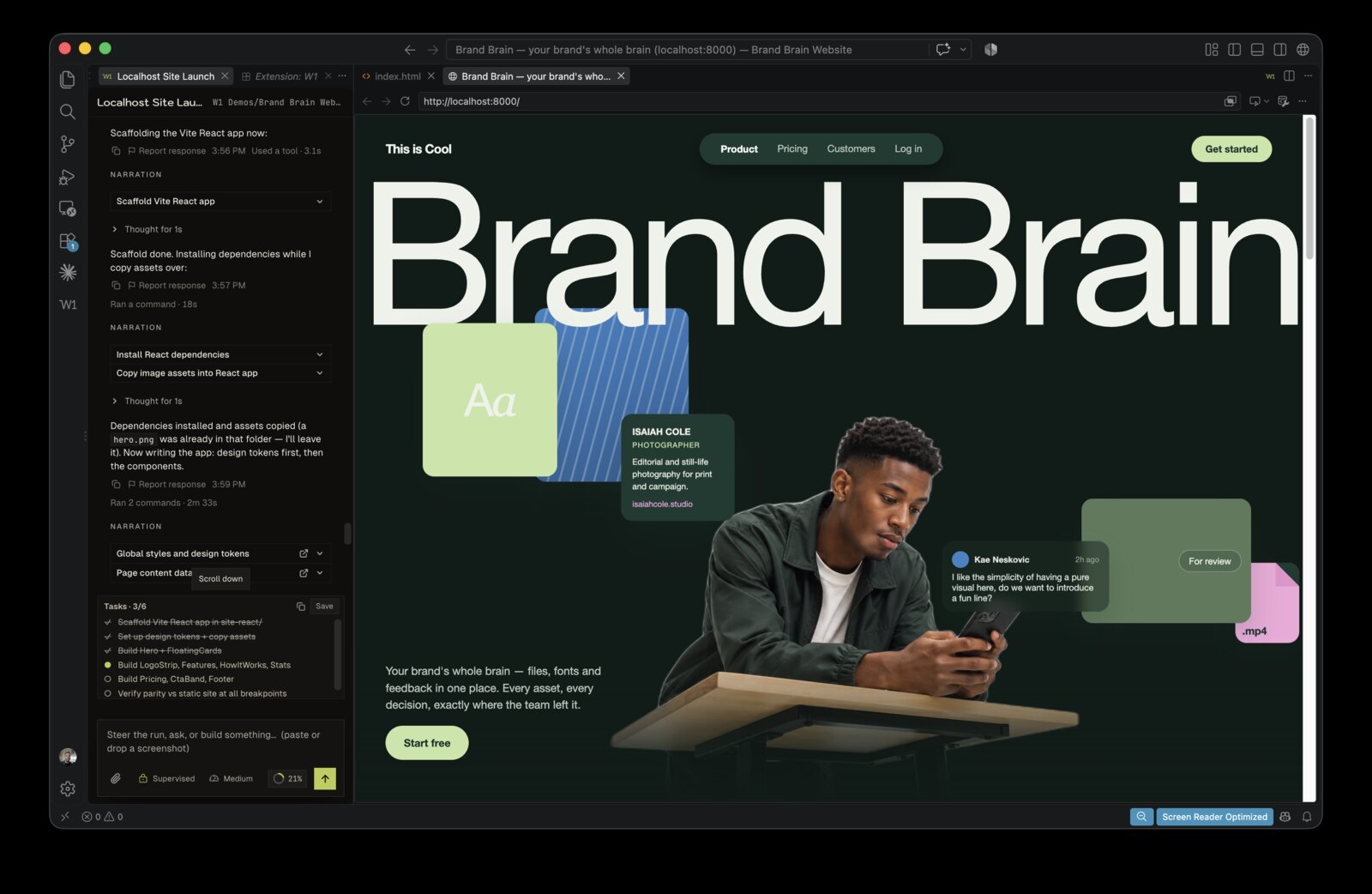
See W1 work
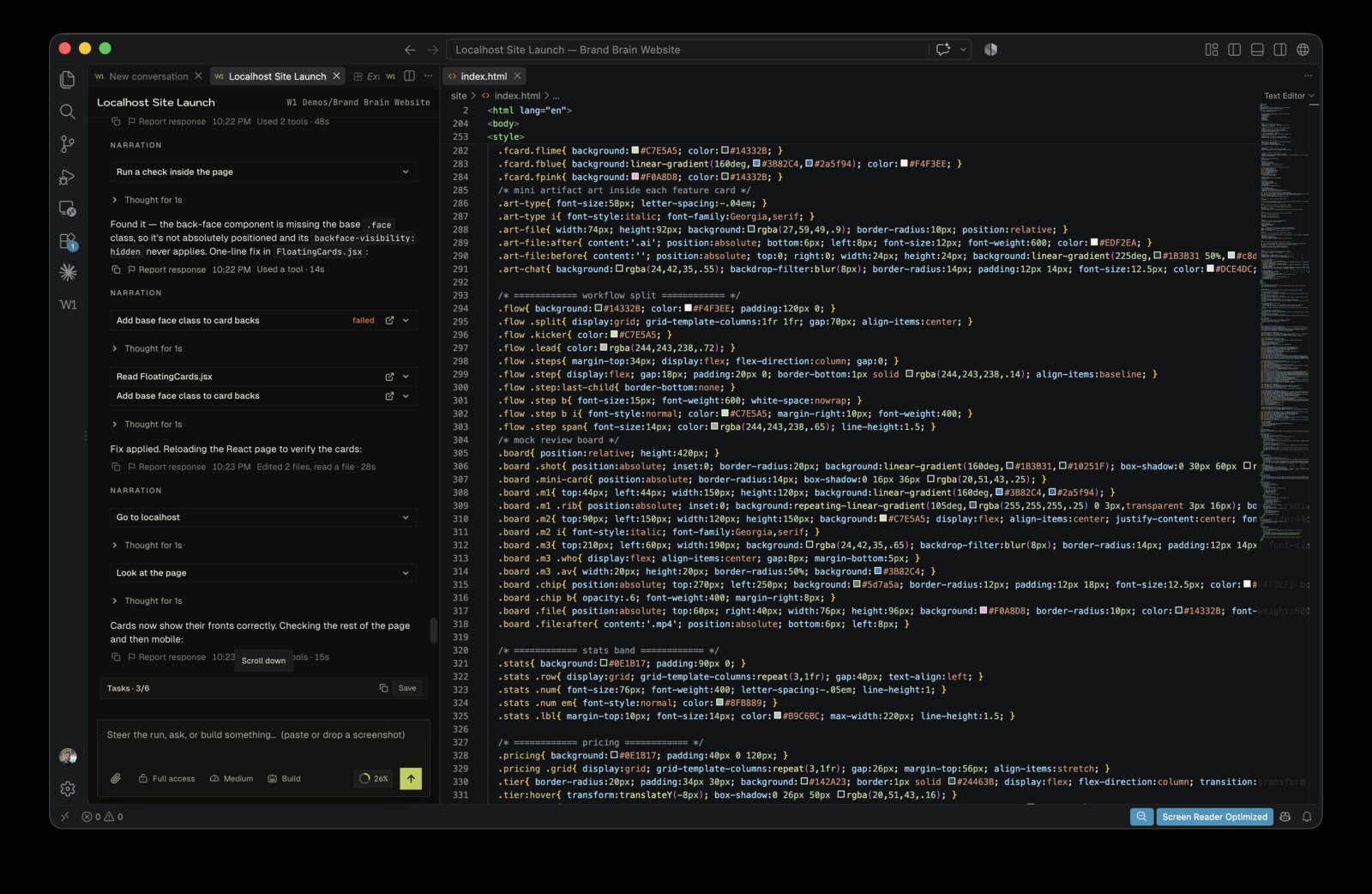 Every step it took is on the left, in the panel, where you can read it and stop it.
"Being able to have it work through a task, run checks, and report what happened makes it especially useful for larger projects."
— Takesure M. · VS Code Marketplace · ★★★★★
How it works
- Install W1 (you're here) and reload your editor.
- Click the W1 icon in the sidebar → Sign in.
- W1 walks you through setup once — your mark, your theme, what you're making, and how to write a brief that gets a good result. It ends in a real thread with your brief already sent.
- Describe the outcome. Watch the work happen, and keep what it ships.
💡 Have Node and git installed for best results — W1 can use your project commands when they are relevant — but it works without them.
Access modes
Every conversation carries an access level, and you can change it mid-thread:
- Supervised — W1 asks before it acts. Each request is a card: Allow, Allow for session, or Deny.
- Auto-accept edits — file edits go through; commands and anything reaching outside your machine still ask.
- Full access — W1 fetches, installs, pushes and deploys without stopping.
In every mode, W1 still asks before touching credentials, its own configuration, login items, system settings, payments or email. A session grant is exactly as wide as the card you approved, never wider, and approvals survive a reload.
Plan mode is a real read-only level: W1 investigates and writes a plan without changing anything.
Rewind puts a turn back, with a preview of exactly which files it will restore — so letting W1 run is not a one-way door.
What W1 does
- Builds — "add Google sign-in", "make a landing page for my app", "scaffold a REST API."
- Fixes & refactors — "find why checkout fails and fix it", "split this 800-line file into modules."
- Explains — ask how part of your codebase works; W1 reads it and tells you.
- Designs from images — paste or drop a screenshot and W1 builds to match.
- Checks its own work — opens a browser, clicks through what it just built, and reads the result back.
Every run happens in your real project, and you watch each step as it goes.
In the panel
- Chat tabs — conversations open as editor tabs, so several stay open side by side and come back after a reload. Prefer a single side panel? Turn
w1.chatTabs off.
- A context meter — see how full the window is, broken down by messages, tools, MCP tools, memory, skills and system prompt, alongside your usage for the week.
- Background servers — a dev server or watcher W1 starts survives the turn. W1 can list them, read their logs and stop them.
- Thinking level — low, medium or high, per thread.
- Light, dark, or match VS Code — W1's palette is its own, so a quoted prompt or a code block never comes out as an unreadable slab.
- Your plan — what you're on, and checkout as a link or a QR code, in W1's settings.
Why W1
- Just sign in — no keys, no model setup, no per-token billing to wire up.
- It owns the work — one actor decides when inspection, edits, commands, or tests are useful and reports the real results.
- Native actions — structured tool calls keep file contents and command arguments separate from narration.
- Stays out of your repo — W1 keeps its working files to itself; your codebase stays clean.
Checking its own work in a browser
When W1 builds something you can look at — a page, a dev server, a form — it opens a browser and
drives it: navigating, clicking, typing, scrolling, screenshotting, and reading the result back.
You do not have to set anything up.
Where that browser lives depends on your editor:
VS Code 1.136 or later, with W1 allowed to use the integrated browser — W1 drives the
editor's own browser tab, opened beside your code. Nothing is downloaded and no second
window appears. The integrated browser is still a VS Code proposed API, so it is available to an
extension only when the editor is started with the extension named explicitly:
code --enable-proposed-api w1.williams-one
Run that once (or add it to how you launch VS Code) and W1 uses the integrated browser from then
on. Until Microsoft adds W1 to the built-in allowlist, this flag is the only way to turn it on.
Everything else — W1 launches an installed Chrome, Edge, Brave, or Chromium in a profile of
its own (never your browser profile, never your cookies or logins) and drives that instead. This
is automatic, needs no flag, and is what you get on a normal install.
Either way the same tools do the same things; only the window differs. If no Chromium-based
browser is installed and the integrated one is unavailable, W1 says so plainly instead of
pretending it looked.
Privacy
W1 runs on a hosted backend, so the request and bounded context required for inference leave your machine. Full traces stay local by default:
- Run traces — full traces are written to
~/.w1/userdata/workspaces/<folder>-<hash>/runs/ (keyed by a hash of the project path), readable only by you, and stay local by default. They never upload command lines or file bodies.
- Usage analytics — structural fields such as tokens, latency, exact status, tool names/counts, command verbs, file extensions, and hashed IDs. No prompts, code, paths, command strings, model output, or tool observations are sent to PostHog.
- Set VS Code's
telemetry.telemetryLevel to off to disable both.
Full policy: app.w1lab.com/privacy
Settings
W1's settings live in W1, not in VS Code's Settings UI — theme, narration, telemetry, default access level, thinking level, time format and confirmations are all in the W1 sidebar. Click your name or picture to open them.
One key stays in VS Code's Settings, because it changes how the editor itself behaves:
| Setting |
What it does |
w1.chatTabs |
Conversations open in editor tabs and the side panel lists them (default on). Turn off to keep everything in the side panel. |
Made for builders. Get W1 →

