Obsidian-style Markdown Editor for VS Code




Obsidian-like Markdown editing, wherever your code already lives.
Open any .md file as a polished live document—without moving it into a vault, leaving VS Code, or keeping a preview pane beside your source. Read and edit AI-generated documentation, LaTeX equations, Mermaid diagrams, tables, images, and rich Markdown in one focused workspace on desktop, over a remote connection, or in vscode.dev.
Official Documentation · Install from the VS Code Marketplace · Rate the extension · View the source
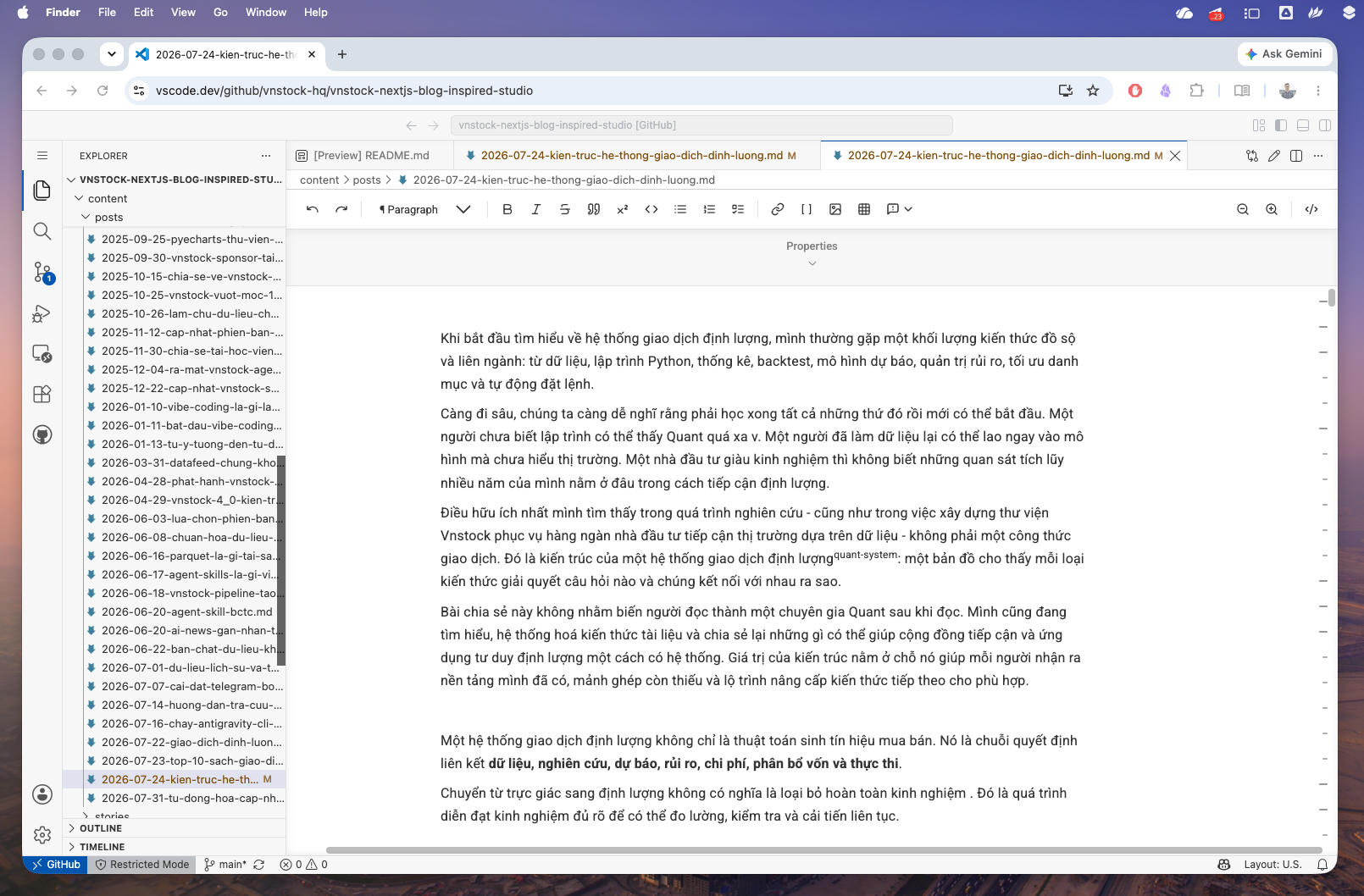
Markdown should not need a special home
Your Markdown already lives beside your code, research, project notes, and AI conversations. This extension lets it stay there while giving you the kind of reading and editing experience normally associated with a dedicated knowledge app:
- Stay in context: edit the rendered document directly, then switch to source whenever syntax-level control matters.
- Make technical Markdown readable: render math, Mermaid, code, tables, callouts, footnotes, and HTML instead of mentally parsing raw syntax.
- Close the AI review loop: select an excerpt, annotate it, copy it as rich text, or send it back to an AI agent as focused context.
- Work from almost anywhere: use the same web-first extension architecture in local VS Code, remote workspaces, and
vscode.dev.
Why I built this
I have used Obsidian since 2020, and its Markdown writing experience is still one of the best I know. But opening a standalone document has always meant opening or creating a Vault, then setting up the familiar environment again. That friction feels increasingly out of place when development can happen in any repository, on a remote machine, or directly in a browser.
Markdown has changed too. More of it is now co-written with AI—especially technical documents containing equations, diagrams, tables, and code. The bottleneck is often no longer typing the syntax. It is reading the result comfortably, checking it carefully, adding notes, selecting the exact context an agent needs, and moving between human judgment and AI-assisted revision without breaking flow.
I could not find a VS Code extension that made that entire experience feel complete, so I built the editor I wanted to use: the parts of Obsidian I love, inside the workspace where the work is already happening, with an architecture that can also run in the browser. This is an open-source project for developers, researchers, technical writers, and anyone else who wants Markdown in VS Code to feel like a first-class document—not a source file with a preview attached.
What you can do
Write in the document, not beside it
- Edit formatted Markdown directly with a Milkdown-powered live editor—no split preview required.
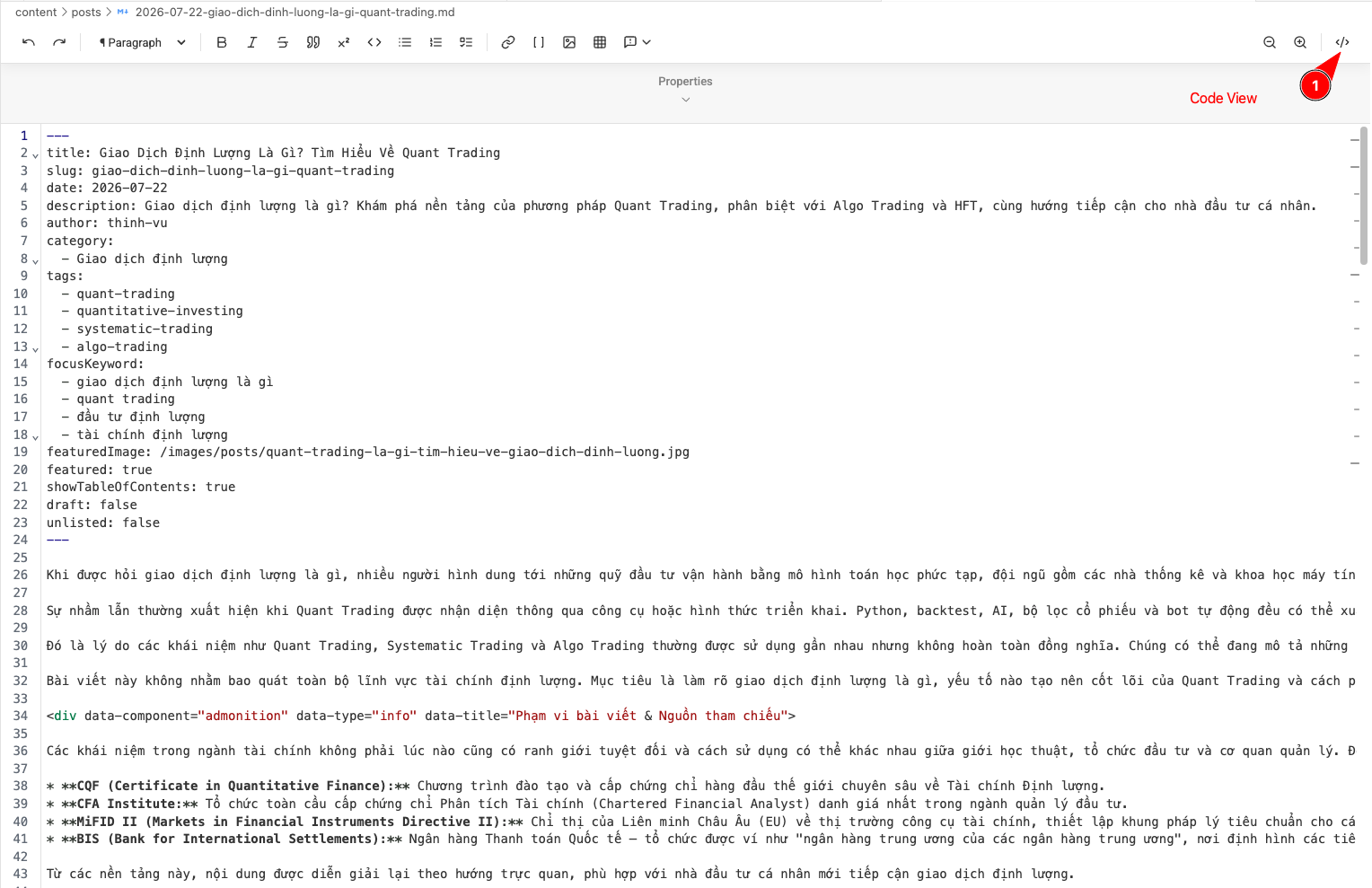
- Switch to a CodeMirror 6 source editor when you need full Markdown control; both views stay connected to the same VS Code document and preserve your relative reading position.
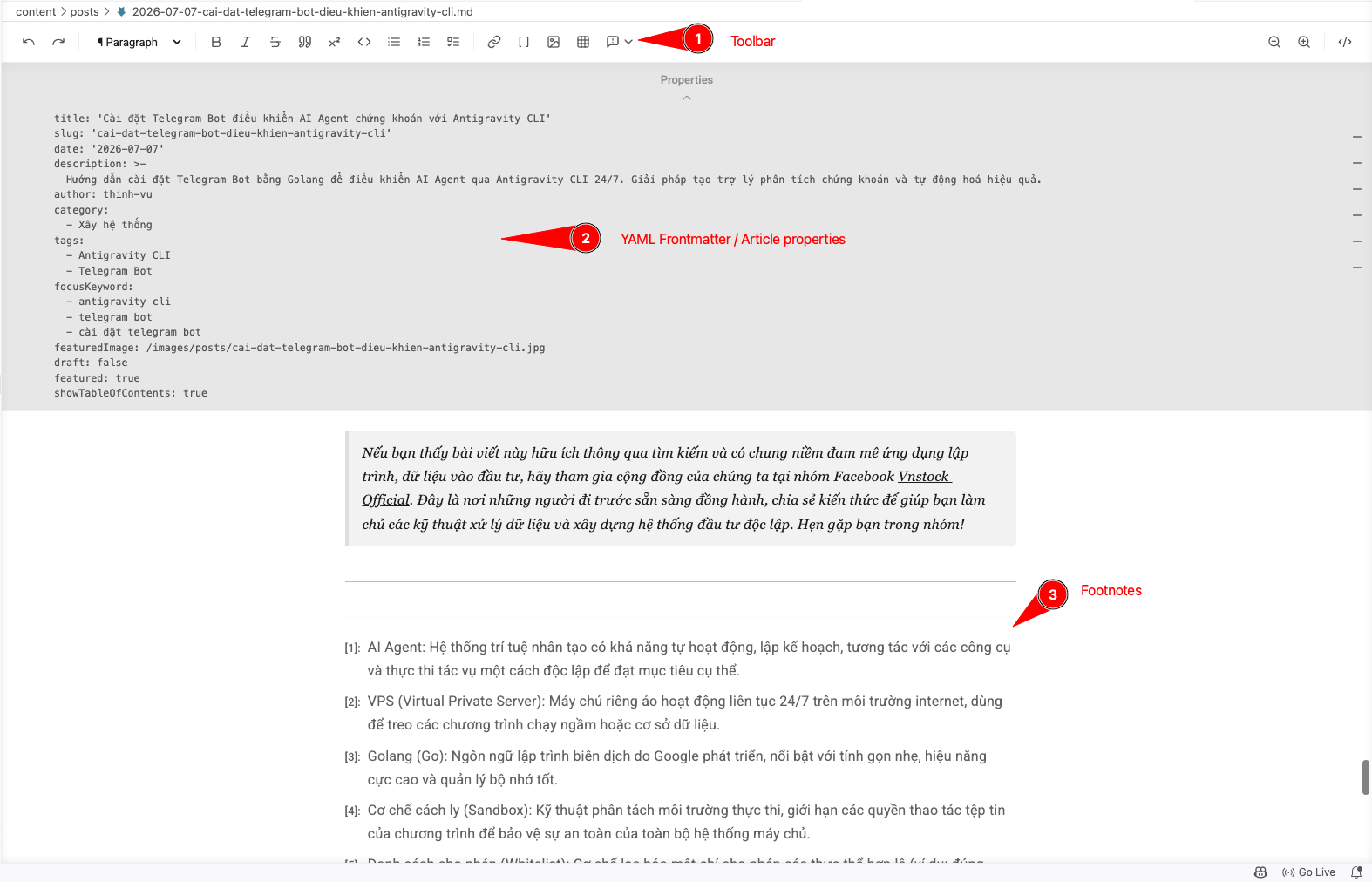
- Use the sticky formatting toolbar, undo/redo history, zoom controls, keyboard shortcuts, or a searchable
/ command menu.
- Find and replace inside the visual editor, including match case, previous/next result, and replace all.
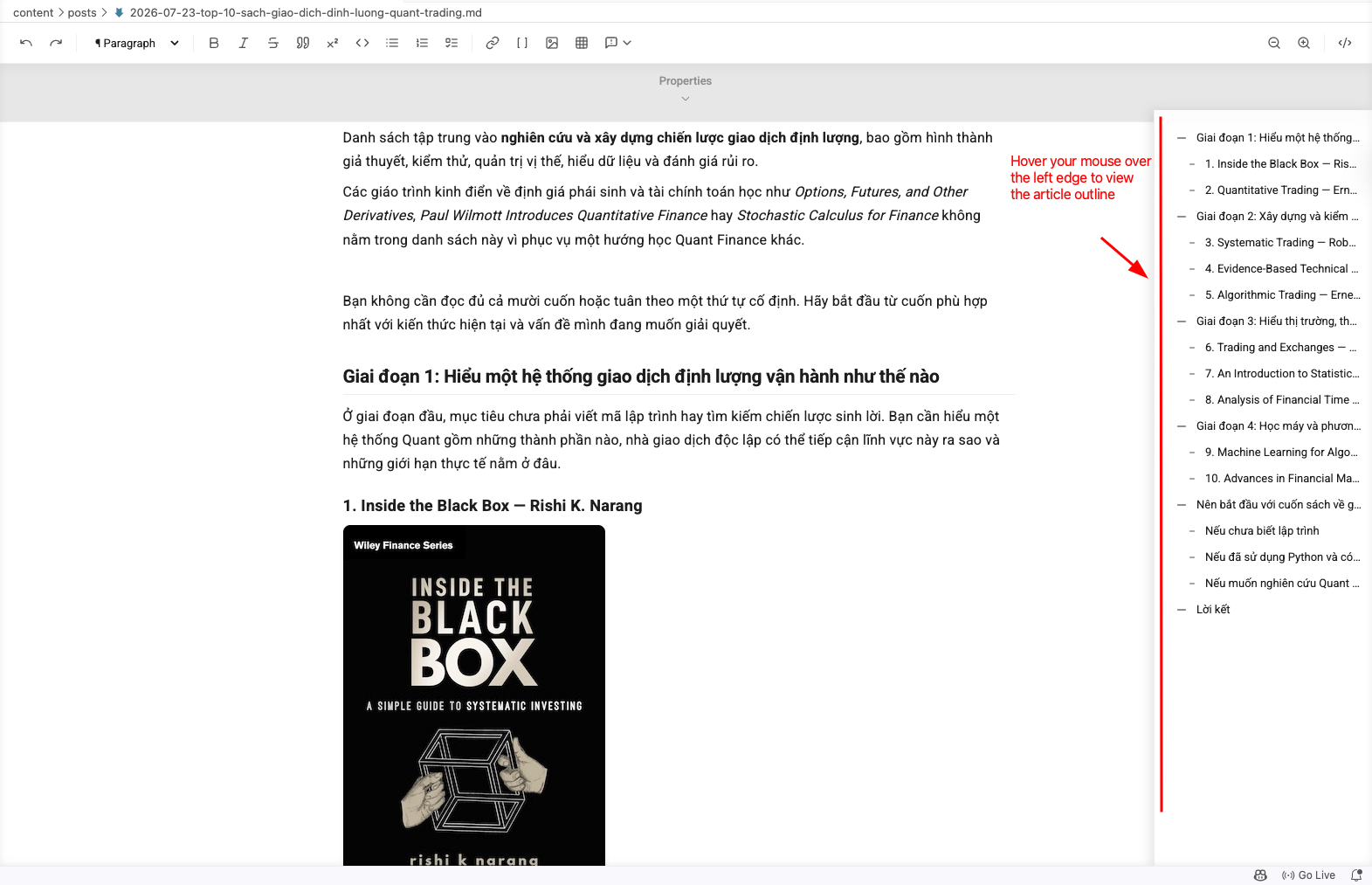
- Navigate long documents from a compact H1–H4 flyout outline.
- Edit YAML frontmatter through a collapsible Properties panel.
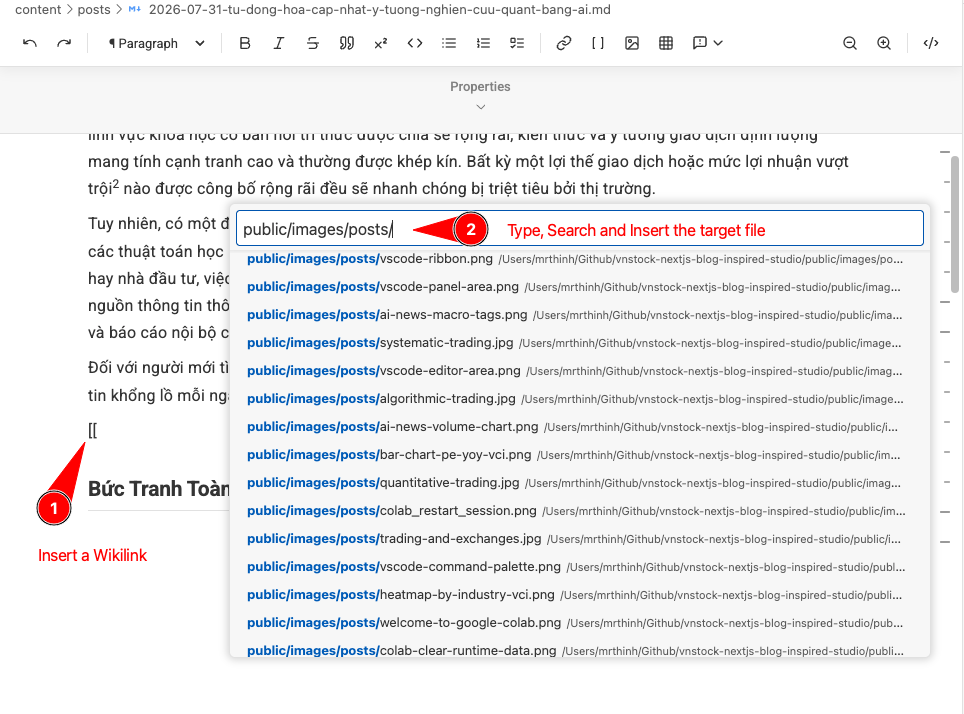
- Type
[[ to search workspace files and insert a relative Markdown link or image embed. Clicking a wikilink will open the corresponding file directly.
- Follow local links inside VS Code while opening web and email links in their appropriate external apps.
- Generate a table of contents from the document headings and copy the rendered document as rich text.
See the live editor, source mode, toolbar, outline, and wikilinks

Read technical Markdown as a finished document
- Render inline and block LaTeX math with KaTeX.
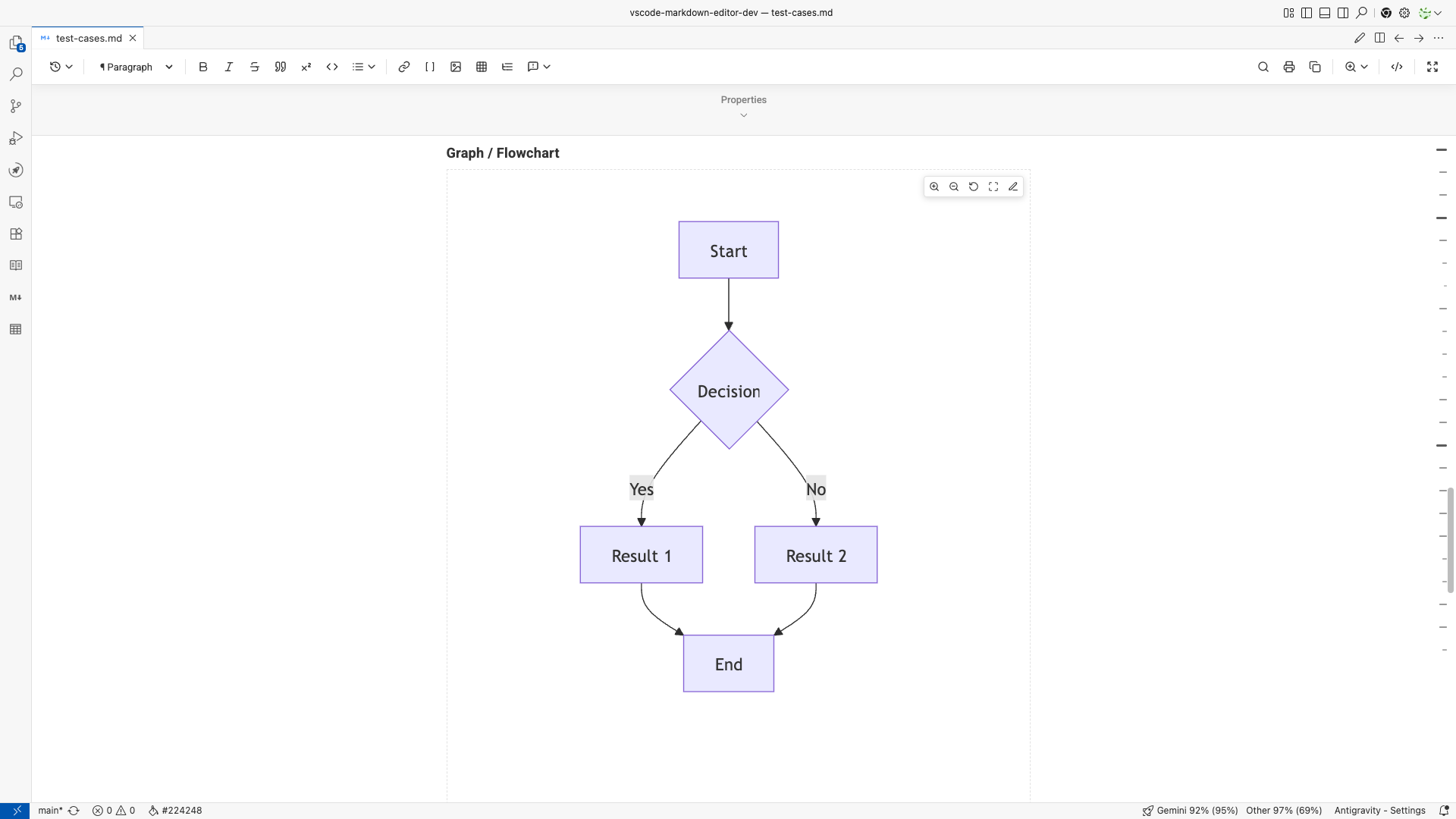
- Preview Mermaid diagrams in place and double-click a diagram to edit its source.
- Display syntax-highlighted code blocks with Prism.
- Embed other Markdown files seamlessly using
![[file]] syntax, accurately parsed by marked.js.
- Work with GitHub-Flavored Markdown: tables, task lists, strikethrough, and more.
- Add footnotes, hashtags, and Obsidian/GitHub-style admonitions for notes, tips, warnings, important information, and cautions.
- Render inline HTML, including interactive
<details> and <summary> sections.
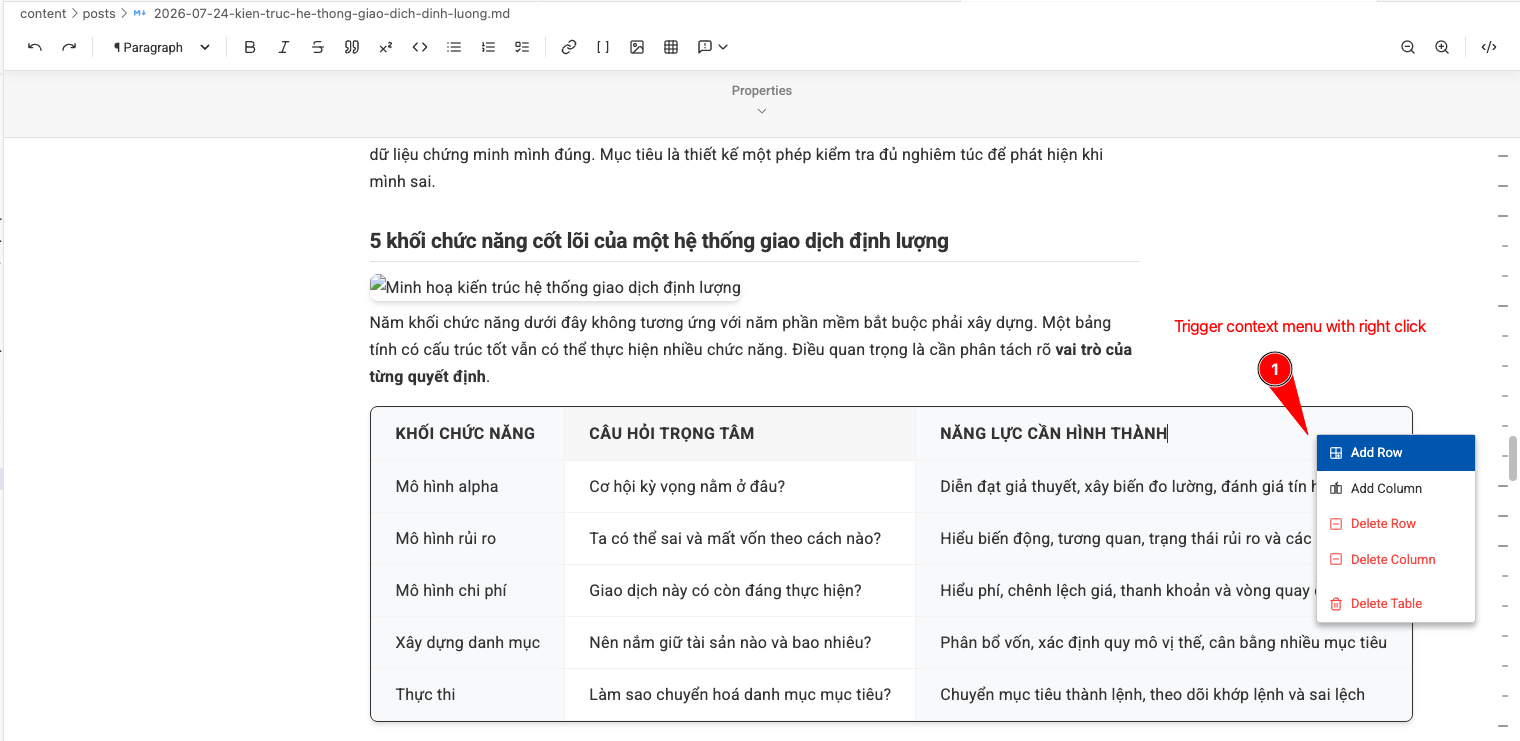
- Insert tables at custom dimensions, then add or remove rows and columns from the context menu.
- Choose whether wide tables scroll horizontally or wrap to the document width.
See technical Markdown and table editing
Explore note relationships with Graph View
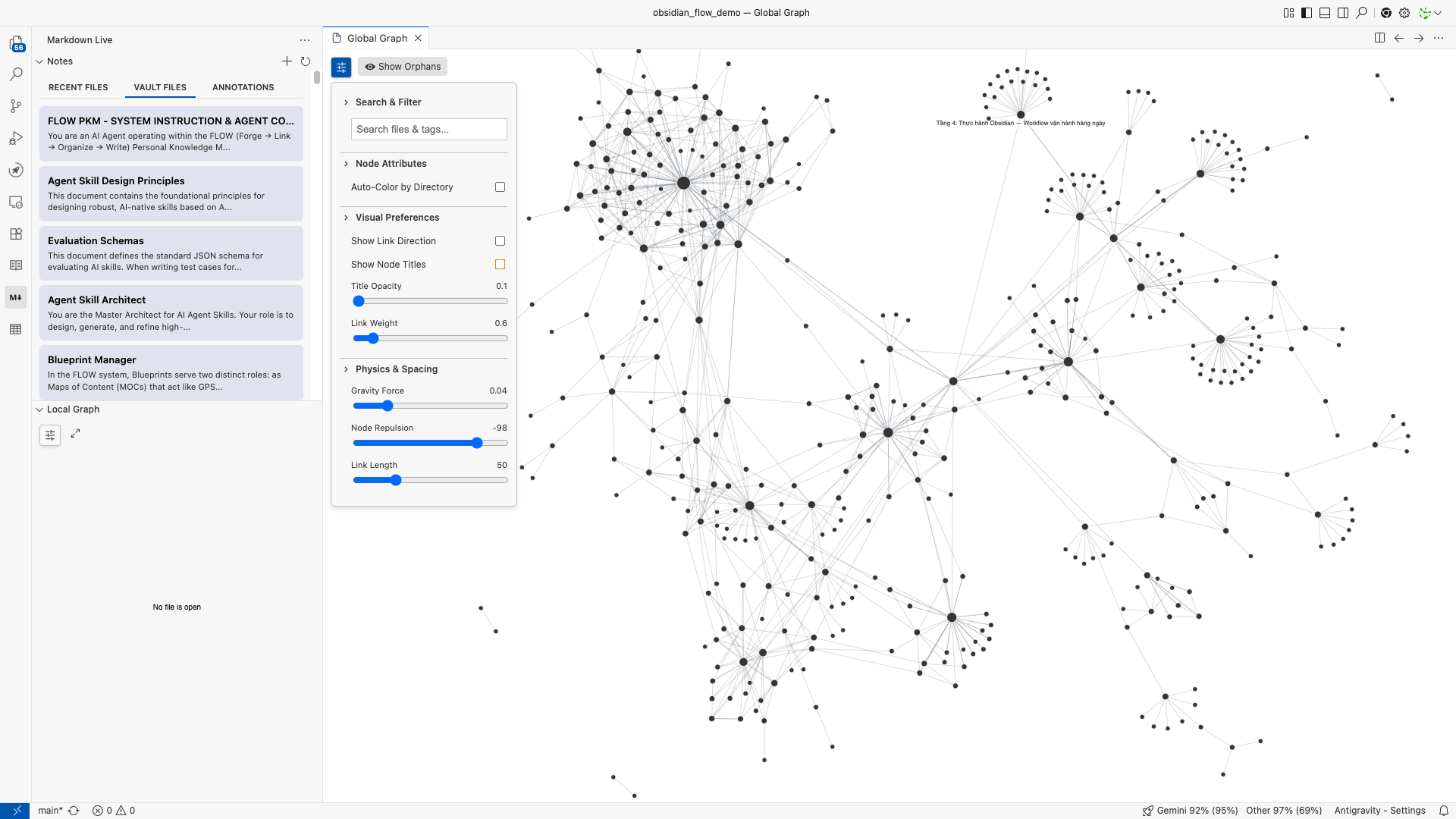
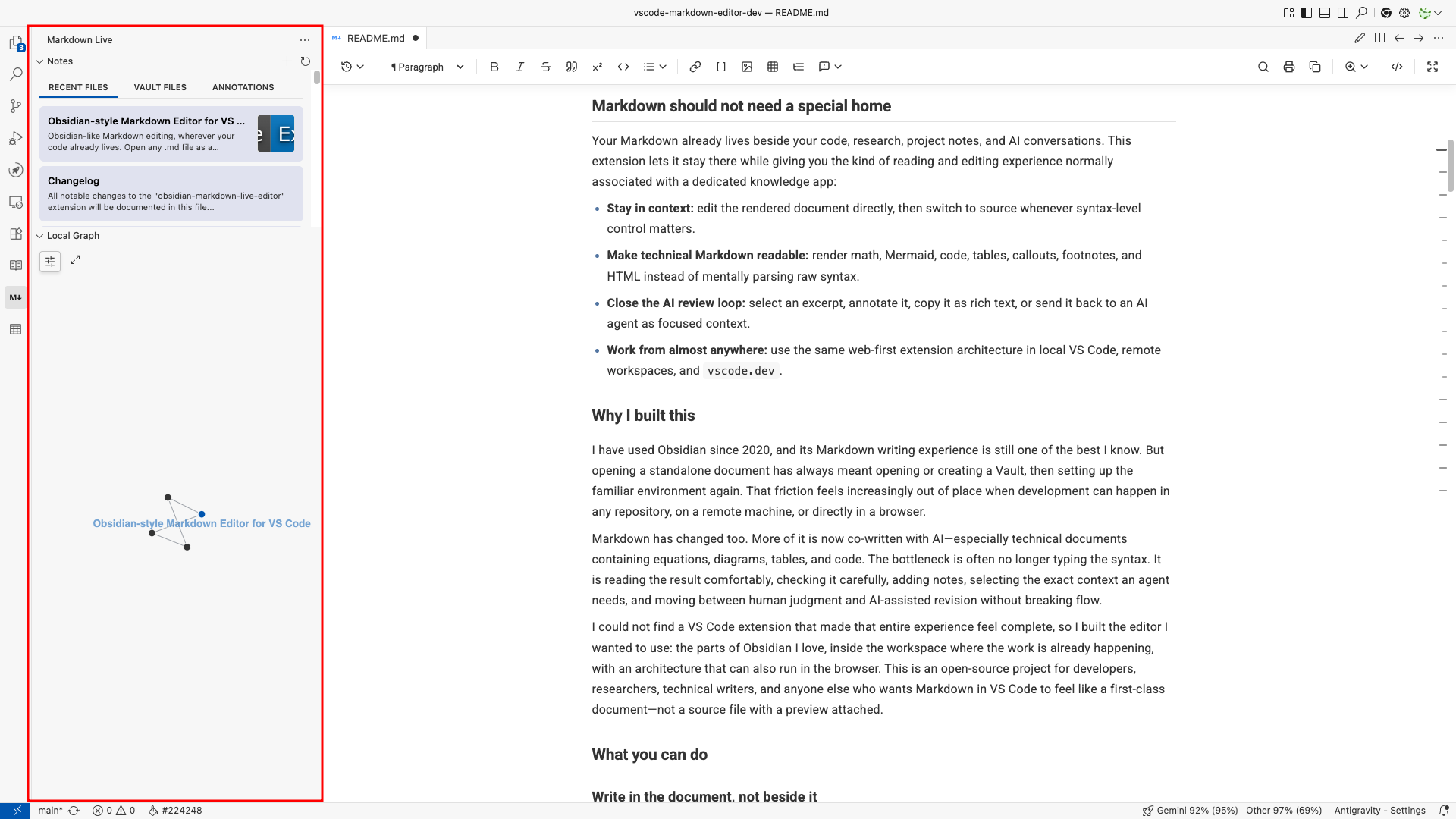
Graph View turns the Markdown files in your workspace into an interactive map while keeping the current document in focus:
- Global Graph: Run Markdown Live: Show Global Graph from the Command Palette, or use the expand button in Local Graph. It maps relationships across all Markdown files found by
markdownLive.sidebarScanDirectory (the whole workspace by default), independently of which note is open.
- Local Graph: Open a
.md file in the Markdown Live Editor and use the Local Graph panel in the Markdown Live sidebar. The center node is the active note; connected notes are discovered through both backlinks and outgoing links up to markdownLive.graphDepth.
- Explore interactively: Drag nodes, zoom and pan, search filenames or
#tags, show directional arrows, reveal node titles, color nodes by folder, and tune the layout from Graph Settings. Global Graph can also show disconnected notes with Show Orphans.
- Readable node labels: When available, graph nodes use a YAML
title or the first level-one heading instead of the raw filename. YAML color values can provide explicit node colors.
The Local Graph stays intentionally focused: switching tabs changes its center and removes unrelated notes. Use Global Graph when you want the complete workspace-wide relationship map.
Review and revise with AI
- Select text and choose Send to AI Context, or press
Cmd + Shift + L / Ctrl + Shift + L, to send only the relevant excerpt to an Antigravity AI Agent.
- When the Antigravity command is unavailable, the extension falls back to the VS Code Chat/clipboard workflow so the selection is still ready to use.
- Select any passage and choose Add Annotation to attach a review note without changing the Markdown itself.
- Browse saved excerpts and their notes from the Annotations tab in the Markdown Live sidebar.
- Keep the live document open while an agent edits the underlying file; changes applied to the VS Code document refresh back into the rendered view.
- Copy the rendered document as both HTML and plain text for pasting into chat, email, documents, or other tools.
Keep images and notes organized
- Paste or drop an image into the editor and save it automatically to a configurable workspace folder.
- Generate a correct relative Markdown path from the current document to the saved image.
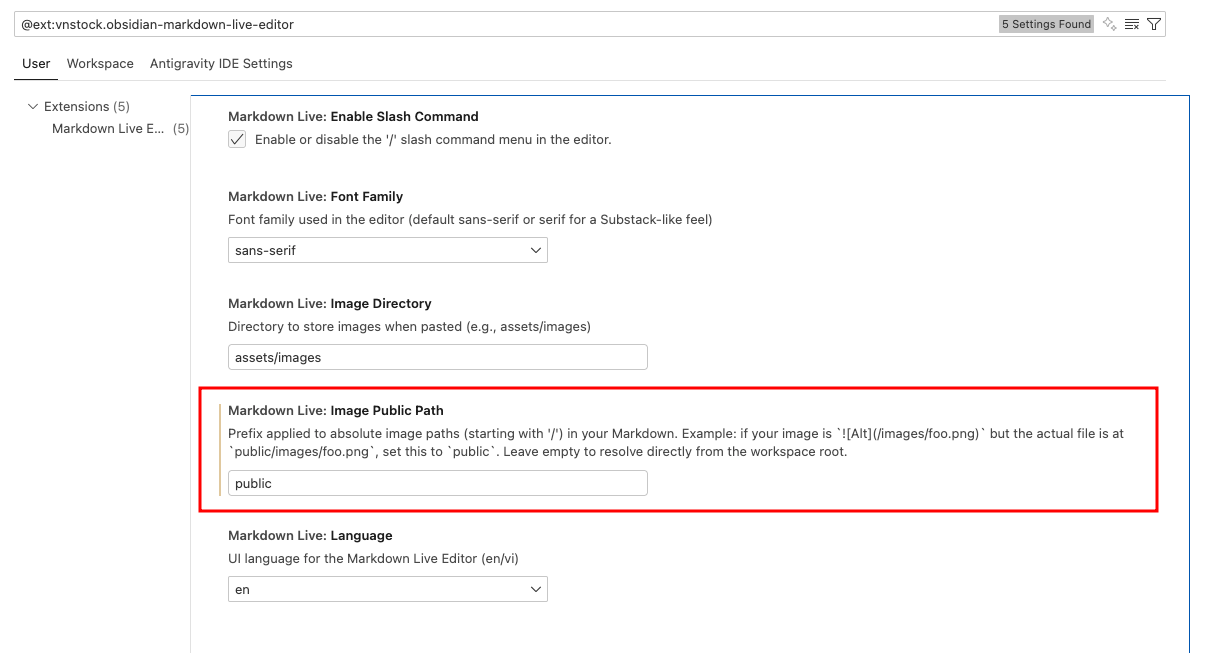
- Map clean root-relative paths such as
/images/chart.png to physical folders such as public/images/chart.png—useful for Next.js, Vite, and documentation sites.
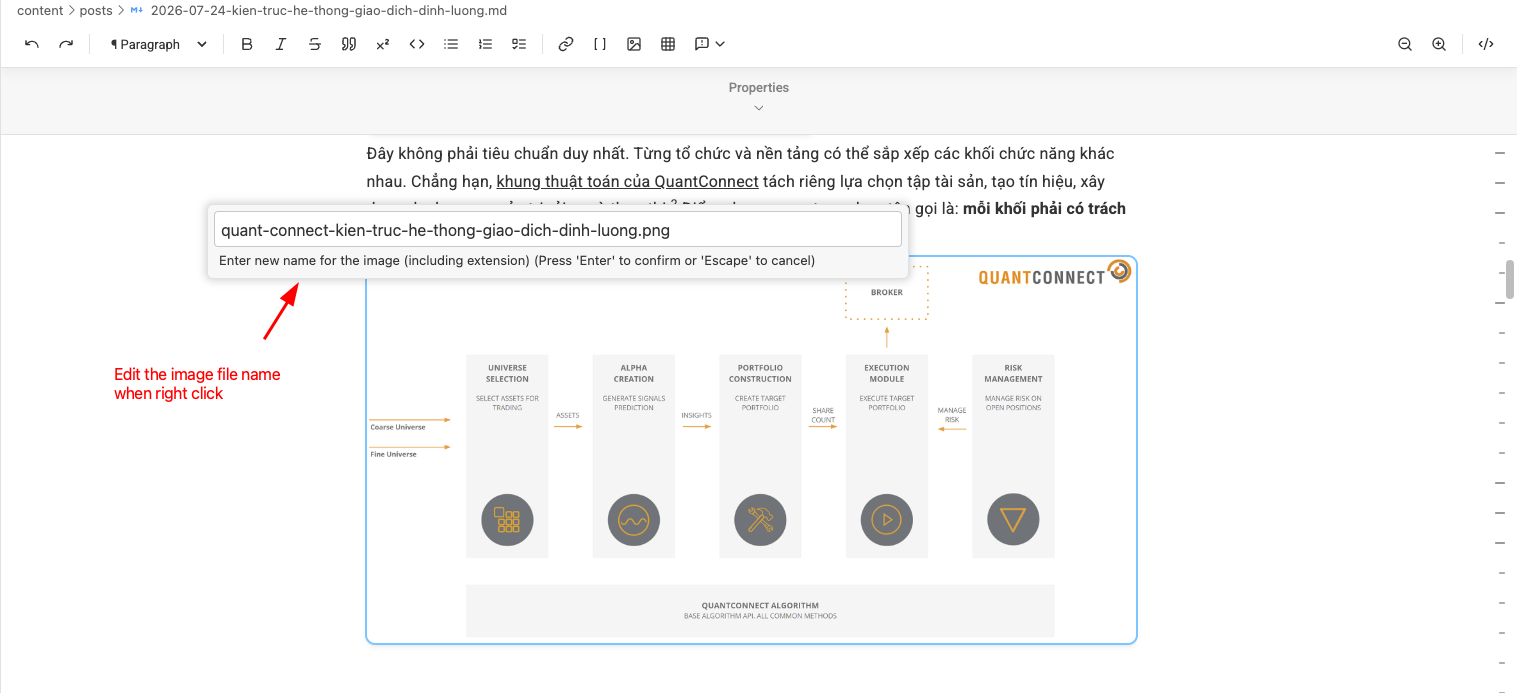
- Rename or delete a local image from the editor context menu, allowing you to manage files without opening the VS Code Explorer.
- When deleting a Markdown file, review its referenced local assets and optionally move selected files to the trash.
- Browse Markdown files in a dedicated sidebar with Recent Files, Vault Files, and Annotations tabs, including text previews and image thumbnails.
- Track your document's connections in real-time with the dedicated Links tree view section, showing both Incoming and Outgoing links for the active file.
- Persistent Link Indexing: Automatically builds and saves a local database of all workspace links (
.vscode/markdown-live-index.json). This ensures that graphs and backlinks load instantly, even on low-power devices when running VS Code for the Web (vscode.dev).
- Limit sidebar scanning to a chosen notes directory, create a new note, or create one from a template.
See image and workspace tools
Reuse templates and create print-ready output
- Insert a Markdown template from a workspace folder with
Cmd/Ctrl + Shift + E or the Markdown Live: Insert Template command.
- Resolve
<% tp.file.title %> and <% tp.date.now(...) %> placeholders when inserting a template into the active document.
- Create new notes from sidebar templates and replace the
{{title}} placeholder with the new note name.
- Open a print-ready browser preview powered by Paged.js, then print or save it as PDF.
- Configure A4 headers, footers, page numbers, print fonts, YAML-based variables, and an optional generated table of contents.
Keep native VS Code workflows close
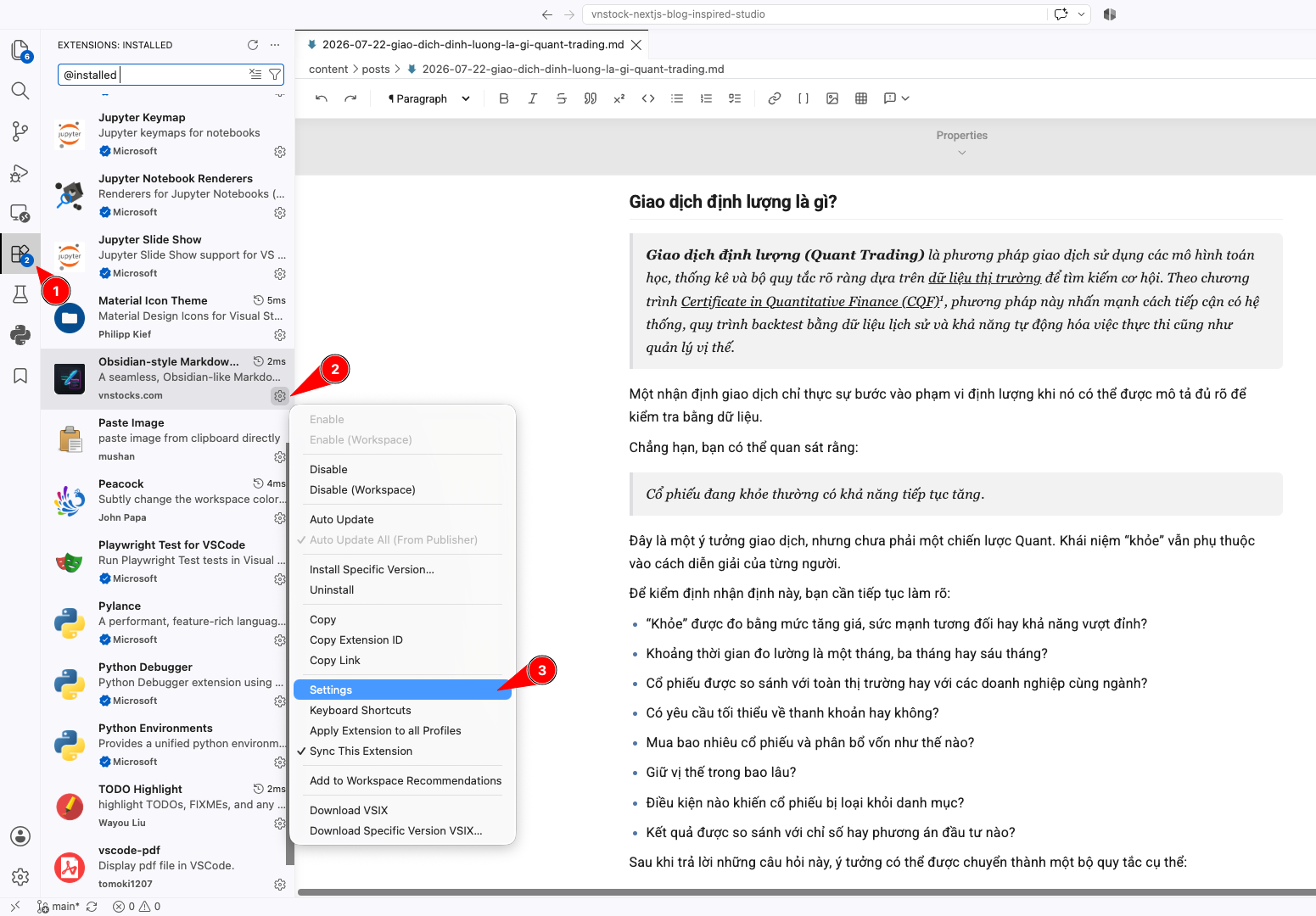
The Live Editor is an optional custom editor, so VS Code's native text editor and Git diff remain available. Open a file from the Explorer context menu when you want the visual experience, and use the toolbar button to return to raw text at any time.
The extension is bundled as a VS Code Web Extension and uses browser-compatible APIs for workspace files and binary data. That is what allows the same core editor to work in desktop VS Code, remote environments, and vscode.dev without requiring Node.js in the webview.
Getting started
📖 Read the Official Documentation for a comprehensive guide on features, configuration, and advanced usage.
- Install Obsidian-style Markdown Editor from the VS Code Marketplace.
- Open a Markdown file.
- Launch the Live Editor in any of these ways:
- Press
Cmd + Ctrl + Shift + M on macOS or Ctrl + Alt + Shift + M on Windows/Linux.
- Right-click a
.md file in Explorer and choose Open in Markdown Live Editor.
- Open the raw Markdown file and click the Edit icon in the editor title bar.
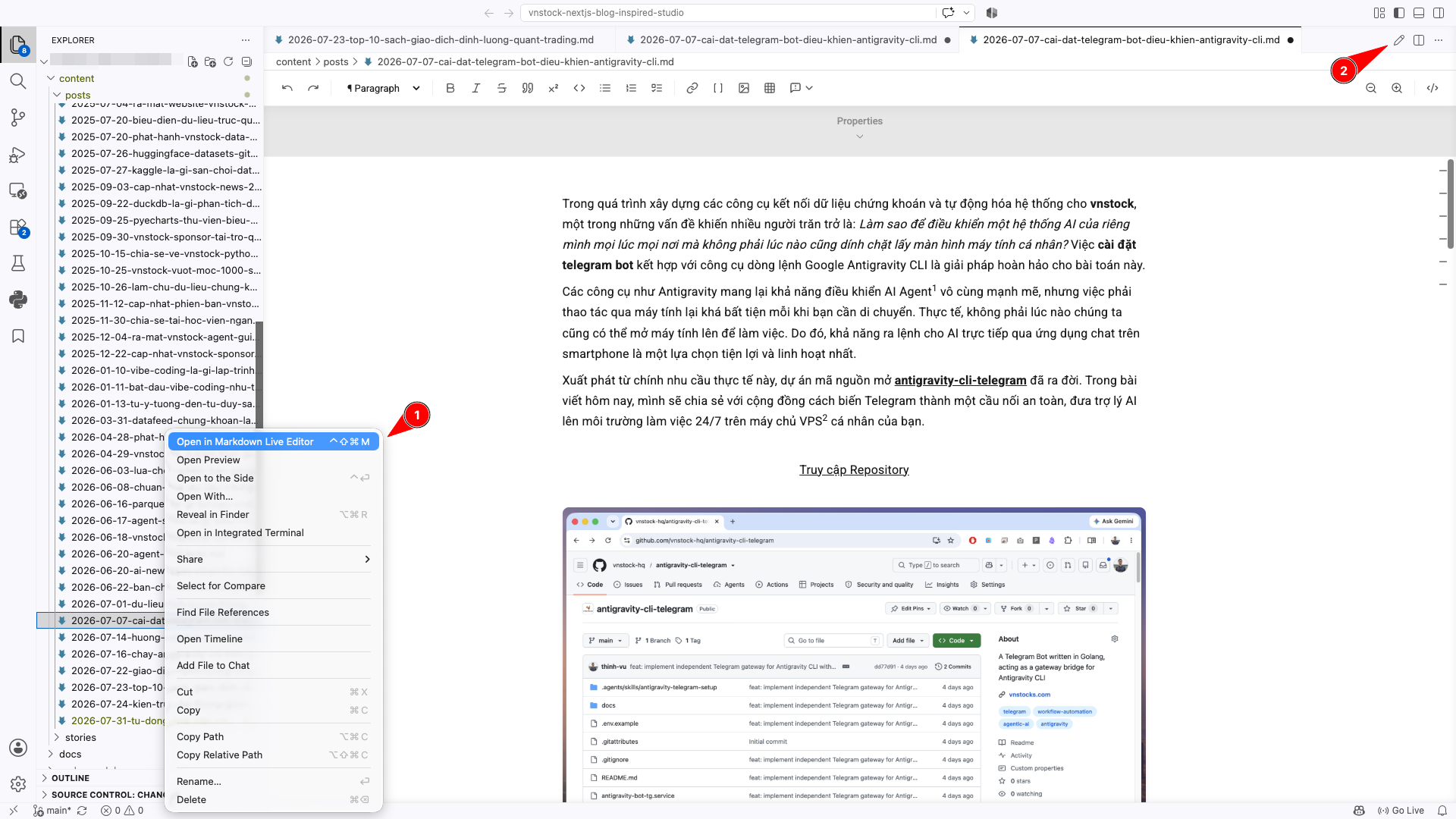
Image paste/drop, templates, note creation, the sidebar, and other workspace-aware features require an open folder or workspace. Basic document editing can still be used without configuring a Vault.
Keyboard shortcuts
| Action |
macOS |
Windows/Linux |
| Open Live Editor |
Cmd + Ctrl + Shift + M |
Ctrl + Alt + Shift + M |
| Send selection to AI Context |
Cmd + Shift + L |
Ctrl + Shift + L |
| Insert template |
Cmd + Shift + E |
Ctrl + Shift + E |
| Insert link |
Cmd + K |
Ctrl + K |
| Insert table |
Cmd + Option + T |
Ctrl + Shift + T |
| Insert code block |
Cmd + Option + C |
Ctrl + Shift + C |
| Insert blockquote |
Cmd + Option + Q |
Ctrl + Shift + Q |
| Insert image |
Cmd + Option + I |
Ctrl + Shift + I |
| Toggle bold |
Cmd + Option + B |
Ctrl + Shift + B |
| Toggle italic |
Cmd + I |
Ctrl + I |
| Insert heading 1–6 |
Cmd + Option + 1–6 |
Ctrl + Shift + 1–6 |
Configuration
Search for Markdown Live in VS Code Settings to customize the editor.
| Setting |
Default |
What it controls |
markdownLive.language |
en |
UI language: English or Vietnamese |
markdownLive.fontFamily |
sans-serif |
Sans-serif or serif editor typography |
markdownLive.enableSlashCommand |
true |
Enables the / quick-insert menu |
markdownLive.tableDisplayMode |
scroll |
Horizontal scrolling or wrapped wide tables |
markdownLive.defaultNoteDirectory |
workspace root |
Folder used for new notes |
markdownLive.sidebarScanDirectory |
entire workspace |
Folder shown in the Markdown Live sidebar |
markdownLive.templateFolder |
disabled |
Workspace folder containing Markdown templates |
markdownLive.imageDirectory |
assets/images |
Folder used for pasted and dropped images |
markdownLive.imagePublicPath |
empty |
Physical prefix for root-relative image paths |
markdownLive.enableGraphView |
true |
Enables the Local Graph sidebar view |
markdownLive.graphDepth |
2 |
Link hops followed by Local Graph |
markdownLive.printHeaderFormat |
{title} |
Print header, including YAML variables |
markdownLive.printFooterFormat |
{signature} |
Print footer, including YAML variables |
markdownLive.printPageNumberFormat |
{page} |
Print page numbering; empty disables it |
markdownLive.printFontFamily |
editor default |
Custom font used for print/PDF output |
markdownLive.printAutoTOC |
false |
Adds a generated table of contents to print output |
Help this project reach more Markdown users
If this extension makes your work more comfortable, please leave a rating or short review on the Marketplace. It is a small action, but it gives an independent open-source project the visibility it needs and helps more people discover a complete Markdown workflow inside VS Code.
You can also star the repository, report a bug, request a feature, or contribute a pull request. Feedback from real documents and real workflows is especially valuable.
Credits

Vnstock provides both open-source tools for the community and premium memberships featuring advanced libraries and features, serving a vibe coding experience for quantitative stock market analysis and trading with a focus on the Vietnam market.
Write where your work already lives.
| |

