
Vinkius MCP CatalogBrowse, install, and manage MCP servers across Claude, Cursor, Copilot, Windsurf, and 12+ AI clients from a single sidebar. The unified MCP control surface for your IDE. Installation Launch VS Code Quick Open ( Ctrl+P), paste the following command, and press enter.Copied to clipboard |

Vinkius MCP CatalogYour MCP servers. Every AI client. One click.
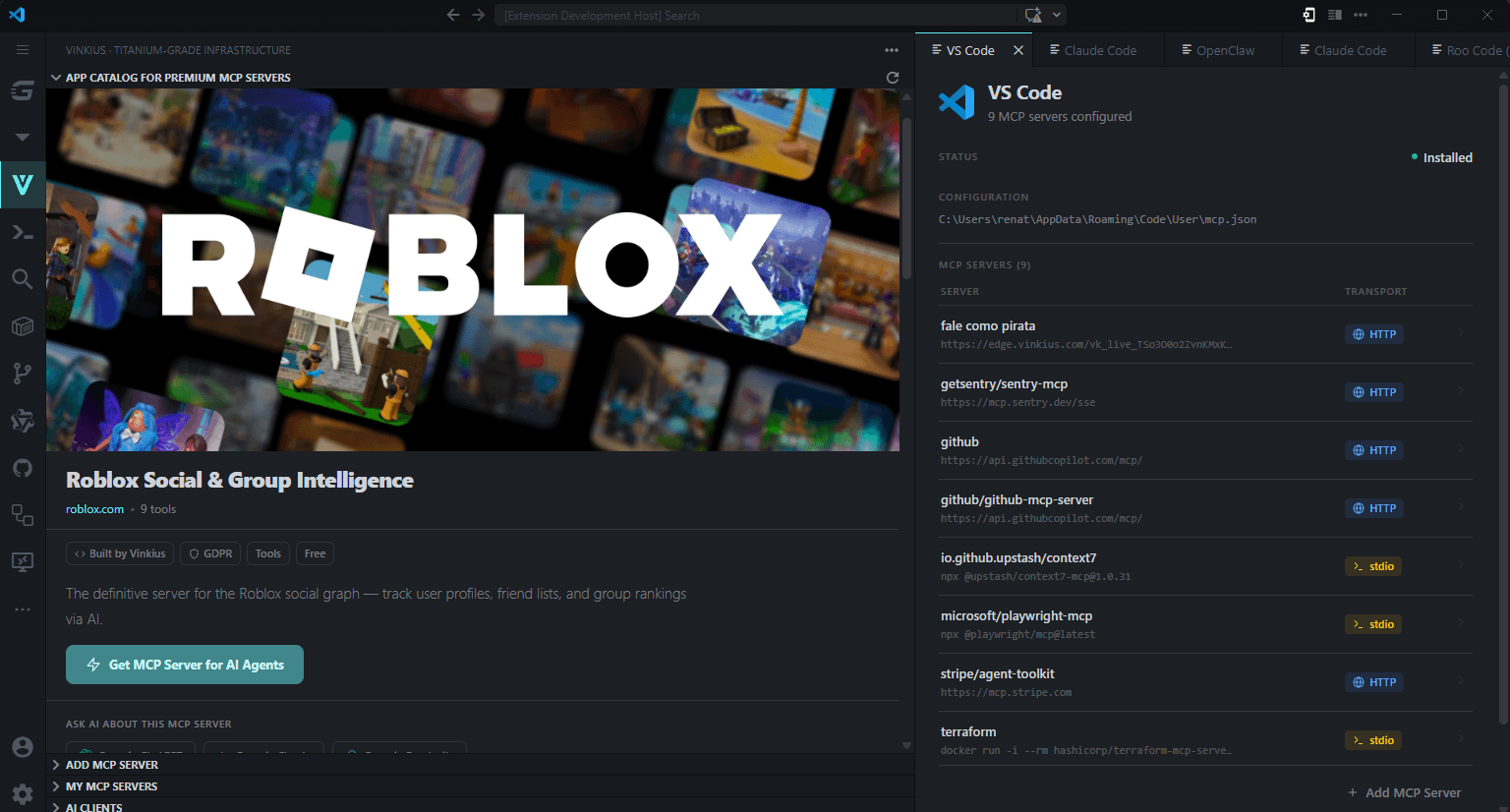
You have Claude Desktop, Cursor, Copilot, Windsurf, VS Code, Gemini CLI, Cline — each one with its own MCP config file, its own JSON schema, scattered across your filesystem. You install a server in Cursor. Then you do it again for Claude. Again for Copilot. Again for Windsurf. Different keys, different paths, different formats. Every. Single. Time. Vinkius MCP Catalog sees all of them. One sidebar. One control surface. Every MCP server and every AI client on your machine — managed from your editor. My MCP Servers — the view no one else has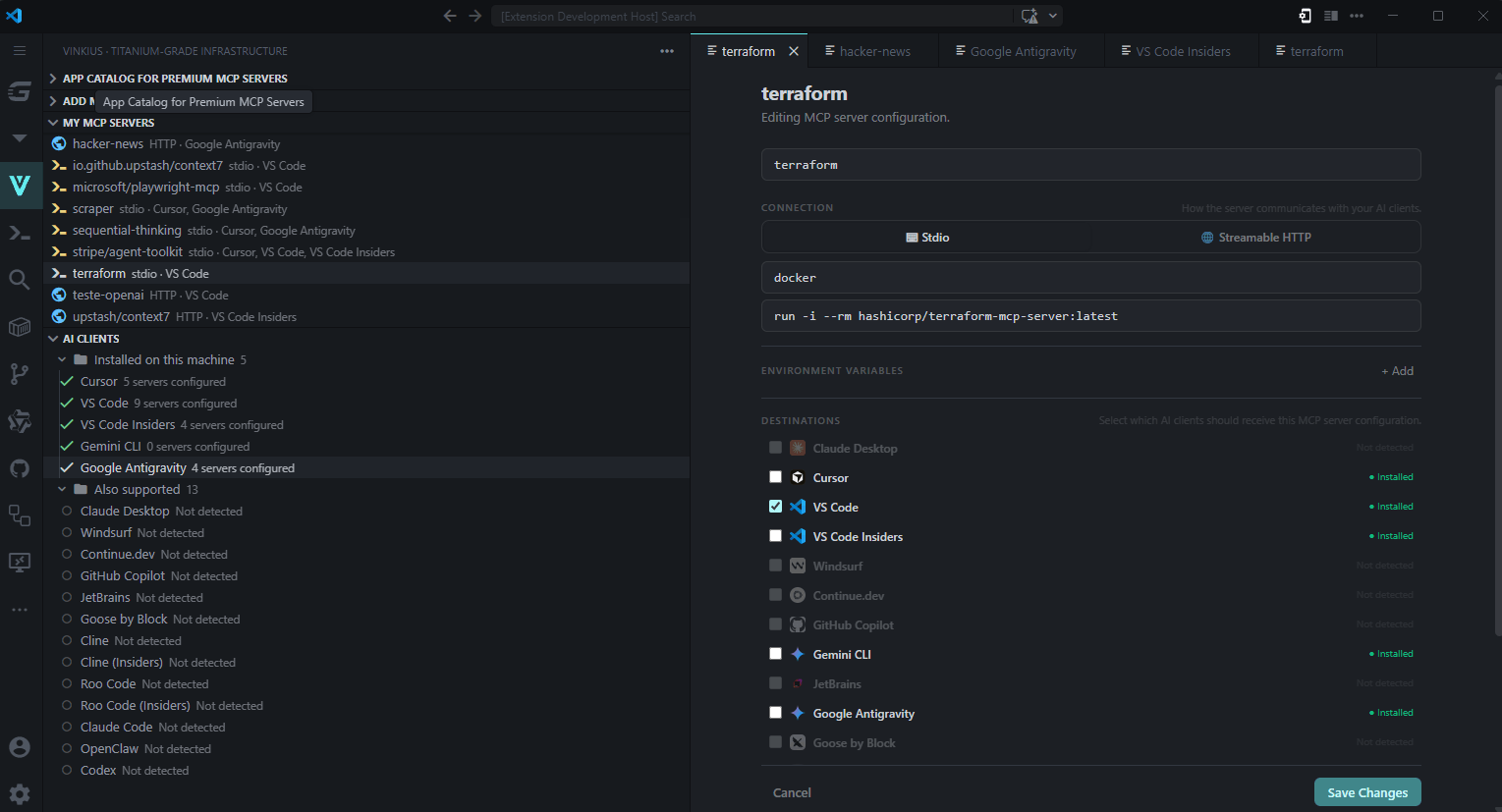
Other extensions let you add a server. Vinkius MCP Catalog shows you every MCP server already configured on your machine — across every AI client simultaneously. Open the My MCP Servers panel and you see the complete picture:
Every server. Every client. One unified list. Click any server and its full detail panel opens: transport type, connection string, environment variables (masked by default), and exactly which clients have it installed. No more digging through Hit Edit and you can modify the configuration, change the transport, update environment variables, and add or remove the server from specific clients — all at once. Save, and every selected client receives the updated config in the exact format it expects. AI Clients — your entire MCP ecosystem at a glance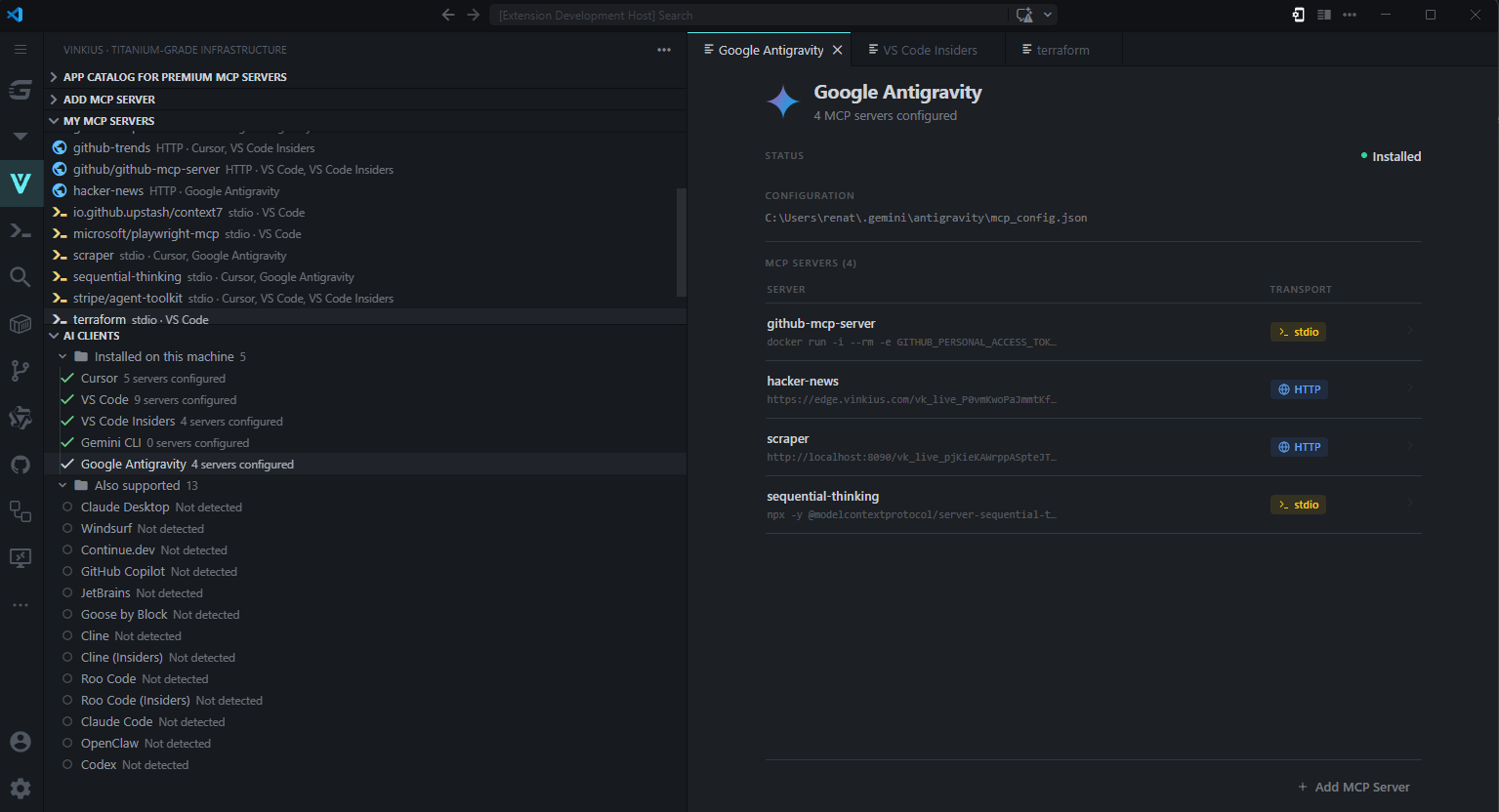
The AI Clients panel does something no other tool does: it auto-detects every MCP-compatible AI client installed on your machine and shows you exactly what's inside each one. What gets detected
Each client shows its detection status and a count of installed MCP servers. Click any client and you see:
This is the control plane that was missing. You finally know exactly what's installed where, without opening a single JSON file. App Catalog — browse and install in seconds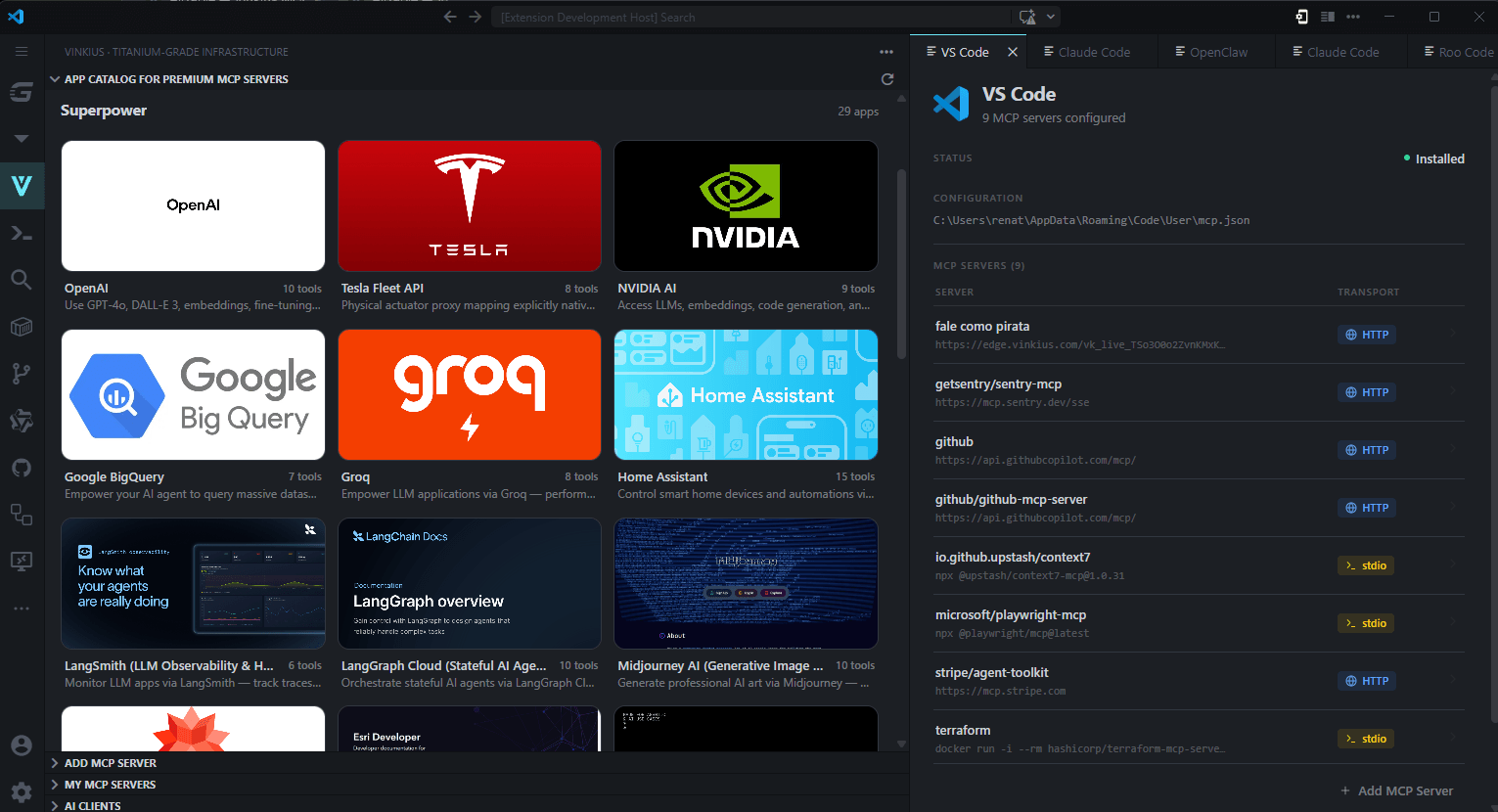
A built-in marketplace with hundreds of MCP servers from the Vinkius registry. Search by name, browse by category, see descriptions and capabilities. When you find what you need:
One action. All clients updated simultaneously. No MCP Introspection — see what a server can doClick ⟳ Discover on any server and the extension connects via JSON-RPC 2.0, performs the full MCP handshake, and lists every capability the server exposes:
Supports both stdio (local commands) and Streamable HTTP (remote servers, with SSE fallback) transports. Works with any MCP-compliant server. Full capability matrix
Getting startedInstall → Search The Vinkius icon appears in your Activity Bar. Click it. Your installed MCP servers and detected AI clients are already there — no setup, no configuration, no account required. Why this existsMCP made every API accessible to every AI agent. But the configuration layer is still fragmented — 12 clients, 12 config files, 12 different JSON schemas, scattered across your filesystem. My MCP Servers and AI Clients are the solution: a single control surface that reads, writes, and synchronizes every client's configuration from one place. Pair it with Vinkius Desktop for full system-wide management outside the IDE, or use the Vinkius Cloud gateway for production deployments with DLP, token gating, and observability. Requirements
ContributingSee CONTRIBUTING.md for development setup, project structure, and guidelines. LicenseApache 2.0 — built by Vinkius Labs. |


