AgentLens
Track AI agent contributions in your codebase


Overview
AgentLens helps you understand who wrote what in your codebase — AI or human. In the era of AI-assisted coding with Cursor, Claude Code, and other agents, it's crucial to know which code was generated by AI for better code review and maintenance.
Getting Started
Step 1: Install the Extension
Install AgentLens from the VS Code Marketplace, or search for "AgentLens" in VS Code Extensions.
Step 2: Connect to an AI Agent
This step is required to enable code tracking. AgentLens needs to connect to your AI coding assistant to capture code changes.
- Open Command Palette (
Cmd+Shift+P / Ctrl+Shift+P)
- Run
AgentLens: Connect Agent
- Select your AI Agent (Cursor or Claude Code)

For Cursor users: Make sure to enable "Third-party skills" in Cursor Settings > Features for hooks to work.
Step 3: Start Coding with Your AI Agent
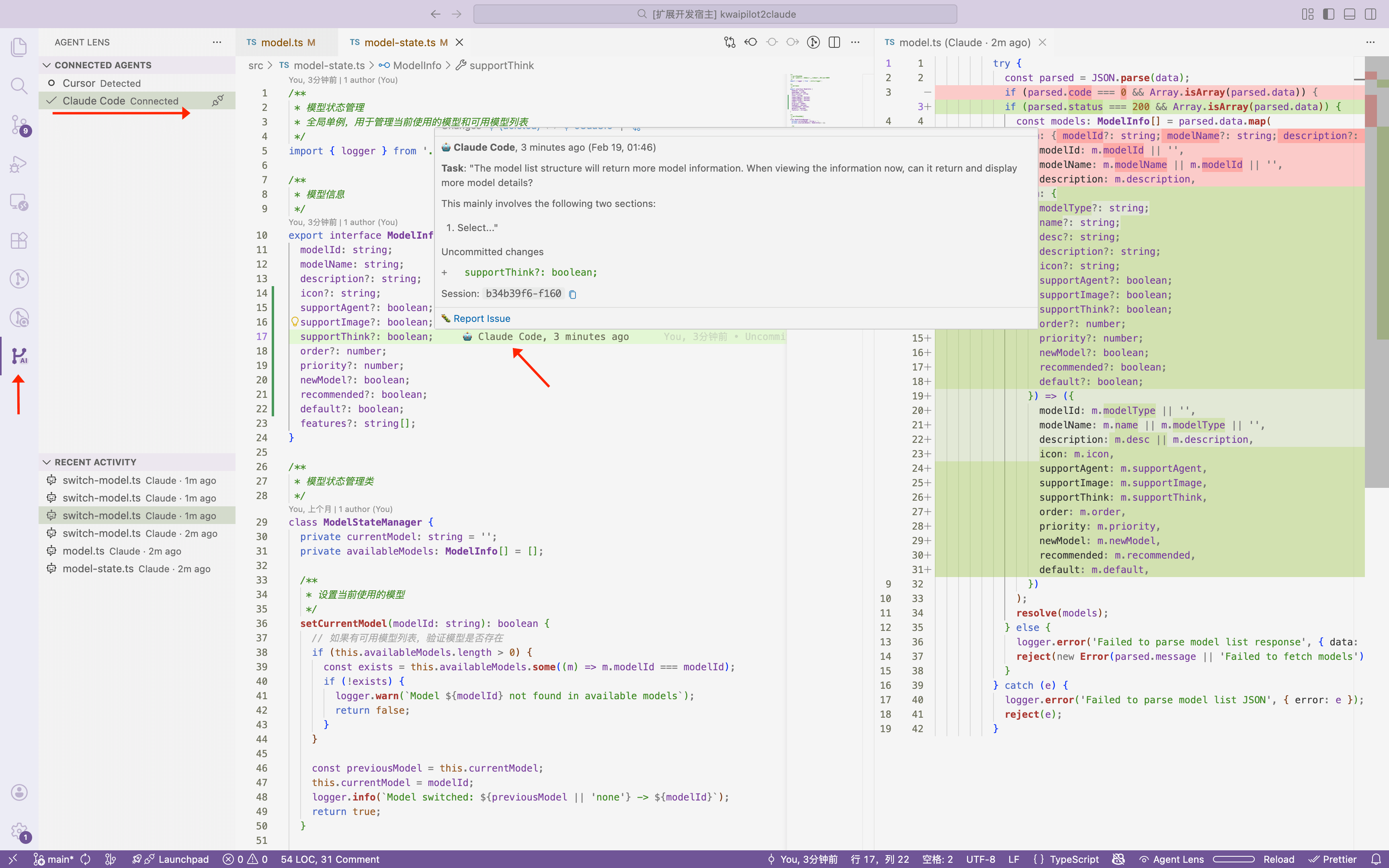
Once connected, AgentLens automatically tracks all code changes made by your AI agent. You can:
- Hover over any line to see if it was written by AI or human
- Check the sidebar to see connected agents and recent AI activity
- Use the diff view to review AI-generated changes
Features
🎯 GitLens-Style Blame
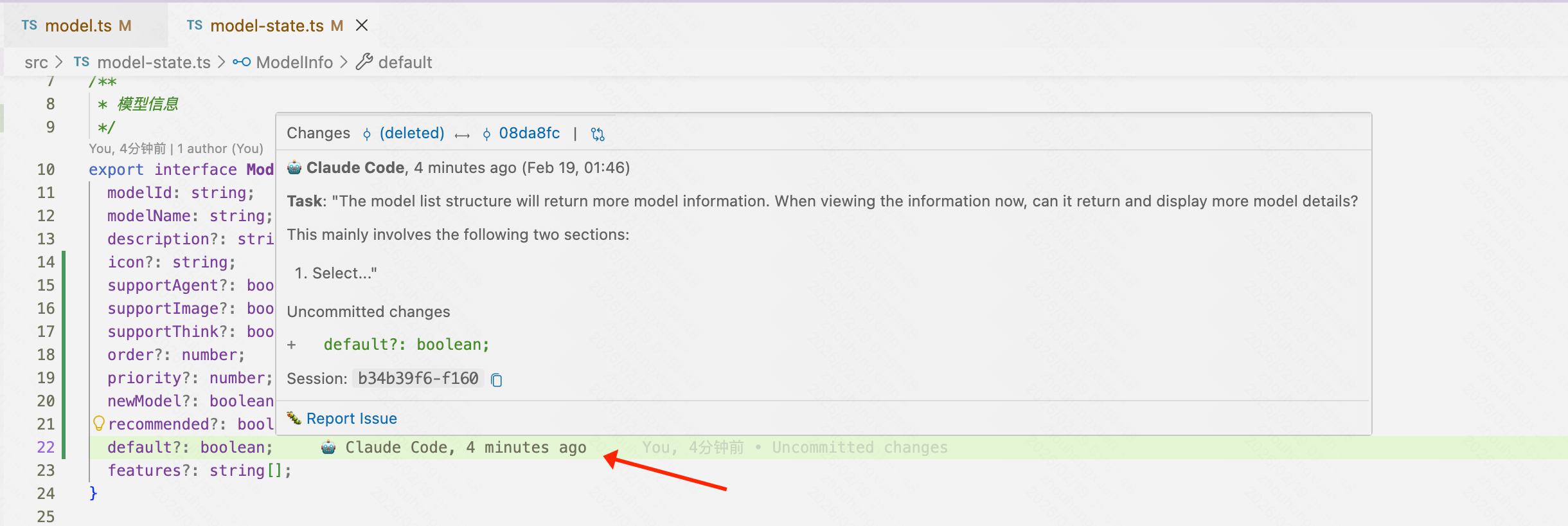
Hover over any line to see contributor information:
- AI Generated: Code written by AI agents
- AI Generated (Human Modified): AI code with human edits
- Human Contribution: Code written entirely by humans
The sidebar provides two views to help you understand AI contributions:
Connected Agents
Shows all supported AI agents and their connection status:
- ✅ Connected: Agent is connected and tracking code changes
- ⚠️ Detected: Agent is installed but not connected
- ❌ Not Detected: Agent is not installed on your system
Tip: Click on an agent to connect or disconnect.
Recent Activity
Displays recent code changes made by AI agents:
- Browse changes grouped by time
- Click to open the changed file
- Use the diff icon to view before/after changes
Note: This view requires at least one agent to be connected. If empty, use AgentLens: Connect Agent command first.
🔌 Multi-Agent Support
Works with popular AI coding assistants:
- Cursor - via Third-party Hooks
- Claude Code - via Hooks system
- More coming soon...
⚙️ Configuration
{
  "agentLens.matching.timeWindowDays": 3,
  "agentLens.matching.lengthTolerance": 0.5,
  "agentLens.autoCleanup.enabled": true,
  "agentLens.autoCleanup.retentionDays": 7,
  "agentLens.developerMode": false
}
| Setting |
Description |
Default |
timeWindowDays |
Time window for matching agent records |
3 |
lengthTolerance |
Content length tolerance for filtering |
0.5 |
autoCleanup.enabled |
Enable automatic cleanup of old data |
true |
autoCleanup.retentionDays |
Days to retain data files |
7 |
developerMode |
Show extra debug information |
false |
How It Works
AgentLens uses 4-level filtering with Levenshtein similarity matching:
Level 1: File Path Filter     (100 records → 30 records)
    ↓
Level 2: Time Window Filter   (30 records → 15 records)
    ↓
Level 3: Content Length Filter (15 records → 5 records)
    ↓
Level 4: Levenshtein Matching  (5 candidates → best match)
Classification Thresholds:
- ≥ 90% similarity → AI Generated
- 70-90% similarity → AI Generated (Human Modified)
- < 70% similarity → Human Contribution
Commands
| Command |
Description |
AgentLens: Connect Agent |
Connect to an AI agent (required for tracking) |
AgentLens: Disconnect Agent |
Disconnect from an AI agent |
AgentLens: Show Agent Status |
Display agent connection status |
AgentLens: Show Blame |
Show contributor info for current line |
AgentLens: Report Matching Issue |
Report a matching problem |
AgentLens: Cleanup Old Data |
Manually clean up old data files |
Requirements
- VS Code 1.85.0 or higher
- Git repository
- AI coding assistant (Cursor or Claude Code)
Troubleshooting
Make sure you have connected to an AI agent:
- Run
AgentLens: Connect Agent from Command Palette
- Select your AI agent
- Start using your AI agent to generate code
Cursor hooks not working
Ensure "Third-party skills" is enabled in Cursor:
- Open Cursor Settings
- Go to Features
- Enable "Third-party skills"
Blame shows "Human Contribution" for AI code
This can happen when:
- The agent was not connected when the code was written
- The code was heavily modified after AI generation
- The time window has expired (default: 3 days)
Links
License
MIT License - see LICENSE

