Weave for Boomi — Testing, CI/CD, and a real process canvas in VS Code
Unit test Boomi processes, run them in CI/CD, and review changes visually — without leaving the
editor.
Weave brings Boomi test automation to VS Code: write unit tests for Boomi processes as YAML files
you keep in git, execute them for real on a local Atom with assertions and shape/branch coverage,
and run the same tests headlessly in a CI/CD pipeline with JUnit output. Around the testing core,
Weave indexes your Boomi components locally, draws the process canvas VS Code can't, and diffs any
two versions shape by shape.
Everything except the Boomi API import and AI answers works offline. Nothing is ever written back to
your Boomi account — Weave reads.
What it is
Boomi's build canvas lives in a browser tab that only shows one component at a time, and the XML
behind it isn't something you can usefully read or review. Weave imports a folder of component XML —
a Boomi export, or a folder pulled straight from your account over the Platform API — into a local
SQLite-indexed project, then renders it the way you'd want to read it: a real process canvas, typed
component viewers, and full version history per component.
From there it does the three things the platform makes hardest:
- Diff two versions of a process visually, so a review is a picture rather than a wall of XML.
- Run a process on a local Atom and light up the shapes that actually executed, with assertions
stored as YAML next to your components.
- Ask questions about the integration you have open, answered from your own components rather
than from generic Boomi documentation.
Why install it
|
|
| Version diffs you can read |
Added, removed, reconfigured, and rewired shapes on the canvas, with the exact config change per shape. Line-level XML diff is one tab away. |
| Real execution, not a mental model |
Runs execute on a local Atom. Shapes light green as batches stream in, errors red, plus shape and branch coverage — so "this branch is covered" is a measurement. |
| Tests that live in git |
*.boomitest.yaml files beside your components, bound by component id so they're portable. Native Testing pane, and headless in CI with JUnit output. |
| Override the environment per run |
Point a connection at a mock, change an operation path, swap a process property default, replace a cross-reference table — for one run only, then restored. |
| Answers grounded in your build |
Ask what a process does or where to change it; the answer cites your actual shapes, maps, and profiles, with links that open them. |
| Search across everything |
Full-text search over every component in a project — scripts, mappings, connection settings — plus jump-to-component-by-id. |
Requirements
No .NET install is needed: the Marketplace serves a platform-specific build (Windows, macOS,
Linux — x64 and arm64) with a self-contained sidecar bundled. Only a manually built
framework-dependent VSIX needs a .NET 10 runtime on PATH (set weave.dotnetPath if your
dotnet lives somewhere unusual).
Optional, per feature:
- A Boomi API account for API import, on-demand version pulls, and Get Latest Version.
- A local Atom running the Weave agent, for live test runs.
- A chat backend for Ask AI — VS Code's native chat, or the
claude CLI.
Install
Install Weave for Boomi
from the VS Code Marketplace: search for "Boomi" in the Extensions view, or press Ctrl+P and
run:
ext install vegha.weave-boomi
The Marketplace serves a platform-specific build with everything bundled — no separate downloads.
Open the Weave view in the activity bar. The extension starts its bundled sidecar on first use
and logs to the Weave output channel; if anything fails to start, the message names what to fix.
Setup
Weave is folder-confined: the open VS Code folder IS the project. All local state lives in
<folder>/.weave/ (gitignored except the committed workspace.json + manifest.json), the
component XML lives in components/, and tests in weave-tests/ — one Boomi project per folder,
git-friendly by construction.
1 · Get a workspace folder
Two ways in:
- Open an existing Weave workspace (e.g. a git clone) — the folder registers itself
automatically; no prompt, no Boomi account needed.
- Weave: Pull Project from Boomi Account… — from the welcome view in any other folder: lists
your account's folder tree and downloads a subtree over the Platform API into the open folder,
with per-component progress and cancel (already-downloaded components are kept if you stop).
Weave: Refresh from Boomi (Re-pull)… reconciles against the platform later.
The tree mirrors Boomi's explorer: folders from folderFullPath, components grouped under per-type
nodes, re-rooted at the pulled account folder.
2 · Connect your Boomi account (optional)
Run Weave: Configure Boomi Account — it has a Test Connection probe and stores the API token in
VS Code's encrypted SecretStorage rather than in settings.
| Setting |
Value |
weave.boomi.accountId |
Boomi → Settings → Account Information |
weave.boomi.username |
With an API token this is BOOMI_TOKEN.your-email |
weave.boomi.baseUrl |
Override only if you're not on api.boomi.com |
3 · Set up the local test agent (optional — required to run anything)
Run Weave: Set Up Local Test Agent…, choose a folder the Atom's service account can read, and
Weave copies the agent jar there and opens the exact block to append to
<AtomDir>\bin\atom.vmoptions:
# Weave local test agent
-javaagent:C:\weave-agent\boomi-injector-agent.jar
-DWEAVE_LOCAL=true
-DBOOMI_ACCOUNT_ID=your-account-id
-Dboomi.agent.log=C:\weave-agent\agent-hook.log
# Optional: -DINJECTOR_DISPLAY_NAME=My Atom | -DATOM_DIR=<AtomDir>
Restart the Atom and it appears in the test view's agent picker. Verify with Weave: Test Agent
Diagnostics, which round-trips a live health snapshot.
Atoms usually run as a service. The agent publishes its handshake file to
%LOCALAPPDATA%\Weave\agent for normal accounts and %ProgramData%\Weave\agent for service,
system, and root accounts. Weave scans both, so a service-hosted Atom is found without extra
configuration — weave.test.agentDir is only for non-standard layouts.
4 · Point Ask AI at a backend (optional)
weave.ai.chatSurface decides where the Ask AI actions go: VS Code's native chat via the @weave
participant, or Weave's own panel backed by the claude CLI. On auto it uses native chat when a
chat extension is present and falls back to the CLI. Set weave.ai.claudePath if the CLI isn't on
PATH.
5 · Write your first test
Weave: New Boomi Test File… scaffolds a *.boomitest.yaml already bound to the process you have
open. The bundled JSON schema gives completions and squiggles as you type, and the file appears in
the Testing pane as soon as it's saved.
Features
Process viewer
Open any process and get the shape graph with labels, branch names, and the components each shape
uses rendered as links — click the operation under a start shape and you land on that operation. The
version stepper walks history without leaving the tab, and the XML tab shows the source behind
whatever you're looking at.
- Component tree grouped by type, per project
- Search within a component, or across every component in the project
- Zoom, pan, and a Names toggle for internal shape names
- Test View and Ask AI are one click away
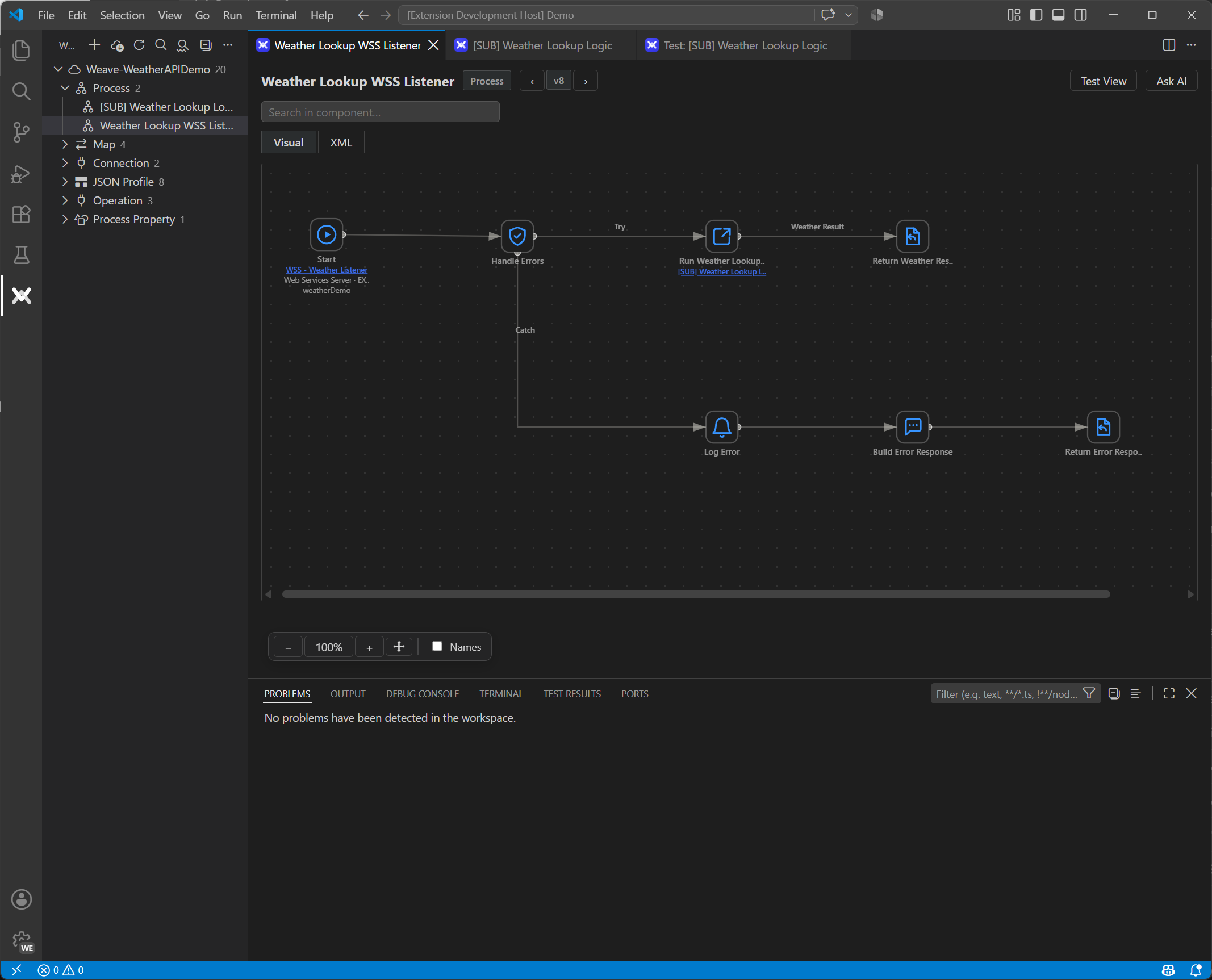
The start shape names its operation and the process call names its sub-process — both links. Try and
Catch branches are labelled on the wire.
Version diff
Choose a source and target version and Weave overlays the difference on the process itself. Changed
shapes are outlined and badged, unchanged ones fade back, and rerouted connections are drawn along
the path they now take. Click a shape for the specific change, and copy its XML if you need it.
- 🟢 Added (target) · 🔴 Removed (source) · 🟠 Config changed · 🟠 Rewired
- Toggle between the Source and Target layout
- Shape Changes for the selection, All Changes for the process
- Pure moves are deliberately not highlighted, so real edits stand out
- Also works between two selected components — visual or plain text
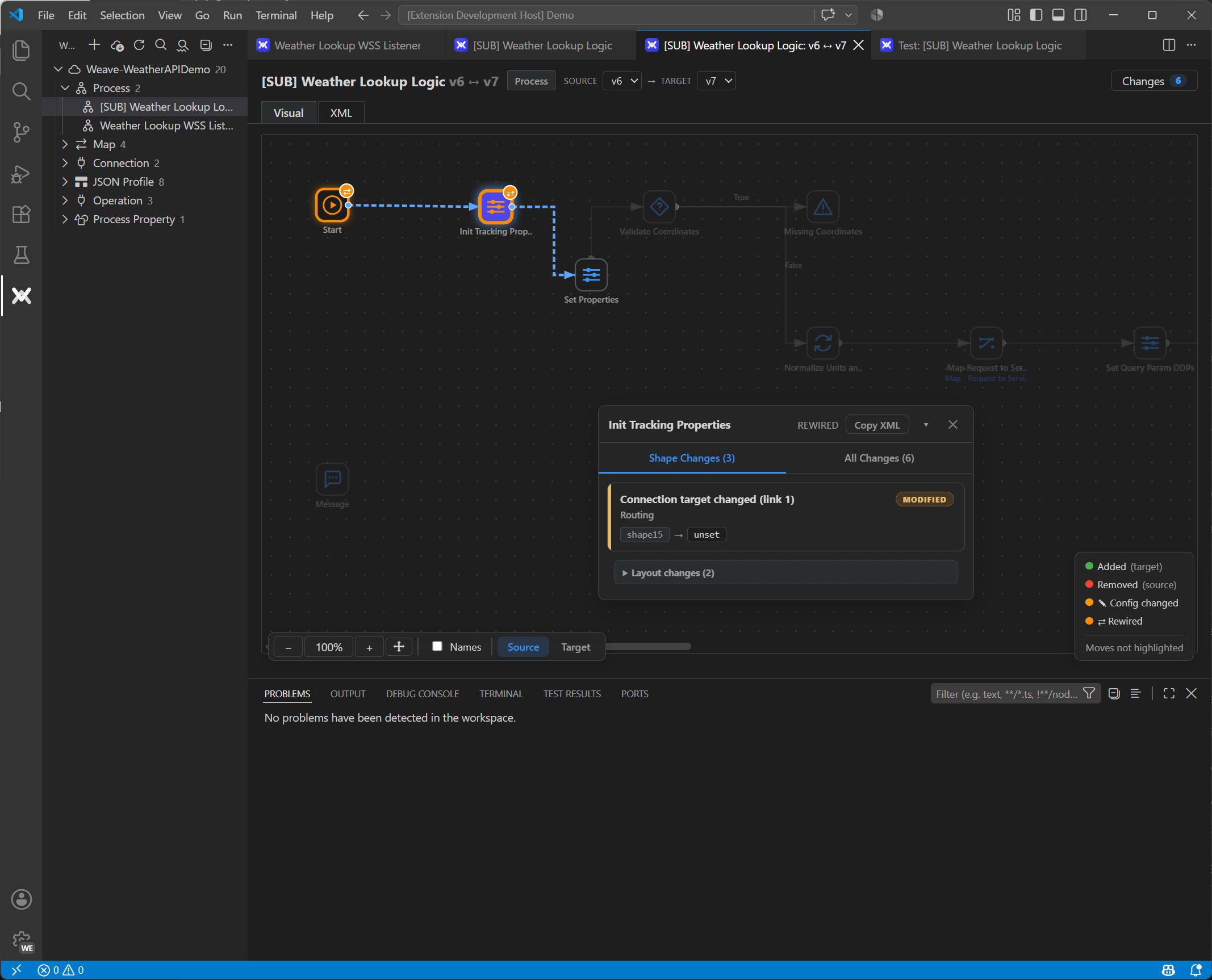
Six changes between v6 and v7. Init Tracking Properties is badged REWIRED, and its card names the
routing edit precisely: shape15 → unset.
Test runner
Pick an agent and hit Run Test: Weave builds the deployment closure from your local snapshots,
injects it into the Atom, and streams the run back. Shapes light up as batches arrive. When it
finishes you get per-shape logs, documents, derived runtime properties, and coverage — and, for a
YAML test case, a verdict with every assertion listed.
- Test data seeds documents into the process after its start shape — multiple documents, MIME
types, and dynamic document or process properties
- Extensions overrides connection settings, operation fields, process property defaults, and
cross-reference tables for the run only, then restores them
- Test cases appear in the native Test Explorer; Boomi Test Runs keeps history per case
- Step into a sub-process call and replay its own trace, no re-execution
- Export… writes the run's
TestMessageSet XML; Load run results… replays one
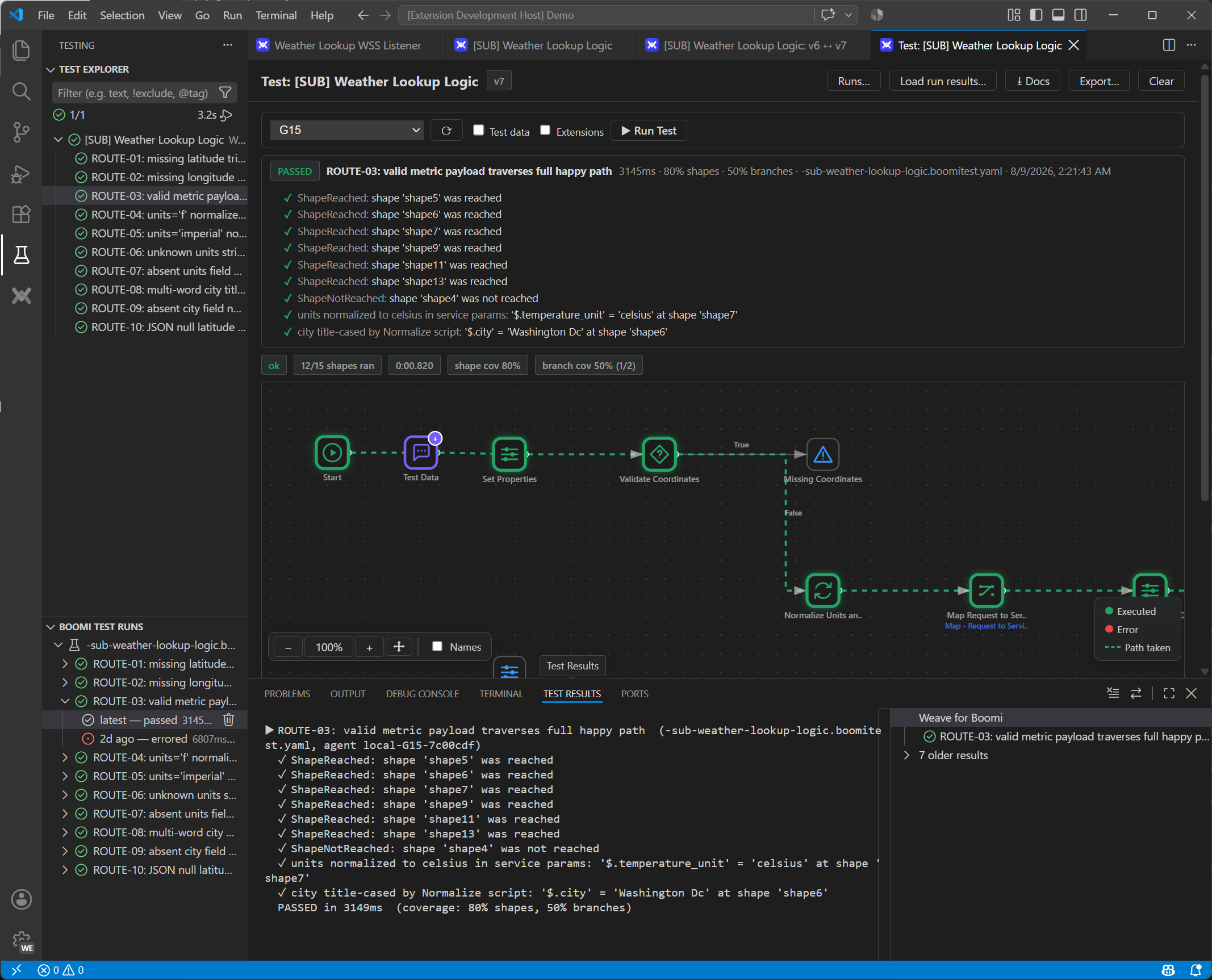
ROUTE-03 passed in 3145 ms with nine assertions — including two checking values inside documents.
The run reports 12/15 shapes, 80% shape and 50% branch coverage.
Ask AI
Ask about a project or a single component and the Weave Boomi Analyst works the question against
your indexed integration — reading the process flow, following calls, fetching component detail — and
shows which references it used. Because it reads the same snapshots the canvas draws, the answer is
about your build, not about Boomi in general.
- Native chat via
@weave, or Weave's own panel on the claude CLI
- Attach a test file or component to the question as context
- The tool trace is visible, so you can see what the answer is based on
- It can draft
*.boomitest.yaml test cases for the process you're looking at
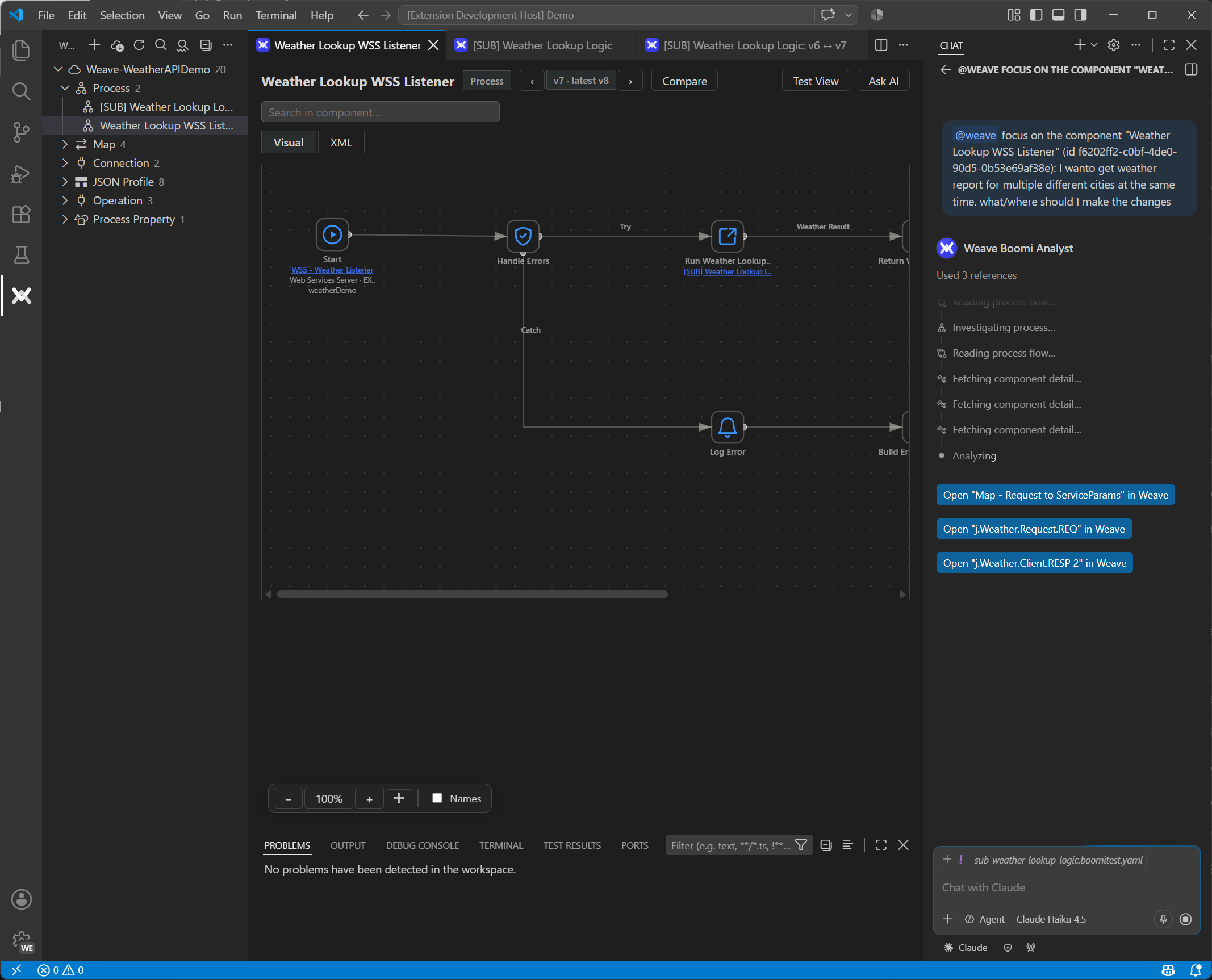
From an answer to the canvas
The interesting part of an answer is usually where do I change this. Component and shape names in a
Weave answer are links: clicking one opens the right process, scrolls to the shape, selects it, and
shows its configuration — so a recommendation turns into an edit without hunting for the shape it
meant.
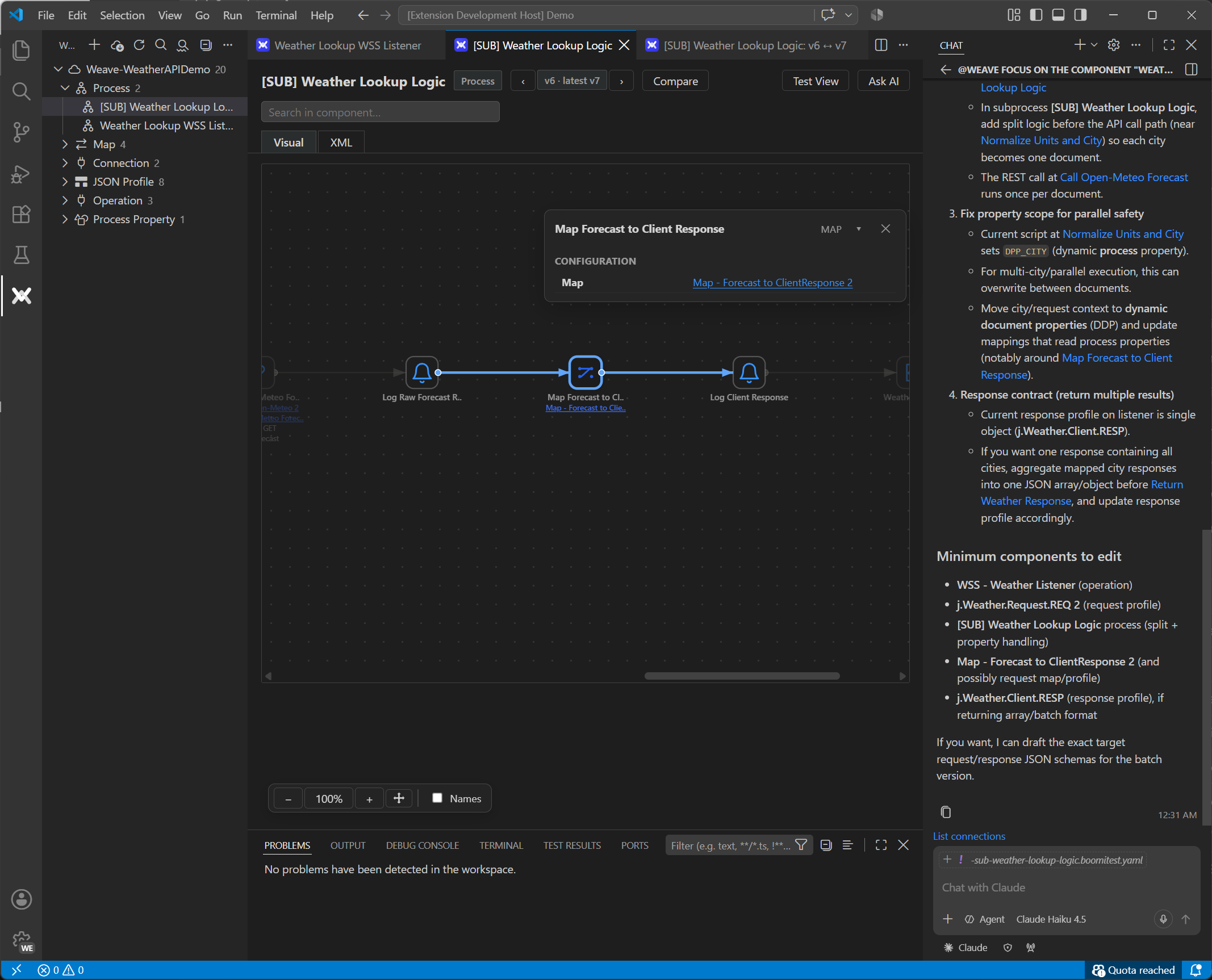
Following a reference selects that shape on the canvas and opens its card, which links on to the map
component itself.
Commands
Every command is prefixed Weave: in the palette (Ctrl+Shift+P). Most are also on the context
menu of the thing they act on.
| Command |
Does |
| Pull Project from Boomi Account… |
Download an account folder's subtree into the open folder |
| Refresh from Boomi (Re-pull)… |
Reconcile the workspace against the platform |
| Refresh Workspace |
Re-scan the folder (picks up git pulls and hand edits) |
| Configure Boomi Account |
Credentials, with a Test Connection probe |
| Get Latest Version |
Pull a newer version of one component on demand |
| Search Components |
Find a component by name or type |
| Search Text in Components |
Full-text search across component XML |
| Open Component / by Id / XML |
Open a component's viewer, or its raw XML |
| Open Shape in Process |
Open a process focused on one shape |
| Compare Versions |
Visual diff between two versions of a component |
| Select for Compare / Compare with Selected |
Two-component compare, visual or text |
| Open Test View |
The run bar, canvas, and results for a process |
| Set Up Local Test Agent… |
Install the agent jar and emit the atom.vmoptions block |
| Test Agent Diagnostics |
Live agent and Atom health snapshot |
| New Boomi Test File… |
Scaffold a *.boomitest.yaml bound to a process |
| Open Test Run Trace |
Replay a saved run on the canvas |
| Ask AI about Project / Component |
Start an analyst question with that scope |
Settings
| Key |
Default |
Purpose |
weave.dotnetPath |
dotnet |
Host used to run the sidecar dll |
weave.sidecarPath |
— |
Explicit sidecar path; empty picks the newest available build |
| — |
— |
Local state always lives in the workspace folder's .weave/ (no data-dir setting) |
weave.iconPack |
weave |
Shape icon set used on the canvas |
weave.boomi.accountId |
— |
Boomi account id for API calls |
weave.boomi.username |
— |
API username, e.g. BOOMI_TOKEN.you@co |
weave.boomi.baseUrl |
— |
Platform API base URL override |
weave.test.timeoutSeconds |
180 |
Cap on one live run |
weave.test.agentDir |
— |
Where to scan for agent handshake files |
weave.test.defaultAgent |
— |
Agent runs default to; empty = the only online one, else a picker |
weave.test.filesGlob |
**/*.boomitest.{yaml,yml} |
Which workspace files are test suites |
weave.test.docSizeLimitKb |
1024 |
Per-document fetch cap for content assertions |
weave.ai.chatSurface |
auto |
Native @weave chat, or Weave's CLI-backed panel |
weave.ai.authMode |
auto |
How the spawned CLI authenticates |
weave.ai.claudePath |
— |
Path to the claude CLI; empty resolves on PATH |
weave.ai.model |
— |
Model passed to the CLI; empty uses its default |
weave.ai.timeoutSeconds |
600 |
Wall-clock cap on one Ask AI turn |
Boomi CI/CD: run tests headlessly with JUnit output
The same code path the Test Explorer uses is available headlessly, so your Boomi tests run in any
CI/CD pipeline — GitHub Actions, Jenkins, Azure DevOps — and report like any other test suite.
Download the standalone CLI bundle for your platform from the
releases page (CLI + self-contained sidecar; no
.NET or VS Code needed, just Node 18+):
# e.g. weave-test-cli-win32-x64.zip, extracted:
node weave-test-cli/weave-test.mjs .\weave-tests --agent local-atom --junit out.xml
# exit 0 = all passed · 1 = failures · 2 = infrastructure error
The runner needs to reach an Atom with the Weave agent installed, so use a self-hosted runner (or
an agent-reachable Atom). A minimal GitHub Actions job:
jobs:
  boomi-tests:
    runs-on: [self-hosted, boomi]   # runner that can reach your Atom
    steps:
      - uses: actions/checkout@v4
      - name: Download Weave test CLI
        run: |
          curl -sL https://github.com/vegha-ai/weave-boomi/releases/latest/download/weave-test-cli-linux-x64.zip -o weave-cli.zip
          unzip -q weave-cli.zip
      - run: node weave-test-cli/weave-test.mjs ./weave-tests --agent local-atom --junit results.xml
      - uses: dorny/test-reporter@v1
        if: always()
        with: { name: Boomi tests, path: results.xml, reporter: java-junit }
Because the workspace folder is the project — components, tests, and config all in git — a pull
request that changes a Boomi process can run that process's tests before it merges.
FAQ
How do I unit test a Boomi process?
Boomi has no built-in unit test framework, so most teams test manually in Test Mode. Weave adds one:
write test cases as *.boomitest.yaml files next to your components — test documents in, assertions
on the output — and run them on a local Atom from VS Code's Testing pane. Each run reports pass/fail
per assertion plus shape and branch coverage.
Can I run Boomi tests in a CI/CD pipeline?
Yes. Weave's headless CLI runs the same YAML test suites outside VS Code and writes JUnit XML, so
Boomi tests plug into GitHub Actions, Jenkins, GitLab CI, or Azure DevOps like any other test suite
(see the CI/CD section above).
Can I mock connections or override environment settings for a test?
Per run, Weave's environment extensions can point a connection at a mock endpoint, change operation
fields, swap process property defaults, and replace cross-reference tables — applied for that run
only, then restored.
Can I diff two versions of a Boomi process?
Yes — visually. Weave overlays the difference on the process canvas: added, removed, reconfigured,
and rewired shapes are badged, with the exact config change per shape, and a line-level XML diff one
tab away.
Does Weave write anything back to my Boomi account?
No. Weave only reads via the Boomi Platform API (and can work fully offline from exported XML).
Test runs execute on your own local Atom; environment extension overrides are applied to that run
and restored afterward.

