Git WorkGrove
A code-workspace friendly worktree explorer for VS Code
Git WorkGrove provides first-class .code-workspace support for git worktrees. It appears in the Source Control view, letting you browse worktrees and directly open their workspace files.
Why This Extension Exists
Git worktrees are powerful for parallel development — but VS Code and its extensions don't handle .code-workspace files well in worktree workflows.
The problem: When you switch to a worktree, tools open the folder — not the .code-workspace file. This means:
- Dev server output shows relative paths that can't be clicked to open files
- Multi-root workspace configurations are silently lost
- Workspace-scoped settings and tasks don't apply
This has been a long-standing pain point across both VS Code and GitLens:
What Git WorkGrove does — and doesn't do:
Git WorkGrove focuses on one thing: making .code-workspace files a first-class citizen in the worktree workflow. It does not manage worktrees — creating, deleting, and switching worktrees is best handled by VS Code's built-in git support or extensions like GitLens.
If VS Code or GitLens ever ships proper .code-workspace support for worktrees, this extension will have served its purpose.
Features
- Source Control tree view — Browse all worktrees with their
.code-workspace files
- Worktree names — Labels match
git worktree names instead of raw paths
- Favorites — Pin any item (repository, worktree, workspace file) to the top with drag-and-drop reordering
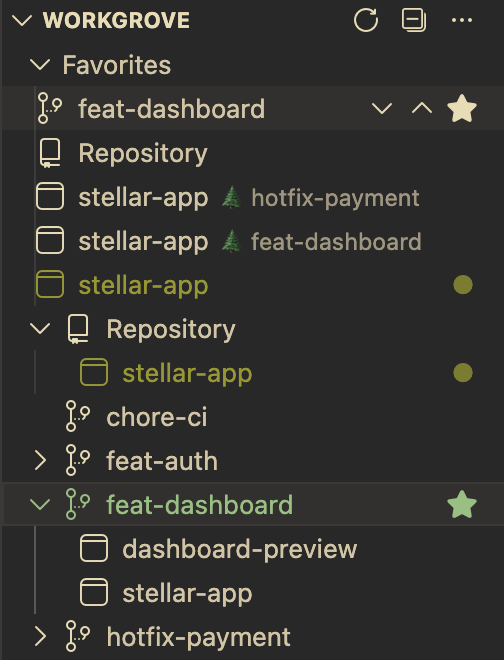
- Current indicator — Green icon and badge highlight the currently open item
- Customizable templates — Full control over labels and descriptions for all 8 item types
- Custom Commands — Define your own context menu commands with template variable support
- Open in Terminal — Right-click to open a terminal at any worktree or workspace file location
- Prune — Clean up stale worktree records
- Live updates — FileSystemWatcher detects worktree changes automatically
Usage
Tree View
Git WorkGrove adds a WORKGROVE panel in the Source Control sidebar. It shows:
- Favorites — Pinned items at the top (if any exist)
- Repository — The main worktree (collapsible, with workspace files as children)
- Linked worktrees — All other worktrees (alphabetically sorted, each with workspace files)
Click a workspace file to open it. Click a worktree to expand/collapse its children.
Right-click any item in the tree to access:
| Action |
Description |
| Open in New Window |
Opens the worktree or workspace file in a new VS Code window |
| Open in Current Window |
Opens in the current VS Code window |
| Open in Terminal |
Opens a terminal at the item's location |
| Reveal in Finder |
Opens the item's location in your OS file manager |
| Custom Commands... |
Runs a user-defined command (when configured) |
| Copy Name |
Copy the item's display name to clipboard |
| Copy Path |
Copy the item's filesystem path to clipboard |
Favorite-specific actions appear as inline buttons:
| Button |
Description |
| Open in Terminal (terminal icon) |
Open a terminal at this item's location (non-favorites only) |
| Add Favorite (star outline) |
Pin this item to the Favorites section |
| Remove Favorite (filled star) |
Unpin from Favorites |
| Move Up / Move Down (chevrons) |
Reorder within Favorites |
You can also drag and drop favorites to reorder them.
View Title Actions
The WORKGROVE panel header provides:
| Action |
Location |
Description |
| Refresh |
Header icon |
Re-scan worktrees and workspace files |
| Prune Worktrees |
... overflow menu |
Run git worktree prune to clean up stale records |
| Clean Stale Favorites |
... overflow menu |
Remove favorites that no longer exist on disk |
Open Behavior
When you click a workspace file, the behavior depends on the openBehavior setting:
ask (default) — Shows a picker with options: Open in New Window, Open in Current Window, Open in Terminal, plus "Always" variants that persist your choicenewWindow — Always opens in a new windowcurrentWindow — Always opens in the current windowterminal — Always opens a terminal at the item's location
Current Indicator
The currently open workspace or worktree is highlighted with:
- A green-tinted icon
- A green dot badge (●)
Clicking the current item does nothing (it's already open).
Settings
Open VS Code Settings (Cmd+, / Ctrl+,) and search for git-work-grove:
| Setting |
Type |
Default |
Description |
git-work-grove.openBehavior |
ask | newWindow | currentWindow | terminal |
ask |
Default action when opening a workspace |
git-work-grove.workspaceFile.include |
string[] |
["*.code-workspace"] |
Glob patterns for workspace file scanning |
git-work-grove.workspaceFile.exclude |
string[] |
[] |
Glob patterns to exclude from scanning |
git-work-grove.customCommands.directory |
array |
[] |
Custom commands for repository/worktree items |
git-work-grove.customCommands.workspace |
array |
[] |
Custom commands for workspace file items |
git-work-grove.template.* |
string |
(varies) |
Display templates (label, description, terminalName) — see Template Customization |
git-work-grove.favorites |
string[] |
[] |
Ordered list of favorited item paths (managed via the UI) |
Custom Commands
Define custom commands that appear in the tree view context menu. Two settings are available:
git-work-grove.customCommands.directory — for repository/worktree itemsgit-work-grove.customCommands.workspace — for workspace file items
Entry Schema
| Property |
Type |
Required |
Description |
label |
string |
Yes |
Display text in context menu and QuickPick |
command |
string[] |
Yes |
Command as [bin, ...args] — supports template variables |
env |
Record<string, string> |
No |
Environment variables — values support template variables |
mode |
"spawn" | "terminal" |
No |
Execution mode (default: "spawn") |
Execution modes:
"spawn" (default) — Runs the command as a detached background process (fire-and-forget). The process outlives the extension and runs silently."terminal" — Runs the command in a VS Code integrated terminal. The terminal stays open so you can see output and interact with the process. Ideal for dev servers, REPLs, and interactive CLI tools.
Template Variables
Directory items (customCommands.directory): {name}, {branch}, {ref}, {head}, {path}
Workspace items (customCommands.workspace): all of the above, plus {dir} (parent directory) and {worktree} (parent worktree folder name)
Both command and env values support template variables with fallback syntax ({branch|detached}) and conditional sections ({?branch}...{/branch}). See Template Customization for syntax reference.
Examples
Run a dev server in terminal:
{
  "git-work-grove.customCommands.directory": [
    {
      "command": ["npm", "run", "dev"],
      "env": { "NODE_ENV": "development" },
      "label": "Run Dev Server",
      "mode": "terminal"
    }
  ]
}
Open in an external terminal emulator (macOS):
{
  "git-work-grove.customCommands.directory": [
    {
      "command": ["open", "-a", "Terminal", "{path}"],
      "label": "Open in Terminal.app"
    }
  ]
}
Other terminal emulators:
| App |
command |
| iTerm2 |
["open", "-a", "iTerm", "{path}"] |
| Ghostty |
["open", "-a", "Ghostty", "--args", "--working-directory={path}", "--window-inherit-working-directory=false"] |
| WezTerm |
["wezterm", "start", "--cwd", "{path}"] |
| Alacritty |
["alacritty", "--working-directory", "{path}"] |
| Kitty |
["kitty", "--directory", "{path}"] |
Open in an external editor:
{
  "git-work-grove.customCommands.directory": [
    {
      "command": ["zed", "{path}"],
      "label": "Open in Zed"
    }
  ]
}
Environment variables with template variables:
{
  "git-work-grove.customCommands.directory": [
    {
      "command": ["open", "-a", "Ghostty", "--args", "--working-directory={path}"],
      "env": { "GHOSTTY_TITLE": "{ref}" },
      "label": "Open in Ghostty"
    }
  ]
}
Multiple commands (shown as QuickPick):
{
  "git-work-grove.customCommands.directory": [
    {
      "command": ["npm", "run", "dev"],
      "label": "Run Dev Server",
      "mode": "terminal"
    },
    {
      "command": ["zed", "{path}"],
      "label": "Open in Zed"
    }
  ]
}
Start Claude Code in a worktree:
{
  "git-work-grove.customCommands.directory": [
    {
      "command": ["claude"],
      "label": "Claude Code",
      "mode": "terminal"
    }
  ]
}
Workspace file commands — use {dir} for the parent directory or {path} for the file itself:
{
  "git-work-grove.customCommands.workspace": [
    {
      "command": ["open", "-a", "Terminal", "{dir}"],
      "label": "Open dir in Terminal.app"
    }
  ]
}
Known Limitation
Terminal mode ("mode": "terminal") uses the shell-quote library for POSIX-style shell quoting. This may not work correctly in PowerShell terminals (Windows, macOS, or Linux) for commands with arguments containing spaces or special characters. If your VS Code terminal profile uses PowerShell, prefer "mode": "spawn" for such commands.
Template Customization
All tree item labels and descriptions are customizable. Templates support variables like {name}, {branch}, {ref}, fallback syntax ({branch|detached}), and conditional sections ({?branch}({branch}){/branch}).
See Template Customization for all 8 item types, available variables, and examples.
Commands
All commands use the Git WorkGrove: prefix. Some are available via the Command Palette (Cmd+Shift+P / Ctrl+Shift+P), while others appear only in the tree view context menu or inline buttons.
Command Palette
| Command |
Description |
| Refresh |
Re-scan worktrees and workspace files |
| Prune Worktrees |
Run git worktree prune to clean up stale records |
| Show Output |
Open the extension's output channel for debugging |
| Clean Stale Favorites |
Remove favorites pointing to deleted items |
These commands appear when right-clicking items in the tree view:
| Command |
Description |
| Open in New Window |
Open worktree or workspace file in a new VS Code window |
| Open in Current Window |
Open in the current VS Code window |
| Open in Terminal |
Open a terminal at the item's location |
| Reveal in Finder |
Open the item's location in your OS file manager |
| Custom Commands... |
Run a user-defined command (when configured) |
| Copy Name |
Copy the item's display name to clipboard |
| Copy Path |
Copy the item's filesystem path to clipboard |
| Add Favorite |
Pin this item to the Favorites section |
| Remove Favorite |
Unpin from Favorites |
| Move Favorite Up / Down |
Reorder within Favorites |
Documentation
Specifications
Design documents for contributors and AI-assisted development:
- Tree Structure — 4 fundamental types, node hierarchy, icons, collapsible states
- Current Indicator — Single-current-item rule, detection logic
- Favorites — Data model, resolution, ordering, stale cleanup
- Templates — 8 template types, variables, defaults, selection logic
- Commands — All commands, menu placement, behaviors
- Workspace Scanning — File discovery, include/exclude patterns
- Open Behavior — Open modes, URI resolution, click handling
- Open in Terminal — CWD resolution, terminal naming, prunable guard
- Empty States — Git unavailable, no repository, no worktrees messages
- Custom Commands — Custom commands: settings, execution, context menu
Installation
VS Code Marketplace
Install from the Visual Studio Marketplace:
- Open VS Code
- Go to Extensions (
Cmd+Shift+X / Ctrl+Shift+X)
- Search for Git WorkGrove
- Click Install
Open VSX Registry
Install from Open VSX for VS Code alternatives (VSCodium, code-server, Gitpod, etc.):
- Open your editor's extension panel
- Search for Git WorkGrove
- Click Install
Requirements
- VS Code 1.95.0+
- Git installed and available in PATH
License
MIT

