Skip to content
| Marketplace
Sign in
Visual Studio Code>Education>V5 Brain SimulatorNew to Visual Studio Code? Get it now.
V5 Brain Simulator

V5 Brain Simulator

Preview

UNSW Robotics Competition Club

|
6 installs
| (0) | Free
Test VEX V5 robot code without a robot: a simulated V5 brain running VEXos, with its screen, controller, field and motors as panes. Windows (WSL) and macOS.
Installation
Launch VS Code Quick Open (Ctrl+P), paste the following command, and press enter.
Copied to clipboard
More Info

V5 Brain Simulator

Run a simulated VEX V5 brain inside VS Code and test your robot code without a robot. The brain runs VEX's real firmware (VEXos) in an emulator, so your VEXcode or PROS program runs as it does on a brain. Its motors, sensors and drivetrain are simulated on a field you can see and drive.

Beta. Built by the UNSW Robotics Competition Club on V5 Simulacrum. Windows (through WSL) and macOS.

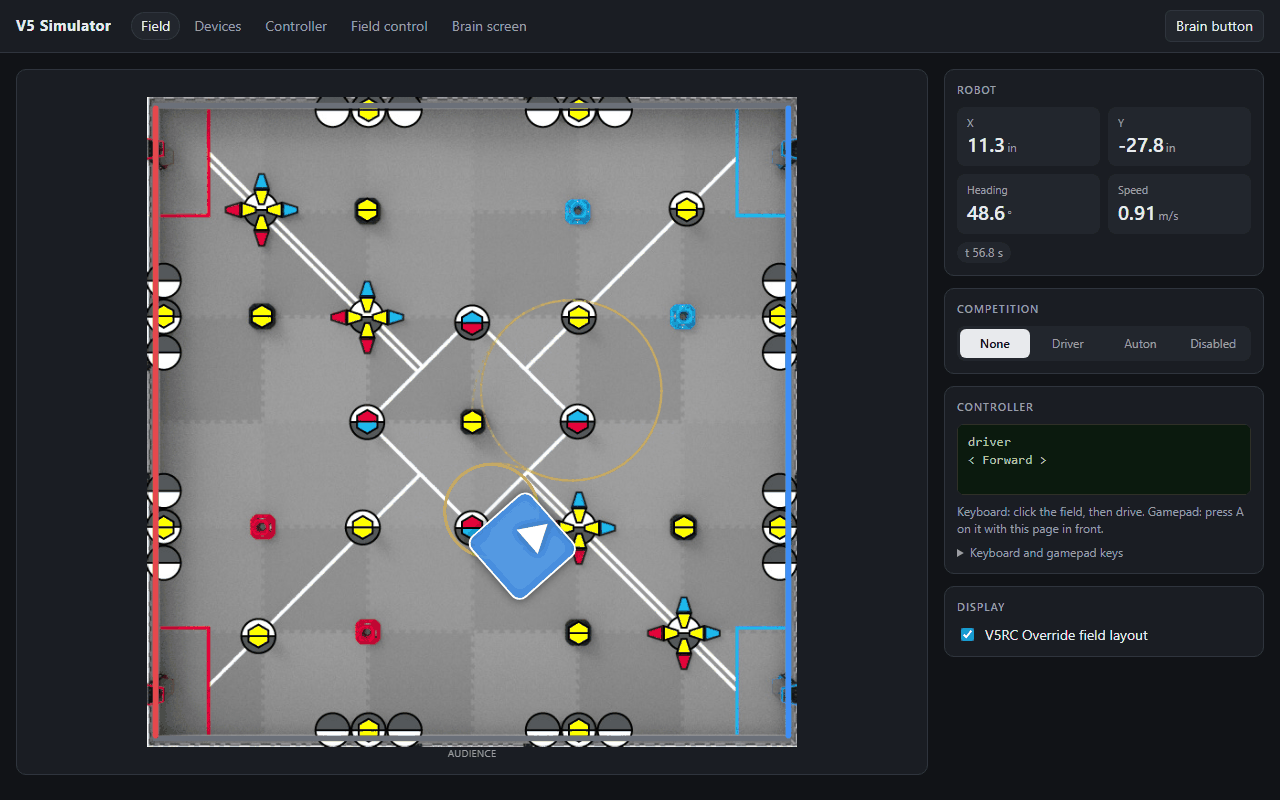
The field view: the simulated robot on a V5RC field, with its position, heading and speed, the competition switch and the controller's screen

What you get

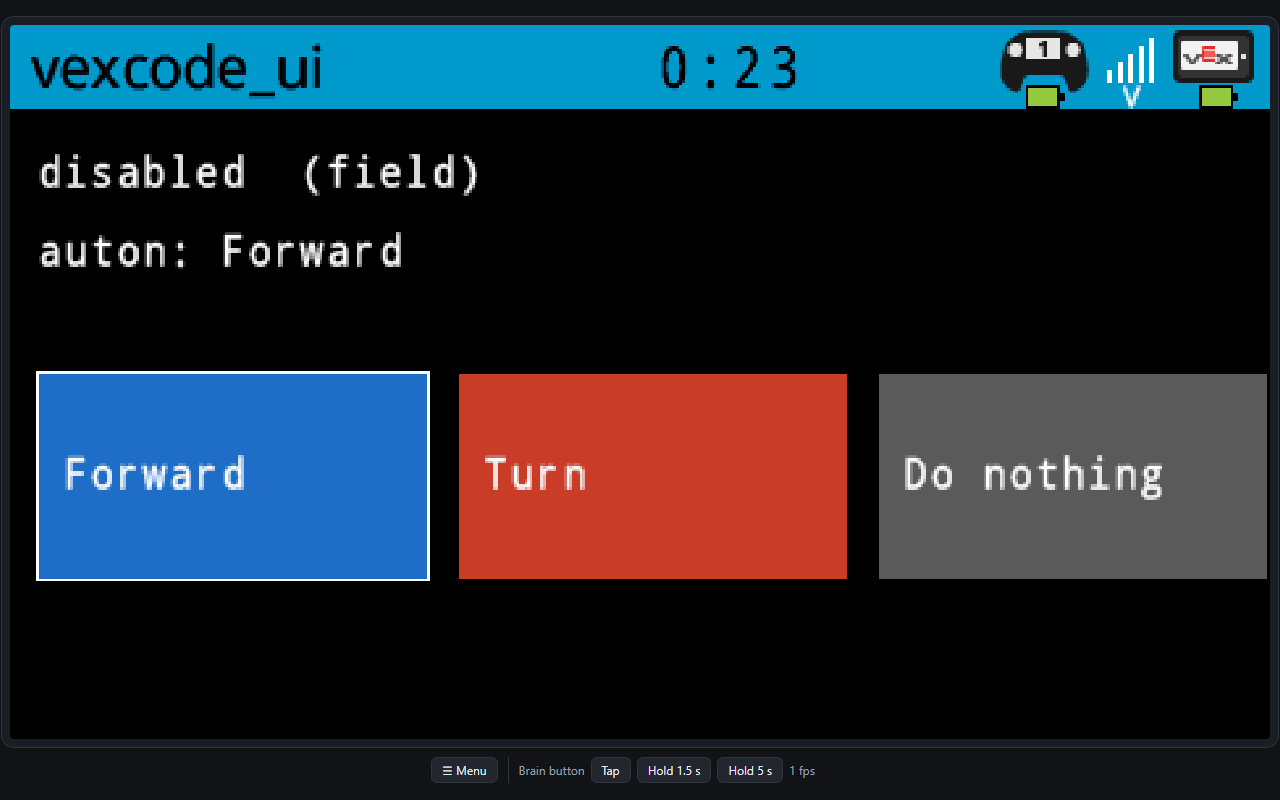
The brain's screen: the real VEXos screen. Click or drag on it to touch it, and use the brain's button underneath (tap for Back/Home, hold to stop the program).

The brain screen pane showing a program's autonomous selector

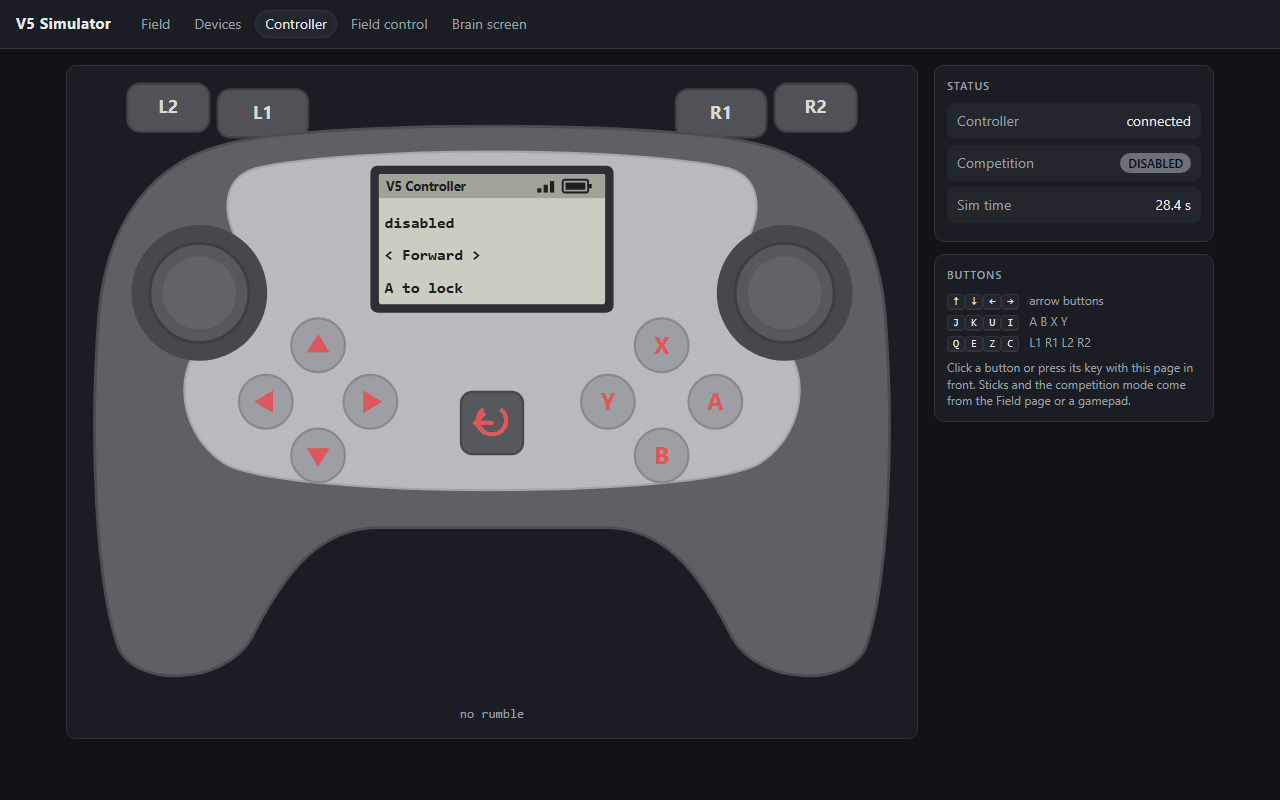
The controller: what your program prints on the controller screen (an auton selector, for instance), its rumble, and its sticks and buttons as they're pressed. Click its buttons, or use the keys it lists, to work menus on the controller screen.

The Controller pane: a V5 controller with its screen showing an auton selector

The field: the robot on the field, live. Click the field, then drive with the keyboard or a gamepad. Switch competition modes (driver, autonomous, disabled) or run a timed match from Field control.

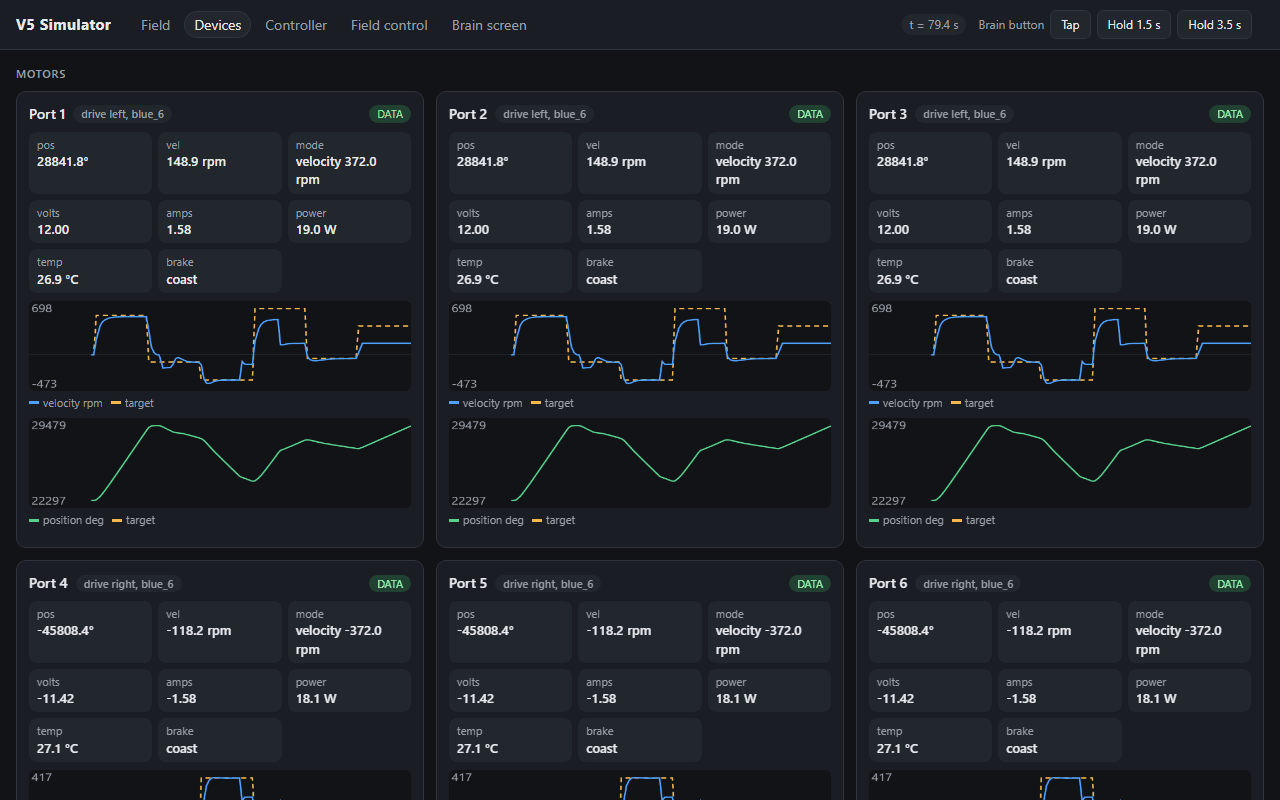
The devices: every motor's velocity and position against its target, with volts, amps, power and temperature. Every sensor's reading.

The Devices pane: live charts of each drive motor's velocity and position

Your robot's ports: V5 Sim: Configure Ports picks the device on each of the 21 smart ports and the 3-wire ports A–H. It also sets cartridges, reversals, tracking wheels, distance sensor mounts and the drivetrain. It flags anything the simulator would refuse before you start.

Get started

  1. Install the extension: search V5 Brain Simulator in VS Code's Extensions view and click Install, or open it on the Marketplace. VS Code picks the build for your computer and keeps it up to date.
    • From a terminal: code --install-extension unsw-robotics-competition-club.v5-simulacrum-vscode
    • Offline, or for Cursor and VSCodium: download the .vsix for your computer (win32-x64, darwin-arm64 for Apple Silicon, darwin-x64 for Intel Macs) from the latest release, then run Extensions: Install from VSIX….
    • Prompt your team to install it: add it to your robot project's .vscode/extensions.json, and VS Code offers it to anyone who opens the project:
      { "recommendations": ["unsw-robotics-competition-club.v5-simulacrum-vscode"] }
      
  2. Click V5 Sim in the activity bar, then Start the simulator. The first start unpacks the simulator and downloads VEXos from VEX, which takes a few seconds. The brain screen then opens beside your editor.
  3. Open the other panes from the same view, or with V5 Sim: Open Field View, Open Device Dashboard and Open Controller. Drag any pane wherever you want it.

Requirements

  • Windows 10 or 11 with WSL. The simulator runs in Ubuntu 24.04 under WSL; the extension offers to install WSL if it's missing.
  • macOS 15 (Sequoia) or later, Apple Silicon or Intel.
  • Internet for the first start, to download VEXos from VEX. VEX's firmware isn't ours to ship with the extension.

Everything else (the emulator, Python, the robot simulator) comes inside the extension.

Get your program onto the brain

  • Windows: download as usual. VEXcode and PROS see the simulated brain on USB, through the usbip-win2 driver. If the driver isn't installed, the extension offers to install it (V5 Sim: Install USB Driver).
  • Anywhere: V5 Sim: Run Program on Sim. You can also right-click a .bin and choose Run Program on Sim. Pick a program from your build/ or bin/ folder and a slot; the simulator restarts with it running. In a PROS project with the pros CLI it can upload the project instead.
  • Program output: V5 Sim: Open Program Terminal shows what your program prints.
  • Every start: set v5sim.program to a .bin to install and run it each time the simulator starts.

Settings

Setting Default
v5sim.preset competition The robot: a preset name, or the path to your own .args file (made with Configure Ports)
v5sim.extraRobotArgs Options added to the preset, e.g. --match 20
v5sim.program / v5sim.slot A .bin to install and run at start
v5sim.usb auto Windows: the brain on USB through usbip-win2 when it's installed, else serial ports. usbip, pty, none
v5sim.wslDistro Ubuntu-24.04 Windows: the WSL distribution
v5sim.instanceId auto Which simulator instance; instance N serves its pages on port 8765+N
v5sim.openBrainOnStart true Open the brain screen when the simulator starts
v5sim.repoPath A simulator checkout to use instead of the bundled one (for simulator development)

Troubleshooting

VEXcode doesn't see the brain (Windows). The brain appears on USB only with the usbip-win2 driver. Without it the simulator falls back to WSL serial ports, which VEXcode can't see. Run V5 Sim: Install USB Driver, then restart the simulator.

"WSL can't run Windows programs". Ubuntu 24.04 can switch off WSL's ability to run Windows programs at boot. The extension then puts the brain on USB itself and offers Fix WSL, which turns it back on now and after reboots.

macOS: VEXcode's Download button can't see the brain. On a Mac the brain's USB is two serial ports (/tmp/ttyV5sys for uploads, /tmp/ttyV5user for program output). Use Run Program on Sim, or the PROS CLI with the port given.

Anything else. V5 Sim: Show Log shows what the simulator is doing. V5 Sim: Repair Simulator unpacks it again.

Stopping. V5 Sim: Stop, closing VS Code, or reloading the window all stop the simulator gracefully. It is never killed, because a hard stop can crash Windows' USB driver. If VS Code itself was killed and the simulator is still running, open any pane (V5 Sim: Open Field View, for instance), which finds the running simulator, then V5 Sim: Stop.

Feedback

Issues and suggestions: GitHub issues. Building the extension or working on the simulator: see DEVELOPMENT.md.

License

Copyright © 2026 UNSW Robotics Competition Club. The extension is LGPL-3.0-or-later (see NOTICE, LICENSE and COPYING). The simulator it bundles has its own licenses: V5 Simulacrum is LGPL-3.0-or-later, QEMU GPL-2.0-or-later, Python the PSF license. NOTICE lists them, and each package carries their license texts. VEX's firmware isn't included; the extension downloads it from VEX.

  • Contact us
  • Jobs
  • Privacy
  • Manage cookies
  • Terms of use
  • Trademarks
  • Your Privacy Choices
  • Consumer Health Privacy
© 2026 Microsoft