Plainmark
A free, WYSIWYG Markdown editor for VS Code Desktop and vscode.dev. Obsidian-style live preview — formatting renders inline as you type — without leaving your editor, and without a paywall.

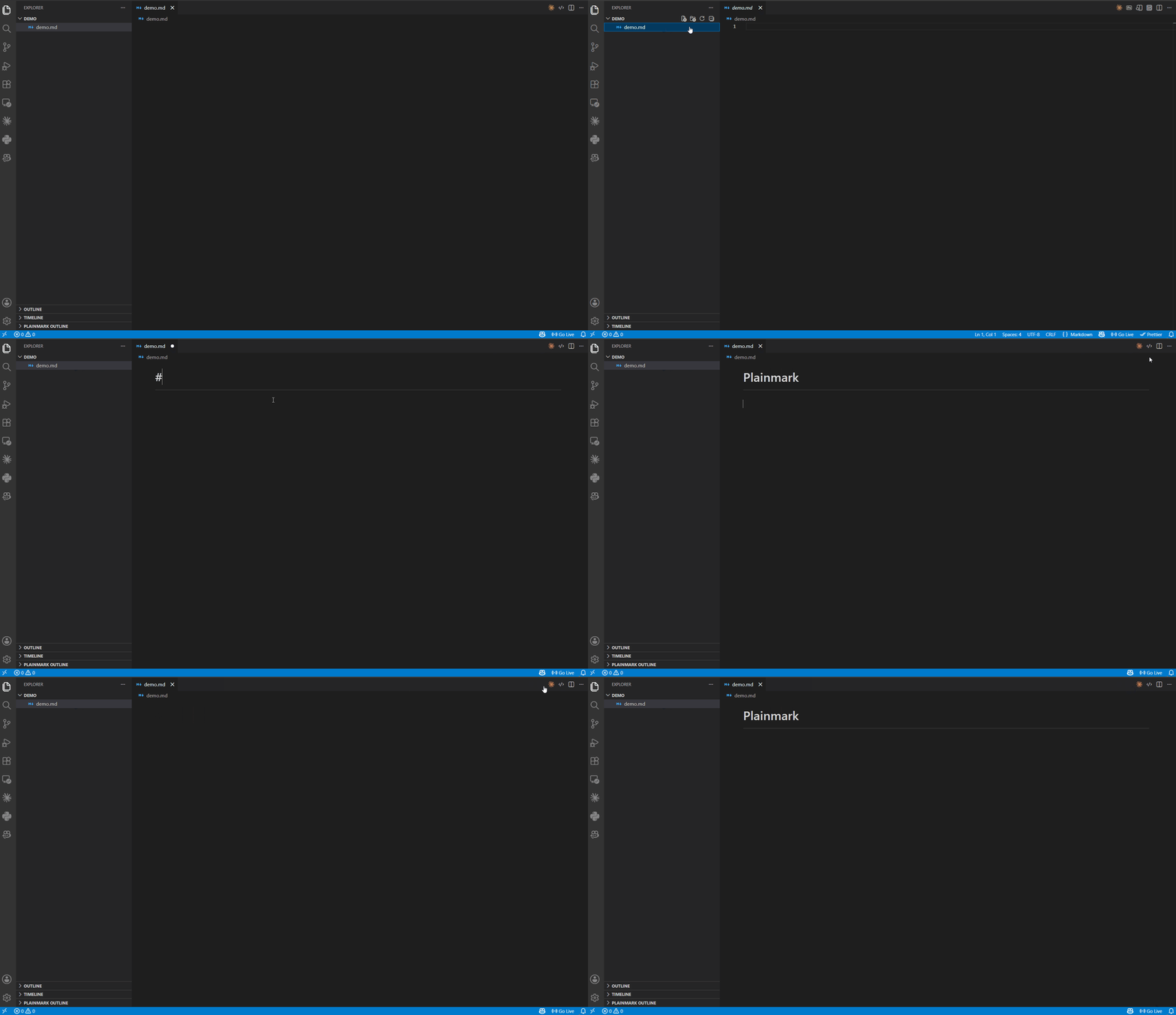
Works everywhere VS Code does
| Platform |
Supported |
| VS Code Desktop |
✅ |
| vscode.dev / github.dev (browser) |
✅ |
Plainmark runs as a custom editor in both the desktop app and the browser — open the same .md file and get the same live-preview experience in either place.
Features
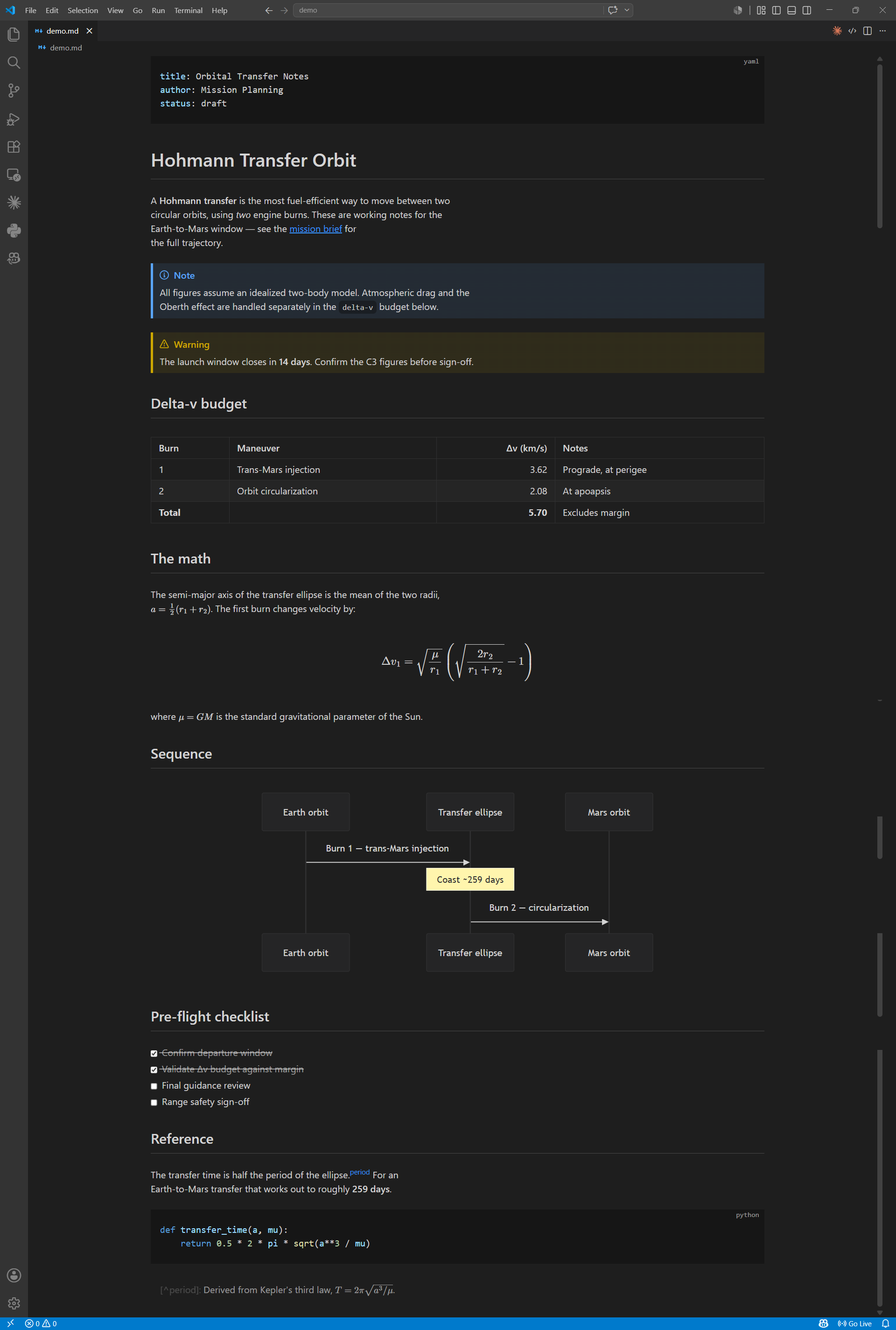
- Live preview — headings, emphasis, links, lists, blockquotes, and code render inline; the raw Markdown markers reveal only on the line your caret is on.
- Right-click menu — cut/copy/paste plus Format, Paragraph, and Insert: toggle bold/italic/strikethrough/inline code on a selection, turn lines into headings, lists, or quotes, and insert tables, code blocks, math blocks, horizontal rules, and footnotes.
- Tables — visual editing with insert / delete / move row and column, whole-table delete, per-column alignment, multi-cell selection (drag or Shift+click across cells, then clear, copy, or cut the block), and configurable keyboard shortcuts.
- Math — LaTeX rendered with MathJax, inline and block.
- Diagrams — Mermaid flowcharts, sequence diagrams, and more.
- Callouts — Obsidian-style
> [!NOTE] admonitions.
- Footnotes, autolinks, images, frontmatter, HTML — full Markdown coverage.
- Paste images — paste a screenshot or an image file (PNG, JPEG, GIF, WebP, or SVG) from the clipboard and Plainmark saves it into your workspace and inserts the image link.
- Paste tables — paste a range copied from Excel, Google Sheets, or a table rendered on a web page and it becomes a Markdown table, bold/links included; tab-separated plain text converts too.
- Paste formatted text — select and copy from a chat answer (ChatGPT, Claude, Gemini), a web page, or Word, and headings, lists, bold, italic, links, code blocks, quotes, tables, and math land as Markdown instead of flattened text; the right-click menu's Paste always inserts plain text.
- Paste into quotes — paste multi-line text inside a blockquote or callout and every line gets the
> markers it needs, at the right nesting depth, so the whole paste stays quoted.
- Outline view — jump around the document from the Explorer sidebar.
- Word count — the status bar shows a live word count while a Plainmark tab is active.
- CJK-aware — the word count,
Ctrl/Alt+Arrow word jumps, and Ctrl/Alt+Backspace word deletion all understand unspaced Chinese and Japanese text.
- Find — press
Ctrl/Cmd+F for a compact find-and-replace widget that searches the whole document, including text scrolled out of view and inside tables; matches light up once you pause typing, and the current one is outlined.
- Theming — built-in light/dark themes plus your own CSS.
Your files stay yours
Plainmark's number-one job is to never corrupt your documents. Every edit is provably byte-preserving outside the exact range you change — verified end-to-end (open → edit → save → re-read from disk) and fuzz-tested over hundreds of generated documents, on both the desktop and web builds. It edits your Markdown in place; it never rewrites the parts you didn't touch.
Getting started
- Install Plainmark from the VS Code Marketplace — or drag the
.vsix into VS Code and run Developer: Reload Window.
- Open any
.md or .markdown file and click Open in Plainmark in the editor title bar — or press Ctrl/Cmd+Shift+M.
- Edit as you would in any WYSIWYG editor. The same shortcut toggles back to the plain-text editor at any time.
Commands
Available from the Command Palette (Ctrl/Cmd+Shift+P):
| Command |
Default keybinding |
| Plainmark: Open in Plainmark |
Ctrl/Cmd+Shift+M |
| Plainmark: Open in Text Editor |
Ctrl/Cmd+Shift+M (toggles back) |
| Plainmark: Insert table |
— |
| Plainmark: Insert footnote |
Ctrl/Cmd+Shift+6 |
| Plainmark: Normalize list indentation |
— |
| Plainmark: Convert to CommonMark (add blank lines between paragraphs) |
— |
| Plainmark: Compact paragraphs (join wrapped lines, remove blank lines) |
— |
| Plainmark: Prettify document (normalize blank lines between blocks) |
— |
| Plainmark: Select Theme |
— |
The two paragraph commands convert a document between blank-line-separated markdown (the conventional style most tools emit) and Plainmark's compact one-line-per-paragraph style. Compact paragraphs joins hard-wrapped lines (without inserting spaces between CJK characters) and removes the blank lines between paragraphs, headings, and lists; Convert to CommonMark does the reverse, producing conventional spacing so every paragraph break survives wherever the file is rendered — including inside blockquotes and callouts, where it writes the quoted blank line (a > on its own line) between paragraphs. Both apply as a single undoable edit and skip anything a rewrite could change the meaning of — hard line breaks, code blocks, tables, list interiors, and 4-space-indented lines (which other renderers read as indented code, a construct Plainmark itself styles as plain text).
Prettify document takes the middle road between those two. It leaves every line break inside a paragraph exactly as you wrote it and only normalizes the blank lines between blocks: one blank above each heading and never one below it, one after front matter and after a list, quote, table, or HTML block, and none anywhere else — collapsing doubled blank runs along the way. Where dropping a blank would change how the file parses — here or in another renderer — the blank stays (a table below a paragraph, a --- that would turn the line above it into a heading, anything beside a 4-space-indented line). It applies to the whole document as a single undoable edit, and plainmark.prettify.seams lets you re-pin any pair of adjacent blocks to the spacing you prefer.
In the compact style a single line break also ends a quote or callout: a line without the > marker starts a new paragraph below the quote, where conventional markdown would need a blank line and would otherwise fold that line into the quote. Lines that do carry the > marker continue the quote as usual, and list items still absorb their unmarked continuation lines. A numbered item directly below a line of text starts a list whatever its number, where conventional markdown would read anything but a 1. as more of the paragraph. Convert to CommonMark restores that conventional blank after each quote and callout — nested ones included — and before such a numbered item, so the paragraph below stays outside the quote and the list stays a list wherever the file is rendered.
In-table editing shortcuts (insert/move/delete rows and columns, alignment) are configurable via plainmark.tableKeybindings.
Settings
| Setting |
Description |
plainmark.theme |
default (follows your VS Code theme), github-light, github-dark, or claudify (Anthropic-inspired warm cream palette). |
plainmark.styles |
Your own CSS files to style the preview. See the theming guide. |
plainmark.tableKeybindings |
Customize the in-table structural-editing shortcuts. |
plainmark.imagePasteLocation |
Folder for pasted images (default ., next to the document); supports ${documentWorkspaceFolder} and ${documentBaseName}. |
plainmark.paste.convertTables |
Convert a copied spreadsheet range, web table, or tab-separated text into a Markdown table on paste (default on); turn off to always paste literally. |
plainmark.paste.convertRichText |
Convert formatted text copied from a chat answer, web page, or document into Markdown on paste (default on); turn off to always paste the plain text. |
plainmark.prettify.seams |
Override how many blank lines Prettify document writes between two adjacent blocks, per ordered pair — { "table>heading": 0, "*>heading": 1 }. |
Known limitations
- Paste images requires a saved document and a writable file system; it is unavailable in untitled documents and on read-only workspaces (including some vscode.dev folders).
- Custom CSS (
plainmark.styles) accepts local paths and file: URIs only — http(s):// stylesheets and remote @font-face url() are declined.
- Very large documents (above ~2 MB) can make typing sluggish — the whole document stays live-rendered. Plainmark shows a one-time suggestion to reopen such files with the built-in text editor (right-click the editor tab → "Reopen Editor With…").
- Indented (4-space) code blocks are not part of Plainmark's dialect — use fenced
``` blocks. A file that relies on them renders those lines as plain text here while other renderers still show code; Plainmark's editing commands leave the surrounding blank lines untouched, so the file keeps rendering as code everywhere else.
License
MIT
| |

