Camaleone
Camaleone is a VS Code Marketplace and Open VSX extension that gives VS Code, Cursor, and compatible VS Code-based IDE workspaces a recognizable visual identity with gradient-inspired workbench colors, compact Activity Bar controls, high customization, and reusable presets.
VS Code's supported workbench color API accepts individual color values. Camaleone samples a start-to-end gradient and applies those samples across the title bar, activity bar, side bar, panel, status bar, buttons, borders, and optional editor accents. Users of this extension have a big deal of freedom!
More info
The website includes the animated feature walkthrough, current marketplace screenshots, user notes, and support links. README media is intentionally loaded from the live website so marketplace pages and GitHub always show the current visuals published on github-pages.
It is distributed through the VS Code Marketplace and Open VSX, and the VSIX package works in VS Code, Cursor, and compatible VS Code-based IDEs.
Overview
Camaleone gives every VS Code, Cursor, and compatible VS Code-based IDE window a distinct identity without forcing you to install a full theme.
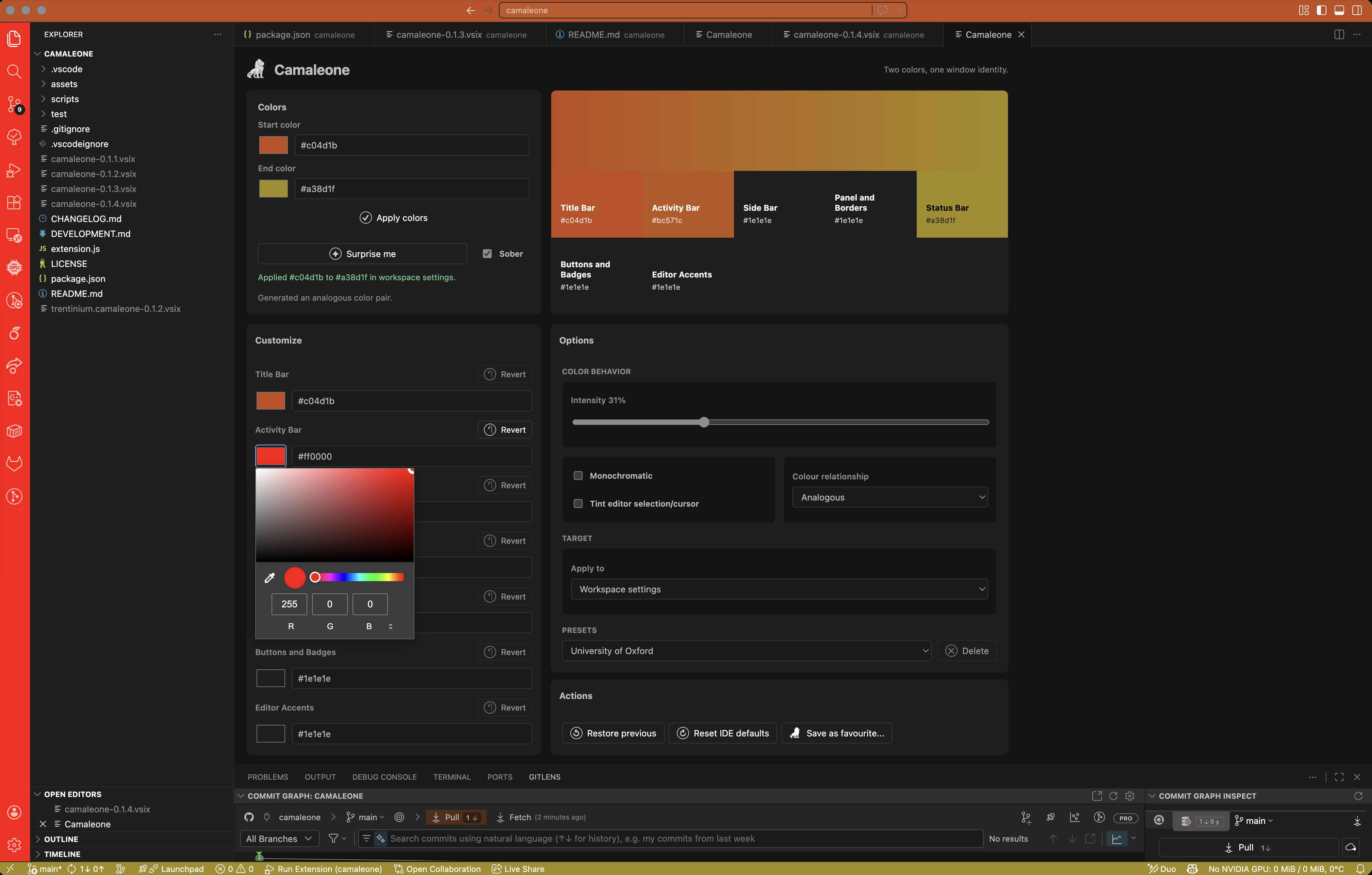
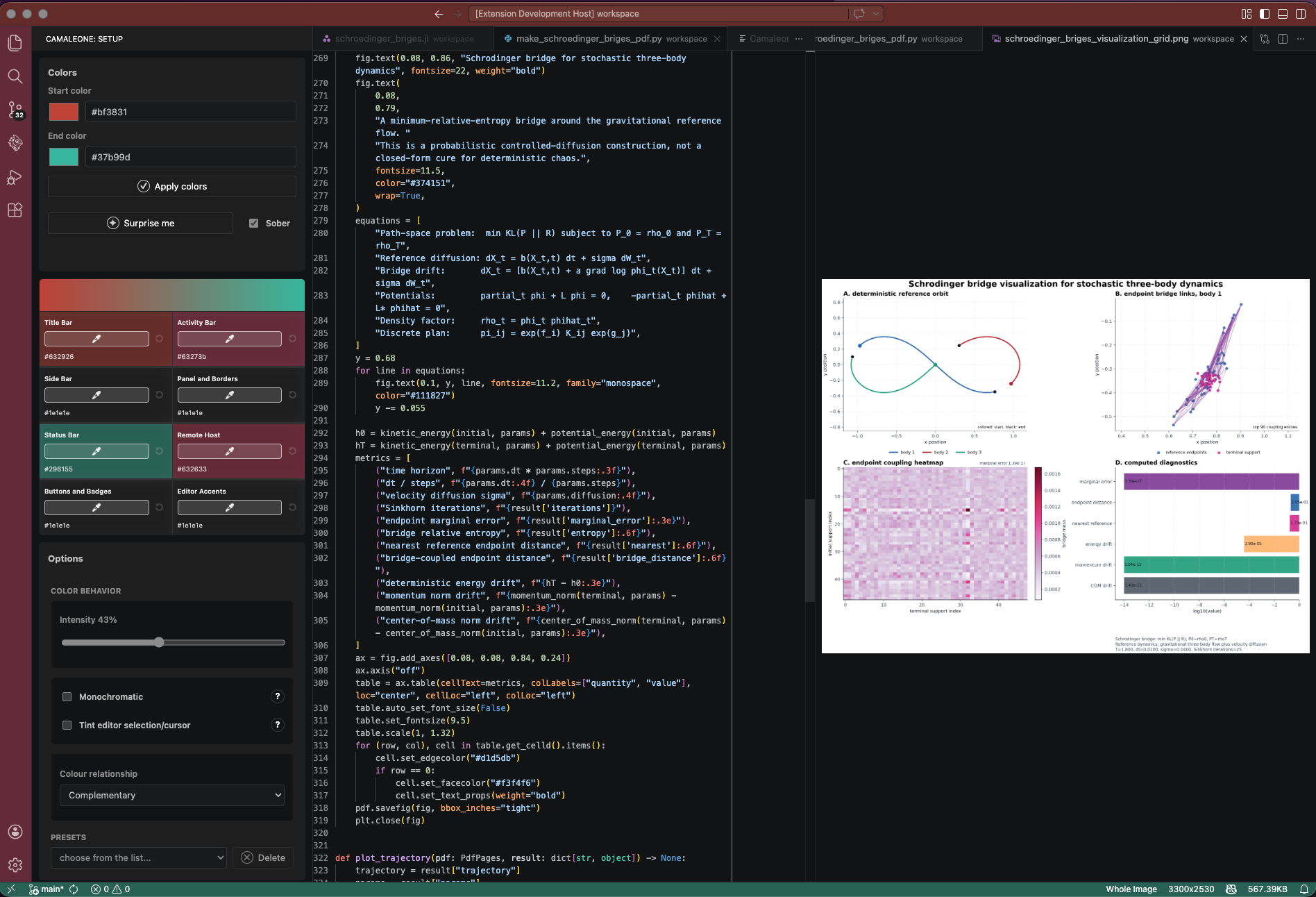
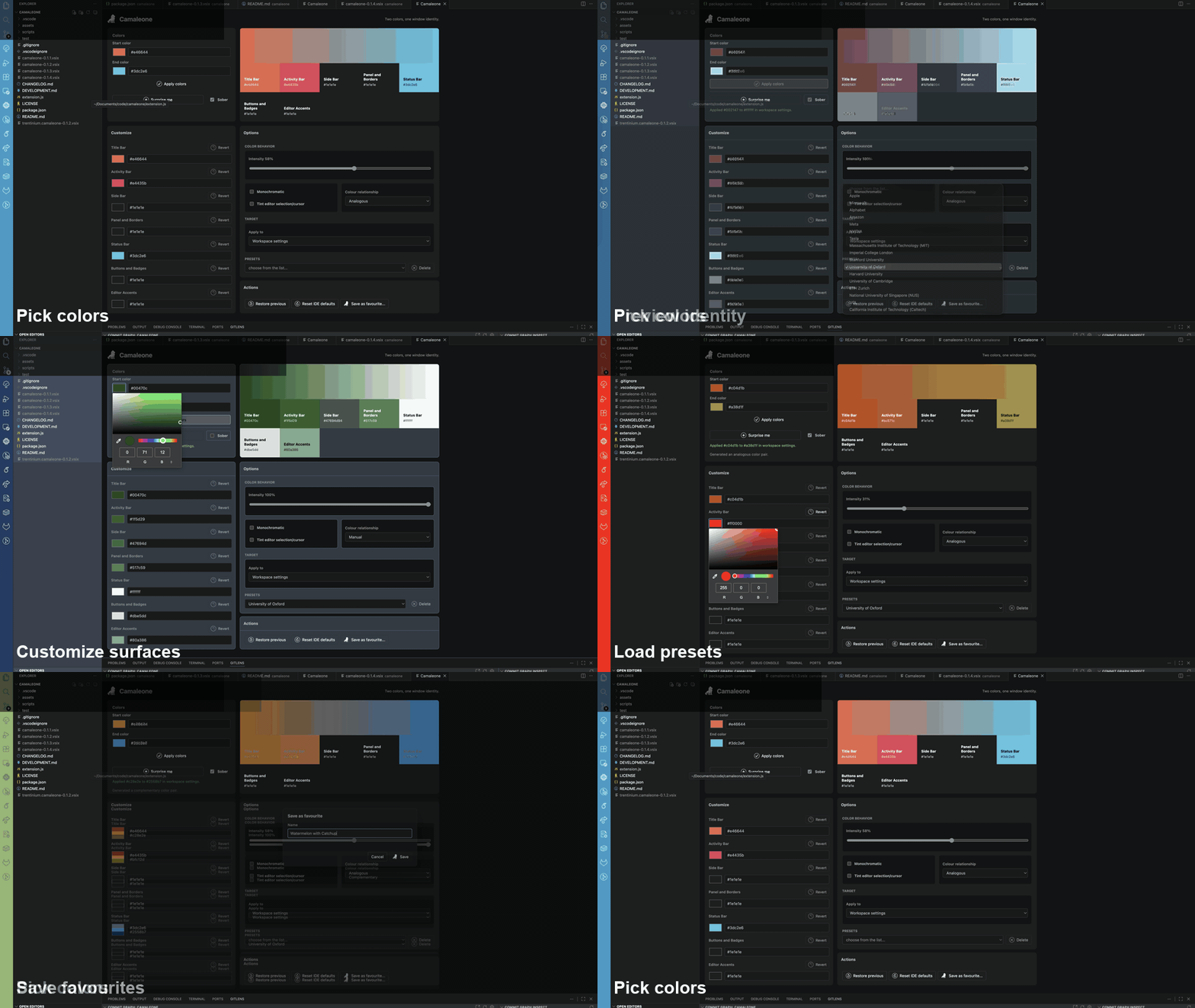
Open Camaleone from the Activity Bar for a compact left-panel workflow, or use Camaleone: Open Colour Picker from the Command Palette for the full picker. Pick a start and end color, generate palettes with Surprise me, keep the result restrained with default Sober mode, use presets, or customize individual surfaces such as the title bar, activity bar, side bar, panel, status bar, remote host indicator, buttons, and editor accents.
It is built for people who work across many projects and want a fast visual cue for each window. Workspace profiles are saved automatically after applying, so the selected palette is ready when that workspace opens again. Save favourite palettes, apply them again later, restore the colors Camaleone replaced, or reset cleanly to IDE defaults whenever you need to.
Community, Privacy, And Reviews
Camaleone is an independent community project. It is not affiliated with, endorsed by, or representative of any organization developers work for, study with, or otherwise represent.
Camaleone does not capture, collect, transmit, or sell user data. It only writes the local VS Code-compatible settings needed to apply the colors you choose.
If Camaleone helps your workflow, a review on the VS Code Marketplace or Open VSX would be extremely helpful. Reviews make a real difference and help other users decide whether to try the extension.
Feature Highlights
- Gradient-inspired workbench identity without installing or switching full themes.
- Activity Bar side pane, visible by default, for quick left-panel color edits.
- Compact two-column surface tiles for direct color picking and per-surface revert actions.
- Sober mode for restrained color on high-signal surfaces.
- Per-surface customization for title bar, activity bar, side bar, panel, status bar, remote host, buttons, borders, and editor accents.
Surprise me palettes biased toward distinctive color pairs instead of mostly similar colors.- Automatic workspace profile saving so the selected palette is ready when the workspace opens again.
- Built-in preset filters for Magnificent 7 companies, QS 2026 top universities, and current top-10 FIFA World Cup teams.
- Favourite palettes for reusable workspace identities.
- Clean restore and reset commands for returning to previous colors or IDE defaults.
What Users Say
"Loving it! Installed and in use!!"
"easy to use. great interface"
"It's just beautiful"
Screenshots
Click any image to open the Camaleone website. These images are loaded from https://trentini.fyi/camaleone/.
How To Use
Fast Activity Bar side-panel flow:
- Install Camaleone from the VS Code Marketplace or Open VSX in VS Code, Cursor, or a compatible VS Code-based IDE.
- Click the Camaleone icon in the Activity Bar (usually located on the left side bar) to open the compact side pane.
- Use the compact two-column tiles to pick surface colors directly for the title bar, activity bar, side bar, panel, status bar, remote host, buttons, and editor accents.
- Click the small revert icon on a tile to return that surface to the generated palette color.
- Click
Apply colors to write the current palette to workspace settings. Camaleone saves the workspace profile automatically, so the palette is ready the next time you open that workspace.
Full picker flow:
- Open the Command Palette with
Cmd+Shift+P on macOS or Ctrl+Shift+P on Windows and Linux.
- Run
Camaleone: Open Colour Picker for the full picker pane.
- Choose a
Start color and End color, or click Surprise me to generate a palette that favors distinctive color pairs.
- Leave
Sober enabled for a restrained window identity, or turn it off for a fuller palette across the workbench.
- Use
Customize to tune the same surfaces available in the Activity Bar pane. Surface changes apply automatically; Revert returns a surface to the generated palette color.
- Keep editing after applying if needed; picker changes continue to save back to the same workspace profile.
- Click
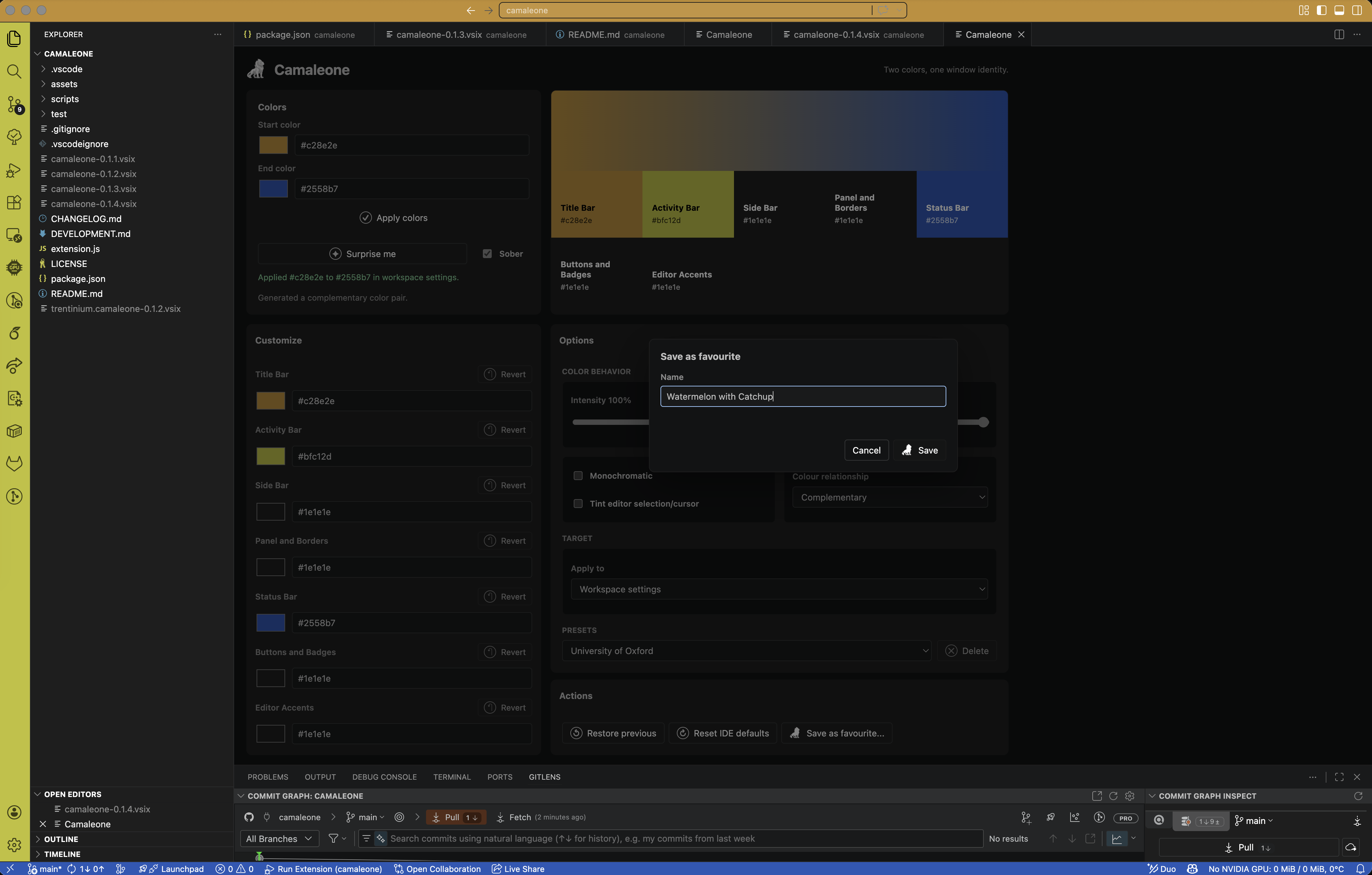
Save as favourite... to store a palette, then choose it from the favourites list to apply it later. Preloaded presets can also be loaded and customized.
- Use
Restore previous to return to the colors Camaleone replaced, or Reset IDE defaults to remove Camaleone-managed colors.
Preloaded Favourites
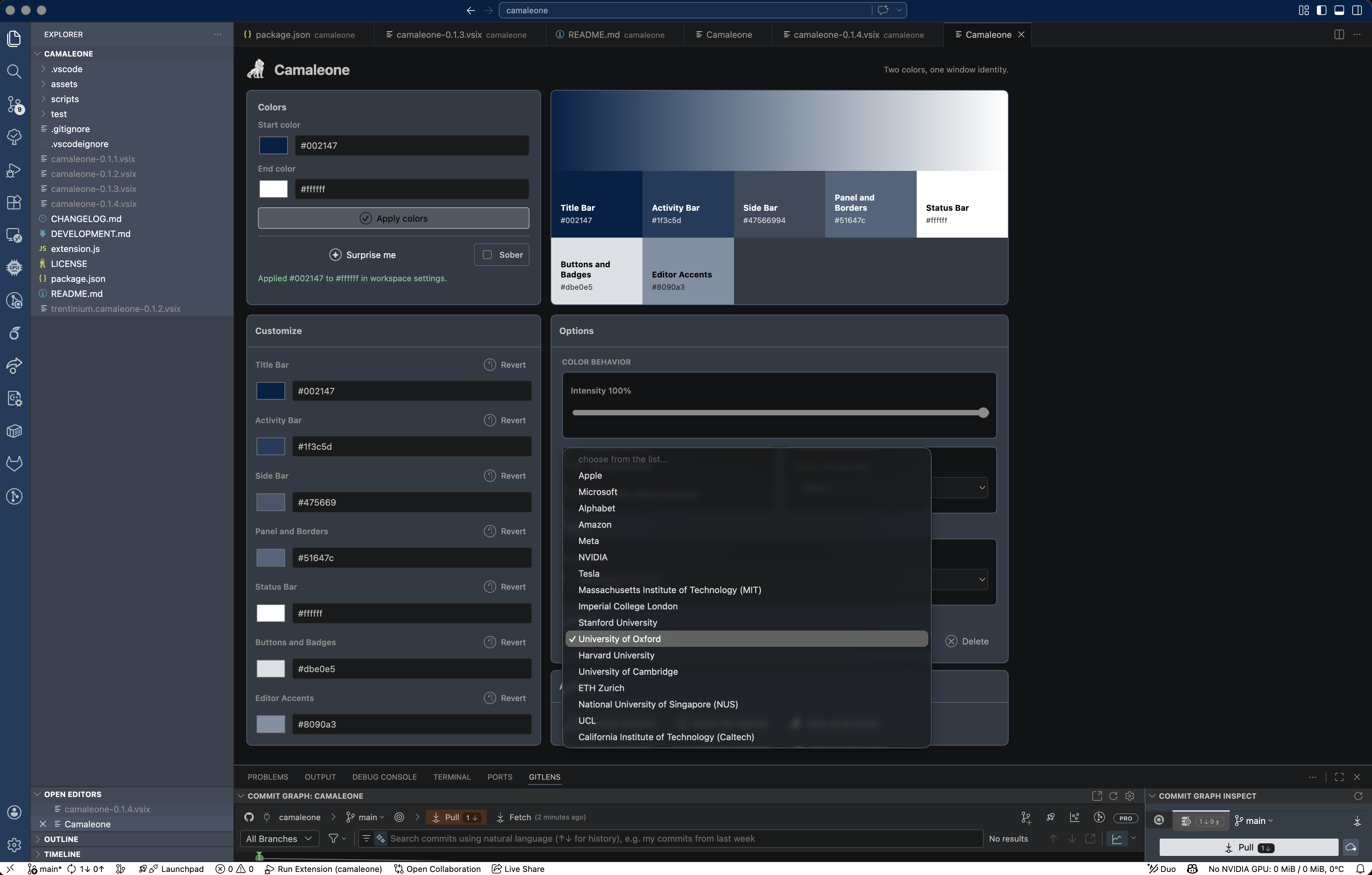
Camaleone ships with default favourites for the Magnificent 7 companies, the QS 2026 top 10 universities, and the current top 10 FIFA men's national teams for the World Cup preset group. These presets are brand- or flag-inspired two-color profiles, so they fit Camaleone's workbench model while keeping the names recognizable.
- Magnificent 7: Apple, Microsoft, Alphabet, Amazon, Meta, NVIDIA (
#76b900), and Tesla.
- QS 2026 top 10 universities: Massachusetts Institute of Technology (MIT), Imperial College London, Stanford University (
#8c1515 and #dad7cb), University of Oxford, Harvard University, University of Cambridge, ETH Zurich, National University of Singapore (NUS), UCL, and California Institute of Technology (Caltech).
- World Cup: France (
#002654 and #ed2939), Spain, Argentina, England, Portugal, Brazil, Netherlands, Morocco, Belgium, and Germany.
- To edit a preloaded favourite, choose it from the favourites list, adjust the colors or custom surfaces, then click
Save as favourite.... The save prompt is prefilled with the preset name, and saving creates your editable override.
Commands
Main command:
Camaleone: Open Colour Picker: opens the customization interface for choosing colors, previewing the palette, tuning surfaces, applying changes, and saving favourites.
Secondary commands:
Camaleone: Quick Apply Without WebviewCamaleone: Apply Configured ColorsCamaleone: Restore Previous ColorsCamaleone: Reset to IDE DefaultsCamaleone: Surprise MeCamaleone: Save Current Colors as FavouriteCamaleone: Apply Favourite Colors
Get in touch | Buy me a coffee
| |