


A powerful formatting extension for PowerShell files in Visual Studio Code (.ps1, .psm1, .psd1).
Automate consistent formatting across your scripts with flexible settings and optional .editorconfig support.
🌍 Languages:  English (this file) ·
  Português
✨ Features
- 🎯 Smart formatting — format whole documents or selections with a single command
- ✏️ Selection formatting — format only the selected text (range formatting)
- 📦
param (...) block indentation — automatically indents multi-line param blocks
- 🎛️ Highly configurable — control indentation, spacing, line breaks, and more
- 🌍 Multi-language UI — English (EN) and Brazilian Portuguese (PT-BR)
- 📋 .editorconfig integration — respects project-level preferences (optional)
- ⚡ Fast & lightweight — instant formatting with minimal overhead
🚀 Getting Started
Install
Or inside VS Code:
- Open Extensions (
Ctrl+Shift+X / Cmd+Shift+X)
- Search for Ark Format: PowerShell
- Click Install
🧩 How to Use
Preview
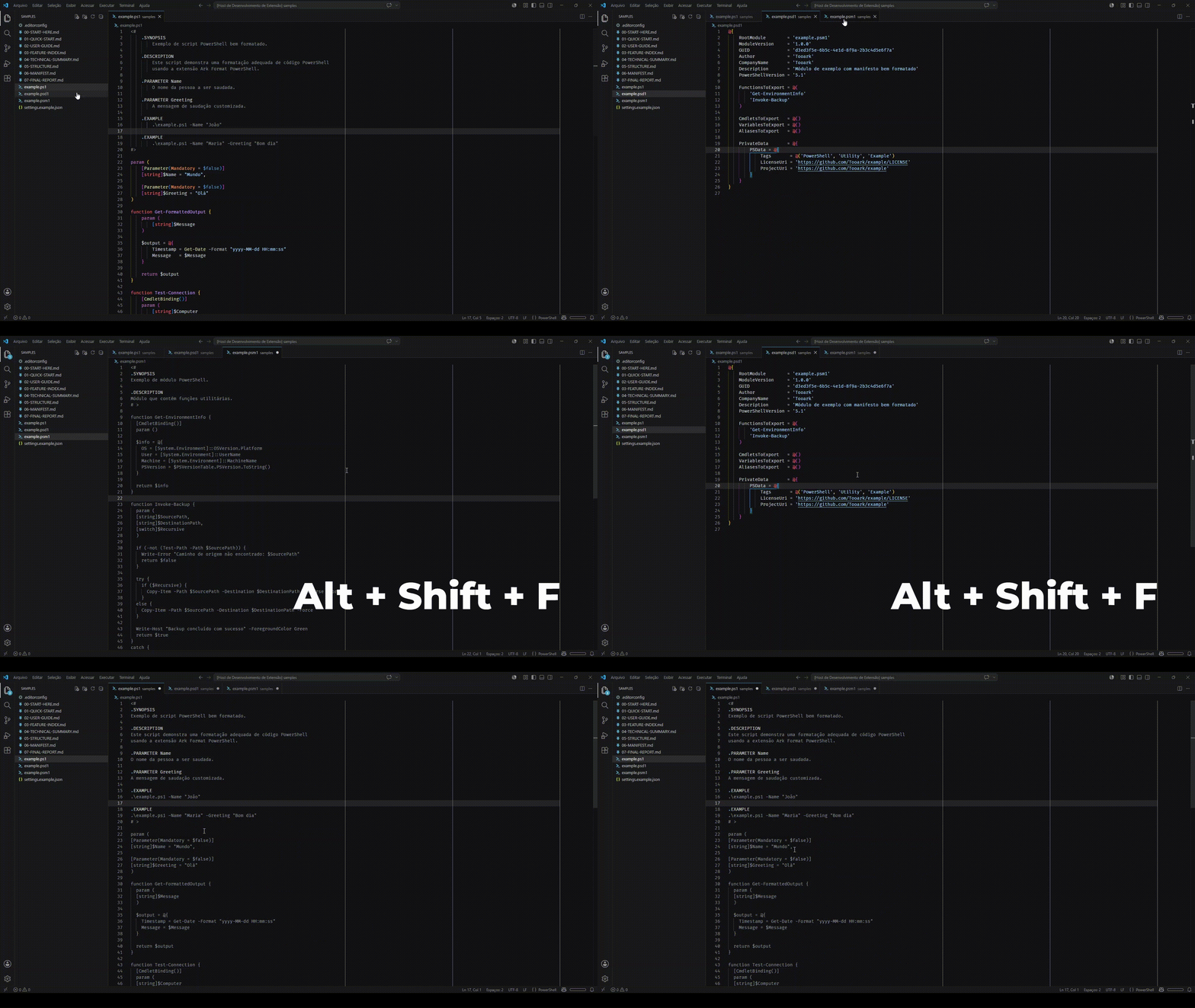
- Press Shift+Alt+F (Windows/Linux) or Shift+Option+F (Mac)
- Or run:
Editor: Format Document
- Select the text you want to format
- Press Ctrl+K Ctrl+F (Windows/Linux) or Cmd+K Cmd+F (Mac)
- Or run:
Editor: Format Selection
Tip: You can set Ark Format as the default formatter for PowerShell to ensure consistent formatting on save.
📄 Supported File Types
.ps1 — PowerShell Script.psm1 — PowerShell Module.psd1 — PowerShell Module Manifest
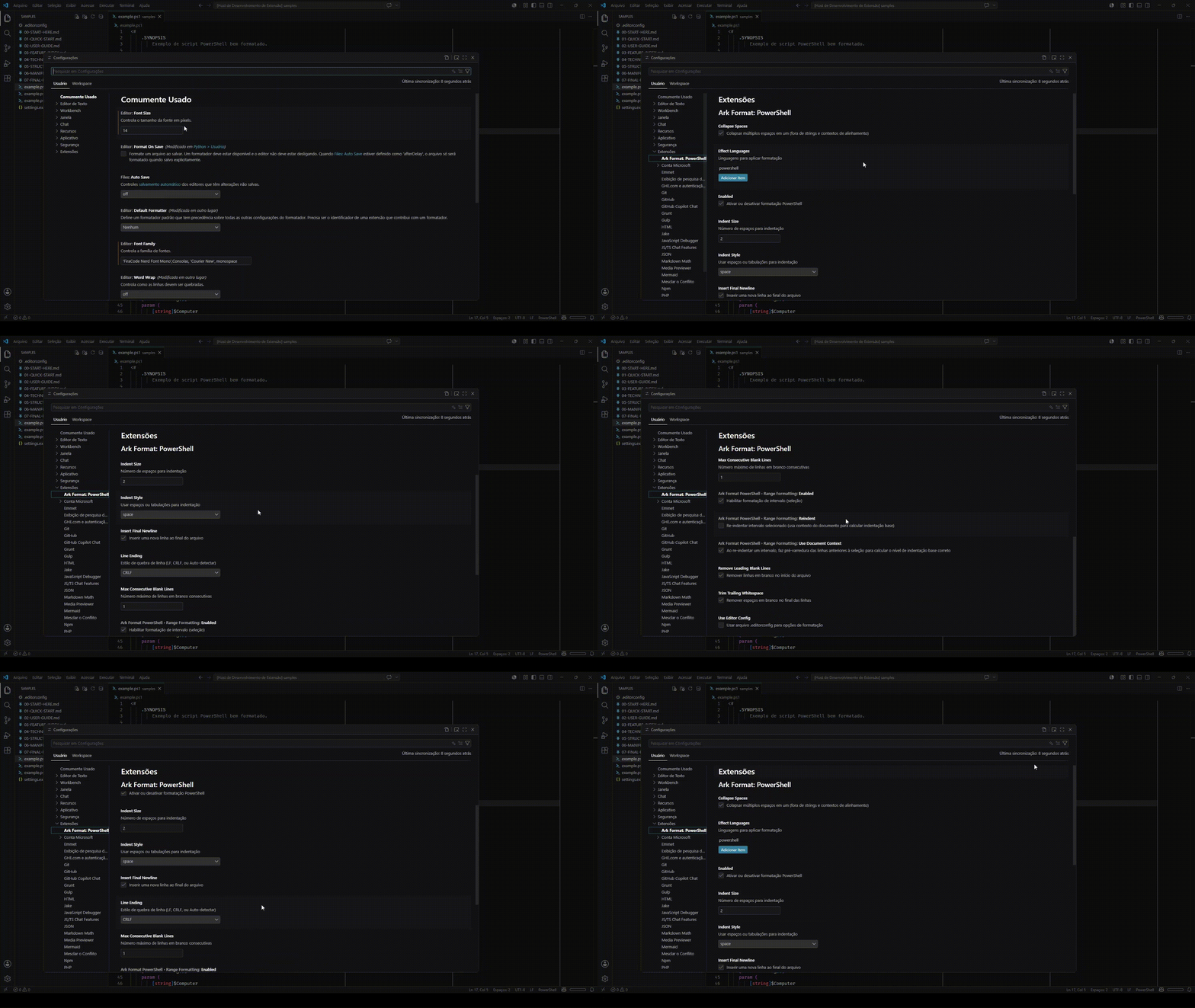
⚙️ Configuration
Customize the formatter in settings.json:
{
  "arkFormatPowerShell.enabled": true,
  "arkFormatPowerShell.indentSize": 2,
  "arkFormatPowerShell.indentStyle": "space",
  "arkFormatPowerShell.trimTrailingWhitespace": true,
  "arkFormatPowerShell.maxConsecutiveBlankLines": 1,
  "arkFormatPowerShell.removeLeadingBlankLines": true,
  "arkFormatPowerShell.insertFinalNewline": true,
  "arkFormatPowerShell.lineEnding": "CRLF",
  "arkFormatPowerShell.collapseSpaces": true,
  "arkFormatPowerShell.formatBlockComments": false,
  "arkFormatPowerShell.alignAssignments": false,
  "arkFormatPowerShell.rangeFormatting.enabled": true,
  "arkFormatPowerShell.rangeFormatting.reindent": false,
  "arkFormatPowerShell.rangeFormatting.useDocumentContext": true
}
Description of Settings
| Option |
Default |
Description |
enabled |
true |
Enables or disables the extension |
indentStyle |
space |
Indentation type (space or tab) |
indentSize |
2 |
Number of spaces per indentation level |
trimTrailingWhitespace |
true |
Removes trailing whitespace |
maxConsecutiveBlankLines |
1 |
Maximum number of consecutive blank lines |
removeLeadingBlankLines |
true |
Removes blank lines at the beginning of the file |
insertFinalNewline |
true |
Inserts a new line at the end of the file |
lineEnding |
CRLF |
Line break type (Auto, LF, CRLF) |
collapseSpaces |
true |
Converts multiple spaces into one |
formatBlockComments |
false |
Re-indents <# ... #> comments; off = unchanged |
alignAssignments |
false |
Aligns assignment operators in variable/hashtable blocks |
rangeFormatting.enabled |
true |
Enables range formatting |
rangeFormatting.reindent |
false |
Reindents the selected range |
rangeFormatting.useDocumentContext |
true |
Uses document context for formatting |
useEditorConfig |
false |
Uses .editorconfig file context for configuration |
💡 Tips & Best Practices
- Use Selection Formatting to adjust only specific parts without affecting the rest of the file
- Configure .editorconfig in your project to maintain consistency between tools
- Combine with other formatting extensions for a complete workflow
🤝 Contributing
💖 Support
If this extension helps your workflow, consider supporting its development:
Every contribution helps keep the project maintained and improving. Thank you! 🙏
📝 License
This project is licensed under the MIT License.


