FramePort
HDMI and USB video capture inside VS Code.






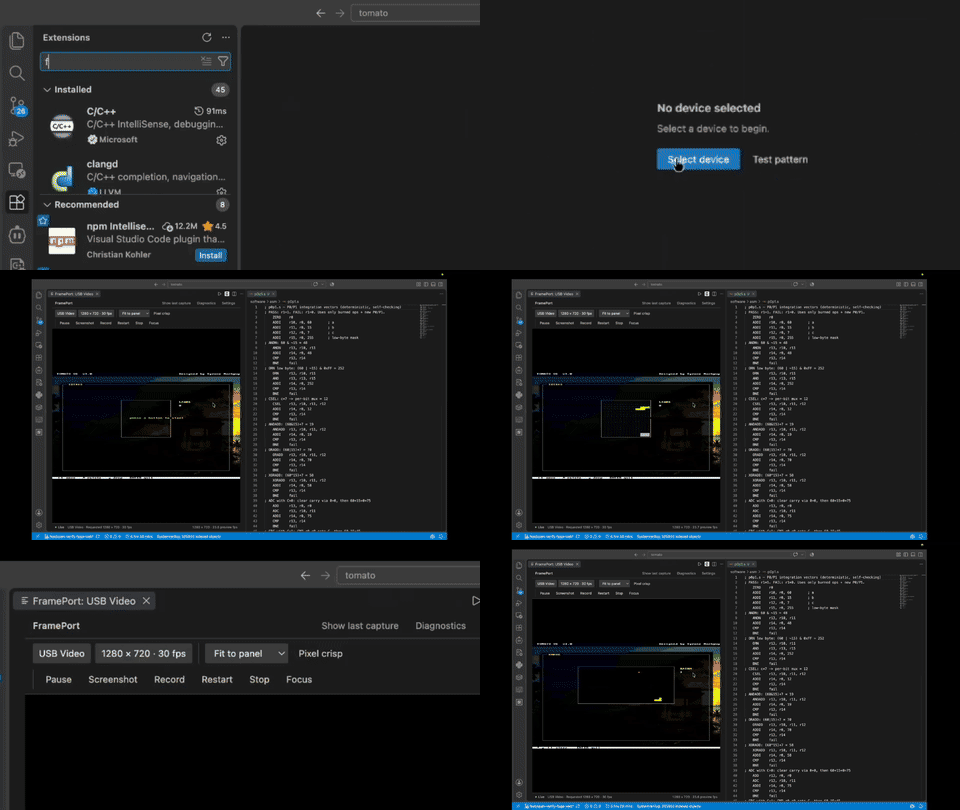
Demo: live capture inside VS Code — click the preview for the full clip.


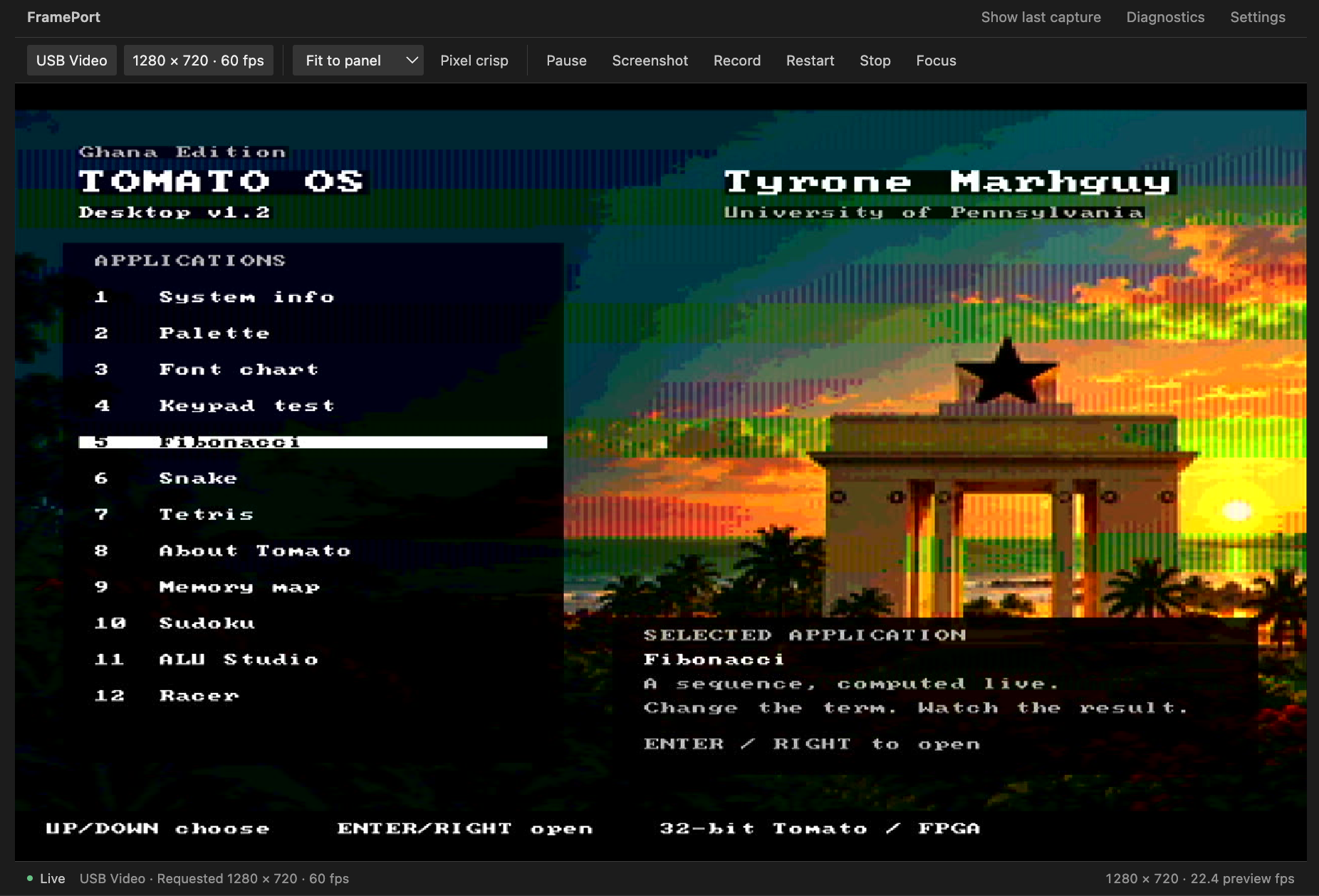
FramePort opens an HDMI capture card or other USB video device in an editor tab. View FPGA HDMI output beside your code, inspect individual pixels, save a PNG screenshot, or record a silent MP4 clip without switching to a separate video application.
Explore: technical manual ·
development ·
build journal
 |
 |
| Tomato OS through a USB capture card; requested settings and observed FPS shown separately. |
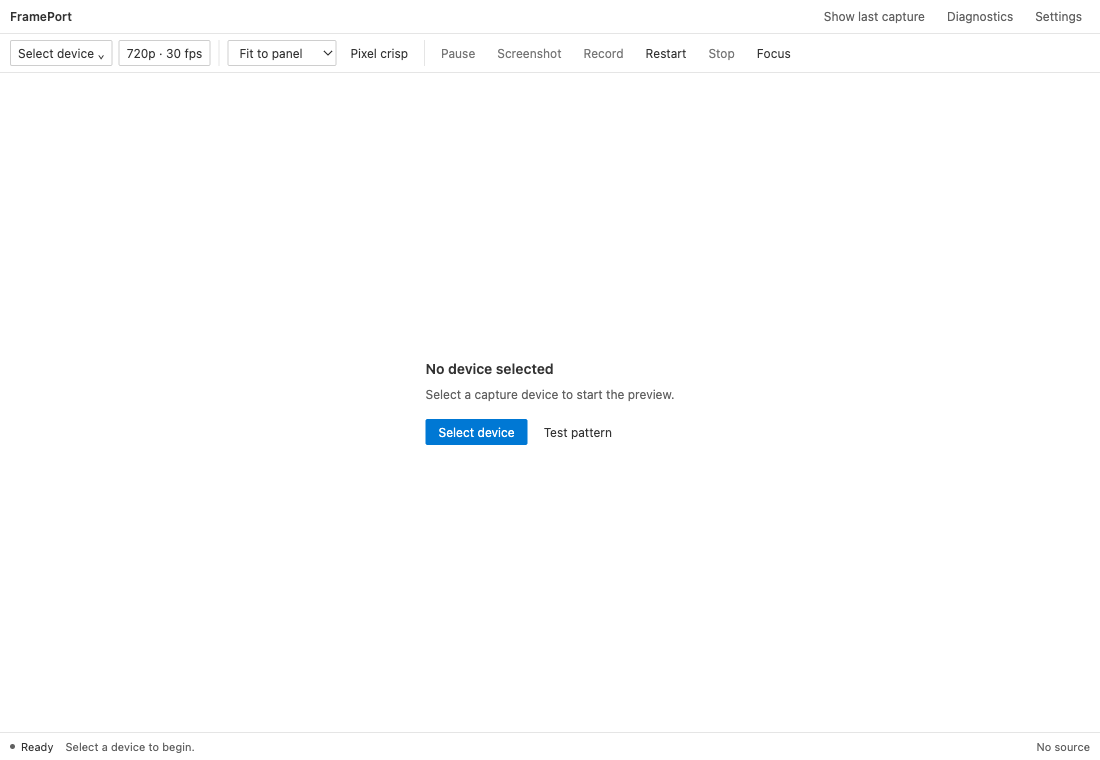
High-contrast theme supported. |
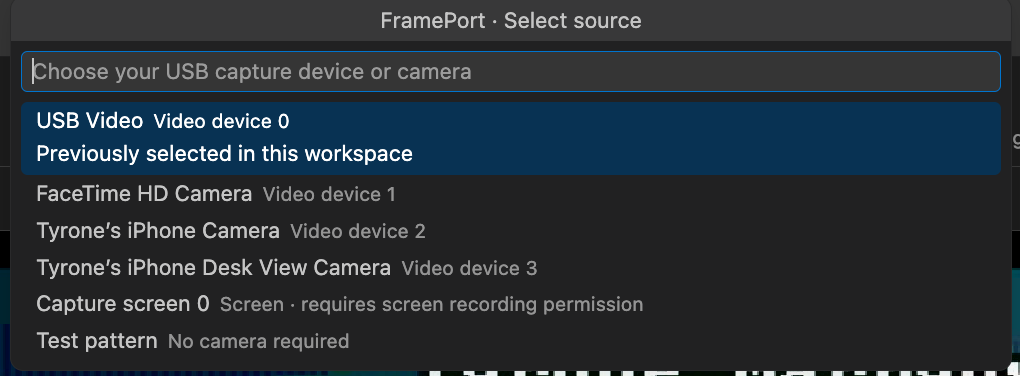
The iPhone camera on the Mac: the preview is you. Desk View is the overhead camera. |
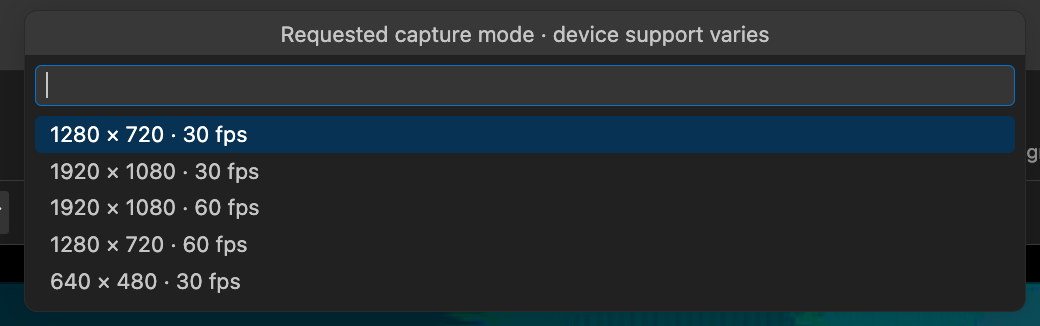
Requested modes, not probed capabilities. |
Why I built it
I needed to see my Tomato FPGA's HDMI output while programming it. A USB capture card replaced the extra monitor, but viewing still needed another app — so the feed moved into VS Code. The build journal tells the story.
Features
- Source and mode: request a resolution/frame rate per device; screens use native size with a separate FPS choice.
- Fit / native / integer, crisp / smooth: fit the pane, inspect source pixels, or scale up; sharp edges or smoothed.
- Pause / resume: freeze the preview; capture and recording continue.
- Screenshot: autosave the displayed frame as PNG under
media/screenshots (oversized captures are refused).
- Record: autosave the source as silent H.264 MP4 under
media/videos; never overwrites.
- Focus: hide toolbars (recording stays visible); Escape restores.
- Stop / restart / last capture: release or restart capture; closing finalizes recording; reveal the last PNG/MP4.
| Control |
What it does |
| Source and mode |
Request a resolution/frame rate per device; screens use native size with a separate FPS choice. |
| Fit / native / integer, crisp / smooth |
Fit the pane, inspect source pixels, or scale up; sharp edges or smoothed. |
| Pause / resume |
Freeze the preview; capture and recording continue. |
| Screenshot |
Autosave PNG under media/screenshots (or ask via setting); oversized captures are refused. |
| Record |
Autosave silent H.264 MP4 under media/videos (or ask via setting); never overwrites. |
| Focus |
Hide toolbars (recording stays visible); Escape restores. |
| Stop / restart / last capture |
Release or restart capture; closing finalizes recording; reveal the last PNG/MP4. |
Requirements
- Desktop VS Code 1.95+ in a trusted local workspace (remote, browser-only, and untrusted workspaces are unsupported).
- macOS, Windows, or Linux for device capture (AVFoundation, DirectShow, or V4L2). The test pattern works on every desktop platform.
- FFmpeg with
libx264 on PATH. FramePort also checks /opt/homebrew/bin/ffmpeg and /usr/local/bin/ffmpeg on macOS, and /usr/bin/ffmpeg and /usr/local/bin/ffmpeg on Linux, or set frameport.ffmpegPath.
- Camera and screen-recording permission when macOS asks. On Linux, read access to
/dev/videoN (usually membership in the video group).
Physical device capture is verified on macOS. Windows (dshow) and Linux (V4L2) selection and FFmpeg arguments are covered by unit tests; confirm a capture card on those systems locally. Linux lists the primary V4L2 node and skips the metadata node that shares its name.
Get started
- Install 0.2.5 from either store:
- VS Code Marketplace (Extensions view → search
FramePort)
- Open VSX (Cursor, VSCodium, and other Open VSX clients)
- Or Extensions: Install from VSIX… with
frameport-0.2.5.vsix
- Run FramePort: Open Capture Device → Select device, or Test pattern to verify without hardware.
- Pick a capture mode your device supports. Allow camera access if macOS asks.
- Use Pause, Screenshot, Record, Focus, and Diagnostics from the panel toolbar or Command Palette.
Screenshots and recordings autosave to media/screenshots and media/videos in the workspace (or ~/FramePort with no folder open). Change folders, ask-before-save, or naming in settings.
FFmpeg is auto-found in Homebrew paths or PATH; override with frameport.ffmpegPath if VS Code's PATH differs from your terminal's. If FFmpeg is missing, FramePort offers to install via Homebrew on macOS, open the download guide, or jump to settings.
Extension Settings
| Setting |
Default |
Use |
frameport.ffmpegPath |
ffmpeg |
Executable override. |
frameport.previewFps |
30 |
Preview cap: 15, 30, or 60. |
frameport.recordingEncoder |
software |
libx264, or macOS VideoToolbox hardware (larger files). |
frameport.saveRoot |
media |
Capture root (workspace-relative, or absolute; else ~/FramePort). |
frameport.screenshotFolder |
screenshots |
PNG subfolder under save root. |
frameport.videoFolder |
videos |
MP4 subfolder under save root. |
frameport.saveMode |
auto |
auto writes immediately; ask shows the save dialog. |
frameport.filenameStyle |
timestamp |
timestamp (frameport-YYYYMMDD-HHMMSS) or sequential (frameport-0001). |
Commands
| Command |
What it does |
FramePort: Open Capture Device |
Open the capture panel. |
FramePort: Select Device |
Pick a source and requested mode. |
FramePort: Take Screenshot |
Save the displayed frame as PNG. |
FramePort: Start / Stop Recording |
Record silent H.264 MP4; never overwrites. |
FramePort: Restart Stream |
Restart capture on the current source. |
FramePort: Stop Stream |
Release the device. |
FramePort: Show Diagnostics |
Inspect FFmpeg output on failure. |
FramePort: Show Last Capture |
Reveal the last PNG/MP4 in your file manager. |
Known issues and troubleshooting
One FFmpeg process while viewing, one more while recording; frames are skipped rather than queued under load, so preview FPS is observed output, not latency. No audio, editing, or broadcasting. The iPhone camera and Desk View are the phone's cameras on the Mac, not a copy of the phone's screen. Browser-only VS Code is unsupported. The transport is JPEG, so PNG screenshots are not lossless.
- FFmpeg won't launch: use the Install via Homebrew / Install guide actions when offered, or set
frameport.ffmpegPath; VS Code's PATH differs from the terminal's.
- No frames: check permissions, cables, other apps holding the device, and a lower mode; see Diagnostics. On Linux, confirm you can open
/dev/videoN (groups should include video).
- Recording fails: confirm the encoder exists in your FFmpeg build and pick a new writable filename.
- Black frames: some cards emit black when HDMI drops; the video alone can't always tell.
Build from source
npm ci && npm run check && npm test && npm run package
Install the VSIX via Extensions: Install from VSIX…, or press F5 to hack. Guides: development, publishing, issues.
Release Notes
See CHANGELOG.md: 0.2.5 adds Linux device capture via V4L2; 0.2.4 adds Windows device capture via FFmpeg dshow; 0.2.3 fixes store listing images and packaging; 0.2.2 adds missing-FFmpeg recovery, leaves the Marketplace preview channel, and autosaves captures under media/; 0.2.1 refreshes the listing; 0.2.0 adds MP4 recording, native-size screen sources, an optional VideoToolbox encoder, and hardened save handling.
Author and license
Built by Tyrone Marhguy from the Tomato workflow. All rights reserved — see LICENSE. No open-source license is granted.

