
Stringer i18n Helper
The VS Code companion for Stringer CLI
Add i18n keys manually • Preview translations inline • Keep locales in sync
Install Extension ·
Documentation ·
Discord
What is this for?
This VS Code extension is a companion to Stringer CLI—the AI-powered i18n tool that automatically extracts and translates strings in your codebase.
This i18n Helper extension shows translation previews inline in your code and let's you easily add i18n keys. It also lets you trigger some Stringer CLI commands from within VS Code such as Align Translations.
⚠️ Requires Stringer CLI — This extension only works with projects that have been processed by Stringer CLI.
Quick Start
- Install Stringer CLI and run the
convert flow in your project
- Install this extension
- Start using the features below
Smart Locale Detection
The extension automatically finds the nearest locales folder relative to your active file. This works seamlessly with monorepos containing multiple locale directories—each file always displays translations from its correct locale folder.
Features
1. Inline Translation Previews
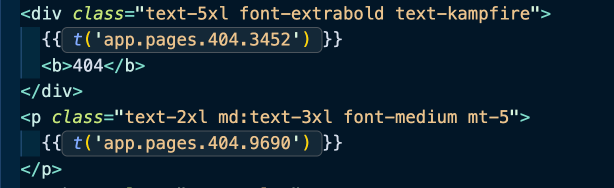
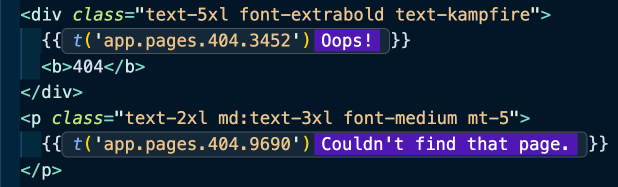
See translations directly in your code without switching files.
Preview modes:
| Mode |
What it shows |
| No Preview |
Hide all inline translations (same as without the extension) |
| Key + Locale |
Show full key and translation |
| Locale Only |
Show translation only |
Mode 1: No Preview
Mode 2: Key + Locale Preview
Mode 3: Locale Only Preview

Change the mode:
- Click the eye icon in the status bar
- Or run:
Stringer: Change Preview Mode
2. Add i18n Keys Manually
When Stringer CLI misses a string (it happens!), add it yourself in seconds.
How to use:
- Select any text in your code
- Right-click → "🌎 Add i18n key via Stringer"
Before:
<template>
  <h1>Welcome to our app</h1>
</template>
After:
<template>
  <h1>{{ t('components.header.0242') }}</h1>
</template>
Keys use the format keyPath.4-digit-code where keyPath is based on your file path (e.g., components/Header.vue → components.header).
The extension automatically:
- Adds the string to your base locale file (
en.json)
- Replaces the text with the correct
t() call
- Injects
const { t } = useI18n() if needed (Vue/Nuxt)
- Detects context (template, attribute, script) and uses the right syntax
4. Missing Key Detection
Spot missing translations instantly with red indicators.
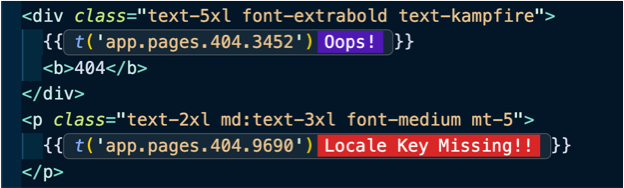
To fix it:
CAST 1: No values exist in the baseLanguage file after conversion: Manually right click the value and select "Add i18n key via Stringer".
CASE 2: In the case that baseLanguage values exist: Run Stringer: Align Translations or stringer align in terminal.
5. Align Translations
Keep all your locale files in sync with one click.
How to use:
- Click "Stringer" in the status bar
- Select "Align Translations"
This runs stringer align which copies new keys from your base language to all other locales.
6. Revert to Original Text
Changed your mind? Revert an i18n key back to the original text.
NOTE: This feature only works to revert basic string conversions, and is not yet capable of reverting complex i18n-t tag, or complex pluralization conversions.
How to use:
- Place your cursor on a
t('...') call
- Right-click → "↩️ Revert to original text"
Before:
<h1>{{ t('components.header.0242') }}</h1>
After:
<h1>Welcome to our app</h1>
7. Ignore Lines or Files
Tell Stringer CLI to skip specific code.
Right-click menu options:
- "🚫 Ignore this line" — Adds
// @stringer-ignore-next-line above the current line
- "🚫 Ignore this file" — Adds
// @stringer-ignore at the top of the file
- "🚫 Ignore from here" — Adds
// @stringer-ignore-from-here at the cursor position
Status Bar
The extension adds helpful buttons to your status bar:
| Button |
What it does |
| Stringer |
Opens the main menu (align, docs, billing) |
| 👁 Preview |
Change preview mode |
| 🌐 Lang |
Change preview language |
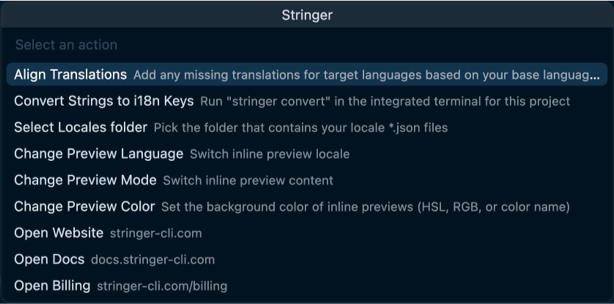
Open the Stringer menu (bottom right corner in VS Code / Cursor):
Stringer menu options:
Troubleshooting
"Stringer CLI config not found"
Run any Stringer CLI command first:
stringer
This creates the config file (~/.stringer-cli.json) the extension needs.
Previews not showing
- From the Stringer i18n helper menu, click the
Select locales folder button and select the folder that contains your locale *.json files.
- Run
Stringer: Reload Locales from the command palette
- Make sure
enableInlinePreview is true in settings
Links
Built to work hand-in-hand with Stringer CLI for a smooth i18n workflow. Happy localizing! 🌍

