Tipsboard
A Markdown wiki and personal knowledge management workspace for VS Code.
Create connected notes with wiki-style links, backlinks, tags, and rich Markdown editing directly inside your editor.
Tipsboard helps developers, researchers, and technical writers build a searchable, linkable knowledge base using plain Markdown files.
No sign-in. No proprietary database.
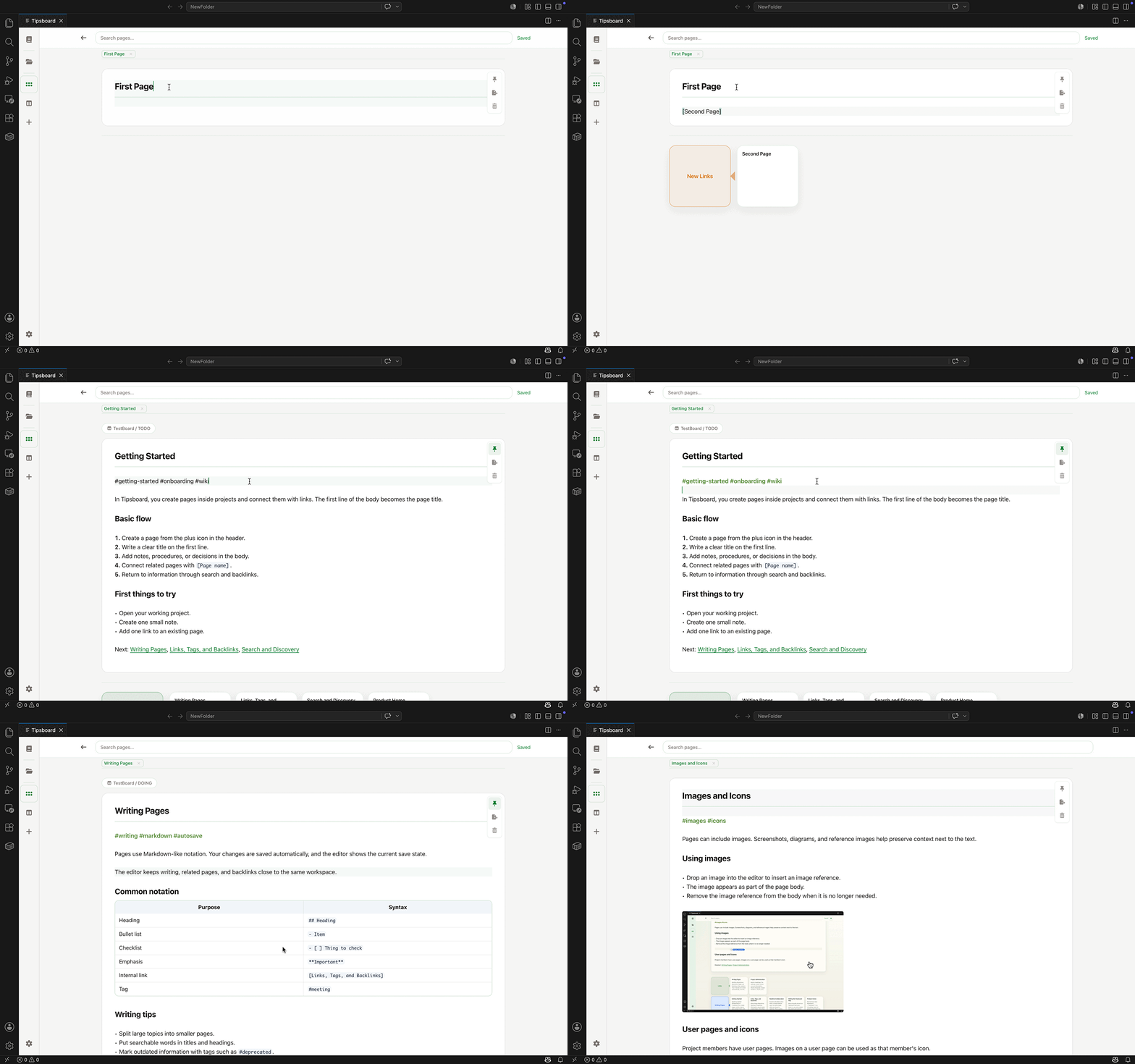
Why Tipsboard?
Tipsboard is designed for people who already live inside VS Code and want a connected Markdown knowledge workspace without switching tools.
Build a searchable personal wiki using plain Markdown files, connect ideas with backlinks and tags, and explore relationships between notes directly inside your editor.
Tipsboard combines:
- wiki-style Markdown notes
- backlinks and two-hop discovery
- rich Markdown editing
- Kanban organization
- Canvas (experimental) problem-structure graph editor for causes and solutions
- image embedding and preview
- optional local semantic search for finding notes by meaning
- English and Japanese UI
Everything stays compatible with your existing Markdown workflow and works naturally with Git and external backups.
Features
Connected Markdown Notes
Use ordinary Markdown files anywhere under your vault folder and connect them with wiki-style links. Tipsboard preserves your existing folder hierarchy instead of moving everything into a single notes directory.
[Project Ideas]
[Daily Notes]
#research
Tipsboard automatically shows:
- outgoing links
- backlinks
- two-hop related notes
- semantic nearby notes with match scores, hit headings, and snippets
- suggested new links
- an isolated-note notice when a note has no outgoing links or backlinks
This makes it easy to navigate and grow a connected knowledge base over time.
Rich Markdown Editing
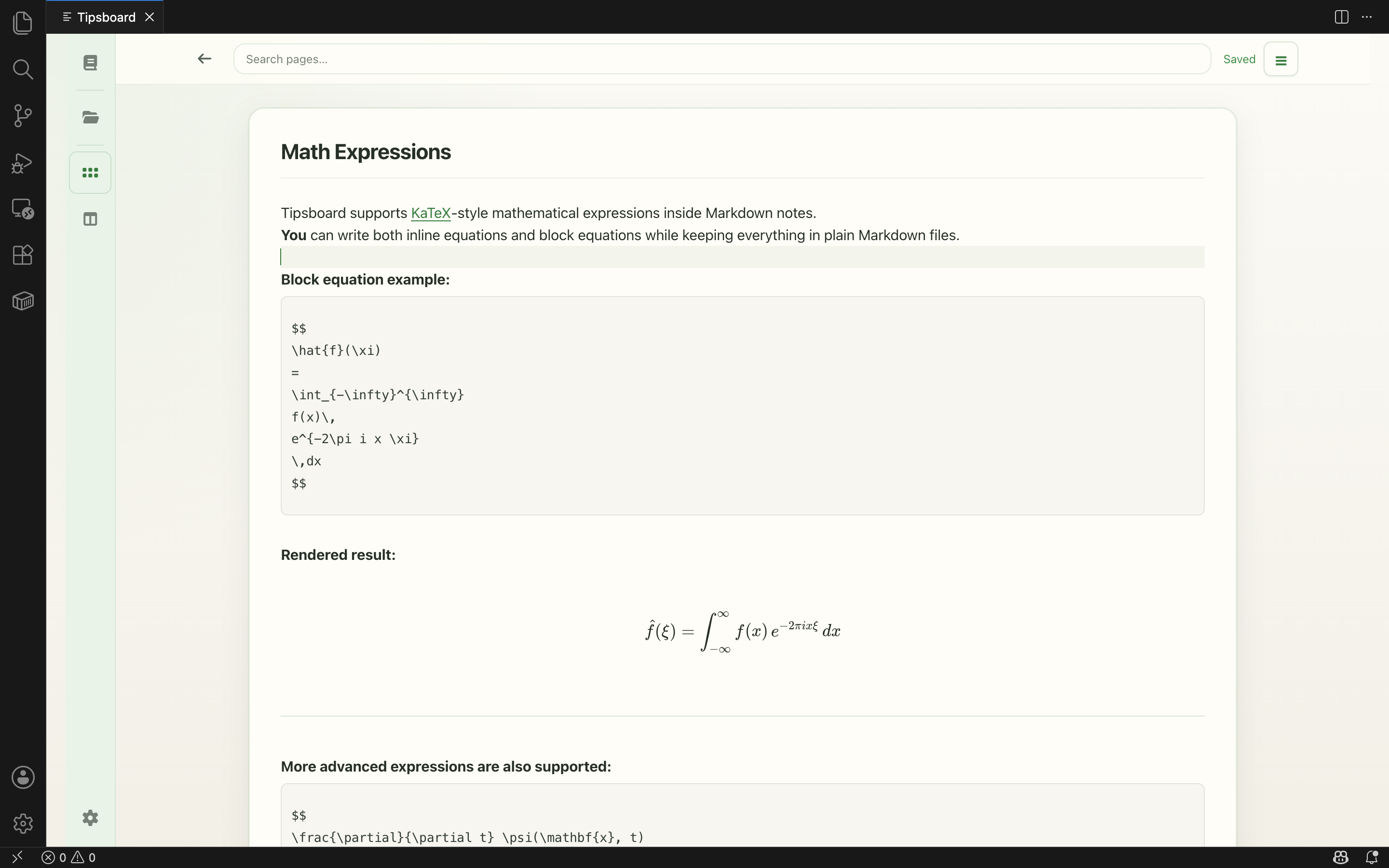
Supported features include:
- GitHub Flavored Markdown
- Mermaid diagrams
- tables
- KaTeX-style math rendering
- internal link autocomplete
- tags
- collapsible heading outline navigation to the left of the editor (ATX headings only; click to jump)
- image embeds and file attachments (
assets/files/), plus an Attachments sidebar view to browse and search them
Knowledge Discovery
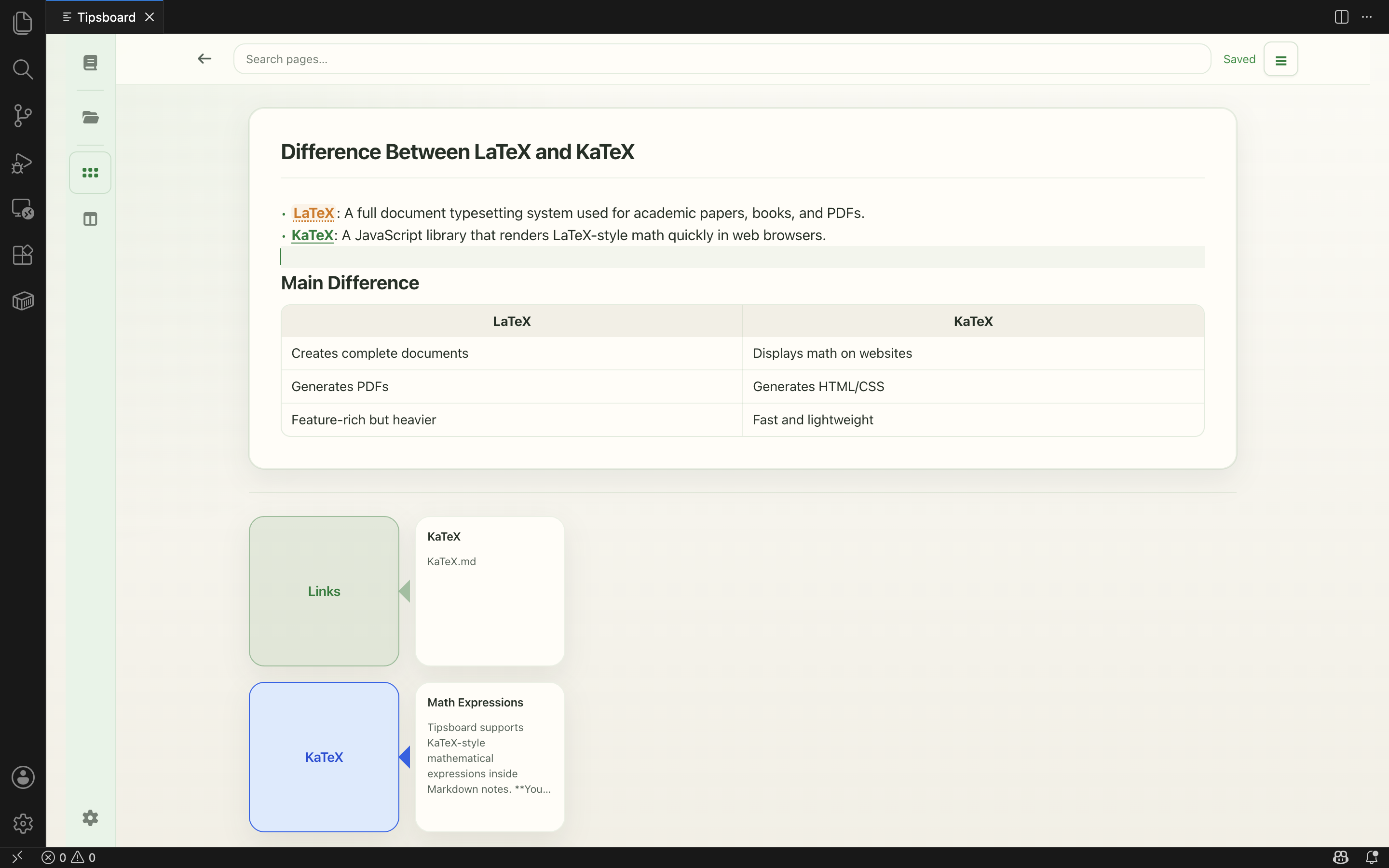
Tipsboard helps you discover relationships between notes as your knowledge base grows.
Explore:
- backlinks
- shared references
- related pages
- two-hop note relationships
- nearby notes found by semantic similarity
- suggested new links
- isolated notes that have not been linked yet
The experience is inspired by connected-note and personal knowledge management workflows.
Meaning-Based Search
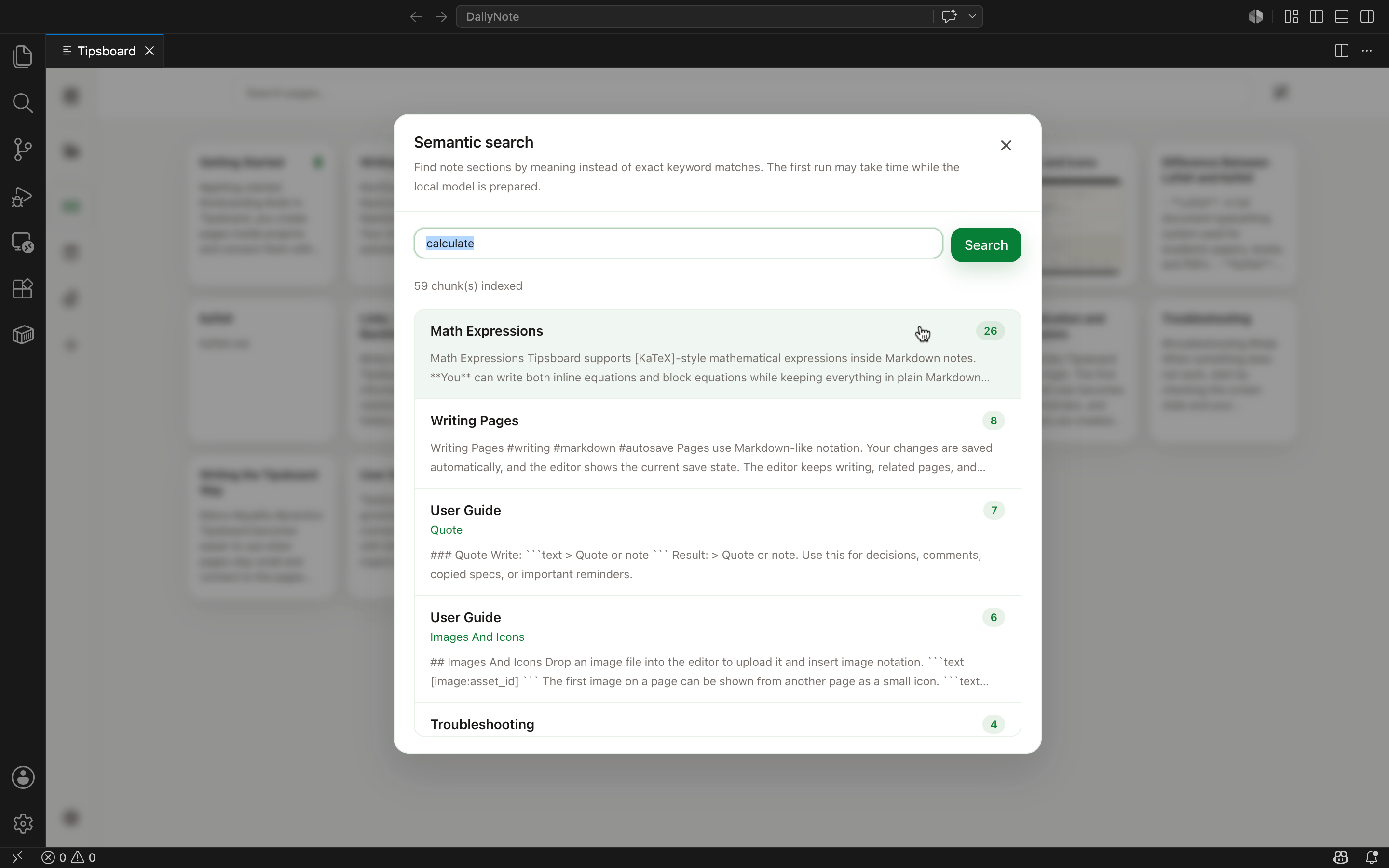
Links, backlinks, tags, related notes, and nearby-note cards are the main way to move through a Tipsboard vault. When you remember an idea but not the exact title or words, use the wand button next to the header search field to open semantic search.
Semantic search accepts natural-language queries and matches note sections by meaning, not only exact keywords. Results open the original Markdown note, so it remains part of the same plain-file workflow.
The same local semantic index also powers the Nearby Notes row in the Related area below the editor. Nearby cards use the regular note-card layout, show the match score, hit heading, and snippet, and filter out weak matches plus notes already connected through links.
Search runs locally by default. The generated index is stored under .tipsboard/semantic/ in your vault, and model weights are cached outside your notes in VS Code global storage unless you configure another cache path. See Semantic Search Settings for runtime, offline, and model options.
Organize Inbox Notes
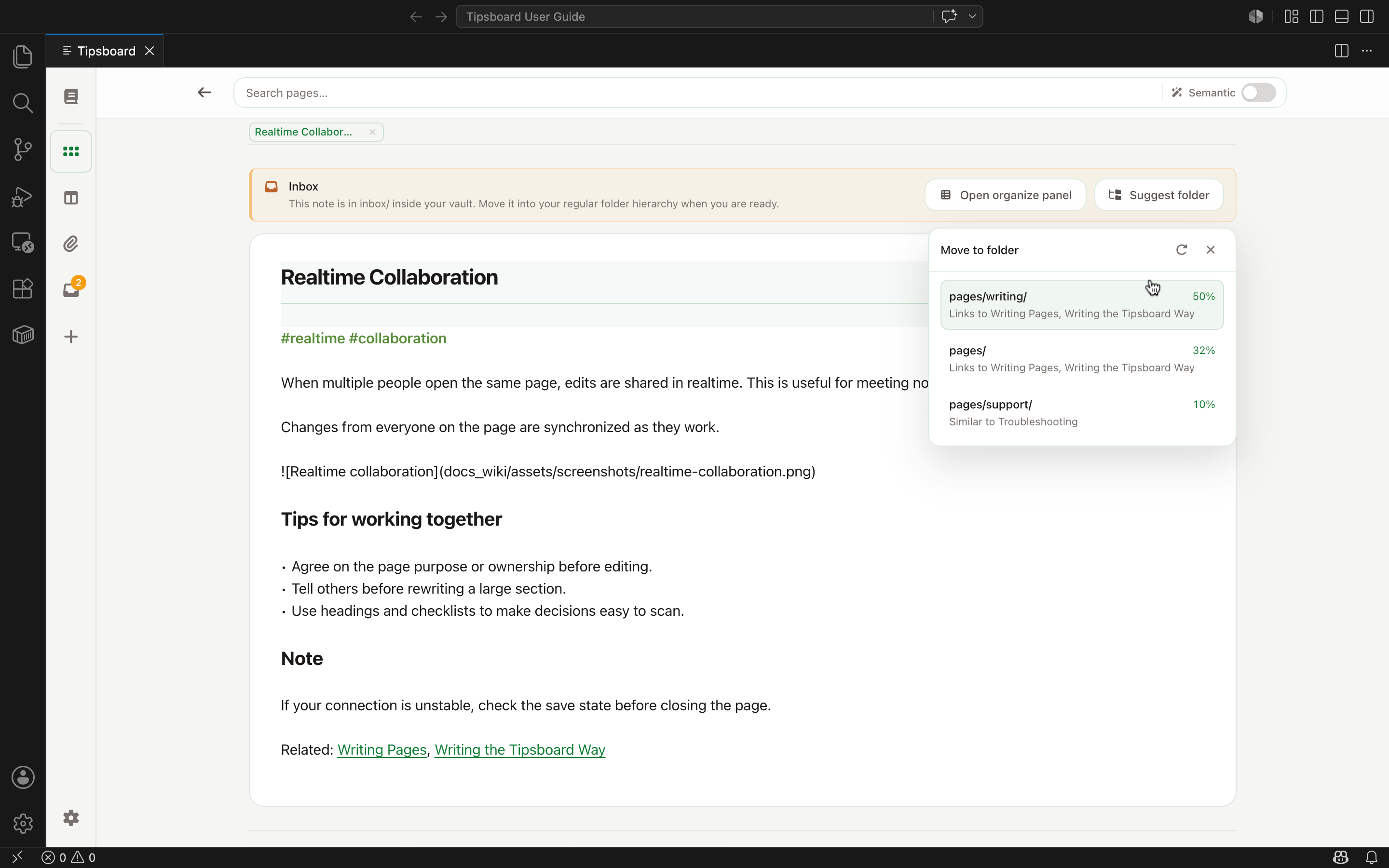
New notes are created in inbox/ first. When an inbox note is open, Tipsboard shows a small notice so it is clear the note still needs to be filed into your vault.
Use Suggest folder from that notice to ask Tipsboard where the note may belong. Suggestions combine wiki links, tags, title patterns, keyword overlap, folder vocabulary, and semantic neighbors when semantic search is enabled. Tipsboard shows the suggested folder, confidence, and reasons, then moves the file only after you confirm.
If semantic search is off, Tipsboard still uses links, tags, and keywords, but semantic search is recommended for better suggestions. If the note contains Markdown relative links such as [Spec](https://github.com/kyu999/tipsboard-vscode/blob/HEAD/../docs/spec.md), Tipsboard warns before moving because those links may need review afterward.
Local Markdown Files
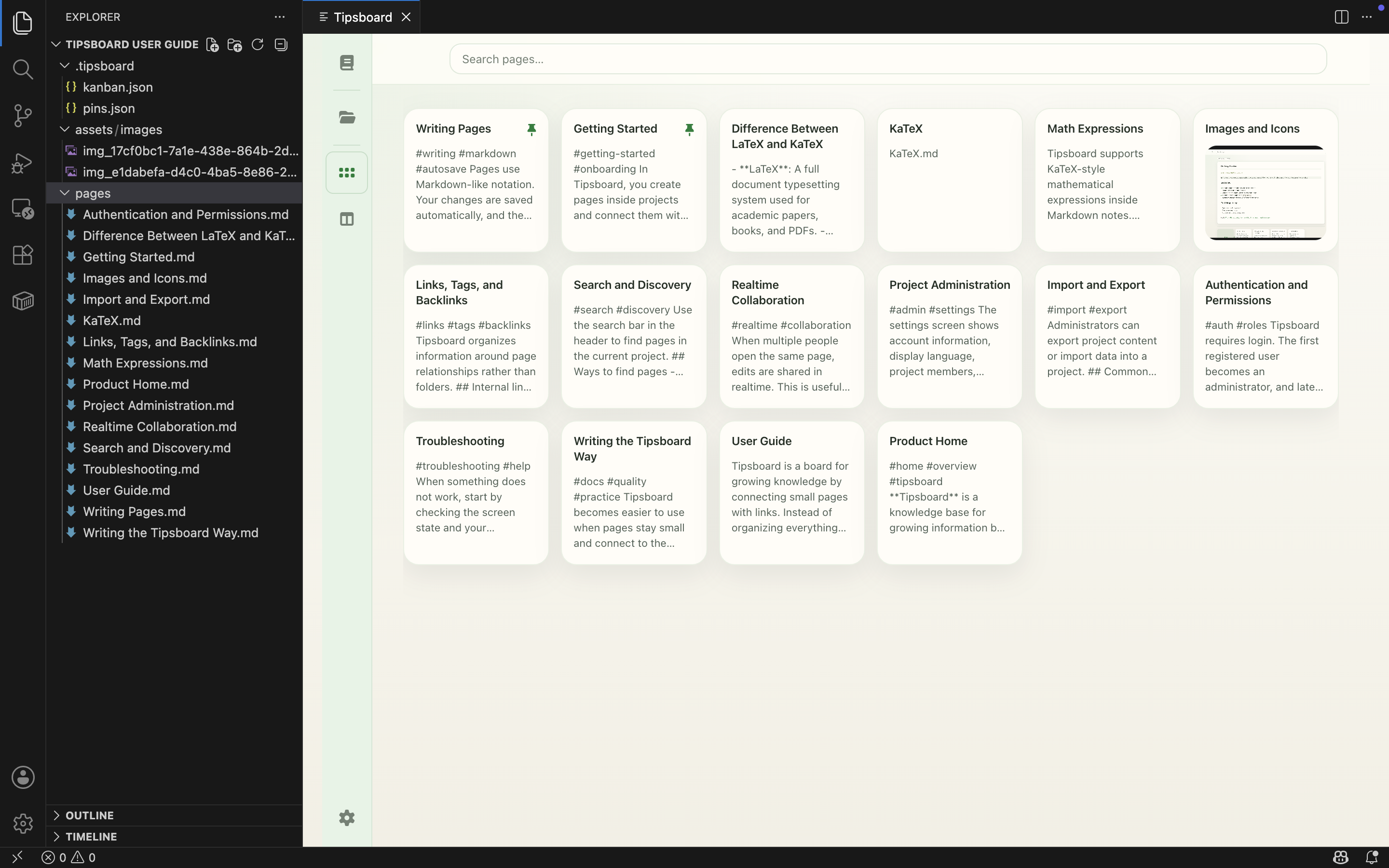
Tipsboard stores notes as ordinary Markdown files on disk. The folder you open in VS Code is the vault root, and Markdown files under that folder are treated as notes.
docs/auth/oauth.md
adr/0001-record-architecture-decisions.md
meeting-notes/weekly.md
inbox/New Idea.md
assets/images/*
assets/files/*
.tipsboard/kanban.json
.tipsboard/pins.json
.tipsboard/canvas/*.canvas
.tipsboard/semantic/   (generated; semantic search index)
Works naturally with:
- Git
- Dropbox
- Syncthing
- external backup systems
- existing Markdown workflows
No lock-in or proprietary storage format.
While the Tipsboard panel is open, changes made outside Tipsboard (another editor, Git, or a sync tool) to Markdown files under the vault, .tipsboard/kanban.json, .tipsboard/pins.json, or .tipsboard/canvas/*.canvas are picked up automatically when you have no unsaved edits in the open note. Other files refresh in the background even while you edit. If the open note changes on disk while you have unsaved edits, Tipsboard keeps your in-panel draft and does not show a reload banner.
Editor Tabs and Navigation
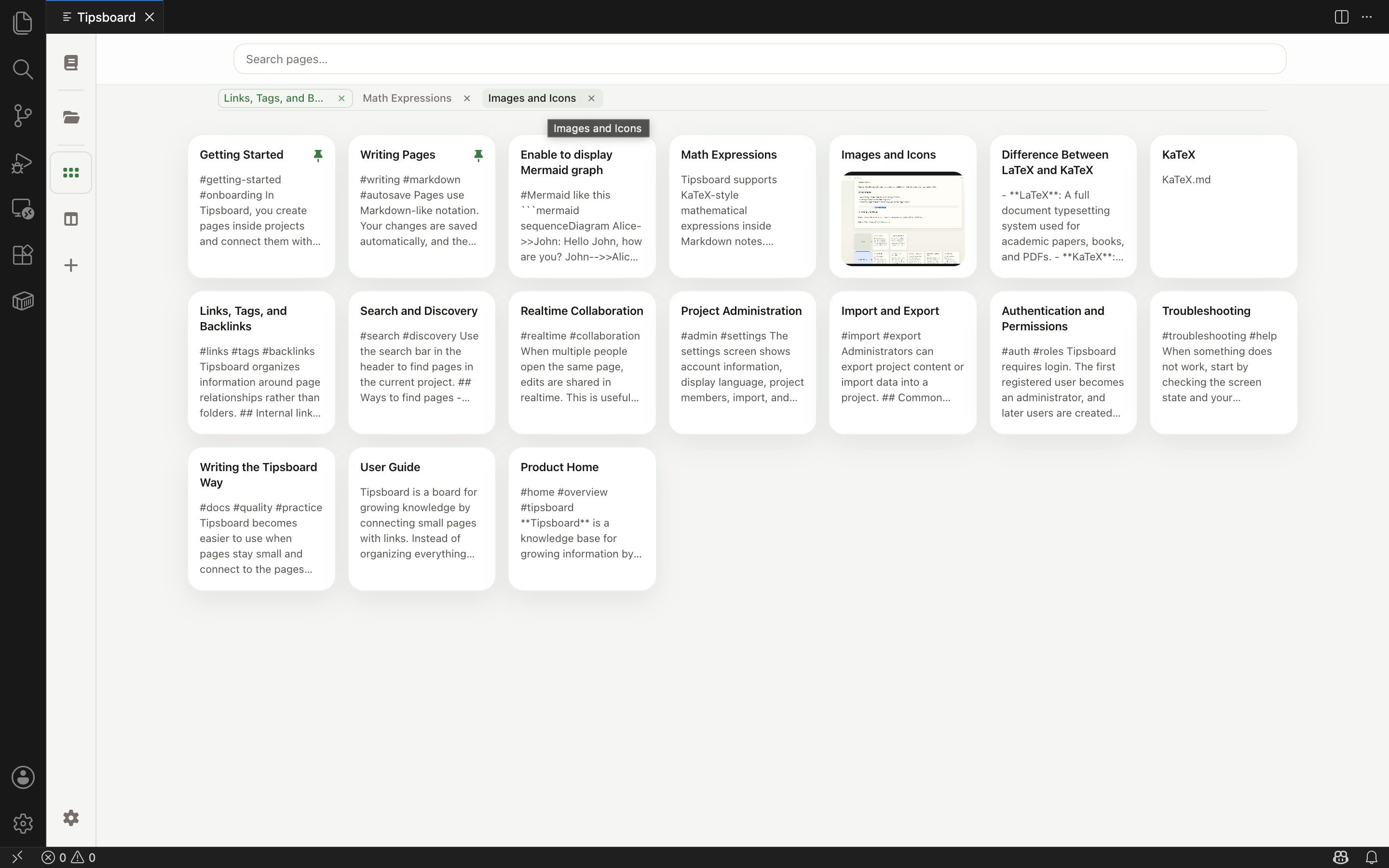
In list view, a tab strip under the header holds open notes and tag searches (#tag). Cmd/Ctrl-click links, tags, or list/search hits opens another tab without the unsaved-changes prompt; normal clicks still confirm when needed. Duplicate note paths or tags share one tab; the last tab cannot be closed.
NavMemory (Tipsboard-only back/forward—not VS Code editor history) restores tabs, view mode, and search state. See Keyboard Shortcuts and Commands for keys, mouse thumb buttons, and Tipsboard: Close active tab.
Canvas (experimental)
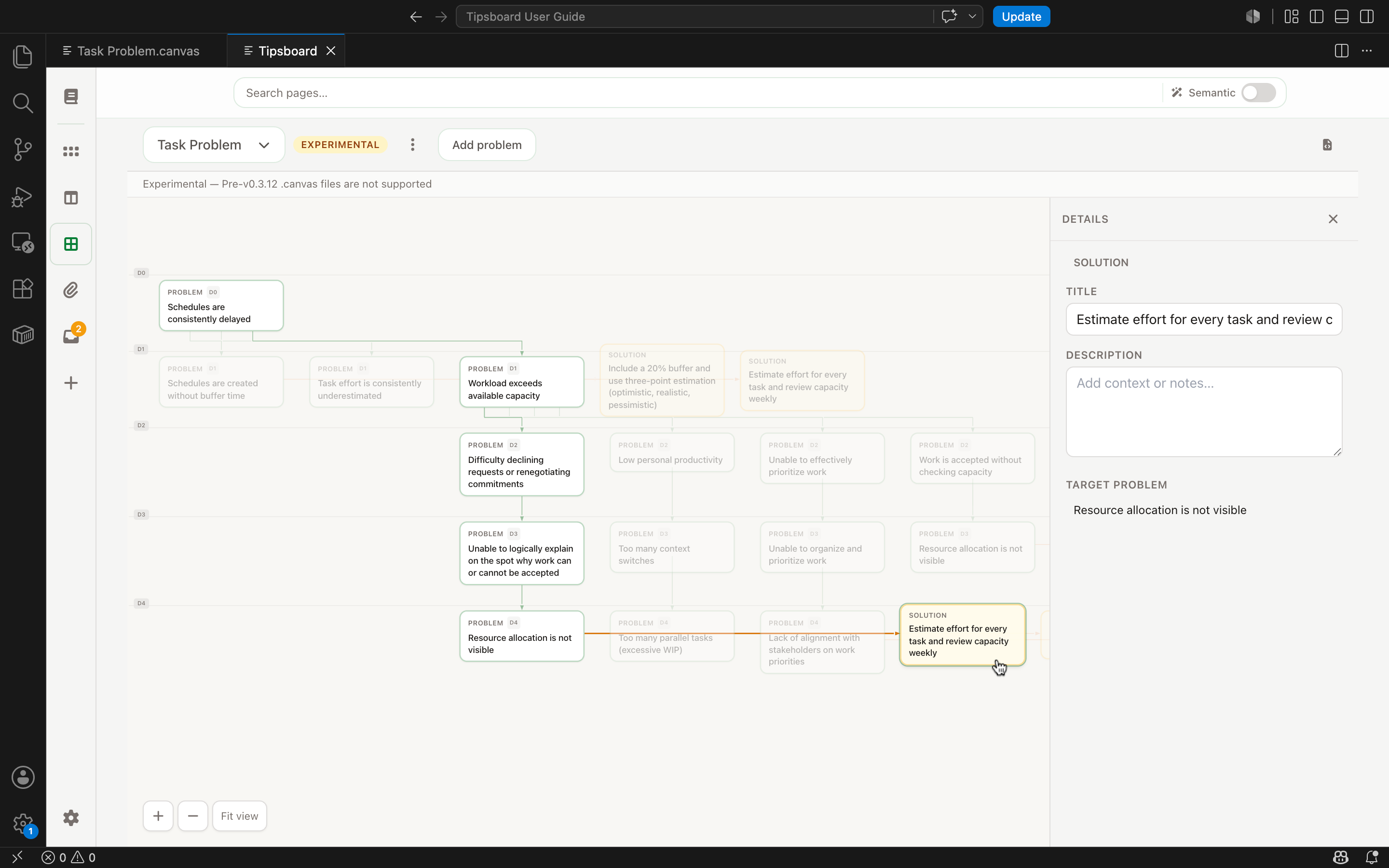
Explore problems, causes, and solutions in a structured experimental graph editor. Open Canvas from the left sidebar or press Ctrl+Shift+C (mac: ⌘⇧C).
Each canvas is a Mermaid text file under .tipsboard/canvas/ (for example .tipsboard/canvas/Product Issues.canvas). The graph fills the main area; click a node to open a detail pane (description and status). Click the background or press Escape to close it. Edits autosave. Use the header file-code icon (or ⋯ → Open in editor) to edit the raw Mermaid in VS Code or an external AI tool.
Problem nodes can be deepened with Why? links; leaf problems accept solution links. Mark root-cause candidates with status when you stop digging deeper.
Compatibility: .canvas files created in v0.3.12 and earlier (JSON boards from v0.3.9–v0.3.11 and other pre–v0.4.0 formats) cannot be loaded in v0.4.0 and later. Create a new canvas or migrate the Mermaid source manually. JSON legacy files are hidden from the canvas list.
Kanban Boards
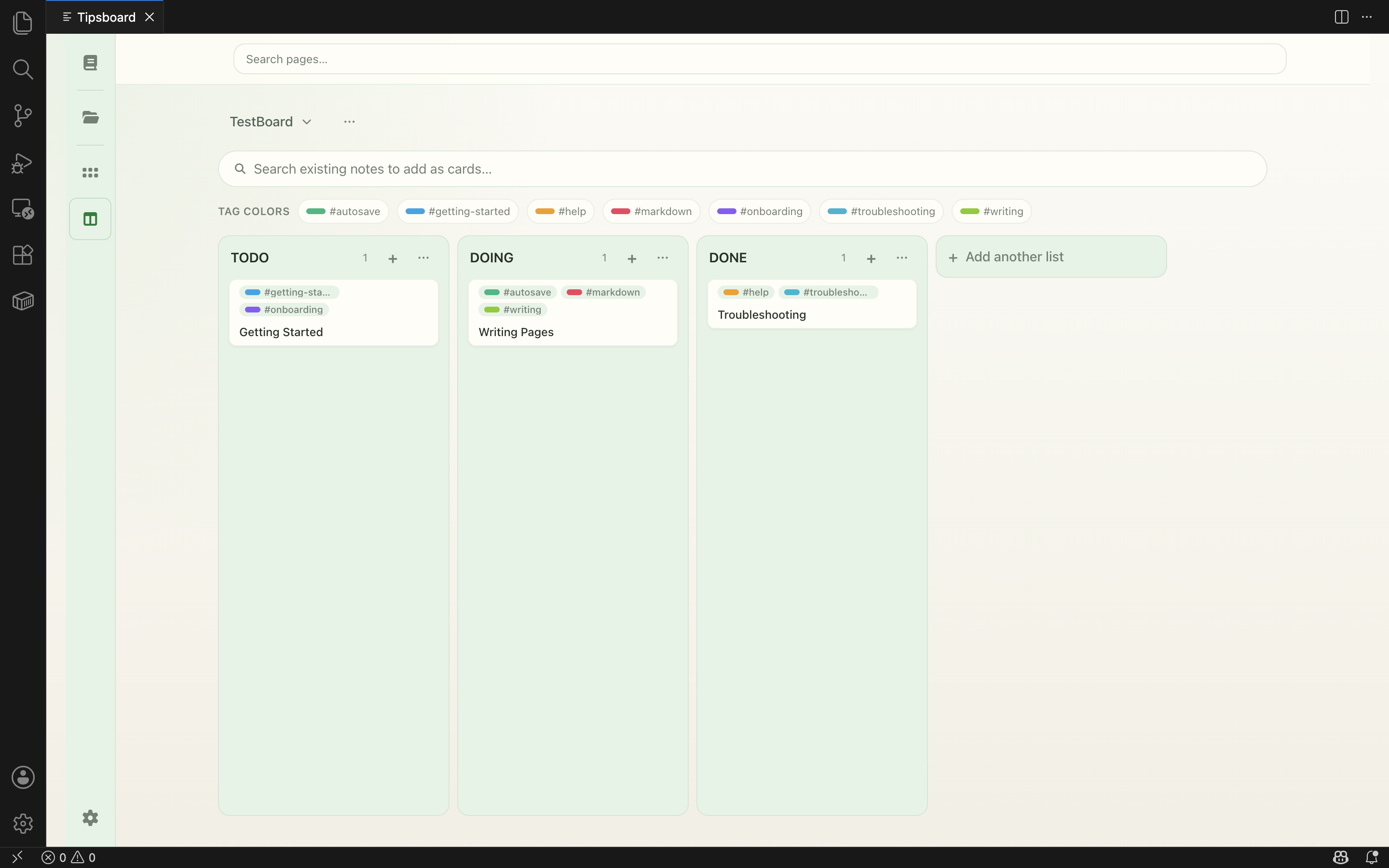
Organize projects and workflows visually using built-in Kanban boards.
Boards are stored in:
.tipsboard/kanban.json
Moving cards updates board metadata without modifying note contents.
Within a column, drag a card and drop it on another card’s top half to place it above, or bottom half to place it below; drop on the empty area below the card list to move to the end of that column (unchanged behavior for trailing space).
Wiki brackets after renaming a note
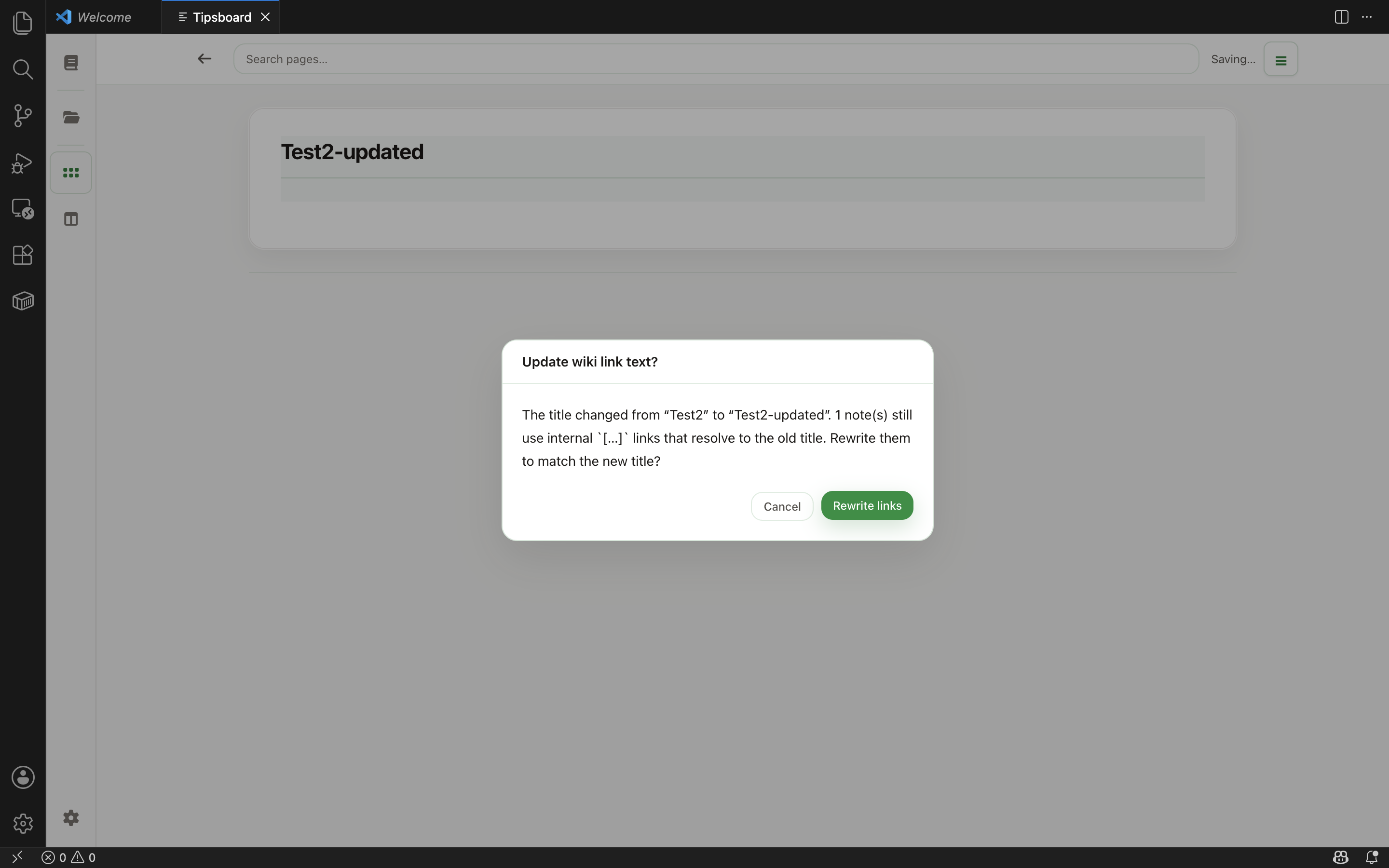
After you edit the opening title and save, Tipsboard may ask whether to rewrite other notes’ [ … ] wiki links for consistency—not [Label](https://github.com/kyu999/tipsboard-vscode/blob/HEAD/path) markdown. Confirm to apply in order; cancel to skip.
Built-in User Guide
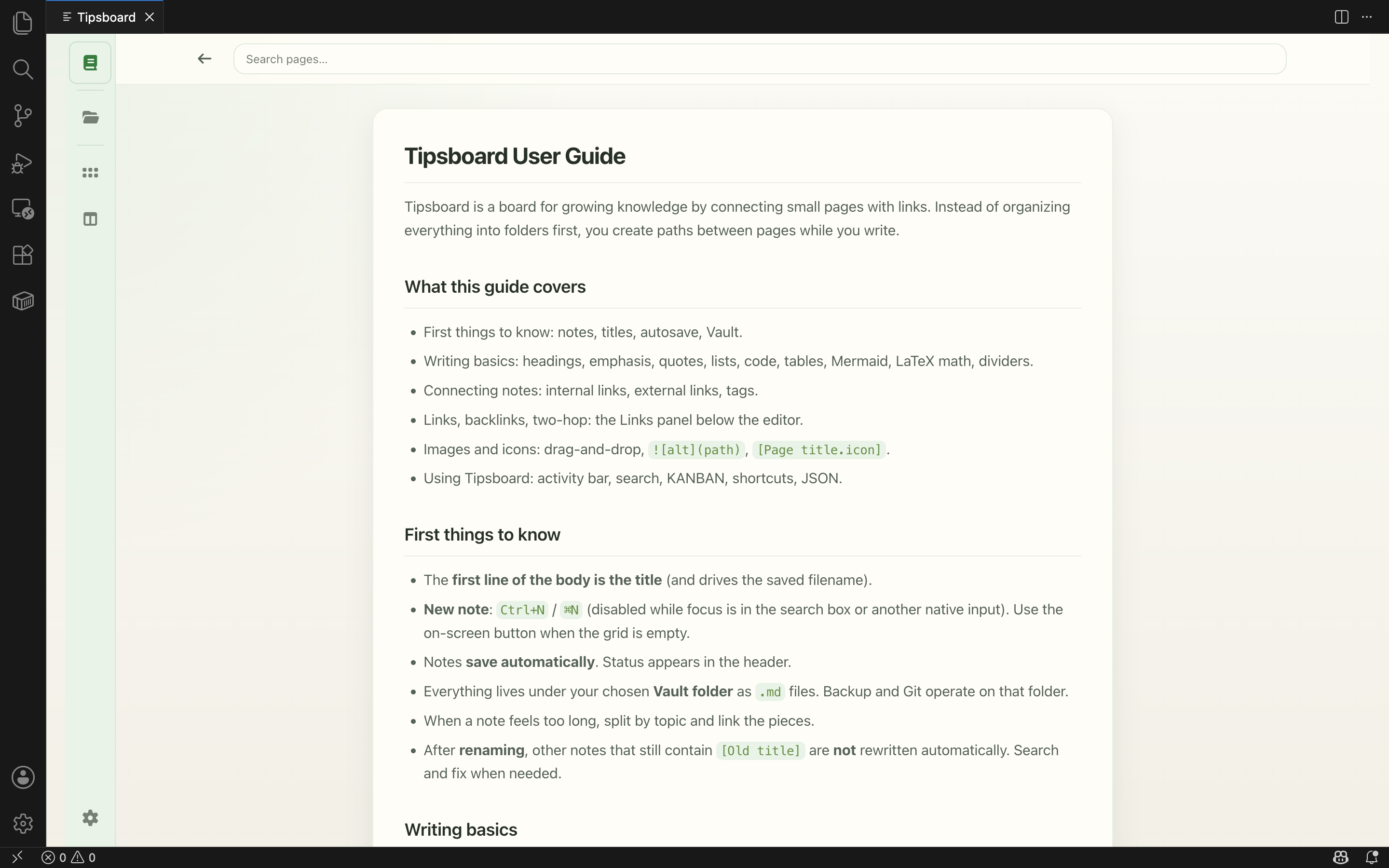
Tipsboard includes an in-app user guide covering:
- syntax
- shortcuts (including tabs, NavMemory navigation, closing tabs)
- onboarding
- editor behavior
- vault structure
Use the book icon in the panel to open it anytime.
Attachments (Shift+drag), preview, and zoom
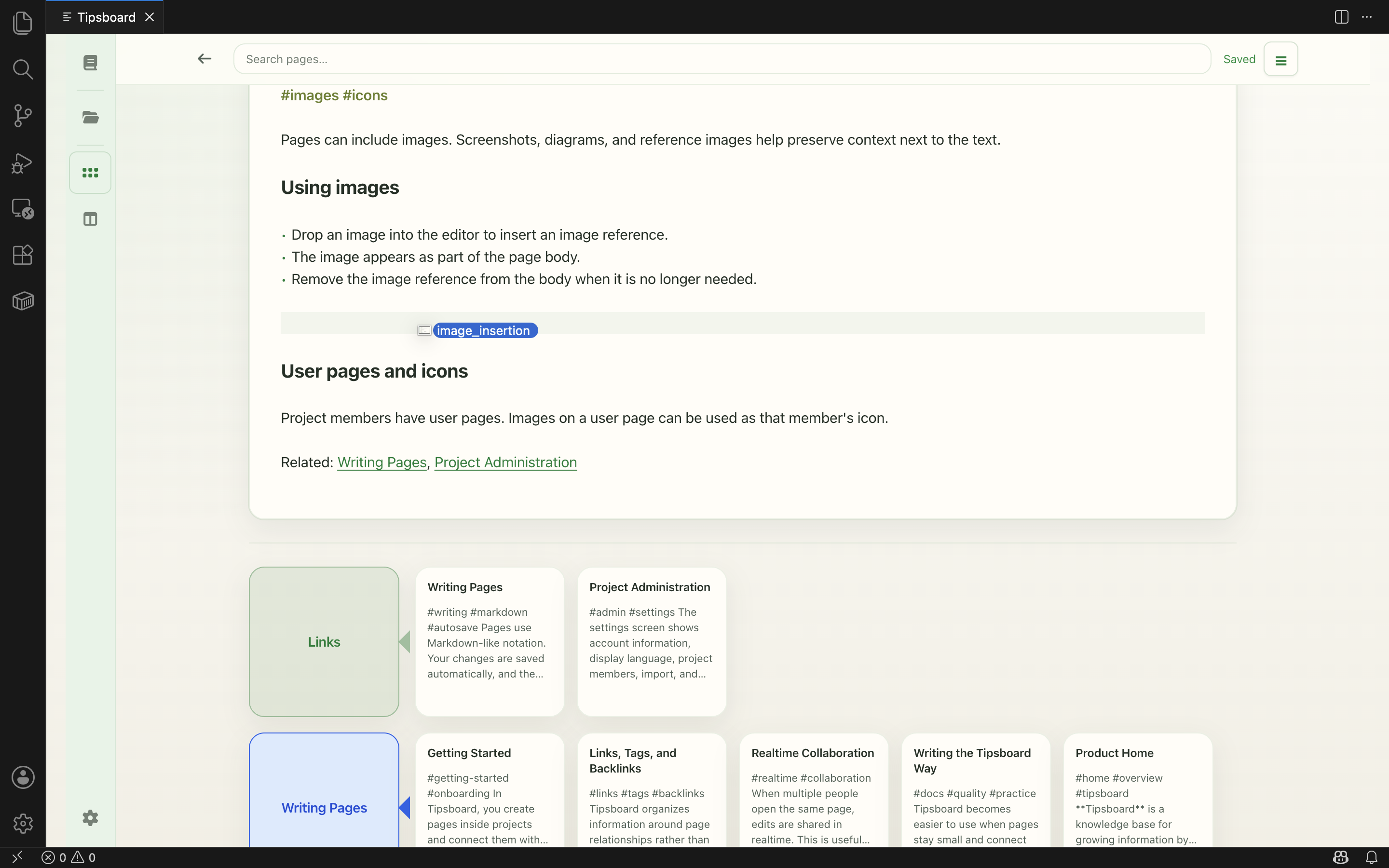
Hold Shift while dropping files into the editor to copy them into the vault and insert Markdown.
- Images (PNG, JPEG, GIF, WebP) go to
assets/images/ as .
- Other files go to
assets/files/ as [label](https://github.com/kyu999/tipsboard-vscode/blob/HEAD/assets/files/...) using a stable filename pattern {sanitizedOriginalStem}_{8hex}{ext} (legacy file_<uuid> names still work). Executable/installer-like extensions are skipped.
This is easy to miss: a normal drop is ignored so accidental file drops do not modify your Markdown.
Maximum size per dropped file is tipsboard-vscode.maxAttachmentBytes (default 10 MiB).
Click assets/files/... links in the editor to open the file with your operating system's default application (including non-ASCII filenames on Windows).
Use the paperclip (Attachments) control in the Tipsboard panel sidebar to open the Attachments library: search files under assets/files/, jump to notes that reference a file, copy absolute paths, and expand a row for path, size, and modified time.
On lines you are not editing, attachment links show a clip icon and label; move the caret onto that line (or select inside the link) to see and edit the raw [label](https://github.com/kyu999/tipsboard-vscode/blob/HEAD/assets/files/...) Markdown, same as other Tipsboard decorations.
Embedded images open a large preview overlay. Supports:
- mouse wheel zoom
- trackpad pinch
+ / - zoom0 to reset zoom
Getting Started
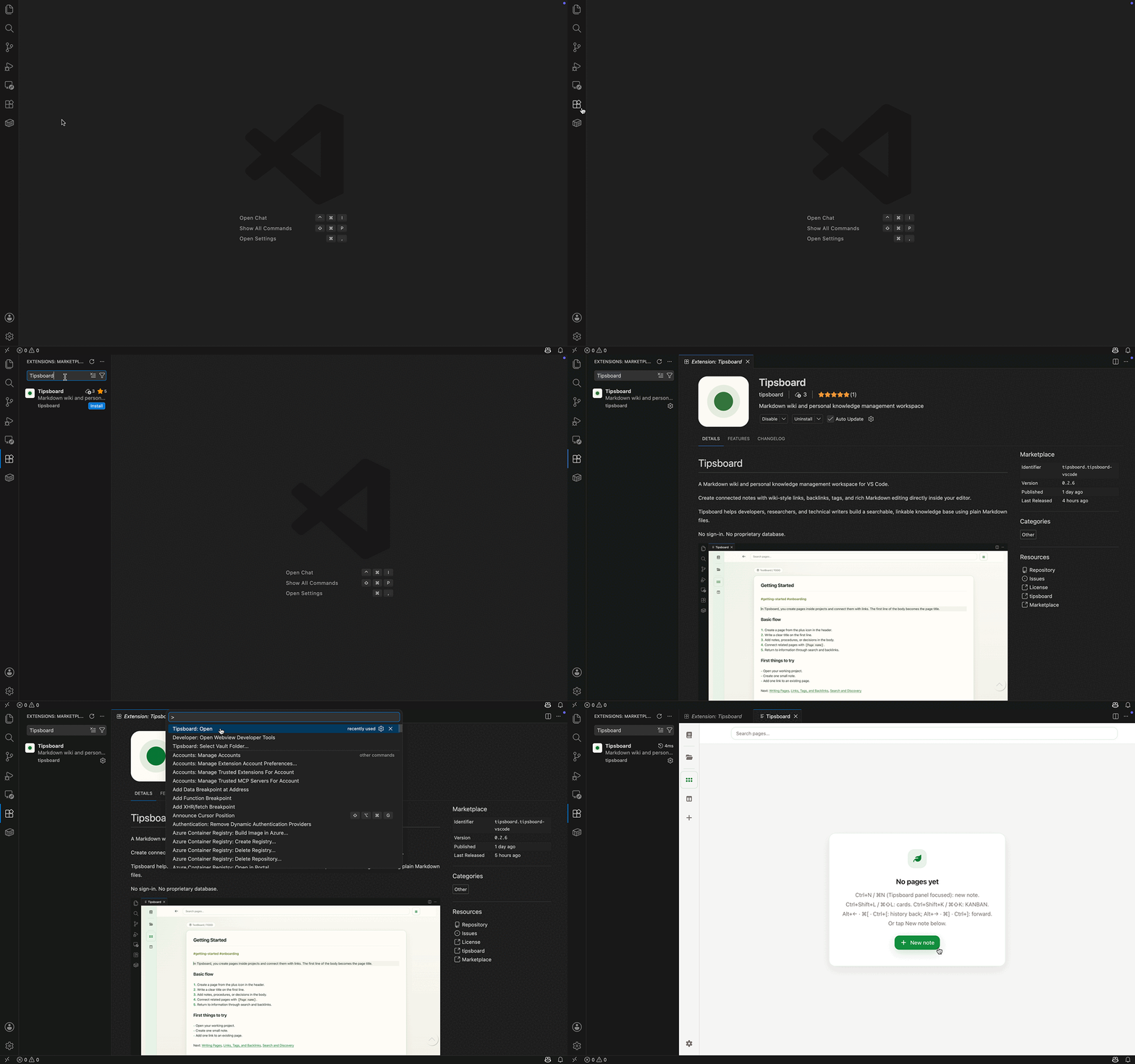
- In VS Code, open Extensions (
Cmd+Shift+X on macOS, Ctrl+Shift+X on Windows/Linux), search for Tipsboard, then choose Install
- Open a folder in VS Code (this folder is your vault)
- Open the Command Palette (
Cmd+Shift+P on macOS, Ctrl+Shift+P on Windows/Linux) and run:
Tipsboard: Open
The folder you have open in VS Code becomes your Tipsboard vault automatically. To use a different vault, open another folder in VS Code.
Existing Markdown files can live in nested folders such as docs/, adr/, or meeting-notes/. New notes created from Tipsboard are saved to inbox/ at the vault root first, so you can file them into the right folder later.
For multi-root workspaces, set tipsboard-vscode.vaultFolder to the workspace folder name that should be your vault.
Vault Structure
<vault root>/**/*.md
inbox/*.md
assets/images/*
assets/files/*
.tipsboard/kanban.json
.tipsboard/pins.json
.tipsboard/canvas/*.canvas
.tipsboard/semantic/   (generated; semantic search index)
| Path |
Purpose |
<vault root>/**/*.md |
Markdown notes, including nested folders such as docs/auth/oauth.md |
inbox/*.md |
Default inbox for notes created from Tipsboard |
assets/images/* |
Embedded images |
assets/files/* |
Attached files (linked from Markdown) |
.tipsboard/kanban.json |
Kanban board state |
.tipsboard/canvas/*.canvas |
Problem-structure canvas (experimental; Mermaid text) |
.tipsboard/pins.json |
Pinned note order for the card grid |
.tipsboard/semantic/ |
Local semantic search index (created when you use semantic search) |
Tipsboard ignores Markdown inside .tipsboard/, .git/, node_modules/, dist/, build/, and out/. If inbox/ is not available as a directory, Tipsboard falls back to Tipsboard inbox/, then Tipsboard inbox 2/, and so on.
Keyboard Shortcuts
| Shortcut |
Action |
Ctrl+Shift+L |
Open note grid |
Ctrl+Shift+K |
Open Kanban |
Ctrl+Shift+C (mac: Cmd+Shift+C) |
Open Canvas (experimental) |
Ctrl+N (mac: Cmd+N) |
Create note (while the Tipsboard panel is focused; otherwise VS Code keeps this for New File). The sidebar + button does the same. |
Alt+← / Ctrl+[ (mac: ⌥← / ⌘[ ) |
Navigate back in Tipsboard (NavMemory; skips native inputs and discard dialogs). |
Alt+→ / Ctrl+] (mac: ⌥→ / ⌘] ) |
Navigate forward in Tipsboard when available; may conflict with IDE indent elsewhere—override in Keyboard Shortcuts if needed. |
| Mouse button 3 / 4 (typ.) |
Thumb Back / Forward mapped to Tipsboard NavMemory when the panel receives browser events |
Ctrl+Alt+Shift+W (mac: ⌘⌥⇧W ) |
Close active tab (Tipsboard panel focused; skipped in native <input>) |
Commands such as Tipsboard: New Note remain available regardless of conflicting global keys.
Commands
| Command |
Description |
Tipsboard: Open |
Open or focus the Tipsboard panel |
Tipsboard: New Note |
Create a note (also bound to Ctrl/Cmd+N while the Tipsboard panel is focused) |
Tipsboard: Close active tab |
Close the active Tipsboard tab (also bound to Ctrl+Alt+Shift+W / macOS Cmd+Alt+Shift+W; blocked when only one tab remains) |
Tipsboard: Download Semantic Runtime |
Download the local semantic search runtime pack |
Tipsboard: Install Semantic Runtime from File... |
Install a prepared semantic runtime zip |
Tipsboard: Install Semantic Offline Pack from File... |
Install a prepared semantic offline pack zip (runtime + model cache) |
Tipsboard: Reveal Semantic Model Cache |
Open the embedding model cache folder |
Settings
| Setting |
Description |
tipsboard-vscode.vaultFolder |
Vault folder name for multi-root workspaces |
tipsboard-vscode.maxAttachmentBytes |
Maximum size in bytes per Shift+drag attachment (images and other files); default 10485760 (10 MiB) |
tipsboard-vscode.semanticSearch.provider |
bundled (default) enables local semantic search; off disables it |
tipsboard-vscode.semanticSearch.modelId |
Hugging Face model id for embeddings; default is Xenova/multilingual-e5-base |
tipsboard-vscode.semanticSearch.mode |
Ranking mode: hybrid (default) or dense |
tipsboard-vscode.semanticSearch.allowRemoteModels |
Allow missing embedding model weights to download from Hugging Face Hub |
tipsboard-vscode.semanticSearch.modelCachePath |
Optional Transformers.js model cache folder |
tipsboard-vscode.semanticSearch.importedPath |
Optional absolute path to a custom semantic runtime folder instead of the managed runtime |
tipsboard-vscode.semanticSearch.runtimeDownloadBaseUrl |
Base URL for semantic runtime pack downloads |
Semantic Search Settings
Semantic search is optional and local-first. With the default provider (bundled), Tipsboard uses a local Transformers.js runtime and the Xenova/multilingual-e5-base embedding model. The first search may download the runtime pack and model weights if they are not already installed.
For closed or browser-only networks, download the Tipsboard semantic offline pack for your OS from GitHub Releases (tipsboard-semantic-offline-<platform>-<arch>.zip), then run Tipsboard: Install Semantic Offline Pack from File... or use Install offline pack in Tipsboard settings. Tipsboard installs the runtime and model cache, disables Hub downloads, and configures the model cache path automatically. Reload the VS Code window when prompted.
Advanced/manual setup is still available: install only the runtime zip, or point tipsboard-vscode.semanticSearch.importedPath and modelCachePath at prepared folders. See docs_wiki/SEMANTIC_SEARCH.md.
Semantic search indexes Markdown recursively under the vault root and includes folder path context in embeddings. Results are ranked with hybrid dense/BM25 search by default, then lightly reranked using title exact match, heading overlap, phrase overlap, recency, and same-note diversity. Use tipsboard-vscode.semanticSearch.provider = off to disable semantic search entirely.
| Situation |
Vault Root |
| Single-folder workspace |
The workspace folder opened in VS Code |
| Multi-root workspace |
The folder named in tipsboard-vscode.vaultFolder |
| No folder open |
Tipsboard shows onboarding until you open a folder in VS Code |
Requirements
- A VS Code–compatible editor with extension support for Visual Studio Code 1.85.0 or later (for example Visual Studio Code, Cursor, or VSCodium)
Troubleshooting
Vault Looks Incorrect
Open the intended document folder in VS Code (File > Open Folder). For multi-root workspaces, set tipsboard-vscode.vaultFolder to the correct workspace folder name. The Tipsboard panel reloads when the workspace changes.
Blank Panel
With the panel focused, run:
Developer: Open Webview Developer Tools
Then inspect the console for errors.
Development
Additional documentation:
Release Notes
See:
CHANGELOG.md
Rate and review
If Tipsboard works well for you, please give it a star rating and a short review on the Visual Studio Code Marketplace or on Open VSX. That helps others find the extension and informs what to improve next.
License
Apache License 2.0.
See the LICENSE and NOTICE files included in this package.

