VSDuo


VSDuo is a VS Code extension for managing Duo devices from the editor. It polls pending Duo transactions and lets you approve, deny, or copy TOTP codes without any browser-extension code in this repo.
Features
- Add a Duo device from an activation code.
- Set a required 4-digit PIN for each device during setup.
- Store Duo device material in VS Code secret storage.
- View devices and pending transactions in the activity bar.
- Approve or deny pending Duo transactions with PIN verification.
- Handle Duo Verified prompts by entering the requested digits.
- Copy live TOTP codes for devices that expose
hotp_secret.
- Start a detached localhost helper page that stays available during Remote SSH window reloads.
- Show SSH hosts from the same SSH config used by Remote SSH and connect the current window directly from the VSDuo view.
- Import and export the existing Auto 2FA data format for compatibility.
Add a Device
When you run VSDuo: Add Device, the extension expects a Duo activation code rather than a QR scan. Use the same flow documented in the in-product prompt:
- Go to your organization website and manage Duo devices.
- Add a new device.
- Choose Duo Mobile.
- Choose
I have a tablet.
- Select
Next.
- Choose
Get an activation link instead.
- Enter your email address and send the email.
- Open the link in the email.
- Copy the activation code from that webpage and paste it into VSDuo.
After that, VSDuo asks you to give the device a name such as Work iPhone, then define a 4-digit device PIN, and stores the protected device data in VS Code secret storage.
Remote SSH Integration
VSDuo integrates with Remote - SSH by reading the same SSH config file that Remote - SSH uses and listing those entries in the HOSTS view. The intended flow is to start the SSH connection from VSDuo itself so the helper can be prepared before the window hands off to Remote - SSH.
Use the HOSTS view as the entry point for SSH connections:
- Select or confirm the active Duo device in
DEVICES.
- Check pending requests in
PENDING TRANSACTIONS if needed.
- Click the target machine in
HOSTS to connect the current window.
- Let VSDuo start the helper page before Remote - SSH begins the window transition.
Before each host connect, VSDuo asks for the active device PIN. The connect flow continues only after correct PIN verification.
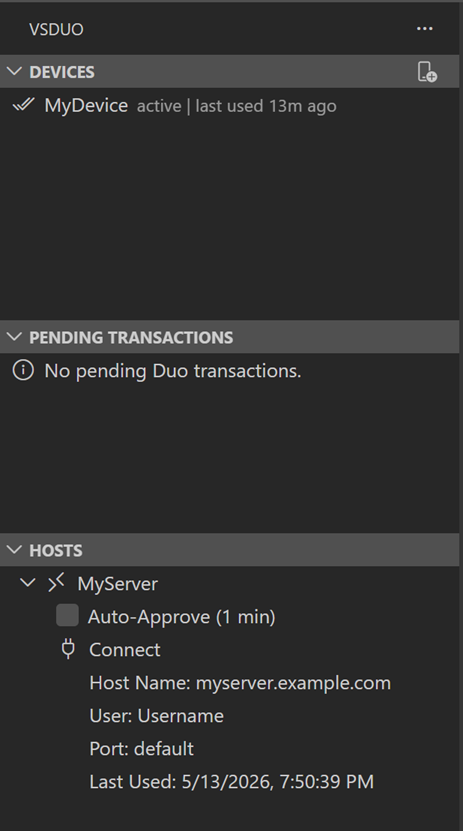
Each host also includes an Auto-Approve (1 min) checkbox. When enabled for a host, pressing Connect starts a detached one-minute auto-approve process instead of opening the helper page, so approvals can continue while the VS Code window reloads during Remote SSH handoff.
Warning: Auto-Approve can approve real Duo prompts without manual review for up to one minute. Use it only on trusted networks and trusted hosts, disable it when not needed, and avoid enabling it on shared or high-risk machines.
The main VSDuo view shows devices, pending transactions, and SSH hosts together. SSH hosts should be connected from this view so VSDuo can prepare the Duo helper before the Remote - SSH reconnect flow begins.
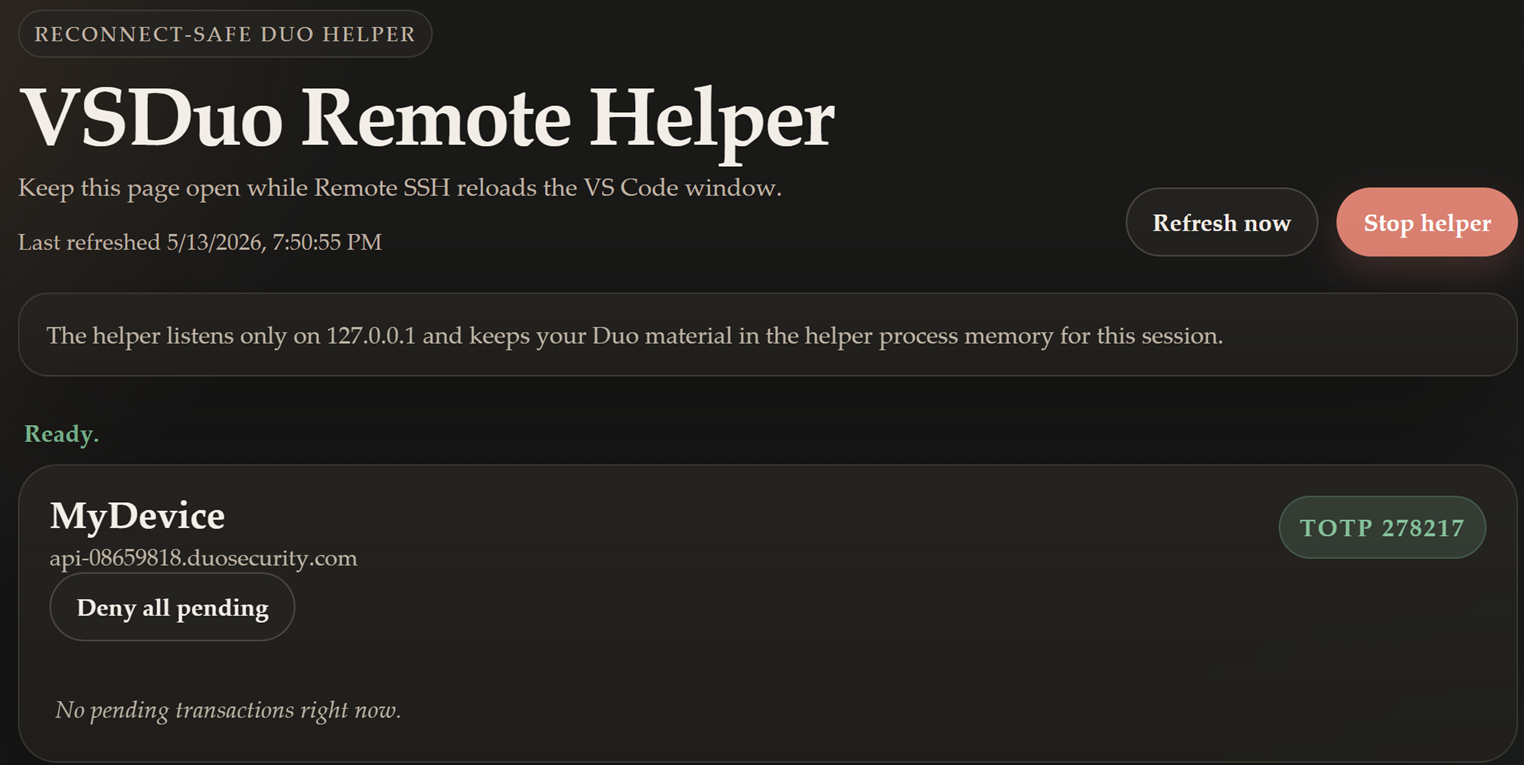
When a VSDuo-initiated SSH connection starts, the extension opens the localhost helper page in your browser. Keep that page open during the reconnect so you can approve or deny the Duo prompt even while the VS Code window is reloading.
Installation
The extension is now live on VSCode Marketplace.
For development, testing, and packaging instructions, see DEVELOPMENT.md.
Attribution
This project is inspired by Auto-2FA.
Parts of the implementation and supporting ideas were adapted from that project and used here as part of this VS Code extension.

