Skip to content
| Marketplace
Sign in
Visual Studio Code>Other>Themvora Theme Studio for VS CodeNew to Visual Studio Code? Get it now.
Themvora Theme Studio for VS Code

Themvora Theme Studio for VS Code

Themvora

|
2 installs
| (0) | Free
Explore, preview, create and validate your Themvora themes without leaving VS Code.
Installation
Launch VS Code Quick Open (Ctrl+P), paste the following command, and press enter.
Copied to clipboard
More Info

Themvora Theme Studio for VS Code

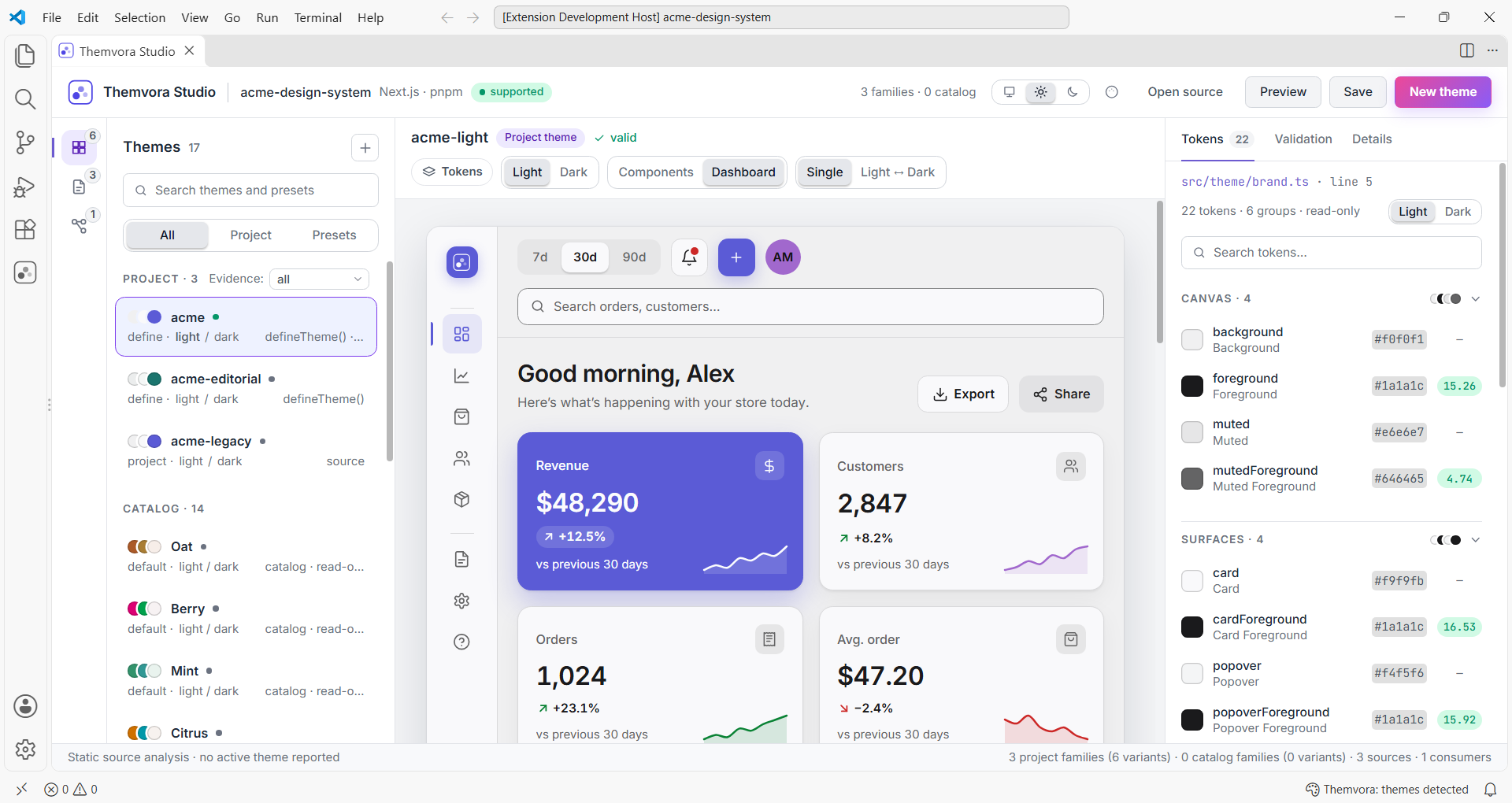
See what your themes actually look like — explore, preview, inspect, create and validate them without leaving the editor.

Themvora Studio in VS Code: a theme library on the left, a live dashboard preview in the centre, and an inspector listing each colour token with its value and contrast ratio on the right.

Explore · Preview · Inspect · Create · Validate

Themvora Theme Studio for VS Code brings the theme system into your editor. It reads the themes already in your project, shows you what they resolve to, and writes new ones back as a file you can commit.

It works on the themes in your application — not your editor's colour theme, which it never changes.


Install

Published on the Visual Studio Marketplace by Themvora. The identifier is themvora.themvora-for-vscode.

  1. Open the Extensions view with Ctrl+Shift+X (Cmd+Shift+X on macOS).
  2. Search for Themvora Theme Studio, or paste @id:themvora.themvora-for-vscode into the search box for one exact result.
  3. Open the result published by Themvora and choose Install.
  4. Run Developer: Reload Window. A Themvora icon appears in the Activity Bar.

From a terminal:

code --install-extension themvora.themvora-for-vscode

The documentation site has an Open in VS Code button that opens this listing directly inside the editor.

The published extension listing in VS Code: the title 'Themvora Theme Studio for VS Code', publisher Themvora, an Install button, and the identifier themvora.themvora-for-vscode in the Marketplace panel.

View the full-size screenshot


Explore your themes

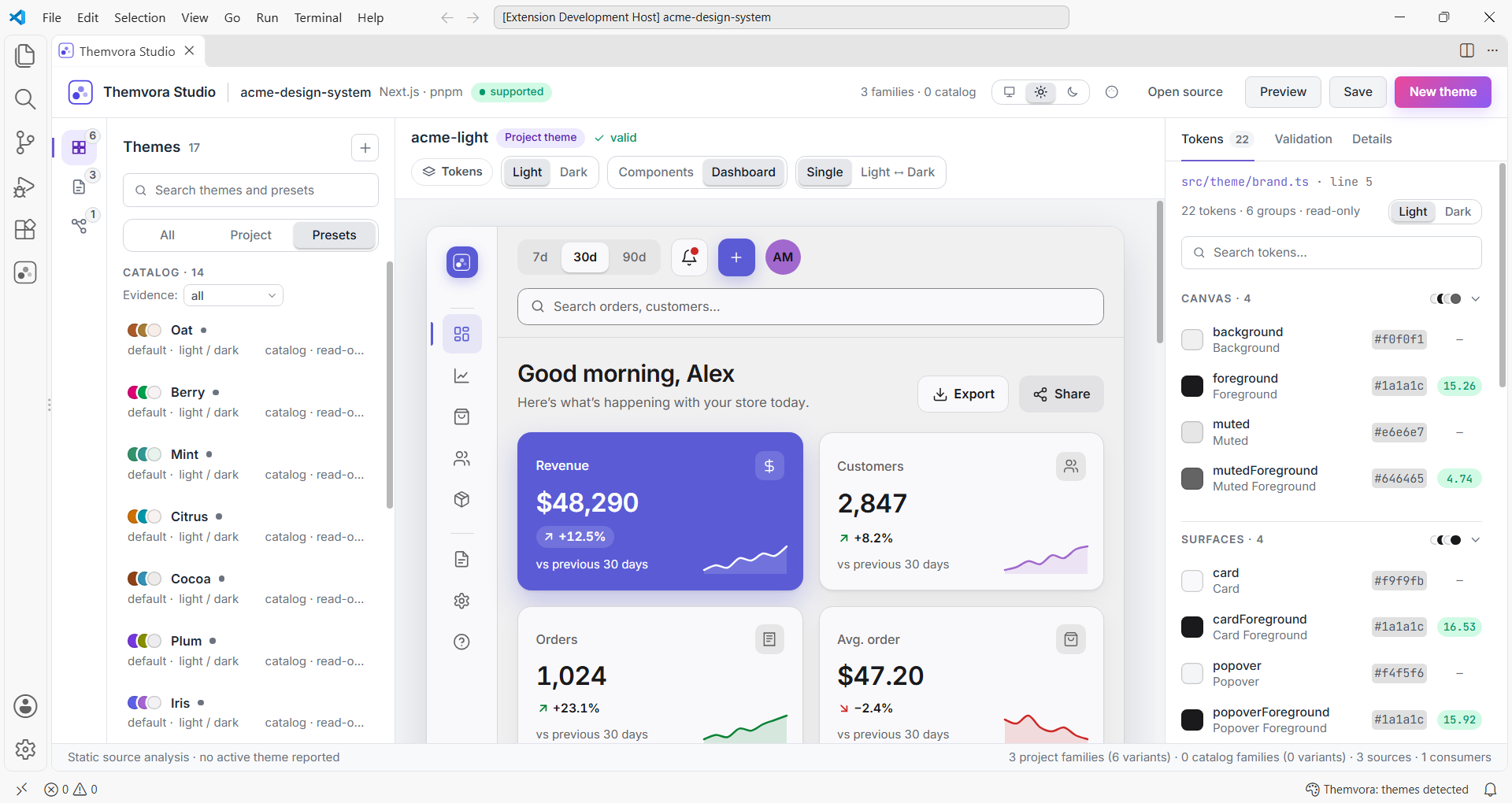
See every theme Studio can find: the ones your project defines, the presets that ship with Themvora, and any draft you are working on. Each card shows its palette, its family, whether it is light or dark, where it came from, and which file it lives in.

The theme library filtered to presets, listing the built-in catalog with colour swatches, family names and origin for each preset.

Preview before you commit

The canvas renders a dashboard or a component gallery from the selected theme's real tokens — navigation, cards, charts, tables, forms and status colours. Where a family has both light and dark variants you can look at each one, and hovering a token name outlines everywhere it is used, so you can see what a single change would touch.

Inspect design tokens

Every colour token shows its value, the CSS custom property it maps to, and its measured contrast against the surfaces it sits on — so you do not have to work the ratio out yourself or guess which pair is the problem.

Create your own theme

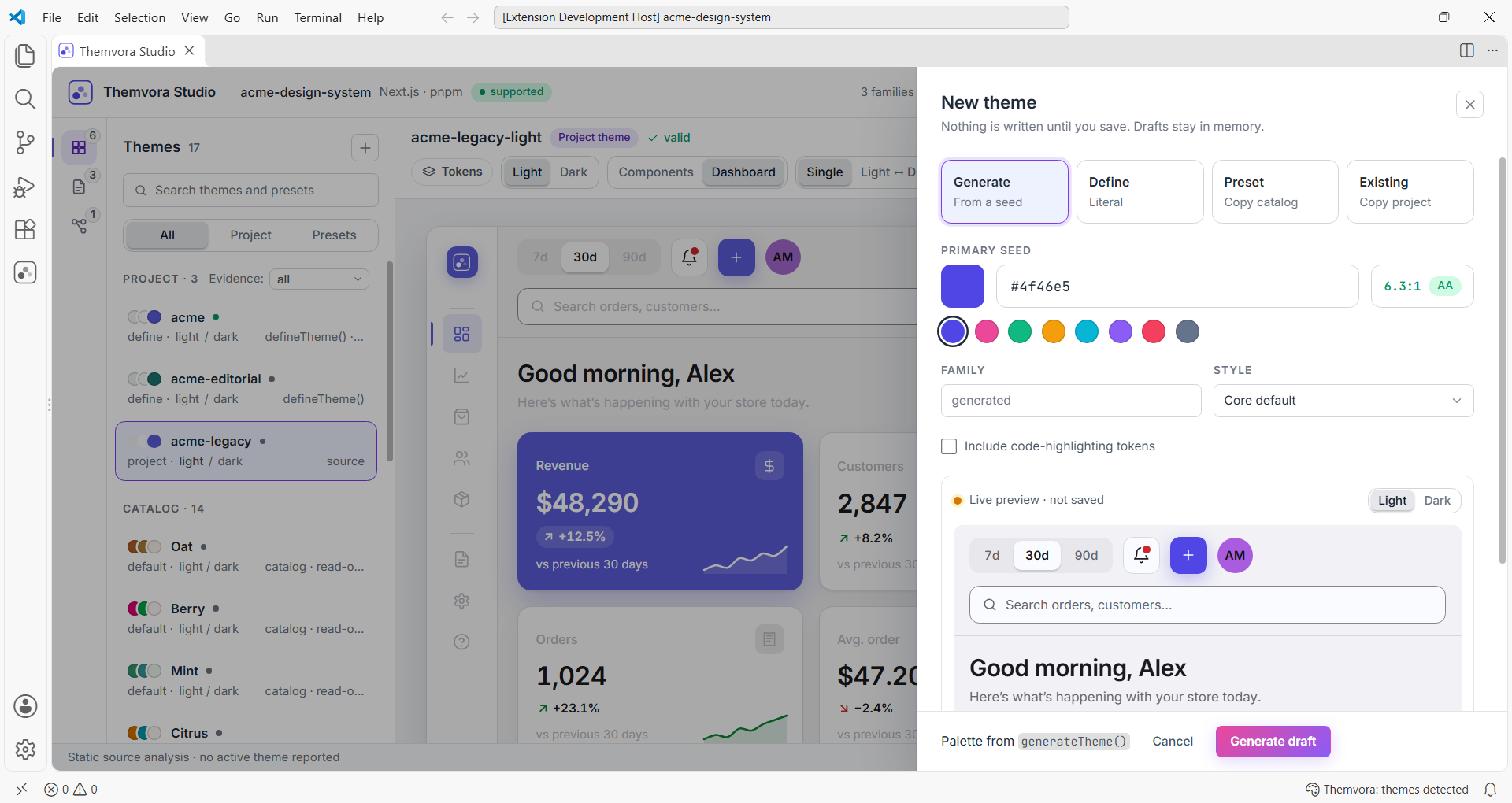
Start from a seed colour, copy a preset, or branch off a theme your project already has. The drawer previews every change as you make it, and nothing is written to disk until you choose to save. Save as JSON, as TypeScript using defineTheme(), or as CSS variables.

The New theme drawer: a seed colour with its contrast badge, family and style options, and a live preview of the generated theme that has not been saved.

Validate a theme

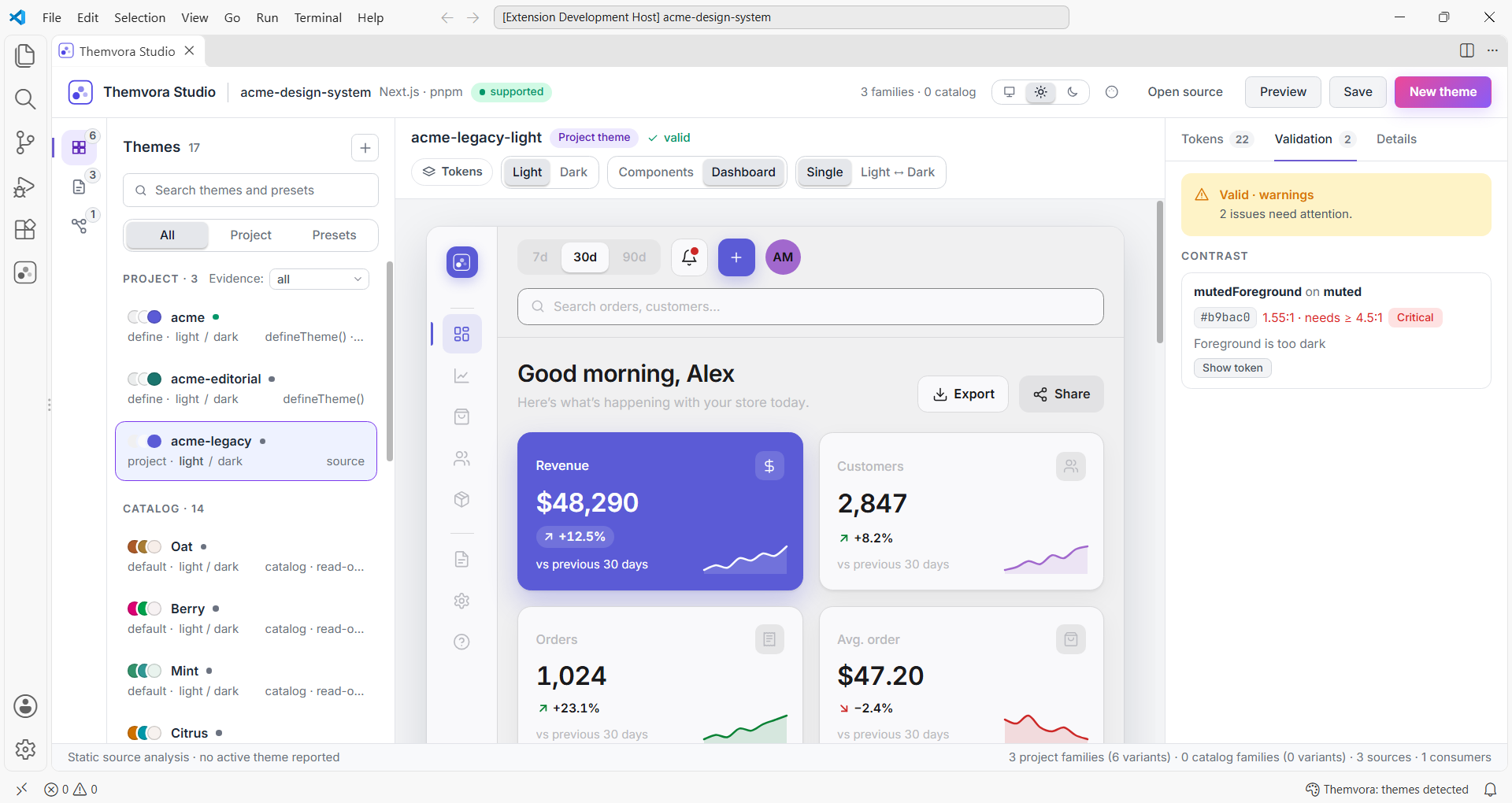
The validator names the token that fails, the ratio it measures, the floor it has to reach, and which side is wrong — foreground too light, or background too dark. That is usually enough to know what to change without opening a contrast calculator. It checks the theme, not your application: a passing theme still has to be used well.

The Validation panel reporting a contrast failure: muted foreground on muted measures 1.55:1 against the 4.5:1 text floor and is flagged Critical, with the direction of the failure named.

Compare themes

Comparing two themes shows what semantically differs between them, mode by mode, rather than a wall of changed lines. It is the quickest way to answer “what would actually change if we moved to this palette?” before switching a project over.

Copy CSS variables

Select a theme, or one variant of a family, and copy its CSS custom properties. Useful when the variables need to land somewhere that is not a Themvora project — a stylesheet, a prototype, a design tool, a bug report.

See what your project actually has

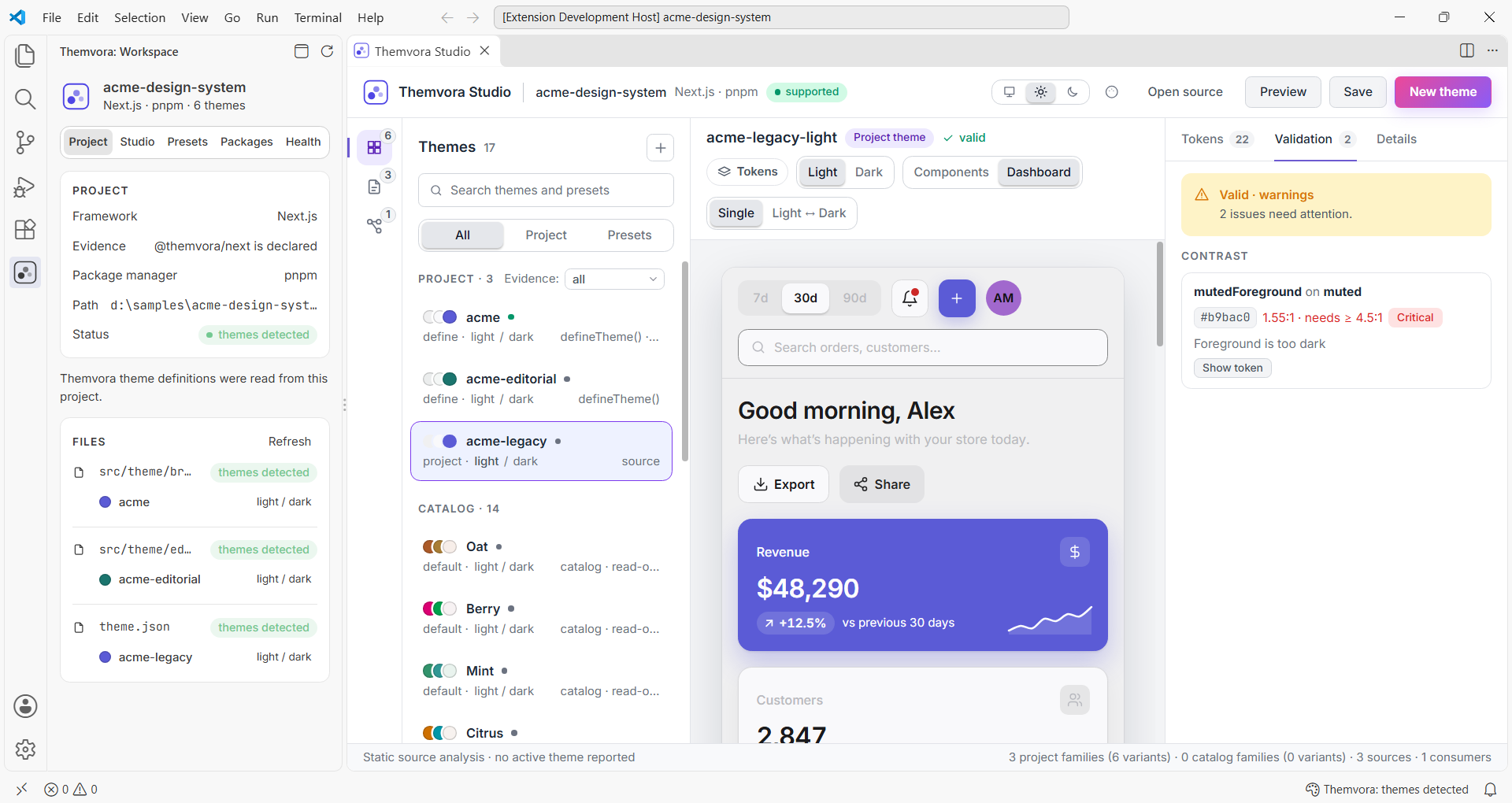
The workspace panel answers the questions a file tree cannot: is this a Themvora project, which framework is it, which packages are declared, and are they installed. Declared and installed are listed separately, because a package in package.json that is missing from node_modules is exactly the state that breaks an app. Studio also shows where each theme is defined and which files receive it, and can open that exact line.

The Themvora workspace panel in the Activity Bar: framework and how it was detected, package manager, integration status, and the theme files found with the themes each one defines.


Commands

Open the Command Palette with Ctrl+Shift+P (Cmd+Shift+P on macOS) and type “Themvora”. Everything sits under the Themvora category.

  • Themvora: Open Theme Studio — opens the theme library, preview canvas and inspector in one panel.
  • Themvora: Browse Presets — lists the built-in preset catalog with the recipe behind each preset. Works in any folder.
  • Themvora: Preview Theme — opens or updates the preview panel for the theme file you are editing.
  • Themvora: Generate Theme… — asks for a seed colour, generates a light and dark pair, and opens it as an unsaved draft.
  • Themvora: Validate Theme… — checks a theme file and reports what fails, on which token, and by how much.
  • Themvora: Compare Themes… — shows what actually differs between two themes, mode by mode.
  • Themvora: Copy CSS Variables — validates a theme, turns it into CSS custom properties and copies them.
  • Themvora: Refresh Project — re-reads every workspace folder, for changes that produce no event at all — a git checkout, a generator run in a terminal.

While you edit a theme file, Studio also adds diagnostics on failing tokens, hovers explaining what each semantic role is for, and colour swatches next to values.

Requirements

  • VS Code 1.94.0 or newer.
  • No global CLI install. Everything the extension needs ships inside it, so it works in a project that has never run the Themvora CLI.
  • No project required to browse presets. The catalog is built in.

Good to know

  • Unsaved drafts live in memory. A draft you have not saved survives closing the Studio, but not restarting VS Code.
  • Project analysis follows saved files. Saving a theme, provider or config file re-reads the workspace, so the theme library and source relationships describe what is on disk. Typing does not: an unsaved edit changes the buffer, the Preview and the Problems panel, and the workspace catches up when you save. Files that appear, disappear or move are picked up immediately.
  • Studio works on one folder. In a multi-root workspace the workspace panel lists every folder, but Studio reads the first one.
  • Source analysis is not runtime state. Studio can prove that a component receives a theme. Which theme an app actually selects at runtime depends on storage, media queries and user choice, so Studio never claims a theme is active.
  • Themes that compute their values are not read. Themes written as plain definitions are read; one assembled from function calls or computed values is listed with the reason it could not be read, rather than guessed at.
  • Some CLI commands are not in the editor. init, add, doctor and export remain terminal commands.

Privacy

Your code stays yours. The extension reads theme files and nothing else: it does not run your project's code, does not change your editor theme, sends no telemetry, and makes no network request. Nothing is written on activation, and applying a patch to your provider is shown as a diff first.

Learn more

  • Documentation: themvora-dev.vercel.app/vscode
  • Repository: github.com/themvora/themvora
  • Architecture, for contributors: packages/vscode/architecture.md
  • Issues: github.com/themvora/themvora/issues
  • Changelog: CHANGELOG.md

License

MIT — see LICENSE.

  • Contact us
  • Jobs
  • Privacy
  • Manage cookies
  • Terms of use
  • Trademarks
  • Your Privacy Choices
  • Consumer Health Privacy
© 2026 Microsoft