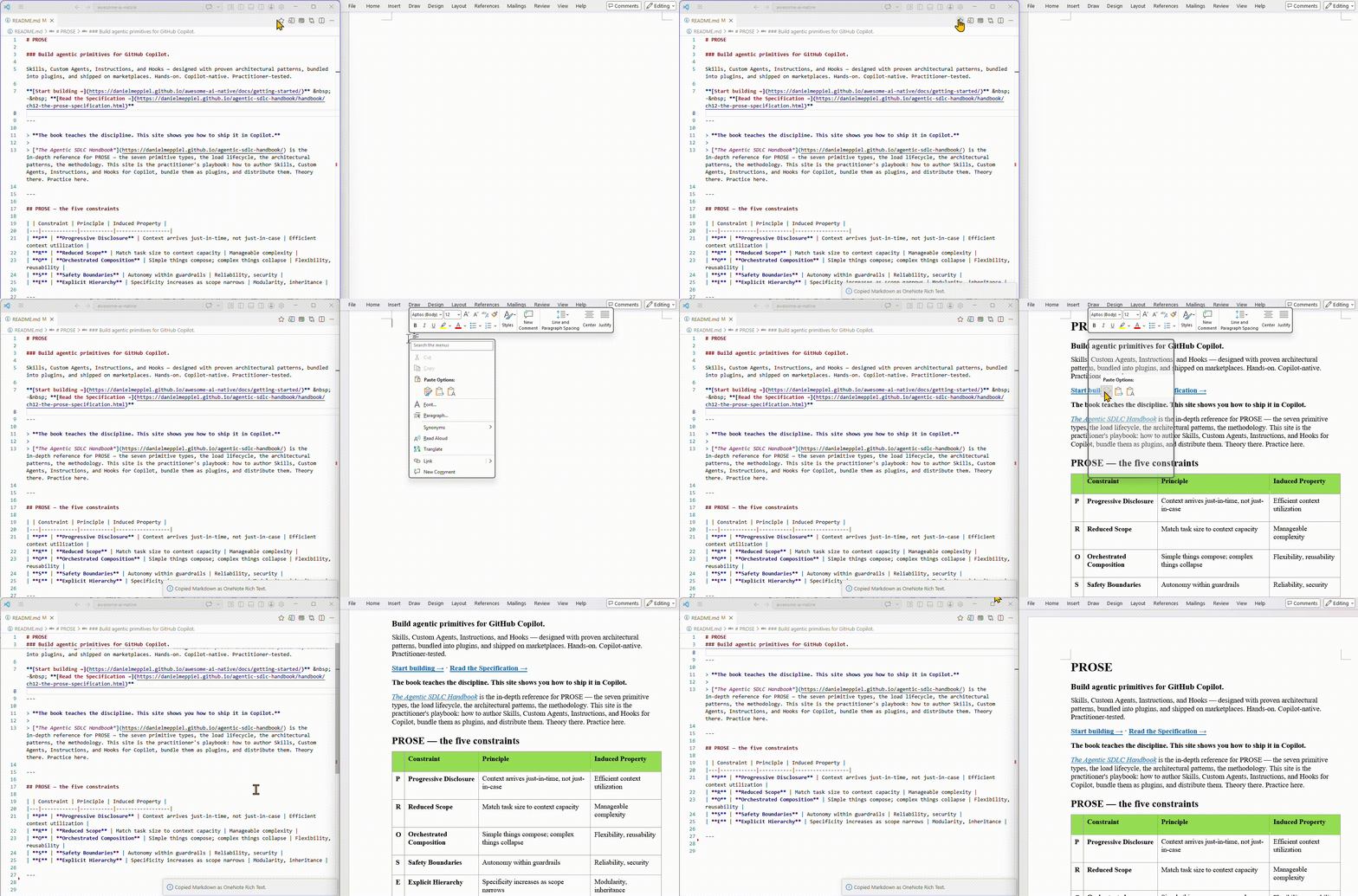
Open a Markdown file in VS Code, then click the star button in the top-right editor toolbar to copy it as rich text.
Features
Copies the current Markdown selection, or the full file if nothing is selected
Writes rich HTML plus plain text to the clipboard
Falls back to readable plain text when rich clipboard is unavailable
Adds a command, editor toolbar button, and right-click menu for Markdown files
Runs locally only with no telemetry, no login, and no backend
Best tested with OneNote Desktop, and designed to work well with Word, Outlook, and similar editors
Installation
Install Copy Markdown to Rich Text from the VS Code Marketplace, then run it from any Markdown file.
Usage
Open a Markdown file in VS Code.
Click the star button in the top-right editor toolbar.
Select a portion of text first if you only want to copy part of the file. If nothing is selected, the whole file is copied.
You can also run Copy Markdown to Rich Text from:
the Command Palette,
the editor title toolbar,
the editor context menu.
Paste into your target editor.
Capabilities
Area
Status
Notes
H1 / H2 / H3, paragraphs
Supported
Copied as rich HTML plus plain text.
Bold, italic, inline code
Supported
Preserves common inline formatting.
Fenced code blocks
Supported
Preserves multiline code block structure.
Tables
Supported
Keeps semantic table markup for rich paste targets.
Bullet and numbered lists
Supported
Paste indentation may vary by target editor.
Links
Supported
Keeps link text and href.
Images
Not supported yet
Copied as text fallback content only.
Mermaid
Not supported yet
Copied as fenced code text.
Footnotes
Not supported yet
Markdown renderer output may paste as plain text structure.
Platform notes
Environment
Clipboard path
Notes
Windows
Native Windows clipboard bridge
Primary supported path for rich HTML paste.
WSL
Native Windows clipboard bridge through WSL path conversion
Supported when Windows PowerShell is reachable from WSL.
Other VS Code desktop environments
Electron or webview clipboard, then plain text fallback
Rich clipboard behavior depends on the host and paste target.
OneNote Desktop is the primary validation target today. Word, Outlook, and similar editors are expected to work, but paste behavior can vary by target editor.
Privacy
Local-only processing
No remote fetches
No telemetry
No external script execution beyond the local clipboard bridge