🌑 The 2AM Problem
We've all been there. It's late, you're staring at a bug that refuses to die, and your editor feels like a flashlight pointed at your face. Or worse, you switch to a "low contrast" theme and end up squinting just to tell a string from a variable.
I built Nythera Nightcode because I was tired of switching themes every few hours. I wanted something calmer, more balanced, and easy to work with for long sessions.
The goal is simple: If you forget the theme is even there, it’s working.
✨ What makes it different?
This isn't just another dark theme. It’s a carefully tuned environment designed to get out of your way.
- Gruvbox, but softer: The syntax colors are inspired by the legendary Gruvbox palette, retuned to reduce harsh contrast and brightness.
- Deep Base: A low-luminance background designed to minimize glare, especially in low-light environments.
- Calm Interface: No aggressive neon highlights pulling your attention away from the logic.
- Predictability: Editor and UI colors stay consistent, avoiding washed-out greys and overly bright highlights.
Built for long debugging sessions... when your eyes give up before the bug does.
📥 Installation
- Open Visual Studio Code.
- Press
Ctrl + Shift + X to open the Extensions panel.
- Type Nythera Nightcode in the search bar.
- Click the Install button.
- Click Set Color Theme and choose Nythera Nightcode.
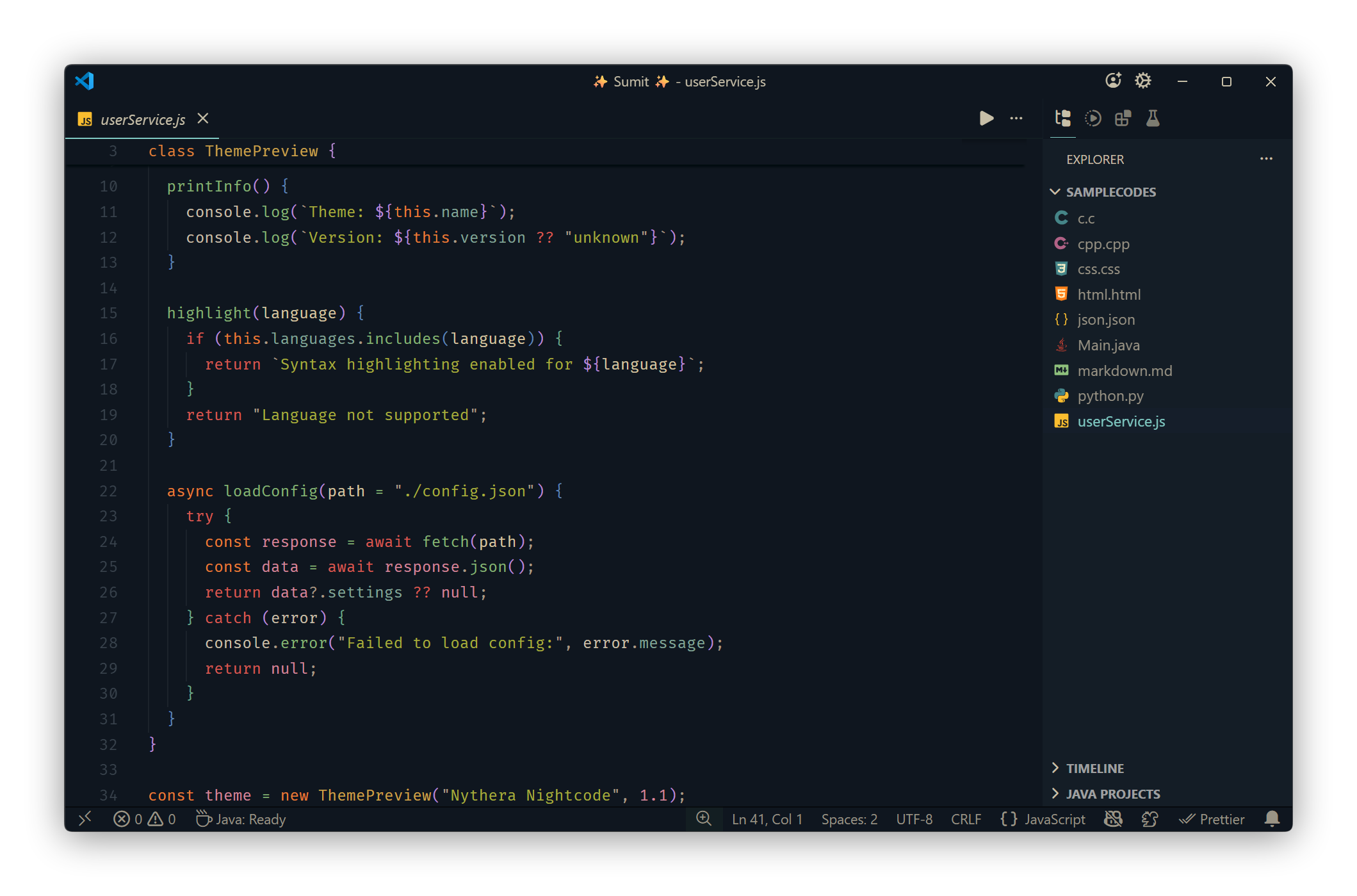
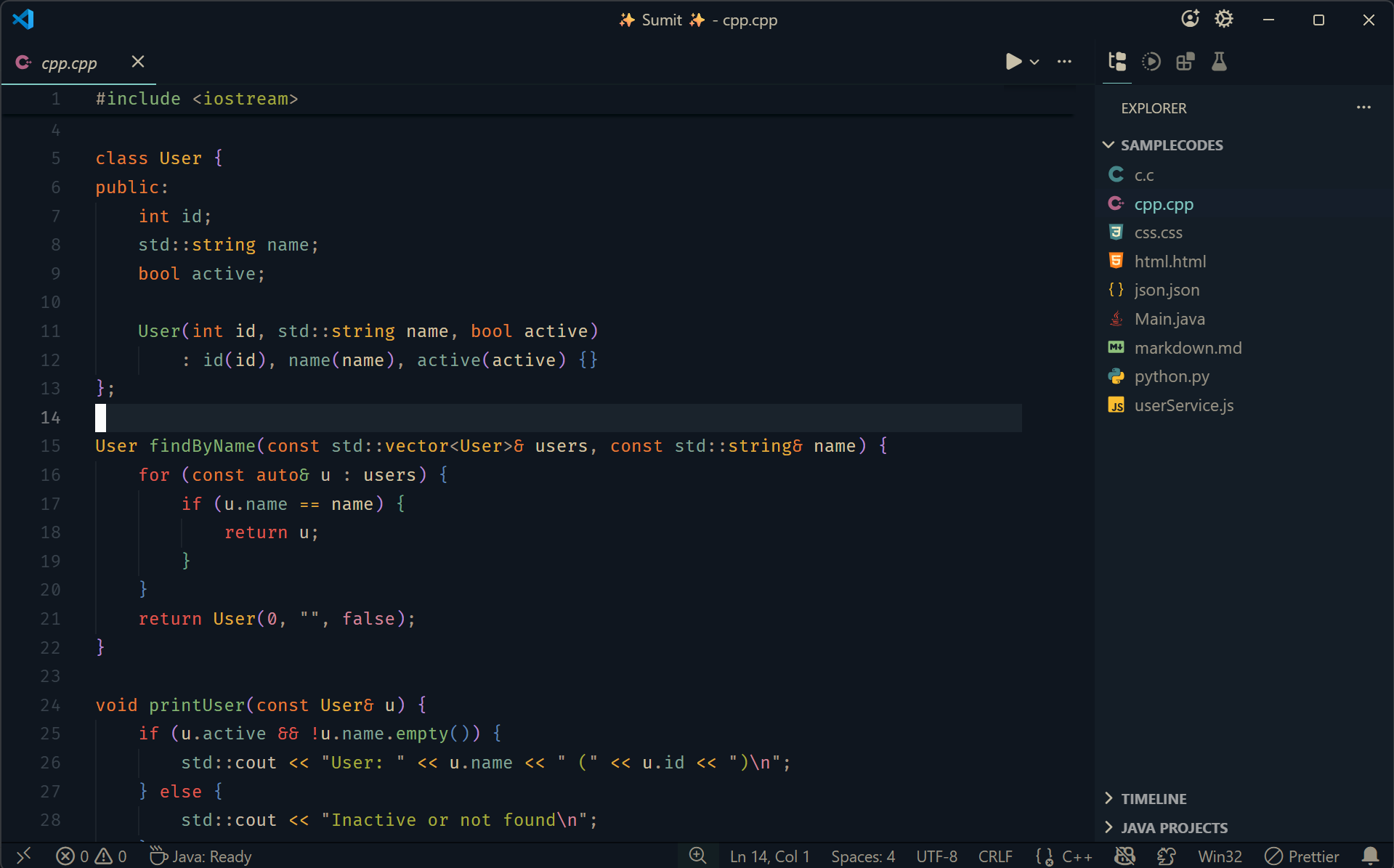
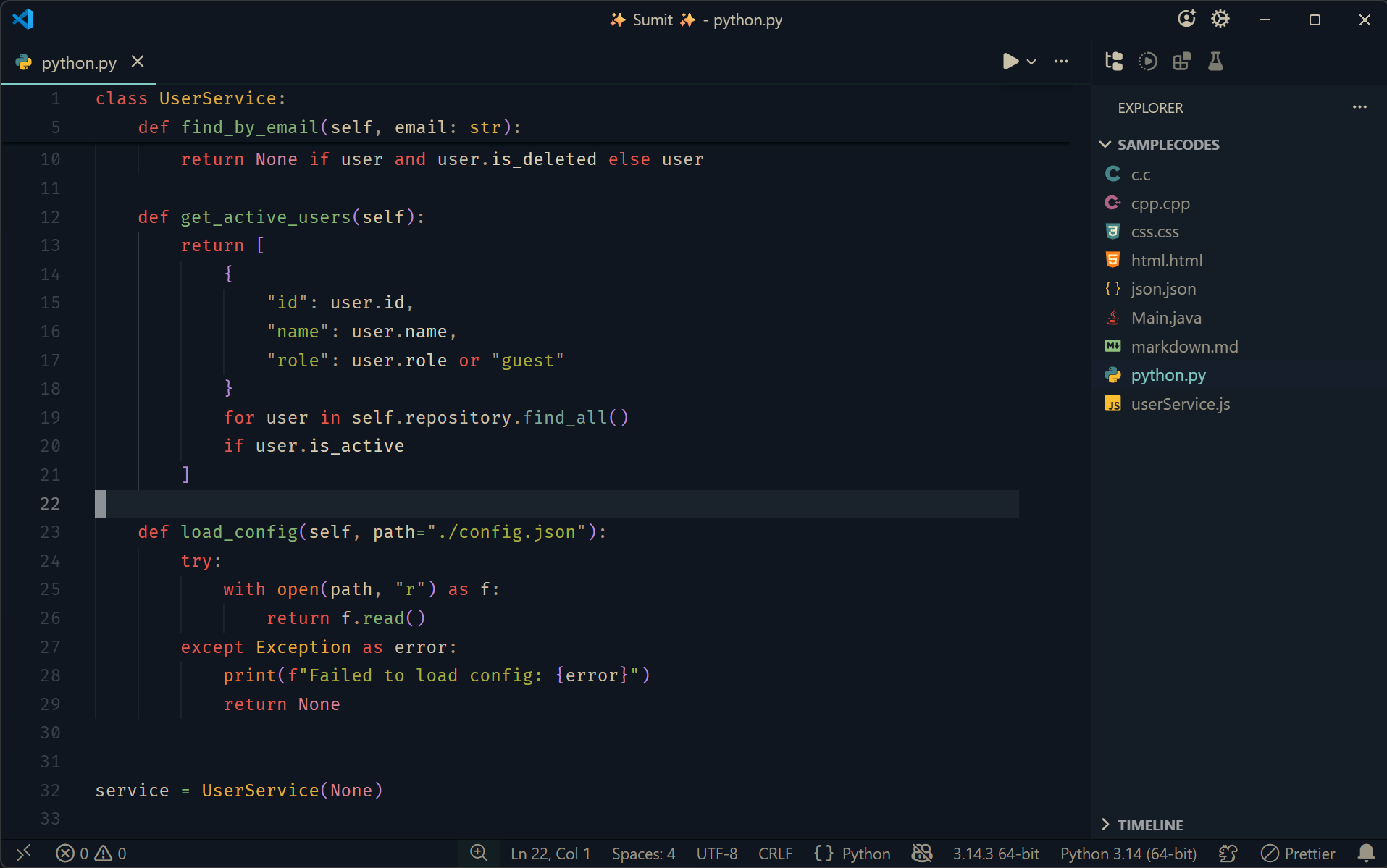
🖼️ Preview
Preview captured using Fira Code font
JavaScript
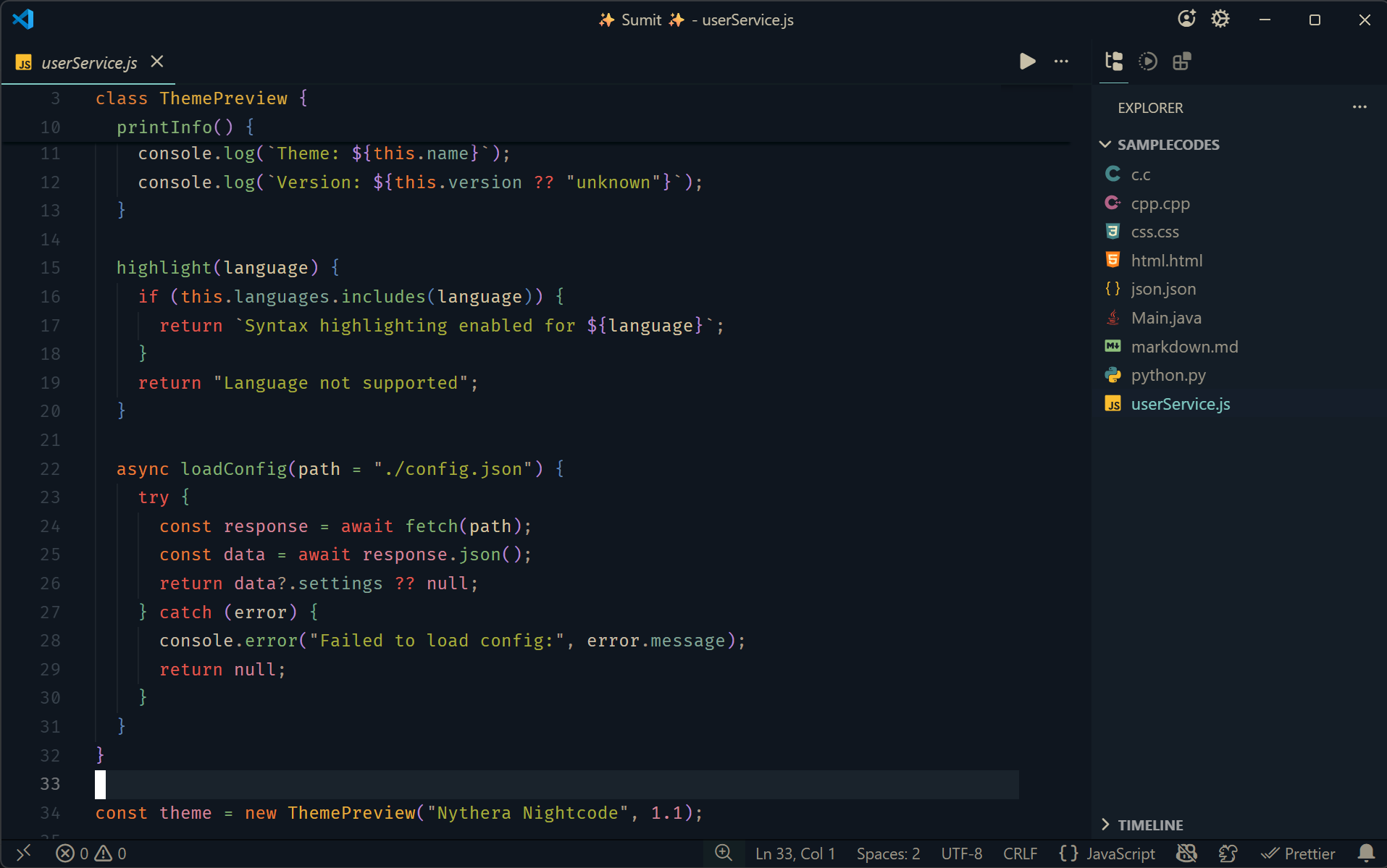
Java
C++
Python
💻 Tested With
JavaScript • TypeScript • Python • Java • C • C++
HTML • CSS • JSON • Markdown • TOML
For more previews across different languages:
👉 View the Asset Gallery
🧩 My Personal UI Setup
A theme is only half the battle. The preview screenshots use a mostly default VS Code layout with a few minor tweaks to reduce visual clutter.
Try adding these to your settings.json. Even a few of them can drastically improve your reading experience:
{
  "editor.fontFamily": "'Fira Code', monospace",
  "workbench.sideBar.location": "right",
  "workbench.activityBar.location": "top",

  "window.commandCenter": false,
  "workbench.layoutControl.enabled": false,
  "window.menuBarVisibility": "toggle",

  "editor.minimap.autohide": "mouseover",
  "editor.scrollbar.vertical": "hidden",
  "editor.scrollbar.horizontal": "hidden",

  "workbench.tree.indent": 12,
  "workbench.tree.renderIndentGuides": "none",
  "explorer.compactFolders": false,

  "breadcrumbs.enabled": false,

  "editor.cursorSmoothCaretAnimation": "on",
  "editor.cursorBlinking": "smooth",
  "editor.smoothScrolling": true,

  "editor.lineHeight": 22,
  "editor.letterSpacing": 0.2,
  "editor.fontSize": 13,

  "editor.padding.top": 15,

  "editor.bracketPairColorization.enabled": true
}
⚠️ About Display & Color
The theme was designed and tested on:
- OLED display (1920×1200)
- 100% sRGB color profile
Colors may vary slightly depending on your monitor's panel type.
If things look a bit off:
- adjust monitor brightness or contrast
- tweak editor zoom or font size
🐛 Feedback & Issues
Found a bug or have an idea to make the theme better? Let's fix it.
👉 Open an Issue on GitHub
📝 License
MIT License