
Work PlanBrowse and manage GitHub issues as tracks — dependency graph, per-track detail, and read/write (slot, move, reconcile, close) in the sidebar. Installation Launch VS Code Quick Open ( Ctrl+P), paste the following command, and press enter.Copied to clipboard |

Work Plan — VS Code ExtensionThe human face of the What it doesSee
Act — every action runs the CLI under the hood:
Get started from empty — a cold-start a new user can drive without the CLI:
A loading bar shows while the CLI fetch runs, and concurrent refreshes are coalesced (single-flight) so a burst of triggers can't spawn overlapping fetches. Screenshots
Copy formats. With an issue clicked, the Format dropdown and Copy button above the flow put the chain on the clipboard. Closed issues and status marks are left out, and the extension remembers your format. Shown for #120 in the example above: Path — numbers only, one line per path in work order, plus an Task list (markdown) — for a GitHub issue or PR body; marks the clicked issue and work in progress: Work order — a numbered list with titles, for Slack, notes or an AI prompt:
Install
Requirements
Commands & controlsEvery action runs the CLI under the hood. Commands live where they're relevant — the title bar (icons + the View controls — filtering & sorting (title bar)
When a lens or non-default sort is active, it's shown inline next to the Tracks view title (e.g. Track actions (right-click a track)The menu is organized by how often you reach for each action — the daily-driver verbs are surfaced at the top, the rarely-touched and config actions are tucked behind a More Actions ▸ submenu, and the one genuinely destructive action (Delete) is fenced alone at the very bottom. Order top to bottom: open the file → session verbs → next-up → issues → refresh → lifecycle (Close / Archive — both reversible or archived, not deletions) → More Actions ▸ → a Help link → Delete. A What Do These Actions Do? entry opens this section in your browser.
More Actions ▸ (rarely-touched and config actions)
Help & destructive
On an archived track, right-click gives Open Track File (.md), Restore from Archive (the inverse of Archive / Close), and Delete Track (Permanent). (On an Untracked bucket item, right-click gives Add Untracked Issue to Track — file a loose issue into a track.) Plans viewA second tree below the Tracks view, in the same Work Plan container. Where the Tracks view is about issues, the Plans view is about documents — the plan/spec docs in your repos and their Every plan row carries a verdict icon. Because a panel full of red ✕'s reads as "errors" until you know what they mean, the icons are decoded by a title-bar ℹ️ legend button (
The first three are made loud; the rest stay quiet. Every state stays distinguishable by icon shape, never colour alone (#208). A plan whose declared manifest points outside the repo (an absolute,
Read-only on git apart from a few writes: the frontmatter-only Confirm Verdict, Acknowledge & Save to Doc, and Stamp Baseline writes above, Archive Plan… / Archive shipped plans… (a Create & setup (the
|
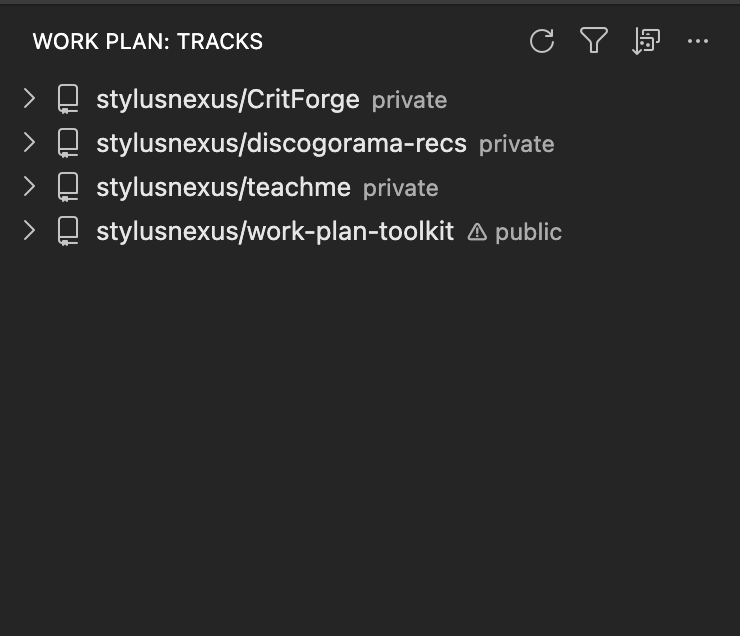 Repos → tracks: status dots, open counts, and a ⚠ badge on public repos.
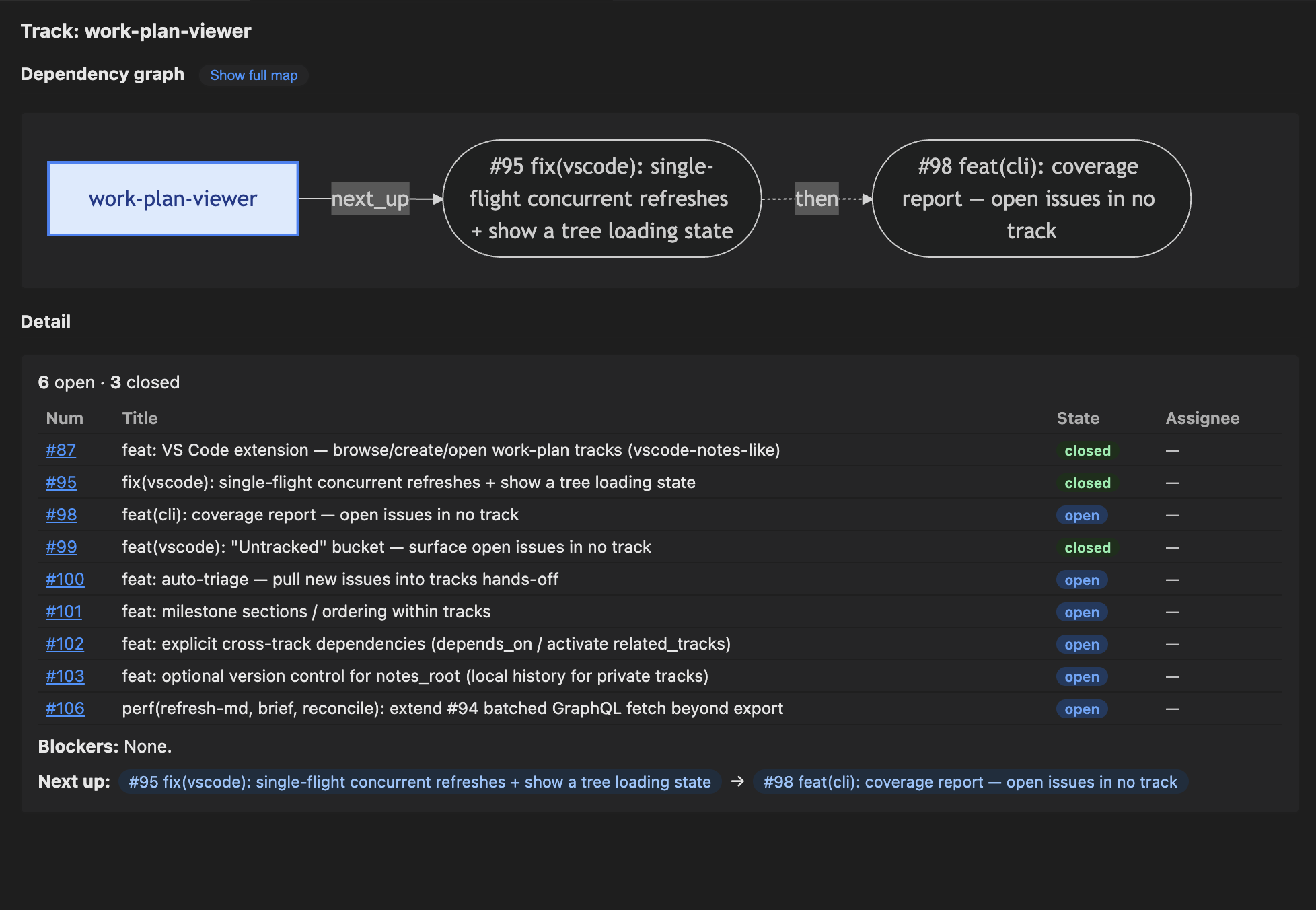 The dependency/flow graph and per-track detail panel — showing blockers, cross-track dependency chips, next-up flow, and per-issue move buttons.
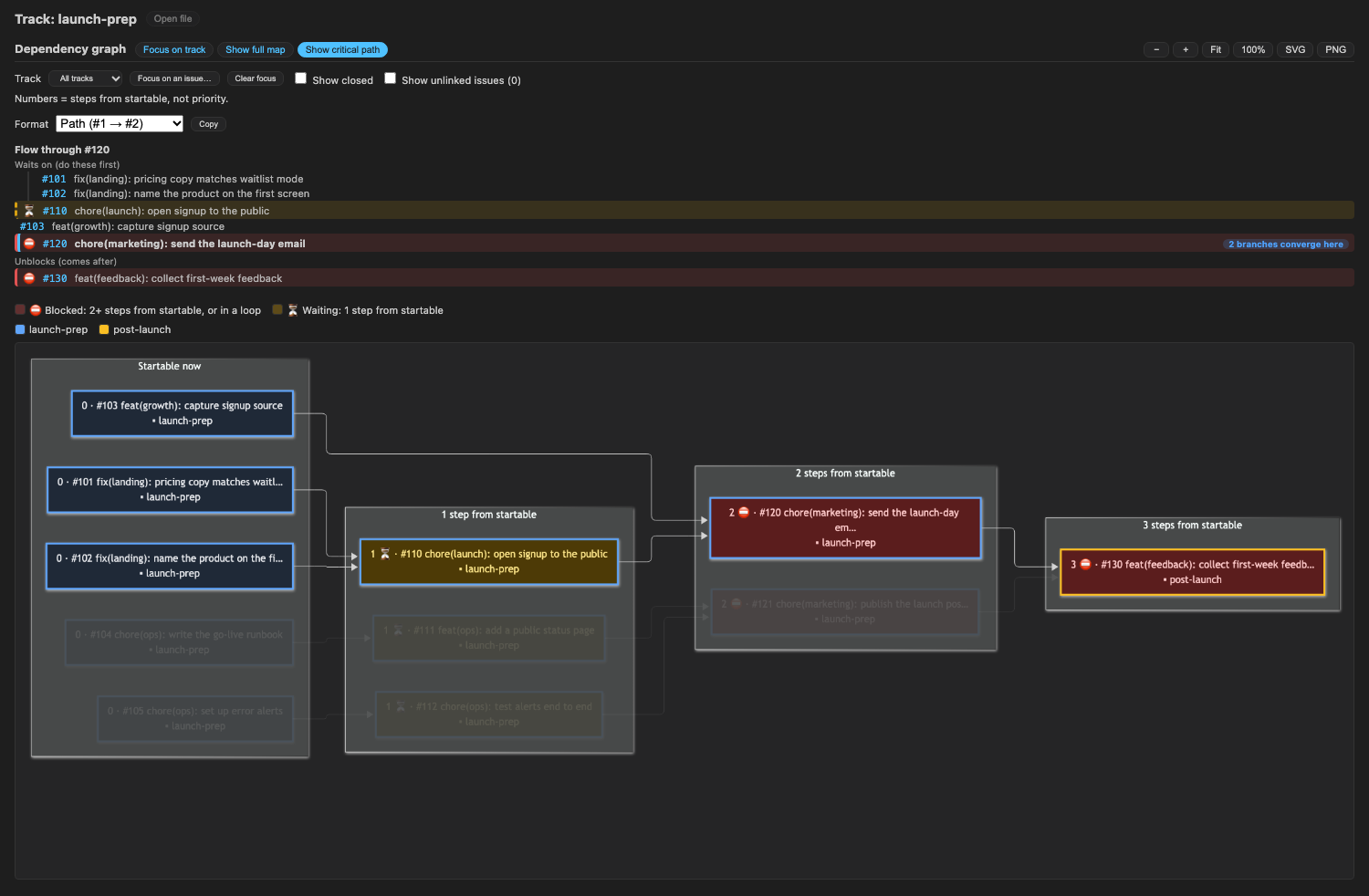 The critical-path view (example data): columns by steps from startable, red ⛔ blocked and amber ⏳ waiting issues, and a clicked issue's chain faded in and printed as text with a Copy button.
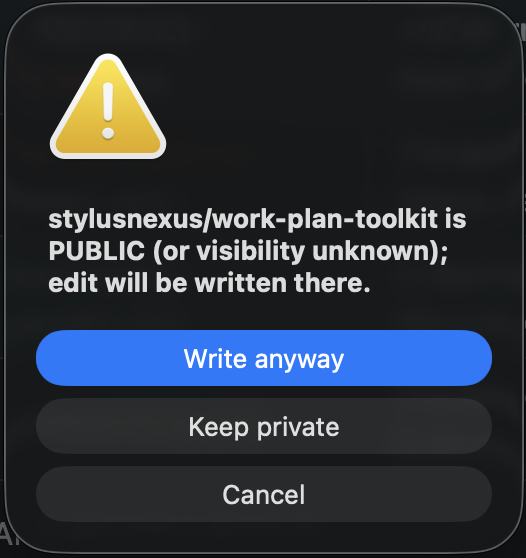 The "Write anyway / Keep private" modal before any write into a public repo.
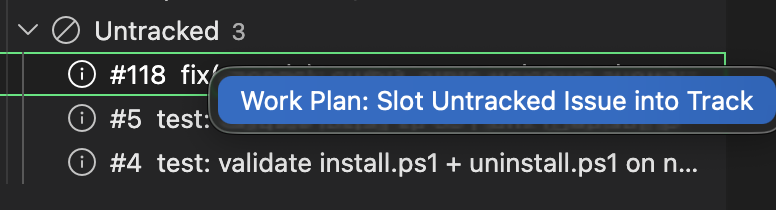 Open issues that no track references — slot one in with a right-click.
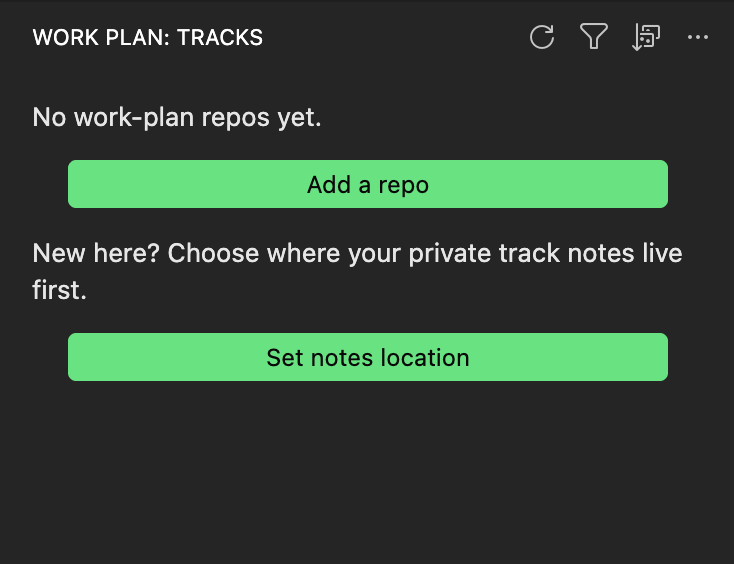 Get started from empty: add a repo and choose where your notes live — no CLI needed.
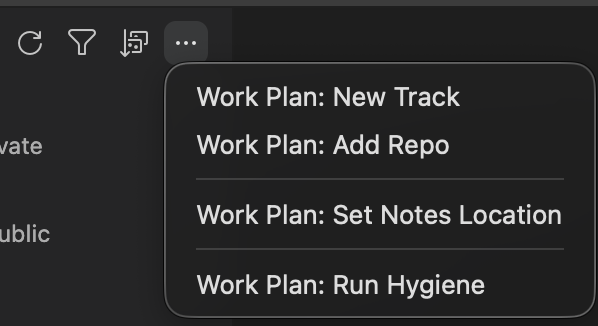 The
The | Command | What it does |
|---|---|
| New Track | Create a new track for a repo (pick the repo + a slug). |
| Add Repo | Register a repo — a key, the org/repo slug, and an optional local checkout path. The repo appears in the sidebar straight away even with no tracks; right-click it → New Track to start. The local path is what enables plan scanning (the Plans view), so add it when you have a checkout. Re-running Add Repo on a key that's already registered offers to set/update its local path instead of erroring — the fix for "I skipped the path the first time." |
| Clear Local Path (right-click a repo) | Drop a repo's saved local checkout path while keeping it registered — handy when the checkout moved or you no longer want it scanned. Asks first; the repo and its tracks stay put. |
| Remove Repo (right-click a repo) | Unregister a repo so it leaves the sidebar and brief. Config-only: your notes, tracks, and the local clone are left untouched (any notes folder or tracks that referenced it are simply orphaned — clean them up by hand if you want). Asks for confirmation first. |
| Set Notes Location | Choose where your private track notes live (the CLI's notes_root). |
| Run Hygiene | Weekly all-in-one cleanup. Five steps: ① refresh every active track's status table from GitHub, ② reconcile track frontmatter against GitHub labels, ③ report tracks duplicated across the shared and private tiers, ④ report stale or mis-ordered next-up entries, ⑤ scan for duplicate issues (skipped when more than one repo is configured). Use "Refresh Track from GitHub" instead when you just need to update one track after closing issues. |
Before any write into a public (or unknown-visibility) repo, a "Write anyway / Keep private" modal appears — the public-repo leak guard, surfaced as a dialog. Private repos write straight through.
GitHub access is read-only by default, with two explicit opt-in writes. All issue data comes from read-only
ghCLI calls. Every routine write — status table updates, frontmatter, session logs — goes to your local markdown files only. The two GitHub writes the extension can make are both user-initiated and gated: Close Issue on GitHub (mandatory confirm modal on every close) and Mark/clear in-progress (adds or removes thework-plan:in-progresslabel; public-repo confirm-token gated). Nothing else touches GitHub state.
Configuration
| Setting | Default | Description |
|---|---|---|
workPlan.cliPath |
"work-plan" |
Path to the work-plan CLI launcher. Read at activation — reload the window after changing it. |
workPlan.trackStaleDays |
14 |
Days without activity (last_touched, else last_handoff) before an active, in-progress or blocked track counts as stale. Drives the Stale tracks lens and a tooltip flag; display only (nothing is archived or edited). Changing it re-renders from cached data with no refetch. |
workPlan.expandReposByDefault |
false |
Expand all repo groups on load (a single-repo workspace always expands). |
workPlan.autoFocusRepo |
false |
When the open workspace folder is a configured repo, default the Tracks lens to that repo (resolved by clone path, then git remote) so you don't read another repo's issues by accident. Off by default — the Tracks view shows every repo. A manual lens choice always wins, and the Select View → Focus current repo / Display all repos toggle flips scoping any time — and rewrites this setting to match, so your last choice becomes the default. |
workPlan.autoRefreshInterval |
0 (off) |
Re-poll the CLI silently in the background. Options: 0 (off), 30 s, 60 s, 5 min, 15 min. Useful when teammates are pushing shared-track changes and you want the tree to stay current without manual refreshes. A poll that comes due while a refresh is still running is skipped rather than queued, and the dependency graph only redraws when what it shows actually changed. |
workPlan.showNextUpPreset |
true |
Show the active next-up ranking preset in the track detail panel (hidden when the track has none). |
workPlan.stallDays |
"match" |
Plans view staleness window: match (follow the CLI's threshold) or a fixed 14 / 30 / 45 / 60 / 90 days. |
workPlan.plansAutoRefresh |
true |
Re-scan a scanned repo's plans when its git activity changes, instead of waiting for a manual Refresh. |
workPlan.autoSlotConfidenceThreshold |
0.7 |
Confidence cutoff (0–1) for an auto-slot suggestion to land in the one-click Suggested bucket rather than Needs review. |
Config-drift indicator
Work Plan: Run Diagnostics (Command Palette) runs the full preflight on demand and prints every check to the Work Plan output channel — Python 3.9+, git, gh and its sign-in, mikefarah/yq, config, notes_root, plan-branch worktrees — with the exact fix under anything that needs attention. It needs a CLI that supports diagnostics and says so if yours predates them.
On activation, the extension silently checks for config drift (a renamed local folder or GitHub repo that config.yml no longer matches, an invalid notes_root, a stale per-track repo slug, etc.). If it finds anything, a ⚠ Work Plan: N config issues item appears in the status bar — click it to see the details in the "Work Plan" output channel. Nothing appears when everything's clean. Run work-plan doctor --fix from a terminal to correct the safe subset automatically, then reload the window.
Build & run
# From the vscode/ directory:
npm install          # esbuild, TypeScript, @types/vscode, mermaid
npm run typecheck    # tsc --noEmit
npm test             # node --test (pure modules; no VS Code host needed)
npm run build        # compiles extension + copies the Mermaid bundle into dist/
Then launch the extension host to try it live (the last arg is the workspace folder to open, which carries workPlan.cliPath):
code --new-window --disable-extensions --extensionDevelopmentPath=./vscode <workspace-folder>
The build step copies node_modules/mermaid/dist/mermaid.min.js into dist/ automatically. dist/ is gitignored — the Mermaid file is never committed.
Architecture
Pure logic lives in vscode-free modules (model.ts, cli.ts, treeModel.ts, write.ts, singleFlight.ts, webview/graph.ts/detail.ts/html.ts/lenses.ts) and is unit-tested by Node's native test runner — no VS Code host required. Only tree.ts, plansTree.ts, webview/panel.ts, webview/searchPanel.ts, and extension.ts import vscode. The write layer maps a UI action to CLI argv in write.ts (actionToArgs + the confirm-token flow in executeWrite); extension.ts is the thin glue that gathers input and shows dialogs.
How Mermaid is loaded
The webview loads dist/mermaid.min.js — the UMD bundle from Mermaid 12 (mermaid@^12.1.0): a single self-contained file (~5.2 MB) that exposes a global mermaid via a classic <script nonce="…" src="…"> tag (not the ESM build, which needs ~160 chunk files). If the graph fails to render, verify dist/mermaid.min.js was copied (ls vscode/dist/) and that the webview CSP allows 'wasm-unsafe-eval' (Mermaid needs it). The webview uses a strict CSP, a per-document nonce, and a single acquireVsCodeApi() call.
Status
Published — v0.21.0 on the VS Code Marketplace and Open VSX (publisher stylusnexus).
- v0.21.0 — See what's blocking what, in order. A third dependency-graph view, Show critical path (#445), lays open issues out in columns by steps from startable, from GitHub blocked-by/blocking links and track
depends_on; unlinked issues collapse into one node, loops get their own column, and a track filter, focus-on-issue and show-closed controls narrow it. Red ⛔ marks issues 2+ steps out (or in a loop) and amber ⏳ marks issues 1 step out. Clicking an issue fades everything outside its chain and prints the chain as text (waits on → issue → unblocks, converging branches tagged), which Copy puts on the clipboard as numbered paths, a markdown task list or a work order. No CLI change is required. - v0.20.3 — Protect track titles during refresh. Refresh Track now checks the CLI build before running and blocks earlier dates and the known unsafe same-day build
2026.10.20+6477802, which can overwrite titles when a track table is malformed. - v0.20.1 — Quieter background refresh, faster export, sturdier config. Auto-refresh skips a poll that comes due mid-refresh instead of queueing it, and the dependency graph redraws only when its content changed (#423).
exportreuses the tracks it already parsed for tier-duplicate detection, roughly halvingyqlaunches (#425). A malformedrepos:inconfig.ymlnow gives a clear error (#432), andinit-repo --update/ Doctor's config fix migrate scalarkey: org/repoentries instead of failing (#440). Mermaid is now v12. No CLI change is required beyond v0.20.0. - v0.20.0 — Find stale work, search by label, check your setup. A Stale tracks lens and a Least recently touched sort surface active tracks that have gone quiet (
workPlan.trackStaleDays, default 14; display only, nothing is archived), with an age line in the tooltip and detail panel (#428). Search Issues now matches GitHub labels with alabel:prefix —label:security,label:priority/%— case-insensitively with the same%wildcards, across tracked and untracked issues (#429). Work Plan: Run Diagnostics runs the CLI's new preflight (Python 3.9+,git,ghand its sign-in,yq, config,notes_root, plan-branch worktrees) and prints each check with its fix (#427). Suggest Tracks (with AI) now opens Claude Code with the prompt ready, or copies it to the clipboard for other agents (#496). Needs a CLI from this release for label search and diagnostics; an older CLI is detected and the panel says so. - v0.19.10 — A network blip no longer looks like being signed out. Returning to a sleeping laptop could greet you with a "Not signed in to GitHub" banner and an empty tree while
ghwas perfectly authenticated:gh auth statusvalidates your token over the network, so a reconnecting VPN or waking machine makes it fail — andghreports that asThe token in keyring is invalid.The viewer took that at face value. It now distinguishes unverified from signed out: only a clean success or an explicit "not logged into any hosts" is treated as authoritative, so a failed check keeps your tracks on screen behind a "couldn't verify" banner instead of an onboarding prompt. The last-good tree is also persisted across window reloads, which is what made the banner reappear every time you came back. Also fixes multi-account setups, where one staleghaccount made the check fail and read as a logout of the healthy active one. A genuinegh auth logoutstill shows the real sign-in banner. Paired with a CLI release adding aprobe_oktrust flag toauth-status— but the viewer also recognises the failure without it, so the fix works against an already-installed CLI. - v0.19.9 — Clarifies and reorganizes the track right-click menu. The 18 flat, mechanism-named actions are now grouped by how often you use them, with clearer intent-first labels: Sync Issue States from GitHub → Refresh Track from GitHub, Mark for Cleanup → Mark as Stale 🧹 (moved out of the destructive group — it deletes nothing), Set Next-Up Order → Change Next-Up Ranking (it's config, not a list edit), and the two next-up methods paired as Set Next-Up (pick manually / auto-suggest). The rarely-touched and config actions (Edit Fields, ranking, cross-track reference, label-drift, publish, rename, stale flags) move into a More Actions ▸ submenu; Delete Track (Permanent) is now the only item in the fenced danger zone; and Close / Archive move to a reversible "lifecycle" group. Adds a What Do These Actions Do? help entry that opens the docs, and a track hover tooltip showing the next-up glance plus a left/right-click hint. Extension-only; CLI unchanged.
- v0.19.8 — Follow-up wording fix for a convergence track's tree row: the previous
N open · X references (Y open)label used "open" for two different scopes (issues the track owns vs. issues it references elsewhere) with no visual cue for the shift, reading as self-contradictory at a glance. Reworded toN owned · Y of X referenced still open, scoping each number to a distinct noun; the tooltip's fuller explanation is unchanged. - v0.19.7 — Fixes a misleading tree-row count: a convergence track that owns zero issues but has open cross-track references (
github.references) showed only a bare0 open · N references, which reads as "nothing to do" even when references are still open. The row now shows0 open · N references (M open), and the tooltip states how many referenced issues are open; the underlyingdemote-to-referencemigration CLI command (#462) is what surfaced the gap. - v0.19.6 — Adds cross-track issue references (#458): a track can now point at an issue owned by another track for coordination visibility — via
github.references— without taking ownership of it (github.issuesstays the sole ownership list slot/move/reconcile use). Right-click a track → Add Cross-Track Reference; the sidebar tree shows a · N references count, and the detail panel gets a separate Referenced issues table excluded from the track's own status/progress. Paired with a CLI release that addsbatch-slot --referenceand fixes a data-loss bug wherededupe-tiers --applycould delete a private track whose only content was cross-track references, plus a missing CAS staleness guard on reference writes, a duplicate-entry bug, and anext_up-filtering bug. - v0.19.5 — Fixes a bug where a failed GitHub open-issues fetch (outage, auth lapse, rate limit) silently looked like "zero untracked issues" instead of an error. The repo tree row now shows a "⚠ GitHub fetch failed" warning and retains its last-known Untracked bucket instead of implying full coverage; Suggest Tracks warns distinctly on a fetch failure too. Paired with a CLI fix (#454) that stops converting fetch failures into indistinguishable empty results.
- v0.19.4 — Adds a
CHANGELOG.mdso the Marketplace listing shows a proper Changelog tab (seeded from the last 3 published versions), and republishes with the paired CLI's yq-capability installer fix (#433) plusbrief/exportGitHub-read batching for a faster daily brief and viewer refresh (#420, #424, #422). Extension code unchanged. - v0.19.3 — Config-drift detection (#439): a new quiet status-bar indicator silently checks, once at activation, whether
config.ymlstill matches reality — a renamed local folder or GitHub repo, a broken local path, duplicate entries, an invalidnotes_root, an orphaned notes folder, or a stale per-track repo slug. Shows⚠ Work Plan: N config issuesonly when something's actually wrong; click it for the details in the "Work Plan" output channel. Pairs with the CLI's newwork-plan doctor [--json] [--fix]—--fixcorrects the two safe cases (a GitHub-confirmed rename, a stale track slug) automatically. CLI floor raised to 2026.07.15. - v0.19.2 — Security and identity hardening. Tracks and issues now remain repo-qualified end to end (#430), preventing same-named tracks or same-numbered issues in different repositories from colliding in graph state, detail selection, or write actions. Declared plan links are opened only when the repo-relative file resolves safely inside the configured clone; absolute, traversal, missing, and symlinked escapes stay inactive (#195). The paired CLI release also contains shared-tier containment, hard-link-safe plan stamping, and content-verified installer ownership (#431).
- v0.19.1 — Maintenance. Fixes a
briefcrash (#417):brief/brief --repo=<key>raisedTypeError: '<' not supported between 'str' and 'int'for any track whosenext_upmixed issue numbers with a non-issue token (e.g. an epic name likegolden-path-v2) — non-issue string tokens are now dropped from the issue fetch. Also least-privilegeallowed-toolsscoping (#415) on thework-planandrepo-activity-summaryskills, so Claude Code grants scoped Bash (the CLI /python3/gh) rather than unrestricted shell. Extension code unchanged; republished for version parity. - v0.19.0 — Track lifecycle (#329/#328/#330): right-click a track → Mark for Cleanup (reversible 🧹 flag), Archive Track (set it aside into
archive/parked/; a Show Archived Tracks toggle reveals archived rows greyed 📦, right-click → Unarchive), or Delete Track… (removes the.mdonly — GitHub issues untouched — behind a hard modal, with type-to-confirm on shared tracks and honest permanent-vs-recoverable messaging). Restore an archived plan (#388): right-click a doc in the 📦 Archived folder → Restore to Live, the inverse of Archive Plan. Also a CLI-side auth fix (#410/#411): a missingyqno longer masquerades as "Not signed in to GitHub" (the viewer distinguishes a failed probe from a real sign-out). - v0.18.0 — Plans-view + onboarding batch. Onboarding no longer shows for configured users (#398): the auth probe was a hard gate (any
ghblip wiped the tree to the "Connect to GitHub" banner) and "No repos yet" keyed on track count; now a last-good cache survives a transient probe/load error, and the empty-states partition cleanly into truly-new (onboarding) / configured-but-no-tracks ("No tracks yet") / load-error ("Couldn't load — Retry"). Batch Acknowledge / Save-to-Doc / Stamp Baseline (#396): multi-select stalled/dead (or any) plans and apply behind one confirm, mirroring the multi-select archive (Confirm Verdict stays single-only). Archive reports staged vs local (#399): a tracked plan archives as a stagedgit mv("commit & push to share"), a gitignored/untracked plan as a plain filesystem move — no more silent "git mv failed" on an untracked path. CLI floor unchanged. - v0.17.2 — Fixes a misleading "Not signed in to GitHub" banner (#402): in a Remote-WSL window the extension host runs inside WSL and spawns the
work-planCLI there, so a CLI installed only on Windows ENOENTs — surfacing as a GitHub-auth failure rather than a missing CLI. The viewer now distinguishes a missing CLI (new banner calling out the WSL/remote "install it where the host runs" gotcha) from not signed in and gh not installed; the README gains WSL / Remote-SSH / dev-container install guidance. CLI unchanged. - v0.17.1 — Fixes a dependency-graph crash on free-text blockers (#400): a
blockers:entry can be a free-text note, not just an issue number; the prose was being spliced into a Mermaid node id → "Syntax error in text" across the whole graph pane. Free-text blockers now drop from graph edges (the track still shows ⛔ blocked) and render as an escaped chip in the detail panel; a string-form ref like"#5548"still draws a realblocksedge and dedupes against its blocked-by edge. Pairs with a CLI fix sobrief/orientprint a free-text blocker as prose instead of#<sentence>. CLI floor unchanged. - v0.17.0 — Adds multi-select batch archive (#393): select several shipped plans in the Plans view (Cmd/Ctrl/Shift-click) → Archive Plan… archives them all behind one confirm, with one refresh per affected repo. Pairs with a CLI perf fix (#391) that batches
plan-status's per-doc/per-pathgitcalls into one walk (~40s → ~14s on large repos), so the post-archive refresh no longer hangs the view. - v0.16.0 — Adds archive a shipped plan (#387): right-click a ✅ shipped plan → Archive Plan… (moves it to
archive/shipped/viagit mv), or a repo → Archive shipped plans… for a bulk sweep; archived docs leave the live verdict buckets and surface in a collapsed Archived (N) folder per repo, with a post-archive toast and a repo "· N shipped" count. Unverified (lie-gap) shipped plans are archivable singly (with a warning) but excluded from the bulk sweep by default. CLI floor unchanged (≥2026.06.15); older CLIs degrade gracefully (the Archived folder just won't populate). - v0.15.0 — Fixes a repo-focus regression and reworks repo scoping (#383): a repo lens (including #357 auto-focus) had forwarded the full configured-repos list, making every other repo's tracks look gone. Fixed:
applyLensnow scopes the forwarded repos to the lens;workPlan.autoFocusReponow defaults to OFF;autoFocusReporeacts at runtime (no reload); the per-repo lens enumeration is replaced by a single Focus current repo ↔ Display all repos toggle that also writesworkPlan.autoFocusRepo. Also a security pass:undici/form-data/dompurifybumped to clear 5 Dependabot alerts (#384). - v0.14.2 — Renames the AI command to "Suggest Tracks for Untracked Issues (with AI)…" so it mirrors the (offline, no AI) variant and matches the offline toast's "try Suggest Tracks (with AI)" hint (which previously pointed at a label that didn't exist).
- v0.14.1 — Fixes v0.14.0's auto-slot UX: (1) Suggest Tracks crashed with "could not parse auto-triage JSON" on a repo with no active tracks — the CLI's
--jsonscan now emits a machine-readable{note}and the viewer shows a "create a track first" message. (2) The opt-in enable setting was removed — running Suggest Tracks is itself the opt-in; the Suggested / Needs review buckets now appear whenever you've run a scan. (3) The offline variant is renamed "Suggest Tracks (offline, no AI)" and its toast now reports the real match count. - v0.14.0 — Adds proactive auto-slot suggestions (#241, opt-in via
workPlan.autoSlotSuggestions): right-click the Untracked bucket → Suggest Tracks scans the repo and an AI session fills a Suggested sub-bucket (one-click Accept, with a compare-and-swap staleness guard + shared-tier rebase) and a Needs review sub-bucket; Suggest Tracks (offline heuristic) (#373) fills them with no AI, scoring matches locally (milestone / label / keyword). Also a critical webview fix (#374): escaped quotes in an inline-script template literal had been collapsing to a syntax error since 0.9.0, killing every webview click handler — now fixed, with a parse-guard test so an inline-script syntax error fails CI instead of shipping dead. CLI floor unchanged (≥2026.06.15). - v0.13.0 — Adds repo auto-focus (#357): when the open workspace folder is a configured repo, the Tracks view defaults its lens to that repo — a manual lens choice always wins, and
workPlan.autoFocusRepo(default on) turns it off. Plus a one-click Apply on Check Label Drift (#221): the reconcile preview now offers an Apply reconcile action in-viewer. And a read-only tier-duplicate advisory (#361): when a track is left in both tiers, a ⚠ row under the repo names thededupe-tiersCLI command. CLI floor unchanged (≥2026.06.15). - v0.12.0 — Feature batch: dependency graph gains zoom / pan / fit-to-width + Export as SVG/PNG (#216); Plans view auto-updates on git activity (#287) via per-repo
.gitwatcher (debounced;workPlan.plansAutoRefreshtoggle); native Suggest Next-Up (auto) picker (#274) brings the CLI's--auto-nextto the viewer; Plans verdict icons get a legend (#348) — an ℹ️ title-bar button opens a self-demonstrating QuickPick with plain labels; and a gear button (#352) opens the Settings UI scoped to this extension. Requires CLI ≥2026.06.15. - v0.11.1 — Makes Edit Track Fields affordances for
launch_priorityandmilestone_alignmentconsistent with New Track (#213): editing priority now offers aP0–P3QuickPick, and editing milestone offers a QuickPick of existing milestones (deduped + sorted) with a "Type a new milestone…" escape hatch and a "Clear milestone" option. - v0.11.0 — Adds toggle auto next-up on/off from the Set Next-Up Order… picker (#338): the QuickPick shows "Auto next-up: ON / OFF" items at the top (with ✓ on the current state), writing
set-next-up --auto=on|offthrough the existing confirm flow; the detail panel's "Next-up order:" row appends· autowhen auto is enabled. - v0.10.1 — Adds a Set Next-Up button in the track detail panel — a small "Set Next-Up" button inline in the "Next up:" section fires the existing
workPlan.setNextcommand so the next-up flow is reachable from the detail view without right-clicking the Tracks sidebar. - v0.10.0 — Adds per-track next-up ordering presets — Set Next-Up Order… command + detail-panel indicator (#326): a QuickPick of
flow/priority-driven/backlogpresets; the selected preset is written viaset-next-up --preset=<name>through the existing public-repo confirm flow; the active preset name appears in the detail panel whenworkPlan.showNextUpPresetis on. Requires CLI ≥2026.06.14for the write; degrades gracefully on older CLIs. - v0.9.2 — Hardens detail-panel issue links: they now carry a real GitHub
href(instead ofhref="#") so clicking an issue number opens GitHub even if the webview script is blocked/stale/errored. Also adds afont-srcCSP directive. - v0.9.1 — Hotfix: v0.9.0 set its minimum-CLI gate one day ahead of the release (
2026.06.15vs the2026.06.14CLI it shipped beside), causing a false "CLI version may be incompatible" warning for every updated user — v0.9.1 corrects the gate to2026.06.14and adds a guard test so the gate can never again exceed the repo's own CLIVERSION. - v0.9.0 — Adds GitHub-native blocked-by / blocking surfacing (#257, read-only): a same-repo blocked-by edge in the focused dependency graph, and an expandable ⛓ dependency disclosure on detail-panel issue rows showing ⊘ blocked-by / ⇒ blocking chips. Requires CLI ≥
2026.06.14. - v0.8.0 — Adds per-issue in-progress badge + toggle (#271): a
work-plan:in-progresslabel appears as a live badge on tracked issues in the detail panel, with a toggle to mark or clear it; the viewer also detects in-progress automatically from a hotfeat/<n>-/fix/<n>-branch (no label needed). Also fixes the v0.7.0 regressions carried into v0.7.1: the Close-on-GitHub button renders correctly, and the open-plan webview button no longer errors when the plan file path isn't resolvable. Requires CLI ≥2026.06.14. - v0.7.1 — Accessibility + polish follow-up to v0.7.0: a dark-mode contrast pass (status/verdict icons moved to theme-tuned, list-semantic tokens meeting WCAG non-text contrast; detail-panel action icons legible at rest), plus two small features: a per-track open/closed progress bar in the detail card with a
closed/totalcount in the tree (#220), and an activity-bar badge showing blocked-track (else total-open) count (#215). Also fixes two v0.7.0 regressions: Fetch Open Issues now excludes already-tracked issues, and the detail-panel Close-on-GitHub button renders correctly. - v0.7.0 — Large feature batch making the Plans view act, not just report: Plan frontmatter writes (all confirm-gated, frontmatter-only) — Confirm Verdict, Acknowledge & Save to Doc, Stamp Baseline — Watch for Drift, and a read-only off-tree manifest flag. Track ↔ plan link in the detail panel. GitHub-path hardening: a fast-fail "Not signed in to GitHub" banner with a Sign-in path, Fetch Open Issues for trackless repos, and Close Issue on GitHub (the viewer's gated issue-close). Push to Shared Tier promotes a private track to the repo's shared plan branch. Requires CLI ≥
2026.06.13. - v0.6.3 — A repo that has tracks but no registered local clone now shows in the Plans view as a greyed "not registered" row with a click to Add Repo (prefilled with the slug), instead of being silently absent. Pairs with v0.6.2, which fixed the inverse: a registered repo with no tracks was missing from Tracks because
applyLenswas silently dropping the configured-repos list. - v0.6.2 — Fixes registered repos with no tracks vanishing from the Tracks view (#288):
applyLensnow forwardsreposunchanged, so empty registered repos appear in Tracks (right-click → New Track to start). - v0.6.1 — Polishes the new Plans view: Plans section collapsed by default (Tracks stays the hot path), "Scan All Plans" empty-state is clickable to run the scan directly, the title-bar icon changed to
$(telescope)(no longer ambiguous with Search), and Show-Acknowledged moved to the…overflow. - v0.6.0 — Adds a Plans view — a read-only second tree surfacing plan/spec docs and their
plan-statushealth, making stalled and lie-gap loud across repos, with a cross-repo "Scan All" stalled roll-up, lazy per-repo scanning, acknowledge/dismiss, aworkPlan.stallDaysthreshold setting, and click-to-open. Registered repos are now first-class in the sidebar even with no tracks, with Add Repo / Remove Repo / Clear Local Path management. Also new: Open Track File and pick-from-a-list for Move, Set Next-Up, and Add Issue to Track. Requires CLI ≥2026.06.13. - v0.5.1 — Small fix to the Daily Brief title-bar button: a clearer
$(checklist)icon (the previous hamburger glyph read as a generic menu) and a re-entrancy guard so repeat-clicks no longer spawn concurrentbriefruns. - v0.5.0 — Daily-driver + discoverability release: a new Search Issues command with
%wildcard%substitution, opening matches in a dedicated Issue Search tab grouped by repo; Daily Brief / Re-orient / Wrap Up Session (Handoff) verbatim-relay verbs now runnable from the title bar and track menus; the active lens + sort surfaced inline under the Tracks view title; and milestone entries in the Select View filter now sort numeric-aware (v0.5.0beforev0.10.0). - v0.4.2 — Fixes visibility × tier badge rendering: the codicon tokens (
$(globe)/$(lock)/$(cloud)) leaked as literal text in the tree becauseTreeItem.descriptionis plain text; the badge now uses Unicode glyphs (🌐 / 🔒 / ☁️, ⚠️ for the exposed state). - v0.4.1 — Adds the per-track visibility × tier badge (🔒 private / 🌐 public repo, ☁ shared tier) on every tree item — flagging the one exposed state where a plan committed to a public repo's shared tier is world-visible (pairs with the CLI's new
plan-branchworkflow). - v0.4.0 — Broad UX + accessibility pass: a de-noised command palette (category-namespaced commands) with clearer names, a frequency-grouped track menu with confirmation modals on destructive actions, editor-theme-adaptive graph + detail panel (light/dark/high-contrast), a per-milestone filter in the detail panel, progress feedback on every write, and an accessibility sweep (distinct status-icon shapes, keyboard-operable disclosures and chips, table semantics, graph alt text).
- Earlier v0.3.x — Added the Local History command, Rename Track, milestone bands, Move Issue from Track, and cross-track dependency chips.
Development notes
Tests run via Node's native type-stripping; the manifest stays CJS (no "type": "module") because the VS Code extension host and esbuild.js require CommonJS — that's why the test script suppresses the MODULE_TYPELESS_PACKAGE_JSON warning. vscode/ has its own CI job (.github/workflows/vscode.yml: typecheck · node --test · esbuild · vsce package), separate from the Python matrix; the local gate is npm run typecheck && npm test && npm run build.