Citrix SecurSpaces - Remote SSH
Work in your Citrix SecurSpaces workspaces from your local IDE. Connect over
SSH in a single click: your editor runs locally, while the code, tools and compute
stay in the workspace.
Citrix SecurSpaces was formerly known as Citrix Secure Developer Spaces (SDS)
and Strong Network.
Features
- One-click SSH connect. The extension generates your SSH key, registers it with
SecurSpaces each time you connect, and configures SSH for you.
- Workspace sidebar. All your workspaces, grouped by project, with their current
state. Start, pause, connect, edit or delete them without leaving the IDE.
- Repositories, mount points and apps. Expand a workspace to open its
repositories and mount points, or launch its apps in
the browser.
- Create workspaces. The + button on a project offers Create from Template,
Create Custom Workspace and Copy Existing Workspace, each of which opens the
SecurSpaces console.
- Connection quality monitor. The status bar shows the round-trip time to the
connected workspace and warns you when the connection degrades.
- Keeps your workspace awake. A small companion component installed in the
workspace reports activity, so idle detection doesn't pause a workspace you're
using.
Requirements
- Access to a Citrix SecurSpaces environment.
- Remote Development Over SSH turned on for the platform, your organization and your
project. Each is set under Settings > Workspace Settings > Security Settings by an
administrator, organization owner or project owner. If a project owner can't see the
setting, a level above has it turned off.
- SSH enabled on the workspace (Basic Info > Access). On a running workspace
without it, the Connect icon is dimmed and shows "SSH disabled on this workspace".
- VS Code 1.96 or later, or Cursor, Windsurf or Kiro.
- VS Code only: the Microsoft
Remote - SSH
extension, which is installed automatically as a dependency. Cursor, Windsurf and
Kiro use their built-in remote support.
Getting started
From the SecurSpaces console
In the console, open your project's Workspaces or Overview page.
Select the SSH icon of a workspace and choose your IDE (for example
VS Code Desktop) in the Connect Via SSH dialog.
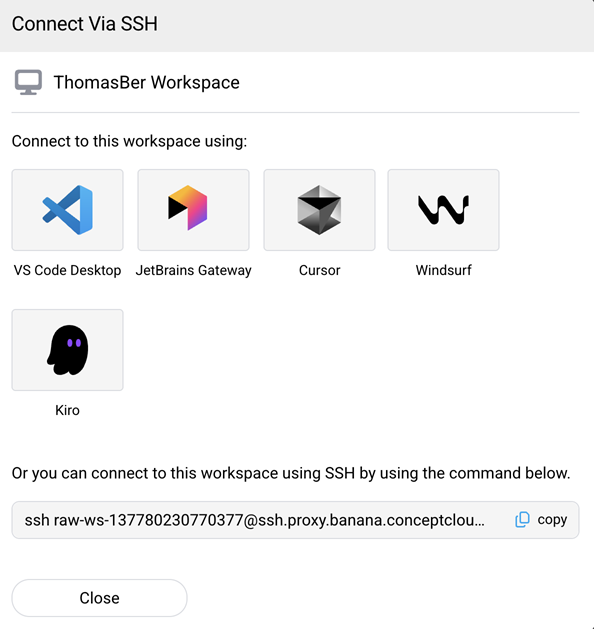
Your IDE opens. The first time, select Install Extension and Open URI.
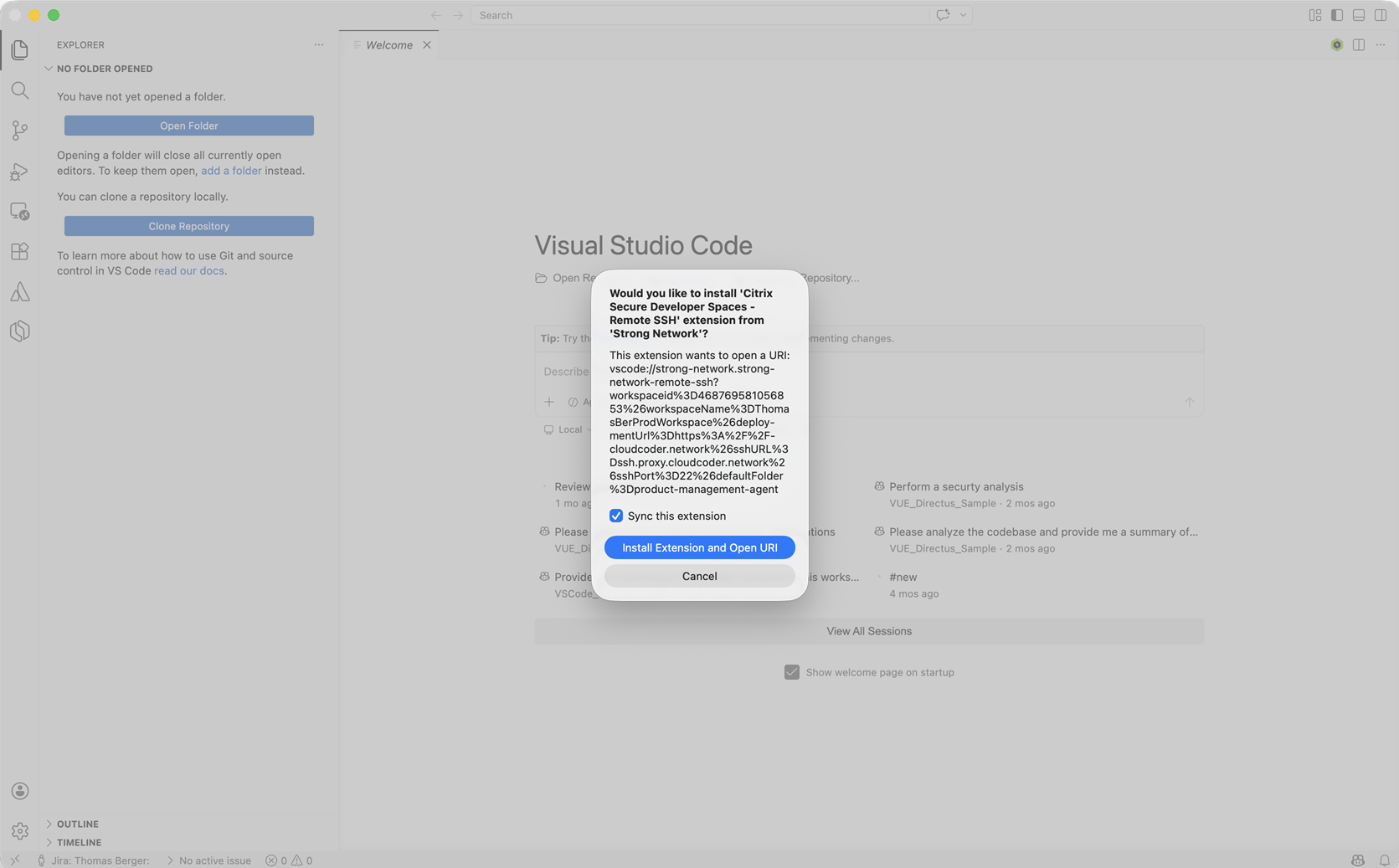
If the link points to a different environment from the one you last used, confirm it.
The extension then signs you in and connects to the workspace.
From the IDE
- Install this extension.
- Select the SecurSpaces icon in the activity bar to open the sidebar.
- Enter your Environment URL, select Connect, and sign in through your browser.
- Your workspaces appear, grouped by project. Select the connect icon on a running
workspace to open it over SSH.
- The connected workspace is highlighted and listed first.
- Right-click a workspace for more actions:
- Running: Connect in Current Window, Connect in New Window,
Pause Workspace, Edit Workspace, Delete Workspace.
- Paused: Start Workspace, Edit Workspace, Delete Workspace.
- Starting or pausing shows progress until the workspace state settles. Pausing the
workspace you are connected to closes the remote window and returns you to a
local one.
- Deleting a workspace is permanent and can't be undone.
- Expand a workspace to see:
- Repositories and mount points: select one to open the folder, or
right-click and choose Open in Terminal. Read-only mount points are labeled.
- Apps: select one to open it in the browser, or right-click and choose
Copy URL. Apps are only available while the workspace is running.
- Quick Links open the SecurSpaces console in your browser: Open SecurSpaces Console,
Edit Profile Settings and Troubleshoot Connection.
Connection quality
While connected, the status bar shows the workspace name and round-trip time.
- Default color: good connection.
- Yellow: slow connection. A warning icon appears when it is poor.
- Red: the connection is broken (tunnel not responding or unreachable).
Hover over it for the TCP round-trip time and estimated bandwidth. Select it to
Remeasure Network Now or Disable Network Monitor. Re-enable it with
Citrix SecurSpaces: Enable Network Monitor in the Command Palette. Each IDE window runs
its own monitor. The figures include SSH and protocol overhead, so treat them as a
guide to how responsive the connection feels rather than a raw network benchmark.
Commands
All commands are available in the Command Palette under Citrix SecurSpaces, including
Sign in, Sign out, Open SecurSpaces Console, Edit Profile Settings,
Troubleshoot Connection and the network monitor commands.
Troubleshooting
Some actions are missing. The extension can be newer than your SecurSpaces
platform. Features that need a newer platform (repositories, mount points, apps
and some console actions) are hidden, and the sidebar shows "More actions appear
here after your SecurSpaces administrator updates the platform." Ask your administrator to
upgrade.
Asked to remove an old extension. If you used an earlier version, you may be
prompted to remove the outdated extension from the workspace and reload the window.
Session drops when idle. Proxies, VPNs or NAT gateways can close idle
connections. Ask your administrator whether SSH keep-alive is turned on for the
platform. Otherwise, add keepalives to ~/.ssh/config:
Host *
    ServerAliveInterval 60
    ServerAliveCountMax 3
Garbled terminal after a disconnect. Run reset. If that fails, run
stty sane and press Ctrl+L.
Privacy and security
Your access token stays on your machine, in the IDE's secure storage, and is never
placed on the workspace. The extension adds one Include line to ~/.ssh/config. Its
keys, SSH settings and known hosts are kept under ~/.ssh/strong-network/, separate from
yours. The workspace proxy's host key is pinned, and a changed key is rejected.
Learn more
Release notes
See the Changelog tab for the release history.
| |

