Markdown Editor (WYSIWYG)A beautiful, distraction-free editor for Markdown. Installation Launch VS Code Quick Open ( Ctrl+P), paste the following command, and press enter.Copied to clipboard |

Markdown Editor (WYSIWYG)
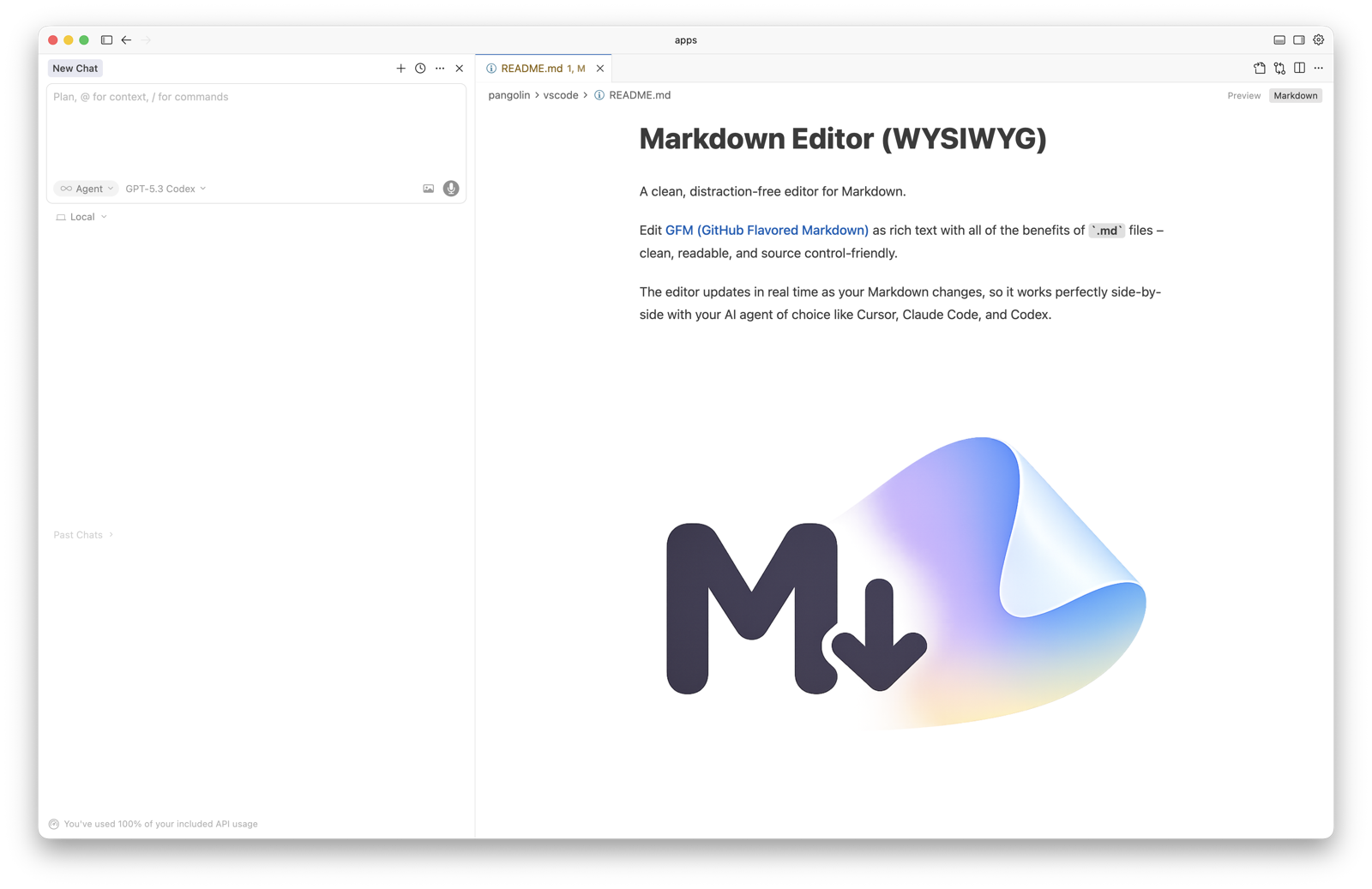
A clean, distraction-free editor for Markdown. Edit GFM (GitHub Flavored Markdown) as rich text with all of the benefits of The editor updates in real time as your Markdown changes, so it works perfectly side-by-side with your AI agent of choice like Cursor, Claude Code, and Codex.
Quick startRight-click any Switch between editorsThe Open with Built-in Text Editor and Open with Markdown Editor (WYSIWYG) commands are available from the tab bar and Command Palette. Note that in Cursor 2.1+, editor action icons are hidden by default. To show them, click on the three dots in the editor tab bar menu and select Configure Icon Visibility for each command. Open with Built-in Text EditorOpens the current Open with Markdown Editor (WYSIWYG)Opens the current GFM accessibilityThe editor supports GFM round-tripping for all major types:
|