Loom for llm4j: AI agent workflows
Install: search the Extensions view for Loom for llm4j, run ext install srijithunni7182.vscode-llm4j-loom in the Command Palette (Quick Open), or open it on the Marketplace. It carries its own engine and needs Java 17 or newer.
Build autonomous AI agent workflows without leaving VS Code. Say what you want in a sentence and get a checked project. See it as a graph, review it for cost and security, test it with no model and no key, evaluate it against a dataset, step through it in a debugger, run it with a live page, and write the files to ship it. This extension is the whole toolkit for llm4j workflows. The language they are written in is called Loom.
What is Loom?
Loom is a small, readable language for workflows of AI agents. A script (a .loom file) says which agents exist, what each may use, and the steps in order: who works on what, which branch is taken, when a person must approve, and how much the run may spend. A separate .loot file maps the tools an agent may call to the Java code behind them.
The idea is to let each side do what it is good at. The model reads, writes and judges. The script holds the rules. In this workflow a model reads a customer's email, but plain script logic, not the model, decides whether a refund needs a person, so no wording in an email can talk the workflow past the limit:
budget { tokens: 100000  calls: 20 }

agent Triage {
    model: "gemini-2.5-flash"
    system: "Read the customer's email. Say what they want and any refund amount they state."
    guard { pii: mask }
}

workflow Main(email) {
    delegate "Classify this message:\n{email}" to Triage -> triage expecting {
        kind: enum["REFUND", "QUESTION"],
        amount: number
    }

    alt (triage.kind == "REFUND") {
        alt (triage.amount > 100) {
            human_prompt "A refund of {triage.amount} needs your approval. Approve? (yes/no)" -> decision
            note "Decision: {decision}"
        } else {
            note "Within the limit: refund approved automatically."
        }
    } else {
        note "Not a refund: reply directly."
    }
}
budget caps what a run may spend, and the run stops when it is reached.agent names a model, what it is told, and what may happen to the text it sees (guard { pii: mask } hides card numbers and the like before they reach the model).delegate ... expecting { ... } asks an agent for an answer of a stated shape, so the script can branch on triage.amount as a number.alt is a branch the script decides. human_prompt stops the run and asks a person.
You don't need to learn it first. Loom: Generate Workflow... writes scripts like this from a sentence, and the graph and the review read them back to you in plain terms. When you do edit, the extension knows the language: colours, checks from the same parser that runs your workflows, completion, hover, go to definition and rename.
More than a language extension
The language support is one part. The rest of the extension covers each step from the idea to a running workflow, and the only thing to install is Java 17:
- Describe and change: write a workflow from a sentence, and change it with a diff you accept or reject.
- See and review: the live graph, and a Review panel with findings on cost, security and risk beside it.
- Test and evaluate: tests with scripted models that cost nothing, and evaluations of a workflow against a dataset.
- Debug: breakpoints, stepping (and stepping back), and the variables; with the models mocked, nothing is sent or written.
- Run and watch: a real run with a live page for cost, context and incidents, with Pause and Stop.
- Ship: Docker, Compose and Kubernetes files read from the script.
- Bring your coding agent: one command teaches Claude Code, Copilot, Cursor or any
AGENTS.md agent to build with Loom.
Editing, checks, graphs, review and tests run on your machine and send nothing anywhere. The commands that use a model (generate, change, and a live run) call it with your keys and are capped by a setting, and a live run asks before it starts.
The whole journey, without leaving the editor
Open the Command Palette and type Loom. The commands below run the same weave jar the extension already ships, so there is nothing else to install; the ones that run a command type it into an integrated terminal, where the output stays on screen.
| Step |
Command |
What it does |
Costs |
| Try |
Loom: Try a Demo, Loom: Open an Example Project |
A bundled workflow on demo models, explained step by step; or its project written into your folder |
nothing |
| Check |
Loom: Check My Setup |
Java, keys, the run store, with the one fix for each problem |
nothing |
| Describe |
Loom: Generate Workflow... |
A sentence in, a plan to read, then a project that passed five gates |
a few cents |
| Change |
Loom: Change Workflow... |
A change as a diff with the review and cost difference; nothing is written until you accept |
a few cents |
| See |
Loom: Show Workflow Graph |
The live graph (Outline, Focus, Flow) |
nothing |
| Review |
Loom: Review Workflow |
Findings beside the graph; fix, accept or dismiss each |
nothing |
| Test |
Loom: Run Tests |
weave test --coverage: scripted models, no keys, every step reached or listed |
nothing |
| Evaluate |
Loom: Evaluate Workflow... |
Choose: run with mock models, check the dataset, or create a starter dataset |
nothing |
| Debug |
Loom: Debug Workflow (F5) |
Step through, set breakpoints, see the variables; nothing has an effect |
nothing |
| Watch |
Loom: Run With Live Page... |
A real run with your keys, capped by loom.observe.maxTokens (default 50000 tokens), with the live page (cost, context, incidents, Pause and Stop). It asks first |
tokens, capped |
| Ship |
Loom: Write Deployment Files... |
Docker, Compose or Kubernetes files, read from the script; nothing is built or started |
nothing |
| Next |
Loom: What Should I Do Next? |
The next step for this project, in order |
nothing |
| Look up |
Loom: Show All Commands (weave man), Loom: Open Guide |
Every weave command, grouped by what you are doing; the written guide |
nothing |
| Agent |
Loom: Set Up My Coding Agent |
Teaches Claude Code, Copilot, Cursor or any AGENTS.md agent to build with Loom |
nothing |
Turning a bad run into a test (weave capture), trying a change on past runs (weave regress) and the CI verdict (weave gate) are terminal commands; see the command reference.
Typing weave yourself. The extension carries the Loom command line and adds it to VS Code's integrated terminals, so weave check, weave test and the rest work there with nothing else installed. It is added after your existing PATH entries, so a weave you installed yourself wins, and it applies to terminals opened after the extension has started (open a .loom file or run any Loom command). The setting loom.terminal.addWeaveToPath (default true) turns it off. Outside VS Code, install the command line once: jbang app install weave@srijithunni7182/llm4j puts weave on your PATH (Java 17 or newer; other ways).
Workflow graph
Loom: Show Workflow Graph draws the workflows of the active .loom file beside the editor. It follows imports, so a workflow that calls another file's workflow shows where that workflow is defined, and you can open it.
Open it from the Command Palette, from the graph icon in the editor title bar, or from the editor's right-click menu. The command is offered only for .loom files.
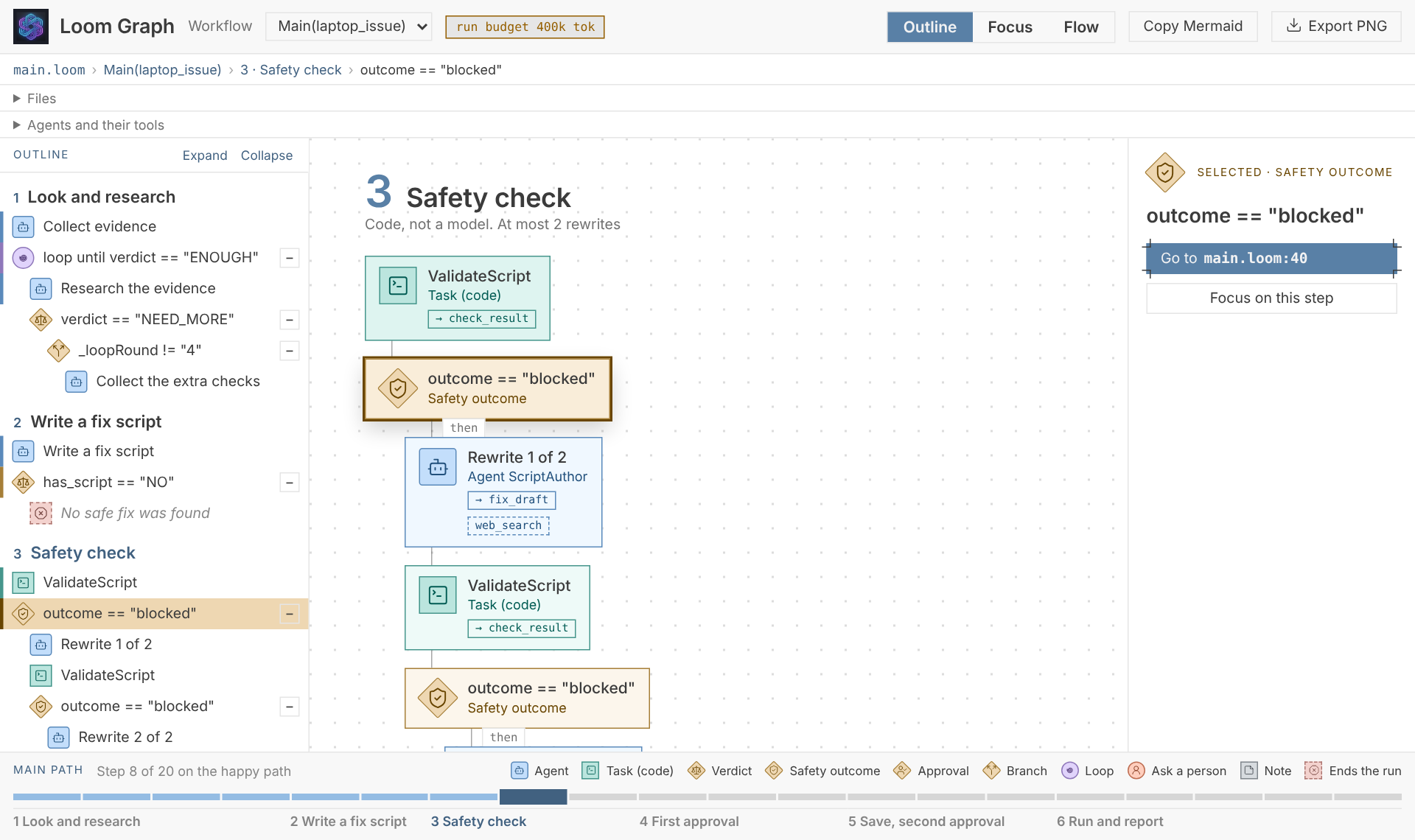
Three views of one graph
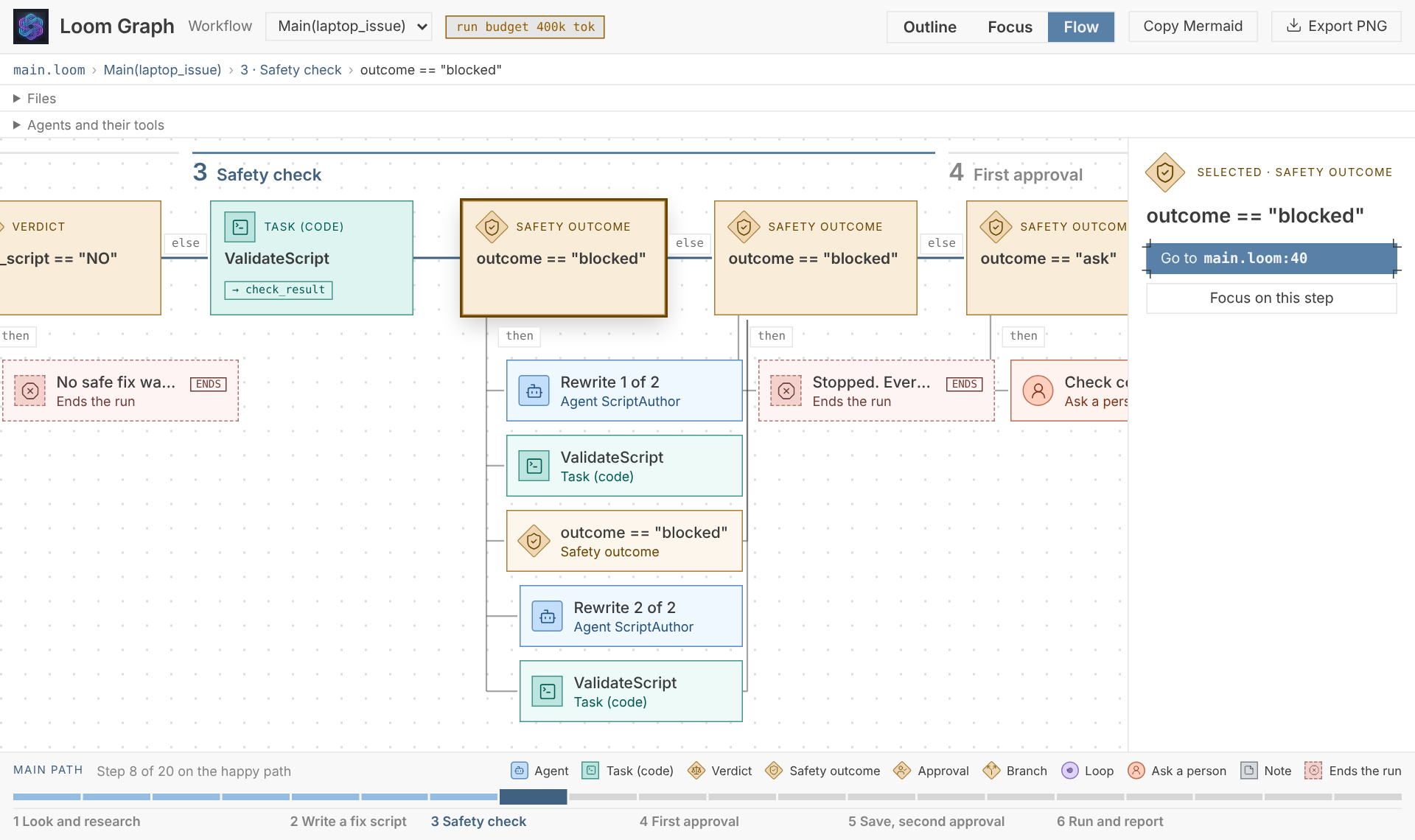
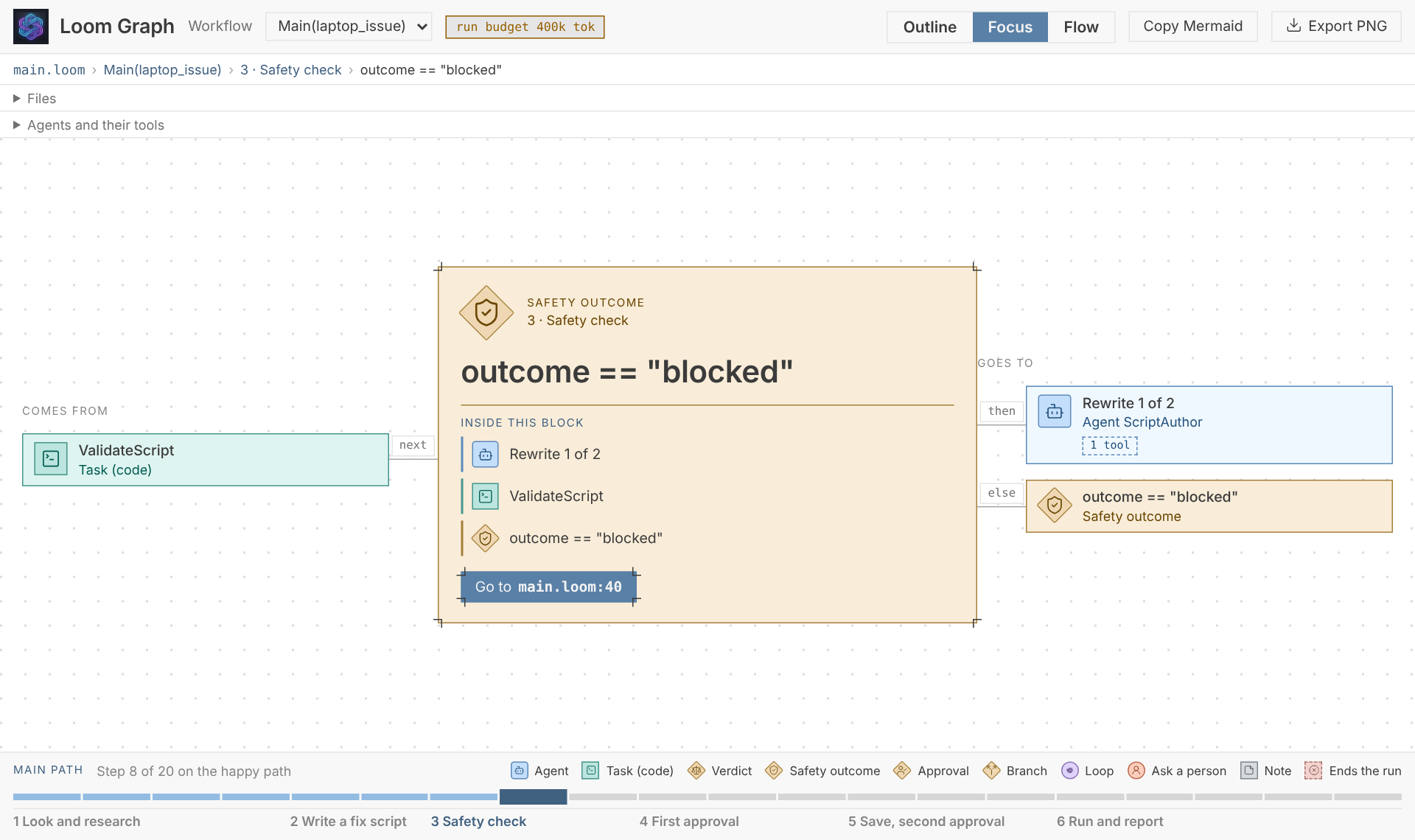
A real script is too long to read as one big flowchart, so the panel shows the same graph three ways. Switch with the buttons at the top right, or press 1, 2 or 3. The view you chose is remembered.
| View |
Use it to |
| Outline (default) |
Find your place. A tree of the steps on the left, grouped by section; the middle shows only the selected step's section at full size; the inspector on the right shows its settings. Blocks fold with the − and + buttons. |
| Focus |
Follow the logic one step at a time. The selected step is large in the middle, with what it comes from on the left and what it goes to on the right, each edge labelled (then, else, each round, when done, loops back). Click a neighbour to move there. |
| Flow |
See the whole shape. The main path runs left to right, with section bands above it; everything off the main path hangs below the step it belongs to. A loop's way round is a dashed line labelled again ≤3. Selecting a step scrolls it to the middle. |
Where you are, and the main path
- Main path. The strip along the bottom has one segment for each step on the happy path, in every view. Done steps are light, the current one is dark, later ones are grey. Click a segment to jump to that step. The line above it says where the selected step sits ("Step 8 of 20 on the happy path", or "Off the main path, inside step 8").
- Sections. Number the parts of a workflow with comments (
// 1. Look and research, then plain // lines under it for a one-line hint) and the panel groups the steps by them, labels the strip and the Flow bands, and shows the section in the breadcrumb. A script with no numbered comments is one section.
- Breadcrumb.
main.loom › Main(laptop_issue) › 3 · Safety check › outcome == "blocked". Every part is a button.
- What the main path is. At each step the path takes the way on that is not an exit and not another trip round a loop:
done over again, the branch that carries on over the one that handles a case, and never a note that only ends the run.
Kinds of step
Each kind of step has its own picture and colour, so you can read the shape of a script before the words.
|
Kind |
|
Kind |
| Agent |
delegate, handoff, broadcast |
Loop |
loop, for each |
| Task |
run |
Ask a person |
ask a person |
| Verdict |
an alt on an agent's expecting field |
Note |
note |
| Safety outcome |
an alt on a task's result |
Ends the run |
a note that ends a branch |
| Approval |
an alt on a person's answer |
Sleep |
sleep (a shut eye) |
| Branch |
any other alt |
Call, parallel, guardrail, decide, checkpoint, rewind, observe |
each has its own |
Interventions. A step with an on_stopped { } handler shows the handler under it on a dotted line labelled stopped; a rewind inside it (or anywhere) draws a dashed line back to its checkpoint labelled sent back ≤N. The two differ in pattern as well as colour, and a key under the Flow view (and in the exported picture) says which is which. Steering an agent never changes the workflow, so it draws nothing. In the editor, _stop. offers the fields of a stop, rewind to offers only the checkpoints declared above it, and the first word inside on_stopped { } offers the outcomes.
The strip's legend names the main ones. Settings show as chips on each step: retry 3 · 2s, timeout 90s, budget 5k tok, expects {score, notes}, a loop's max 3, → variable.
Each agent step shows the tools its agent has, as chips (a step in Flow shows a count, with the names on hover). A tool that needs approval is marked with a hand. The inspector adds the model, temperature, prompt file, persona, iteration limit, approval rules and budget. Agents and their tools under the toolbar lists every agent of the script with its model and tools; click an agent name to jump to a step that uses it.
Workflows that never end
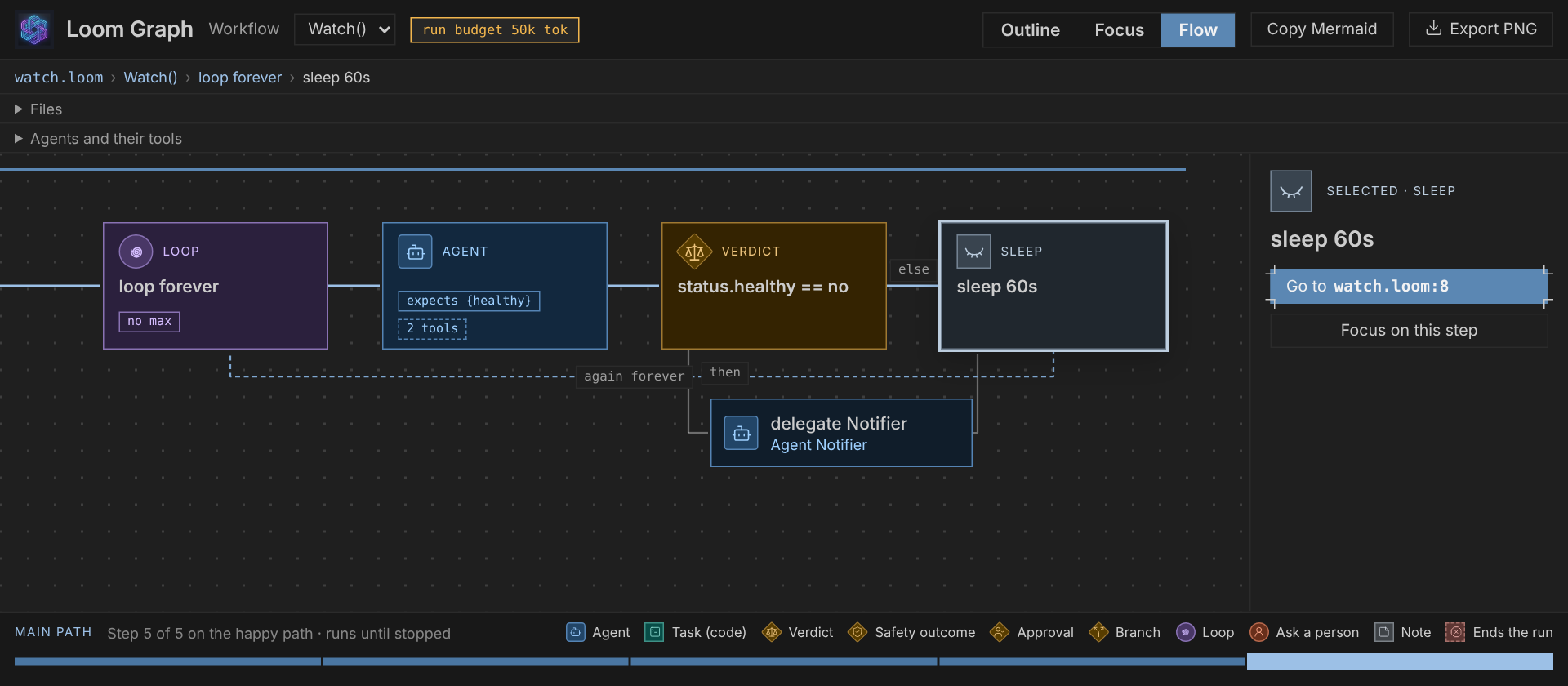
A workflow with a start, a loop and a sleep in it, and no end, is drawn as it is: the main path stops at the last step of the loop, the way round is labelled again forever, and the strip says "runs until stopped".
Working with it
| You do |
What happens |
| Click a step (or press Enter on it) |
The step is selected. The editor stays where it is |
| Right-click a step (or Shift+F10) |
A menu: Go to main.loom:40 shows the line beside the panel, Open prompt, Open workflow and Go to workflow for a call, Focus on this step, Copy step text |
| ↑ / ↓ |
Move through the steps (in Focus, ← and → go to what it comes from and goes to) |
Double-click a call (or Shift+Enter) |
The panel shows the called workflow; Back or the breadcrumb returns |
Ctrl/Cmd-click a call |
The editor opens the called workflow's source |
| Move the cursor in the editor |
The step on that line is selected and brought into view |
| Save the script or a file it imports |
The graph refreshes (after 300 ms); your view, selection and folded blocks stay |
| Go to main.loom:40 (in the inspector or Focus card) |
Shows that line in the editor |
| Open prompt |
Opens the prompt file of the selected agent step |
| Export PNG |
Saves the current view as a picture beside the script (<script>-<workflow>-<view>.png, at twice the size). Flow saves the whole main path, not only what is on screen |
| Copy Mermaid |
Puts the workflow's Mermaid diagram on the clipboard (plain boxes: Mermaid has no step pictures) |
If a refresh fails (for example a syntax error), the last good graph stays and a banner shows the error with a link to the file. Missing imports, import cycles and calls to workflows that are not defined are listed under the warning strip and the rest of the graph is still drawn. The Files row lists the script and what it imports, with their workflows.
The panel follows your VS Code theme, including dark and high-contrast.
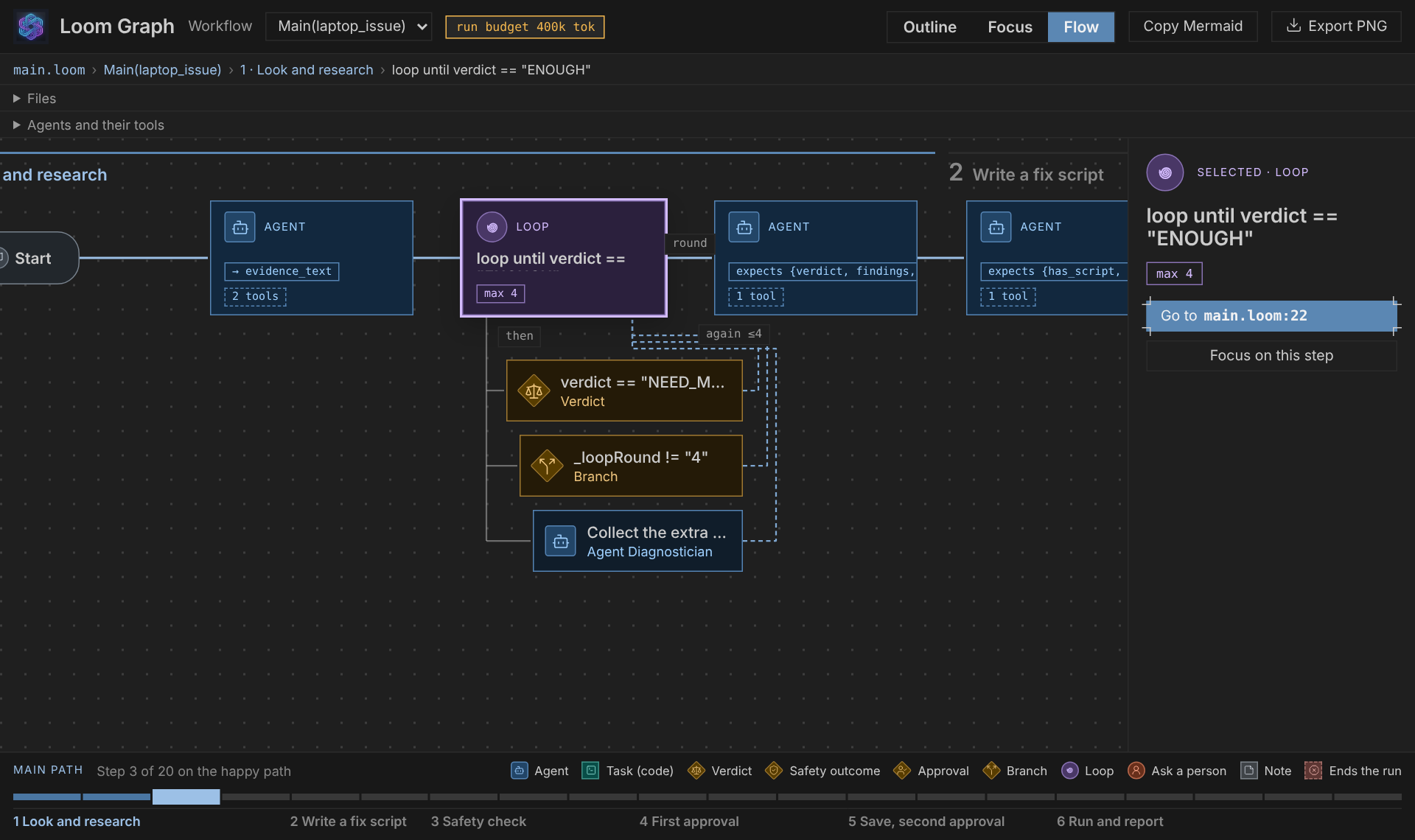
The graph is built by weave graph from the bundled weave.jar, the same parser that runs your workflows, so it cannot drift from the language. It needs Java 17 or newer; nothing is run and no model is called.
Prompt files
When an agent's prompt is a markdown file (prompt: "researcher" or prompt: "researcher@v2" in the script, from a prompts/ folder beside it), its steps in the graph show the prompt as a chip (researcher@v2), the inspector shows it, and Open prompt on a selected step opens the file. The panel opens only the script, its imports and the prompt files of the agents it shows.
Loom: Create Prompt File (Command Palette, for .loom files) creates the file for a prompt: you have written and not yet made: the one on the cursor's line, or the one you pick. It never overwrites a file. Prompt files are described in the Loom guide.
Snippets
Type a keyword in a .loom file and press Tab to get the whole statement with its blanks: agent, agent-guard, delegate, delegate-expecting, loop, alt, alt-else, human-prompt, approval, run, call, workflow, budget, tool, tool-class, note, halt, set, return, isok, parallel, on-failure, import, agent-steerable, agent-grounded, on-stopped, intervention, supervise, intentclassifier, intentclassify. Each one's description says the habit it encodes (a loop always has a max, variable names that are not ordinary words, prompts as files). A test types each snippet with its default values and checks the result with weave.
The guide and the agent skill
Loom: Open Guide (Command Palette) shows a page of the written guide: where to start, the ten chapters, or the Loom reference. It comes from the weave jar inside this extension, so it works with no repository and no network.
Loom: Set Up My Coding Agent asks which coding agents you use in this project and writes what each one reads, in the folder you have open: for Claude Code the skills and the guide under .claude/skills; for Codex, Copilot's agent mode, Gemini, Cursor and others a block in AGENTS.md; or .github/copilot-instructions.md or .cursor/rules/loom.mdc. The text tells the agent to look commands up with weave man instead of guessing, gives it the loop (describe, check, review, test, evaluate, watch, ship) and the rules (no keys in files, ask before anything that spends money). What you wrote in the same file stays: Loom's text sits between two marker lines. It asks before it replaces an older copy.
Review
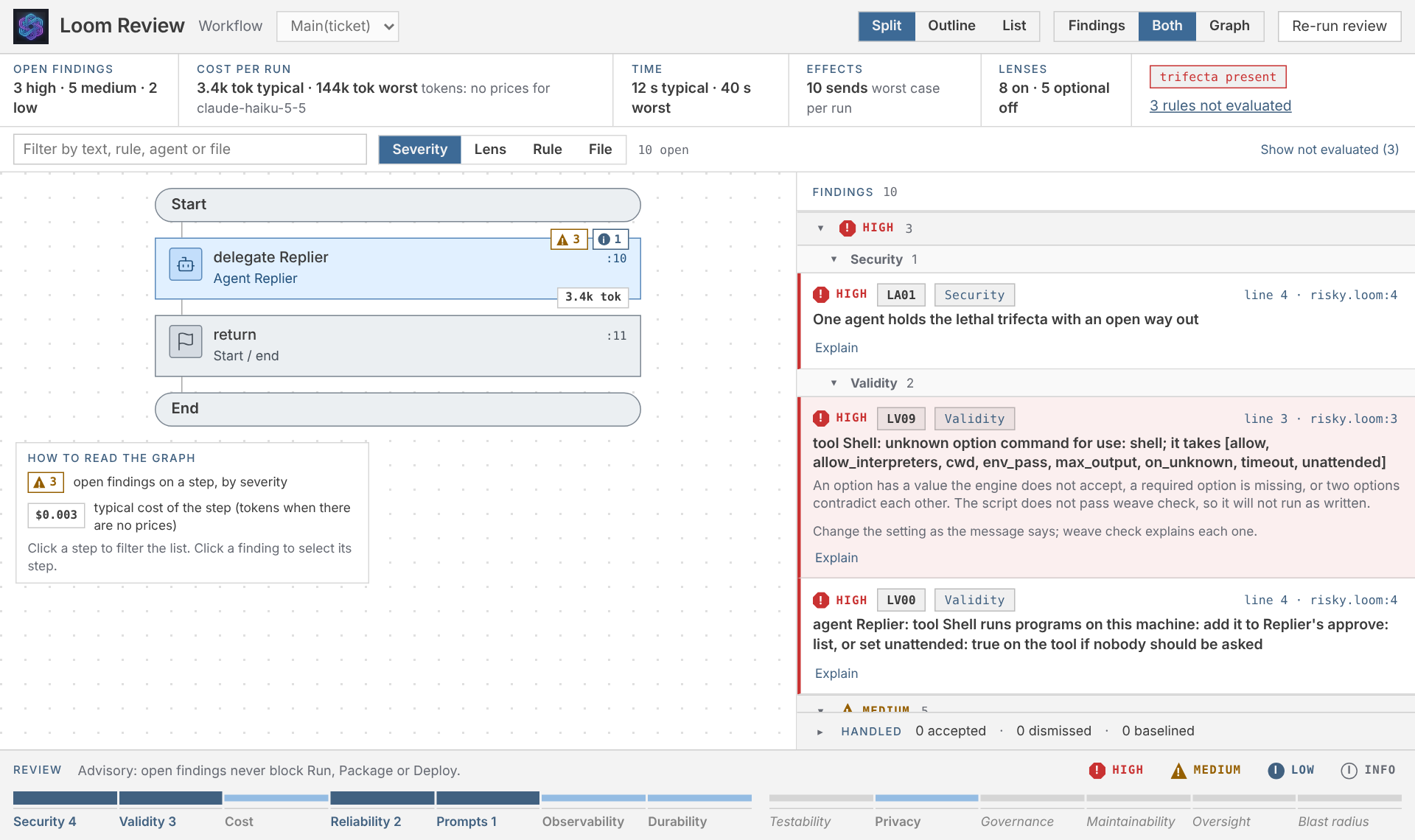
Loom: Review Workflow (the command palette, the editor title bar, the editor and Explorer context menus, or the Review link above a workflow) opens the Loom Review panel beside the script. It shows what weave review finds, with the workflow graph next to it:
- Summary strip: open findings by severity, the cost of one run (typical and worst case; money when the models have prices, tokens when they do not, and it says which), the time, the worst-case sends and writes, how many lenses ran, and a trifecta present chip when an agent has the lethal trifecta.
- Graph: each step carries its open findings (a number, a glyph and a word, never colour alone) and the typical cost of the step. Click a step to list only its findings; click again to list all.
- Findings: grouped by severity and then lens (or by lens, rule or file), in the engine's order. Click one to see why it matters and what would fix it, to select its step in the graph, and to jump to its line in the editor. Move the cursor in the script and the finding on that line is selected. Filter by text, rule, lens or file; the Findings | Both | Graph switch gives one half the whole panel; on a narrow panel the graph stacks above the findings.
- Three layouts, one panel. Split (the default) puts the graph and the findings side by side. Outline lists the steps on the left with their findings counted, shows the chosen step with its cost and its findings in the middle, and the workflow summary and lenses on the right. List is a dense table of findings with a map of the steps beside it and the focused finding explained. Switch with the Split | Outline | List control; the filter, grouping, selected finding and step, folded groups and scroll position stay as they were, and every layout shows the same findings and numbers.
- Stale and running: the moment you edit, the result shows a stale chip; while a new review runs the old one stays, dimmed. It never clears to an empty list.
- Rules not evaluated (because a fact they need is not declared) are counted in the strip and listed on request, not hidden.
The same findings appear as squiggles and in the Problems panel (source loom-review, the rule id as the code; the worst are warnings, the rest information and hints, never errors), as a status-bar count of the active script (Loom ⚠ 3 high · 5 medium · $0.004/run, or Loom ✓), and as a CodeLens above each workflow (Review: 2 high · ~$0.004 typical / $0.06 worst, then Graph and Run).
Handling findings. Every finding has the buttons that make sense for it, and none that do not:
- Fix (a safe fix) applies at once as one change. Review fix… (a fix that needs your judgement) first lets you choose among the ways to resolve it, answer its questions, and then shows the change in VS Code's diff editor before anything is applied. A finding with no automatic fix says so and shows only Accept, Dismiss and Explain.
- Fix all safe (n of m) in the toolbar and on each group applies only the safe fixes, as one change (one undo); the ones that need judgement are left for Review fix…. The numbers are always in the button.
- Accept… asks what it covers (this finding, this rule on the same agent or workflow, this rule in this script, this rule in the project, each with its count) and why (presets or your own words, and an until date for "will fix later"), then adds a line to
review.properties with who and when. Accepting several serious findings at once asks you to type their number. The lethal trifecta cannot be accepted this way and says why.
- Dismiss hides a finding on this machine only: it is kept in the editor's workspace storage, never in the repository, and never changes what
weave review or CI report. Errors in the script cannot be dismissed. Handled at the bottom counts what was accepted, dismissed and baselined, lists them on request, and Restore brings a dismissed one back.
- Accept all existing… records today's open findings in
review.baseline.json (after showing what is in it and what stays open: serious findings stay open unless you include them), so later reviews list only new ones. It becomes the prominent button when a script has more than ten findings and no baseline.
- Explain (or Loom: Explain Review Rule) opens the rule's page, with a firing example and a near-miss, beside the editor.
- After an action the finding leaves the list at once and a message says what happened, with Undo (the editor's own undo for text changes). If the script changed while a fix was being prepared, nothing is applied and the review runs again.
- Keyboard: in the list, the arrow keys move, F fixes, A accepts, D dismisses, E explains, Enter shows the line in the editor and Space selects (in the List layout, with checkboxes and a bulk bar for several at once).
- The lightbulb on a squiggle offers the same: Fix: (safe) or Review: (needs judgement), Explain LR03, and Suppress LR03 with a reason….
Findings never get in the way. Run, the Run link and every other command start at once whatever the review says. If a script you run has open findings, a quiet message offers Review once for that version of the script; Don't show again for this workspace turns it off. Nothing in the palette depends on a clean review.
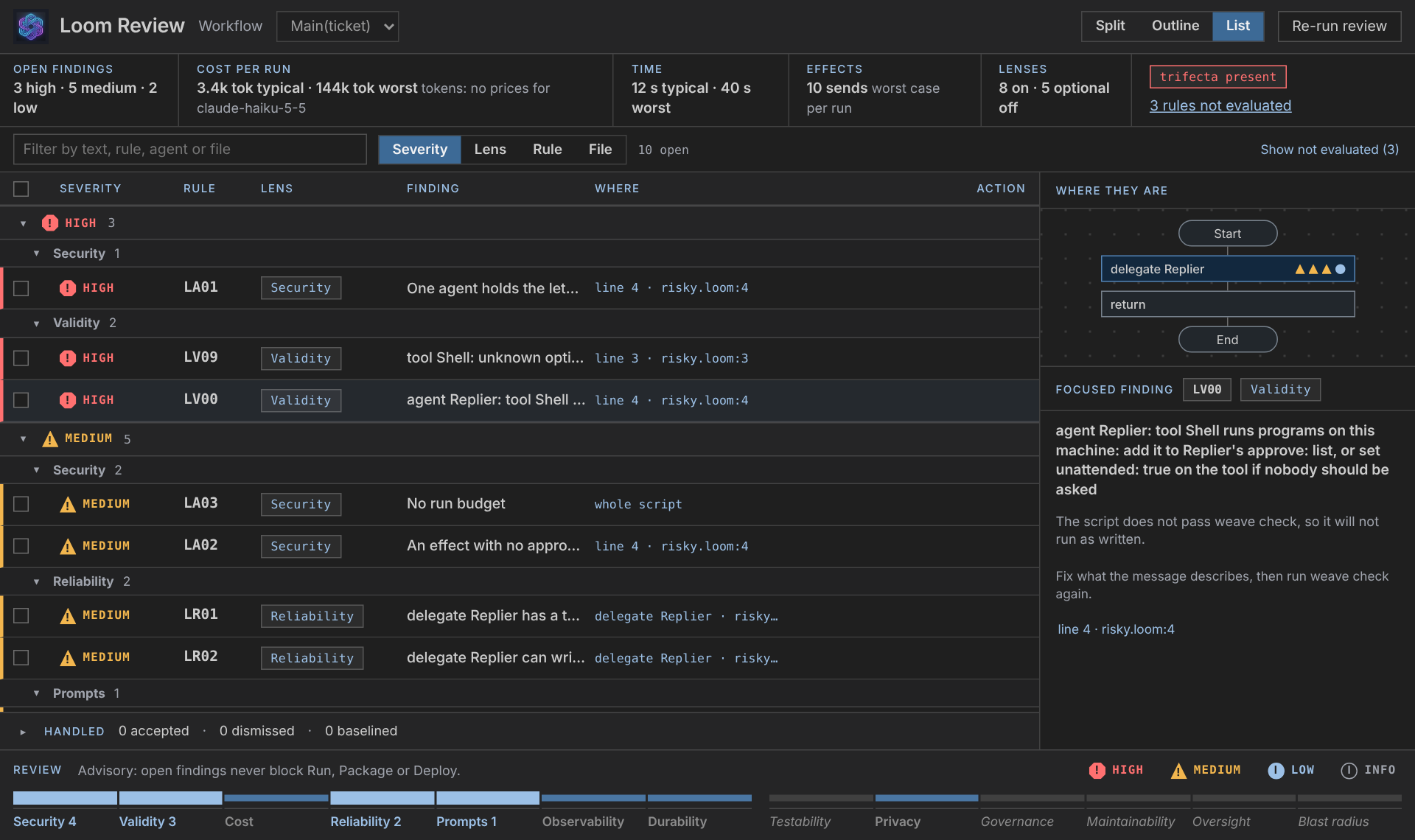
By default the review runs when you open or save a script. The on review setting (see Settings) can run the validity lens while you type (type), or only when asked (manual).
Generate and change
Loom: Generate Workflow... asks what the workflow should do and shows a plan first (PLAN.md, and plan.json to edit: agents, tools and what they reach, who is asked, which effects a person approves, the budget, the tests). Nothing is written until you say Generate. Then weave generate writes the project into a new folder and holds it to the gates: it passes weave check, has no serious review finding after the safe fixes, its own tests pass and reach most of the steps, and the script is the plan and nothing else. If a gate cannot be met you are told which and why, and no folder is made. Loom: Change Workflow... takes a request (and the selected text, if any), works out a patch, checks it the same way against the script as it is, and opens it as a diff; you apply it or not (a change that makes the review or the cost worse says so and asks again). The model is called by weave generate, a process of its own, with the key from your environment or .env; the engine that checks and reviews your scripts still runs no model. See Generating a workflow.
Debugging
Press F5 on a .loom file (or click Debug above a workflow) to step through it. You get breakpoints in the gutter (also with a condition, and on an agent name through function breakpoints), the variables with the statement that set each, step over / in / out, step back (the state is re-derived from the run's journal, so it is exact) and set value / evaluate on hover. Models are mock and every effect is simulated, so it needs no keys; for live models put "models": "live" and "maxTokens" (or "maxCost" with "prices") in launch.json and the editor asks before it spends. The same engine runs as weave step in a terminal; see Debugging a workflow.
Editing
With the engine running, the editor understands the names in your script, in every file it imports:
- Go to definition (F12) on an agent, workflow, tool, classifier, decision, checkpoint, prompt file, import or variable; Find references (Shift+F12) lists every use with its role.
- Rename (F2) changes a name everywhere it is used, in every file, as one undoable change. It refuses, and changes nothing, if the new name is taken or is a keyword, if a file that would change is read-only, or if an import cannot be found (so a use might be missed). Renaming a prompt also renames its file, after you confirm.
- Completion offers only what fits where you are: agents after
delegate … to, checkpoints after rewind to (the ones of this workflow), workflows after call, classifiers, decisions and tools in their places, the fields of a variable after its dot (intent. lists the classifier's questions with their labels), the labels of an enum after ==, and variables in a condition or a {placeholder}. Nothing it offers fails weave check.
- Hover shows an agent's model, tools and reply shape, a workflow's parameters, a classifier's fields, a variable's type and where it was made, and the values a comparison can take (with a warning for one it never has).
- Outline (the Outline view and Ctrl+Shift+O) lists the blocks of the file with their checkpoints and variables. Signature help shows a workflow's parameters while you write
call Name(.
A half-typed line does not take this away: what the engine could read is still used, so the variables made above your cursor are still known. A setting (see Settings) turns these answers off and leaves the older, simpler ones.
The engine
The extension starts one long-lived Loom engine per window (weave serve) and asks it for checks and graphs, so feedback does not wait for a Java process to start. It runs nothing and writes nothing, and it reads only the folders you have open. If it cannot start (no Java, a missing weave.jar), or stops repeatedly, the extension falls back to running weave for each request and the status bar says so once (Loom: engine unavailable (using commands)). Loom: Restart Engine starts it again, and Loom: Show Engine Log shows what it wrote. The protocol is documented in docs/serve/PROTOCOL.md.
When something is limited
The status bar says so in one place, once, and the rest keeps working:
| What happened |
What still works |
What the status bar says |
| Java is missing, or older than 17 |
Syntax colours, snippets, the simpler hover, definition and completion, the guide |
Loom: Java 17+ not found (limited mode); a click explains how to fix it |
| The engine will not start, or keeps stopping |
All of the above, plus checks and graphs by running weave for each request |
Loom: engine unavailable (using commands) |
| The engine is slow |
The last result, marked stale; a request that takes longer than the time limit (loom.serve.timeoutMs, default 10000 ms) is stopped, and an engine that stops answering is restarted |
Loom: starting engine… while it restarts |
| The engine and the extension disagree on the protocol |
As in limited mode |
Loom: reinstall the extension (engine v2, extension v1) |
Problems
Loom files are checked with weave check, the language's own parser (the one that runs your workflows), so the editor and the command line cannot disagree. Its findings show as errors and warnings in the Problems panel and as squiggles, under the source weave check, when a .loom file is opened and saved. It checks the saved file, so unsaved edits are checked at your next save. A warning means the script runs but something is probably a mistake, for example a result that is stored and never read, or a question to a person whose answer changes nothing.
A key that is not set yet (such as GEMINI_API_KEY) is not reported as a problem: the check does not need keys. If Java is missing you are told once, and the problems already shown stay as they were.
Settings
loom.javaPath (default java): The Java executable used to run weave.jar (the engine, checks and graphs); if only the older loom.graph.javaPath is set, that one is usedloom.graph.javaPath (default java): The older name of the same setting, still honouredloom.review.on (default save): When the review runs by itself: after a save, while typing (the validity lens only), or only when you ask (manual)loom.review.layout (default split): The layout the Review panel opens in: split, outline or list (your last choice in the panel is remembered per workspace)loom.review.lenses (default , empty): Which lenses run, as weave review --lens takes them; empty uses the project's review.propertiesloom.review.minSeverity (default low): The lowest severity shown as a squiggle and in the Problems panelloom.review.codeLens (default true): Findings and cost above each workflowloom.review.statusBar (default true): Open findings and typical cost of the active script in the status barloom.review.failOn (default high): Colour the status bar when findings at or above this severity are open; it never stops Runloom.terminal.addWeaveToPath (default true): Make the weave command available in the integrated terminals, after any weave you installed yourself; it takes effect in terminals opened afterwardsloom.generate.model (default , empty): The model that writes for Generate Workflow and Change Workflow (empty: LOOM_GENERATE_MODEL)loom.generate.maxCost (default 0): The most one generation may spend, in dollars (needs a price table; 0: the command's default)loom.generate.maxTokens (default 0): The most tokens one generation may use (0: the command's default)loom.generate.prices (default , empty): A price table so the cost limit can be counted in dollarsloom.observe.maxTokens (default 50000): The most tokens a run started from Run With Live Page may use (it is a real run with your model keys)loom.serve.memoryMb (default 64): Memory the engine may use to keep answers it can reuseloom.serve.timeoutMs (default 10000): The longest the engine may take over one request; a slower one is marked staleloom.semantic.enable (default true): Answer go to definition, references, rename, completion, hover, outline and signature help from the engine; off keeps only the older answersloom.graph.timeoutMs (default 30000): How long to wait for weave graph before stopping itloom.graph.autoRefresh (default true): Redraw when the script or a file it imports is saved
Command line
The same graph is available outside the editor: weave graph script.loom prints JSON, and --format mermaid prints a Mermaid flowchart. See the Loom guide.
| |

