CPOS
Competitive programming for Codeforces, CSES, and AtCoder — in VS Code.
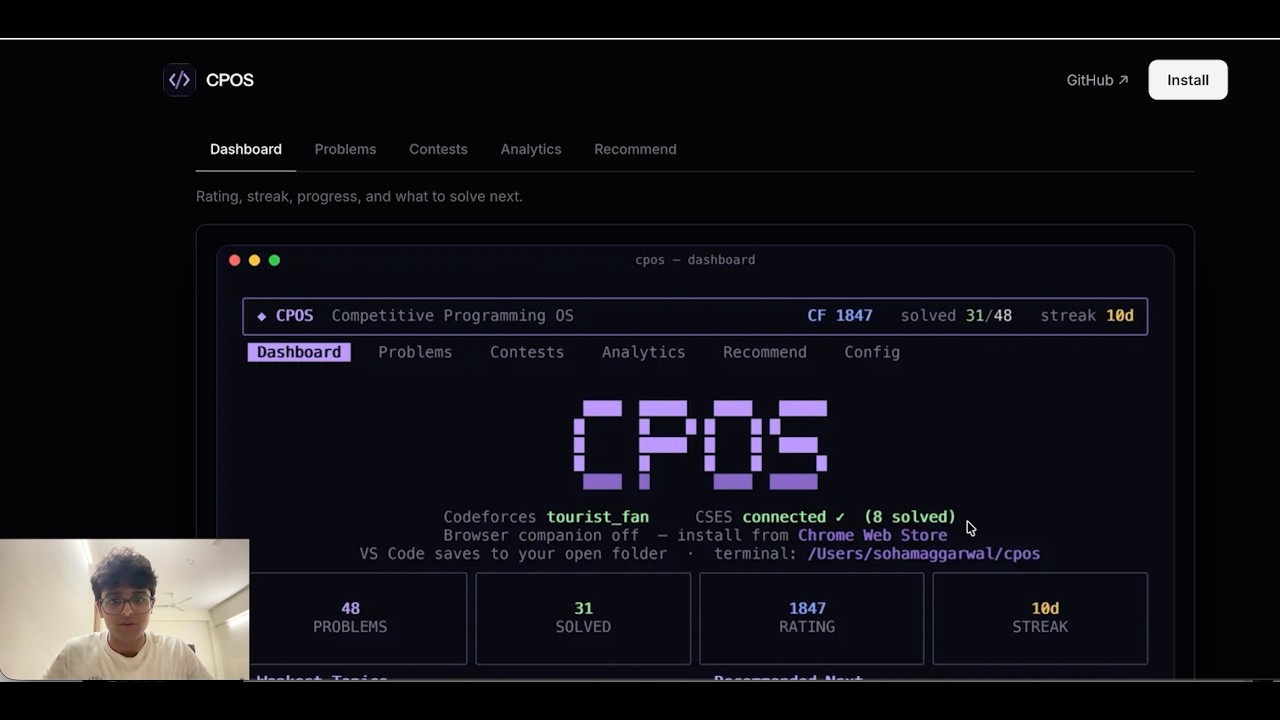
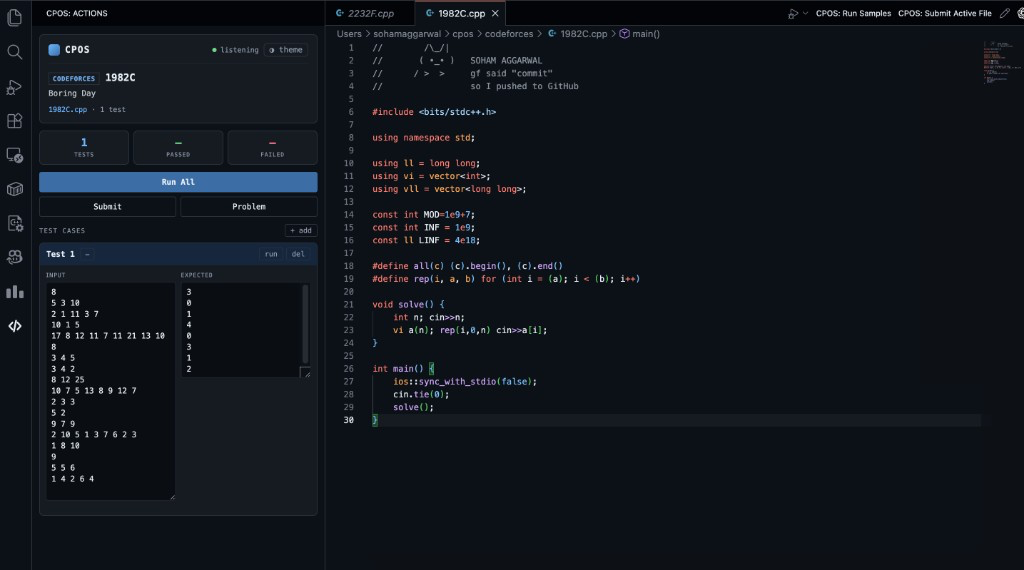
Open a problem in your browser. CPOS creates your solution file in the folder you have open, loads the sample tests, and provides a side panel to run samples and submit.
Part of the CPOS project — works with the terminal app, the Chrome browser companion, and the Firefox companion in the CPOS repo. All components sync over localhost.
Demo

How it works
- Install from the VS Code Marketplace and a browser companion: Chrome Web Store or Firefox from source in the CPOS repo
- Open the folder where you want solution files
- Open a Codeforces, CSES, or AtCoder problem in your browser
- CPOS creates the solution file (for example
1982C.cpp) with samples attached
- Write code and use the CPOS panel to Run All or Submit
The CPOS panel
Open the CPOS view in the activity bar:
- Tests / Statement tabs — switch between the sample tests and the captured problem statement (rendered natively with MathJax) without leaving the editor
- Run All — compile and run every sample; verdicts shown inline (
AC, WA, TLE, RE, CE)
- Submit — queue submission for the browser companion; if it is not picked up quickly, CPOS offers an Open submit page fallback
- Problem ID link — open the problem statement from the Tests header
- Header links — Sponsor, Theme, Discord, and GitHub stay available at every sidebar width; labels collapse to icons from GitHub upward as space gets tight
- Test cases — edit, add, or remove samples; Codeforces multi-case inputs can show linked input/output blocks
- Themes — CPOS, Midnight, Amber, Paper, or Native (matches your VS Code theme; Run All uses VS Code button styling)
- Settings gear — beside the Solution tab; configure the default language and paste or upload per-language templates shared with the TUI and browser companion
- Compete — create friend or open Codeforces races, discover public matches by rating, accept invites, and track results; state and preferences sync with the browser companion
Keep the terminal app running for browsing, recommendations, and analytics. Captures and submissions work with either app.
Settings
Use the panel settings gear to choose which tabs are shown and manage shared
templates. VS Code’s normal
Settings → Extensions → CPOS page still controls save folder, language,
legacy template path, compile commands, and timeouts.
By default, files are created in the currently open workspace folder.
Submit requires a browser companion and an active login on the judge site.
Troubleshooting
See TROUBLESHOOTING.md — Run All (spawn sh ENOENT), submit, capture, Windows cargo install / link.exe, and more.
Links

