Skip to content
| Marketplace
Sign in
Visual Studio Code>Programming Languages>PHP Profiler Pro +New to Visual Studio Code? Get it now.
PHP Profiler Pro +

PHP Profiler Pro +

senseDevpro

|
2,919 installs
| (0) | Free Trial
Support for PHP (Xdebug) profiling files and inspecting them.
Installation
Launch VS Code Quick Open (Ctrl+P), paste the following command, and press enter.
Copied to clipboard
More Info

PHP Profiler for Visual Studio Code

PHP Tools product page PHP Tools on Twitter

Open, view, and analyze Xdebug profile files in the cachegrind format. The extension also highlights hot paths in your source code based on profiling results. Discover more features in the sections below.


Overview

PHP code profiling enables you to analyze the execution time and call count for every function in your codebase.

Profiling PHP in VS Code Video

This extension allows you to inspect Xdebug profile files containing PHP code performance metrics. It works seamlessly in combination with PHP Tools for Visual Studio Code. Debug, profile, and analyze profiling results directly within Visual Studio Code.

Quick Setup for PHP Profiling

  • Ensure PHP is installed on your system.
  • Install the Xdebug PHP extension.
  • Enable the PHP zlib extension (recommended).
  • With PHP Tools for Visual Studio Code, configure your launch.json with the following settings:
    {
        "name": "Launch Built-in server & Profile",
        "type": "php",
        "request": "launch",
        "runtimeArgs": [
            "-S", "localhost:8888", "-t", "."
        ],
        "noDebug": true, // <-- disable debugging
        "profile": true, // <-- enable profiling
    }
    

Opening Profiling Results

Open the file containing your profiling data. By default, profile files are named cachegrind.out.%p.gz.

Using the Command Palette

  • Open the Command Palette and execute Open Profile File (Xdebug Profiling Output).
  • Select the profile file and confirm. open profiling file command

Drag & Drop "cachegrind.out.*.gz" File

Alternatively, if your profile file follows the cachegrind.out.%p.gz naming convention, you can open it directly in the Visual Studio Code editor using the File/Open File menu.

Note: Large profile files may take some time to load.

Inspecting Call Times

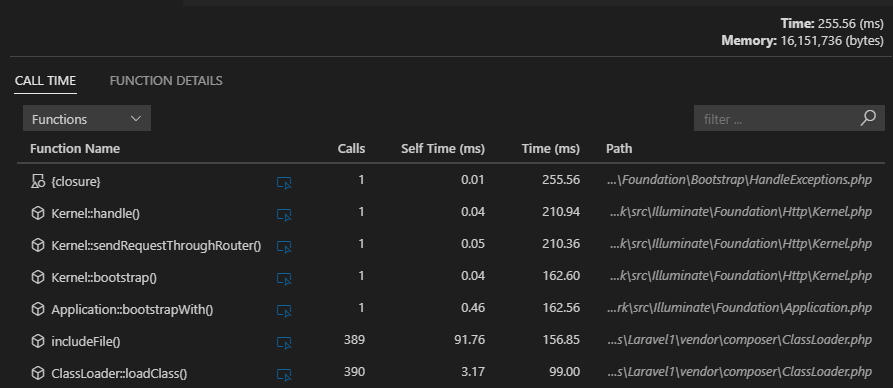
The following view displays all functions with their call counts (Calls), time spent within the function body (Self Time), and total time including nested function calls (Time).

profiling call times

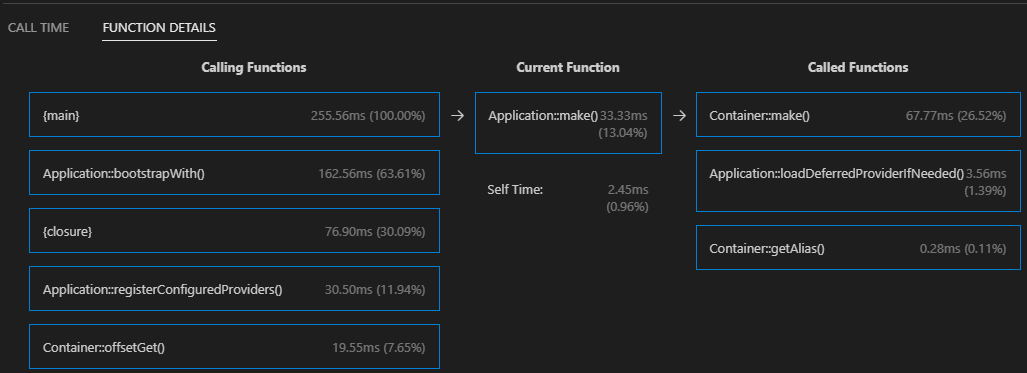
Inspecting Callers and Callees

The Function Details view focuses on a single function, displaying all calling functions (callers) and all called functions (callees), along with their respective timing information.

profiling callers

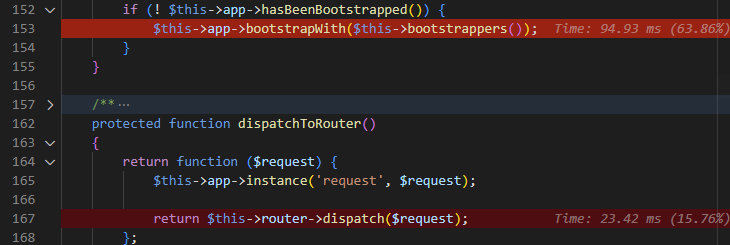
Highlighting Hot Paths

The loaded profiling result file is automatically analyzed, and hot paths are highlighted directly in your source code. You can toggle this highlighting on or off in the profiling result view.

profiling hot path highlight

See Also

  • PHP Tools for Visual Studio - Comprehensive PHP language integration for VS Code.
  • Profiling Documentation
  • Documentation
  • Pricing - Purchase the PREMIUM version of PHP Tools, which includes the Profiler.

Notes

The extension may send error telemetry data to us (DEVSENSE s.r.o.), if telemetry is enabled in VS Code (see Telemetry settings). All data is anonymized, sampled, and automatically deleted after 30 days. This helps us improve product stability and reliability. We do not share this data with any third parties.

  • Contact us
  • Jobs
  • Privacy
  • Manage cookies
  • Terms of use
  • Trademarks
© 2025 Microsoft