SnapTrack: Local History & Undo Without Git



Install from the VS Code Marketplace or run ext install seeb4coding.snaptrack in Quick Open (Ctrl+P).
Not using Git on a small project, a client site or a quick script?
SnapTrack gives any folder undo and history: see what changed, review a side-by-side diff, then keep it or throw it away. There's nothing to set up and no Git required.
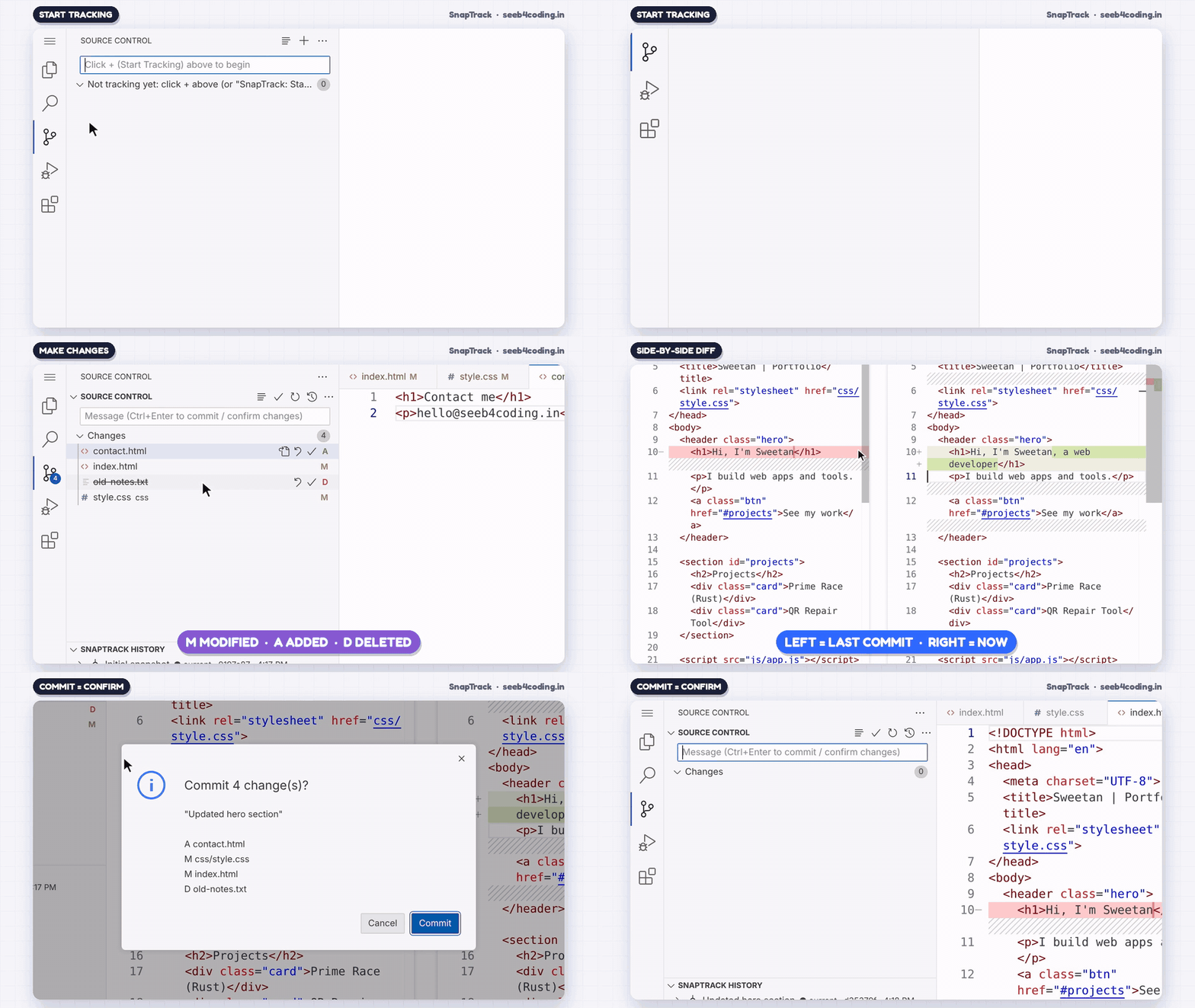
▶ Watch the 4-minute demo on YouTube
Why SnapTrack?
- No Git needed. Works in any folder, in seconds.
- See every change. Modified, added and deleted files show M / A / D in Source Control and the Explorer, with gutter bars in the editor.
- Undo safely. Discard one file or everything, and a safety checkpoint is saved first so nothing is ever lost.
- Go back in time. Auto checkpoints, full commit history, file history and one-click restore of the whole project.
- Plays nicely with Git. If the folder already uses Git, SnapTrack never touches it.
Good for beginners, designers, WordPress/PHP sites, client projects, experiments, and anyone who has ever thought "what did I just break?"
Quick start
- Open a folder in VS Code.
- Go to Source Control (
Ctrl+Shift+G) → Start Tracking This Folder. SnapTrack saves a first snapshot.
- Edit, add or delete files. They appear under SnapTrack → Changes.
- Click a file to see a side-by-side diff (last commit ↔ now).
- Happy with it? Type a message and press
Ctrl+Enter (or click ✓) to commit. You'll be asked to confirm.
Not happy? Click Discard (↶) on a file, or Discard All.
That's it. Your history now builds up as you work.
Features
Changes and diffs
- M (modified), A (added) and D (deleted) badges in Source Control and the Explorer.
- Green, blue and red gutter bars in the editor.
- Side-by-side diff for every changed file.
- Commit everything, or use ✓ on a single file to commit only that file.
- Leave the message empty and SnapTrack suggests one, like Update index.php (+1 new).
- Revert Change at Cursor (right-click in the editor) puts back just the changed block you're on.
Ctrl+Z brings it back.
- Hover any line to see which commit or checkpoint last changed it.
Discard with a safety net
- Discard one file or all changes. Each goes back to the last commit (new files are deleted).
- You're always asked first, and a checkpoint is saved before every Discard and Restore, so you can always get back.
History panel
Under Source Control you'll find SnapTrack History, listing commits (●) and auto checkpoints (💾).
- Expand any entry to see its files, then click one for the diff.
- Each entry shows how many lines it added and removed (
+12 −4).
- Right-click an entry for: Compare with Current Files, Select for Compare → Compare with Selected, Restore Project to This Commit, Export .patch / .zip, or Pin (pinned entries are never removed by Clean Up).
- 🔍 Search the history by message, file name or date.
- Recently deleted at the top lists files that are in your history but gone from disk. Click to see one, or restore it in one click.
File history
The SnapTrack File History panel shows every saved version of the file you have open. You can compare or restore any of them.
Auto checkpoints
- A checkpoint is saved automatically every 10 minutes (
snaptrack.autoCheckpointMinutes).
- Optionally, one is saved on every file save (
snaptrack.checkpointOnSave).
- Save Checkpoint As… gives a checkpoint a name, like before refactor. Named checkpoints are pinned automatically.
- Checkpoints never change your Changes list.
- The status bar shows your change count and how long ago the last checkpoint was saved.
Undo Last Commit
Removes the last commit but keeps your files. The changes and the commit message come back so you can redo it.
Outgrown SnapTrack? Convert to Git
Convert History to a Git Repository… (in the History … menu) creates a new folder with a real Git repository. Each SnapTrack commit becomes a Git commit with the same message, date and files. Checkpoints are left out. Your project folder isn't changed. Git must be installed.
Multiple folders
In a multi-root workspace, every folder gets its own SnapTrack entry in Source Control, with its own Changes list, commit box and Start Tracking button.
- SnapTrack History shows one group per tracked folder.
- File History, the line hover, Revert Change and the status bar follow the folder of the file you have open.
- Commands from the Command Palette work on the open file's folder, or ask you which folder.
Clean up storage
From the … menu you can delete checkpoints, keep only the last 20 commits, or remove unused data. Pinned entries are always kept.
To clean up automatically, set snaptrack.autoCleanup.checkpointMaxAgeDays or snaptrack.autoCleanup.maxCheckpoints.
How it works inside
Everything lives in a .snaptrack folder inside your project:
- File contents are compressed (zlib) and named by their SHA-1 hash, so identical files are stored once, just like Git objects.
- A
commits.json file lists your commits.
To stop tracking, delete .snaptrack. Git is never touched.
Ignoring files
.git, node_modules and .snaptrack are always ignored.- Add a
.snaptrackignore file (same style as .gitignore):
*.log
build/
/secret.txt
- Or use the
snaptrack.exclude setting.
- Files bigger than
snaptrack.maxFileSizeMB (default 20 MB) are skipped, so large videos don't fill your disk.
Settings
| Setting |
Default |
What it does |
snaptrack.maxFileSizeMB |
20 |
Skip files bigger than this |
snaptrack.exclude |
[] |
Extra ignore patterns |
snaptrack.confirmCommit |
true |
Ask before committing |
snaptrack.autoCheckpointMinutes |
10 |
Minutes between auto checkpoints |
snaptrack.checkpointOnSave |
false |
Also save a checkpoint on every file save |
snaptrack.showCheckpoints |
true |
Show auto checkpoints in SnapTrack History |
snaptrack.lineHistoryHover |
true |
Hover a line to see which snapshot last changed it |
snaptrack.autoCleanup.checkpointMaxAgeDays |
0 (off) |
Delete auto checkpoints older than this |
snaptrack.autoCleanup.maxCheckpoints |
0 (off) |
Keep only this many newest auto checkpoints |
FAQ
Does it work with Git?
Yes. SnapTrack stores its own data in .snaptrack and never reads or changes .git.
Will it fill up my disk?
Unlikely. Identical files are stored once, large files are skipped, and Clean Up Storage removes old data.
Does it have branches or merges?
No. SnapTrack is a simple, safe undo history, not a full version-control system. When you need those, use Convert History to a Git Repository….
Multi-root workspaces?
Yes. Each folder gets its own SnapTrack entry in Source Control, and you start tracking each one separately. See Multiple folders.
Command line (optional, for advanced users)
SnapTrack also includes a small CLI. Clone the source from GitHub, then inside that folder run:
npm install -g .
You'll need Node.js. Then, in any project folder:
snaptrack init                     # start tracking
snaptrack status                   # list changes
snaptrack diff [file]              # show a diff
snaptrack commit -m "msg" [files]  # commit
snaptrack discard <file|--all>     # discard changes
snaptrack log                      # list commits
snaptrack show <id>                # show a commit
snaptrack restore <file> <id>      # restore a file version
Like SnapTrack?
⭐ Star SnapTrack on GitHub and leave a rating on the Marketplace. It really helps other people find it.
Made by Seeb4Coding · YouTube demo
s

