dbw extension for Visual Studio Code


dbw is a database workbench: browse your schema, write queries with
completion from your real tables, and see the results beside the editor.
This extension adds SQLite, PostgreSQL, SQL Server, MariaDB and MySQL to VS
Code, with PRQL as a query language on any of them.
Features
- Object explorer with schemas, tables, views, columns and their types,
functions and stored procedures
- Query editors bound to a connection, shown in the status bar and switched
with one click
- Results grid beside the editor: one tab per result set, a Messages tab
for counts, timings and errors
- Sort and filter in the grid, copy cells or rows, export to CSV, copy as JSON
- Completion from the connected schema: tables, the columns of the tables in
the statement, and what
alias. expands to
- Hover a table for its columns; Format Document with the dialect's formatter
- PRQL editors compile to the connection's SQL dialect and run in place, with
Show Compiled SQL beside them
- Query history with the connection each query ran on
- Passwords in VS Code's secret storage, the rest of the connection in
settings so it syncs
Supported Databases
| Database |
Versions |
Driver |
Status in this release |
| SQLite |
Any SQLite 3 file; the engine built into VS Code |
node:sqlite, no native build |
Tested |
| PostgreSQL |
10 and later |
pg 8 |
Tested on 17 |
| MariaDB / MySQL |
MariaDB 10.3 and later, MySQL 5.7 and later |
mariadb 3 |
Tested on MariaDB 11.8 |
| SQL Server |
2012 and later, Azure SQL Database |
mssql 11 / tedious |
Written, not yet tested |
| PRQL |
0.12 |
prql-js (prqlc) |
Tested |
Requires VS Code 1.101 or later (the first with a Node 22 extension host,
which the built-in SQLite driver needs).
Feature Contributions
dbw contributes the following to VS Code:
Views: Connections and Query History in the dbw activity bar container
Languages: PRQL (.prql), with syntax highlighting
Keybindings in .sql and .prql editors:
| Keys |
Command |
Ctrl+Enter |
Run Statement (or Selection) |
F5 |
Run All (or Selection) |
Ctrl+Alt+C |
Use Connection for This Editor |
Commands in the Command Palette under dbw, and in the sidebar and
editor context menus: Add, Edit and Remove Connection; Connect;
Disconnect; Refresh; New Query; Select Top Rows; Copy Name; Insert Name
into Editor; Run Statement; Run All; Show Results; Use Connection for
This Editor; Refresh IntelliSense Schema; Show, Clear and re-open Query
History; Show Compiled SQL; Show PRQL Source
Activation: on opening a .sql or .prql file
Getting Started
Install from the Extensions view (search for dbw) or with
ext install sajonaro.dbw-workbench. Then:
Click the dbw icon in the activity bar and choose Add Connection.
Pick a database and fill in the form:
| Database |
Fields |
| SQLite |
file path, or :memory: |
| PostgreSQL |
host, port, database, user, password, SSL |
| SQL Server |
server, port, database, user, password, encryption |
| MariaDB / MySQL |
host, port, database (optional), user, password, SSL; MySQL 8 without SSL also needs Allow public key retrieval |
Expand the connection. Right-click a table for Select Top Rows, or
choose New Query for an editor bound to it.
Write a statement and press Ctrl+Enter.
Usage
SQL. Ctrl+Enter runs the statement under the cursor, F5 runs the
whole file with one results tab per statement. A selection wins over both.
SQL is sent as is, in the connection's dialect. SQL Server batches split
on GO.
PRQL. Open a .prql file and bind it to a connection. Ctrl+Enter and
F5 both compile the whole file to that connection's SQL and run it.
The ⇄ icon in the editor title (Show Compiled SQL) opens the SQL
beside it, editable and runnable; the same icon on that SQL (Show PRQL
Source) takes you back. Each line transforms the result of the line
above:
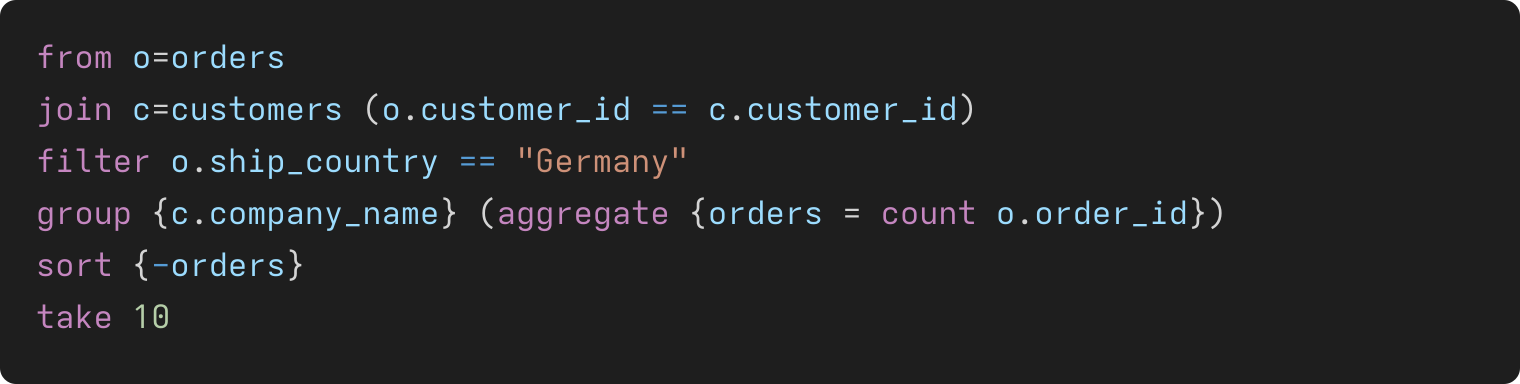
from a table, join with an explicit condition (alias both sides),
filter rows, derive a column, group then aggregate, sort with -
for descending, take a count or a range like 10..20, select the output
columns. Strings use double quotes.
Results. Ctrl+C copies the selected cells or rows. Export CSV and
Copy as JSON are in the grid toolbar.
Configuration
Modify User or Workspace Settings
to change dbw's defaults globally or for one project.
dbw Settings
| Setting |
Description |
dbw.selectTopLimit |
Rows that Select Top Rows asks for. Defaults to 100. |
dbw.maxRowsShown |
Rows kept per result set in the grid. Defaults to 10000. |
dbw.history.limit |
How many queries to remember. Defaults to 200. |
dbw.connections |
Saved connections. Passwords are kept in secret storage, not here. |
dbw.driverModules |
Extra database drivers to load: absolute paths to modules whose default export is a driver. |
Not Yet
Query cancellation, editing rows in the grid, and DDL helpers are not part
of this release.
Developing the Extension
Clone the repository and install dependencies:
git clone https://github.com/sajonaro/dbw.git
cd dbw && npm install
Build once with npm run build, or keep it building with npm run watch.
Open packages/extension in VS Code and press F5 to launch an Extension
Development Host.
Adding a database is a new package: see CONTRIBUTING.md, and
ARCHITECTURE.md for how the parts fit.
Bugs and requests: github.com/sajonaro/dbw/issues.
| |

