
Plain Sight ReaderRead PDF and EPUB e-books inside VS Code, disguised as code, docs, or logs. Installation Launch VS Code Quick Open ( Ctrl+P), paste the following command, and press enter.Copied to clipboard |

Plain Sight Reader
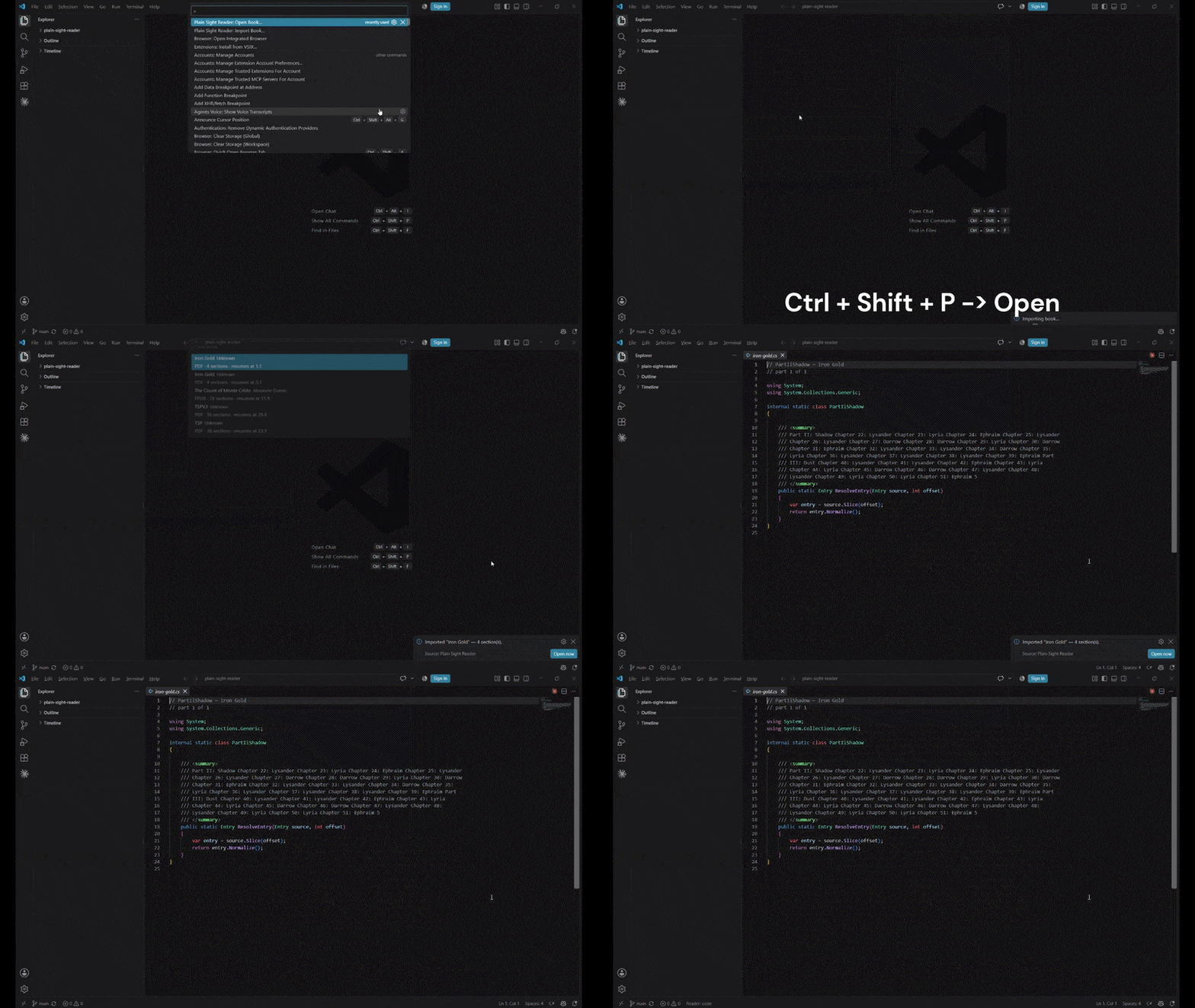
Plain Sight Reader is a Visual Studio Code extension for people who want to read a book in their development environment without it looking like they are reading a book. Import an e‑book, and its text appears in a normal editor tab — as commented source code (in the language of your choice), as a Markdown document, or as a stream of timestamped log lines. Page through it with the keyboard, jump between chapters, and hit a panic key to close it instantly. It is a focused, offline, no‑telemetry e‑book reader for developers — a discreet way to read novels, non‑fiction, RFCs, documentation, or long‑form articles during downtime, commutes on a remote box, or a slow CI run.
Table of contents
Why use it
Typical uses: reading a novel on a break, getting through a technical book a page at a time, reviewing a long PDF spec, or catching up on saved long‑form articles exported to EPUB. Features
Requirements
No other runtime dependencies — the extension is bundled into a single file. InstallationFrom the VS Code Marketplace (recommended)
From a
|





| Command | ID | Description |
|---|---|---|
| Import Book… | plainSightReader.importBook |
Pick a .pdf / .epub and add it to your library |
| Open Book… | plainSightReader.openBook |
Choose a book and start (or resume) reading |
| Go to Section… | plainSightReader.goToChapter |
Jump to a section via quick pick |
| Remove Book… | plainSightReader.removeBook |
Delete a book and its saved position |
| Next Page | plainSightReader.nextPage |
Turn forward (wraps into the next section) |
| Previous Page | plainSightReader.prevPage |
Turn back (wraps into the previous section) |
| Next Section | plainSightReader.nextChapter |
Go to the start of the next section |
| Previous Section | plainSightReader.prevChapter |
Go to the start of the previous section |
| Cycle Disguise Mode | plainSightReader.cycleDisguise |
Rotate code → markdown → log |
| Panic (Close Reader) | plainSightReader.panic |
Close the reader tab immediately |
Keyboard shortcuts
| Keys | Action | Active when |
|---|---|---|
| Ctrl+Alt+. | Next page | reader tab focused |
| Ctrl+Alt+, | Previous page | reader tab focused |
| Ctrl+Alt+Shift+. | Next section | reader tab focused |
| Ctrl+Alt+Shift+, | Previous section | reader tab focused |
| Ctrl+Alt+M | Cycle disguise mode | reader tab focused |
| Ctrl+Alt+Q | Panic — close reader | always |
Rebind any of these in Preferences: Open Keyboard Shortcuts (search for plainSightReader). On macOS, substitute Cmd where appropriate via your own bindings.
Settings
Open Settings (Ctrl+,) and search for Plain Sight Reader, or edit settings.json.
| Setting | Type | Default | Description |
|---|---|---|---|
plainSightReader.disguiseMode |
code | markdown | log |
code |
How book text is displayed. |
plainSightReader.codeLanguage |
string | typescript |
Language for the code disguise: typescript, javascript, csharp, java, go, rust, ruby, python. |
plainSightReader.charsPerPage |
number | 1600 |
Approximate characters per page. Lower = more frequent page turns. |
plainSightReader.wrapColumn |
number | 100 |
Line‑wrap width for the code disguise. |
plainSightReader.showStatusBar |
boolean | false |
Show a subtle reading‑progress indicator in the status bar. |
plainSightReader.panicCommand |
string | "" |
Optional command ID to run after the panic key closes the reader tab (e.g. workbench.action.quickOpen). |
Changes apply live — the open reader re‑renders and keeps your place.
// settings.json
{
  "plainSightReader.disguiseMode": "code",
  "plainSightReader.codeLanguage": "csharp",
  "plainSightReader.charsPerPage": 1400,
  "plainSightReader.showStatusBar": false
}
How it works
import  ─▶  parse (pdf-parse / jszip + node-html-parser)
        ─▶  extract text, split into sections
        ─▶  store as JSON in the extension's global storage
                                   │
open    ─▶  load JSON ─▶ paginate ─▶ render through the active disguise
        ─▶  show as a read-only virtual document (custom `psr:` URI scheme)

navigate ─▶ each page turn re-renders and saves { section, page } to your library
- Parsing. PDFs go through
pdf-parsepage by page; chapter headings ("Chapter 3", "Part II", …) are detected where present, otherwise pages are grouped in blocks. EPUBs are unzipped withjszip; the OPF spine is read for order and metadata, and each XHTML document is converted to text. - Storage. Book text is written as a JSON file under VS Code's per‑extension global storage; the library index and per‑book reading position live in
globalState. Uninstalling and reinstalling keeps your library (it is keyed by extension ID, not bundled in the.vsix). - Rendering. The reader is a read‑only virtual document. It cannot be edited or accidentally saved, and it never touches your workspace files.
Privacy
Plain Sight Reader is fully local:
- No network requests. Nothing is uploaded, checked, or phoned home.
- No telemetry or analytics.
- No accounts.
- Your books and reading positions never leave your machine.
Supported formats
| Format | Support | Notes |
|---|---|---|
EPUB (.epub) |
✅ EPUB 2 & 3 | Spine order and metadata (title, author) are read from the OPF. Footnotes, tables, and complex layouts are flattened to text. |
PDF (.pdf) |
✅ text‑based PDFs | Text is extracted per page. Scanned / image‑only PDFs have no text layer and cannot be read (no OCR). Multi‑column and heavily designed layouts may extract imperfectly. |
| MOBI / AZW3 | ❌ | Convert to EPUB first (e.g. with Calibre). |
FAQ
Is this a way to read books at work without anyone noticing?
That is the design goal. In code or log mode a passing glance reads as ordinary editor content. It is not invisible to someone who stops and reads your screen.
Can I read novels, not just technical books? Yes. Any text‑based EPUB or PDF works — fiction, non‑fiction, articles, specs.
Does it work over SSH / in a remote or container workspace? It runs wherever the extension host runs. Import and library storage happen on that host.
Will my place be saved if I close VS Code? Yes. Position is saved on every page turn and restored when you reopen the book.
Does it change or create files in my project? No. The reader is a read‑only virtual document; book data is kept in the extension's private global storage.
Why is a VS Code extension written in TypeScript and not C#?
VS Code's extension host only runs JavaScript/TypeScript. You can still display the book as C# (or Go, Rust, Python, …) via plainSightReader.codeLanguage.
Can I sync my library across machines?
Not automatically. Copy the same .vsix to each machine and re‑import, or copy the extension's global storage folder manually.
Is it on the VS Code Marketplace?
Yes — search "Plain Sight Reader" in the Extensions view, or install saad-works.plain-sight-reader. A .vsix is also attached to each GitHub release.
Troubleshooting
"No selectable text found in this PDF."
The PDF is a scanned image with no text layer. Run it through OCR (e.g. Calibre, ocrmypdf) or find a text‑based copy.
The code disguise still looks like a wall of comments with an empty class.
You are running an older build. Uninstall the extension, Developer: Reload Window, install the current .vsix, and reload again. If a second VS Code window (or an F5 dev host) is open, it may be running the old build.
Page‑turn shortcuts do nothing.
They only fire while the reader tab is focused (when: plainSightReader.active). Click the tab first, or use the Command Palette.
Sections are just "Pages 1–8", "Pages 9–16", … No chapter headings were detected in the PDF, so pages were grouped in fixed blocks. This is expected for many PDFs.
Limitations
- No OCR — scanned PDFs are not supported.
- PDF chapter detection is heuristic; results vary by document.
- Text extraction favours readability over exact layout; footnotes, endnotes, tables, and multi‑column pages may be reflowed or reordered.
- Images, figures, and formatting (bold/italic, links) are dropped.
- Library sync across machines is manual.
Roadmap
- [ ] Quick‑pick command to switch code language without opening Settings
- [ ] Configurable panic behaviour (switch tab vs. close vs. run command)
- [ ] Per‑book disguise/language overrides
- [ ] Adjustable "words per page" and font‑size‑aware pagination
- [ ] Better PDF structure detection (table of contents / outline)
- [ ] Publish to Open VSX (Cursor / VSCodium / Gitpod)
Suggestions welcome — open an issue.
Contributing
npm install
npm run watch      # incremental bundle
npm run typecheck  # tsc --noEmit
Press F5 to launch the Extension Development Host. Project layout:
src/
  extension.ts              activation + command wiring
  library.ts               library index + book storage + reading position
  importer/
    index.ts               dispatch by file type
    pdf.ts                  PDF text extraction + section heuristics
    epub.ts                 EPUB unzip + OPF spine + XHTML → text
    types.ts
  reader/
    pagination.ts           split section text into pages
    disguise.ts             code / markdown / log renderers
    readerController.ts      session state + virtual document + navigation
  util/html.ts             XHTML → plain text
Please keep changes focused and run npm run typecheck before opening a PR.
If this saved you from a boring CI wait, a ⭐ star on GitHub helps a lot.
License
MIT © 2026 saad-works